
User access
Manage super users and the admin for your organisation: invite, promote, and remove access.
A super user can access every business in your organisation. One super user is the admin, who manages the others. This guide covers managing that access.
Who this is for
Owners and managers using the Shiftly web platform. Adding, promoting, or removing super users is admin-only.
Before you start
- Open the account menu → Account management → Super users.
The access table
Each person is listed with their name, email, and access level: Admin, Super user, or Pending (invited but not yet accepted). The admin appears first.
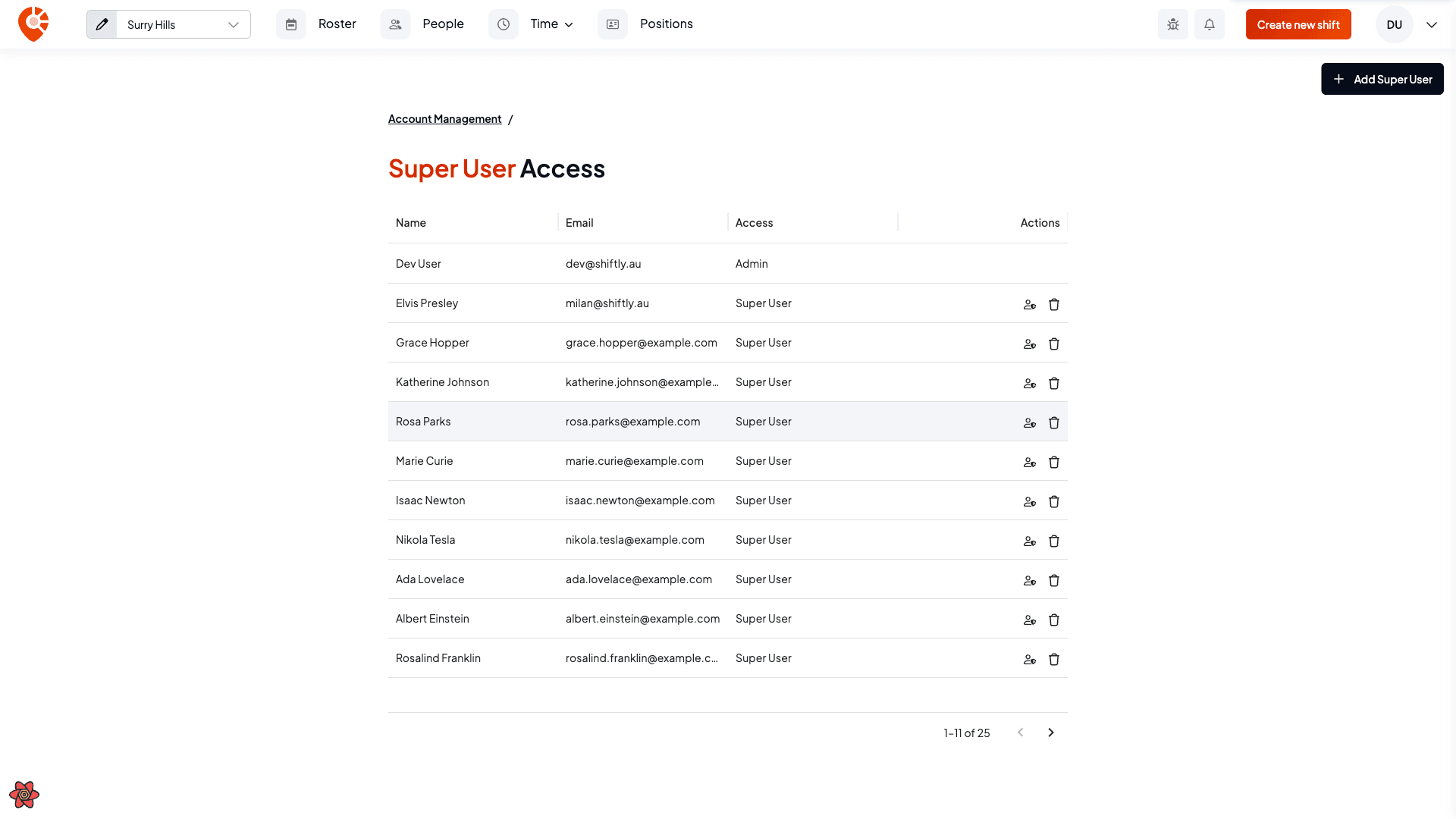
Invite a super user
Select Add super user, enter their first name, last name, and email, and select Send invite. They get an email to set up access. Super users can reach all of your businesses, so only invite people you trust.
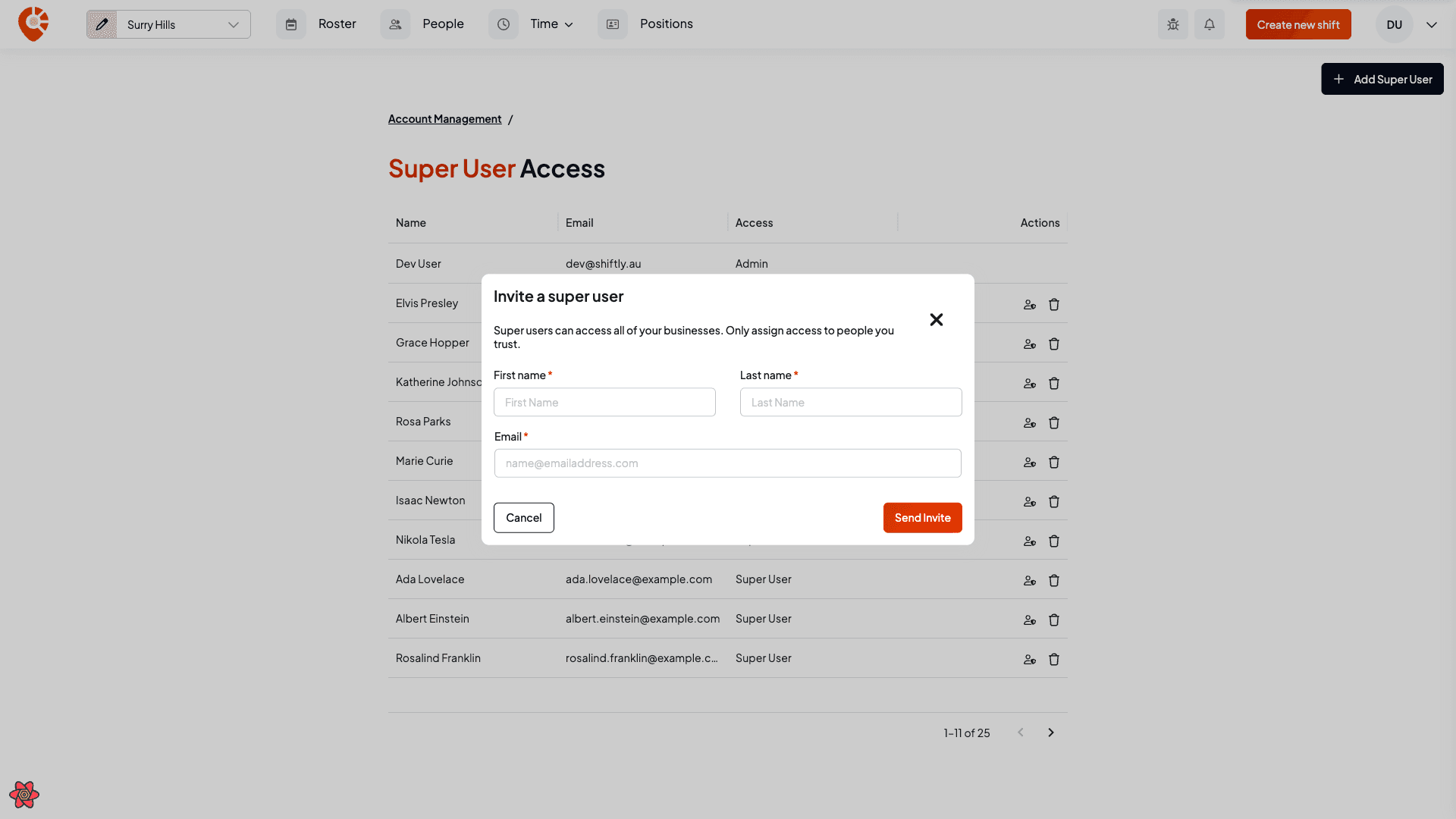
Promote or remove access (admin only)
- Make admin: hand the admin role to another super user (you'll be asked to confirm). There's one admin at a time.
- Delete: remove a super user (confirm with Remove access); they can no longer log in. The admin can't be removed.
Super users are different from per-business managers. A manager is given access to specific locations of one business. See Inviting managers. A super user has access across the whole organisation.