
Creating your account
Sign up for Shiftly with your email or a Google or Xero account, set a password, and verify your email.
Setting up Shiftly starts with creating your account on the Shiftly web platform. You can sign up with an email and password, or use your Google or Xero account.
Who this is for
New owners and managers setting up Shiftly on the web. Sign-up is designed for a desktop or laptop browser.
Before you start
- Go to the Shiftly web platform and open the sign-up page (it's the first screen; if you're on the login page, select Create an account).
- Have your business email and mobile number handy.
Sign up with your email
Enter your details
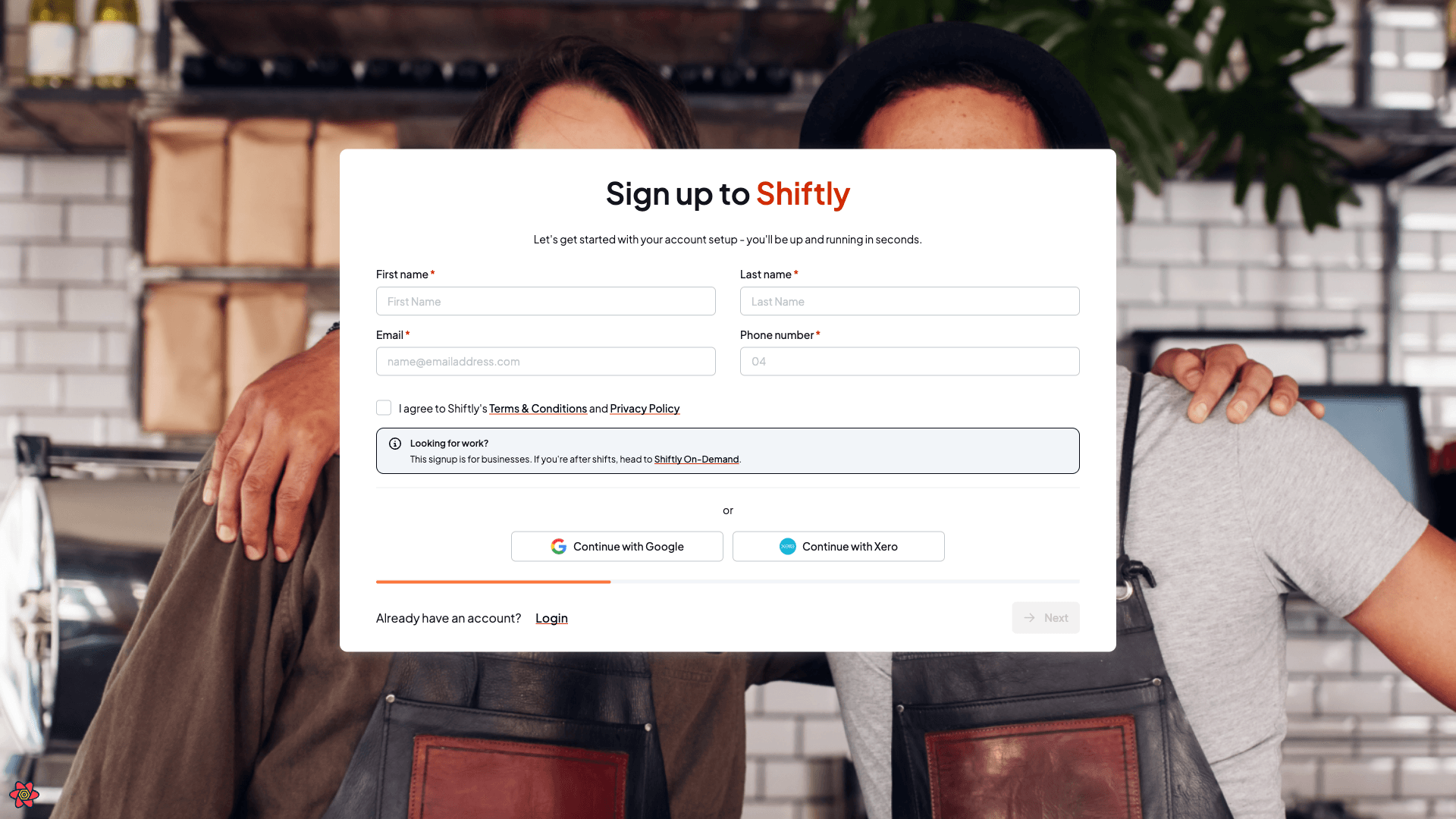
Fill in your first name, last name, email and phone number, then tick to agree to Shiftly's Terms & Conditions and Privacy Policy. The Next button stays disabled until you've accepted them.
Set a password
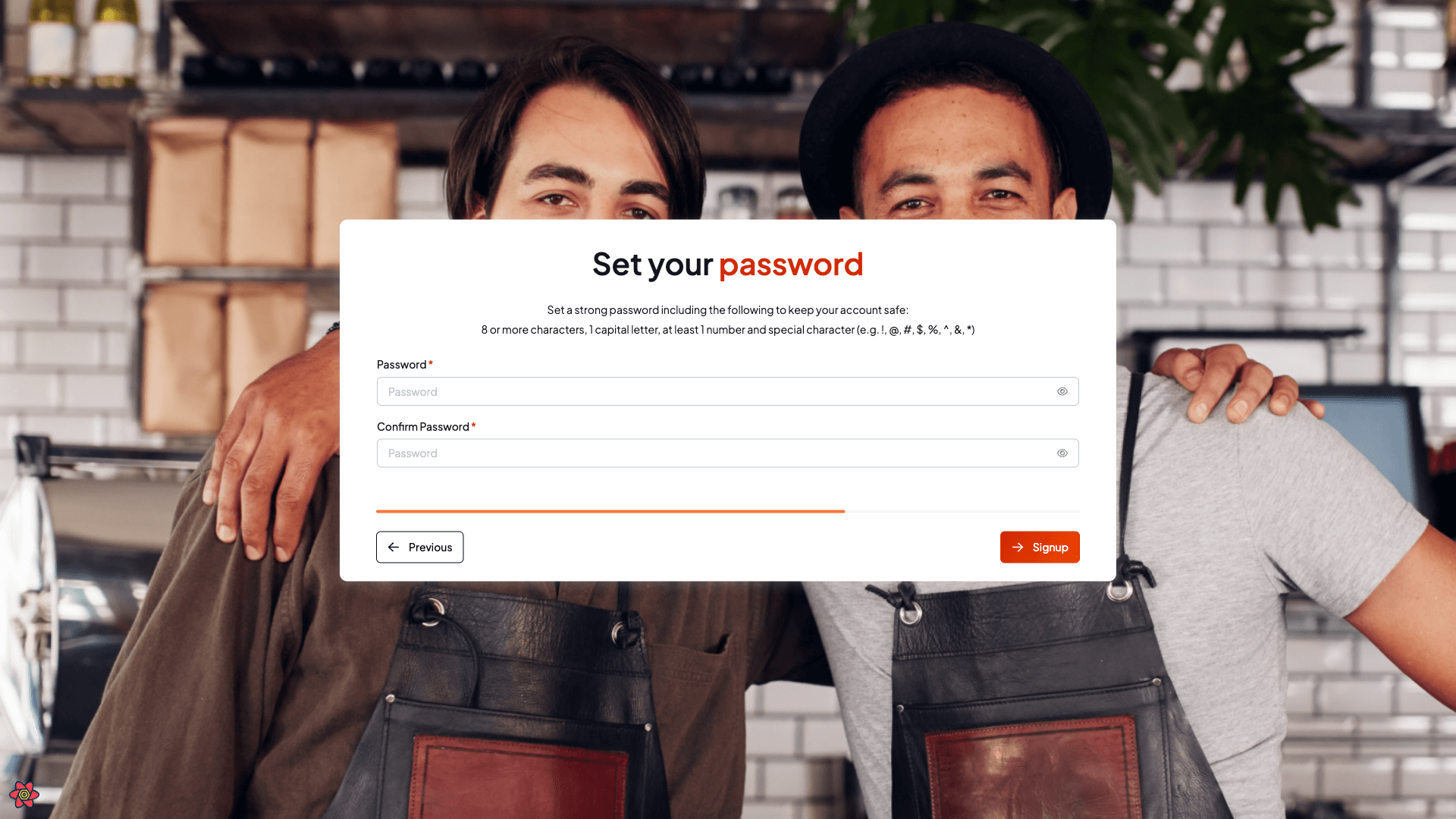
Choose a strong password: 8 or more characters, with at least 1 capital letter, 1 number and 1 special character (such as ! @ # $ % ^ & *). Re-enter it to confirm (the two must match), then select Signup.
Verify your email
Shiftly emails you a verification link. Open it and your email is confirmed: you'll see "Your email has been verified!" with a Get started button. (Open it on a desktop or tablet. If you follow the link on a phone, Shiftly asks you to continue on a larger screen.)
Sign up with Google or Xero
Prefer not to set a password? On the first step, select Continue with Google or Continue with Xero and authorise Shiftly with that account. You'll come straight back signed in: no separate password to remember.
Shiftly matches your Google or Xero account to your Shiftly account by email address. This has two effects worth knowing:
- You won't get a password. Signing up this way doesn't set a password on your account: you sign in with the same Continue with Google or Continue with Xero button each time. If you later want a password as well, see adding a password to a Google or Xero account.
- An existing account just signs you in. If an account already exists for that email, selecting Continue with Google or Continue with Xero on the sign-up page doesn't create a duplicate or show an error. It simply logs you in. (If you instead try to sign up again with an email and password that's already registered, Shiftly tells you the email already exists and to log in.)
Signing up from an invite
If someone invited you (to share access to their business, for example), open the link in your invitation email. Sign-up opens with your name and email already filled in and your account pre-linked to their business: just set a password to finish.
Related
Which Shiftly app do I need?
Shiftly is a family of apps. The web platform is for owners and managers, Shiftly Me is for staff, Shiftly Kiosk turns a tablet at your venue into a clock-in point, and Shiftly Go and OnDemand are coming soon. This explains what each one is and who it's for.
Logging in
Sign in to the Shiftly web platform with your email and password, Google or Xero, and reset a forgotten password.