
Set up your business
Create your business in Shiftly, start from scratch or with sample data, and choose the awards that cover your team.
Every Shiftly account starts with a business. This guide walks through creating one: a short two-step setup that asks for your business details and the awards that cover your staff, and lets you start with sample data so you can look around before adding your own team.
Who this is for
Owners and managers setting up on the Shiftly web platform.
Before you start
- Have your business address to hand, including a street number, and know which award covers your team.
- Business setup starts from the All Businesses page. You land there after you sign up, and you can get back to it any time from the account menu (your initials, top right) by choosing Swap Businesses.
Create a business
Open the setup
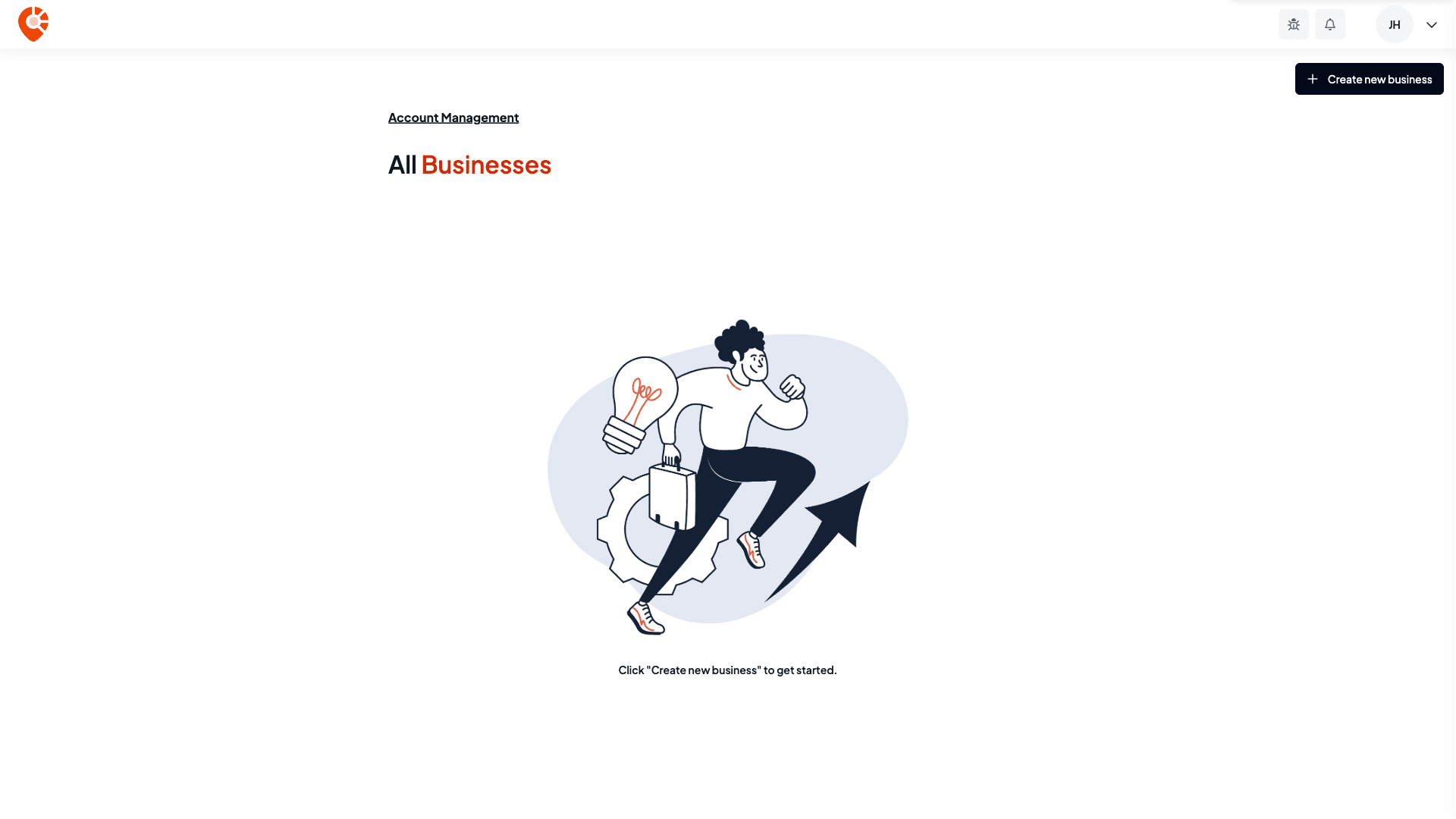
On All Businesses, select Create new business at the top right. On a laptop or desktop screen, the setup also opens by itself when you don't have a business yet, so you'll usually see it straight after you sign up.
Enter your business details
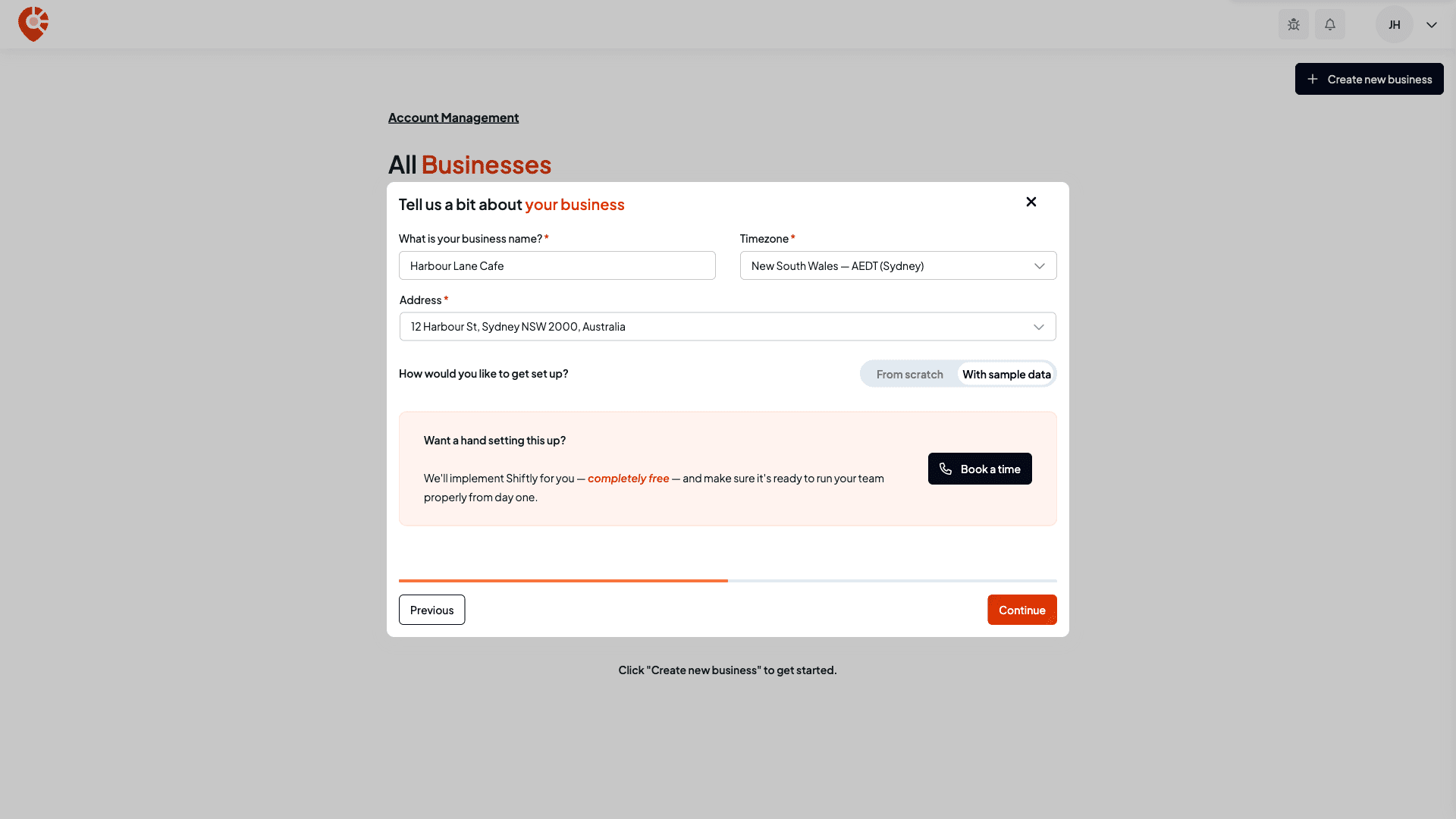
Under What is your business name?, type the name of your business. Check the Timezone. It starts as your computer's timezone, so change it if your business runs somewhere else.
In Address, start typing and pick your address from the list. Choose one that includes a street number, because an address without one isn't accepted.
Choose from scratch or with sample data
Under How would you like to get set up?, choose:
- From scratch to start with an empty business.
- With sample data to start with a week of example shifts, so you can see how the roster works before you add your real team.
Then select Continue.
The Want a hand setting this up? panel lets you book a free call with the Shiftly team, who can set Shiftly up for you. Booking a call doesn't change anything in your setup.
Choose the awards that cover your team
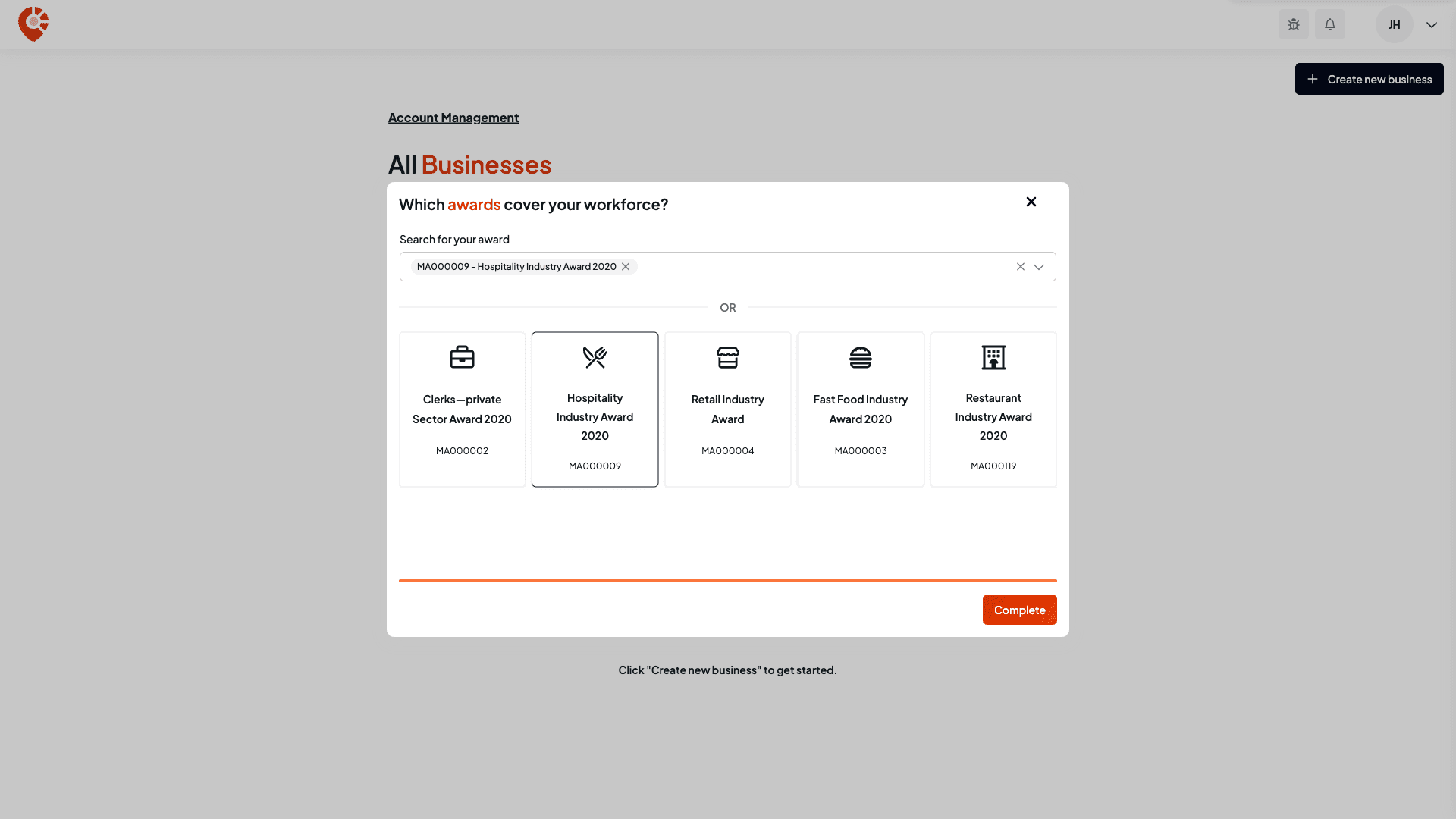
Pick the award your staff are employed under. Five common awards are shown as cards: Clerks (MA000002), Hospitality (MA000009), Retail (MA000004), Fast Food (MA000003) and Restaurant (MA000119). For any other award, search by name or code in Search for your award. You can choose more than one award if different staff are covered by different awards.
Select Complete to create the business.
Supported and other awards
The award you choose decides how much of your pay Shiftly can work out for you:
- Supported awards have their award rules built into Shiftly. They're the five shown as cards, plus the Seafood Processing Award (MA000068) and the Broadcasting, Recorded Entertainment and Cinemas Award (MA000091), which you find through search during setup. Shiftly works out award rates, penalty rates, overtime and allowances as you roster and approve timesheets.
- Any other award you find through search isn't built in yet. Shiftly can't classify your staff automatically, so you set each employee's base hourly rate yourself, and Shiftly doesn't add award penalty rates, loadings or allowances on top. You can add your own penalties and allowances under pay rules.
You can change or add awards later. See Change your business name, ABN or award.
What happens next
When you select Complete, Shiftly creates the business and its first location, which uses your business name, address and timezone. You're then taken to the roster.
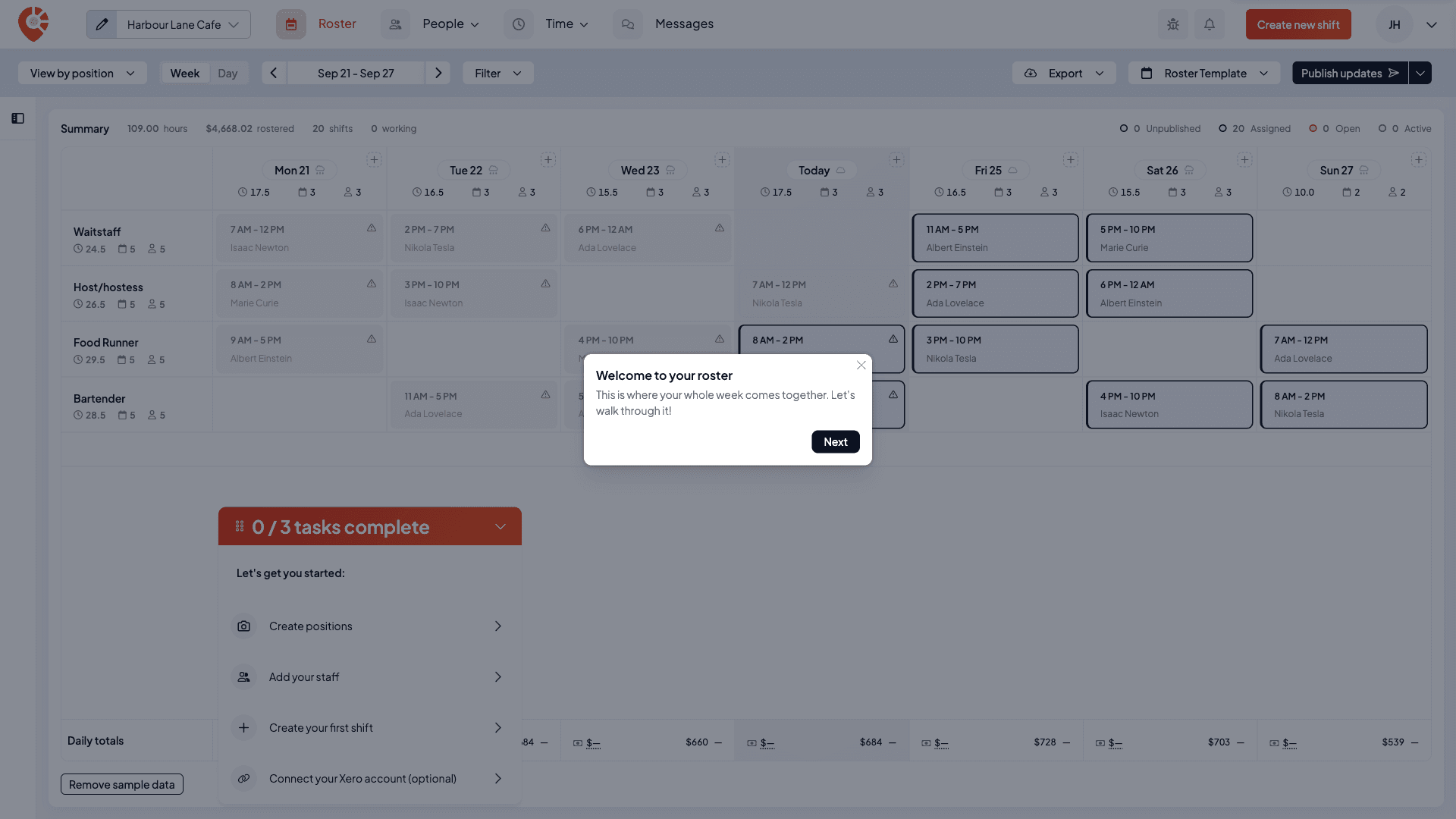
On the roster, a Let's get you started checklist takes you through three steps: Create positions, Add your staff and Create your first shift. It also offers Connect your Xero account (optional), which doesn't count towards the three. The checklist stays on the roster until those steps are done.
If you chose With sample data, the roster also shows this week's sample shifts for a handful of example staff and positions, and a short tour of the roster starts. Sample records don't count towards the checklist.
Remove the sample data
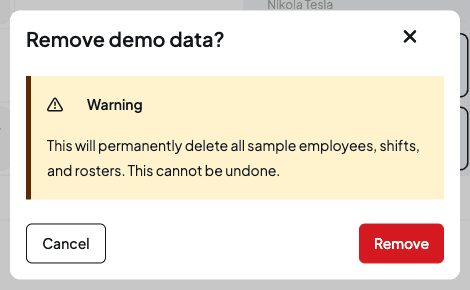
When you're ready to add your real team, select Remove sample data at the bottom left of the roster. The confirmation calls it demo data and mentions employees, shifts and rosters. Select Remove to go ahead. This deletes the sample staff, shifts and rosters, and also the sample positions and sample job, and can't be undone. Everything you've added yourself stays, except any shifts you added to one of the sample positions, which are removed with it.
One business or several? Businesses and locations
If you run more than one venue, decide whether to add them as locations under one business or as separate businesses. For most operators the answer is locations. Here's how to choose.
What a business is
A business is the top level. It holds the things that apply to your whole operation:
- The awards your staff are employed under, and the classifications that come from them.
- Your Xero connection, if you use one.
So everything under one business shares the same awards and one Xero organisation.
What a location is
A location is a place your team works, inside a business. Each location has its own:
- Address and timezone.
- Clock-in boundary (the area staff can clock in and out from).
- Default shift times and opening days.
- Public holidays (based on its state).
- Employee app settings, such as pay visibility, break tracking and shift swapping.
Staff are added to a location, shifts are rostered at a location, and positions belong to a location. To add another venue, see Locations.
Which should you use?
Start with locations. A separate business means a separate Xero connection, and staff and positions that don't carry across, so only create a new business when you genuinely need to keep a venue apart.
Add venues as separate locations under one business when they:
- Are covered by the same awards.
- Should share one Xero connection.
- Share staff, or you simply want to manage them together.
This fits most multi-venue operators: a second café, a new store, or another site.
Set up a separate business only when a venue needs its own Xero organisation or is a separate legal entity.
A note on positions
Positions live at the location level, not the business. When you add a role such as Barista, you add it to the location that needs it, and you can set up the same role at each location. The classification each position maps to comes from the business's awards, so positions at all your locations follow the same award rules. Splitting venues into separate businesses means setting up positions, and adding staff, again in each one.
How it fits together
- Business: awards and Xero. One per legal entity or Xero organisation.
- Location: address, timezone, clock-in boundary, shift defaults, public holidays and employee app settings. One per physical venue.
- Position: a role you roster, created at a location and linked to one of the business's awards.