
Manage your notifications
Read the notification bell, understand what each alert means, and choose which ones you get.
The bell in the top bar is your activity feed. Open shift requests, availability clashes, onboarding progress, payroll updates and account alerts all land here. This guide covers reading them and choosing which ones you receive.
Who this is for
Owners and managers using the Shiftly web platform. Notifications appear in-app (the bell) and by email.
Read your notifications
Open the bell
Select the bell in the top bar. A number on the bell is your unread count. The panel slides in with an Unread section, then a Read section below it. Each notification shows its title, the start of its message, and when it arrived: a time for today, or a date for anything older. When there's nothing waiting, it says You're all caught up!
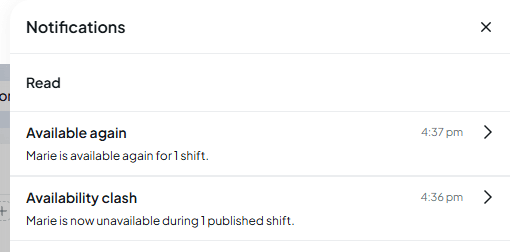
Open one for detail
Select a notification to see the whole message and the details behind it. For example, Availability clash shows the staff member's availability rule and the published shifts it affects. The buttons at the bottom let you close it or go straight to the right place, such as View availability or View roster. Use the back arrow at the top to return to the list.
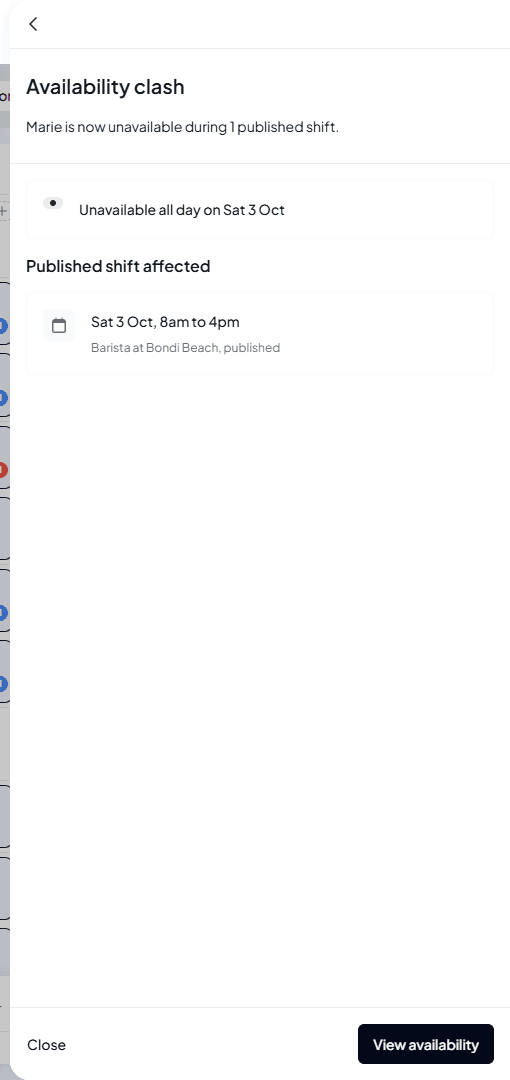
Closing marks them read
Closing the panel marks your unread notifications as read and clears the bell count. They move to the Read section, where you can still find them.
What you'll be notified about
Notifications cover the things that need your attention across the business, including:
- Roster: a staff member asking to work an open shift, a shift swap being accepted, and a staff member's availability clashing with a published shift, or freeing them up again (see below).
- Team: onboarding complete or failed, a staff member submitting leave, and pay rate changes, such as a junior moving up an age bracket or a rate that needs a check.
- Payroll: the result of posting timesheets to your payroll provider, the result of importing staff from it, your payroll provider needing to be reconnected, and leave balances to review after disconnecting Xero.
- Account: payment failures, business suspension, and your accountant finishing setting up Xero.
When staff change their availability
Staff set their availability in Shiftly Me. You only hear about a change when it affects shifts on the roster:
- Availability clash: the change makes them unavailable during a published shift they're rostered on, for example Marie is now unavailable during 1 published shift. Open it to see the rule, any comment they left, and each shift under Published shift affected. They stay on those shifts until you change the roster, for example by finding cover. View availability opens their profile at Availability.
- Available again: the change means they can now work a published shift they're on, or a published open shift at a location they work at, for example Marie is available again for 1 shift. The detail lists each shift, marked published, open shift, or now filled if someone else has since taken it. View roster takes you to the roster.
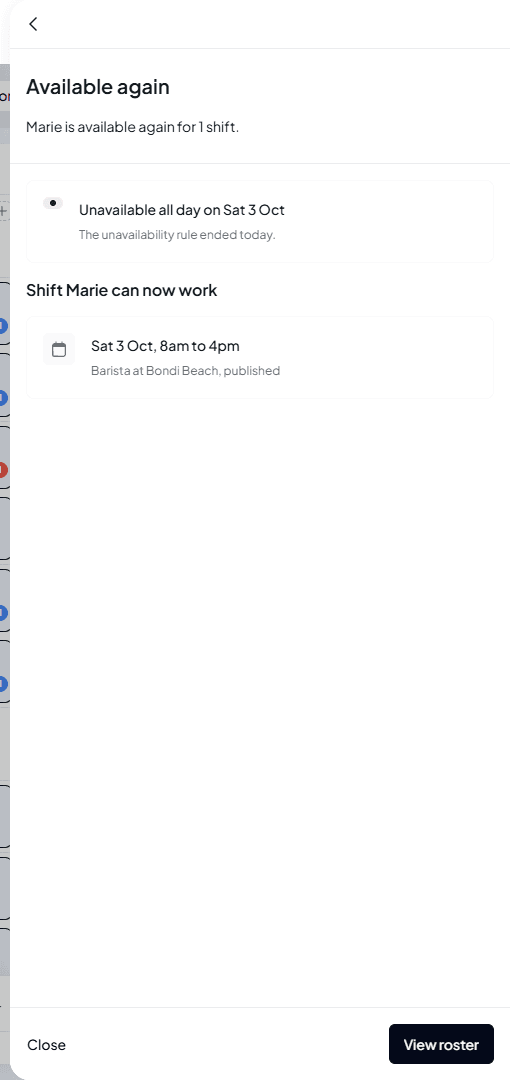
The managers of each location get the alert about that location's shifts. Shifts that aren't published yet never send one, and nor do changes made by an owner, or by a manager who can edit staff profiles. Availability alerts arrive in the bell but aren't emailed. They don't have a switch of their own in notification settings: they stop only if you turn off Enable notifications or In-app. To see how availability shows on the roster, and the setting that stops staff going unavailable over published shifts, see See availability, leave and weather on the roster.
Choose which notifications you get
Open notification settings
Open the account menu (your initials, top right), choose Account Management, then Notifications.
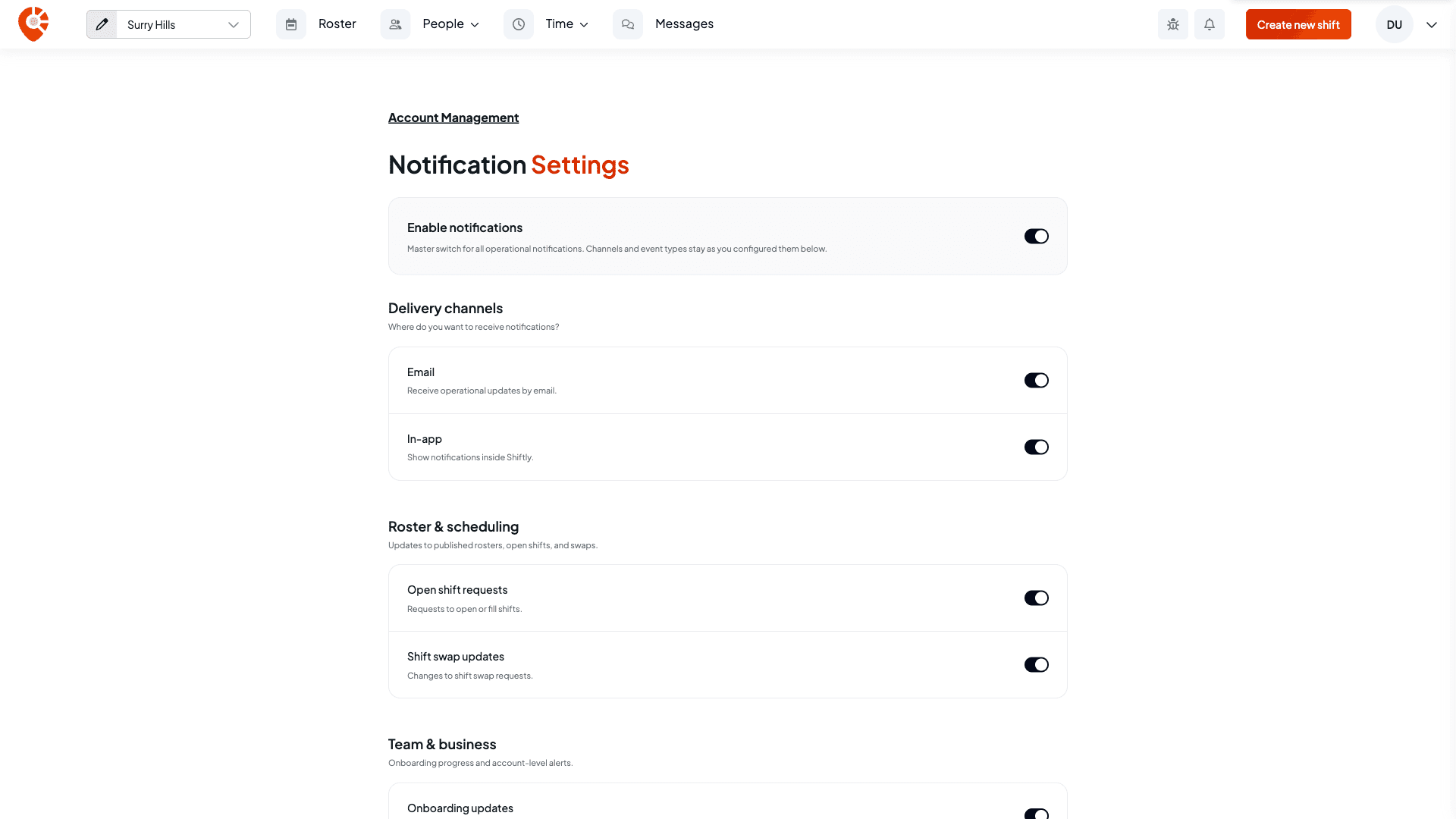
Set the master switch, channels and events
Enable notifications is the master switch. Turn it off to pause everything; your other choices are kept. Under Delivery channels, choose Email, In-app, or both.
Then turn individual event types on or off within their groups:
- Roster & scheduling: Open shift requests and Shift swap updates.
- Team & business: Onboarding updates and Business alerts (billing and integrations).
Changes save as you go.
Related
Open shifts
Where open shift requests come from, and how to fill them.
Publishing a roster
Publishing is what triggers many staff notifications.
See availability, leave and weather on the roster
Where availability clashes show on the roster, and the setting that blocks them.
Review and approve timesheets
Follow up attendance and payroll alerts in the timesheets.