
Get a shift covered
Leave a shift open for staff to pick up, find someone to cover a shift, invite your team to claim open shifts, and accept or reject their requests.
When someone can't work a shift, or you have a shift nobody's on yet, you can find cover yourself or leave it open for your team to pick up. An open shift is one with a position and time but no one assigned. This guide covers creating open shifts, finding cover for an assigned shift, inviting staff to claim open shifts, and handling their requests.
Who this is for
Owners and managers using the Shiftly web platform to run your business.
Before you start
- You're an owner or a manager who can edit the roster at the location.
- Open Roster from the main navigation and pick the location at the top left.
What an open shift looks like
On the roster an open shift reads Open shift where a person's name would be, with an orange outline. In View by staff, open shifts sit in the Open row at the top.

Create an open shift
There are three ways to end up with an open shift:
- Build it open. In the shift form, leave Worker set to Open. See Creating & editing shifts.
- Take someone off a shift. Click the name on a shift card and pick Open, "Leave this shift unassigned", at the bottom of the list.
- Use Mark as open in the Find cover window, below.
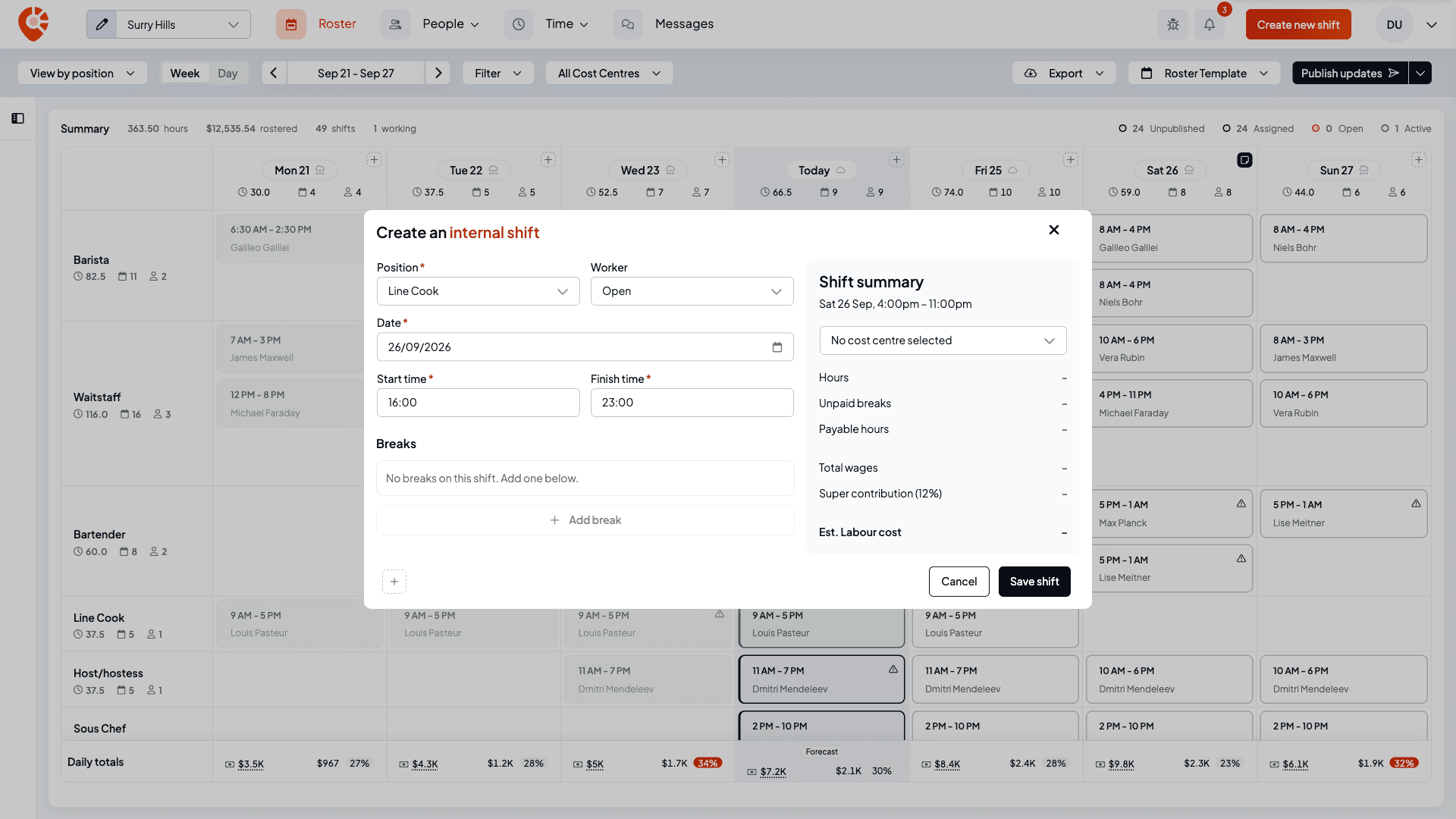
Staff only see and can ask for an open shift once it's published. A new or changed open shift is a draft, with a paler outline, until you publish it. See Publishing a roster.
Find cover for a shift
When the person on a shift can't work it, Find cover shows you who else can take it.
Open Find cover
Open the shift's menu, with the ⋮ button on the card or by right-clicking it, and choose Find cover for this shift. The option is greyed out on a shift with no one assigned.
Pick someone, or open it up
Shiftly lists the people in your business who could take the shift, each marked Available. It leaves out anyone already working a shift at that time, anyone with leave then (approved or waiting for approval), and anyone who's unavailable for any part of it, whether that's a repeating rule or a single date. If there's no one left, you'll see No one available to cover this shift.
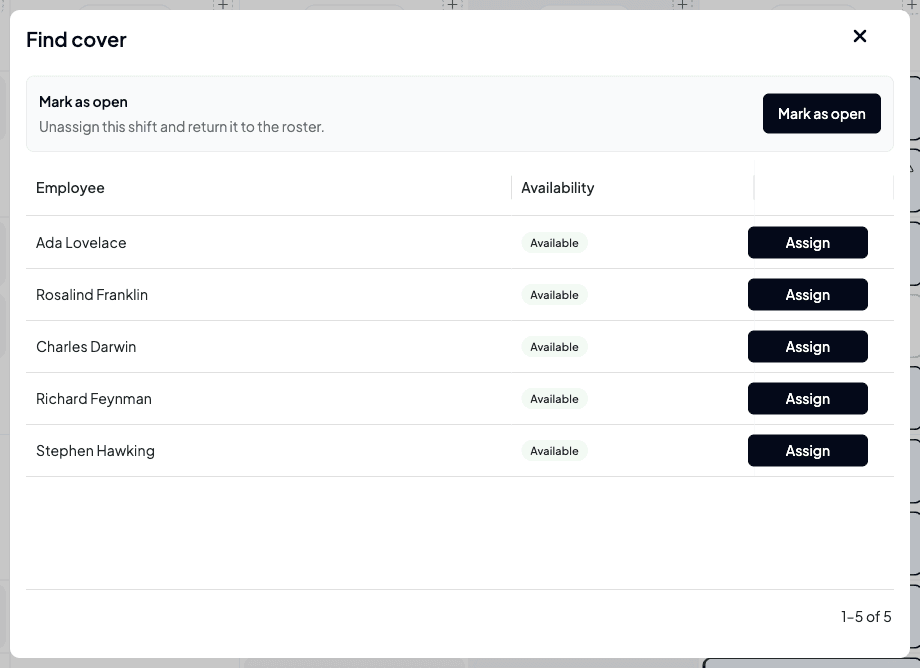
Select Assign next to a person to give them the shift, or Mark as open to take the current person off and leave it open for anyone to claim. Either way the shift becomes a draft, so publish it to let people know.
Invite staff to claim open shifts
To tell your team there are shifts going, select Publish at the top right of the roster and choose Send open shifts to staff. Step through Notify and Preview, then select Send open shifts.
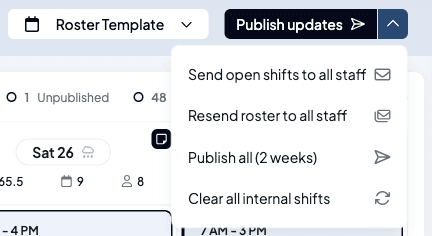
Shiftly emails everyone who works at the location a list of the open shifts on screen, leaving out any shift that clashes with one they already have or that they're unavailable for. Anyone with nothing left on their list isn't emailed. Filters apply, Day view sends only that day's open shifts, and a shift marked Empty is never sent. Preview lists the shifts that will be sent, or reads There are no open shifts to send. You'll see Open shifts sent to all staff. See Send open shifts to staff.
The publish button is only available while the week has changes to publish. The email lists every open shift on screen, published or not, but staff can only ask for published ones in Shiftly Me. So send the email, then publish the week straight away. See Publishing a roster.
Handle requests from staff
See who's asked
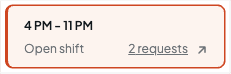
Staff ask for open shifts in the Shiftly Me app. When someone does, the managers at that location get a notification, and the shift card shows how many requests it has. The summary bar above the roster shows the total.
Review the requests
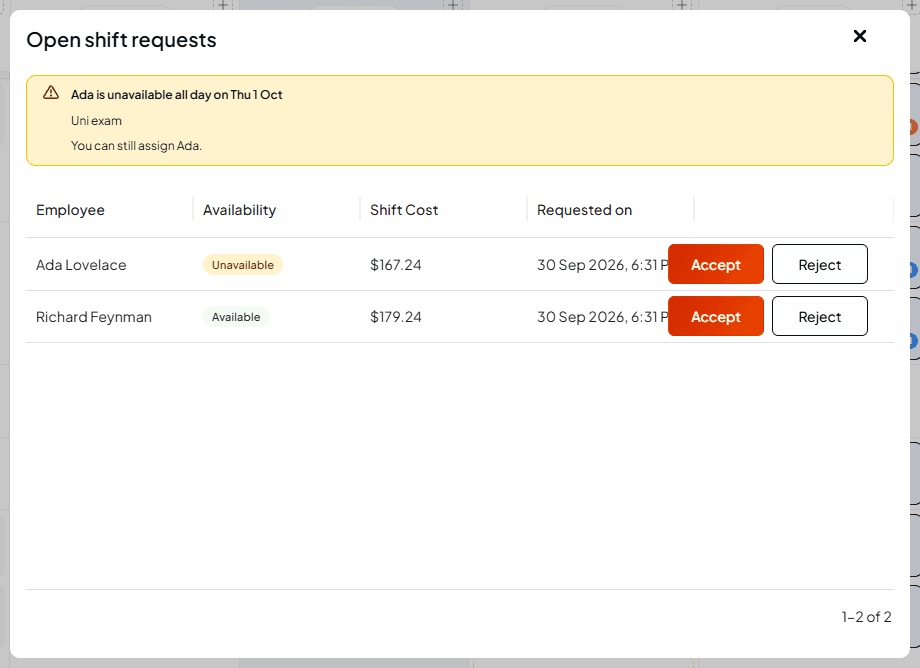
Click the requests link to open Open shift requests. It lists each person who asked, whether they're available for the shift, what the shift would cost with them on it, and when they asked.
Under Availability, each person reads Available or Unavailable. For anyone who's unavailable for some or all of the shift, a warning at the top gives their availability rule, any comment they left, and You can still assign followed by their name.
Accept or reject
- Accept gives the shift to that person and turns down everyone else who asked for it. You'll see Open shift request accepted. The shift becomes a draft assigned to them, so publish to confirm it: that's when they're notified.
- Reject turns down that request and leaves the shift open. You'll see Open shift request rejected.
Staff aren't sent a message when you accept or reject. You can accept someone who's unavailable: the warning is there so you know before you choose, and a message repeats it when you accept. Accept is only greyed out for someone who has since been given another shift at the same time. If the shift has already gone to someone else, Shiftly refuses with This shift has already been filled.
Staff can't ask for a shift that clashes with one they already have. Shiftly stops them with You already have another shift during this time. They can still see and ask for an open shift they're unavailable for: Shiftly Me marks it and tells them their manager will see the clash with their request.
Related
Creating & editing shifts
Build a shift and leave it open, or assign it later.
Publishing a roster
Publish so staff can see and claim open shifts.
Find your way around the roster
Read open shift cards, the Open row and the request count.
See availability, leave and weather on the roster
See who's free before you pick cover.
Roster templates
Save a week's shifts as a reusable template, then load it onto another week to rebuild the same schedule in seconds.
See availability, leave and weather on the roster
See when each staff member can and can't work, get warned when you roster someone who's unavailable, and see approved leave, restricted leave days and the weather as you build the roster.