
Export or print your roster
Download the week you're viewing as a spreadsheet (CSV), a printable PDF with breaks, or a calendar (ICS) file.
Need the roster outside Shiftly, to print it, work on it in a spreadsheet or add it to a calendar? The roster exports the week you're viewing in three formats.
Who this is for
Owners and managers using the Shiftly web platform to run your business.
Before you start
- Open Roster, pick the location, and move to the week you want. Every export covers the week on screen, even from the Day view.
- Exports include only the shifts you can see. Clear any filters or tag selection first if you want everything. See Find your way around the roster.
- The PDF follows your current view, so switch between View by position and View by staff before you export if it matters.
Export the week
Open the export menu
Select Export at the top right of the roster and pick a format. All three options are greyed out when the week has no shifts.
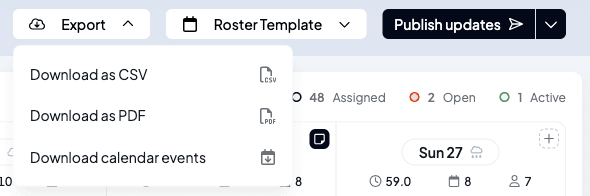
Download as CSV
A spreadsheet you can open in Excel or Google Sheets, with one row per shift in date order. The columns are:
- Date, Position, Employee, Start Time and End Time.
- Breaks: each break's times and whether it's paid, for example
10:45 – 11:15 AM (unpaid). A shift with more than one break lists them all, separated by semicolons. - Unpaid break (mins): the total unpaid break time.
- Duration (Hours): the paid hours, which is the shift length minus its unpaid breaks.
Open shifts show Open in the Employee column. The file is named with the date and location.
Download as PDF
A clean, printable roster laid out like the grid, handy for pinning up in the back of house. Each shift shows who's working it and their times, with a Break line under it for every scheduled break. Unpaid breaks are marked with an asterisk, and the footer explains it: * unpaid break. Open shifts show as Open Shift.
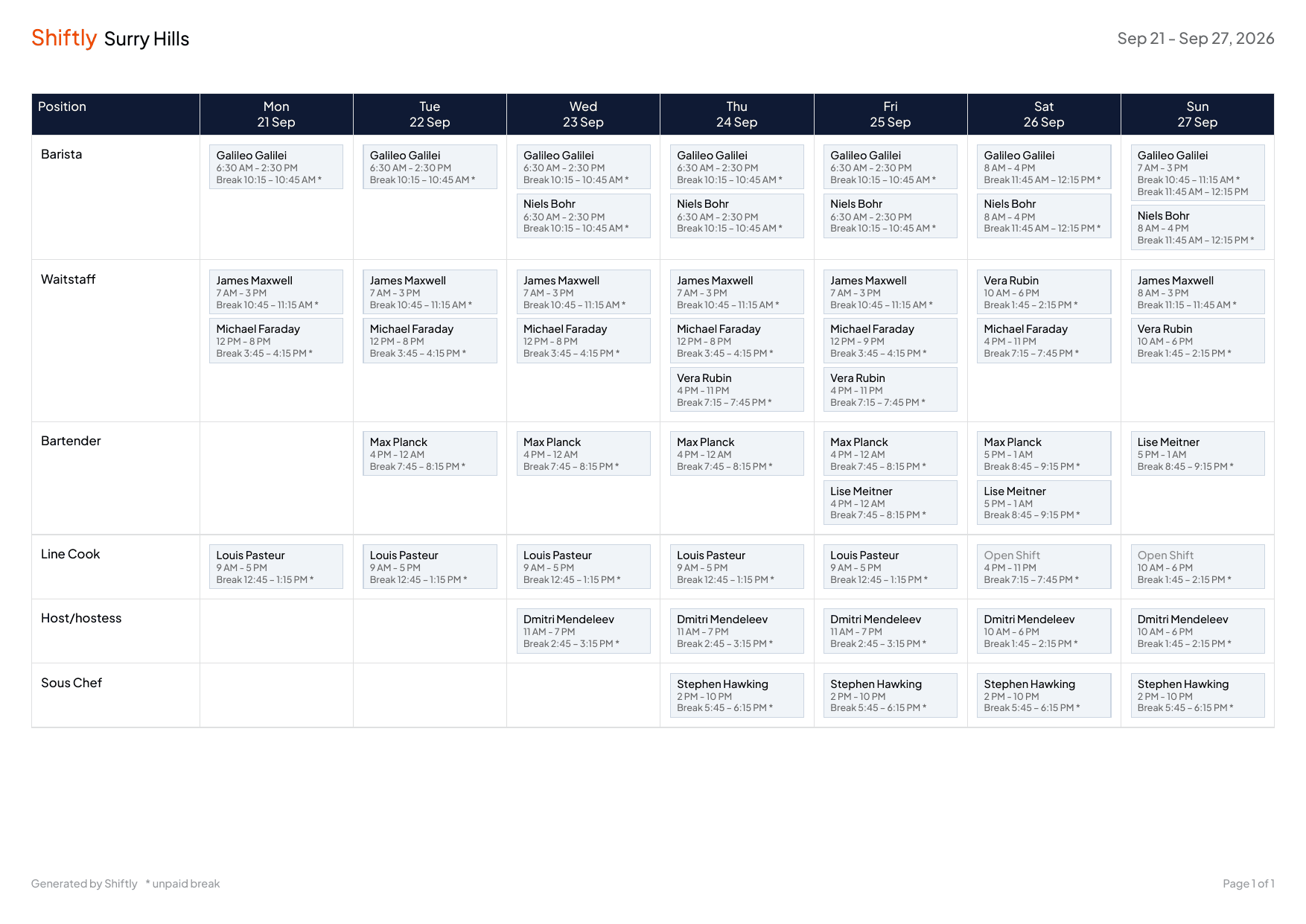
The PDF matches your current view: in View by position the rows are positions, as above, and in View by staff the rows are people. Set the view you want before you export.
Download calendar events
Download calendar events gives you an .ics file, the standard calendar format. Each shift becomes an event at its start and finish time. The events are all titled Shift and don't say who's working or in which position, so this export suits blocking out the hours in a calendar rather than reading the roster. Import it to add the week's shifts to a calendar:
- Google Calendar: Settings, then Import & export, then Import, and choose the file.
- Apple Calendar: File, then Import.
- Outlook: Add calendar, then Upload from file.
Related
See availability, leave and weather on the roster
See when each staff member can and can't work, get warned when you roster someone who's unavailable, and see approved leave, restricted leave days and the weather as you build the roster.
Time & attendance
Turn the shifts your staff work into approved, paid hours: review what they actually clocked, spot late starts and overtime, fix times, breaks and rates, then approve and send to payroll.