
Copying & repeating shifts
Copy and paste a shift into another slot, repeat it across the week, copy it as you drag, stack a second shift in a cell, and turn a shift into a timesheet.
Once one shift is set up the way you want it, you rarely need to build the next one from scratch. This guide covers the quick ways to reuse a shift: copy and paste, repeat across the week, copy while dragging, stack a second shift in a cell, and turn a shift into a timesheet. To reuse a whole week, see Roster templates.
Who this is for
Owners and managers using the Shiftly web platform to run your business.
Before you start
- You're an owner or a manager who can edit the roster at the location you're working on.
- Open Roster from the main navigation and pick the location at the top left.
- These actions all start from a shift that already exists. See Creating & editing shifts if you need to make one first.
The shift menu
Hover a shift card and select the ⋮ button at its top right, or right-click the card. The copy, paste, repeat and timesheet actions all live in this menu.
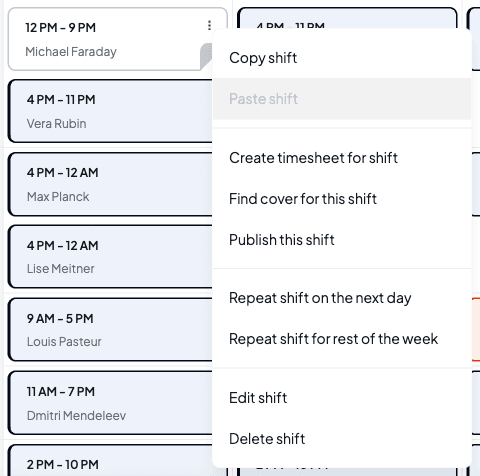
A row is greyed out when it doesn't apply. Paste shift only lights up once you've copied a shift. Create timesheet for shift needs a shift with someone assigned, and permission to edit timesheets.
Everything you paste or repeat lands as an unpublished draft, so staff aren't notified until you publish. Build them all up, then send them out together. See Publishing a roster.
Copy and paste a shift
Copy the shift
Open the shift's menu and choose Copy shift. Nothing changes on the roster yet: the shift is now on your clipboard, and you can paste it as many times as you need. It stays there as you move between weeks, and clears when you switch location.
Paste it into another slot
Right-click the cell you want the copy in and choose Paste shift. On an empty cell, that's the only option on the menu. You can also paste from the menu of a shift that's already in the cell you want.
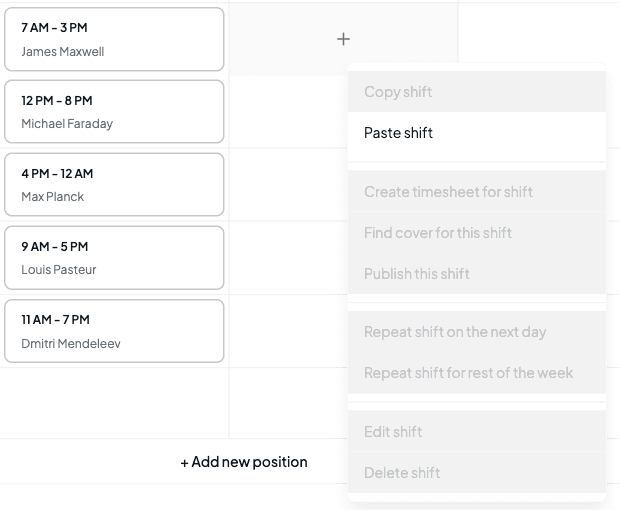
Shiftly drops in a copy with the same start time, finish time and breaks, moved to the day you pasted onto. The note, tags and other details come across too.

Who and what the copy is for follows the row you paste into. In View by position, it takes that row's position and keeps the original person. In View by staff, it goes to that row's person and keeps the original position. Paste into the Open row in staff view and the copy is left unassigned.
In the Day view, the empty timeline has no menu, so paste by opening the menu on a shift that's already there.
Repeat a shift across the week
Repeat saves you copying and pasting day by day. Open the shift's menu and choose one of:
- Repeat shift on the next day adds a copy on the following day at the same times. On the last day of the week, the copy lands in the next week.
- Repeat shift for rest of the week adds a copy on every later day of the roster week, up to the week's last day. The week starts on the day set for the location, so the last day isn't always Sunday. It only fills days after the shift you started from, never earlier ones.

Each copy is its own draft, so you can delete any one you don't want without touching the others.
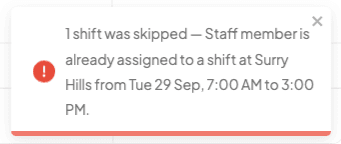
Pasting and repeating follow the same clash rules as creating a shift. If a copy would overlap a shift the person already has, at any of your locations, or fall on their approved leave, Shiftly skips that copy and tells you why, for example 1 shift was skipped — Staff member is already assigned to a shift at Surry Hills from Tue 29 Sep, 7:00 AM to 3:00 PM. When some copies work and others don't, the message starts Added 3 shifts. 1 skipped and the rest are still added.
Copy while you drag
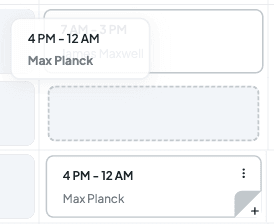
Dragging a shift to a new cell normally moves it. To leave the original where it is and drop a copy instead, hold Alt (Option on a Mac) while you drag, and keep it held as you let go over the target cell. The copy moves to the day you drop it on and is added as a draft. Dropping it back on the same cell does nothing.
Stack a second shift in a cell
A cell can hold more than one shift, such as a split across two roles or a second person in the same slot. To add one, drag toward the lower part of the last card in that cell. The cell grows and a dashed empty slot appears under the card. Let go over the slot to add a shift there instead of replacing anything.
- Drag a person from the tray onto the slot and the Create an internal shift form opens for the new shift.
- Drag an existing shift onto it and that shift moves in alongside the first.
Dropping a person from the tray onto the middle of a card replaces whoever is on it, after Replace employee? asks you to confirm. See Creating & editing shifts.
Create a timesheet from a shift
If someone worked a shift but never clocked in, you can turn the rostered shift straight into a timesheet. Open the shift's menu and choose Create timesheet for shift. Shiftly builds a timesheet with the shift's own times and breaks, and confirms with Timesheet created.
The new timesheet starts as pending, ready for you to check and approve in Review and approve timesheets. A shift can only have one timesheet: if you choose the option again, Shiftly refuses with A timesheet already exists for this shift.
Related
Creating & editing shifts
Add a shift, set its details, and move or assign it by dragging.
Roster templates
Save a whole week and load it onto another week.
Find your way around the roster
Read the week grid and act on shifts.
Publishing a roster
Send your drafts to the team once the week is ready.
Review and approve timesheets
Check, edit and approve the timesheets your shifts produce.
Creating & editing shifts
Add a shift, choose its position, worker, times and breaks, leave a note for the person working it, check the cost, and edit or delete it later.
Add a note to a roster day
Leave a note on a day of the roster, such as a booking, a delivery or a staffing reminder, for the other managers at that location.