
Creating & editing shifts
Add a shift, choose its position, worker, times and breaks, leave a note for the person working it, check the cost, and edit or delete it later.
A shift is one block of work for one position on one day. This guide covers adding a shift, filling in its details, leaving a note for the person working it, reading the cost estimate, and editing or deleting it later.
Who this is for
Owners and managers using the Shiftly web platform to run your business.
Before you start
- You're an owner or a manager who can edit the roster at the location you're working on.
- Open Roster from the main navigation and pick the location at the top left.
- You'll need at least one position set up. See Set up your positions.
Start a shift
Open the shift form
Any of these opens the Create an internal shift form:
- Create new shift in the top navigation.
- Click an empty cell in the grid. The day and position you click are filled in for you.
- Hover an empty cell and click the + that appears.
- Click the + in the bottom corner of a shift card to add another shift in the same cell.
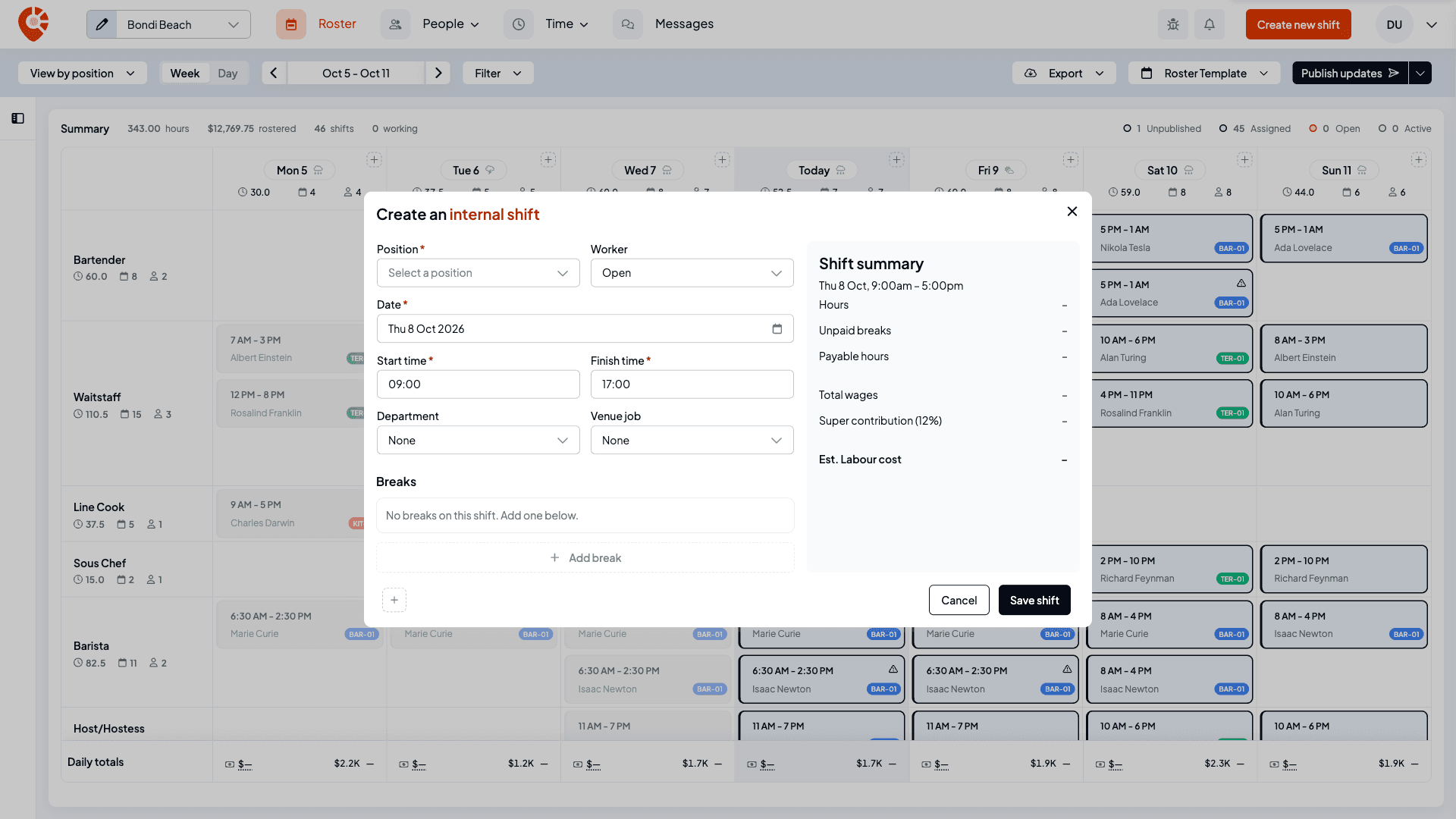
Fill in the shift
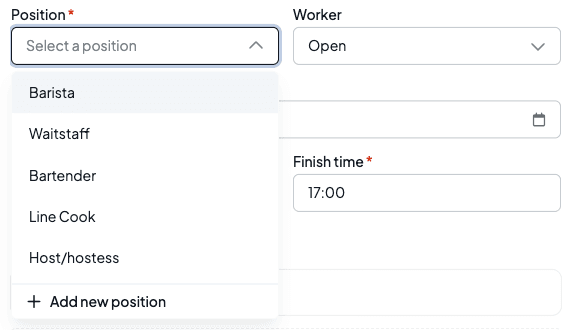
Choose the position
Pick the role under Position (required). Every shift needs a position. If the role doesn't exist yet, Add new position at the bottom of the list sets one up, but it closes the shift form, so you'll need to start the shift again afterwards. If you've already picked a worker, positions they don't hold are marked Not assigned.
Choose who's working it, or leave it open
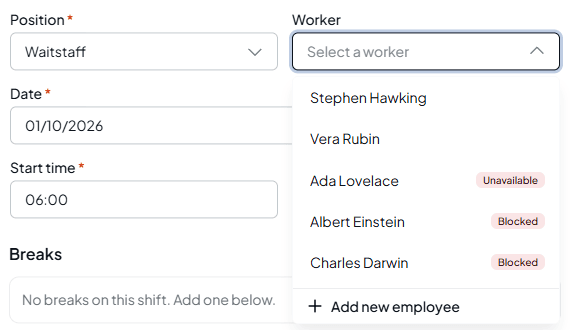
Pick a person under Worker. You can type to search. Each person is badged with anything that would get in the way of the shift:
- On leave: they have leave on that day.
- Unavailable: their availability says they can't work some or all of that time.
- Blocked: they already have a shift that overlaps this one. When the clash is at another location, the badge names it, for example Blocked · Bondi Beach.
- Not assigned: they don't hold this position.
People marked Unavailable or Blocked are listed at the bottom, so the people who can work come first.
If you pick someone who's unavailable, a warning appears under the times with their availability rule, any comment they left, and You can still assign followed by their name, for example Ada is unavailable all day on Thu 1 Oct, Uni exam and You can still assign Ada. It's only a warning: the shift still saves. See See availability, leave and weather on the roster.
Leave Worker set to Open to save the shift with no one on it. Once it's published, staff can ask to work it. See Get a shift covered. Add new employee at the bottom of the list takes you to the People page to add someone, and closes the shift form.
Set the date and times
Pick the Date, then set Start time and Finish time. Type times like 9am or 14:30, and Shiftly rounds them to the nearest 15 minutes. If the finish time is earlier than the start, Shiftly treats the shift as overnight and finishes it on the next day. A new shift starts with the location's default times for that day of the week.
Check the tags
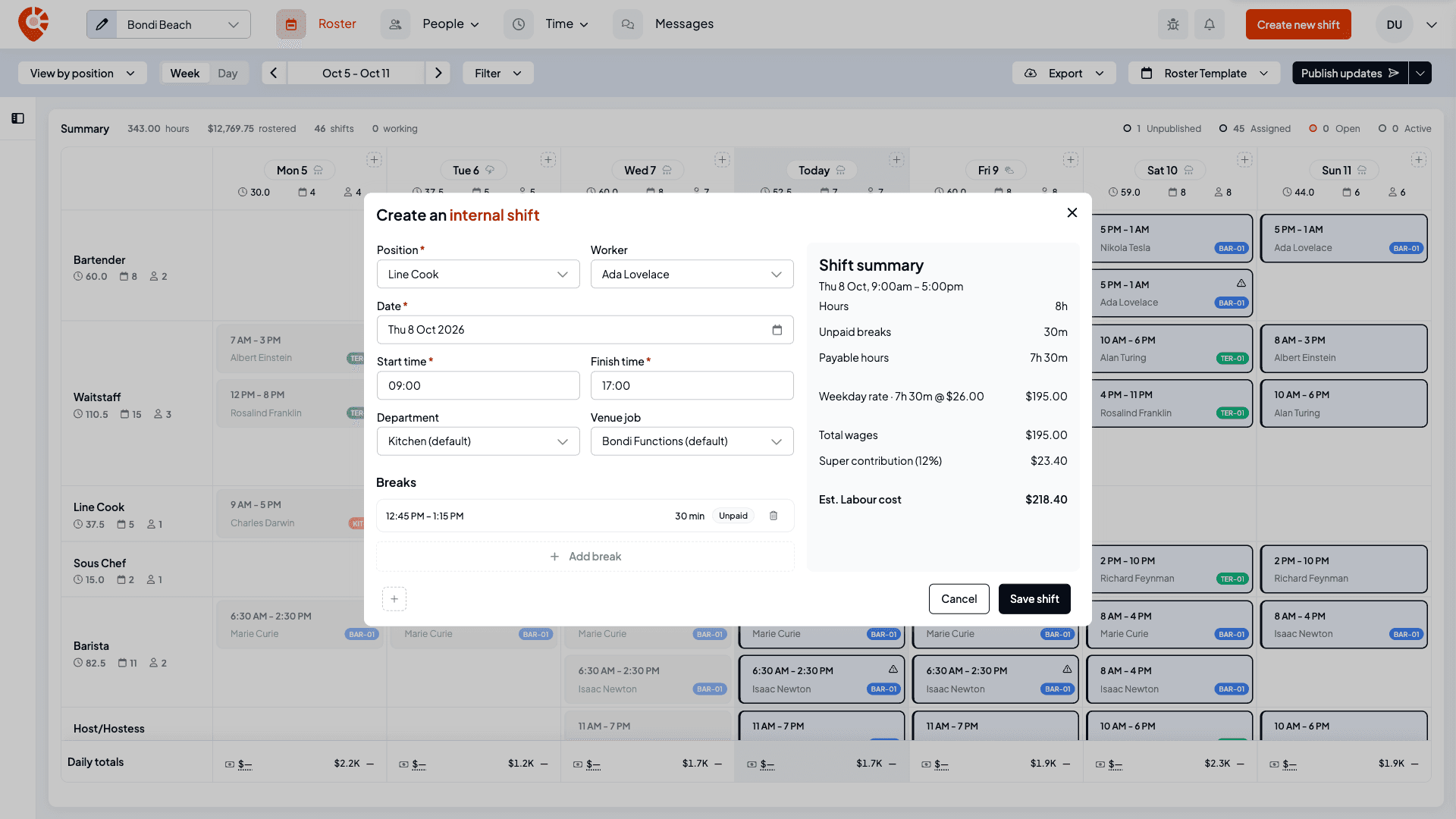
If your business uses tags, the form has a field for each category under the times, such as Department and Venue job. Once you pick a position, each field fills in from that position's default and shows it with (default), for example Kitchen (default), so you don't usually need to touch them.
- To cost the shift somewhere else, pick another tag from the field. It's saved with the shift as one you set, so it stays put if the position or location changes later.
- A value you set has Use default at the end of its list. Pick it to hand the field back to the position's default.
- A field reads None available and is greyed out when that category has no tags you can use at this location.
When you change the position or location, the fields that came from defaults follow the new ones. If your business posts hours to MicroKeeper by job, the Shift summary also tells you how the shift will post. See Track labour cost with tags.
Check the breaks
When you pick a worker, Shiftly fills in the breaks their pay rules expect for a shift of that length. Each break is a row under Breaks that you can change:
- Time: click the times to set when the break starts. The end moves with it.
- Length: click the minutes to change how long it runs.
- Paid or unpaid: click the Paid or Unpaid pill to switch it.
- Remove: the bin deletes that break.
Add break adds another break after the last one. If the breaks don't work, for example a break that runs past the end of the shift or two that overlap, a message appears under the list and Save shift stays greyed out until you fix it. A shift with no worker yet shows No breaks on this shift. Add one below. If you don't change the breaks, Shiftly adds the standard ones for the shift when it saves.
Check the cost
The Shift summary panel on the right updates as you go. It shows Hours, Unpaid breaks and Payable hours, one line for each pay rate the shift falls under, Total wages, the Super contribution and the Est. Labour cost. It's an estimate from the worker's pay rules; confirm final pay in your payroll. Until you pick a worker, every line shows a dash.
At locations that roster volunteers, a Volunteer shift switch also appears. Turn it on for unpaid volunteer work: the hours are recorded but left out of payroll.
Leave a note for the shift
The small + at the bottom left of the form adds a Shift note, up to 500 characters. Use it for anything the person working the shift should know, such as a booking, a delivery or a handover.
Under the note, Shiftly tells you who can read it:
- At a location that shares shift notes, it names the person rostered, for example Galileo will read this note. They see it in Shiftly Me.
- At a location that doesn't, it says Only managers can read this note. with a Share notes at this location link to the setting.
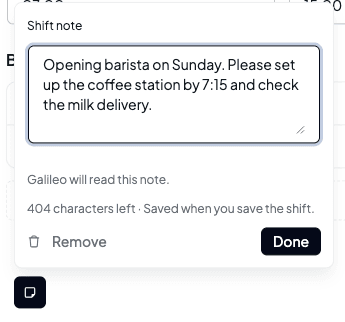
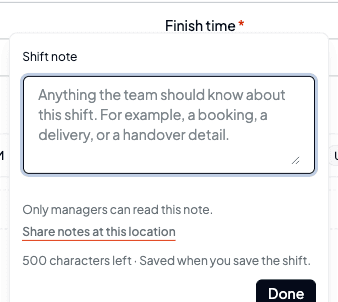
Select Done to close the panel. The note is saved with the shift, not before. Hover the marker to read the note back, and use Remove to delete it. Sharing is set per location under Share shift notes. See Add and set up your locations.
Save
Select Save shift. The shift appears on the roster as an unpublished draft until you publish it. See Publishing a roster.
Shiftly checks every shift for clashes when it saves. You can't save a shift that overlaps another shift for the same person at any of your locations. The form stays open with a message naming the clash, such as Staff member is already assigned to a shift at Surry Hills from Sat 26 Sep, 8:00 AM to 4:00 PM. Two shifts on the same day that don't overlap, such as a split shift, are fine.
Approved leave is checked the same way. Full-day leave blocks any shift that day. Part-day leave blocks only a shift whose hours overlap the leave, so you can still roster someone around it. A clash stops the save with a message starting Staff member is on, followed by the leave type and dates. Leave that's still waiting for approval shows the On leave badge but doesn't stop you saving.
Availability never stops a save. Someone who's unavailable can still be rostered; you just see the warning.
A shift must also run for at least 15 minutes.
Edit or delete a shift
Open the shift
Click a shift card to open it in the Edit an internal shift form. Change anything you need, then select Save shift.
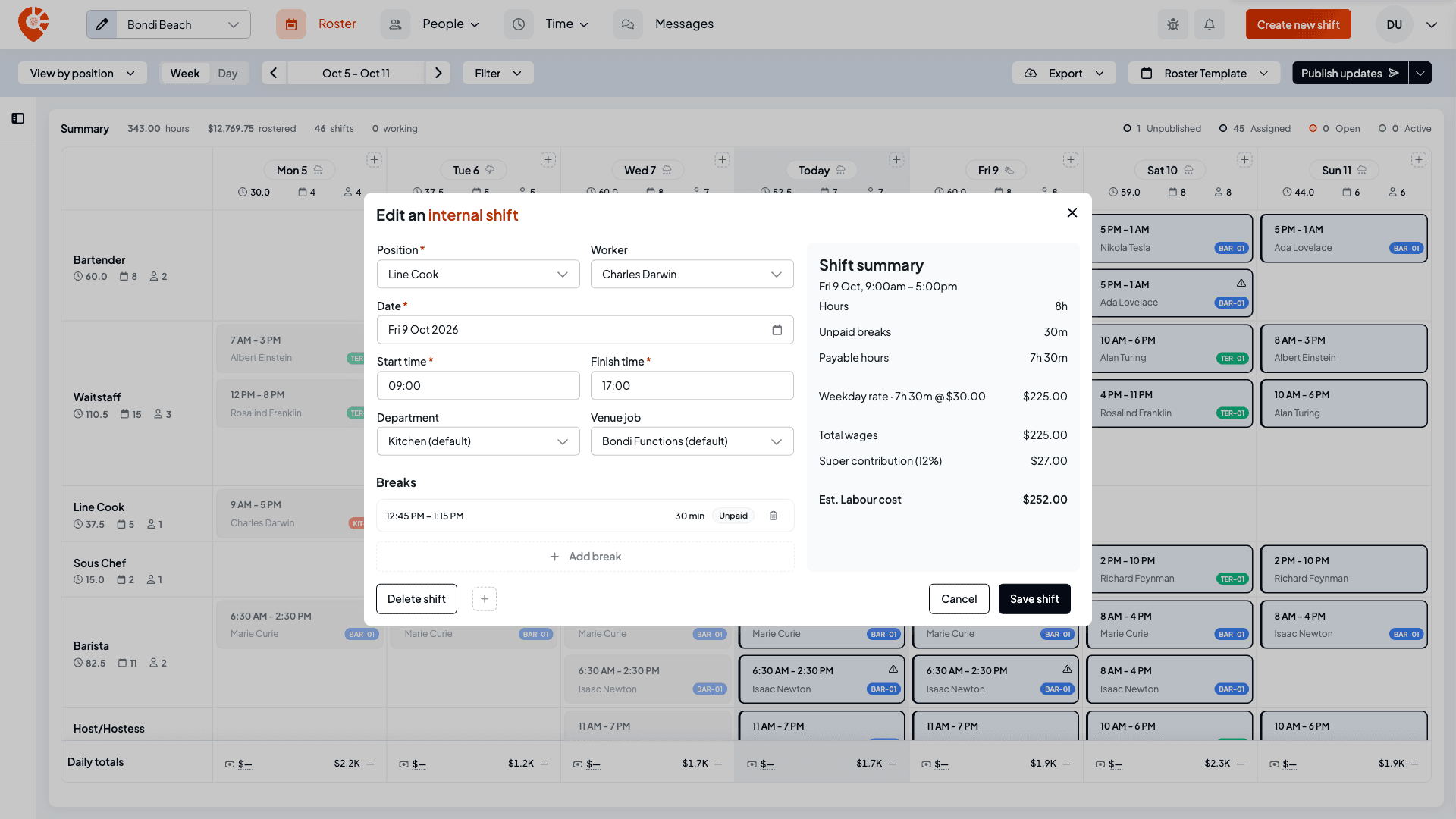
To change only the times or who's working it, you don't need the form: click the times or the name on the card instead. See Find your way around the roster.
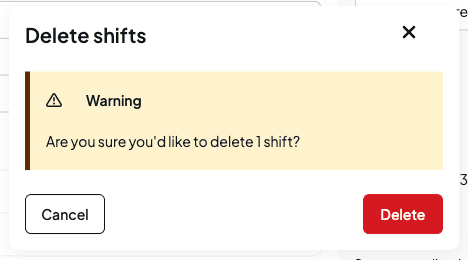
Editing a published shift turns it back into an unpublished draft, and nobody is notified. Staff keep seeing the old details until you publish again. Deleting a shift removes it from the person's roster straight away.
The only time you can't change or delete a shift is while the assigned person is clocked in and working it. Shiftly stops you with Staff member is currently working this shift, please wait for them to finish before making changes to the shift. You can still change the note and breaks. Once they've clocked out, and for every draft, published or finished shift, you can edit or delete it. When you delete several shifts at once, any being worked are left out and marked Clocked in. See Change several shifts at once.
Move and assign by dragging
- Move a shift: drag a card to another day or position. To copy instead of move, hold Alt while you drag. See Copying & repeating shifts.
- Assign someone: open the drag-and-drop tray and drag a person onto the roster:
- Onto an empty cell, the shift form opens with that person and day filled in, ready for you to check and save.
- Onto an open shift, they're assigned to it.
- Onto someone else's shift, Replace employee? asks before swapping them in with Replace.
- If they're already over their weekly hours, Employee over ordinary hours asks you to confirm with Assign anyway.
- If the drop would overlap another of their shifts that day, the shift form opens with This employee already has shifts on this day, listing each of their shifts and its location, so you can sort out the clash.
- On a day they have full-day approved leave, the cell shows Blocked and won't take the drop.
There are no repeat options in the shift form. To repeat a shift across the week, use the shift menu. See Copying & repeating shifts.
Related
Find your way around the roster
Read the roster, change times in place, and assign from the tray.
Copying & repeating shifts
Copy, paste, repeat and stack shifts to fill the week faster.
Publishing a roster
Send the schedule to your team once shifts are ready.
Get a shift covered
Leave a shift open for staff to claim.
See availability, leave and weather on the roster
How availability and leave shape what you can roster.
Track labour cost with tags
Give positions default tags and change them on a shift.
Find your way around the roster
Read the weekly roster, switch between week and day, move between dates, filter, change shifts in place, and assign your team.
Copying & repeating shifts
Copy and paste a shift into another slot, repeat it across the week, copy it as you drag, stack a second shift in a cell, and turn a shift into a timesheet.