
Roster templates
Save a week's shifts as a reusable template, then load it onto another week to rebuild the same schedule in seconds.
If most weeks look the same, save one as a template and reload it whenever you need it, instead of rebuilding the roster from scratch. This guide covers saving a template, loading it onto a week, and managing the ones you've saved.
Who this is for
Owners and managers using the Shiftly web platform to run your business.
Before you start
- You're an owner or a manager with access to the location you're rostering.
- Open Roster from the main navigation and pick the location at the top left.
- Templates are saved per location, so you'll only see the ones saved for the location you're viewing.
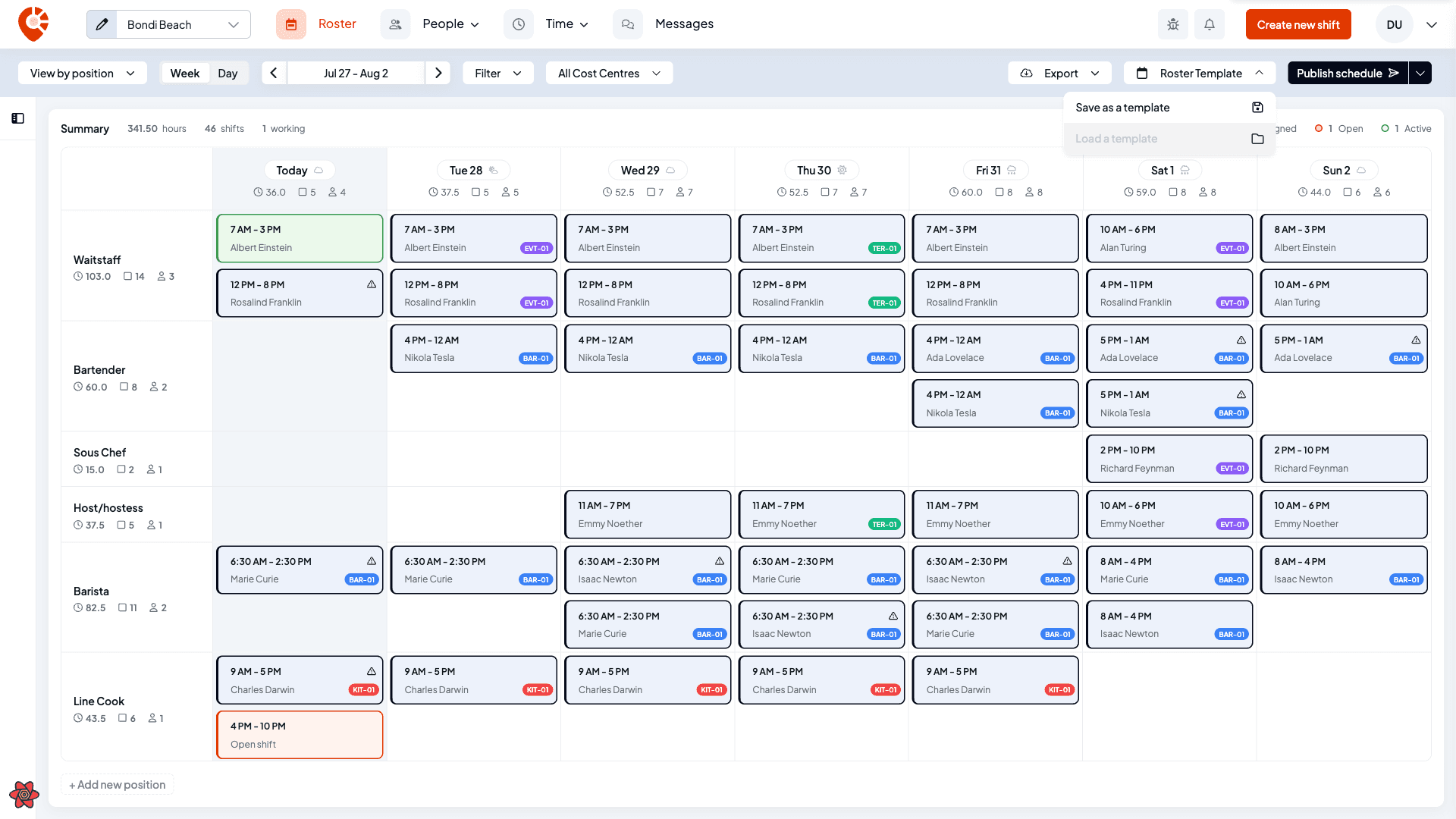
Templates live behind the Roster Template button at the top right of the scheduler.
Save a week as a template
Open the save window
Build the week the way you want it, then choose Roster Template → Save as a template. (This option is greyed out if the week has no shifts: there's nothing to save.)
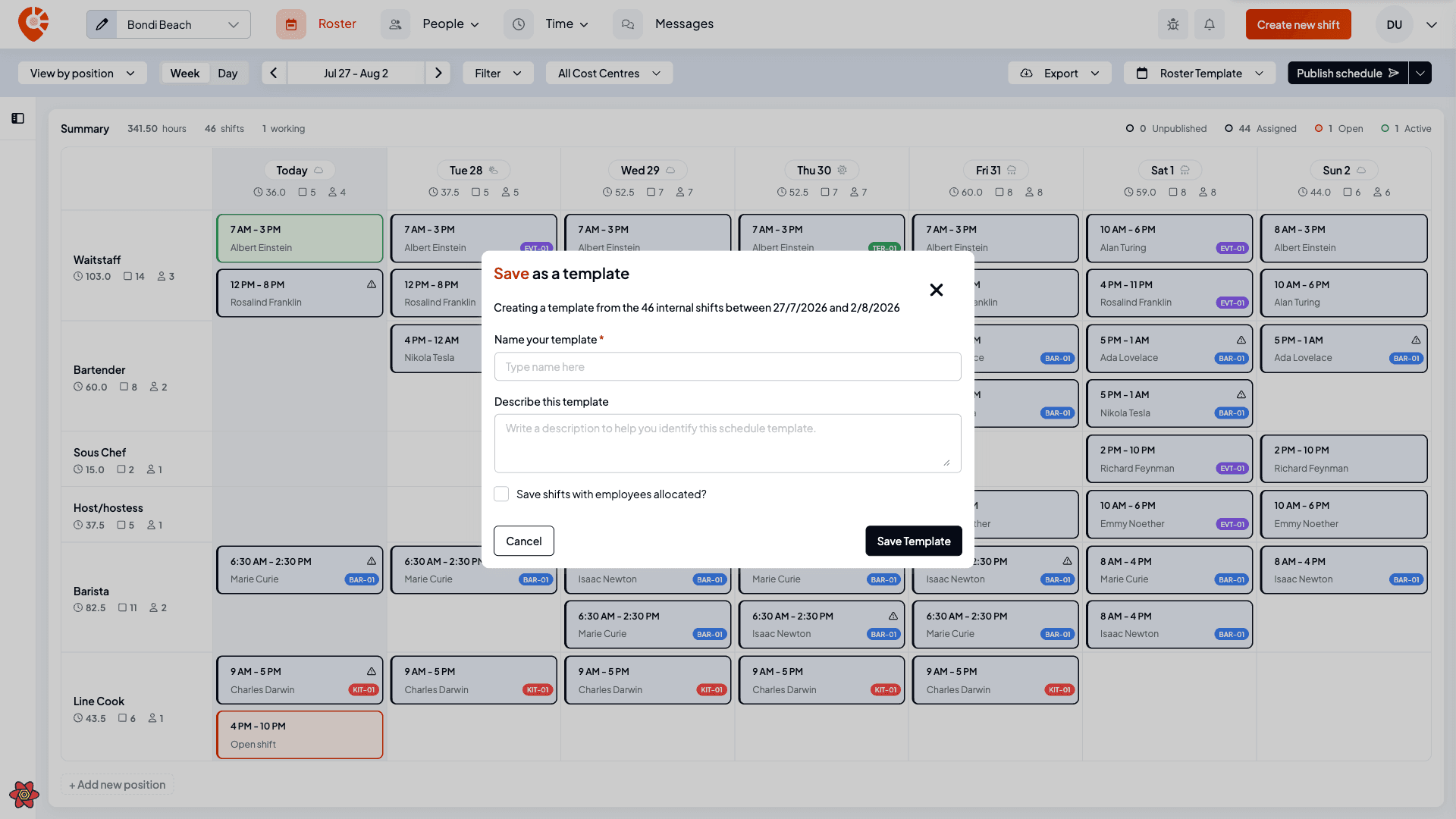
The subheading tells you how many shifts the template will capture and the dates they're from.
Name it and choose what to keep
Give it a name (required) and an optional description to help you recognise it later.
Then decide on Save shifts with employees allocated?:
- Ticked: the template remembers who was on each shift, so loading it puts the same people back on.
- Unticked: the template keeps the shifts' positions and times but leaves them unassigned, ready for you to staff each week.
Save
Select Save Template. You'll see Template saved successfully, and it's now available to load for this location.
Load a template onto a week
Open the load window
Move to the week you want to build, then choose Roster Template → Load a template. Search by name if you have a few, then click a row to select it.
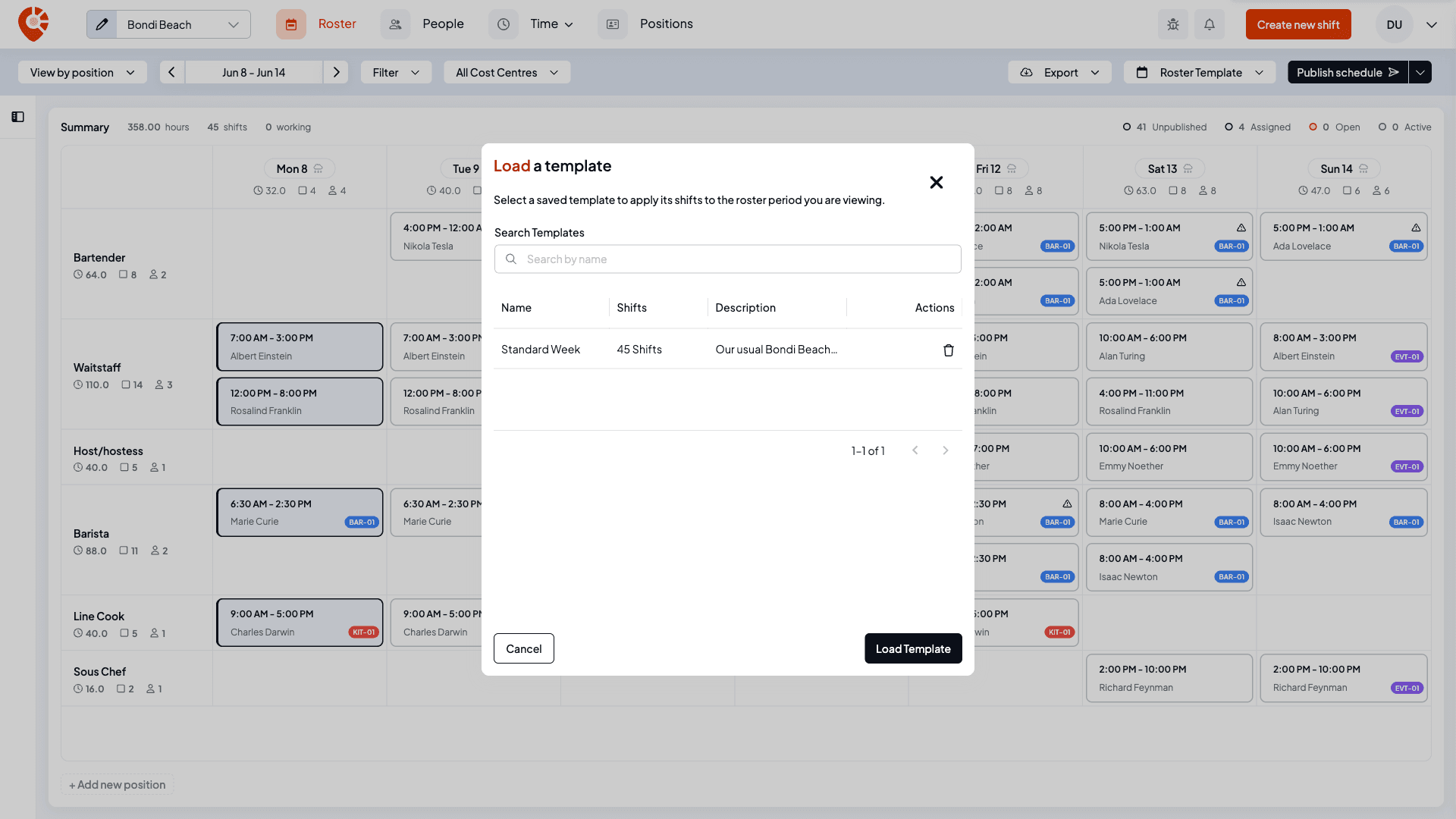
Each row shows the template's name, how many shifts it holds, and its description.
Loading adds the template's shifts to the week you're viewing. It's best done on an empty week. If a template saved with employees lands someone on a time they already work, Shiftly blocks the clash, the same as when you create a shift.
Manage your templates
- Delete a template: open Load a template and use the trash icon on its row. Shiftly asks you to confirm (Are you sure you would like to delete this template? This cannot be undone.) before removing it for good.
- No templates yet: the load window shows "You haven't saved any templates" with a link to save one now.
Templates also tidy themselves up: if a shift in a template was assigned to someone who has since left, or carried a tag that's been archived, that detail is quietly dropped when you load it. The rest of the shift still comes through.
If your business uses tags, a template keeps each shift's tag in your first category. When you load it, the shifts' other categories are filled in from their positions' defaults. See Track labour cost with tags.
Related
Publishing a roster
Send your drafted shifts to staff, choose who gets notified, publish a single shift or several weeks at once, and email open shifts to staff.
Get a shift covered
Leave a shift open for staff to pick up, find someone to cover a shift, invite your team to claim open shifts, and accept or reject their requests.