
Track labour cost with tags
Set up categories and tags, give each position its defaults, and see how shifts, timesheets, leave, payroll, reports and exports carry them.
Tags let you see where your labour cost goes and filter your roster by it. They used to be called cost centres, and they still work the same way. You group them into categories, each one a layer you report by, such as Department (Kitchen, Front of house) or Venue job (one per venue). Every shift and timesheet carries one tag per category, filled in from the position's defaults, so nobody has to pick them by hand. This guide covers setting them up, how shifts, timesheets and leave get them, posting to MicroKeeper by job, and the reports, filters and exports that use them.
Who this is for
Owners and managers using the Shiftly web platform.
- To open the Tags page you need access to business settings. To add or change categories and tags you need permission to edit settings. Without it the page shows View only.
- To set a position's defaults you need permission to edit the roster at that location.
Before you start
- Open the account menu (your initials, top right) and select Tags. You can also open Business settings and select the same card there.
How the pieces fit together
- A category is a layer you report by. You name it, so it can be anything: Department, Venue job, Event. You can have up to 3 active categories.
- A tag belongs to one category, for example Kitchen in Department. It can be used at every location, or limited to some.
- A position has a default tag in each category. A shift in that position picks it up automatically.
- A shift carries one tag per category. You can change any of them on the shift, and change it back with Use default.
For example, with a Department category and a Venue job category, a Chef shift at Massimo might carry Kitchen and Massimo BOH, both from the Chef position's defaults.
See your tags
The page lists each category as its own section, in order, with its tags below. Each row shows the tag's Code, the locations it's Limited to (or All locations) and, when it pairs with a payroll provider, what it Pairs with. The first category is marked first category. Archived categories sit at the bottom with Restore category.
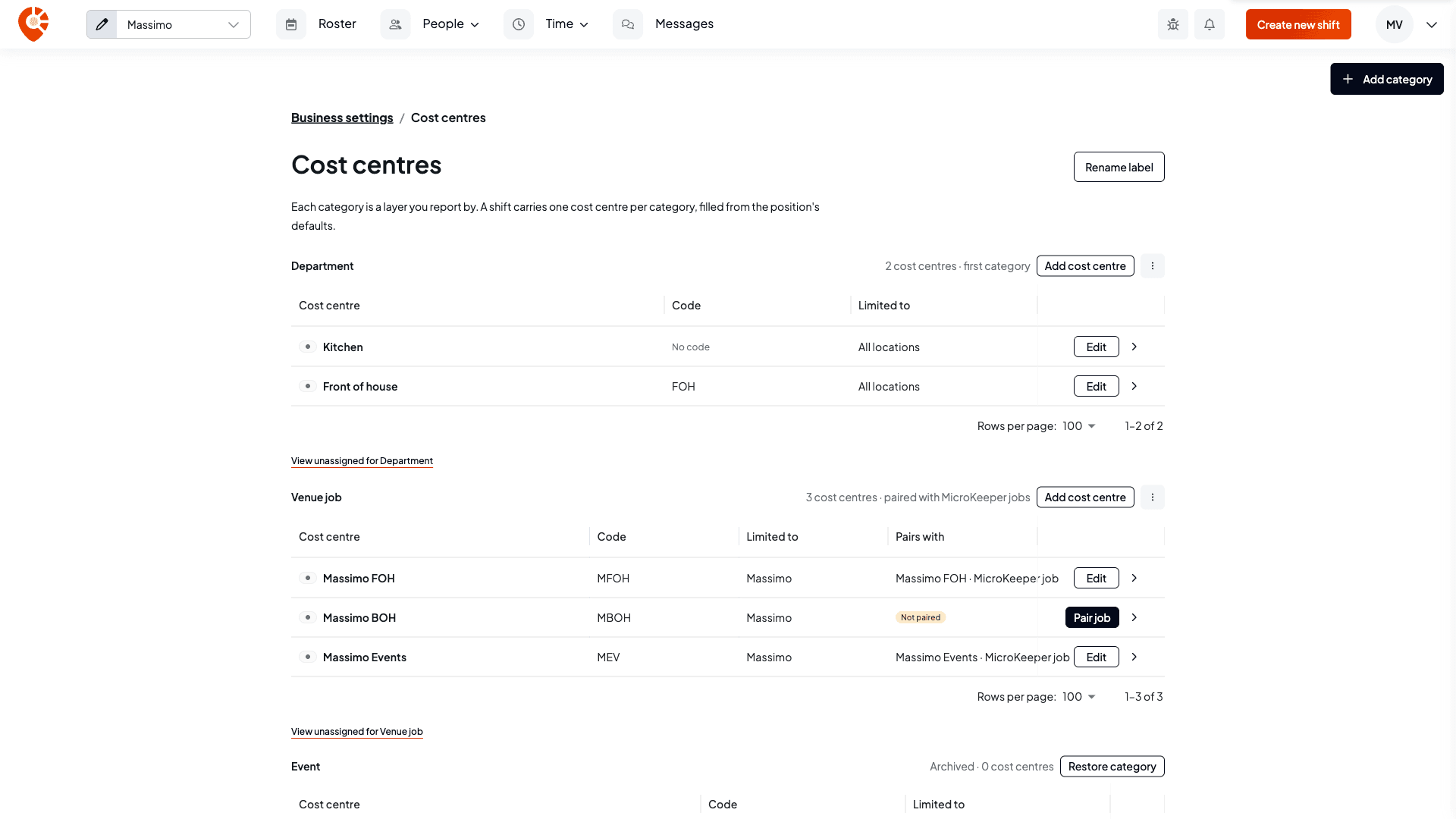
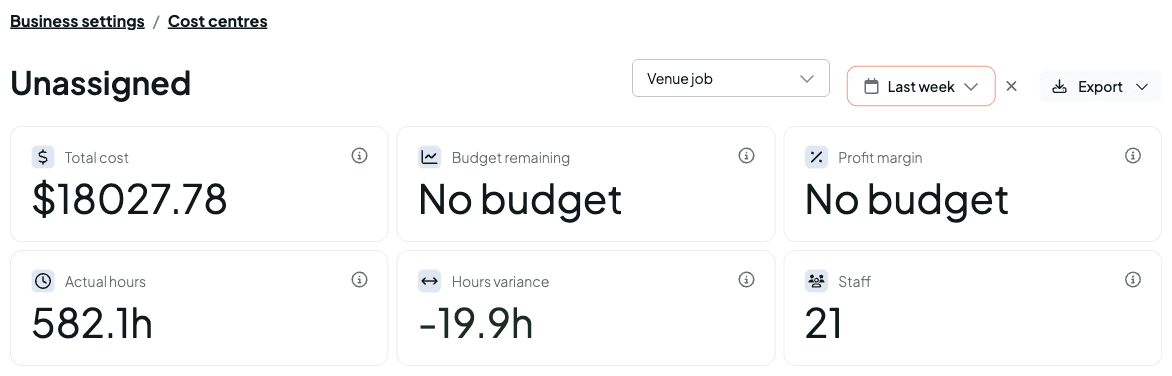
Select the arrow at the end of a row to open that tag's report. To see the hours and cost that have no tag in a category, open the category's ⋮ menu and select View hours with no that category, for example View hours with no Department. See Reports and exports.
Add a category
Name it and choose its order
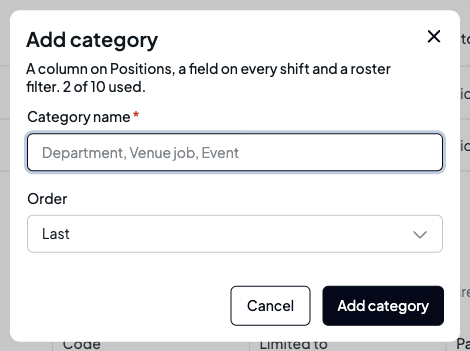
Select Add category. Give it a Category name, then choose its Order: Last, First or after another category. Select Add category to save.
Know what it adds
Each category becomes a column on Positions, a field on every shift and timesheet, and a filter on the roster. Your first category turns tags on for the business; until then there's nothing to fill in.
Where only one category fits, Shiftly uses the first: roster shift cards show the code of the shift's tag in the first category, and the Unassigned report starts on it.
Two categories can't share a name, and you can have up to 3 active ones. Archive one to add another.
Add a tag
Open the form
Select Add tag on the category's section.
Fill in the details
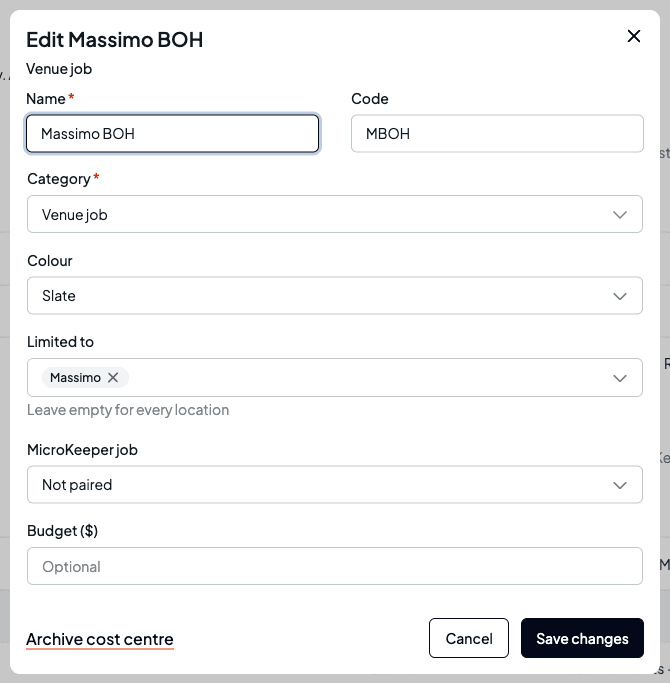
- Name (required). Two tags in the same category can't share a name, whatever the capital letters.
- Code (optional). A short code, such as MBOH. It's used in exports, and on roster shift cards for the first category.
- Category (required). Change it to move the tag to another category.
- Colour, used to pick it out across the app.
- Limited to. Leave it empty to use the tag at every location, or add the locations it belongs to. A venue job usually belongs to one location. A limited tag only appears in the pickers and filters for shifts at those locations.
- MicroKeeper job. Shows for the category you post to MicroKeeper by. See Post to MicroKeeper by job.
- Xero tracking option. Shows when your business is connected to Xero. See Pair tags with Xero tracking options.
- Budget ($) (optional), shown only if you can see pay. It's used on the tag's report.
Save it
Select Add tag (or Save changes when editing).
Edit, archive or restore
- To change a tag, select Edit on its row. If you post to MicroKeeper by job, a tag that isn't paired with a job yet shows Pair job instead, which opens the same form.
- To archive a tag, open it and select Archive tag, then confirm. It leaves pickers, defaults and filters. Shifts, timesheets and reports keep it, marked archived. Archived tags stay in their section with Restore.
- To rename, reorder or archive a category, use the ⋮ menu on its section: Edit category or Archive category. Archiving your last category turns tags off; shifts, timesheets and reports keep their values. Restore category brings an archived one back.
There's no delete, so past shifts and timesheets always keep their tags.
Give each position its defaults
Defaults are what make tags automatic. Set them once and every new shift in that position picks them up.
Open Positions for the location
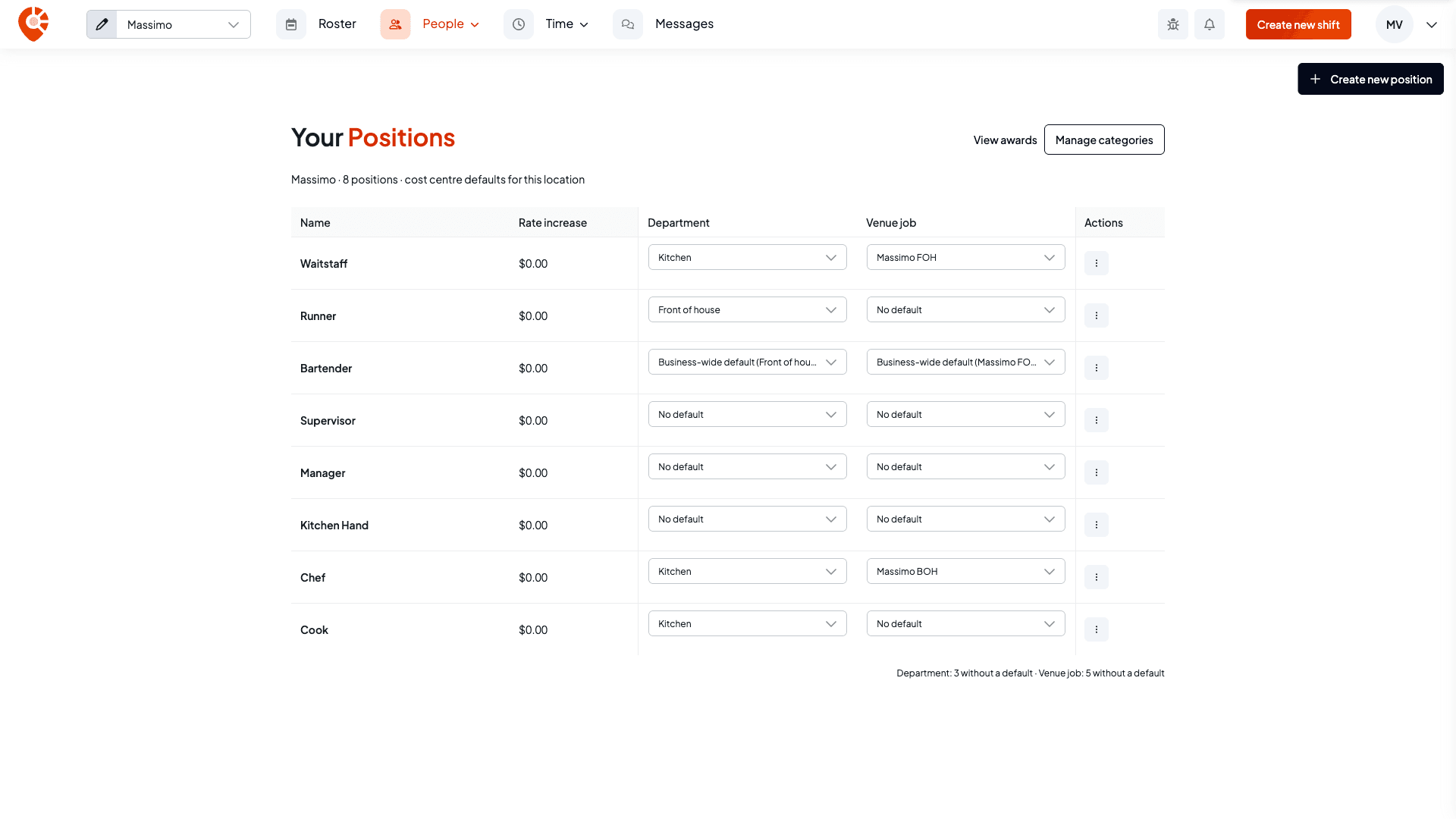
Open People and choose Positions, with the location you want selected at the top left. The grid has one column per category, and each cell is that position's default at this location. Manage categories at the top opens the Tags page.
Pick a default in each cell
Open a cell and choose a tag. It saves straight away. The list only offers tags you can use at this location. Choose No default to clear it, or, when the position has a business-wide default, Business-wide default to fall back to that. A position that isn't used at this location shows Not used here.
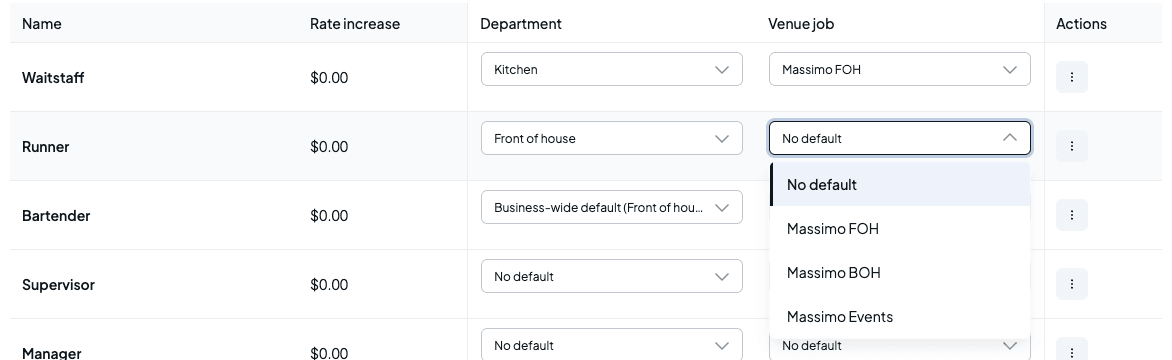
The line under the grid counts how many positions still have no default in each category.
Decide about upcoming shifts
If shifts that haven't started yet still use the old default, Shiftly asks Apply to upcoming shifts? The button names the count, for example Apply to 4 shifts: select it to move those shifts to the new default, or select Keep existing shifts to leave them. Only shifts at this location whose value came from the default change. A tag someone picked by hand on a shift is never changed.
Set a business-wide default
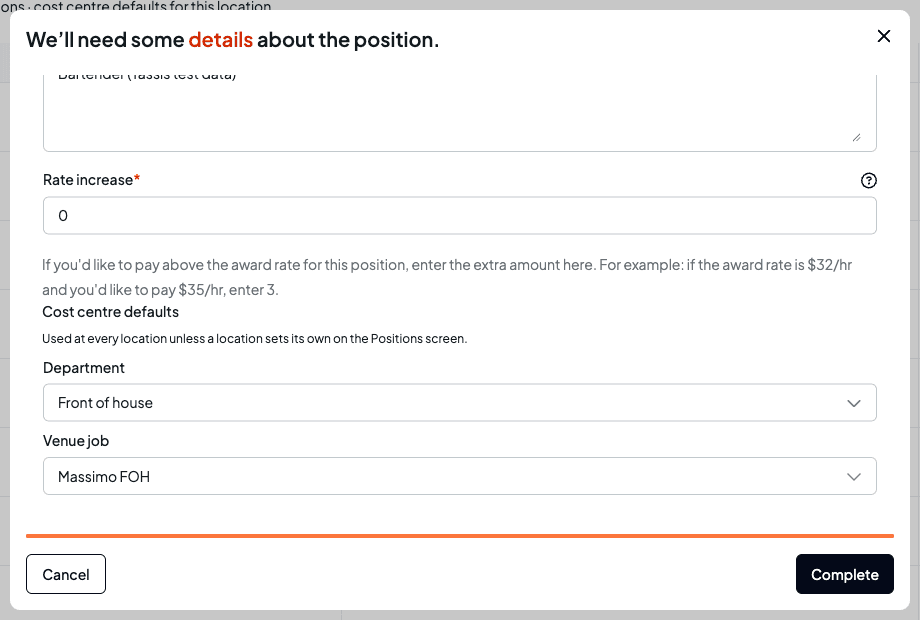
To give a position the same default at every location, pick All locations in the location menu and set it on the Positions grid, or edit the position (row ⋮ menu, Edit) and use Business-wide tag defaults. A location's own default on the Positions grid wins over the business-wide one.
How shifts and timesheets get their tags
When a shift is created, Shiftly fills each category in this order:
- The tag set on the shift itself, if there is one.
- The position's default at the shift's location.
- The position's business-wide default.
- Otherwise the category stays empty. The shift still saves.
A default that can't be used at the shift's location (limited to other locations, or archived) is skipped.
See and change them on a shift
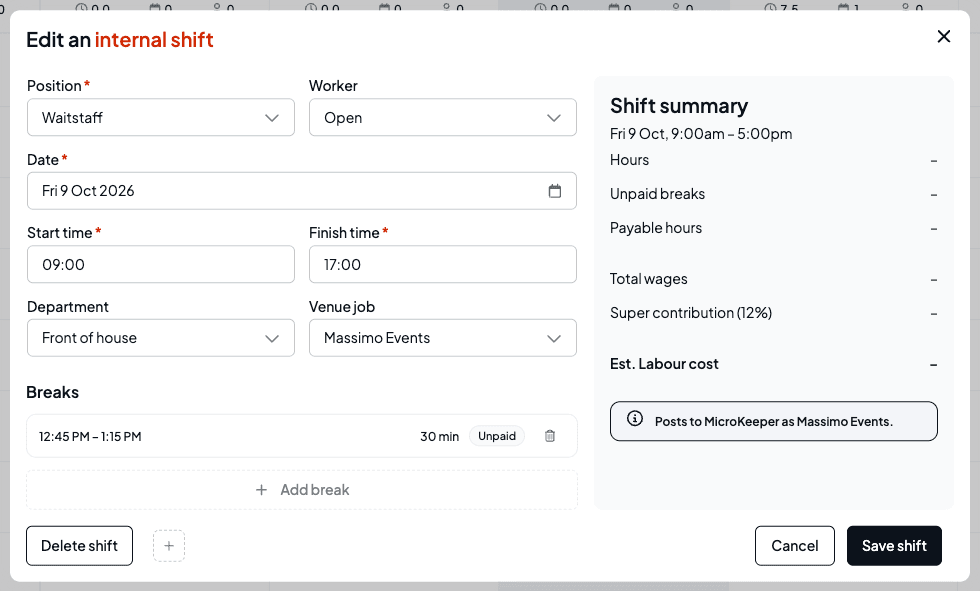
The shift form has one field per category. The position's default is marked (default), so a field reading Kitchen (default) is following the default.
Change one
Open the field and pick another tag. It's saved with the shift as one you set, so it stays put if the position or location changes later.
Go back to the default
A value you set has a Use default option at the end of the list. Pick it to hand the field back to the position's default.
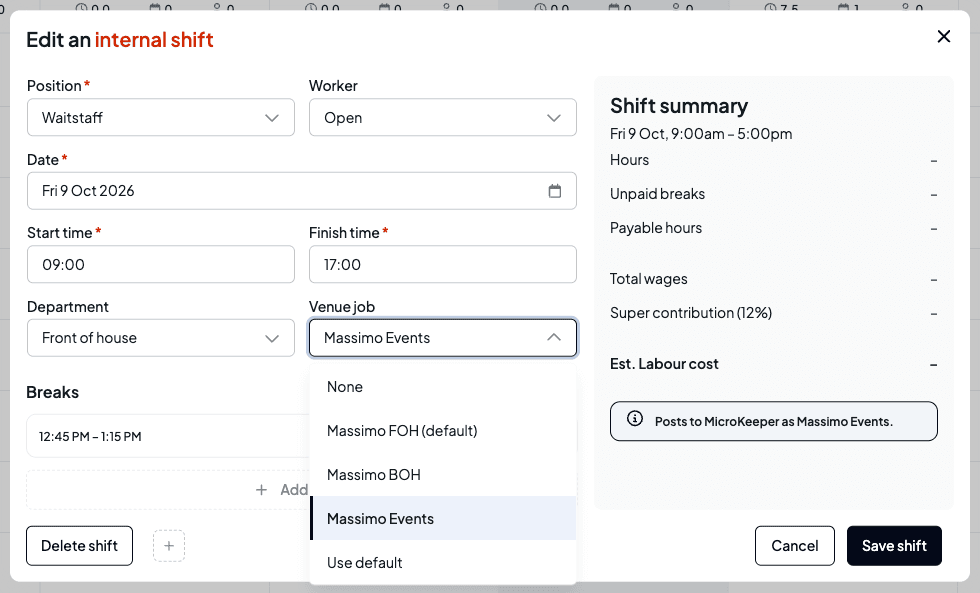
When you change a shift's position or location, the values that came from defaults follow the new position and location, and the values you set stay as they are. If a category has no tags you can use at the shift's location, its field is greyed out and says so when you hover it.
When your business posts to MicroKeeper by job, the shift summary tells you how the shift will post, for example Posts to MicroKeeper as Massimo Events., or warns you if the job category is empty or its tag isn't paired yet.
Timesheets
- A timesheet created from a rostered shift copies the shift's tags. Clock-ins with no rostered shift, and timesheets you add by hand, are filled from the position's defaults in the same order.
- Until a timesheet is approved, it keeps following its shift's defaults: if you change the shift's position, the timesheet's default values change too. Values someone set on the timesheet stay. A tag you pick by hand on the shift isn't copied across, so change the timesheet as well. Approved timesheets are left alone.
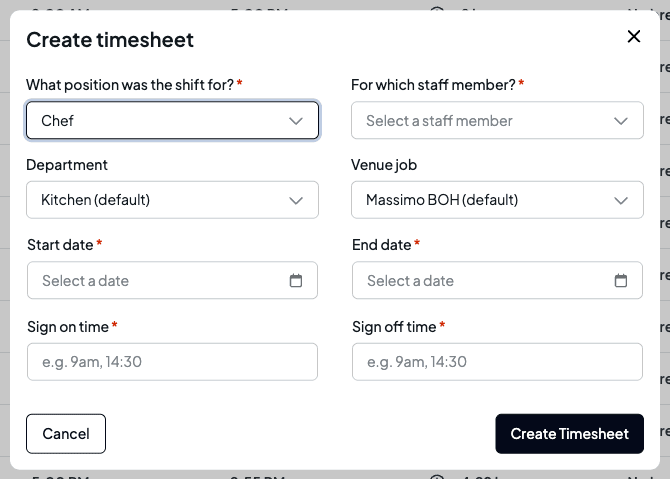
- In Create timesheet, the category fields read Choose a position first until you pick a position, then fill from its defaults.
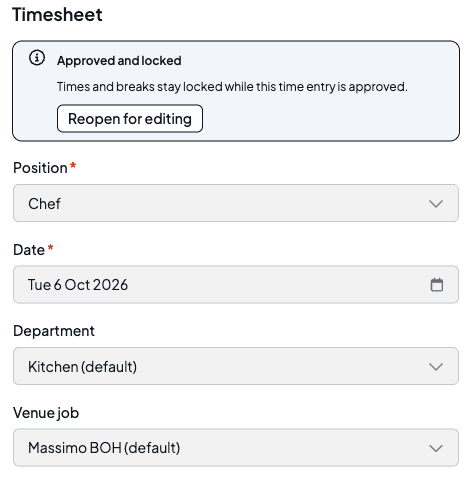
- In a timesheet's Timesheet tab you can change its tags the same way as on a shift. On an approved timesheet the fields are greyed out: select Reopen for editing first, which puts it back to pending.
Set each employee's home venue
Leave isn't worked at a venue, so Shiftly costs it to the employee's home venue. Open the employee from People, then the Employment tab, and pick their Home venue from the venues they work at.
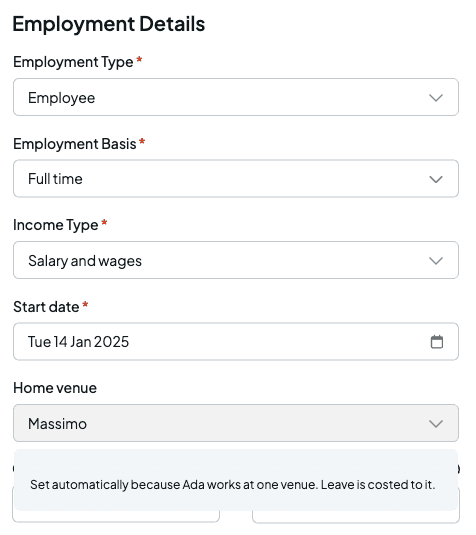
- Someone who works at only one venue gets it set automatically.
- For someone who works at two or more venues, you choose. If your business posts to MicroKeeper by job and it isn't set, the tab warns No home venue yet, and their leave is held back from posting until you set it. Their shifts aren't affected.
Post to MicroKeeper by job
If your business uses MicroKeeper payroll, you can post hours to MicroKeeper jobs by tag. You pick one category, usually your venue jobs, as your job category, and pair each of its tags with a MicroKeeper job.
Open the Tags to jobs step
Go to Integrations, select Manage connection on the MicroKeeper card, then Tags to jobs.
Choose the category that maps to jobs
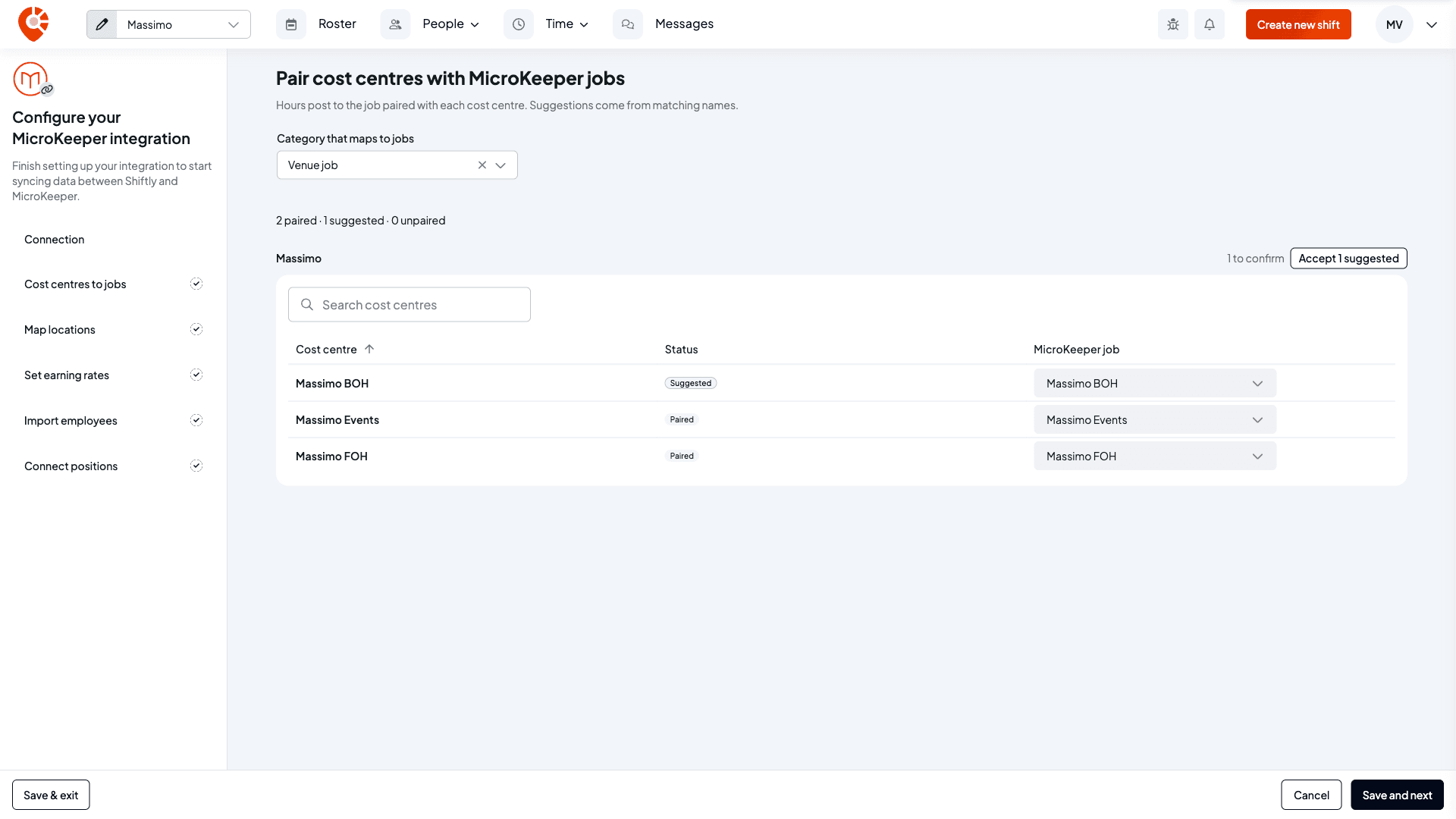
Shiftly starts on the category you saved before, or your first category. To change it, use Category that maps to jobs beside the heading. Its tags are listed by the locations they're limited to, each with a status: Paired, Suggested (Shiftly matched a MicroKeeper job with the same name), Unpaired, or Created.
Pair each tag
Pick a job in the MicroKeeper job column. Each job shows the MicroKeeper location it's linked to; clock times post with that location. To take every suggestion in a section at once, select Accept 1 suggested (the button counts them).
If there's no matching job, Create "…" in MicroKeeper… at the bottom of the list sets up a new job (with a Job name and the MicroKeeper location to link) and pairs it.
Save
Select Save and next. This is when pairings are saved and any jobs you chose to create are added to your MicroKeeper account. You can finish setup with some tags unpaired; their hours are held back from posting until they're paired.
Creating a job writes to your MicroKeeper account straight away when you save. Check the name before you select Save and next. You can edit the job in MicroKeeper afterwards.
Once a job category is chosen, the Pair locations step is optional: hours already carry a location through each job, so pair Shiftly locations only if your MicroKeeper location reports need a different one. Connect positions can be skipped too. Both have Skip this step.
You can also pair one tag at a time from the Tags page: its MicroKeeper job field does the same thing.
Check what's held back before you post
When you post to MicroKeeper, the preview says posts by your job category and splits the timesheets into Ready to post and Held back. Held-back items don't stop the rest posting: everything else posts now, and fixed items post next time.
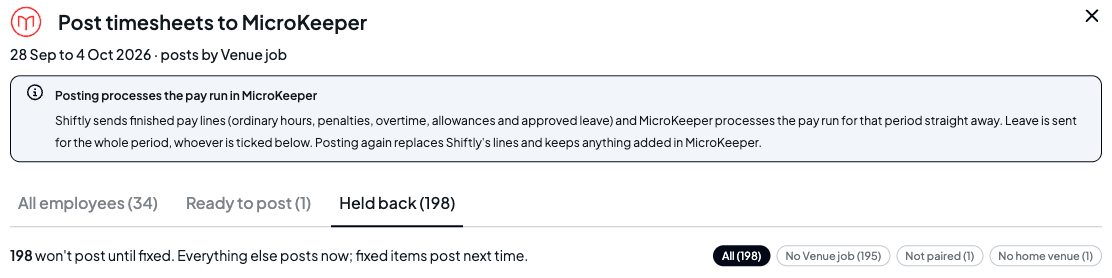
Use the chips to see one reason at a time. Each held-back row has a link to fix it:
| Reason | What it means | How to fix it |
|---|---|---|
| No job category, for example No Venue job | The timesheet has no tag in your job category. For leave, the position the employee works most at their home venue has no default there, or they haven't worked there in the last four pay periods. | Open shift opens the timesheet; set the tag (reopen it first if it's approved, then approve it again). For leave, Open positions and give that position a default at the home venue. |
| Job category not paired, for example Venue job not paired | The timesheet's tag isn't paired with a MicroKeeper job. | Pair job opens the Tags to jobs step. |
| No home venue | The employee has leave in the period but no home venue. | Open employee opens their Employment tab at Home venue. |
Approved leave posts to the job of the employee's home venue, using the default of the position they worked the most hours in there over the previous four pay periods.
Pair tags with Xero tracking options
If your business uses Xero, each Xero timesheet line can carry a tracking option. Pair the tags in one category with the options of one Xero tracking category, and every line posts with the option paired with its tag. See Pair tags with Xero tracking options.
Filter the roster by tag
The roster's Filter panel has a section for each category, listing the tags you can use at the selected location. Pick one to see only the shifts that carry it. See Find your way around the roster.
Reports and exports
- A tag's report. Select the arrow on its row to see its hours, cost, staff and budget. See See how a tag is tracking.
- Unassigned. View hours with no … in a category's ⋮ menu shows the hours and cost with no tag in that category. Switch category with the menu beside the date range.
- Exports. The Every shift timesheet export has one column per active category, named after the category, showing each timesheet's tag code (or its name when it has no code).
Related
See how a tag is tracking
Hours, cost and budget for one tag.
Pair tags with Xero tracking options
Post every Xero timesheet line with its tag's tracking option.
Set up your positions
Add the roles you roster against the award.
Find your way around the roster
Includes filtering the roster by tag.
On the Shiftly website
Job costing
Wage cost by project and centre.
Set up your positions
Add the roles you roster, such as Barista or Chef, link each one to your award, pay above the award rate, and look up what each award level covers.
See how a tag is tracking
Open a tag's report to see its labour cost, hours, budget and variance in tiles, charts and per-staff tables, check what has no tag in a category, and export it as a PDF or CSV.