
Find your way around the roster
Read the weekly roster, switch between week and day, move between dates, filter, change shifts in place, and assign your team.
The roster is where your week comes together. Open it from Roster in the main navigation. This guide is a tour of the roster itself: how to read it, switch between the week and day views, move between dates, filter, change shifts in place and assign staff. Adding, copying and publishing shifts each have their own guide, linked at the end.
Who this is for
Owners and managers using the Shiftly web platform to run your business.
Before you start
- You're an owner or a manager with access to at least one location.
- Open Roster from the main navigation.
- Each location has its own roster. Switch location with the selector at the top left. The examples below are Surry Hills.
What you can do here depends on your access. If you can see the roster but not change it, the Roster Template and publish buttons, the row-adding footer, the shift menu and the day-note + are hidden, and you can't drag, click or edit shifts in place. See Sharing access.
Find your way around
Read the week grid
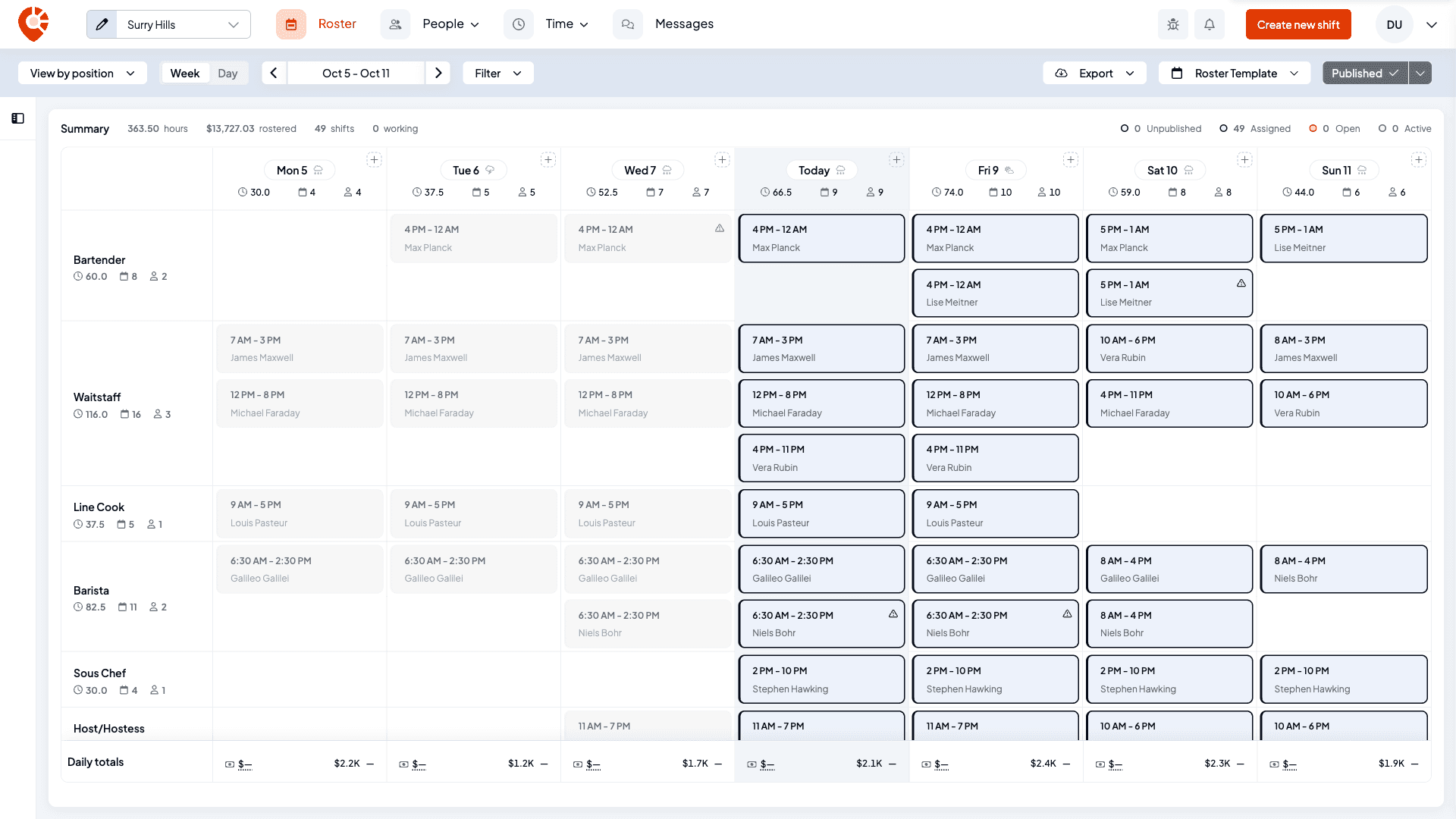
The roster opens on Week. Each column is a day and each row is a position (for example Barista or Waitstaff). Every shift sits in the cell for its day and position.
The week starts on the day set in the location's Roster week starts on setting, so the first column isn't always Monday. See Add and set up your locations. Today's column is shaded and its header reads Today.
Each day header shows that day's paid hours, number of shifts and people assigned, plus the weather forecast. Hover an icon to see what it counts. Each row shows the same totals for that position across the week.
Two more things sit on the grid:
- The small square at the top right of each day header holds a day note for your managers. See Add a note to a roster day.
- If you can see pay or sales, a Daily totals row runs along the bottom with each day's sales, labour cost and labour percentage. See Track sales and labour cost on the roster.
Check the summary bar
The bar above the roster sums up what you're looking at: total hours, the rostered wage cost (if you can see pay), the number of shifts, and how many people are working right now. When staff have asked for open shifts, an open shift requests count appears too.
On the right is the status legend, Unpublished, Assigned, Open and Active, each with a running count that matches the colours on the shift cards.

Switch between week and day
Pick a time axis
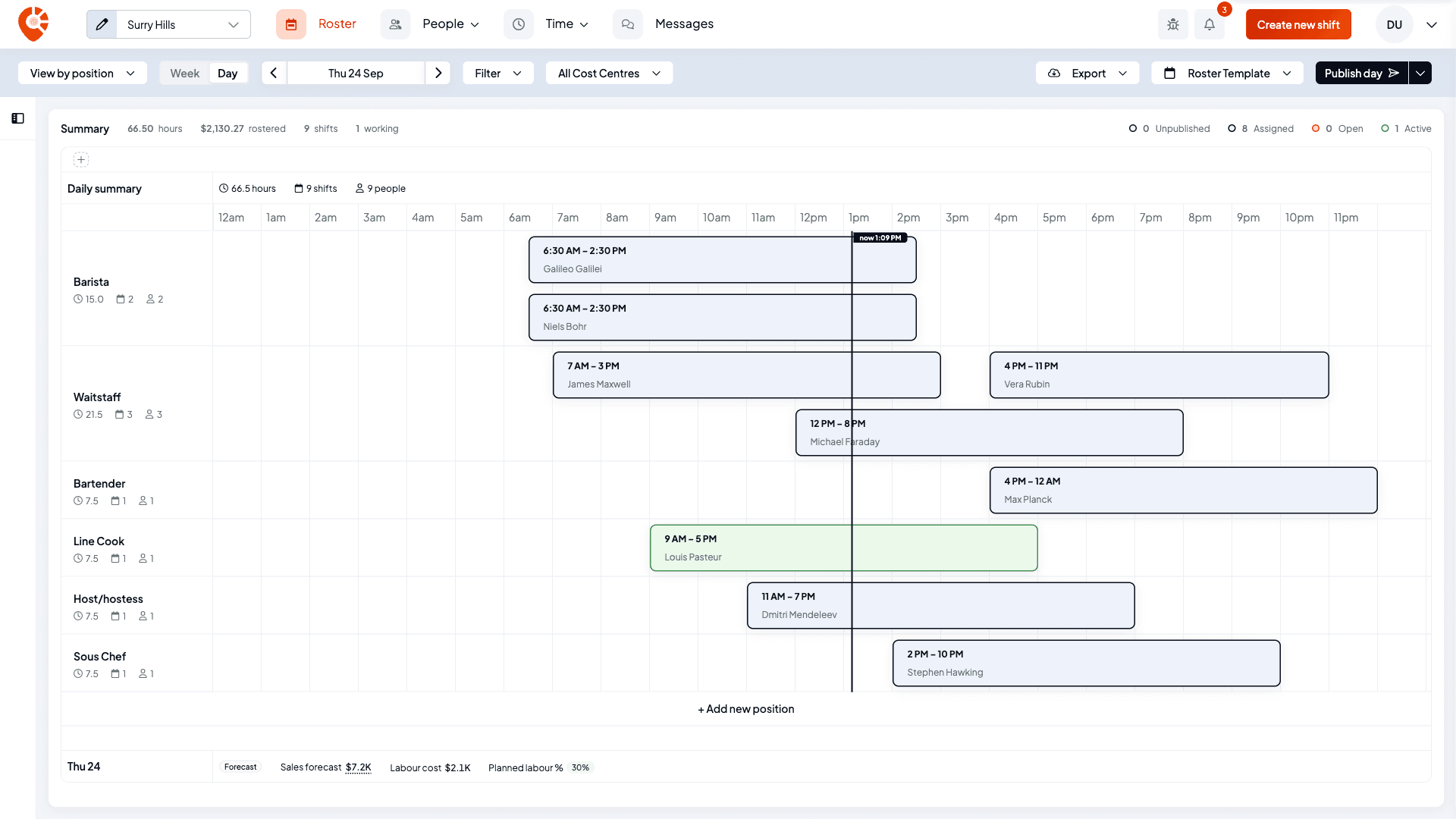
Week and Day sit next to the view menu. Week is the seven-day grid above. Day lays a single date out along a 24-hour timeline, so you can see exactly when people overlap and where the gaps are.

Read the day timeline
Rows are the same positions (or staff), but each shift is now a block placed by its start and end time. The hour ruler runs from 12am to 11pm across the top, and on today a line marks the current time. A shift that runs past midnight shows a +1d tag.
Above the timeline, Daily summary gives the day's hours, shifts and people. If you can see pay or sales, a second rail at the bottom shows the day's sales, labour cost and labour percentage.
Hover a shift for the detail
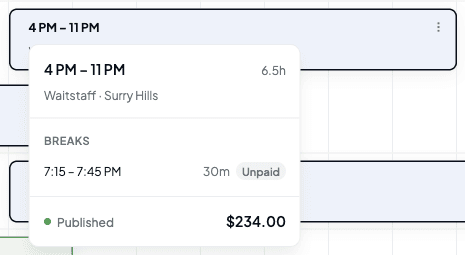
Hover a shift's time in either view to see its paid hours, the position and location, every scheduled break with its length and whether it's paid, and the shift's status. If you can see pay, the shift's cost shows too. A shift with no breaks says No breaks scheduled.
Work directly on the day timeline
In Day, you can build the roster by dragging on the timeline itself. Times snap to the nearest 15 minutes.
Drag an empty row to create a shift
Press on an empty part of a row and drag across the hours you want. A dashed outline previews the shift and its times as you go. Let go and the shift form opens with the position, date and times filled in.
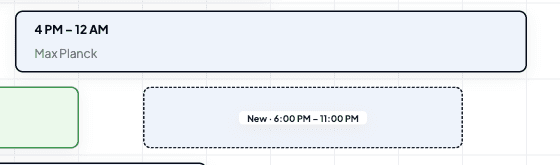
A single click on an empty row does the same thing with a four-hour shift starting at that hour.
Move, stretch and copy
Drag a shift block sideways to change its time, or onto another row to change its position (or, in staff view, who's working it). Drag either end to stretch or shrink it. Hold Alt while dragging to leave the original in place and drop a copy.
If the move would clash with another shift that person has that day, the shift form opens with the clash shown instead of saving. If they're on approved leave for the whole day, the row won't take the shift and you'll see Can't schedule a shift — this employee is on approved leave. Clashes with shifts at another of your locations are refused when Shiftly saves, with a message naming the other shift.
While someone is clocked in to a shift, you can't move it, change its times or who's working it, or delete it. Shiftly refuses with Staff member is currently working this shift, please wait for them to finish before making changes to the shift. Wait until they clock out.
Change a shift without opening it
You can change a shift's times and who's working it straight from the card, in either view. In day view this works on any block wide enough to show its times.
Type new times
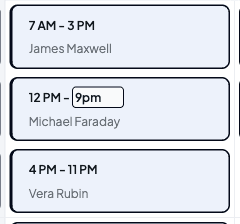
Click the start or end time on a card and type the new time. Shiftly accepts forms like 9, 930, 9:30, 5pm or 10:30am. A time without am or pm is read as 24-hour, so 5 means 5 AM and 17 means 5 PM. If the end falls at or before the start, the shift runs overnight.
Press Enter or click away to save, or Escape to cancel. Tab saves the start time and moves on to the end time. If Shiftly can't read what you typed, it tells you and keeps the old time.
Pick who's working it
Click the name on a card to open the assignment list. Each person shows the hours they're rostered this week (against their weekly hours, in red when they're over) and, if you can see pay, their hourly rate. Badges flag anything in the way: On leave, Unavailable (their availability says they can't work some or all of the shift), Blocked (another shift overlaps, with the location named when it's somewhere else) or Not assigned (they don't hold this position). People marked Unavailable or Blocked are listed last, below everyone else, and each group is in name order. Pick Open at the bottom to leave the shift unassigned.
In staff view the list shows positions instead, so you can move a person's shift to another role.
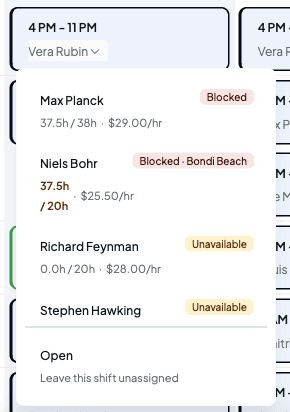
Shiftly still checks for clashes and approved leave when it saves, so a pick that overlaps another shift or leave is refused with a message.
Picking someone marked Unavailable only warns you. The shift saves, and a message names the rule it clashes with, such as Richard is unavailable 9am – 5pm every Monday. You can still assign Richard. See See availability, leave and weather on the roster.
Any change you make to a published shift, here or in the shift form, turns it back into a draft. It shows as Unpublished until you publish again, so staff keep seeing the old details until then. See Publishing a roster.
Switch between position and staff view
Open the view menu
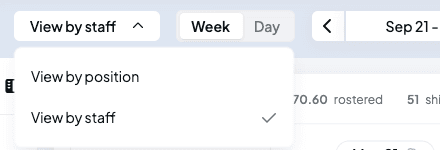
Use the view menu at the top left (it reads View by position or View by staff). View by position groups the roster by role, so you can spot gaps in each position. View by staff makes each person a row instead.
View by staff
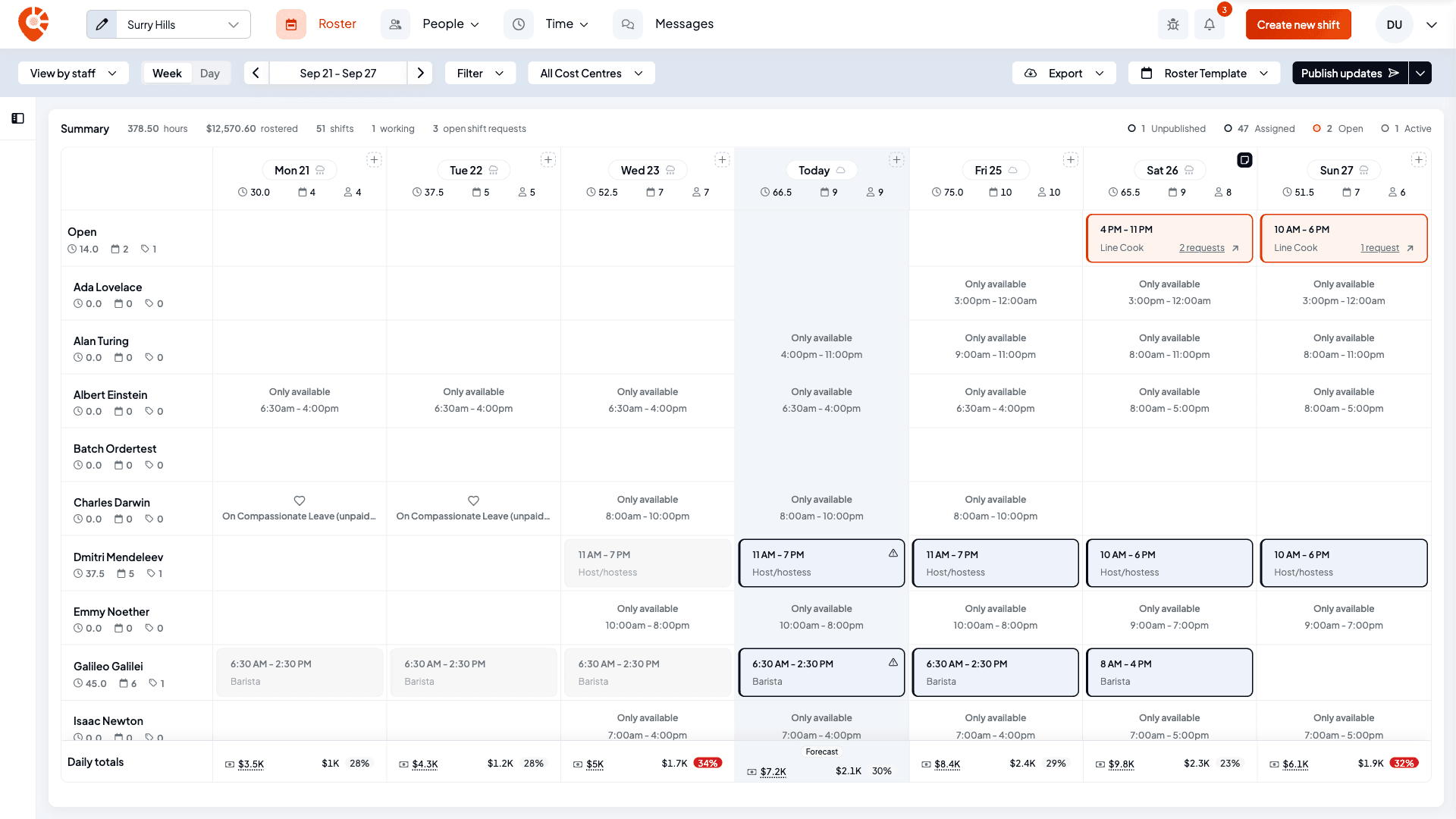
In View by staff, every team member is a row with their own totals, unassigned shifts collect in an Open row at the top, and empty cells show each person's availability (for example Available with a time range) or their approved leave. It's the quickest way to see who is over or under-booked.
If your access covers only some locations or tags, a cell can also read Busy with a time range, such as 10am – 5pm. The person is working a shift there that's outside your access. Their row lists those hours separately, for example 24h · 8h busy elsewhere.
Move between dates
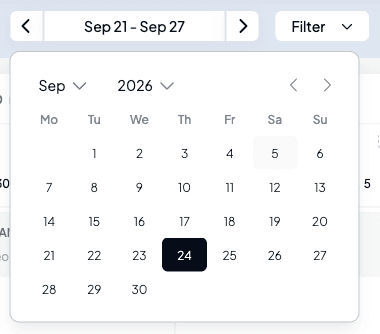
Use the arrows beside the date to step backwards or forwards, a week at a time in Week and a day at a time in Day. Click the date itself to open a calendar and jump anywhere. On the weekly roster, picking any day, earlier or later than the week on screen, opens the week that holds it.
Filter what you see
Open the filter panel
Select Filter in the header. You can narrow the roster by Employee (search by name), Status (Unpublished, Published, Active, Open) and Position. Each section shows how many filters are on, and the Filter button carries a dot while any filter is on. Select Done to close the panel.
Filter by tag
If your business uses tags, the panel has a section for each category, such as Department or Venue job. Each lists the tags you can use at this location, with how many positions default to it. Tick one to see only the shifts that carry it. In View by position, the rows of positions that default to it stay on the grid too.
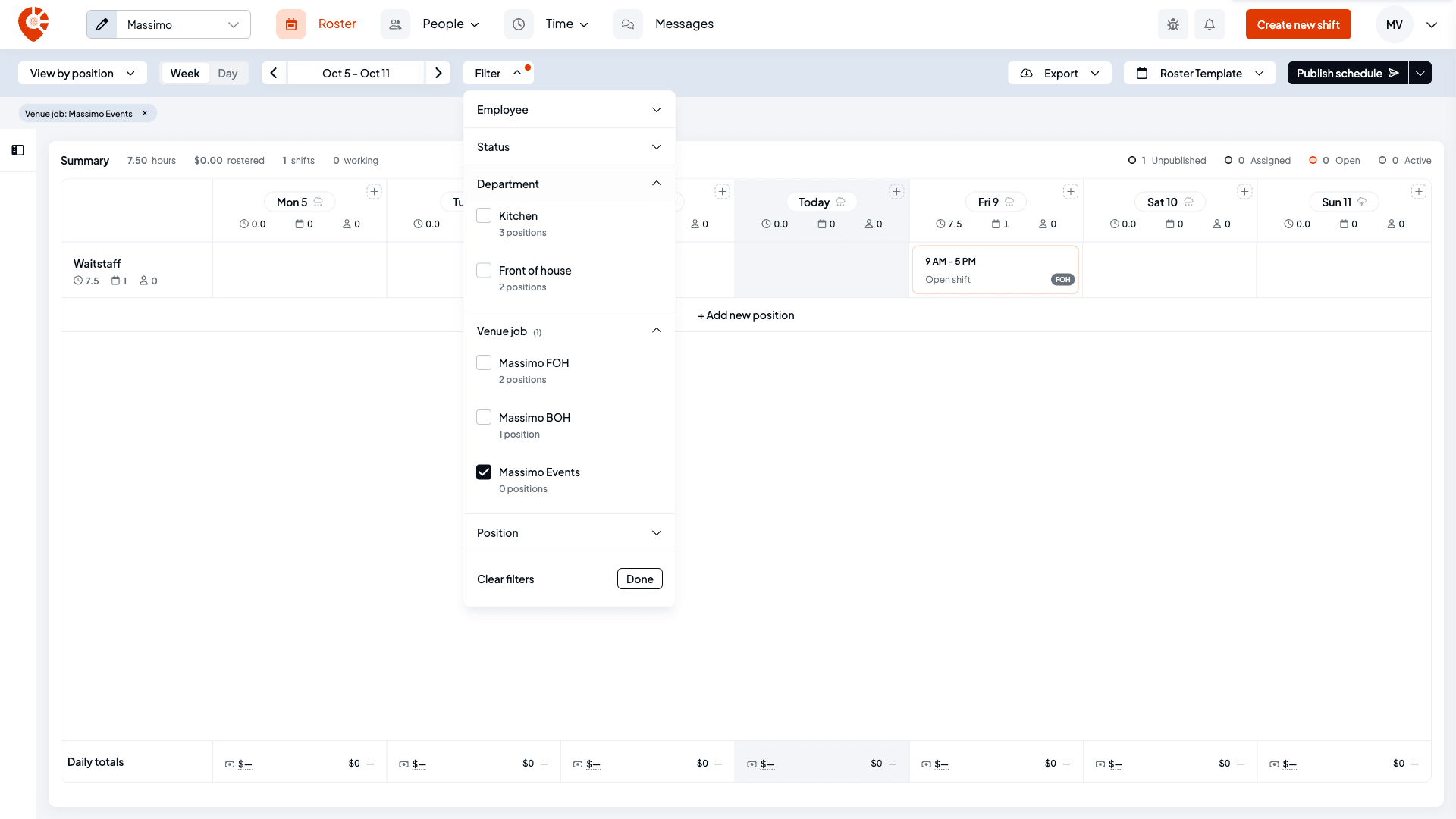
Tag and position filters show as chips above the grid, such as Venue job: Massimo Events. Select the × on a chip to remove that filter. While a tag filter is on, positions that don't default to it are greyed out in the Position section.
Clear filters
Clear filters at the bottom of the panel removes every filter in one go. Filters also reset when you switch location. The summary bar and the Daily totals row only count the shifts that match.
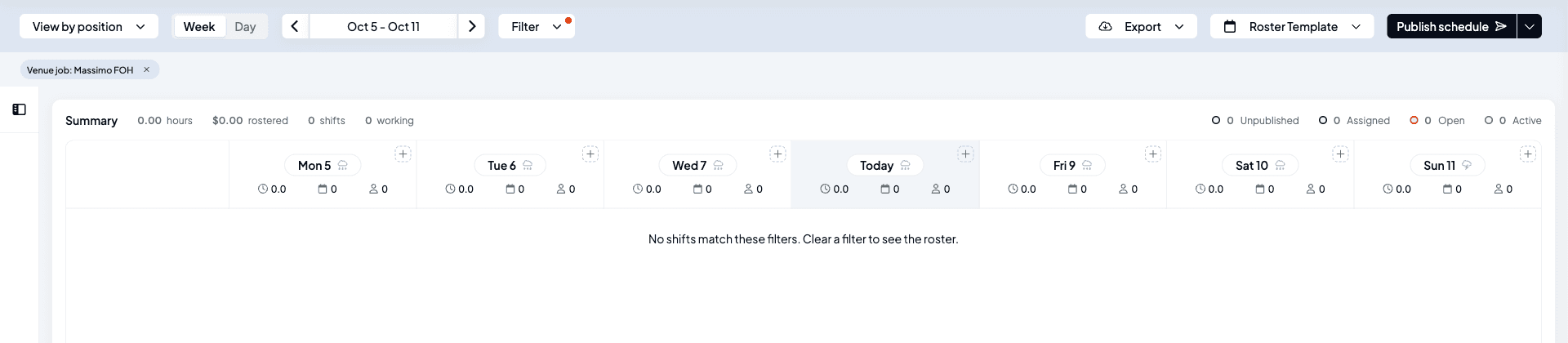
If no shift matches, the grid reads No shifts match these filters. Clear a filter to see the roster.
A shift card shows the code of its tag in your first category, such as FOH, when that tag has a code. See Track labour cost with tags.
Read shift statuses and warnings
A shift card's colour tells you where it is in its lifecycle, matching the legend in the summary bar.
Unpublished: drafted but not yet sent to staff. The card is white with a light grey outline.
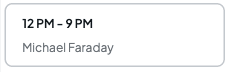
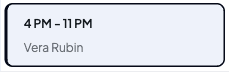
Assigned: published and assigned to a team member. The card has a dark outline and a pale blue fill.
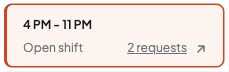
Open: published with no one assigned, so staff can request it. The card is outlined in orange and reads Open shift. Once staff ask for it, a requests link shows how many have. An open shift that isn't published yet has a paler outline and counts as Unpublished.
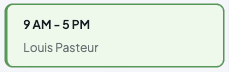
Active: being worked right now. The card turns green once the assigned person has clocked in, and the summary bar's working count goes up.
Once a shift's end time has passed, its card fades, so finished work doesn't compete with what's still ahead of you. For more on open shifts and their requests, see Get a shift covered.
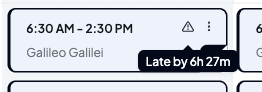
A small warning triangle can appear on an assigned card. Hover it to read why:
- No timesheet: the shift has ended but no timesheet was recorded.
- Late by …: the shift's start time has passed and no one has clocked in.
- Marked as unavailable: the assigned person set themselves unavailable for that time.
Act on a shift
Open a shift's menu
Hover a card and select the ⋮ button at its top right, or right-click the card. The + in the bottom corner adds another shift in the same cell.
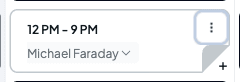
The menu has Copy shift, Paste shift, Create timesheet for shift, Find cover for this shift, Publish this shift, Repeat shift on the next day, Repeat shift for rest of the week, Edit shift and Delete shift. Options that don't apply are greyed out: Paste shift until you've copied a shift, Publish this shift on a shift that's already published, and Create timesheet for shift and Find cover for this shift on a shift with no one assigned.
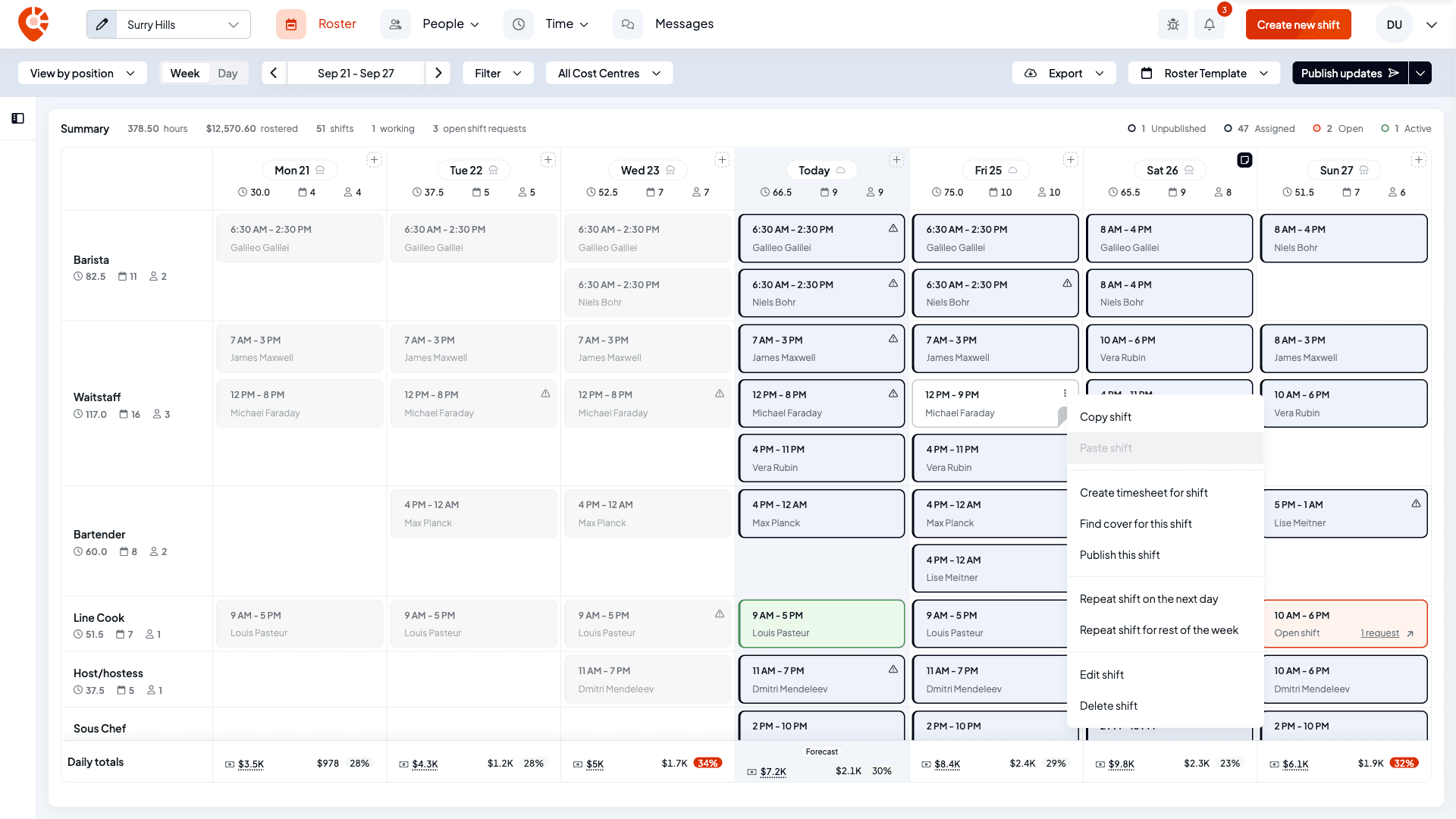
Edit shift and Delete shift are greyed out while the assigned person is clocked in. Any other shift, including ones that have already finished, can be edited or deleted. Clicking a card opens it in the shift form too. See Creating & editing shifts and Copying & repeating shifts.
Change several shifts at once
Select the shifts
Open the ⋮ menu beside Publish and choose Bulk edit. Each shift card gets a tick box, and clicking a card selects it. You can also hold Alt and click a shift to select it without turning on bulk edit. OnDemand shifts can't be selected.
A bar at the bottom counts what you've picked, for example 5 shifts selected, with Search shifts, Delete, Publish and Edit. Your selection stays when you change week, day or filters. The bar then reads, for example, 5 shifts selected, 3 not on screen, and Edit, Delete and Publish act on every selected shift, including the ones not on screen.
Switching location, including to or from All locations, clears the selection, and so does leaving the roster.
Delete several shifts
Delete in the bar, Delete shifts when you right-click one of several selected shifts, and dragging a shift onto the bin that appears while you drag all open the same list of the shifts to delete. When the shifts come from more than one location, each row names its location.
A shift whose employee is clocked in stays on the roster. Its row shows a Clocked in badge, and the list says, for example, 1 shift stays because its employee is clocked in. If every shift in the list is being worked, Delete shifts is greyed out. If Shiftly can't delete the shifts, your selection is kept so you can try again.
Assign staff from the tray
Open the drag-and-drop tray
Open the Drag and drop tray with the sidebar button at the top left of the roster. It lists everyone who can work this location with their hours and cost this week, and flags anyone over their weekly hours with Over weekly limit. An Open shift card sits at the top of the list. In staff view the tray lists positions instead.
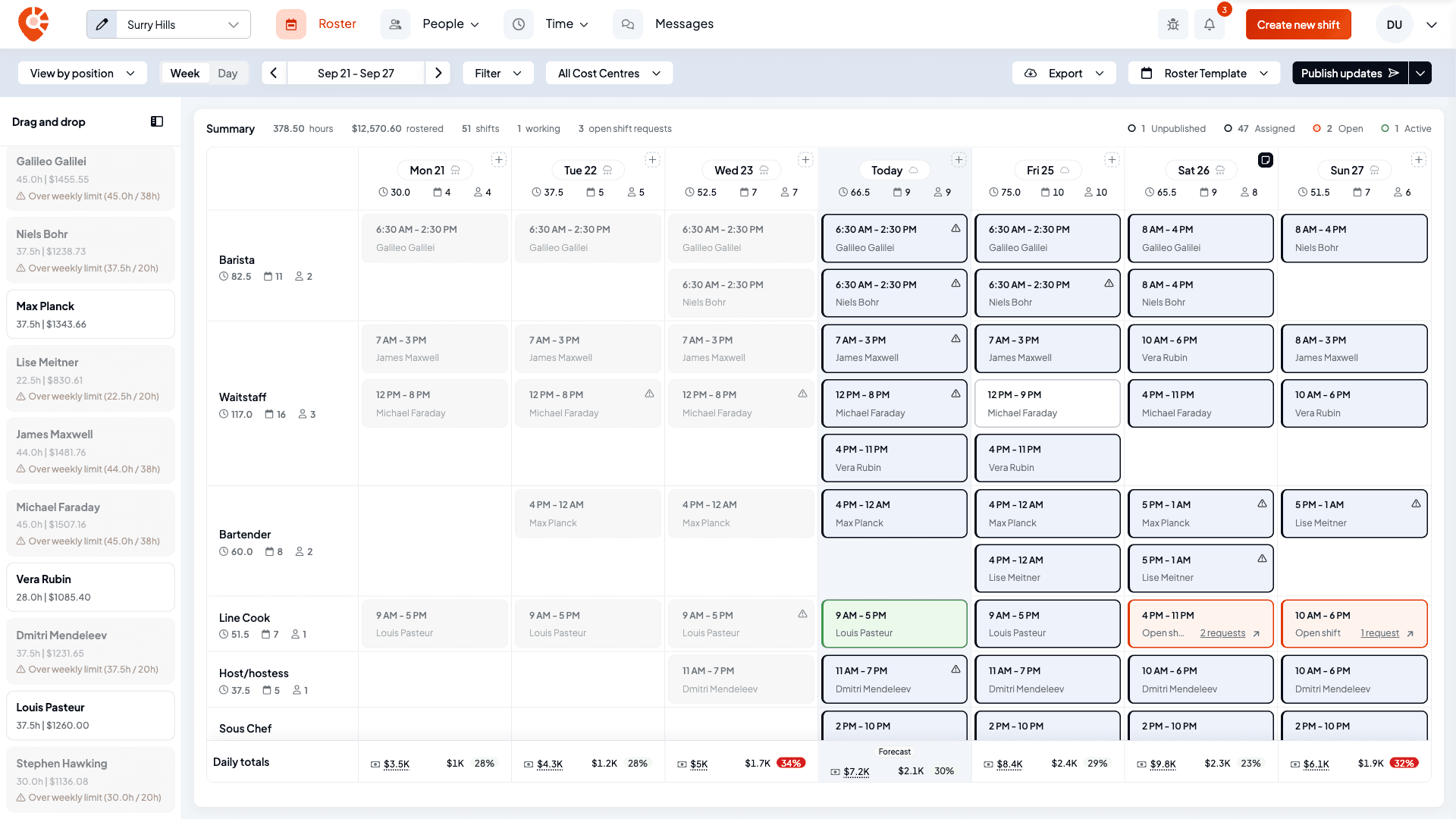
What happens when you drop depends on where you drop:
- A person on an empty cell opens the shift form for that day and position, with the person already picked.
- A person on an open shift assigns them to it.
- A person on someone else's shift asks Replace employee? before swapping them in.
- The Open shift card on an assigned shift takes the person off it, leaving it open.
If the person is already over their weekly hours, Employee over ordinary hours asks you to confirm with Assign anyway.
Reorder your rows
Each row has a drag handle on the left. Drag it up or down to set the order rows appear in, which is handy for putting your busiest roles at the top. The order sticks for that location, for both positions and staff.
Edit a position from its row
In View by position, each row's ⋮ has Edit position and Change colour.
- Edit position opens the position in a side panel. Details holds its settings, saved with Save position. If you have Edit on Employment details, a Team members tab is there too, for choosing who works the position. Anyone else sees Details only.
- Change colour, or a click on the coloured square beside the name, opens the colour picker. A colour you pick is saved straight away. Under Saved colours, Add keeps the current colour and right-clicking a saved colour offers Remove colour. Those two need Edit on Business settings, because saved colours are shared across your business. Without it you can still pick any colour.
Add a row
At the bottom of the roster, + Add new position (or + Add new employee in staff view) adds another row so you can roster a position or person that isn't shown yet.
If a location has no positions (or, in staff view, no employees) yet, the roster is replaced by a prompt to add your first one: Add positions to get started or Add employees to get started.
The Connect to Xero banner
Until your payroll connection is set up, a Connect to Xero banner can show above the roster. Its button takes you to Integrations, where you connect your payroll. You can dismiss the banner, and it stops showing once a payroll connection is fully set up. See Connect your Xero organisation.
The first time you open the roster
A brand-new business sees a short guided tour the first time it opens the roster, walking through the dates, shift cards, views, the tray and publishing. New businesses can also start with sample data so the roster isn't empty. When you're ready for your real team, use Remove sample data and confirm Remove demo data? with Remove. This permanently deletes the sample employees, shifts and rosters.
Related
Creating & editing shifts
Add a shift, set times and breaks, and assign a team member.
Copying & repeating shifts
Copy, paste, repeat and stack shifts to fill the week faster.
Publishing a roster
Send the schedule to your team and choose who gets notified.
Get a shift covered
Post open shifts for staff to claim, and find cover for a shift.
Add a note to a roster day
Leave a note on a day for your other managers.
Track sales and labour cost on the roster
Enter sales and see each day's labour percentage.
See availability, leave and weather on the roster
How availability and leave shape what you can roster.
Track labour cost with tags
Give positions default tags and filter the roster by them.
Export or print your roster
Download the visible dates as CSV, PDF or a calendar file.
Sharing access
Control what your managers can see and change on the roster.
On the Shiftly website
Rostering
Build and publish staff rosters.
Scheduling & rosters
Build, publish, and manage your weekly roster: create shifts, copy and repeat them, save templates, publish to staff, run open shifts, and export the week.
Creating & editing shifts
Add a shift, choose its position, worker, times and breaks, leave a note for the person working it, check the cost, and edit or delete it later.