
Publishing a roster
Send your drafted shifts to staff, choose who gets notified, publish a single shift or several weeks at once, and email open shifts to staff.
Shifts you add, copy or change start as drafts that only managers can see. Publishing sends the roster to your team and sets what they see in Shiftly Me. This guide covers the publish button, the steps of the publish window, publishing a single shift, publishing several weeks at once, sending open shifts to staff, shifts marked Empty, and what staff receive.
Who this is for
Owners and managers using the Shiftly web platform to run your business.
Before you start
- You're an owner or a manager who can edit the roster at the location.
- Open Roster from the main navigation, pick the location at the top left, and move to the week you want to publish.
- You've got at least one drafted shift. See Creating & editing shifts and Copying & repeating shifts.
The publish button
The publish button sits at the top right of the roster. Its label tells you the state of the week you're viewing.

| Button says | What it means |
|---|---|
| Publish | The week has shifts or changes that haven't been published yet. |
| Published | Everything's published and there's nothing new to send. The button is greyed out. |
| Unpublished | The week has never been published and has nothing to publish yet, such as an empty week. The button is greyed out. |
In the Day view the button covers only the day on screen: it reads Publish while that day has something to publish, and Published when it doesn't.
Every publishing option, including publishing several weeks at once and sending open shifts, is inside the window this button opens. So they're only available while the week or day on screen has something to publish.

Publish your roster
The publish window has three steps: Publish type, Notify and Preview. Select Next to move on, or Back to change an earlier choice.
Open the publish window
Select Publish. The Publish roster window opens on Publish type, which tells you what it covers, for example Team members can only see the shifts you publish. This covers 21 Sep 2026 - 27 Sep 2026. In Day view it names the day instead.
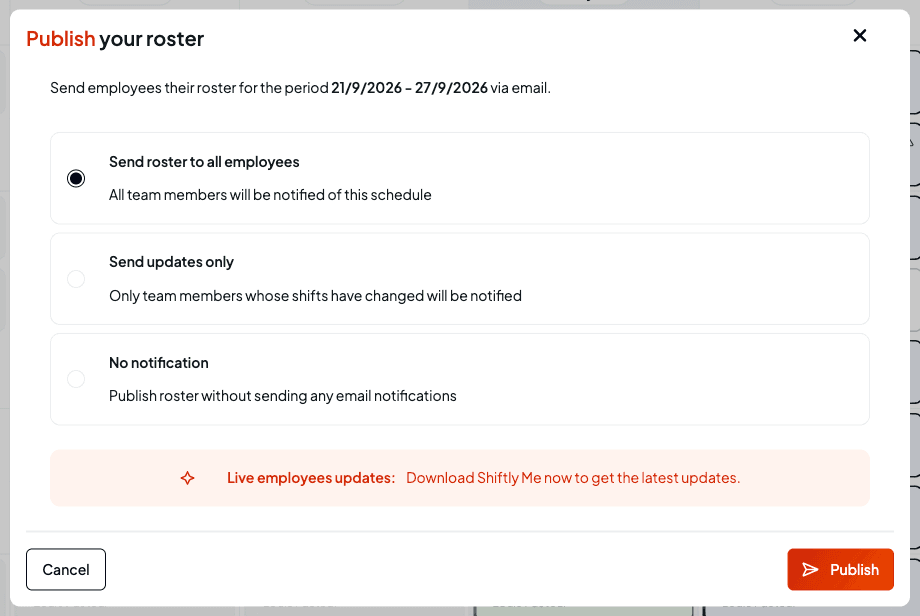
Choose what to publish
Pick one:
- Publish updates: publishes the week, and only people whose shifts were added, changed, taken away or moved to someone else are notified. The first time you publish a week, everyone with a shift counts as changed.
- Publish filtered only: publishes just the shifts your current filters show. It's greyed out, reading Apply a filter on the roster to use this, until you filter the roster.
- Publish all with shifts: publishes the week, and everyone with a shift that week is notified.
- Publish all unpublished weeks: publishes every week that has unpublished shifts, from this week on. See Publish several weeks at once.
- Send open shifts to staff: emails the open shifts on screen and publishes nothing. See Send open shifts to staff.
With more than one location in view, a table below the options lists each Location and what it has To publish.
Check for availability clashes
If any shift you're about to publish is assigned to someone who's unavailable at that time, the step says so below the options, for example Publish roster with 2 availability clashes? and 2 shifts are assigned to people who are unavailable at those times. You can still publish. In Day view it reads Publish day with, followed by the count. Only shifts that haven't been published yet are counted.
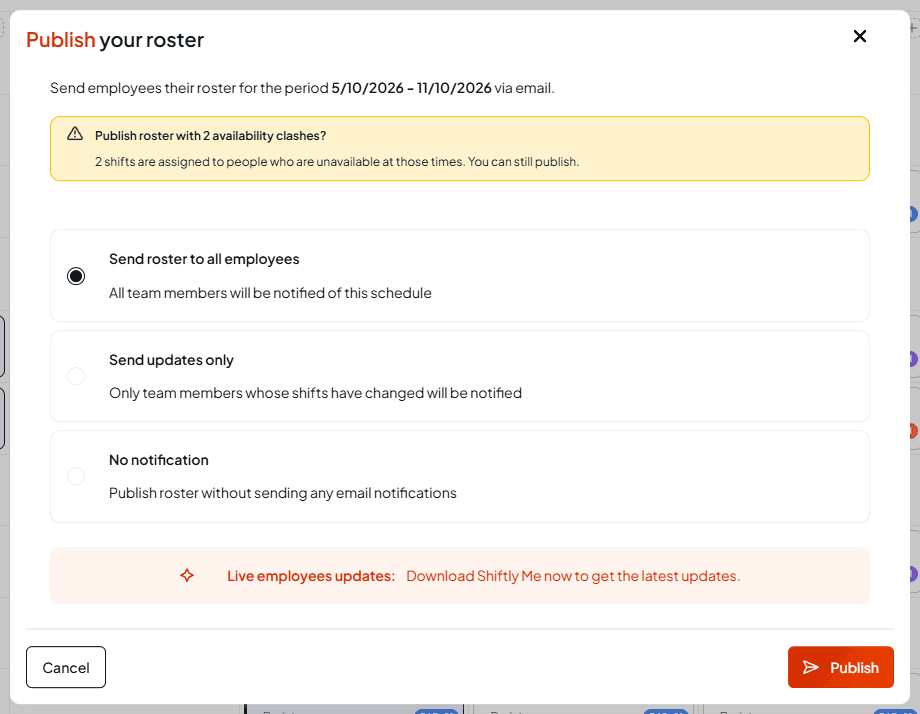
To see which shifts they are, look for the warning triangle on shift cards; hover it to read Marked as unavailable. See See availability, leave and weather on the roster.
Choose who gets notified
On Notify, pick one:
- Notify (email, app): the people your choice in Publish type covers are sent their roster.
- No notifications (mark as published): the shifts go live in Shiftly Me, but nobody is sent anything.
Check the preview
Preview shows who gets an email before you publish. View it by Employee, with each person's Updated, Shifts and Hours and whether they're To be notified or Not notified, or by Position, and search by name or position. In Day view it covers only that day, except with Publish all with shifts, where everyone gets the week's roster: then it lists everyone who gets the email, which is the people rostered that day, the people already published on other days of the week, and anyone whose shift that day was cancelled or given to someone else. When nobody is rostered it reads Nobody is rostered this week., or Nobody is rostered on this day. in Day view (No positions are rostered on this day. by position).
Publish
Select Publish. Every shift in that week at this location is published, even ones hidden by filters, unless you chose Publish filtered only. You'll see Roster published successfully, or Rosters published at 2 locations when more than one location is in view. Publishing filtered shifts shows Shifts published.
Any change you save to a published shift, in the shift form or on the card, turns it back into a draft, and the button goes back to Publish. Staff keep seeing the version you last published until you publish again.
Publish a single shift
To send out one shift without publishing the whole week, open its menu (the ⋮ button on the card, or right-click it) and choose Publish this shift. It's greyed out on a shift that's already published.
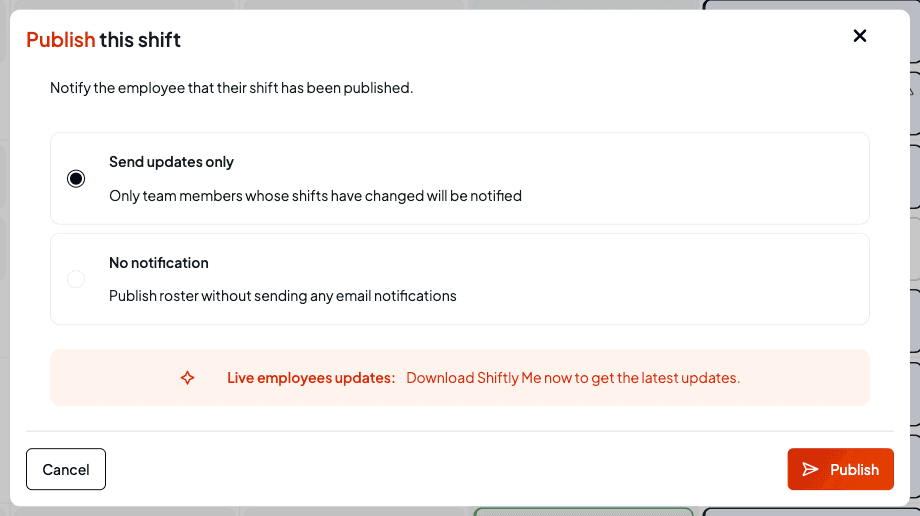
Choose Send updates only to tell the person on the shift, or No notification. For a shift with someone on it, Send updates only is selected for you; for an open shift, No notification is. If the person is unavailable then, the window asks Publish shift with 1 availability clash?; you can still publish. Once every shift in the week is published, the week itself shows Published.
Publish several weeks at once
If you've built more than one week ahead, you can publish every unpublished week from this week on in one go. It's an option in the publish window, so it's only there while the week or day on screen has something to publish.
Choose Publish all unpublished weeks
Select Publish, and in Publish type choose Publish all unpublished weeks. Its description gives the count, for example 2 weeks, 21 shifts, from this week on. The step then reads Team members can only see the shifts you publish. This covers every unpublished week from this week on. With more than one location in view it ends at each location in view, because it covers every location in view, and the table of locations is hidden.
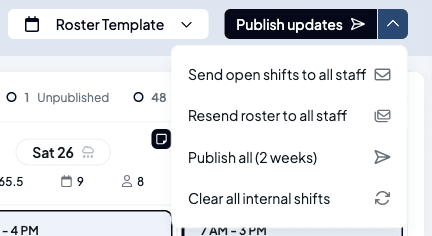
The option is greyed out, with the reason in place of the count, when:
- Every week from this week on is published: there's nothing left to publish.
- Checking for unpublished weeks: Shiftly is still checking. It also shows briefly when you reopen the window soon after another publish, while the weeks are checked again, so the list always includes what you've just published.
- Publishing 2 weeks. You'll get a notification when it's done.: an earlier publish of several weeks is still running.
If any of those weeks has a shift assigned to someone who's unavailable at that time, the step asks, for example, Publish 2 weeks with 3 availability clashes? You can still publish.
Choose who's notified
On Notify, choose:
- Notify (email, app): everyone at each location with a shift in those weeks gets one message covering all of them.
- No notifications (mark as published): nobody is sent anything.
Check which weeks will publish
Preview reads Check which weeks will publish and lists each Week, for example Mon 19 Oct to Sun 25 Oct, with what it has To publish, for example 12 shifts, 1 availability clash. With more than one location in view, a Location column shows where each week is.
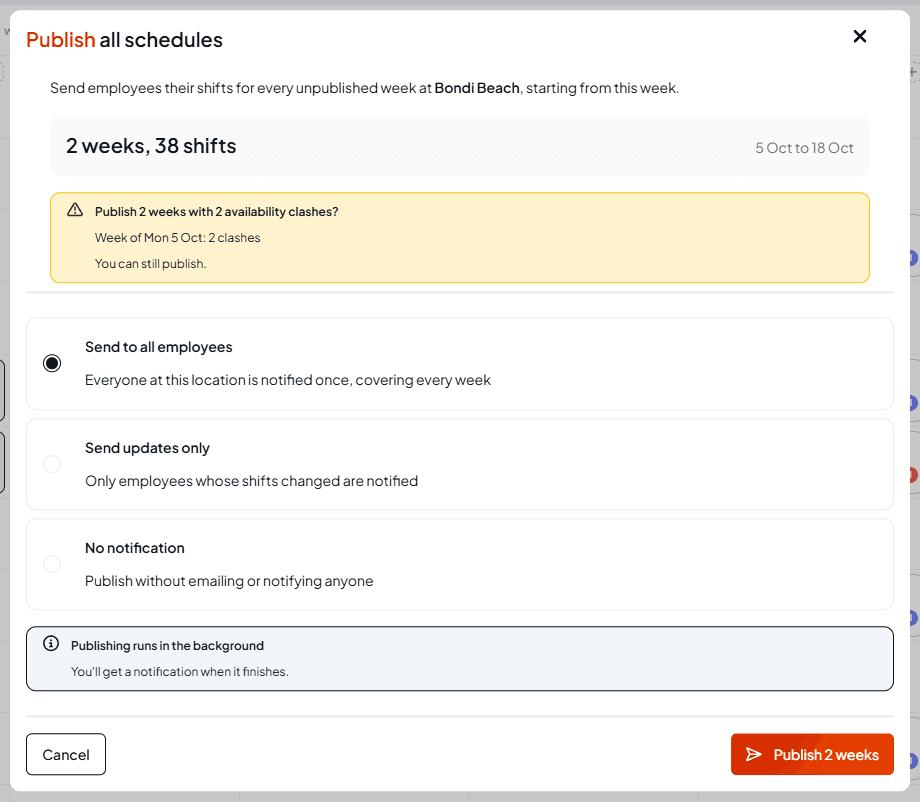
Publish and carry on
Select Publish with the number of weeks, for example Publish 2 weeks. Publishing runs in the background, so you can keep working or leave the page. You'll see Publishing 2 weeks. We'll let you know when it's done., or Publishing 2 weeks at 2 locations. We'll let you know when it's done. with more than one location in view.
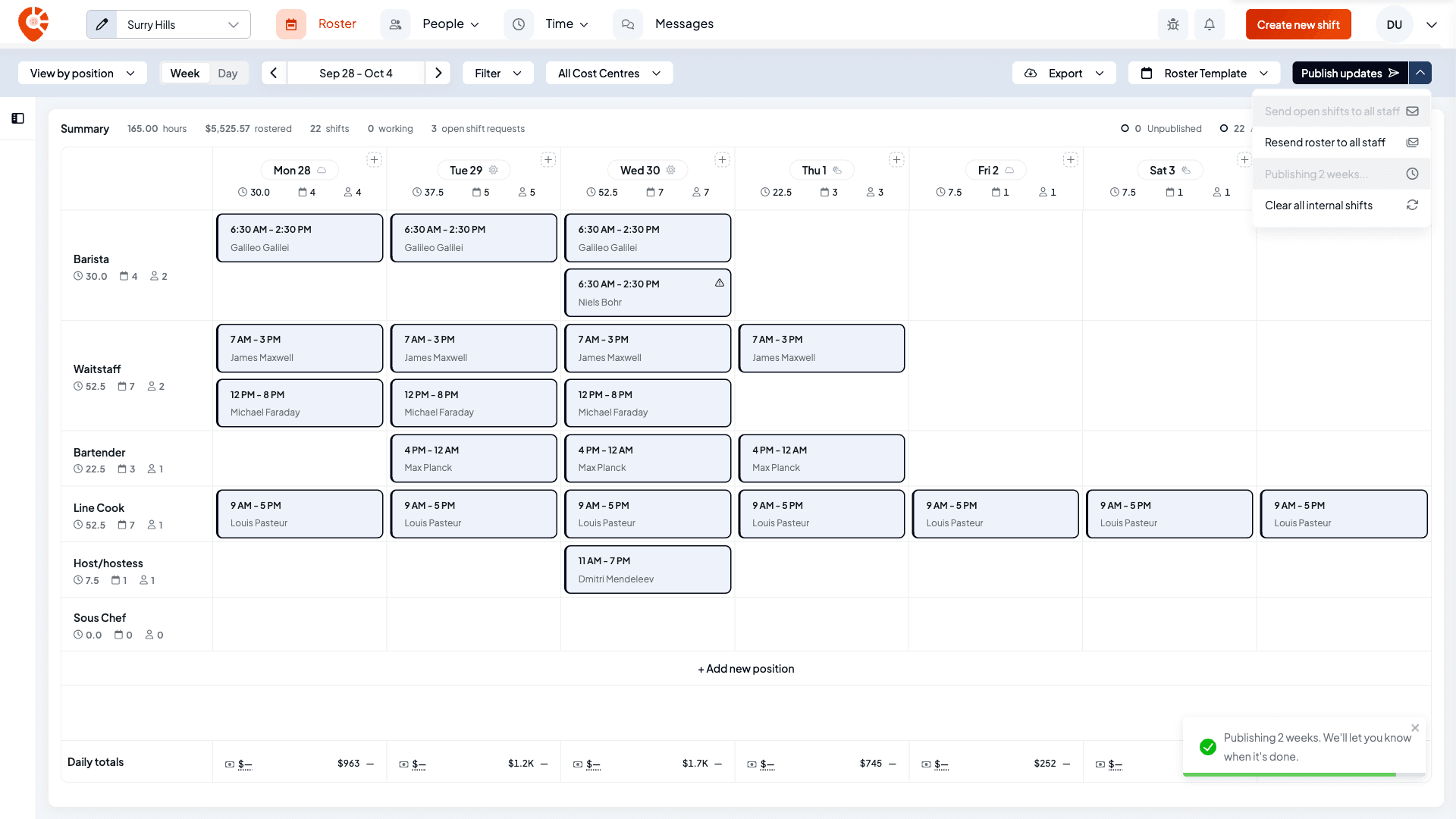
When it's done you get a Schedules published notification, for example 2 weeks published. No notifications sent. If none of the weeks can be published, you get Couldn't publish these schedules instead.
If a week can't be published, the others still go out, and the notification Some weeks need attention tells you which week and why. Publishing all unpublished weeks covers up to 12 weeks at a time; anything beyond that is left for the next run.
Send open shifts to staff
To tell your team there are shifts going, select Publish and choose Send open shifts to staff (Email the open shifts on screen to staff who can work them. Nothing is published.).
- Only the open shifts on screen are sent: your current filters apply, Day view sends only that day's, and a shift marked Empty is never sent.
- On Notify, No notifications is greyed out, because open shifts are offered by email.
- Preview reads Check which open shifts will be sent and lists the shifts in start order, with their Date, Time (for example 9am – 5pm), Position and, with more than one location in view, Location. It doesn't list people, because who is offered each shift depends on their availability and positions. When there's nothing to send it reads There are no open shifts to send.
Select Send open shifts. Each person's email leaves out shifts that clash with theirs or that they're unavailable for. You'll see Open shifts sent to all staff, or Open shifts sent to staff at 2 locations. See Get a shift covered.
Shifts marked Empty
A shift marked Empty is a slot nobody is on and that isn't open for staff to claim. Publishing leaves it out:
- It's never emailed as an open shift and never counted as published. Staff can't ask for it; they see This shift isn't open for requests.
- Publishing one on its own, with Publish this shift, is refused with This shift is Empty, so it can't be published. Assign someone or change it to Open first.
- If you change a published shift to Empty, the next publish takes it off the published roster. The person who had it is sent Shift Cancelled and it leaves their Shiftly Me roster. Until then the week counts it as one change waiting to be published. Publishing only selected or filtered shifts doesn't clear it, just as with a deleted shift; publishing the week, the day or all unpublished weeks does.
What your staff receive
When you publish with notifications on, each person gets an email, a notification on their phone and a message in Shiftly Me, depending on their notification settings. The first time a week is published, they get New Roster Published with their shifts for the week. After that, publishing changes sends Shift Updated, New Shift Assigned, Shift Cancelled or Shift Reassigned (or the plural). The email also lists open shifts they could pick up, leaving out any that clash with their own shifts or that they're unavailable for. When you publish all unpublished weeks, each person instead gets one Your roster has been published message covering every week.
Shiftly Me shows each person the roster as you last published it. Draft changes don't reach their phone until you publish. (Shiftly Me is the staff app. See The Shiftly apps.)
Related
Creating & editing shifts
Add and change the shifts that make up the roster.
Copying & repeating shifts
Fill the week quickly before you publish.
Get a shift covered
Leave shifts open for staff to claim, and find cover.
Find your way around the roster
Read the roster and its shift statuses.
On the Shiftly website
Rostering
Build and publish staff rosters.
Track sales and labour cost on the roster
Enter a sales forecast or actual sales for each day, and see the day's labour cost and labour percentage against your target right on the roster.
Roster templates
Save a week's shifts as a reusable template, then load it onto another week to rebuild the same schedule in seconds.