
Send an announcement to your team
Start an announcement channel so a message reaches everyone at once, instead of chasing people individually.
An announcement goes to a group of staff at once, so news like a roster change, a venue closure or a policy update lands with everyone instead of being repeated in a dozen chats. Announcements live alongside your other conversations in Messages.
Who this is for
Owners and managers using the Shiftly web platform.
Before you start
- You need permission to send announcements. If Announcement isn't one of the options when you start a new message, ask your owner to grant it. See Sharing access.
- Staff read announcements in the Shiftly Me app on their phone.
Send an announcement
Start a new message
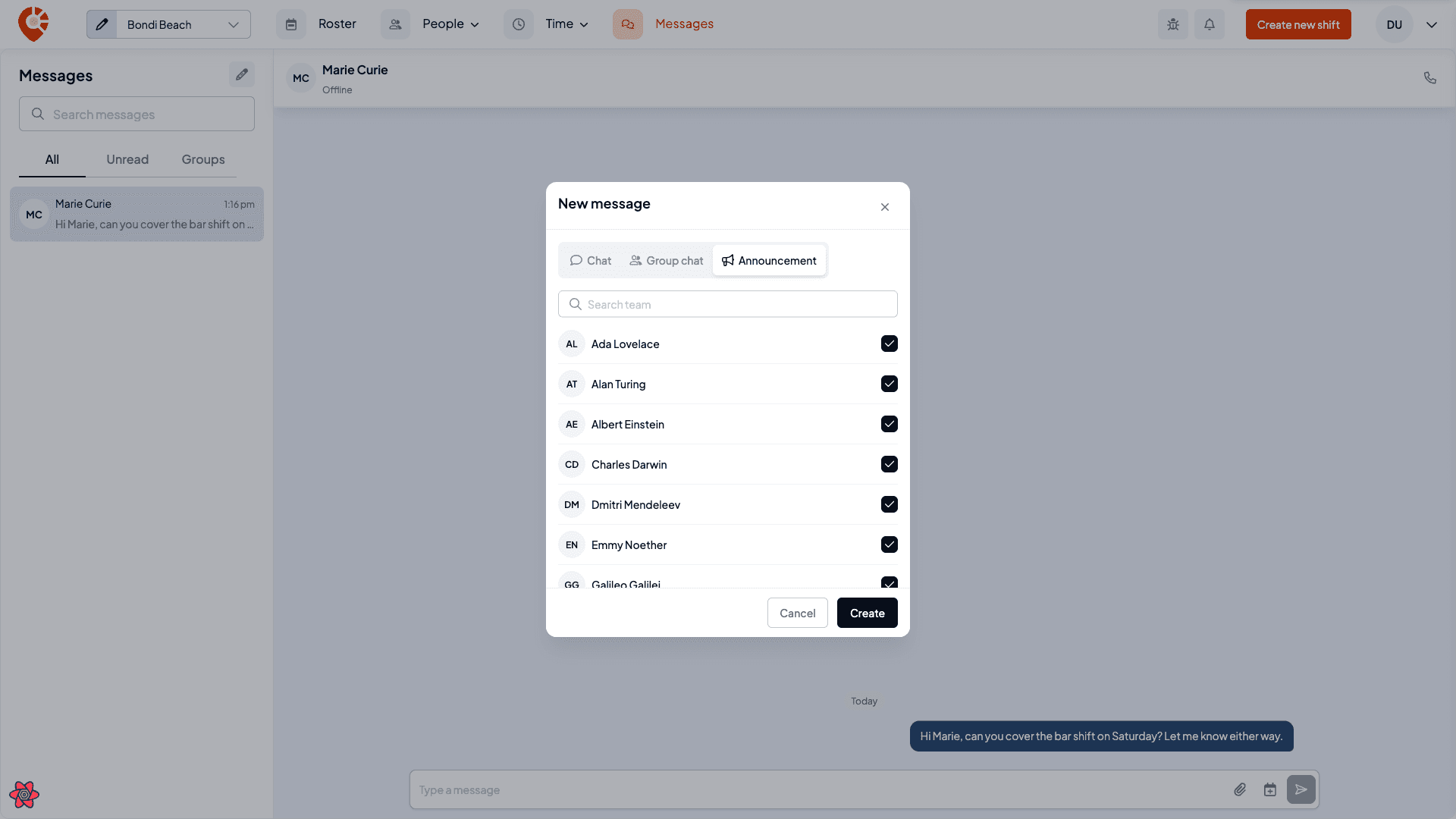
Open Messages from the main navigation and select the New message (pencil) button at the top of the conversation list. Choose the Announcement tab.
Choose who receives it
Announcements open with everyone already selected: that's the common case. Uncheck anyone who shouldn't get it, or search to narrow the list. You need at least one person.
This is the main difference from a Chat, where clicking a single name opens the conversation straight away. Here you're building a list, so nothing happens until you confirm.
Create the channel and write your message
Select Create. Shiftly opens an announcement channel with the people you chose, and you write and send from there the same way as any other conversation. See Message your staff.
An announcement channel is for one-way news. If you want a back-and-forth with a few people, start a Group chat instead. It works the same way but needs at least two recipients.