
Change or remove a manager's access
See everyone who can manage your business, change which venues each manager covers and what they can see and change, or remove their access.
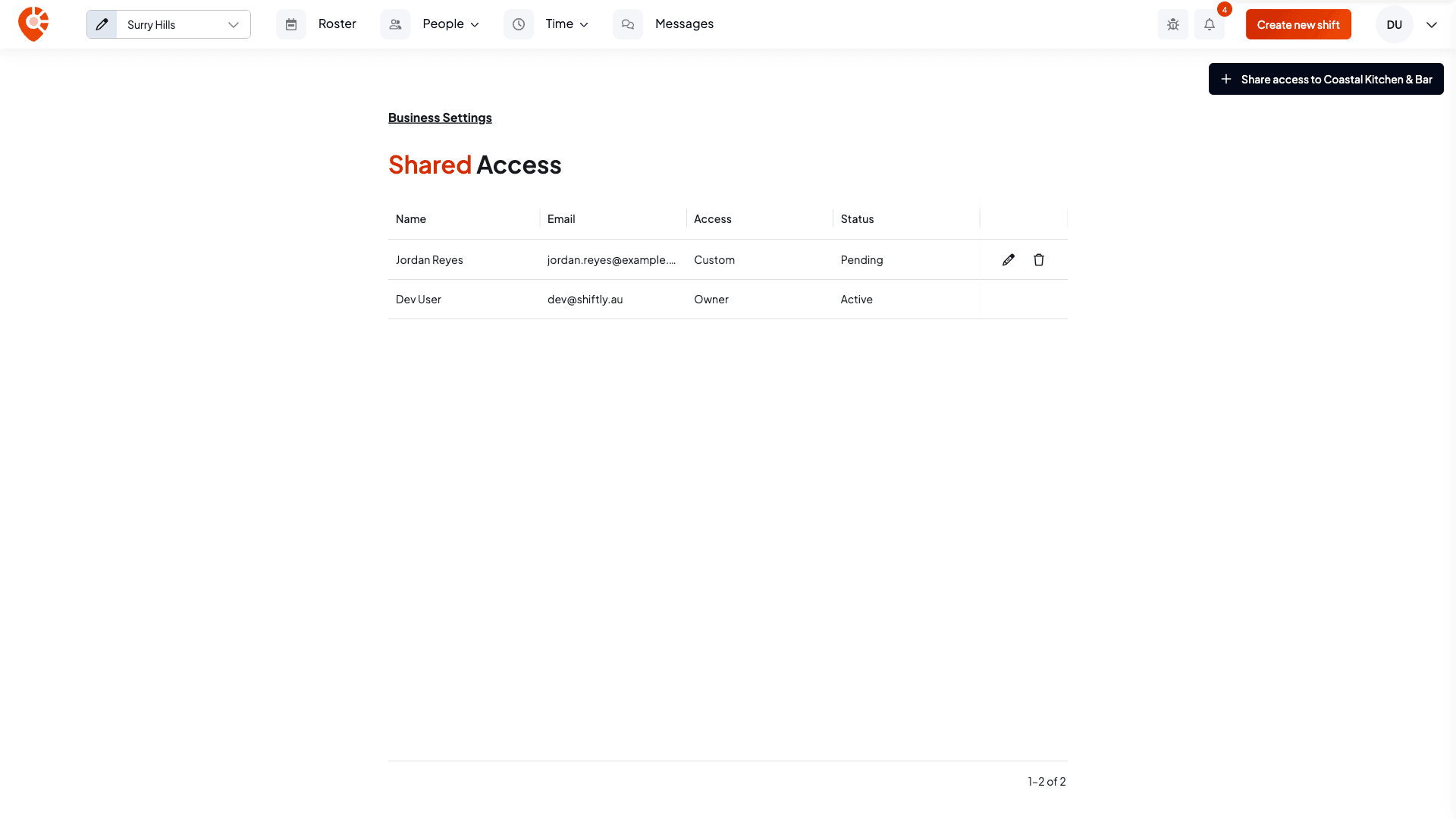
The Shared Access page lists everyone who can manage your business, both pending invites and active managers. From here you can change which venues each one covers and what they're allowed to see and change, or remove their access altogether.
Who this is for
Owners, and managers whose access includes editing Manage team access. Managers who can only view it see the list but not the edit and remove buttons.
Before you start
- Open the account menu (your initials, top right) and choose Manage Access.
Who's on the list
Each row shows the person's Name, Email, Access and Status. Access reads Owner for the business owner, and Custom for a manager whose permissions you've picked yourself. Status is Pending for someone you've invited who doesn't have a Shiftly account yet, and Active once they have access. To add someone, see Inviting managers.
Change what a manager can do
Select the pencil (Edit access) on their row, or double-click the row. For an active manager the name and email are locked. For a pending invite you can still correct the name, but not the email. Two things are yours to change:
Locations: leave All locations on to cover every current and future venue, or switch it off and choose venues one by one. A manager only sees the venues you've given them.
Roles & permissions: a grid of the areas of Shiftly, each with a View and an Edit box:
- Scheduling: Roster, Timesheets, Leave
- People & pay: Employee profiles, Pay & labour cost, TFN & bank details, Sign-in code recovery
- Business: Pay rules, Business settings, Manage team access, Kiosks
- Insights: Sales figures
- Communication: Messaging
Ticking Edit turns View on with it, and clearing View clears Edit, so a manager can never end up able to change something they can't see. Areas you leave unticked don't appear for them at all. Select Save access when you're done.
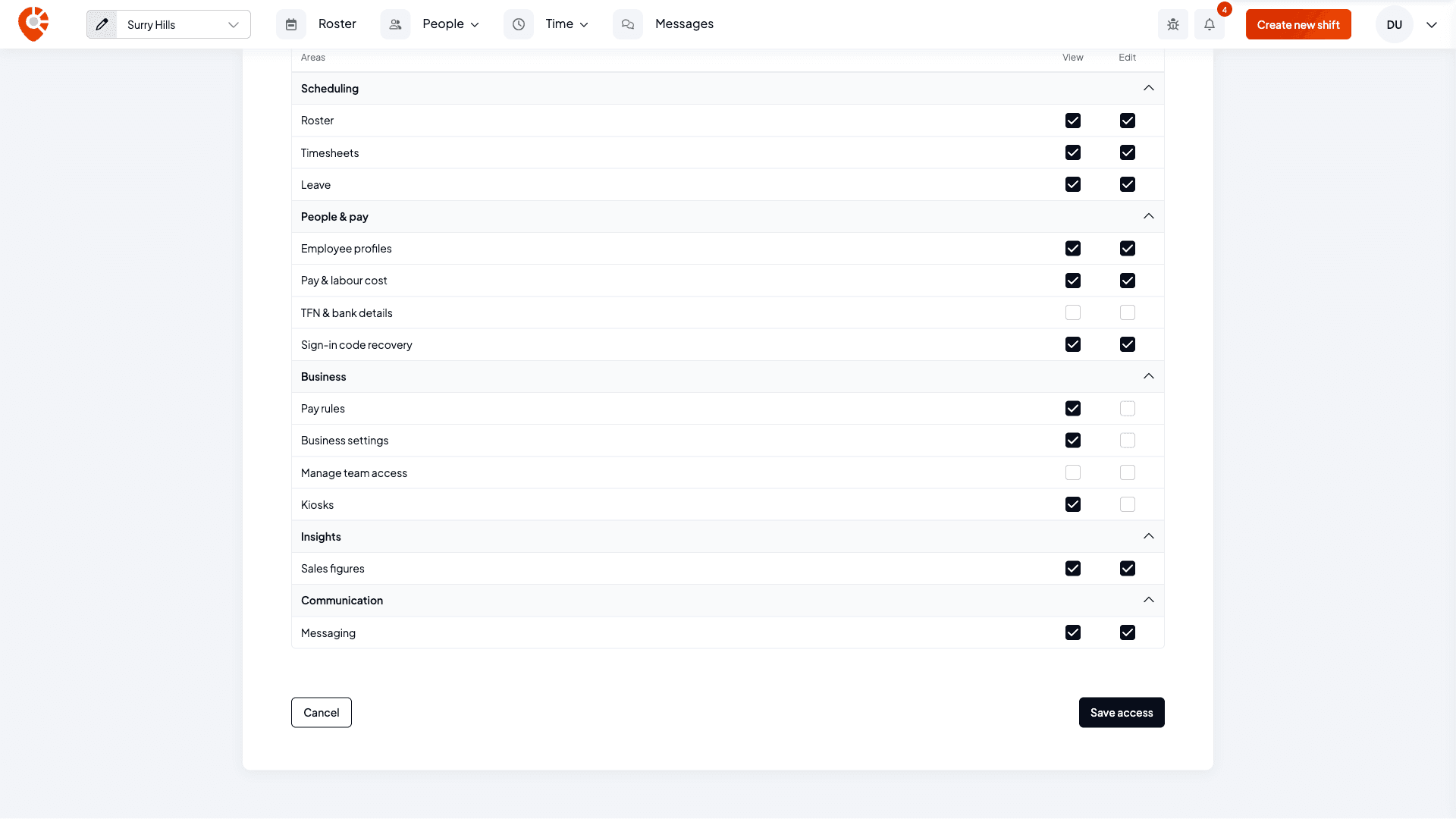
Think twice before granting TFN & bank details or Pay & labour cost: they expose employees' private financial information and your labour costs. Sign-in code recovery lets a manager create sign-in codes for staff, and Manage team access lets that manager change other people's permissions. If you're a manager yourself, you can only give access you have.
Remove access
Select the bin (Remove access) on their row, then Remove access to confirm. For an active manager this takes away their access to your business. For a pending invite it withdraws the invitation.
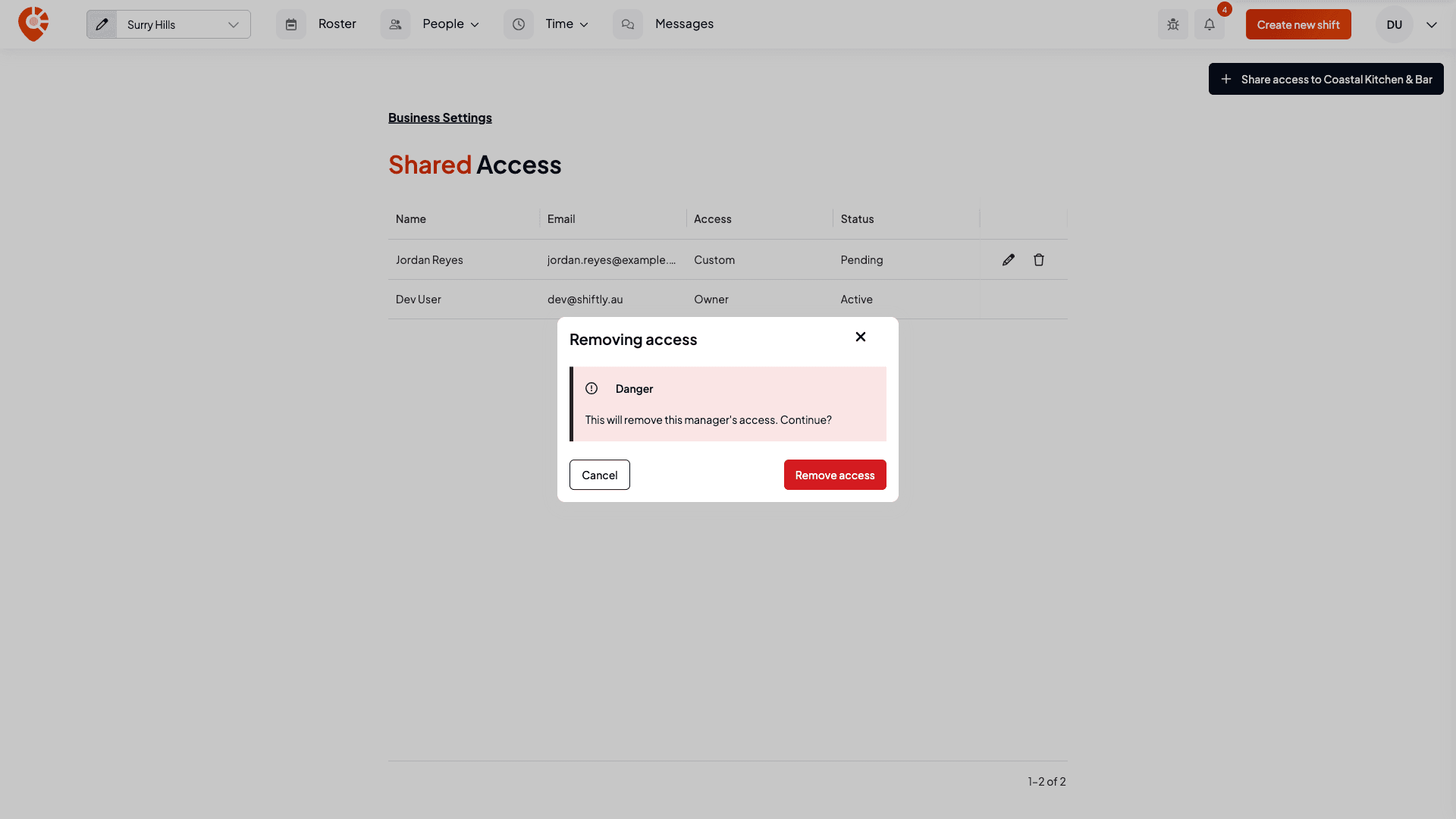
The business owner's row can't be edited or removed, so you can't accidentally lock yourself out. Owners always have full access.