
Message your staff
Chat with a staff member or a group, point them at a specific shift, and see when they're typing.
Messages is where you talk to your team inside Shiftly, so shift conversations stay next to the roster instead of scattered across personal phones. Open it from Messages in the main navigation.
Who this is for
Owners and managers using the Shiftly web platform.
Before you start
- You need the messaging permission to see Messages, and permission to manage messaging to start conversations and send messages. If Messages isn't in your navigation, ask your owner. See Sharing access.
- Staff read and reply in the Shiftly Me app.
Find your way around
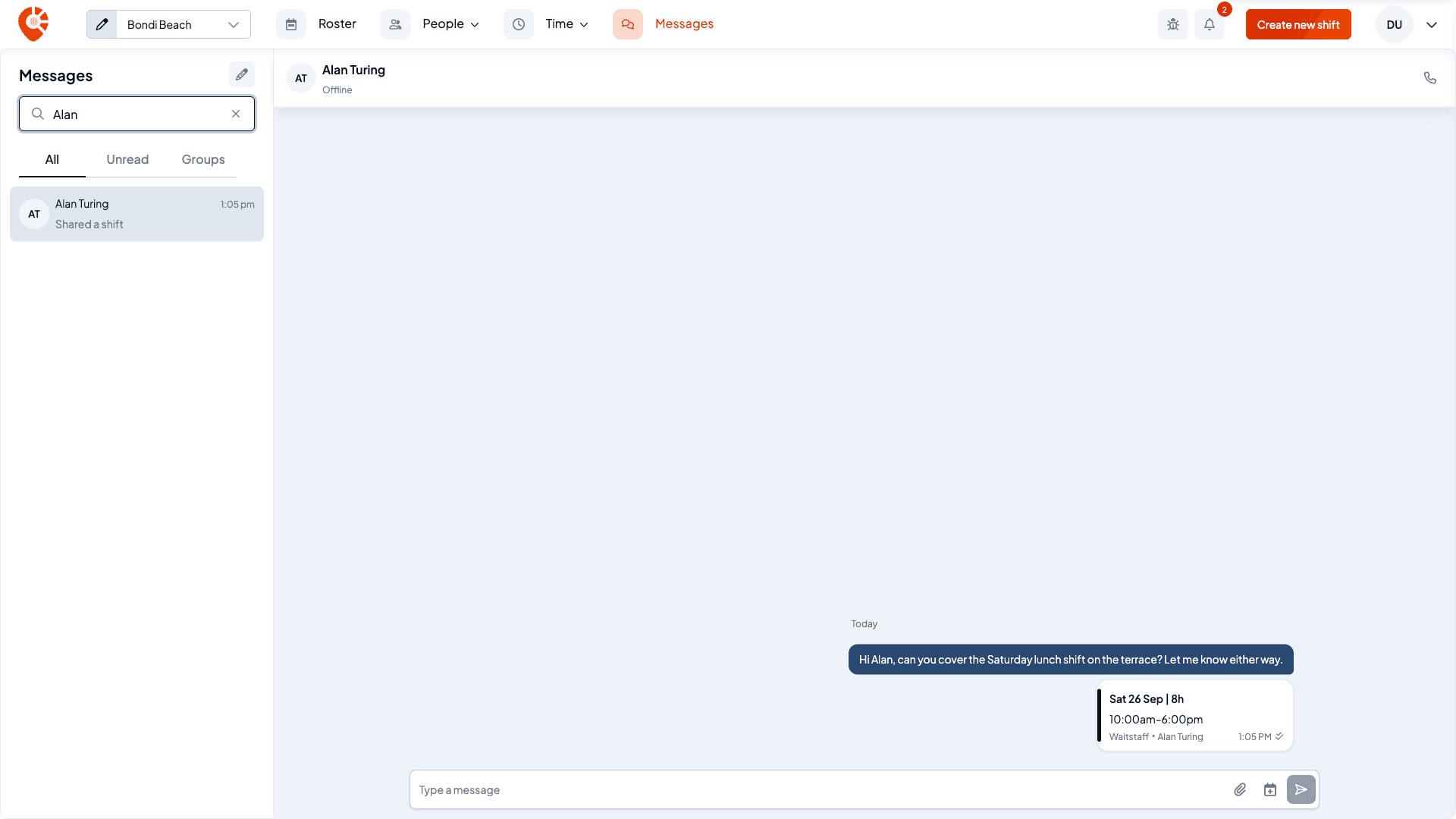
The left column lists your conversations for the business you're in, most recent first. Use Search messages to find one, or the tabs to narrow the list:
- All: every conversation you're part of.
- Unread: just the ones with messages you haven't read.
- Groups: group conversations only.
A conversation with unread messages shows a count. Select a conversation to open it on the right. Opening it marks its messages as read.
Start a conversation
Choose the kind of message
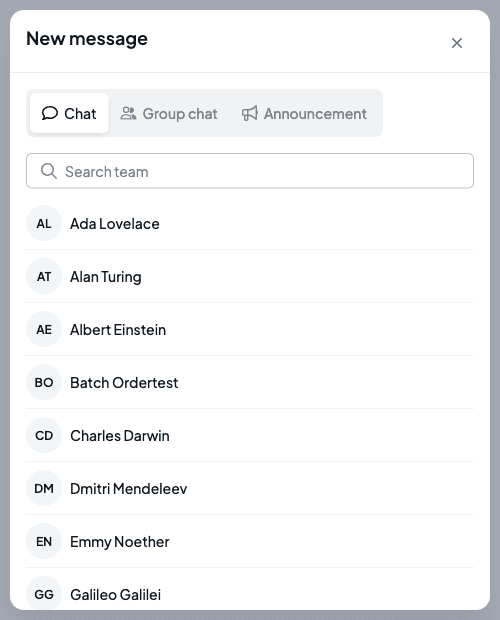
Select the New message (pencil) button at the top of the list, then pick a tab:
- Chat: a one-to-one conversation with one person.
- Group chat: a conversation with two or more people.
- Announcement: a one-way message to your team. See Announcements & polls.
Pick who it's for
Use Search team or scroll the list. The list includes your staff and the business's owners. For a Chat, selecting a person opens your conversation with them, or starts one if you haven't talked before. For a Group chat, tick the people and select Create.
Write and send
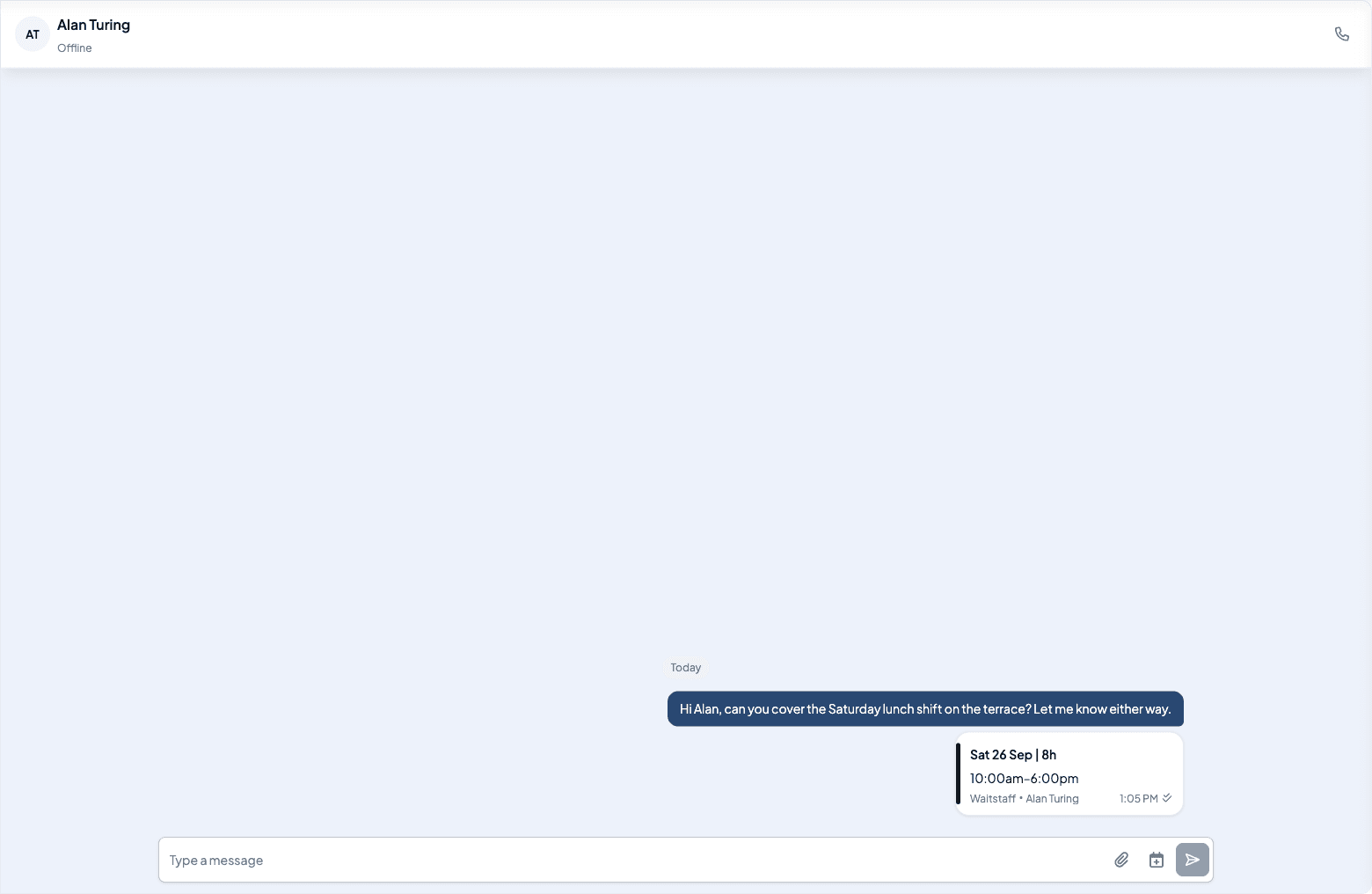
Type in the box at the bottom and press Enter to send. Use Shift+Enter for a new line. Your messages sit on the right of the thread and theirs on the left, grouped under a day heading such as Today. New messages arrive without refreshing the page.
Share a shift or a file
Beside the message box:
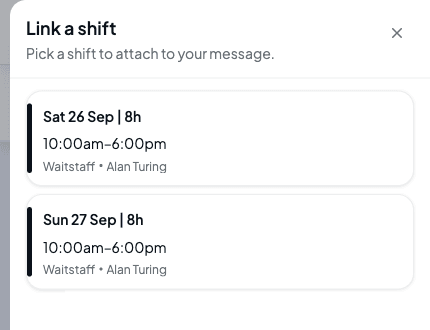
- Attach a shift (the calendar button) opens Link a shift. In a one-to-one chat it lists that person's upcoming shifts at your current location, plus any unassigned published shifts there. In a group it lists the location's upcoming published shifts. Select one to send it as a shift card. Selecting a shift card opens its details, with View in roster.
- Add attachment (the paperclip) sends a file.
Reply, react and see who's typing
- Hover a message to reply to it or add a reaction.
- While someone is typing, you'll see animated dots above the message box. In a group it also says who, for example "Marie is typing".
- In a one-to-one chat, the header shows the person's photo if they have one, and whether they're Online or Offline. Offline just means they don't have the app open. They still get your message. If they have a phone number, the phone button calls them.
Manage a group
Open a group and select the info button in its header to see Group details. From there you can set a Group name, Add people (anyone already in the group shows as Already in this group), remove someone, or leave the group yourself.