
See availability, leave and weather on the roster
See when each staff member can and can't work, get warned when you roster someone who's unavailable, and see approved leave, restricted leave days and the weather as you build the roster.
The roster shows you who can work, who's on leave and what the weather's doing, so you can roster around it. This guide covers reading staff availability, what happens when you roster someone who's unavailable, the alerts you get when staff change their availability, the setting that stops staff going unavailable over published shifts, approved leave, restricted leave days and the weather forecast.
Who this is for
Owners and managers using the Shiftly web platform to run your business.
Before you start
- Open Roster from the main navigation and pick the location at the top left.
- Switch to View by staff with the view menu at the top left. Availability and leave show against each person's row.
How availability works
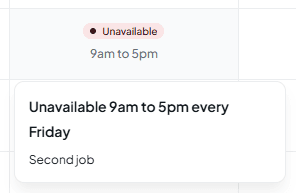
Availability is a set of rules for each staff member, such as "Unavailable 9am – 5pm every Friday" or "Available 8am – 11am every Thursday". Staff add their own in Shiftly Me, and you can add or change them from their profile. See Update an employee's details.
- Someone with no rules is available all day, every day.
- An unavailability rule blocks out the times they can't work.
- An availability rule sets the only times they can work that day. Outside those times, they count as unavailable.
- A rule for one date beats a repeating rule, and where rules of the same kind overlap, unavailability wins.
Availability is a guide for you, not a lock: you can always roster someone who's unavailable, and Shiftly warns you when you do.
See who's available
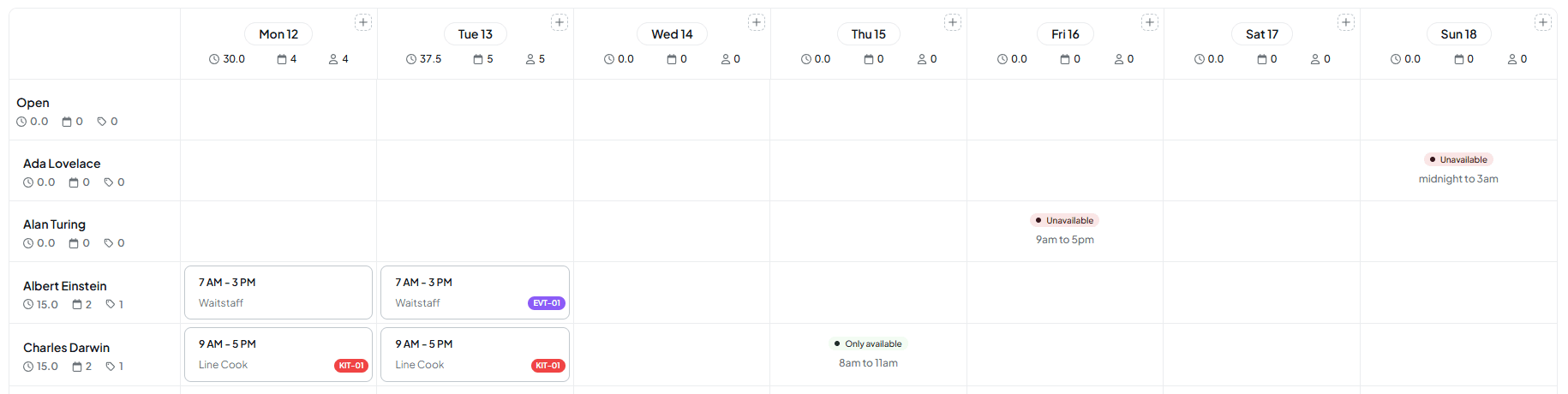
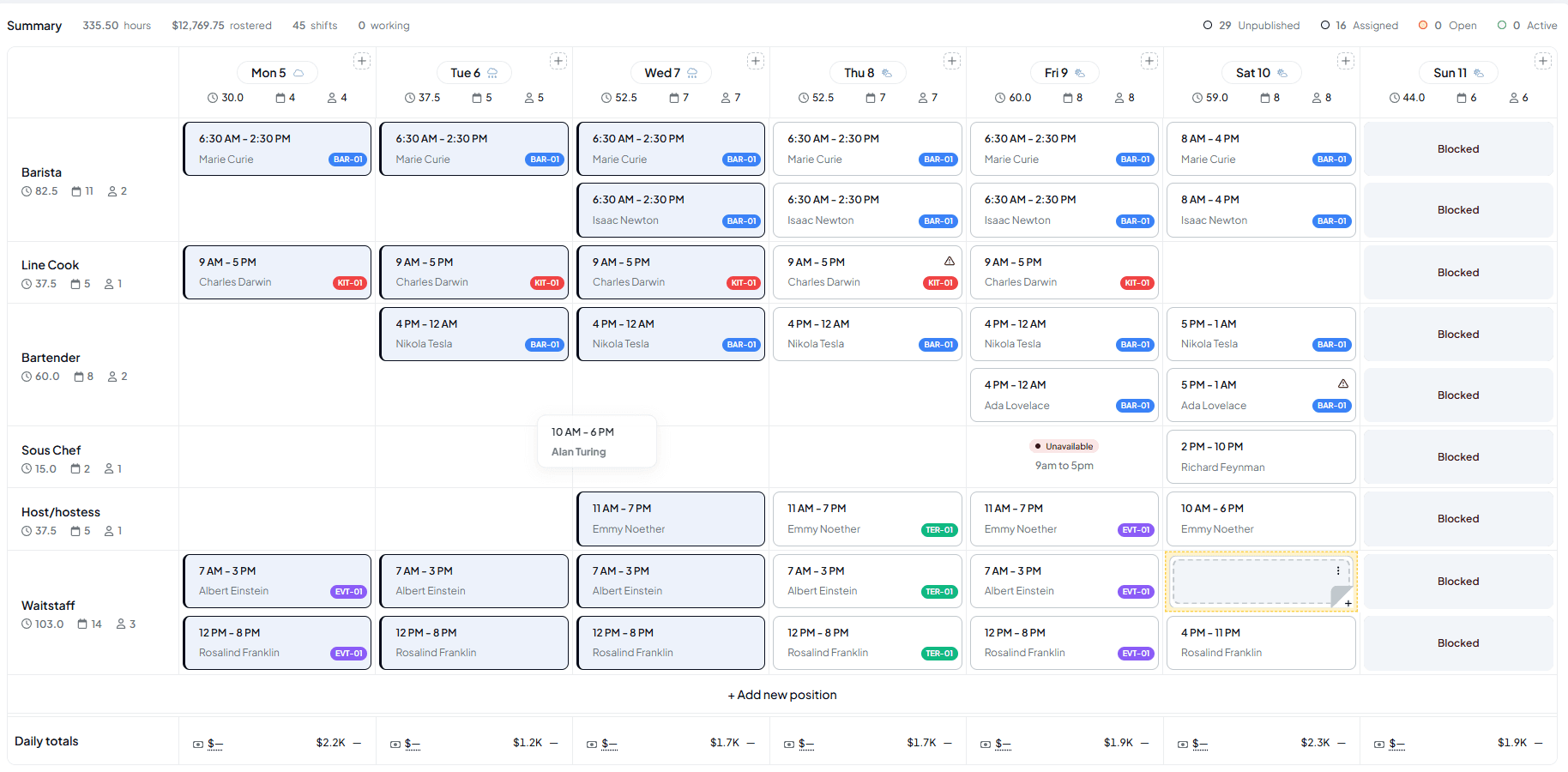
In View by staff, each person's empty cells show their availability for that day, on draft and published weeks alike.
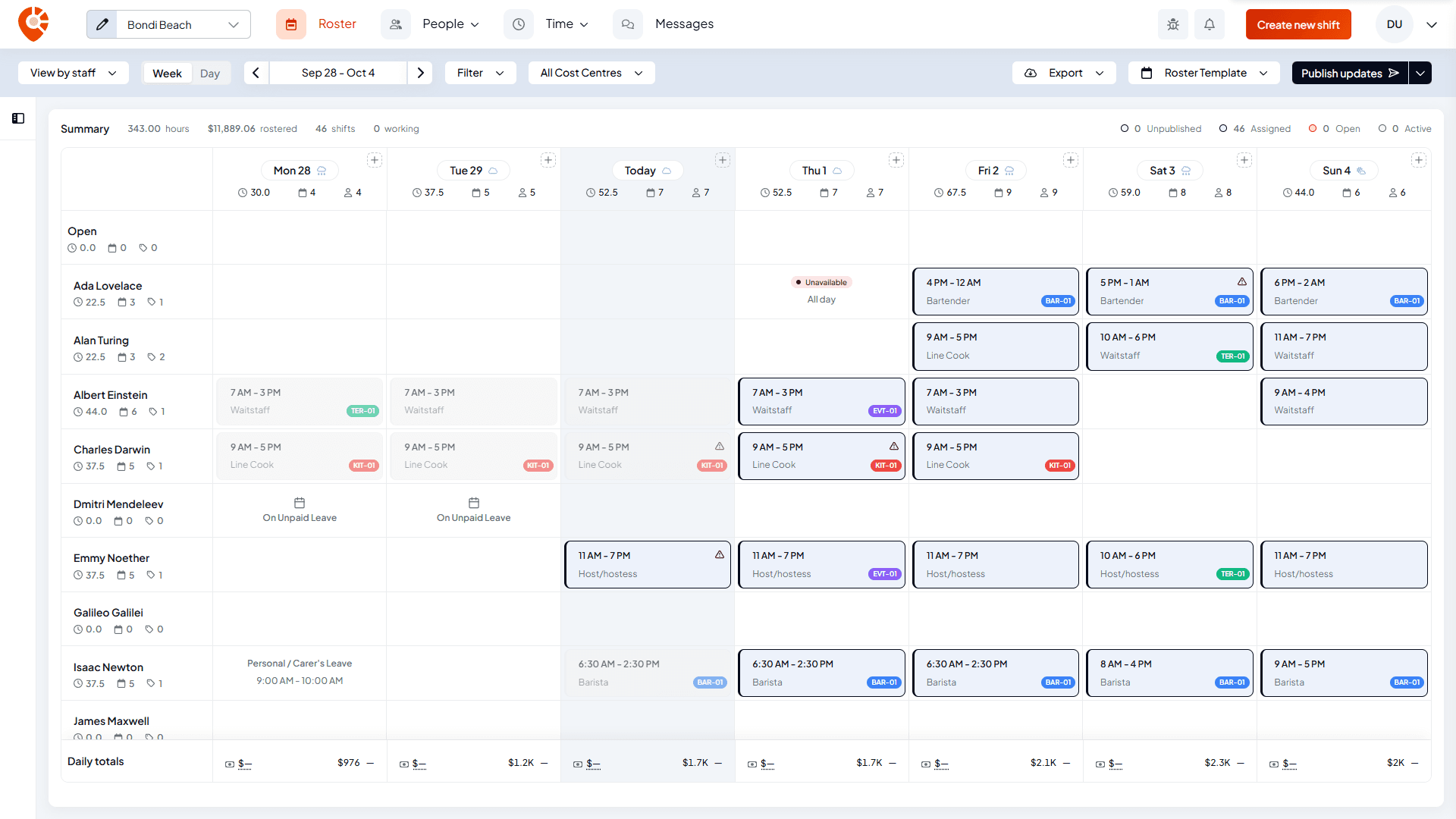
- Unavailable with All day or the hours, for example 9am – 5pm: they can't work then.
- Available with the hours, for example 8am – 11am: those are the only hours they can work that day. When they have more than one window, the cell lists each one.
- A blank cell: they're available all day.
Hover a cell, or move to it with the keyboard, to see the rule behind it and any comment the person left.
When someone changes their availability, the roster updates without you refreshing the page.
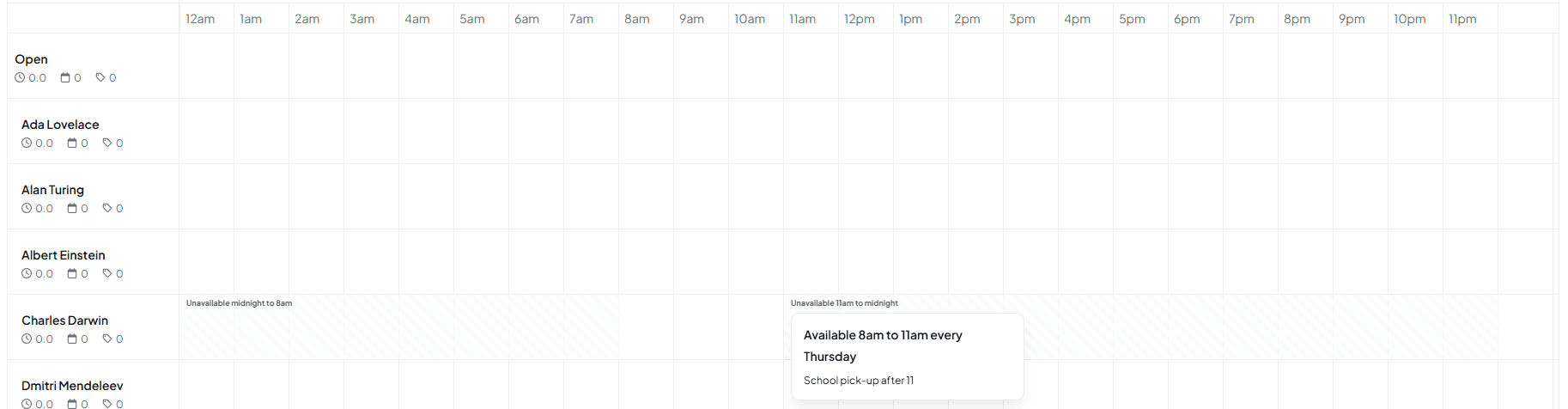
In Day view
In Day view, the times someone is unavailable are shaded across their row and labelled, for example Unavailable midnight – 8am and Unavailable 11am – midnight for someone who's only available 8am to 11am. Hover a label to see the rule and comment.
Roster someone who's unavailable
You can roster someone at a time they're unavailable. Shiftly warns you, and the shift still saves.
The warning in the shift form
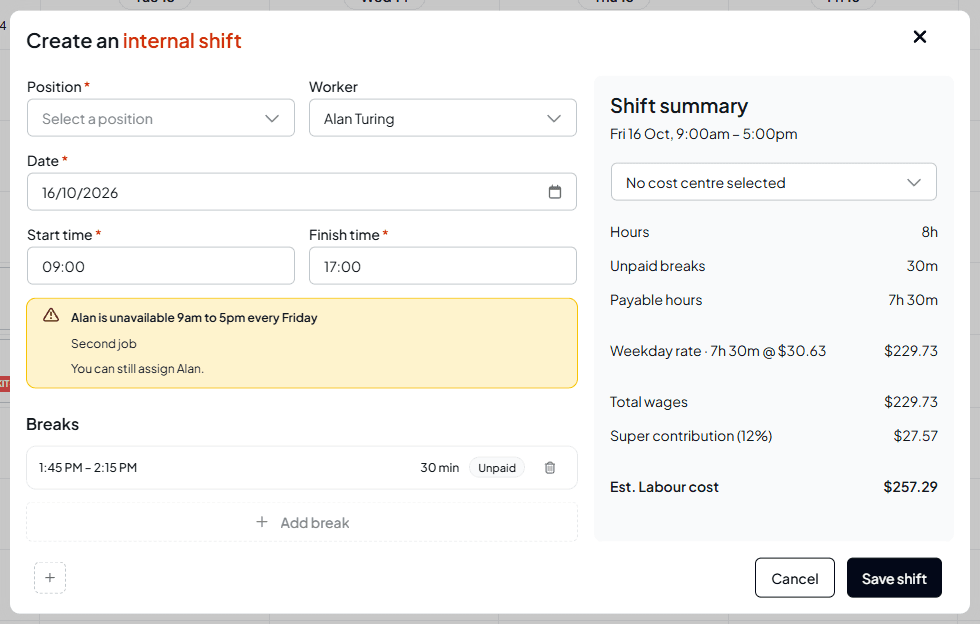
When you choose a worker who's unavailable for any part of the shift, the form shows a warning with their rule, their comment and You can still assign followed by their name.
Unavailable people are listed last
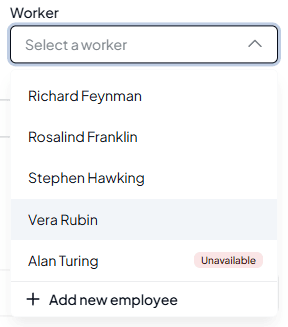
In the Worker list, people who are unavailable at that time are marked Unavailable and listed at the bottom, so the people who can work come first. The same happens when you click the name on a shift card to change who's on it.
Other ways of rostering
Dragging a shift onto someone, copying and pasting, and loading a roster template all work the same way: the shift saves, and a message shows the same warning. The shift card then shows a warning triangle; hover it to read Marked as unavailable.
While you drag a shift or a person across the roster, every cell shows how it fits that person: their availability where they're free to take it, or Blocked where they can't.
What stops a shift, and what only warns you:
- Unavailable: a warning only. The shift saves.
- Already on another shift at that time: the cell is Blocked and won't take the drop. A clash with a shift at another of your locations is refused when Shiftly saves, with a message naming the other shift.
- On full-day approved leave: the cell is Blocked for the whole day.
- On part-day approved leave: only the leave's hours are blocked. A shift outside them saves; one that overlaps is refused.
When you publish, Shiftly counts the shifts assigned to someone who's unavailable and asks you to confirm, for example Publish roster with 2 availability clashes? You can still publish. See Publishing a roster.
Filling shifts with people who can work
Wherever Shiftly suggests people for a shift, it leaves out anyone who's unavailable for any part of it:
- Find cover lists only people who can take the shift.
- Send open shifts to staff, and the open shifts listed in roster emails, skip anyone who's unavailable for that shift.
- When staff ask a colleague to cover a shift in Shiftly Me, colleagues who are unavailable then aren't offered.
Staff can still see an open shift they're unavailable for, and ask for it. See Get a shift covered.
When staff change their availability
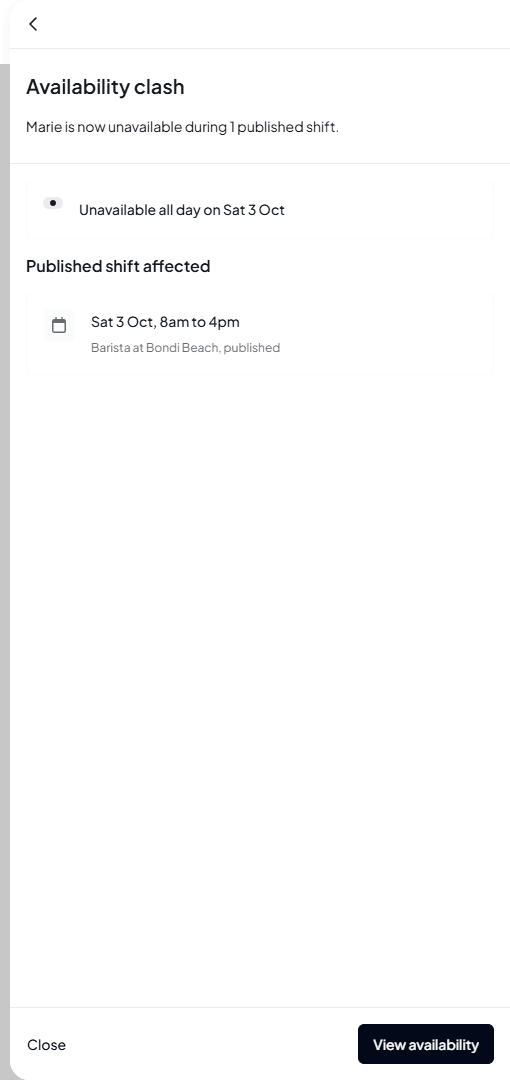
When a staff member saves availability that clashes with a shift they're rostered on, the managers of that location get an Availability clash notification in the bell at the top of the page, and the staff member gets one too. It shows the rule and lists the published shifts it affects. View availability opens their profile at Availability.
If they later change or delete a rule so they can work one of those shifts again, or an open shift at a location they work at, you get Available again, with View roster to jump to it.
A few things never send these alerts:
- Shifts that aren't published yet.
- Changes made by an owner, or by a manager who can edit staff profiles, including to their own availability.
- Shifts at another business the person works for. Each business only hears about its own shifts.
Stop staff going unavailable over published shifts
By default, staff can save unavailability over a shift you've published, and you get an alert. If a published roster should be final, you can stop them instead.
Open Features
Open the account menu (your initials, top right), choose Business Settings, then select Features.
Turn on the setting
Under Availability, switch on Block unavailability over published shifts. You'll see Unavailability over published shifts is now blocked. Switch it off the same way.
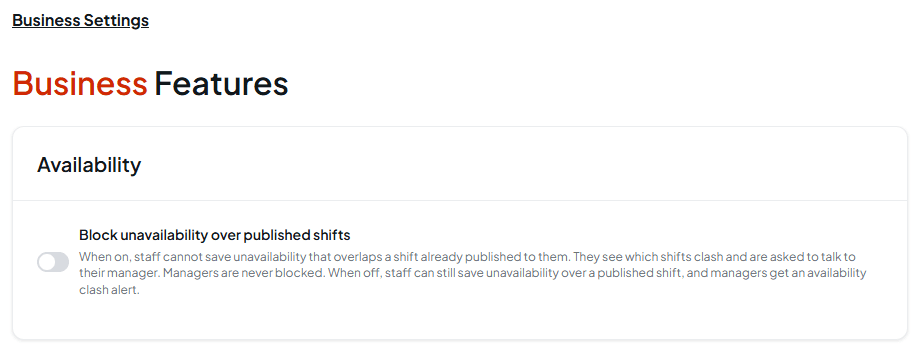
While it's on, a staff member can't save unavailability that clashes with a published shift they're on. Nothing is saved; they see the shifts that clash and are asked to talk to their manager. Shifts that aren't published yet never block them. Owners, and managers who can edit staff profiles, are never blocked, even on their own availability.
You need permission to change business settings. Without it, the page says View only and the switch is greyed out.
See approved leave
Spot leave on the grid
When someone has approved leave for a whole day, their cell shows the leave type with a matching icon, for example On Compassionate Leave (unpaid). Leave that's still waiting for approval doesn't show here.
Hover for the details
Hover the leave to open a card with the dates, how long it runs and which day of it this is (for example Day 1 of 2), the leave type and the person's name. If you can see leave details, the card also shows the note they left. At the bottom is when it was submitted and approved, and an On their behalf tag when a manager entered it for them.
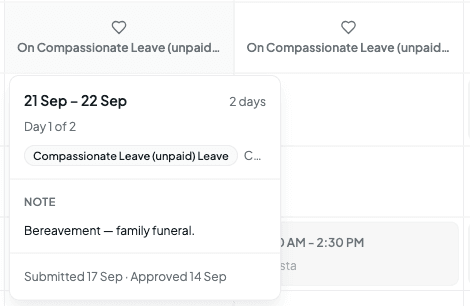
Full-day leave blocks the whole day: you can't roster a shift onto that cell. If a shift for that person and day is saved another way, Shiftly stops it with a message starting Staff member is on, followed by the leave type and dates. See Approve or decline leave requests.
Part-day leave
Leave can also be booked for part of a day, with a start and end time. The cell then shows the leave type with its time range, for example Carer's Leave (unpaid) and 9:00 AM - 10:00 AM. The rest of the day stays open, so you can still roster a shift around it. Hover it for the same card, with the hours instead of days.
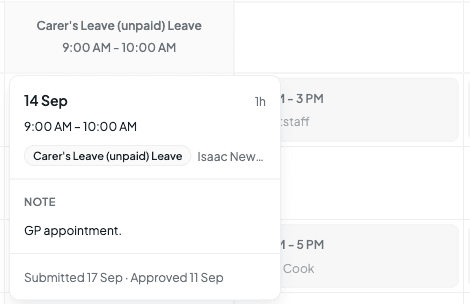
If someone has more than one part-day leave on the same day, the card lists each period.
A full-day leave blocks the entire day. A part-day leave only blocks the hours it covers, so you can roster a shift on that day as long as the shift sits outside the leave's hours. A shift that overlaps them is refused when it saves.
Restricted leave days
If you've restricted leave for a period, such as a busy season, each day inside it shows the block's name with a lock in the day header. Hover it and it reads Restricted leave block. It's a reminder for you while you roster; it doesn't stop you rostering anyone. See Stop leave during a busy period.

Weather in the day headers
Each day header carries a weather icon from the forecast for the location's address. Hover it for the conditions and the day's temperature range, which is handy for planning around a heatwave or a wet weekend. Days without a forecast, such as weeks far ahead, show no icon.
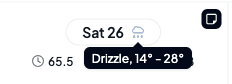
The small square at the top right of each day header is for day notes. See Add a note to a roster day.
Related
Update an employee's details and sign-in
Add, change or delete a staff member's availability.
Creating & editing shifts
Assign staff, with availability badges in the worker list.
Publishing a roster
Publish, with a count of availability clashes.
Get a shift covered
Find cover when someone can't work a shift.
Approve or decline leave requests
Approve the leave that blocks rostering.
Stop leave during a busy period
Set up the restricted leave periods shown in the day headers.
On the Shiftly website
Availability
Staff availability and preferences.
Get a shift covered
Leave a shift open for staff to pick up, find someone to cover a shift, invite your team to claim open shifts, and accept or reject their requests.
Export or print your roster
Download the week you're viewing as a spreadsheet (CSV), a printable PDF with breaks, or a calendar (ICS) file.