
Stop leave during a busy period
Set a restricted leave block over a busy period so staff are warned, or stopped, when they ask for leave on those dates.
A restricted leave block marks a period when you'd rather staff didn't take leave, such as a peak season, a stocktake or the end of the financial year. You choose how strictly each block is enforced: it can stop a request, warn about it, or just show a notice.
Who this is for
Owners and managers using the Shiftly web platform.
Before you start
- Open Time → Leave, then the Restricted Leave Blocks tab.
- You need permission to manage leave to add, edit or remove a block.
See your blocks
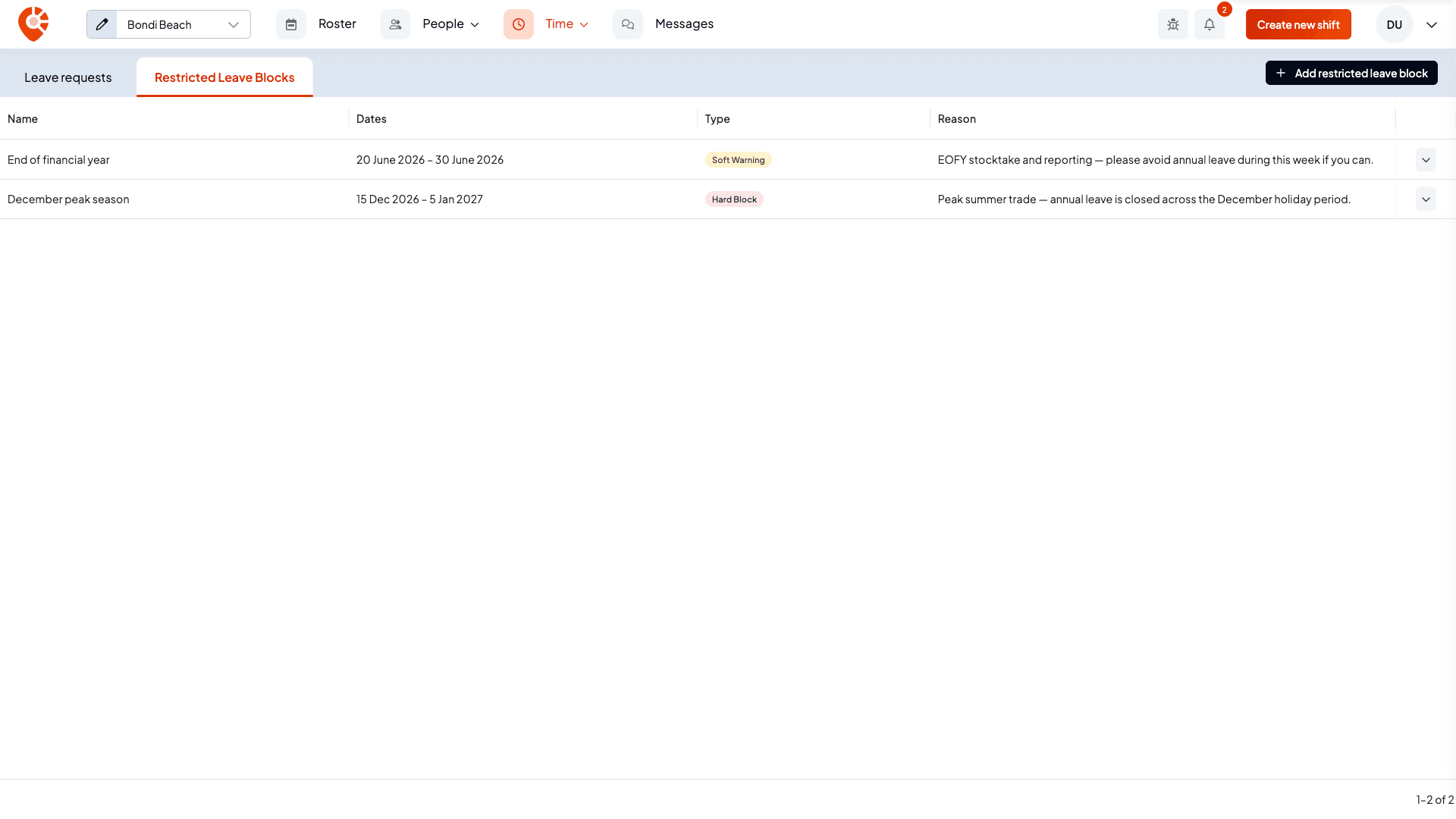
The tab lists every block with its Name, Dates, Type (how strictly it's enforced) and Reason.
Add a block
Name it and set the dates
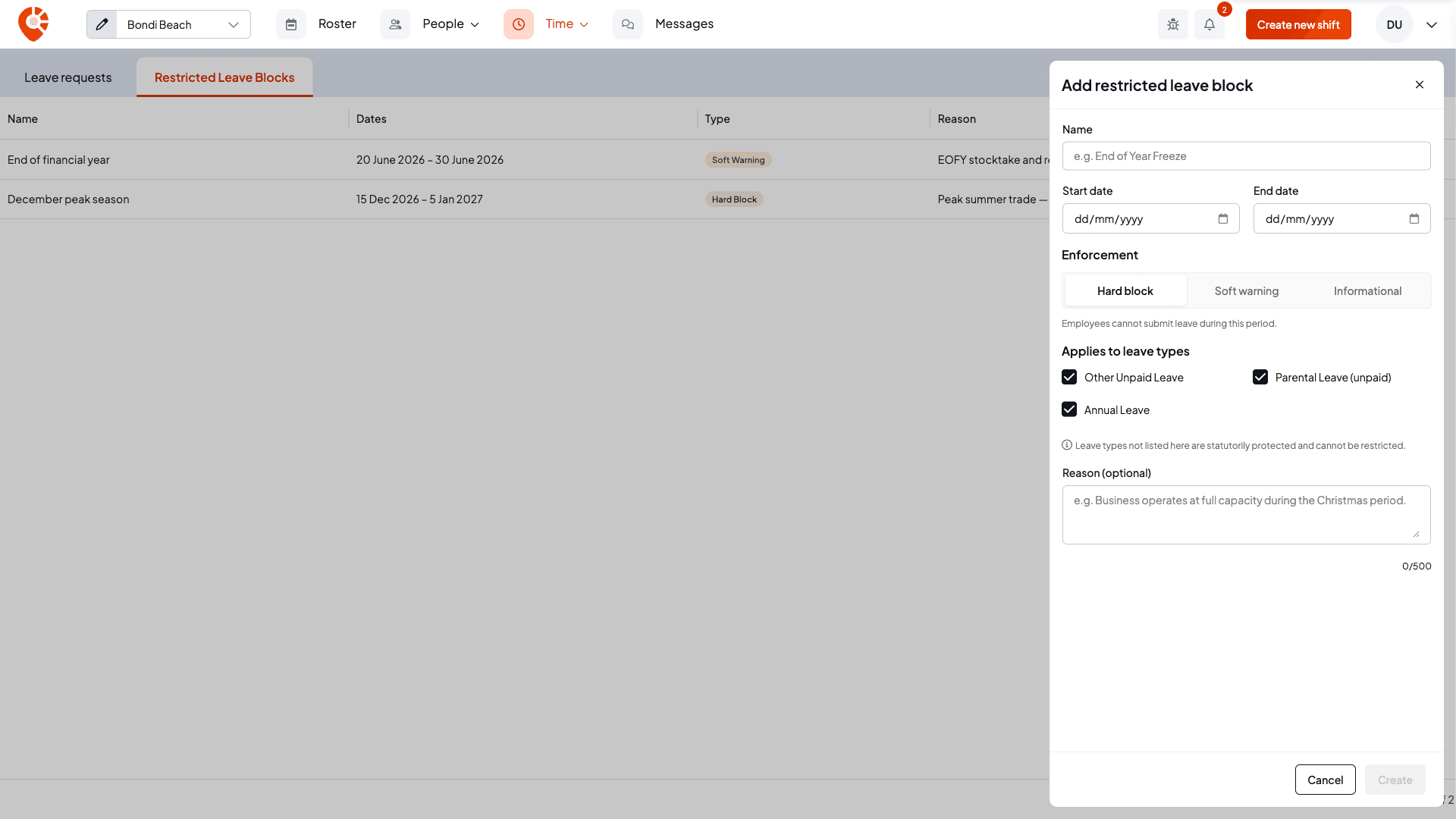
Select Add restricted leave block. Give the block a Name and choose its Start date and End date. The end date can't be before the start date.
Choose how strictly it's enforced
Under Enforcement, pick one:
- Hard block: employees can't submit leave for these dates.
- Soft warning: employees see a warning but can still submit.
- Informational: a notice shows, with no restriction on submitting.
Pick the leave types it covers
Under Applies to leave types, tick the types the block restricts. Every type starts ticked. A hard block or soft warning needs at least one.
Some leave can never be restricted, because staff are legally entitled to take it when they need it: personal and carer's leave, compassionate leave, jury duty, community service leave, and family and domestic violence leave. Those types aren't listed. Types you've turned off for the business aren't listed either.
Add a reason and save
Fill in Reason (optional), for example why the period is busy. Staff see it alongside the warning. Select Create.
Approved leave that's already booked
A new block doesn't change leave you've already approved. When the dates and leave types you pick overlap approved leave, the drawer lists it under Existing approved leave during this period.
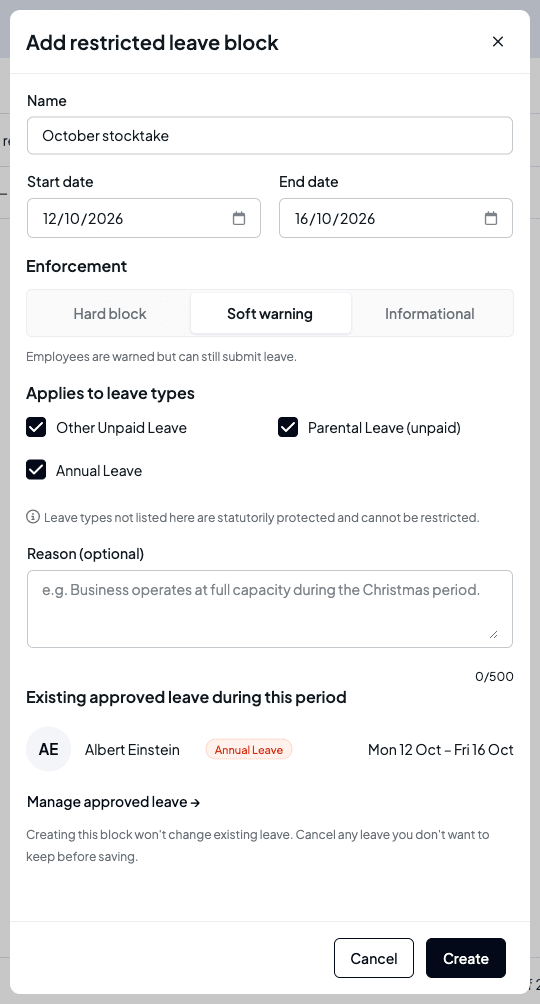
If you don't want to keep some of it, select Manage approved leave and use Cancel leave on the request before you save the block.
What staff and managers see
- Staff asking for leave. When an employee picks dates inside a block in the Shiftly Me app, they see the block and its reason. For a hard block they can't submit the request.
- Managers approving leave. The approval panel shows any hard block or soft warning that covers the request. Approving a request inside a hard block asks for an Override reason first, then Approve with override. See Approve or decline leave.
- Managers adding leave for someone. When you add leave on an employee's behalf, the dialog shows the block as a warning but doesn't stop you.
- The roster. Each day inside a block shows a coloured band with the block's name in the scheduler day header, so you see it while you roster.
Edit or remove a block
Select a block in the list to open it, or use the row menu and choose Edit. Change what you need and select Save changes.
To remove a block, choose Remove from the row menu (or Remove in the open drawer), then confirm. Removing a block doesn't change any existing leave requests.
Related
Approve or decline leave requests
Review a leave request, check the balance and roster impact, then approve, decline or cancel it, or add leave on an employee's behalf.
Managers & access
Bring other managers in to help run your business and scope exactly what they can see and do: invite managers, choose their locations, and change or remove access any time.