
Approve or decline leave requests
Review a leave request, check the balance and roster impact, then approve, decline or cancel it, or add leave on an employee's behalf.
Staff leave requests land in one list for you to review. This guide covers the list, the review panel, approving, declining and cancelling, and adding leave on someone's behalf.
Who this is for
Owners and managers using the Shiftly web platform. You need permission to manage leave to review requests or add leave.
Before you start
- Open Time → Leave. The Leave requests tab lists every request.
How a leave request works
A leave request is an employee's ask for time off: a leave type, the dates, and how much of their working time it covers. Staff send their own from the Shiftly Me app, or a manager adds one for them (see Add leave for an employee). Both land in the same list.
Leave is measured in the employee's working hours, not calendar days. Each request carries a per-day breakdown of the hours it takes off each day, and public holidays are left out. So a Monday to Friday week off counts the hours they'd normally work that week, and a public holiday in the middle takes nothing off.
Every request shows a status:
| Status | What it means |
|---|---|
| Pending | Waiting for you. Only pending requests can be approved, declined or have their hours changed. |
| Approved | You've signed it off. Any clashing shifts have been handled (see Approve a request). |
| Declined | You've turned it down, with an optional reason. |
| Cancelled | Withdrawn by the employee, or cancelled by a manager after it was approved. |
The requests list
The list shows each request's Employee, Leave type, Dates, Status, Duration and when it was Submitted. Duration is the working hours the leave takes off the balance, with the equivalent number of days. Pending rows have a Review request button. Select any row to open its details.
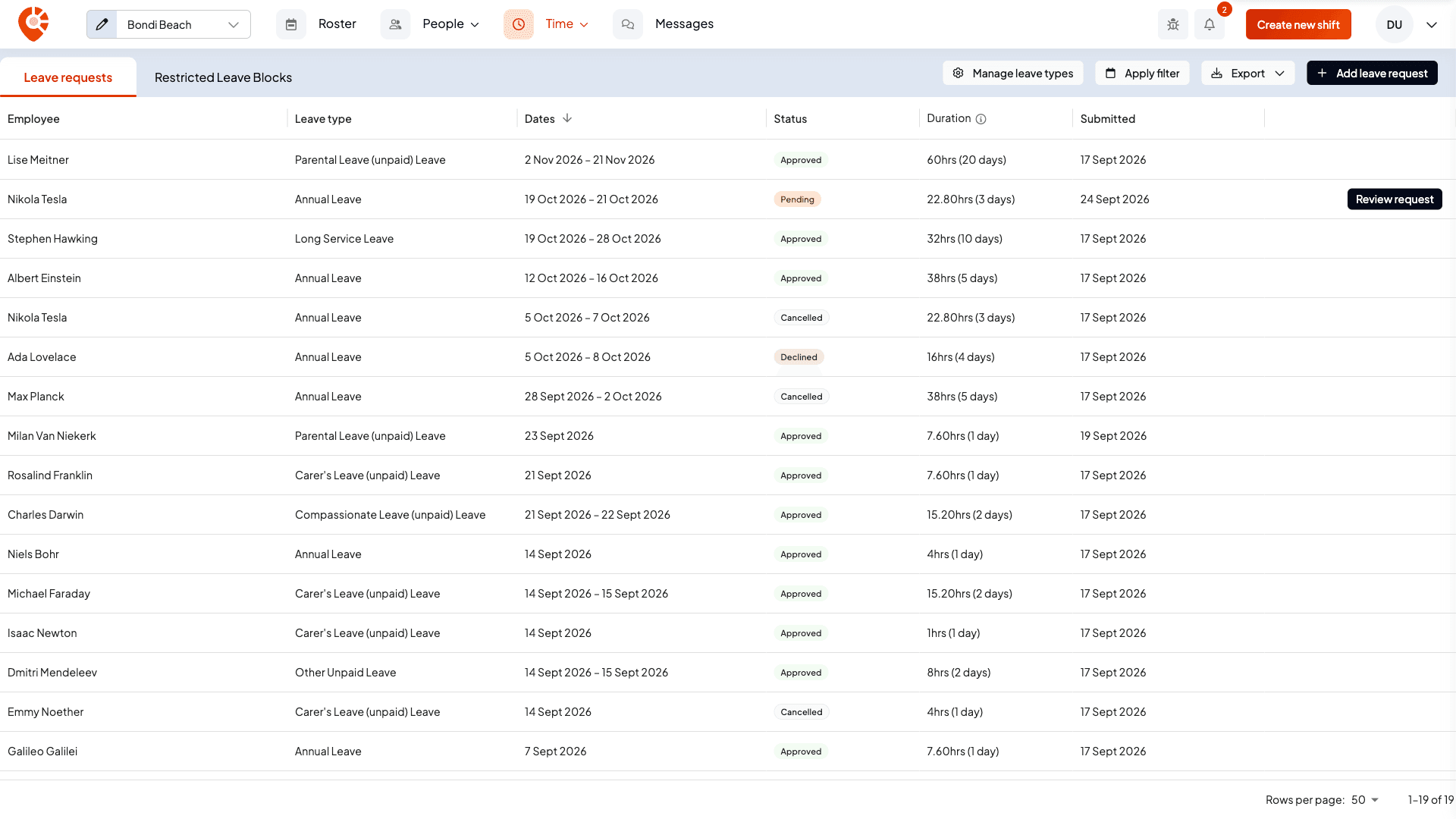
The buttons above the list:
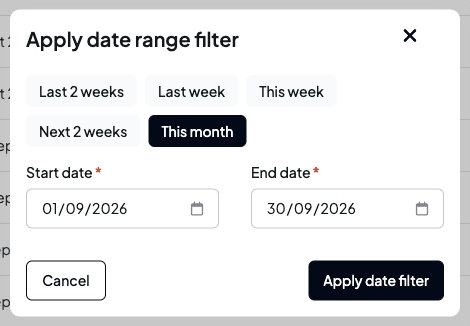
- Apply filter narrows the list to requests that fall in a date range. Pick a preset (Last 2 weeks, Last week, This week, Next 2 weeks or This month) or set your own start and end date, then select Apply date filter. Weeks follow your business's pay week. To clear the filter, select the cross on the date range.
- Export downloads a CSV. Export detail has one row per day of leave, for approved and pending requests. Export summary totals approved leave by employee and leave type. Both respect the date filter.
- Manage leave types opens your leave types. See Set up leave types and balances.
- Add leave request records leave for an employee.
Review a request
Select Review request to open the review panel. From top to bottom it shows:
- Available and Requested. Available is the employee's balance for this leave type on the day the leave starts, with how much is left after this leave. Hover the info icon to see how it was worked out: carried forward, accrued this cycle and approved leave, plus anything held by their other pending requests and any manual adjustments. If part of the leave falls after their leave year resets, the panel tells you how much comes out of next year's balance.
- The dates and leave type, with the number of working days and when it was submitted.
- The per-day hours. While the request is pending you can change the hours for any day. The change saves when you leave the field. Public holidays show as PH and can't be changed. Once the request is approved or declined the hours are read-only.
- The employee's note, if they left one.
- A restricted leave block warning, if the dates fall in a hard block or soft warning period. See Stop leave during a busy period.
- Conflicting shifts: the employee's own shifts during the leave, with the total hours. Use Find cover to give a shift to someone else, or the row menu to Edit shift or Delete shift.
- Other employees on leave over the same dates.
- Recent leave: their approved leave from the last 12 months.
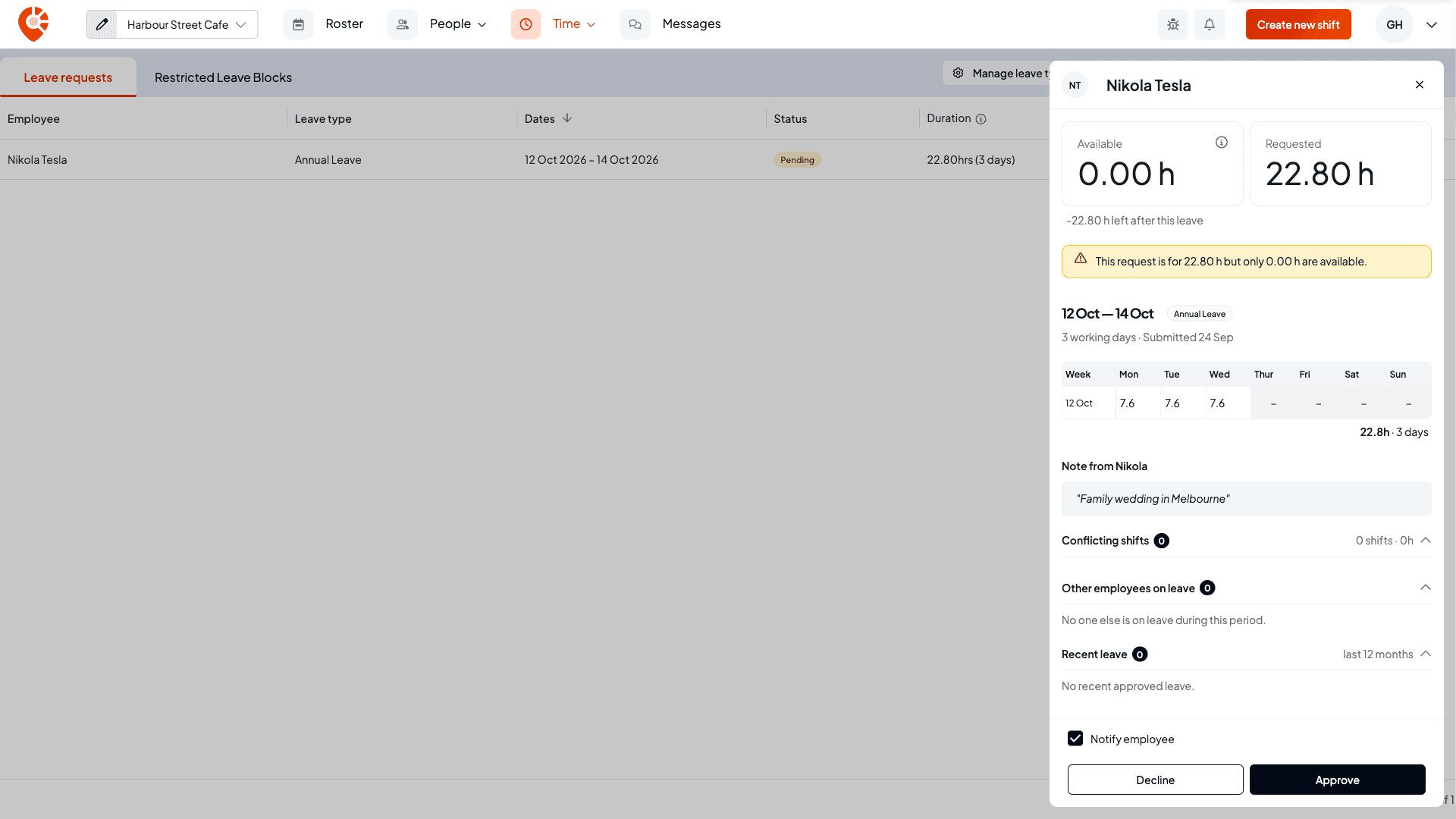
If the leave type is set to warn the manager when someone asks for more than they have, the panel tells you, for example "This request is for 22.80 h but only 0.00 h are available." You can still approve it. If the leave type is set to block requests over the balance instead, a request for more than is available can't be sent or added in the first place: Shiftly says "Requested leave exceeds available balance." If the employee's balance hasn't been set up yet, Available shows Balance not yet configured with a Configure link, and Approve stays disabled until you set it up. See Set up leave types and balances.
Approve a request
Notify employee sits above the buttons and is ticked by default. Untick it to record your decision without notifying them.
Select Approve. Shiftly may ask you to confirm first:
- Uncovered shifts. If the employee has shifts during the leave, you're asked to Approve and unassign. Those shifts become unassigned, unpublished shifts on the roster so you can fill them later. A shift the employee is already clocked in to is left as it is.
- A hard block. If the leave falls in a hard-blocked period, you're asked for an Override reason before you can Approve with override.
Shiftly won't approve leave that overlaps leave the same employee already has approved for those dates.
Decline a request
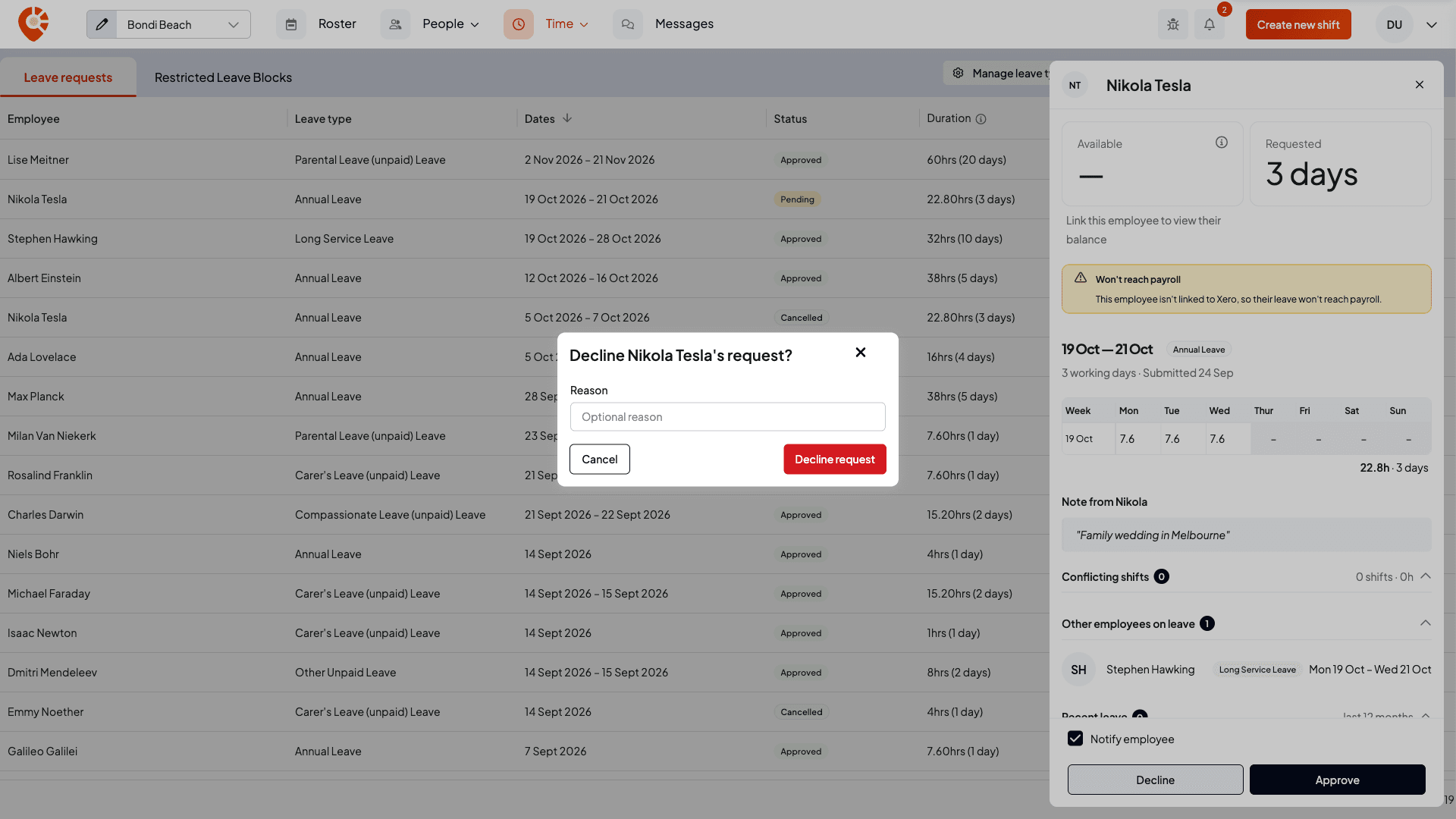
Select Decline. In Decline Nikola Tesla's request? (with your employee's name) add an optional Reason, then select Decline request. If Notify employee is ticked, they're notified, along with your reason.
Cancel approved leave
Open an approved request and select Cancel leave, then confirm. Notify employee works the same way as when approving. If the leave has already started, some of it may already have been paid, so check the pay run and adjust their pay if needed.
Add leave for an employee
Select Add leave request to record leave yourself, for example when someone phones in sick.
Choose the employee and leave type
Pick the Employee, then the Leave type. Shiftly shows what they'll have available on the start date, and what's left after this request. If their balance hasn't been set up, you'll see Configure balances instead.
Set the dates
Leave Full days selected to book one or more whole days. Set the Start date and End date. Shiftly fills in the hours for each day. Adjust any day if you need to (public holidays are excluded).
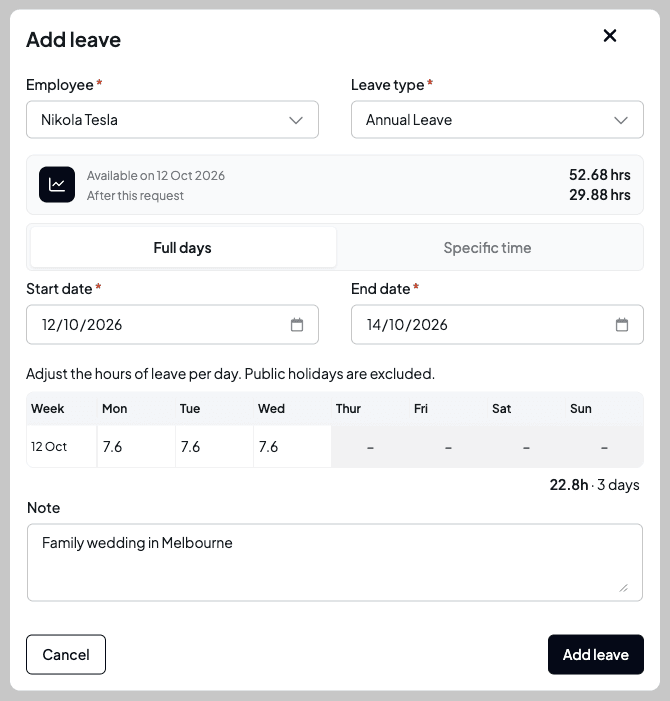
If the dates fall in a restricted leave block, the dialog shows it as a warning. It doesn't stop you adding the leave.
Or book part of a day
Switch to Specific time to book part of a single day, for example a few hours for an appointment. Set the Start date, a Start time and an End time. Shiftly shows the Leave duration, which is what comes off the balance.
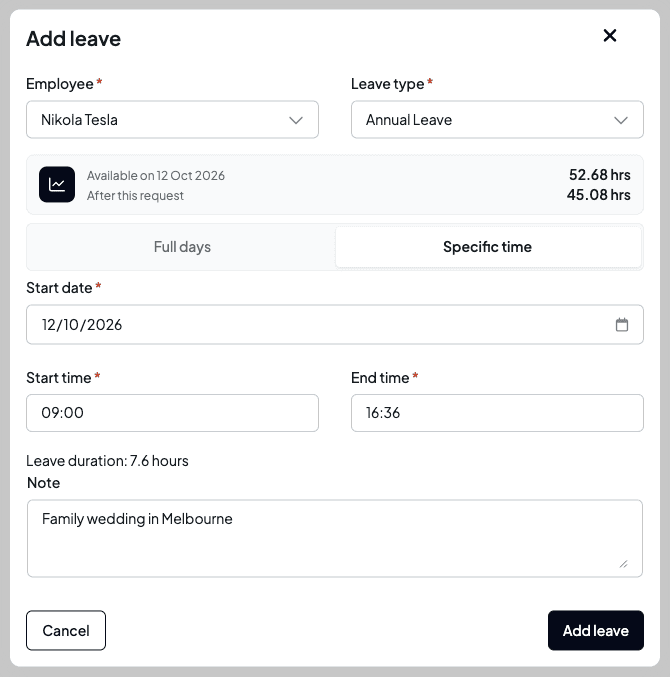
A specific time is for one day only, and needs both a start and an end time.
Add it
Add an optional Note and select Add leave. The request is added as Pending, so review and approve it like any other request.
If your business is connected to Xero
Everything above works the same when you're connected to Xero, with these differences. Your leave types and balances come from Xero, and approved leave is sent there. See What syncs with Xero.
- The balance comes from Xero. Available shows the employee's Xero balance. If they aren't linked to Xero yet, it shows Link this employee to view their balance, and the panel warns Won't reach payroll.
- Approving sends the leave to Xero. When the employee is linked and the leave type came from Xero, the button reads Approve · sync to Xero.
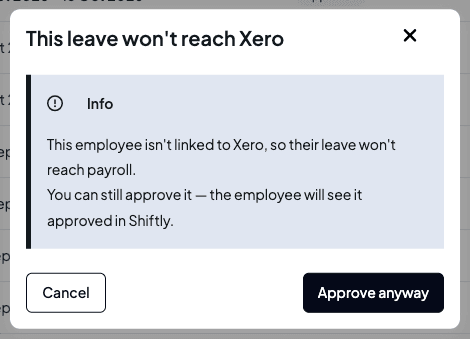
- An unlinked employee. If the employee isn't linked to Xero, you're told the leave won't reach payroll and can choose Approve anyway. The employee still sees it approved in Shiftly.
- Adding leave for an unlinked employee. The Add leave dialog tells you their balance isn't available, but you can still add the request.
- Cancelling. If cancelled leave had been sent to Xero, Shiftly also asks Xero to remove it.
- Pending requests are cancelled when you switch. Moving your leave onto Xero, or disconnecting Xero, cancels every pending request, and staff are asked to send theirs again.
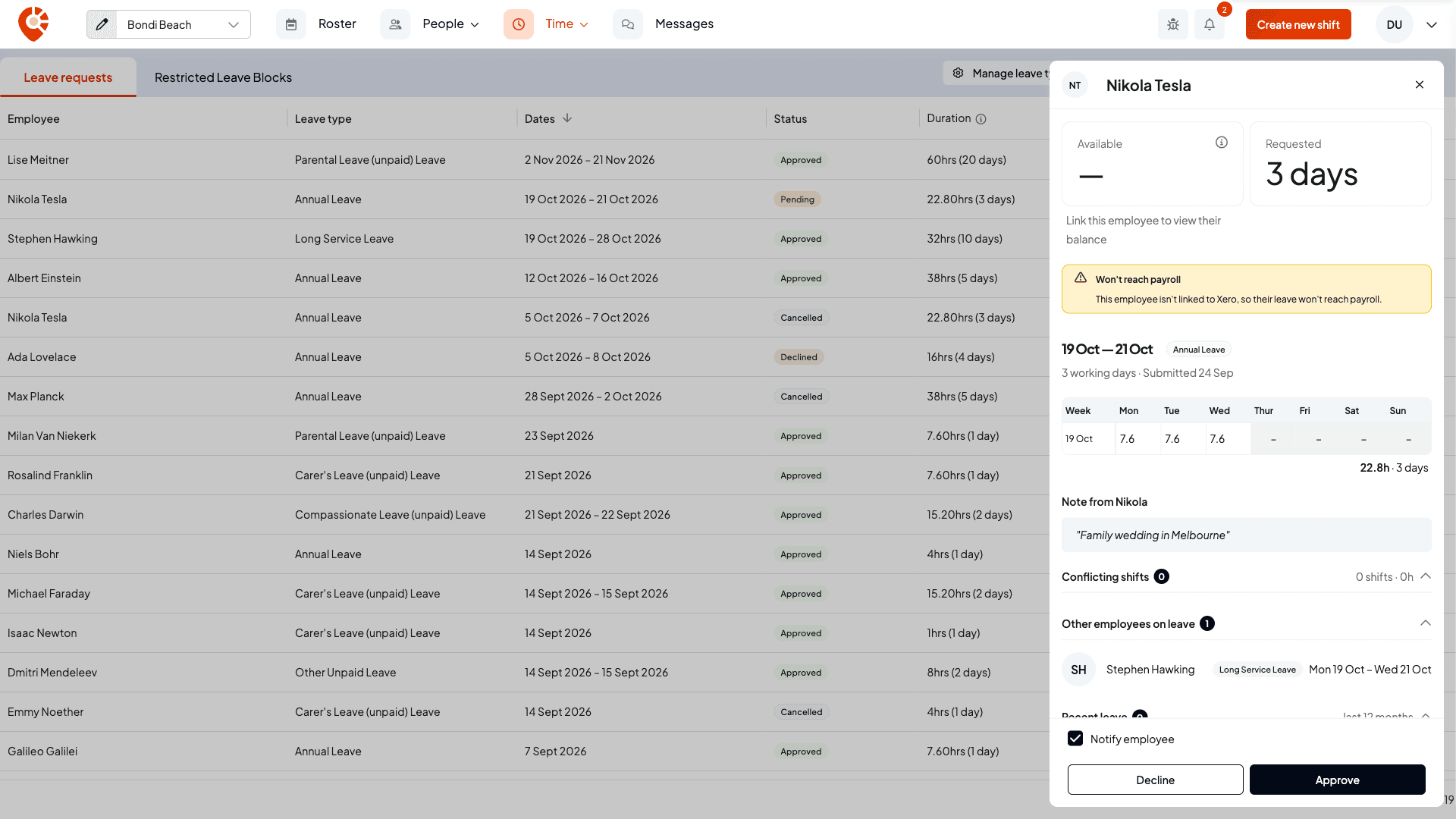
After you approve, the panel shows the leave's progress under Xero payroll:
- Sync pending while it's being sent.
- Sent to Xero once Xero has it.
- Xero sync failed, with the reason and a Retry sync button. The list shows the same Xero sync failed status.
- Employee not linked to Xero if it was approved without being sent.
Related
Give an employee a different leave rate
Give one employee a different accrual rate from the standard policy, forward-dated, and understand exactly what it changes, with examples and edge cases.
Stop leave during a busy period
Set a restricted leave block over a busy period so staff are warned, or stopped, when they ask for leave on those dates.