
Add a note to a roster day
Leave a note on a day of the roster, such as a booking, a delivery or a staffing reminder, for the other managers at that location.
A day note is a short message pinned to one day of the roster at one location. Use it for anything the managers building or running that day should know: a big booking, a delivery, a staffing reminder. Staff never see day notes.
Who this is for
Owners and managers using the Shiftly web platform to run your business.
Before you start
- Open Roster from the main navigation and pick the location at the top left.
- To add or change a note you need to be able to edit the roster. Managers who can only view the roster can still read notes.
- Each location has its own notes. A note on Saturday at Surry Hills doesn't appear on Bondi Beach's roster.
Add a note
Find the day's note marker
Every day header on the week grid has a small dashed + at its top right. Hover it and it reads Add a note.

Write the note
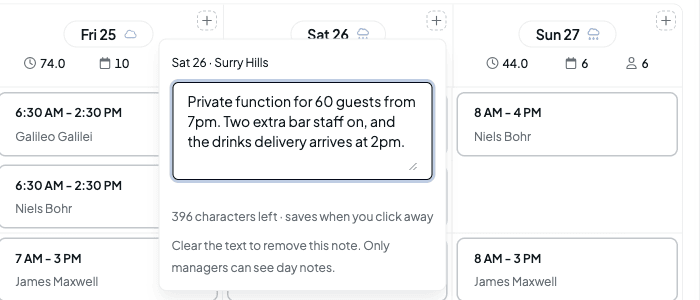
Click the +. A small editor opens, headed with the day and location. Type your note, up to 500 characters. The counter underneath shows how many characters you have left.
Click away to save
There's no save button: the note saves when you click anywhere outside the editor. Press Escape instead to close it without saving.
If the note is over 500 characters, Shiftly shows A note must be 500 characters or fewer. and won't save until you trim it. If the save fails, you'll see Could not save. Your text is still here. Your note stays in the editor so you can try again.
Read a note
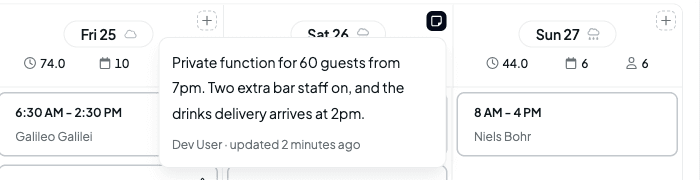
Once a day has a note, its marker turns solid. Hover the marker to read the note, along with who last changed it and when.
In the Day view, the note runs across the top of the timeline, above the Daily summary, so it's the first thing you see for that day.

Change or remove a note
Click the solid marker to open the note in the editor, in either view. Change the text and click away to save.
To remove the note, clear all the text and click away. The marker goes back to a dashed +.
Day notes are for managers only. Staff don't see them in Shiftly Me. To tell the person working a shift something, add a note to the shift itself instead. See Creating & editing shifts.
Related
Copying & repeating shifts
Copy and paste a shift into another slot, repeat it across the week, copy it as you drag, stack a second shift in a cell, and turn a shift into a timesheet.
Track sales and labour cost on the roster
Enter a sales forecast or actual sales for each day, and see the day's labour cost and labour percentage against your target right on the roster.