
See who changed what in your business
Use the Activity page to see every change to shifts, timesheets, leave, staff and settings, who made it and when, filter it, and export it.
The Activity page lists the changes made across your business: shifts created, edited or published, timesheets approved or changed, leave decisions, staff details, team access, settings and integrations. Each row says what changed, on which record, who did it and when.
Who this is for
Owners, and managers whose access includes viewing the Roster, Timesheets or Leave.
- An owner sees every change at every location.
- A manager sees changes at the locations they manage, for the kinds of record their access covers. For example, a manager without Timesheets access doesn't see timesheet changes.
- Team access, Settings and Integrations changes are only shown to owners.
Before you start
- Open the account menu (your name, top right) and choose Activity, under Business Settings.
- History is only recorded from your business's history start date onwards, and each change is kept for 90 days. The line under the heading tells you both, for example "Changes at Coastal Kitchen & Bar since 20 October 2026. History is kept for 90 days; export activity to keep a longer record."
Read the activity list
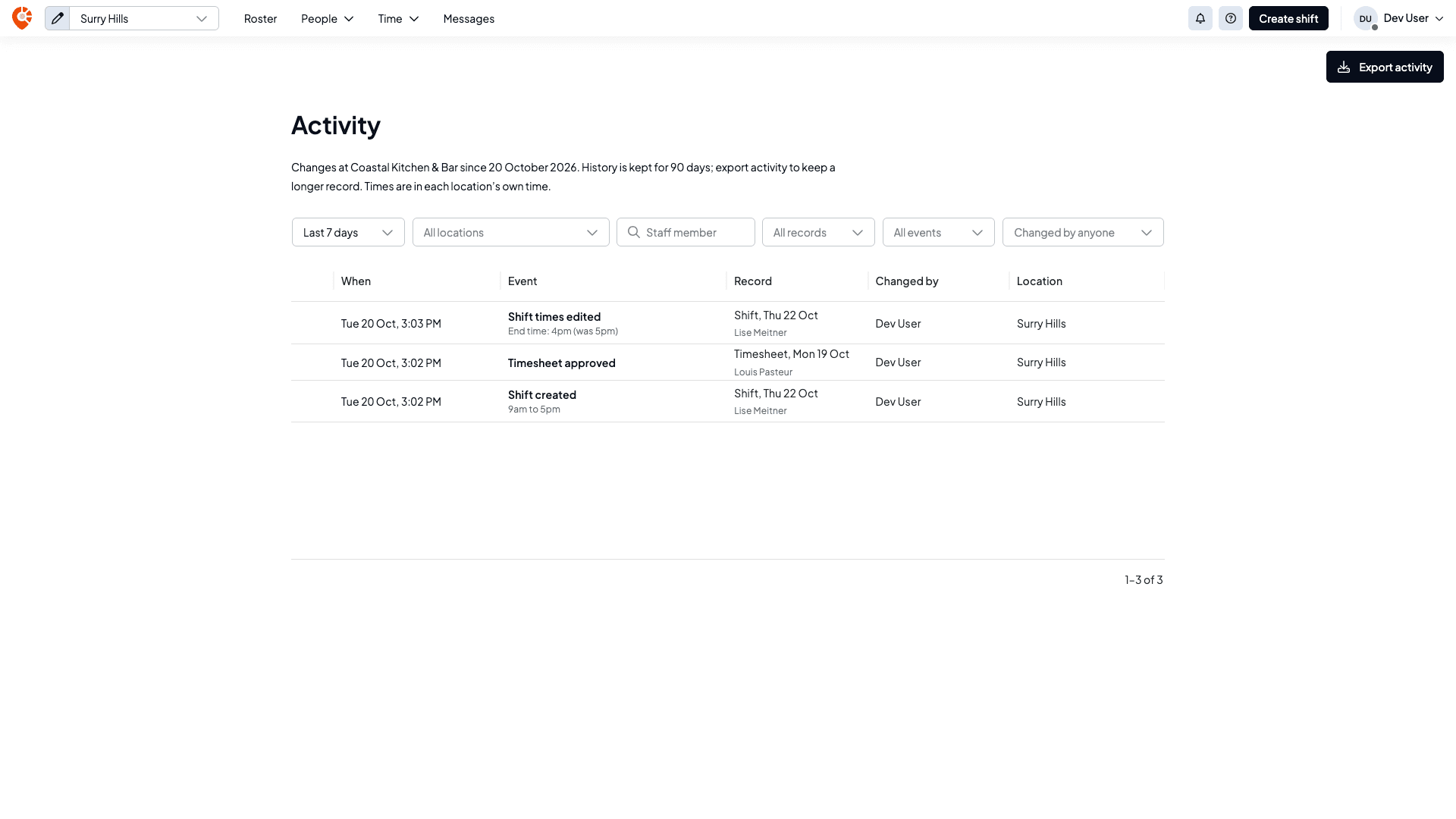
The newest change is at the top. Each row shows:
- When: the date and time of the change, in the time of the location it happened at.
- Event: what happened, such as Shift created, Shift times edited or Timesheet approved. When a value changed, the line underneath shows the new value and the old one, for example "End time: 4pm (was 5pm)".
- Record: the kind of record and its date, with the staff member it belongs to.
- Changed by: the person who made the change. Changes Shiftly made itself show Shiftly marked Automatic; others are marked Import, Kiosk (a clock-on at a venue tablet) or Connected app, and changes made by the Shiftly team show Shiftly support.
- Location: where it happened. Only owners see this column.
Changes made in one go, such as publishing a roster, show as a single row. Select the arrow at the start of the row to see each record it changed.
Narrow it down
Use the filters above the list:
- Last 7 days, Last 30 days or Last 90 days.
- All locations (owners only): pick one location.
- Staff member: type a name to see changes to one person's records.
- All records: pick a kind of record, such as Timesheets, Shifts, Leave, Availability, Employment, Staff details, Team access, Settings or Integrations. You only see the kinds your access covers.
- All events: pick one kind of change, such as a shift being published.
- Changed by anyone: show only changes made by A person, Automatic changes, an Import, a Connected app or Shiftly support.
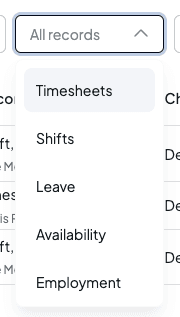
Select Clear filters to go back to everything. If nothing matches, the page says what it searched for, for example "No changes in the last 7 days. Try a longer date range."
Export the activity
Select Export activity at the top right to download the changes that match your filters as a CSV file you can open in a spreadsheet. Because each change is only kept for 90 days, export regularly if you need a longer record. An export can hold up to 50,000 changes; if there are more, choose a shorter date range or add a filter.
See the history of one record
Some records also show their own history, newest first:
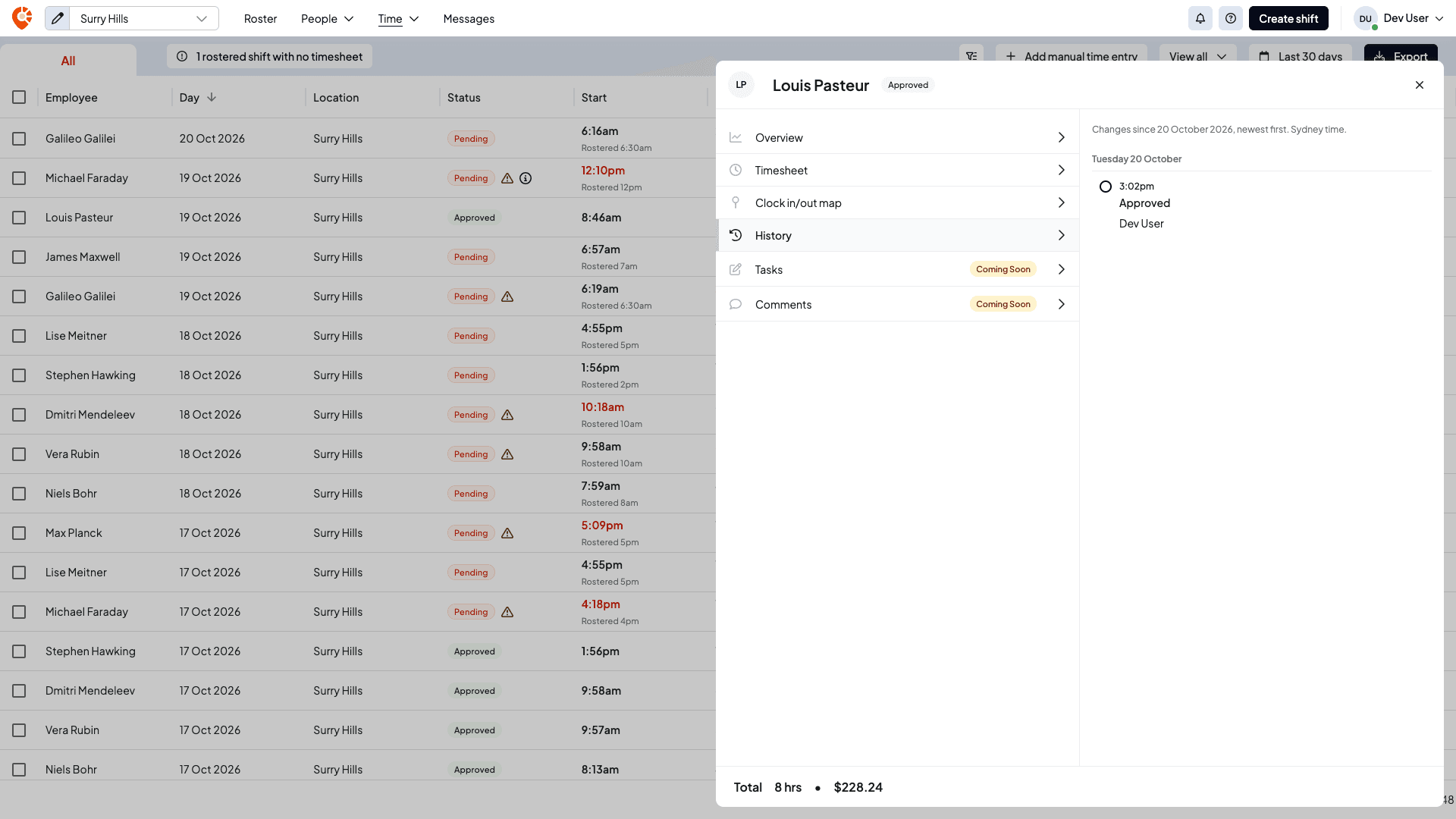
- Timesheets: open the timesheet from Time → Timesheets and choose the History tab.
- Leave requests: the approval panel has a History section.
- Employees: open the employee from People and choose the History tab.
Related
Send an announcement to your team
Start an announcement channel so a message reaches everyone at once, instead of chasing people individually.
Troubleshooting
Fixes for the problems owners and managers run into most, such as pay that looks wrong, a staff member who can't sign in, and timesheets that won't reach Xero.