
Review and approve timesheets
Check what your staff actually worked, approve their hours one at a time, in bulk or as scheduled, and export pay data from the Timesheets page.
When a shift is worked, Shiftly turns it into a timesheet: the record of when your staff actually clocked on and off, what that costs, and how it compares with what you rostered. The Timesheets page is where you review those hours and approve them before they're paid.
Who this is for
Owners and managers using the Shiftly web platform to run your business.
Before you start
- You're an owner, or a manager whose access includes Timesheets. Managers with view-only access see the same table but can't approve, edit or delete, and pay amounts are hidden from anyone without access to Pay & labour cost.
- Open Time in the main navigation and choose Timesheets.
- Pick the location at the top. The page always shows timesheets for the selected location.
Read the timesheet table
Scan the hours
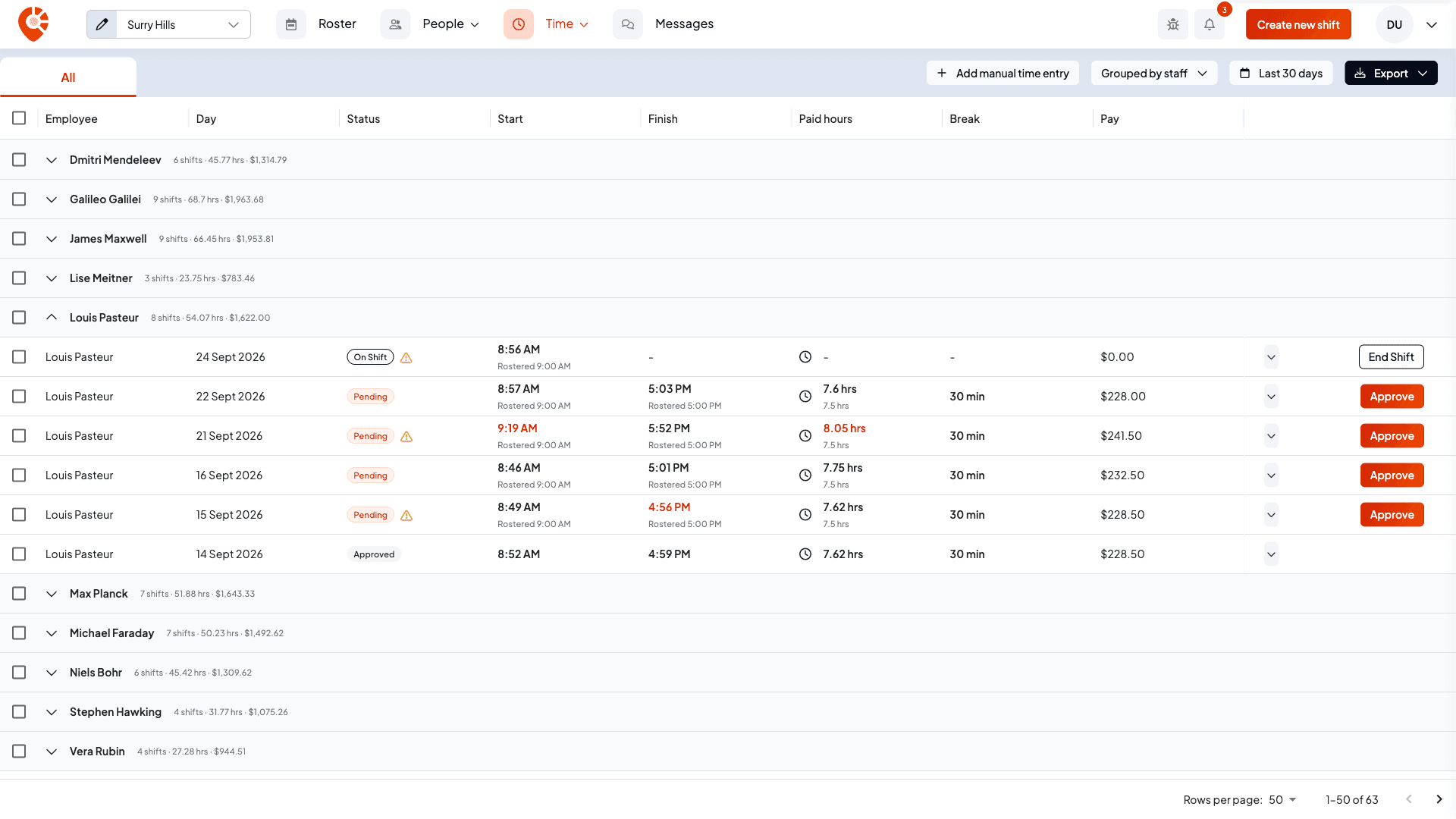
Each row is one timesheet, with the Employee, the Day, a Status, the Start and Finish times, the Paid hours, the Break taken and the Pay. By default the table shows the last 30 days, newest first, 50 rows to a page. Select a column heading to sort by it.
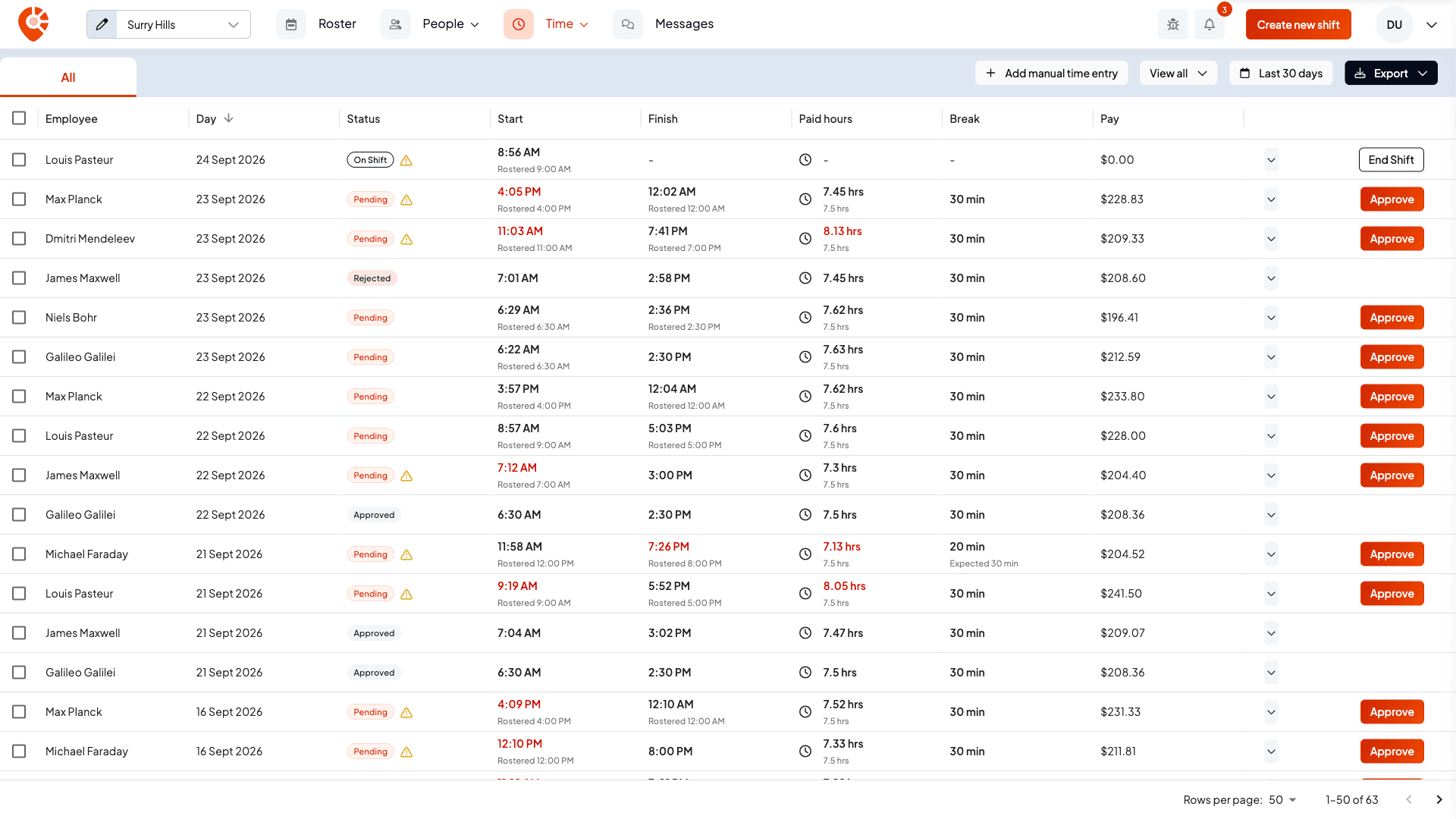
On a narrower window the Paid hours, Break and Pay columns are hidden to keep the table readable. Widen the window, or open the timesheet, to see them.
Know the status at a glance
The status pill tells you where each timesheet is:
- On Shift: the employee is clocked in right now, so the timesheet is still open.
- Pending: clocked off and waiting for your review.
- Approved: you've signed it off as correct.
- Rejected: you've marked it as not to be paid.
Once a payroll provider is connected and set up, you'll also see Processing, Posted, Warning and Skipped, which track timesheets you send to payroll. See Posting timesheets to payroll.
A speech-bubble icon next to a name means the employee left a note on the timesheet. A globe icon next to the status means they clocked in or out from a web browser rather than the app.
Spot problems before you approve
For timesheets that are On Shift or Pending, each time shows what will be paid in bold, with the rostered time underneath when the two differ. The Paid hours column does the same, with the rostered paid hours underneath. A time or total turns red when it's the reason for a warning, and a warning icon appears next to the status.
Hover the warning icon to see what was flagged:

A timesheet is flagged when the employee:
- was late (clocked on after the rostered start),
- left early (clocked off before the rostered finish),
- worked overtime or undertime (more than 30 minutes over or under the rostered shift length), or
- has another timesheet that overlaps this one.
The Break column shows the break actually taken. If it doesn't match the rostered break, you'll see Expected 30 min (or whatever was rostered) underneath.
These are prompts to check, not blockers. You can still approve the timesheet, or open it and edit the times first.
Approve hours
Approve one timesheet
On a pending row, select Approve. The status changes to Approved.
Approve as scheduled
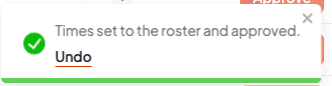
When the clocked times are only a few minutes off the roster, open the menu (the arrow beside the row's button) and select Approve as scheduled. Shiftly sets the start, finish and breaks to the rostered times and approves the timesheet in one step.

The option only appears on a pending timesheet that belongs to a rostered shift, and only when the start, the finish and the break length are each within the location's Variance allowed (10 minutes unless you've changed it in the location settings). A confirmation appears with an Undo link, which puts the clocked times back and returns the timesheet to pending.
Approve several at once
Tick the rows you want. Select Approve … timesheets in the toolbar to approve them all. Only pending timesheets are counted, so rows with any other status are left alone.
If some of the ticked rows are within the variance, Use scheduled times (…) also appears. It sets those timesheets to their rostered start, finish and breaks after you confirm, and leaves them pending so you can still check them before approving.
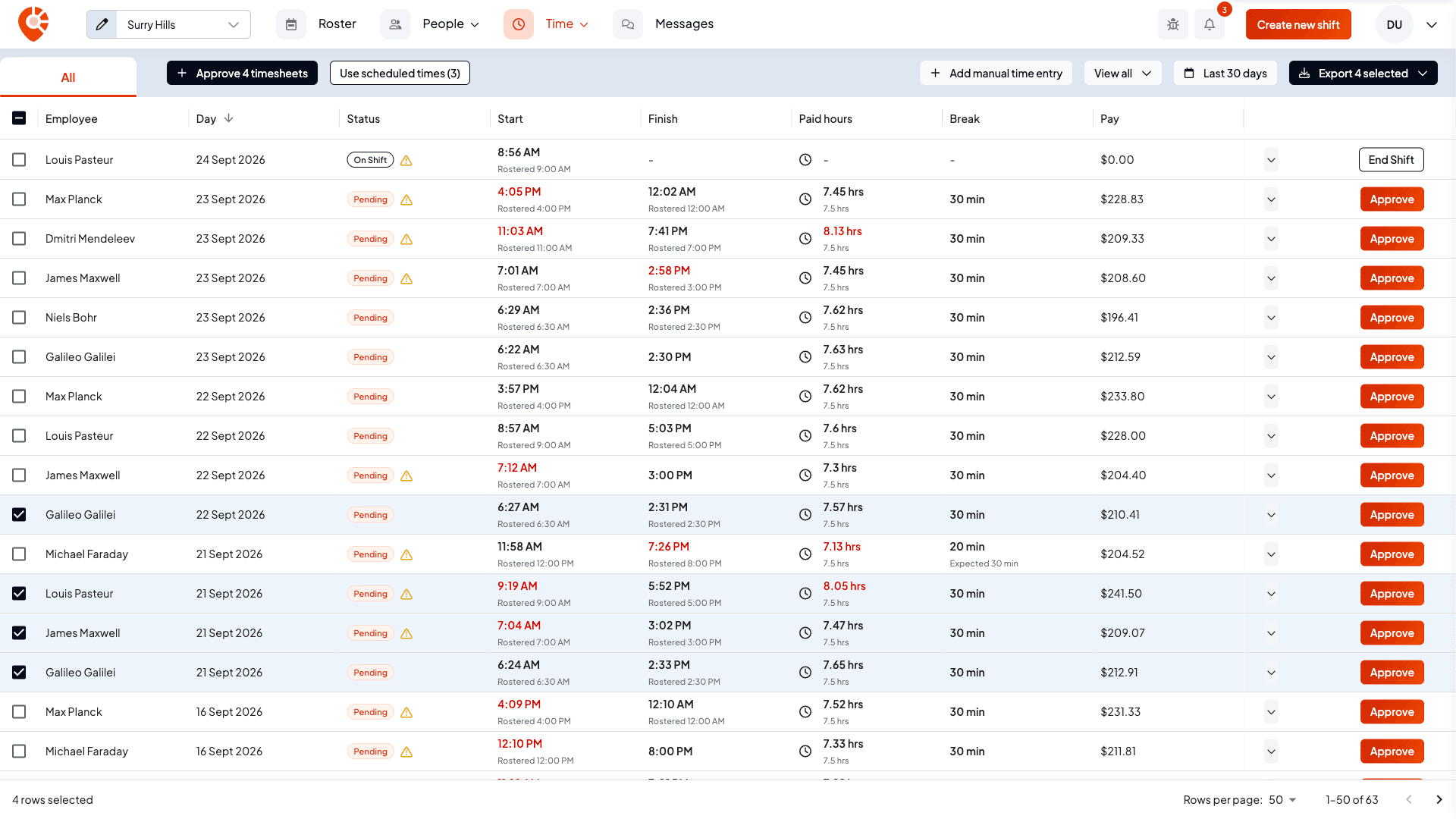
A location can also match entries to the roster automatically when staff clock off. Turn on Apply automatically at clock-out in the location's Breaks & Shifts settings. Those timesheets still wait for your approval, and the table shows the time they actually clocked underneath the paid time.
Other row actions
The actions in a row's menu depend on its status:
- Pending: Approve as scheduled (when it applies), Edit time entry, Reject time entry and Reject and delete time entry, plus the Approve button.
- Approved: View time entry summary and Revert to pending review, which reopens it for changes.
- Rejected: View time entry summary, Edit time entry, Delete time entry and Revert to pending review.
- Warning and Skipped (after sending to payroll): View time entry summary, plus Review payslip issue or Revert to pending review. See Posting timesheets to payroll.
- Posted: none. A timesheet that has been posted to payroll is locked.
Edit time entry opens the timesheet so you can adjust times, breaks, the position or the pay rates. See Fix times, breaks and pay on a timesheet.
Delete a time entry
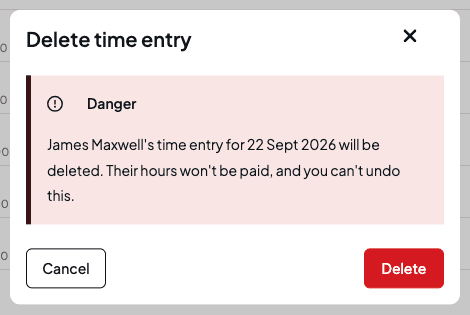
Deleting removes the timesheet, so those hours won't be paid. Shiftly asks you to confirm first, and you can't undo it. A timesheet that's still On Shift can't be deleted: end the shift first.
End a shift that's still running
A timesheet shows On Shift while the employee is clocked in, with a dash for the finish, paid hours and break. If someone forgot to clock off, select End Shift on that row. Shiftly sets the finish time to now and moves the timesheet to Pending so you can review and adjust it.

Staff normally clock on and off themselves, from the Shiftly Me app or a venue kiosk. End Shift is the manager's shortcut for when they don't.
Group timesheets by person or pay rate
To see totals instead of a long list, open the View all menu and choose a grouping:
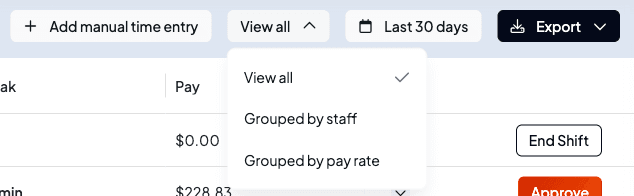
- Grouped by staff puts each person's timesheets under their name.
- Grouped by pay rate puts each timesheet under the highest rate it was paid at, such as weekday, Saturday or Sunday rates.
Each group row shows the number of shifts, the paid hours and the pay for the period. Select a group to expand it, or tick its box to select all of its timesheets at once.
Add a timesheet by hand
If a shift was worked but never clocked, select Add manual time entry. Choose the position and staff member, a tag in each category if your business uses them, and the start and end date and times. Shiftly suggests breaks for that length of shift from the employee's award and your pay rules, and you can adjust, remove or add breaks. Select Create Timesheet and it appears as a pending timesheet, ready to approve.
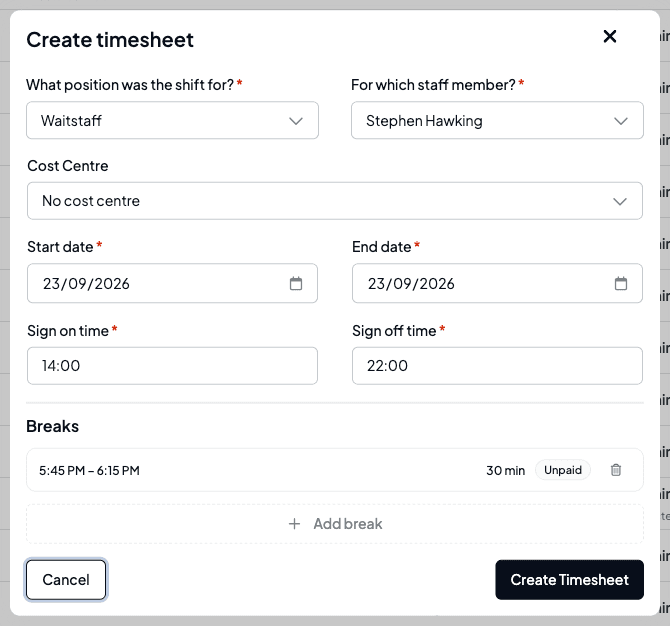
A timesheet you add by hand isn't linked to a rostered shift, so it has no rostered times to compare against and no clock-in location.
Filter by date
Select the date control in the toolbar (it reads Last 30 days until you change it). Pick a preset such as This week or Last 2 weeks, or enter a Start date and End date, then select Apply date filter. Weeks follow your business's pay week.
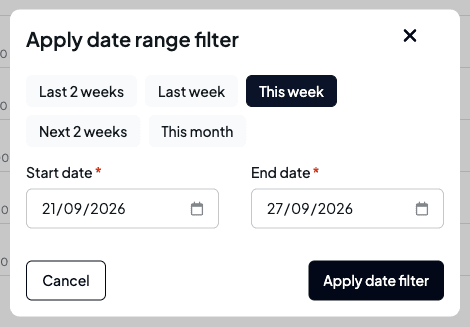
The range shows in the toolbar. Select the cross beside it to go back to the last 30 days.
Export pay data
Select Export to download a spreadsheet (CSV) for payroll or your records:
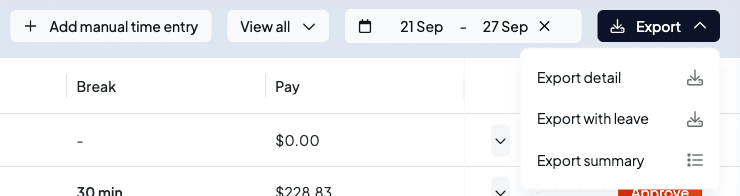
- Export detail: one line for each pay rate on each shift, with the earnings type, hours, rate and cost, the paid start and end times, the clocked-in and clocked-out times, break minutes, paid hours, allowances, gross pay and the shift's note.
- Export with leave: the same detail, with approved leave added alongside the shifts.
- Export summary: totals for each employee, with paid hours, days, shifts and total pay.
The export covers the timesheets in the date range shown in the toolbar, so set the range to your pay period first. That also keeps the leave in Export with leave to the same dates.
Open a timesheet for the full picture
Select any row to open it. The Overview tab breaks the shift down: total hours, paid hours, break time and the effective hourly rate, then the pay by rate, any allowances, and the super contribution. The total is shown excluding super. On a pending timesheet, the footer also has an Approve button.
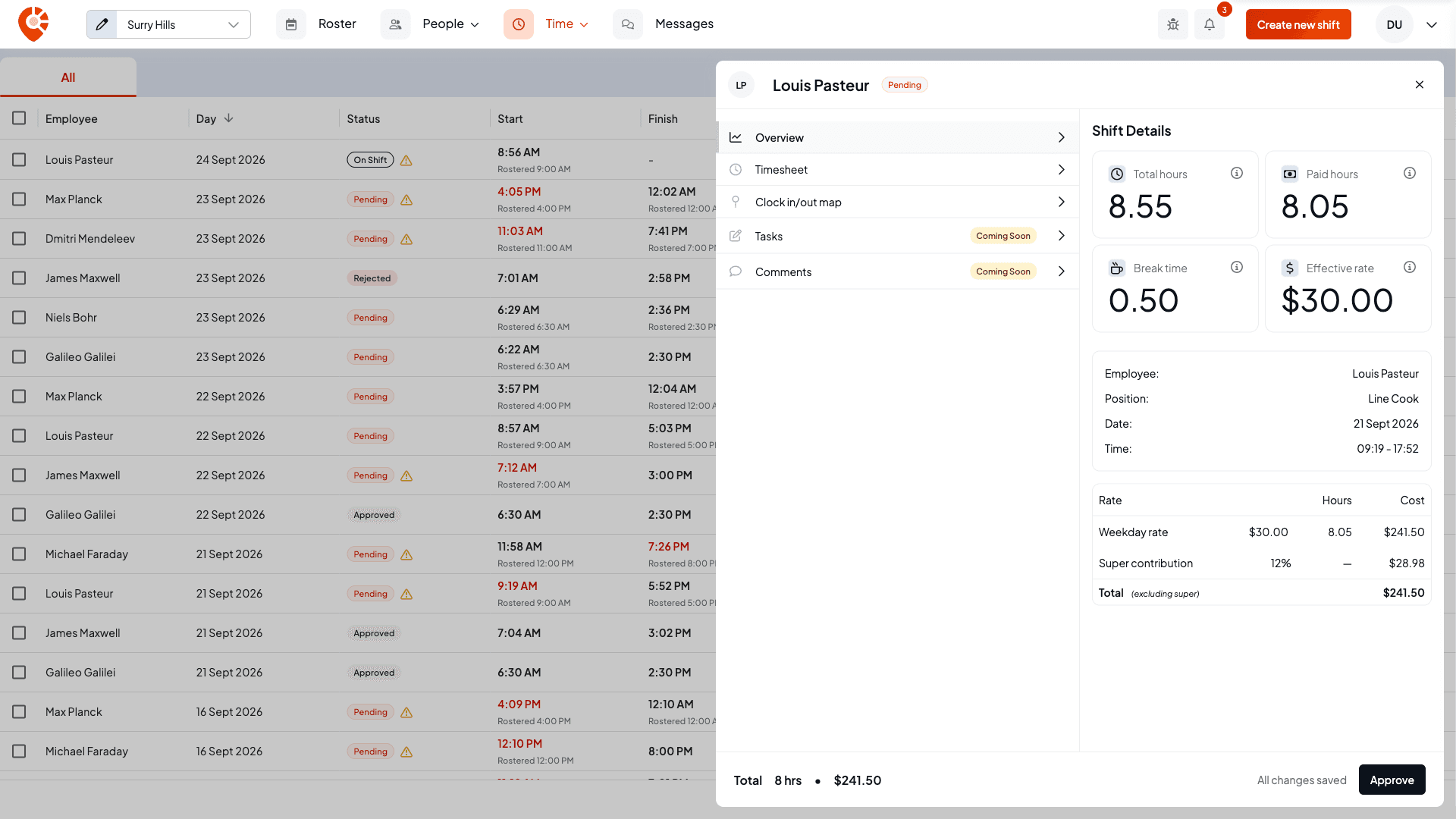
From here you can also adjust the recorded times, breaks and rates, and see where the employee clocked on and off, with their photo if they used a venue kiosk that takes one. See Fix times, breaks and pay on a timesheet.
Once a payroll provider is connected and set up, a payrun tab (for example Xero payrun) appears next to All. That's where you post approved timesheets to payroll. See Posting timesheets to payroll.
Related
Fix times, breaks and pay on a timesheet
Adjust clock times, breaks and pay rates on a timesheet.
Posting timesheets to payroll
Send approved timesheets to your payroll provider.
Add and set up your locations
Set the variance for approving as scheduled, and whether to apply it at clock-out.
Find your way around the roster
Build the roster these timesheets come from.
On the Shiftly website
Timesheets
GPS clock-ins and approvals.
Time & attendance
Turn the shifts your staff work into approved, paid hours: review what they actually clocked, spot late starts and overtime, fix times, breaks and rates, then approve and send to payroll.
Fix times, breaks and pay on a timesheet
Fix a clock-in or clock-out time, adjust breaks, change the position, or override pay rates on a timesheet before you approve it.