
Fix times, breaks and pay on a timesheet
Fix a clock-in or clock-out time, adjust breaks, change the position, or override pay rates on a timesheet before you approve it.
Clocked times aren't always right. Someone forgets to take a break, clocks off late, or you need to correct the position or the pay. Open a timesheet and you can fix all of it before you approve. Editing happens in the timesheet details, on the Timesheet and Overview tabs.
Who this is for
Owners and managers using the Shiftly web platform to run your business.
Before you start
- You're an owner, or a manager whose access includes editing Timesheets. To see and change rates you also need access to Pay & labour cost.
- Open Time → Timesheets, then select a row to open it. To find the right one first, see Reviewing timesheets.
- The times, breaks, position and date can be changed while a timesheet is pending. Once it's approved or rejected they're locked until you reopen it. Rates can be changed while it's pending or approved. A timesheet that has been posted to payroll is locked.
Adjust times and breaks
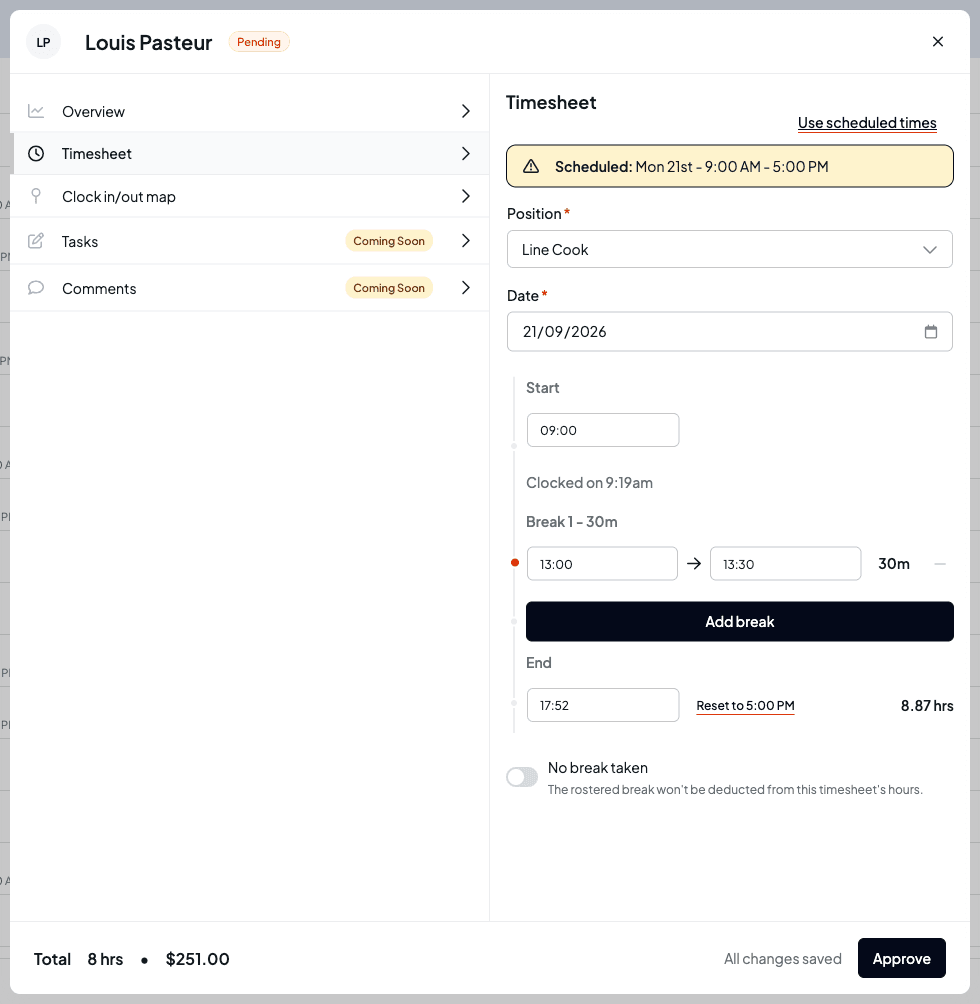
Open the Timesheet tab. This is where you correct what was actually worked. Your changes save on their own as you go: the footer says Saving… and then All changes saved.
Change the position or date
Use Position to move the shift to a different position (which can change the pay rate), or Date to move it to another day. Moving the date keeps the same start time and length.
Adjust the start and end
Edit the Start and End times. The hours beside the end time update as you type. The end must be after the start, and the two can't be more than 24 hours apart.
When the shift was rostered and a time doesn't match the roster, a Reset to link appears beside it (for example Reset to 9:00 AM). Each side resets on its own, so you can fix a late start without touching the finish. Once a time differs from what the employee actually clocked, the clocked time shows underneath, such as Clocked on 9:19am, so you never lose the original.
Use the scheduled times for everything
If the timesheet belongs to a rostered shift and doesn't match it, the Scheduled banner at the top shows the rostered day and times. Select Use scheduled times and confirm with Reset to set the start, end and breaks to the roster in one go.
Edit, add or remove breaks
Each break shows its start, end and length. Adjust the times directly, select Add break to record one that was missed, or select the minus control to remove a break (you'll be asked to confirm). Breaks can't overlap, and each needs both a start and an end.
If the shift was rostered with a break that wasn't clocked, it shows as Not recorded with its own Add break button, which adds it back at its rostered time.
Turn on No break taken if the employee worked straight through. The rostered break then isn't deducted from their hours.
If a shift falls on a public holiday, a Did not work (public holiday) switch also appears. It pays ordinary hours for a rostered public holiday the employee didn't work, and it's only available for full-time and part-time employees.
Approve when you're done
On a pending timesheet, select Approve in the footer to save any last changes and approve it. If a time or break isn't valid, the footer says Fix shift times to approve or Fix break times to approve in red instead, and you can't approve until it's fixed.
Timesheets matched to the roster at clock-out
If a location matches entries to the roster automatically when staff clock off, the top of the Timesheet tab says which times were changed, for example "Start and finish matched to the roster at clock-out, within this location's 10 minute variance". Select Use clocked times to put back what the employee actually clocked. See Add and set up your locations to turn this on or off.
Reopen an approved timesheet
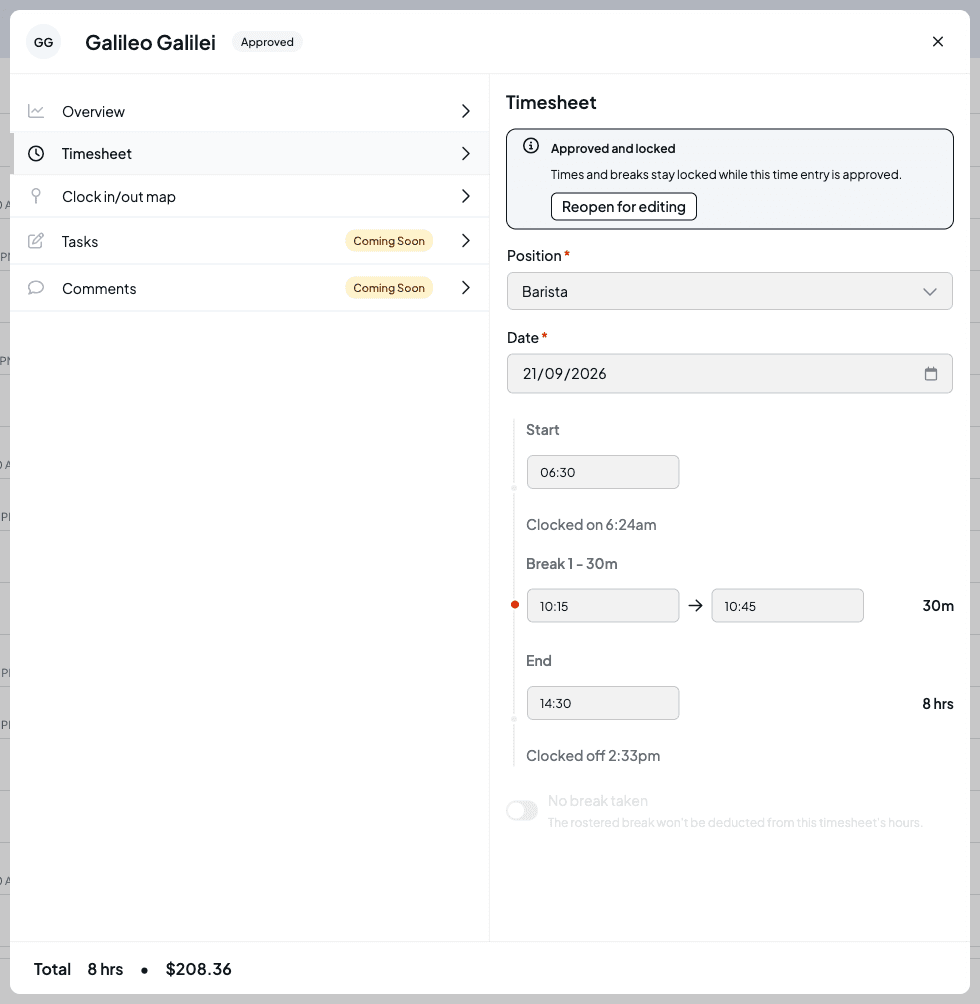
Times and breaks are locked once a timesheet is approved. The Timesheet tab says Approved and locked. To change them, select Reopen for editing. The timesheet goes back to pending, and you'll need to approve it again when you're done.
A rejected timesheet works the same way. Its Timesheet tab says Rejected and locked, and Reopen for editing puts it back to pending.
Check where they clocked on and off
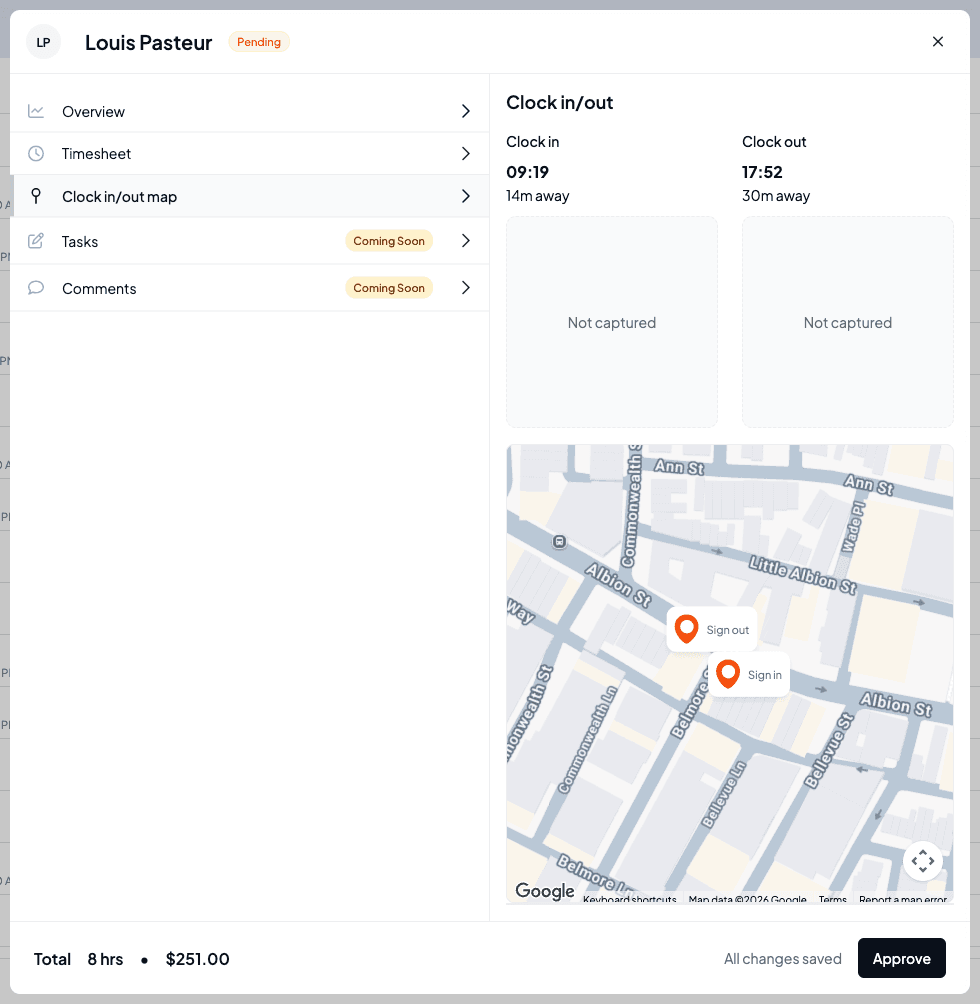
The Clock in/out map tab shows the time the employee clocked in and out, how far from the location they were each time, and pins on a map for both points. It's a quick way to confirm someone was on site.
If the clock-out was further away than the location's clock-in boundary, the distance is highlighted with an Outside the …m boundary warning.
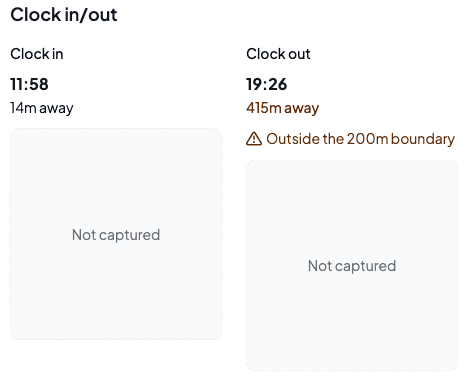
Each side also has a space for a photo. Photos are taken when staff clock in and out on a venue kiosk that has Require a photo at clock in and out turned on, and they're kept for 90 days. Otherwise you'll see Not captured, or Camera unavailable if the kiosk couldn't take one. See Set up a clock-in kiosk.
A Web badge means the employee clocked in or out from a web browser. Timesheets you add by hand have no clock-in location.
Adjust the pay breakdown
Open the Overview tab to see how the pay is built up: the hours at each rate, any allowances, super and the total. The figures at the top show total hours, paid hours, break time and the effective hourly rate.
Override a rate
Select a rate in the breakdown to edit it, type the new amount, and press Enter (or Tab to move to the next rate, or Escape to cancel). The cost and totals recalculate as you go. Select Save rates to keep your changes, or Discard to drop them.
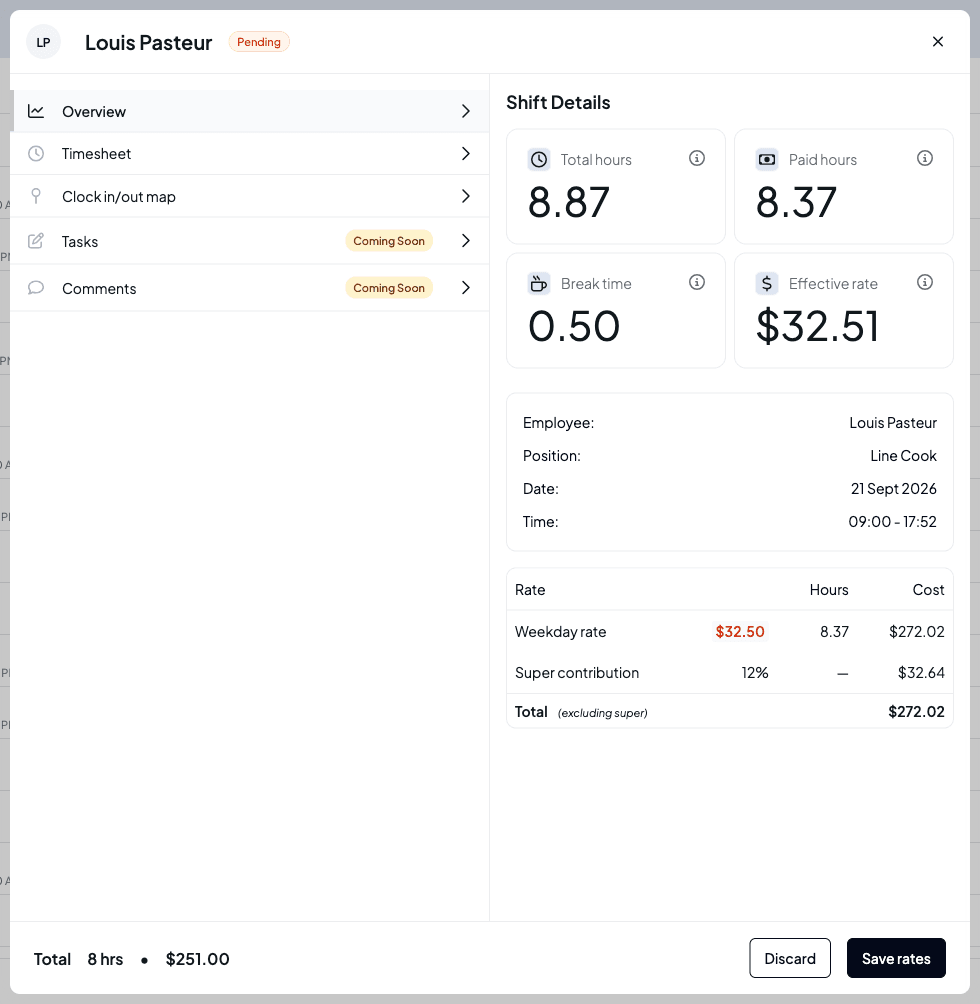
Recalculate after a manual change
Once you've saved a rate, the timesheet shows Rates manually adjusted. Your rate is kept even if you change the times later: Shiftly works out the new hours and applies your rate to them. To drop the manual rates and rebuild them from the award, select Recalculate rates and confirm.
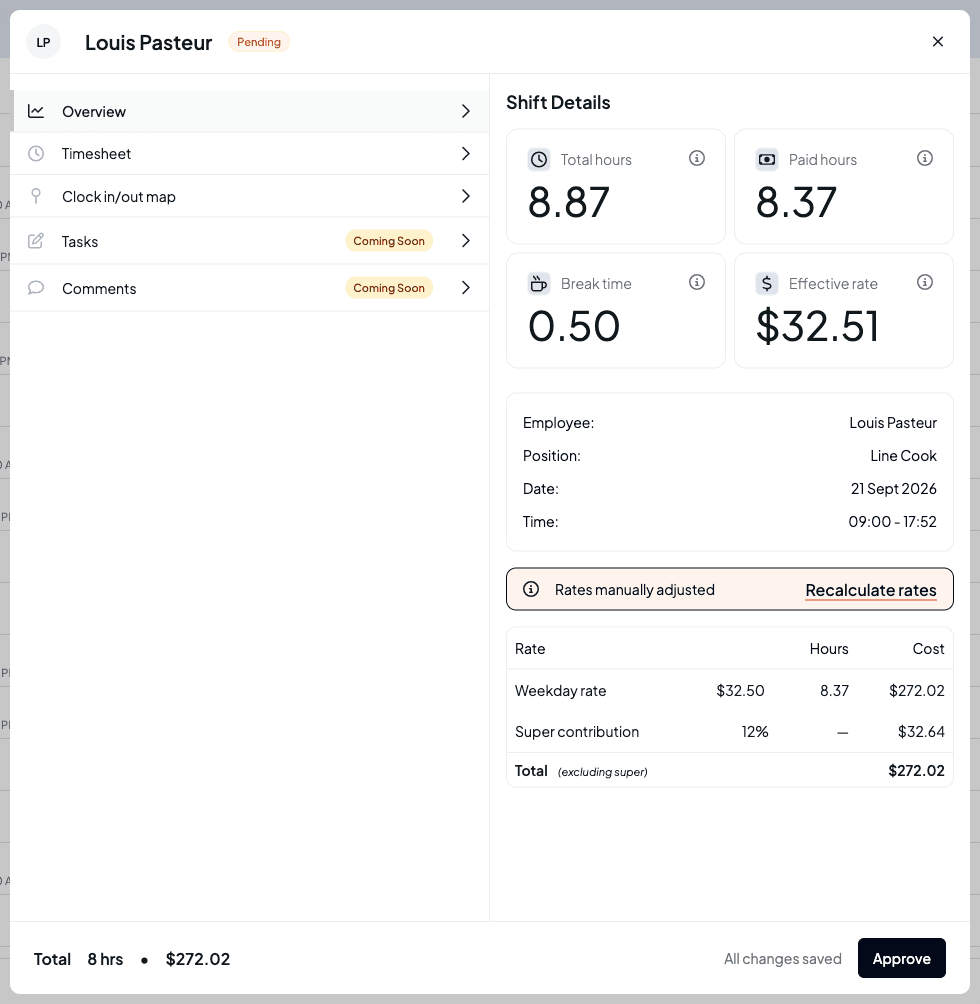
The breakdown total is shown excluding super. The super contribution is listed on its own line so you can see it, but it isn't added into the total.
Related
Review and approve timesheets
Find, filter and approve timesheets, and export pay data.
Posting timesheets to payroll
Send approved timesheets to your payroll provider.
Set up a clock-in kiosk
Let staff clock in on a tablet at the venue, with an optional photo.
Classify staff and estimate pay
How Shiftly works out the rates you can override here.
Review and approve timesheets
Check what your staff actually worked, approve their hours one at a time, in bulk or as scheduled, and export pay data from the Timesheets page.
Send approved timesheets to payroll
Post approved timesheets to Xero from the Timesheets page, check what Shiftly flags before anything is sent, then finish the pay run in Xero.