
Classify staff and set their pay rate
Set an employee's award classification and pay rate, automatically with Shiftly AI or by entering a rate yourself.
Classifying a staff member works out their pay rate from your award (the ordinary rate plus weekend and public-holiday penalties), so rostering and timesheets can estimate their pay. You can let Shiftly AI work it out from a few questions, or set a rate yourself.
Who this is for
Owners and managers using the Shiftly web platform.
Before you start
- Open the classify step from the Add a new employee form, or from an existing person's profile under the Payroll tab.
- Set the person's employment type, employment basis and income type first. The classify option stays disabled until these are filled.
Classifying is optional. If you skip it, the employee's pay rate stays at $0 until you set it. You can come back to it any time from their profile.
Classify automatically with Shiftly AI
Start the classifier
In the Classify this employee for rostering and payroll support panel, select Classify employee.
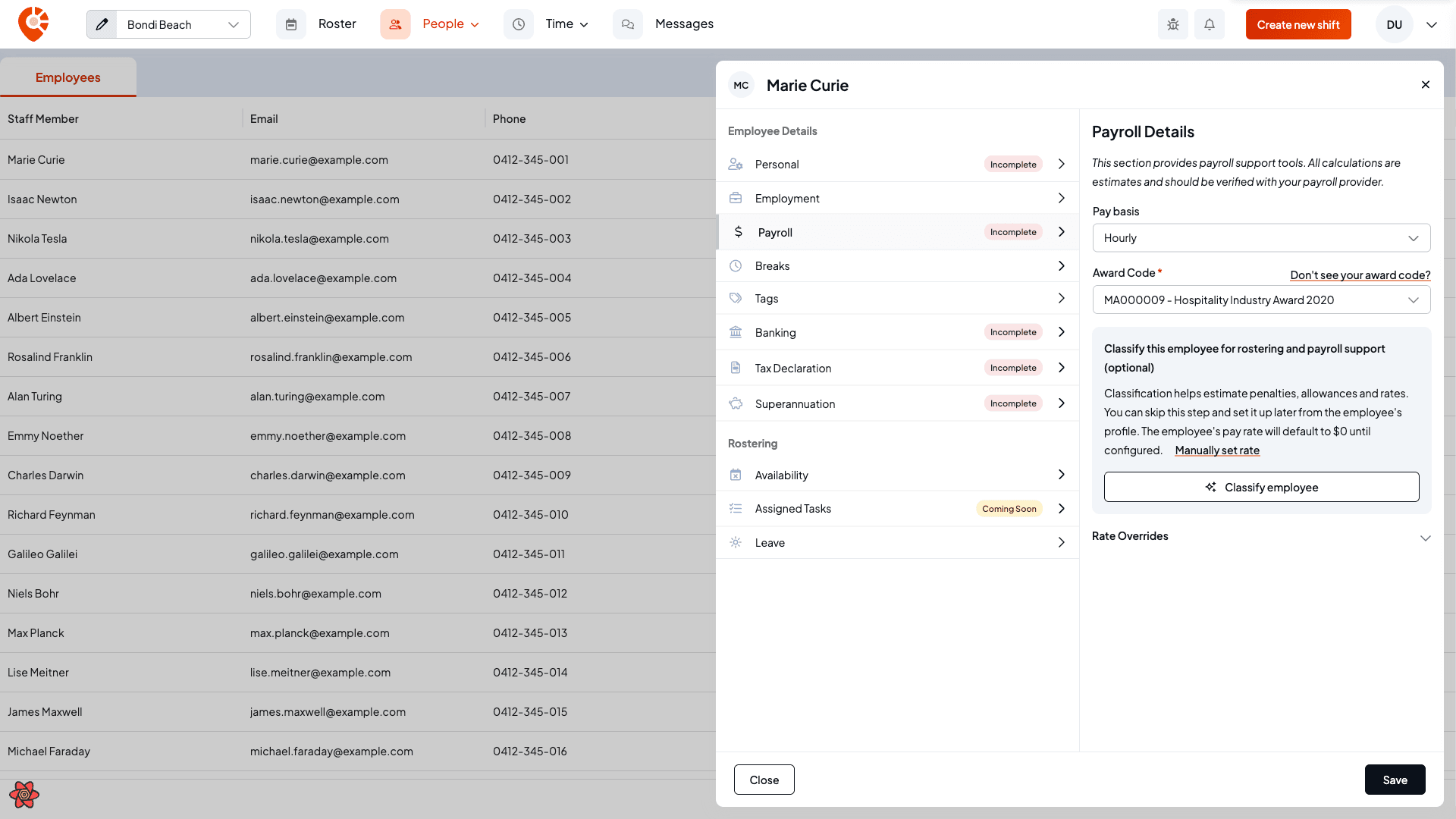
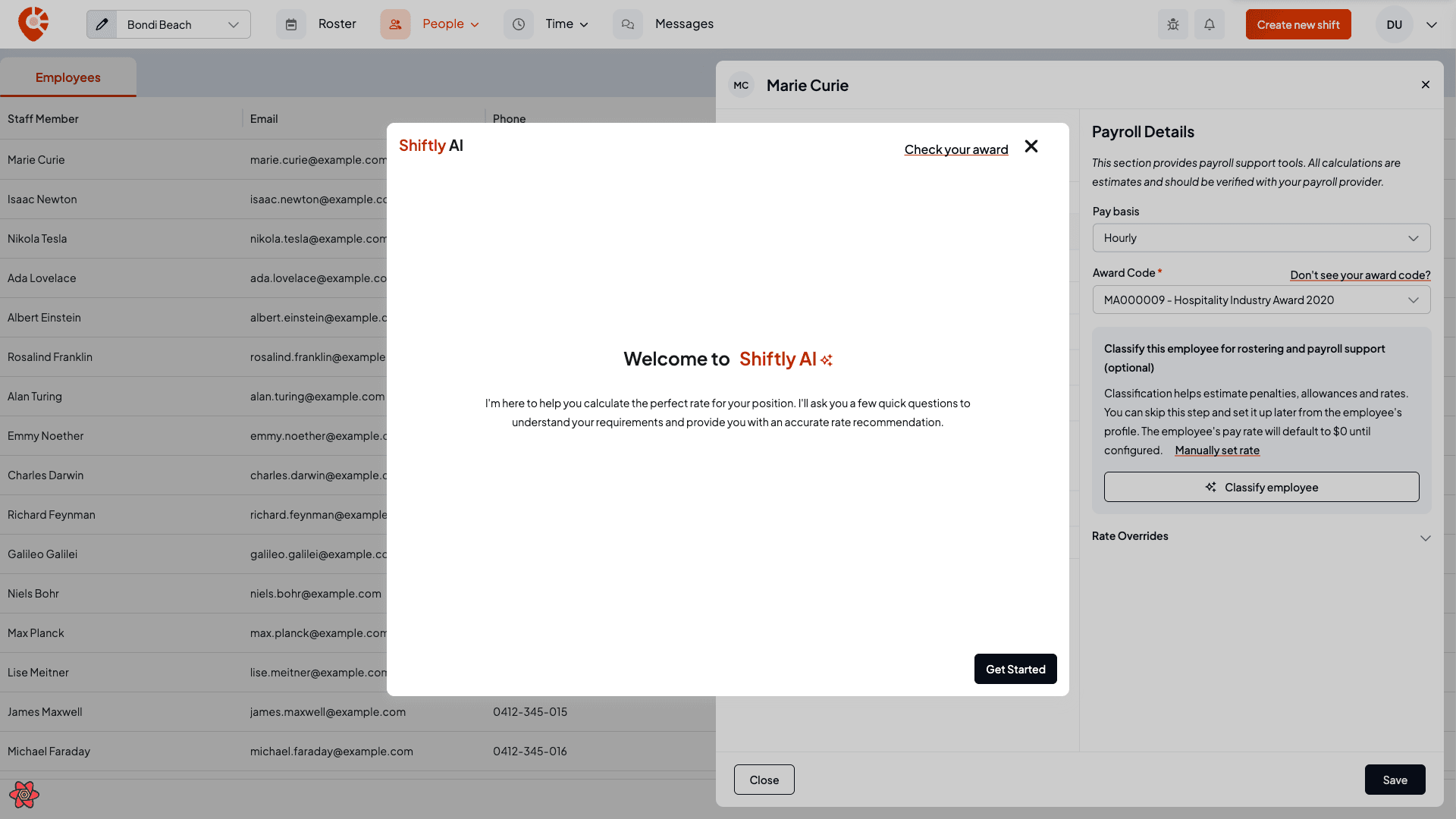
Shiftly AI opens and explains what it's about to do. The Check your award link (top right) opens the official award summary in a new tab if you want to cross-check as you go.
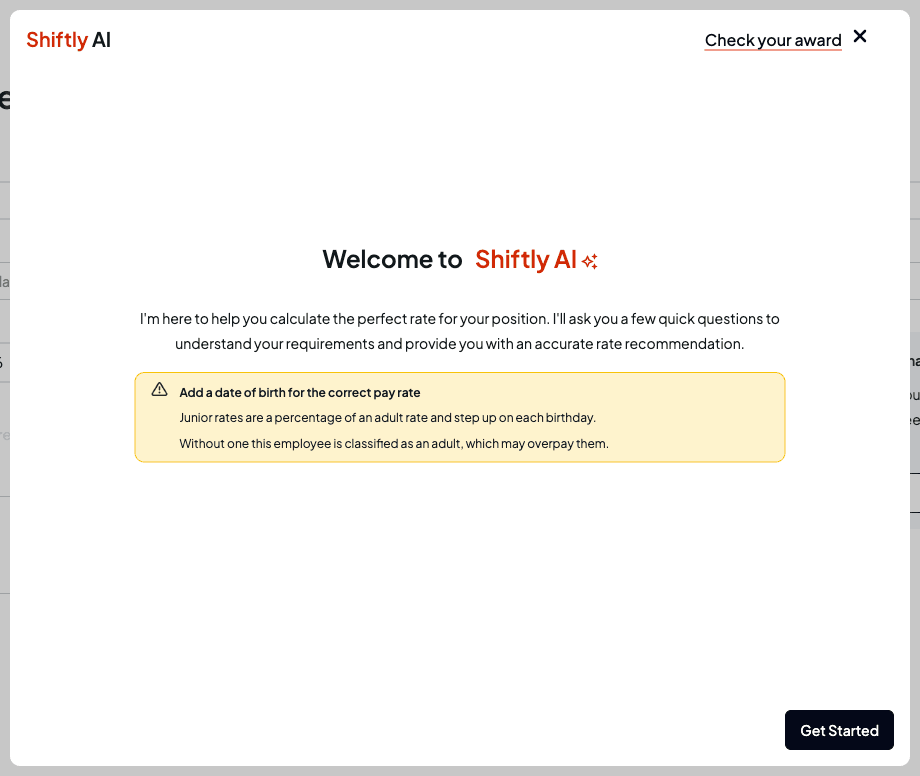
If the employee has no date of birth, the welcome screen warns Add a date of birth for the correct pay rate. Junior rates are a percentage of the adult rate and go up on each birthday, so without a date of birth Shiftly classifies them as an adult, which may overpay them. Add it on the form (or the Personal tab of their profile) first if they could be on junior rates.
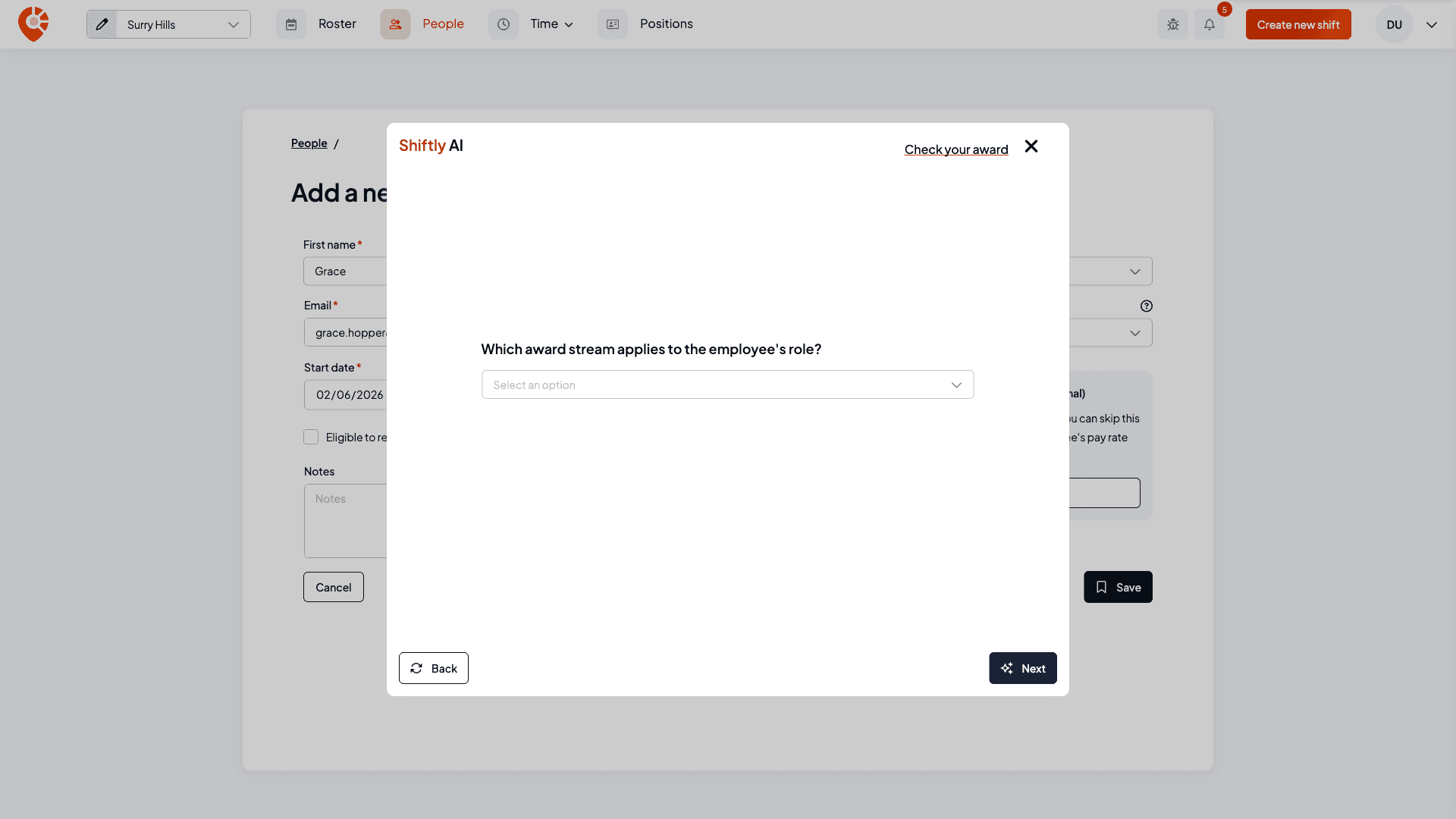
Answer a few questions
Select Get Started, then answer the questions Shiftly asks, typically the award stream the role sits in, the employee's age group, and the classification level. Use Next to move through them.
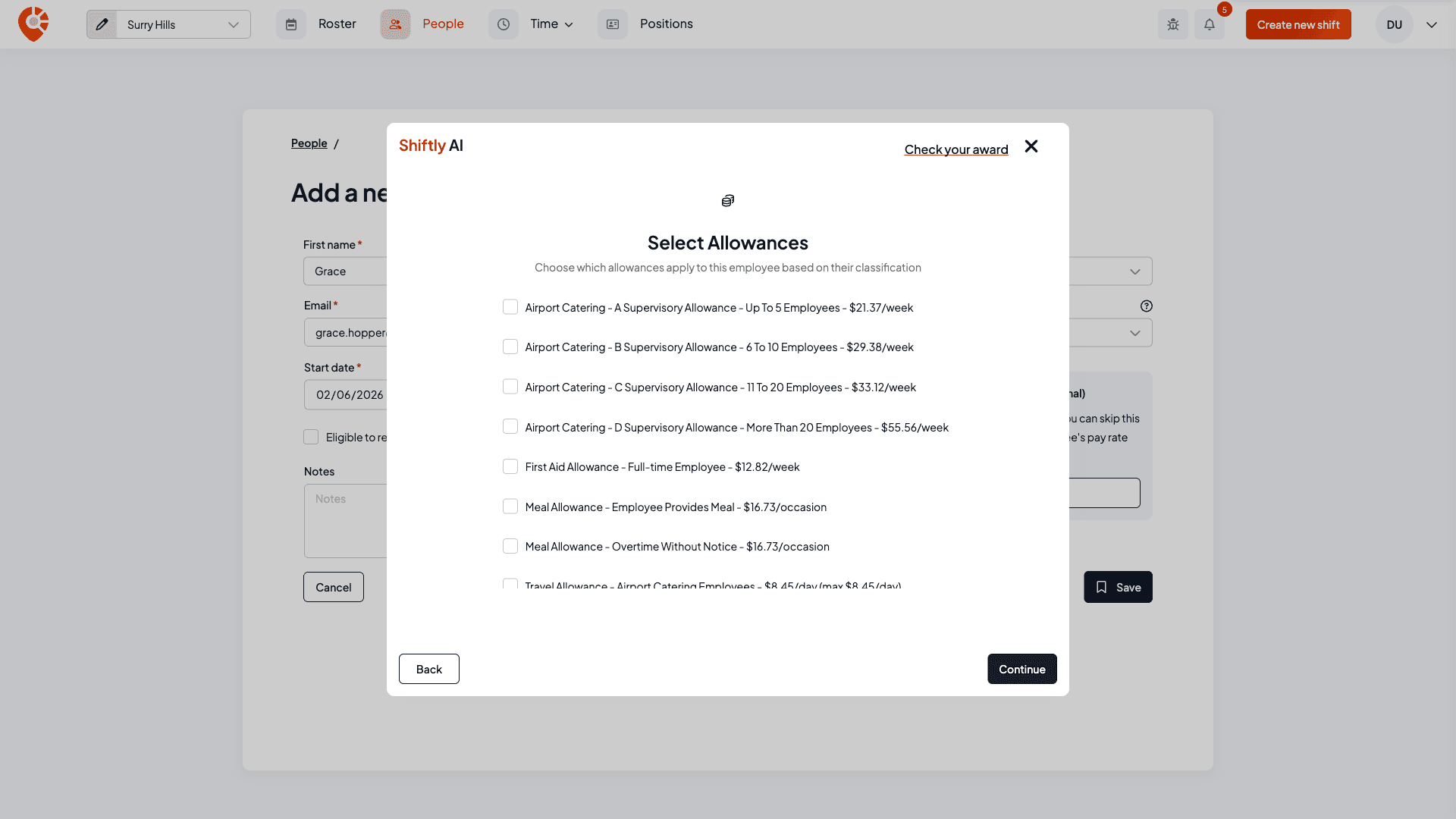
Choose any allowances
Pick any allowances that apply to this person based on their classification. Allowances don't change the calculated hourly rate: they're added to the employee's timesheets when they work. Some allowances are paid per item rather than per hour; when you tick one of those, a counter appears so you can set how many apply, and any weekly cap is shown underneath.
Review the rate
Shiftly AI shows the classification it found and the rates it calculated: the ordinary base rate plus Saturday, Sunday and public-holiday rates. Select Complete to apply it, or Start Again to redo the questions.
If the employee is younger than the lowest age the award publishes a rate for, you'll see This award has no rate for this employee's age instead. Check their date of birth, or choose a stream that covers under-16s, then select Start again.
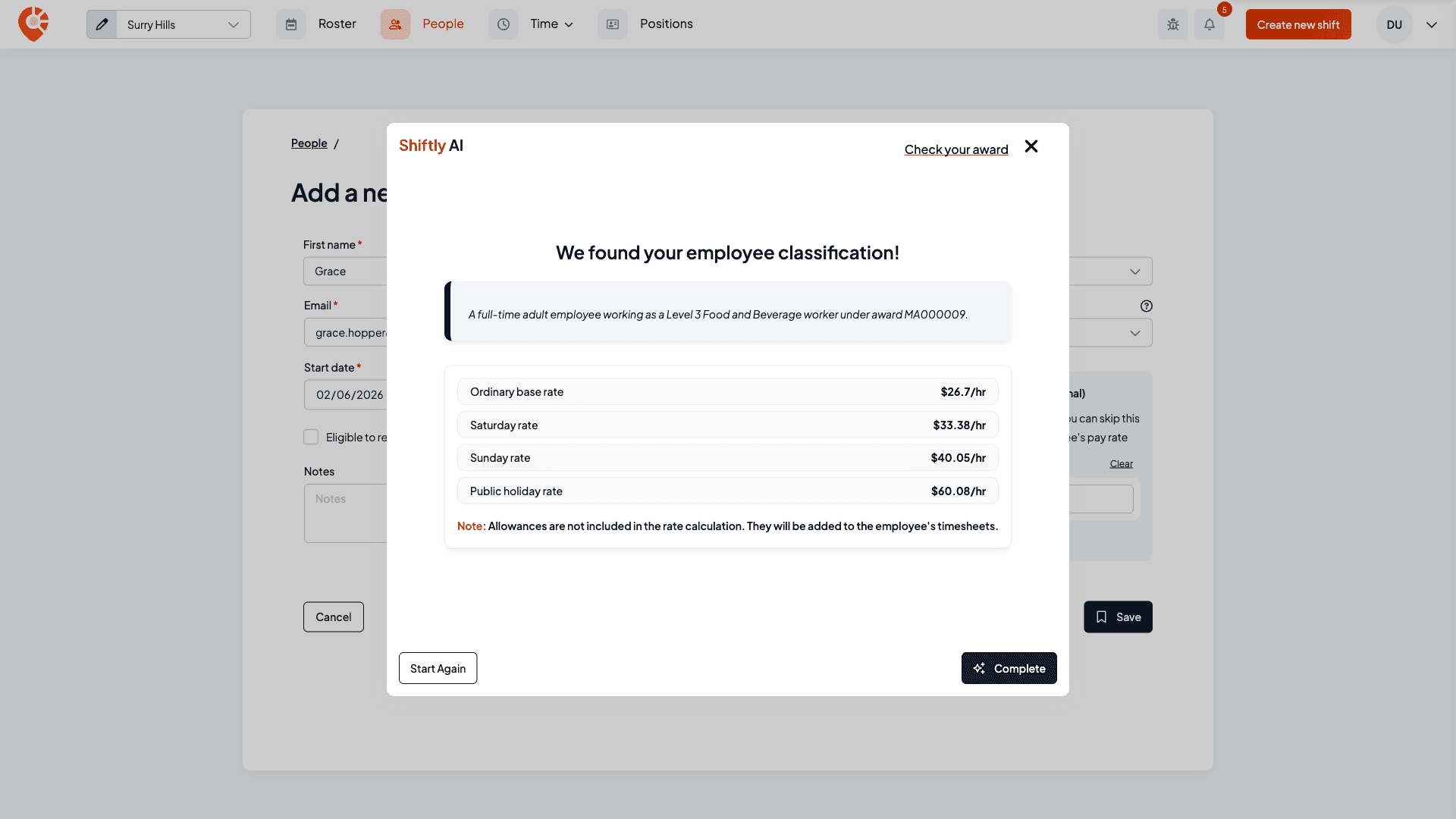
For a casual employee, the ordinary rate shown includes casual loading. All rates are estimates, so verify them with your payroll provider.
Set a rate manually
If you'd rather enter a rate yourself, select Manually set rate in the classify panel and type a Base rate. A manually set rate won't update automatically when the award, the employee's age or penalties change, so you're responsible for keeping it compliant.
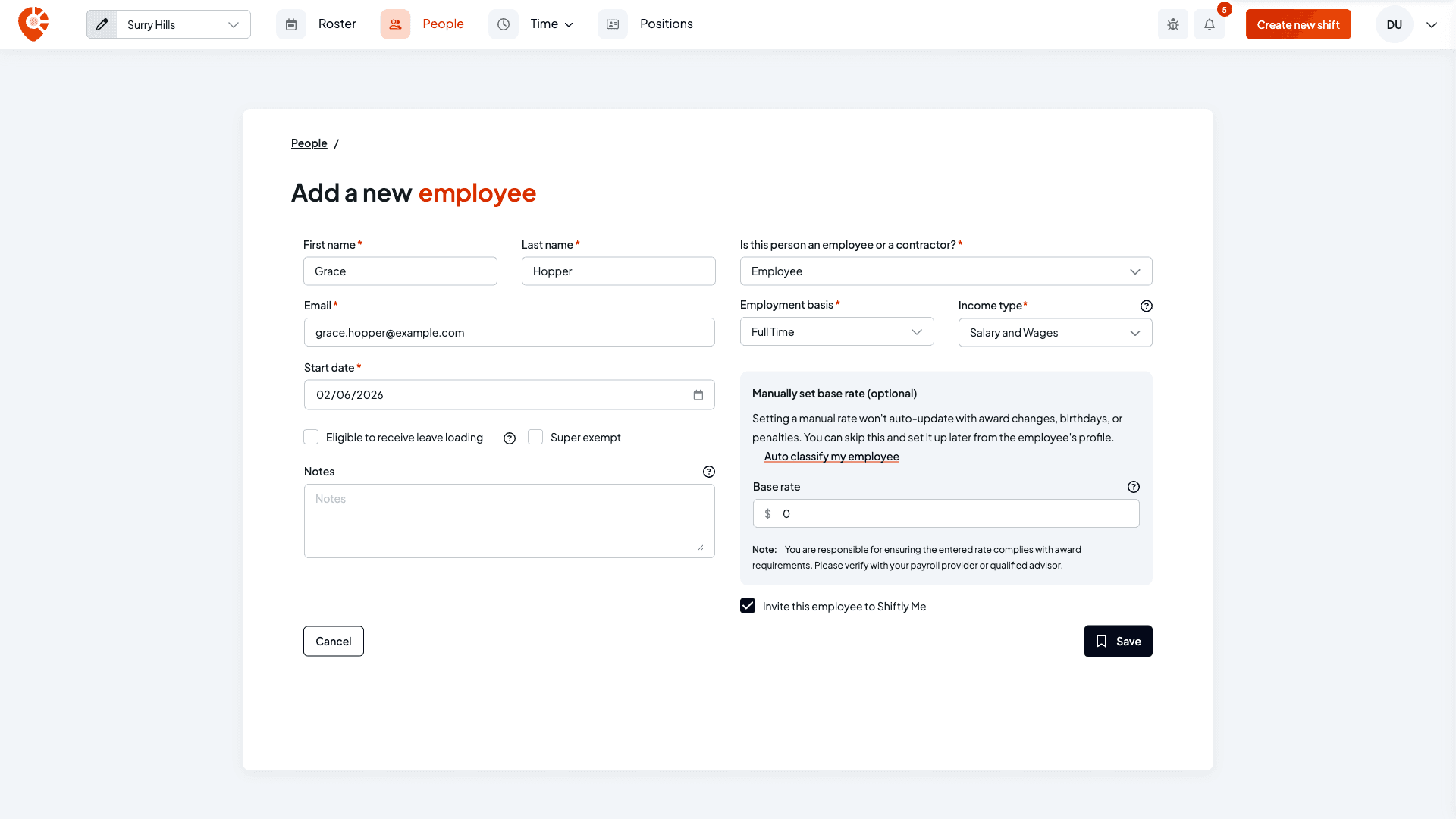
Automatic classification is only available for supported awards. If your business runs an award Shiftly doesn't yet support, the classify step offers manual rate entry only.
Related
Rate overrides & allowances
Adjust an employee's rate and allowances from their profile.
Add staff and invite them to Shiftly Me
Add a staff member and classify them as you go.
Update an employee's details and sign-in
Reclassify or edit a staff member from the Payroll tab.
On the Shiftly website
Award interpretation
Automatic award rates and penalties.