
Importing staff from a file
Add many staff at once from a CSV or XLSX spreadsheet using the Shiftly template.
If you're adding a lot of people at once, import them from a spreadsheet instead of adding them one by one. Shiftly checks every row, flags problems and duplicates, and creates the valid ones for you to finish off.
Who this is for
Owners and managers using the Shiftly web platform.
Before you start
- You're an owner or a manager.
- Open People from the main navigation.
Import from a file
Open the importer
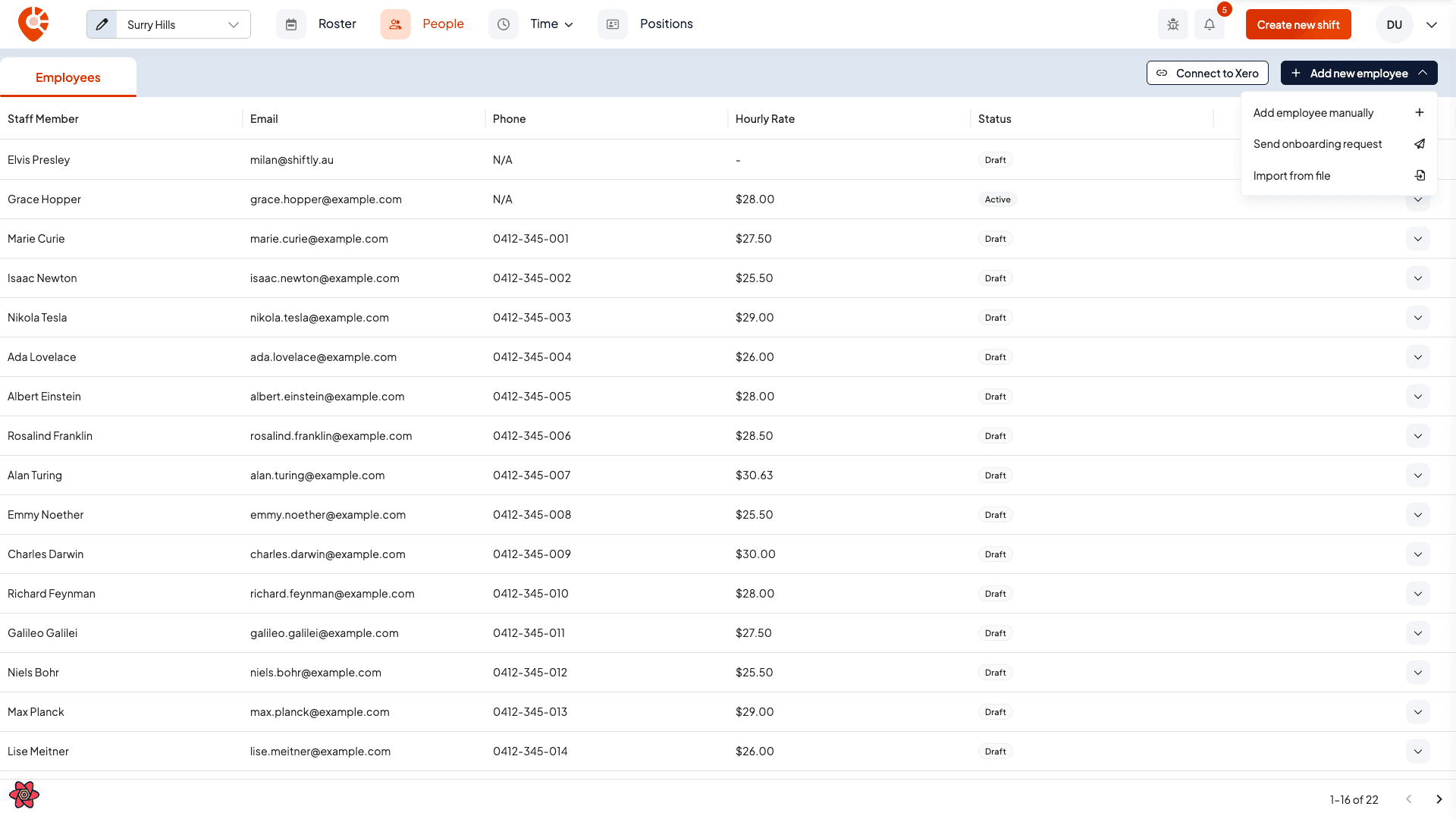
Select Add new employee (top right of the People page), then choose Import from file.
Upload your spreadsheet
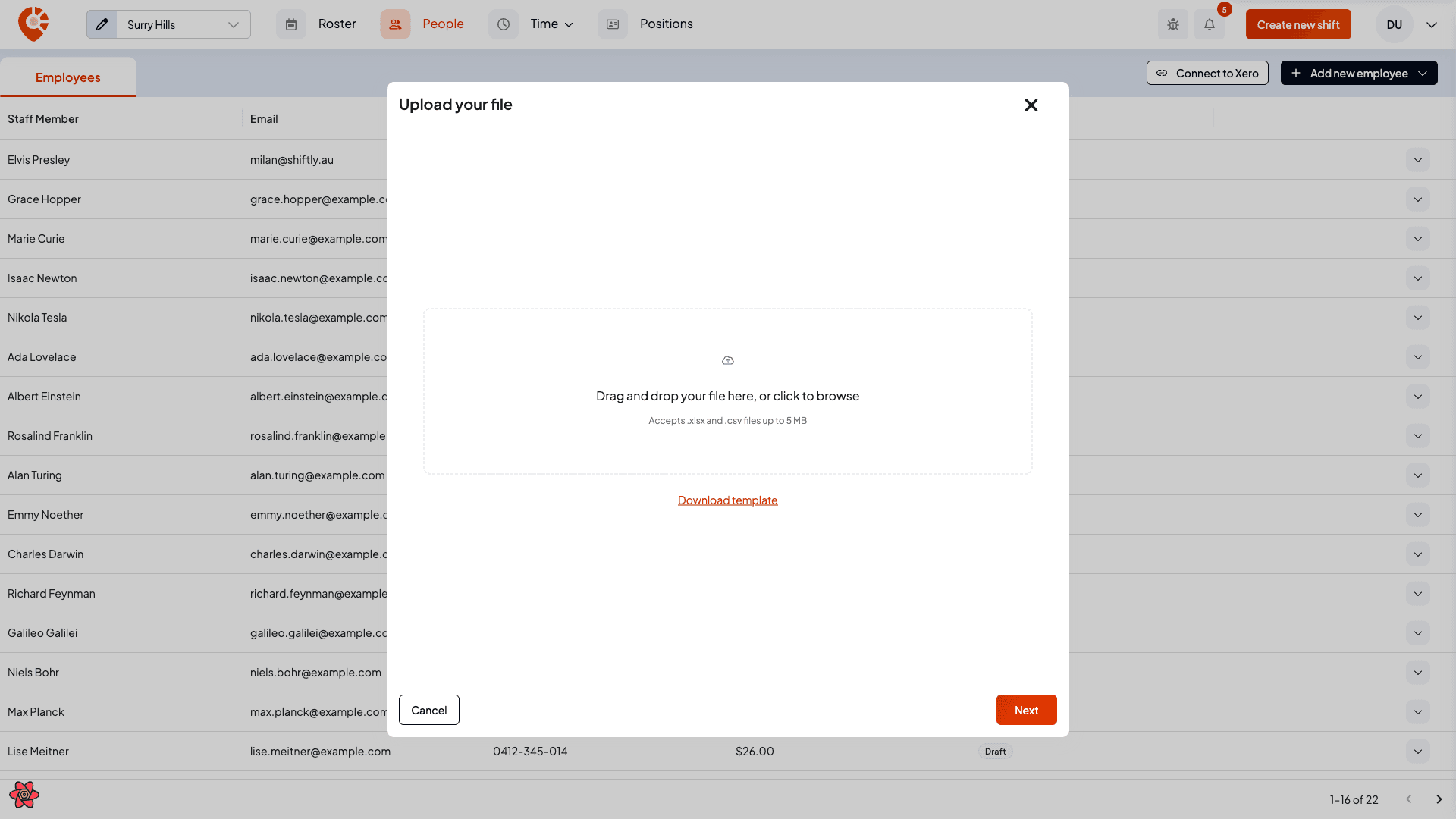
Drag a file in or click to browse. Shiftly accepts .xlsx and .csv files up to 5 MB and 100 rows. Use Download template to get a spreadsheet with the right columns, an example row, and drop-downs for the set values.
Required columns are First Name, Last Name, Email, Employment Type and Employment Basis (plus Income Type for employees). Use the template's labels: Employee or Contractor; Full Time / Part Time / Casual for employees, or Labour Hire / Non Employee for contractors; Salary and Wages / Working Holiday Maker / Closely Held Payees for income type. Dates can be YYYY-MM-DD or DD/MM/YYYY.
Review the rows
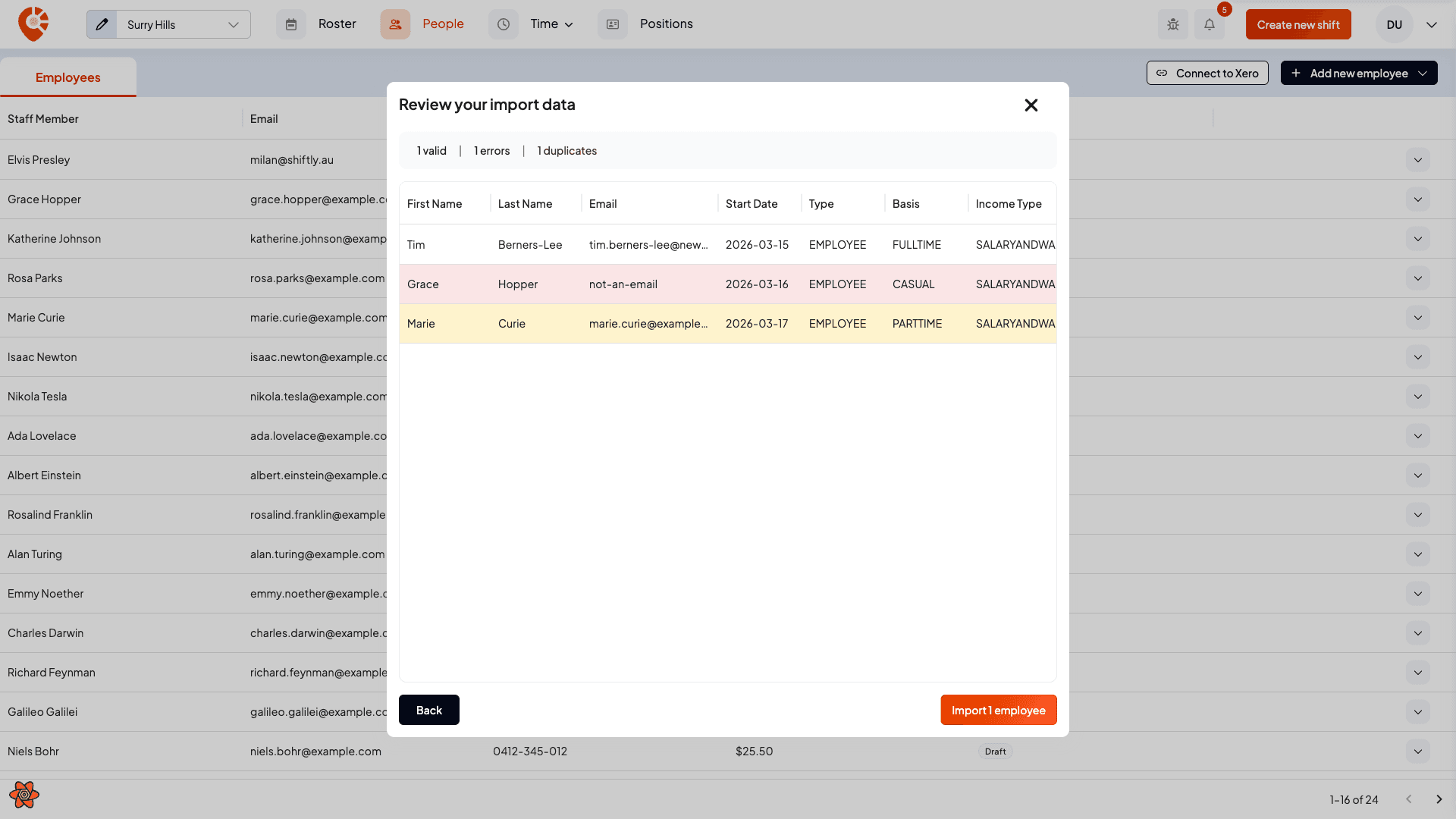
Shiftly checks every row and shows how many are valid, have errors, or are duplicates, with each row's status in the table. Rows with a problem are flagged so you can fix the spreadsheet and re-upload, or carry on and import just the valid ones. The button shows exactly how many will be imported.
Handle duplicates
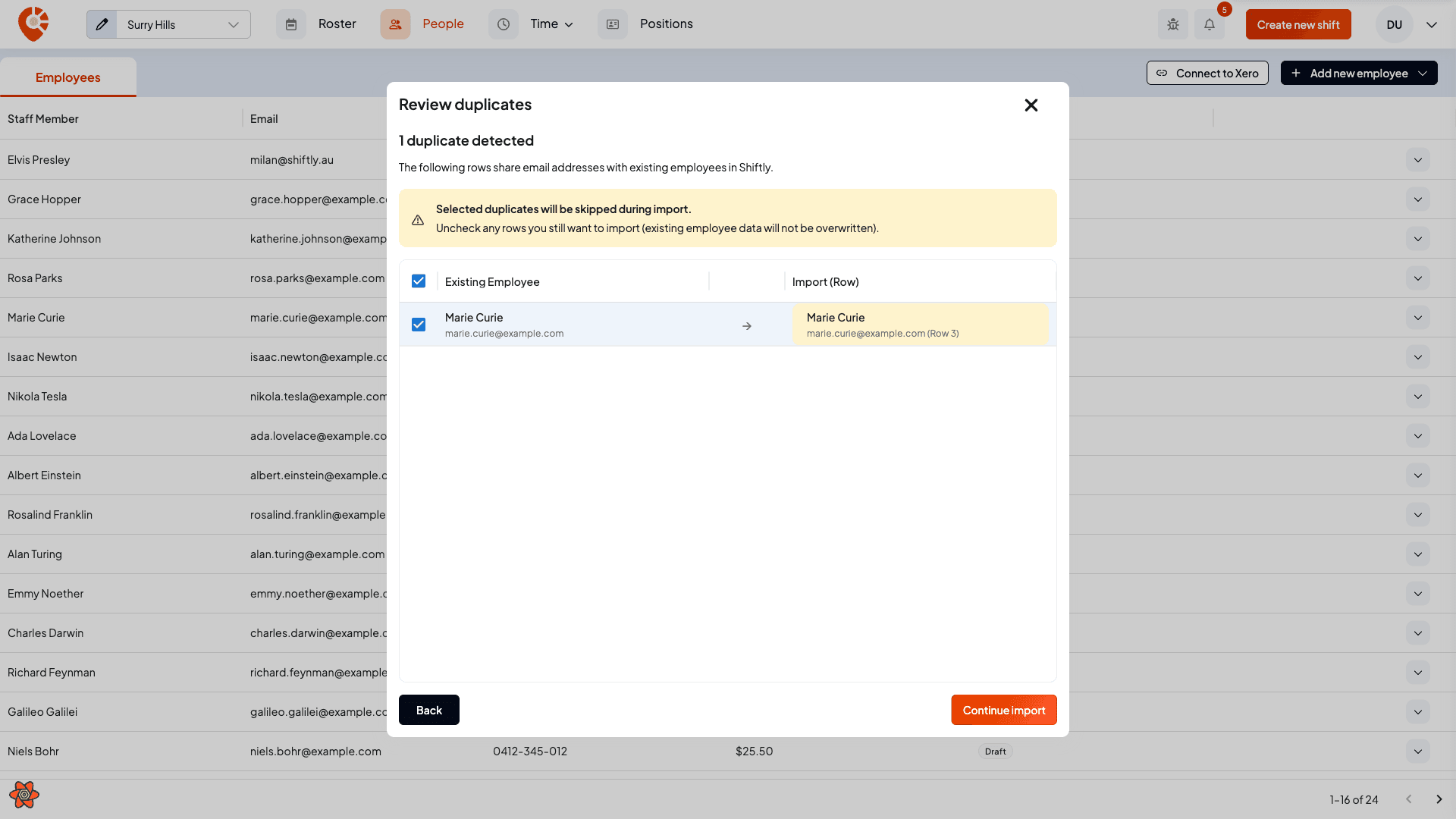
If a row's email matches someone already on your team, Shiftly lists it as a duplicate. Duplicates are skipped by default: your existing employee isn't overwritten. Untick a row only if you do want to import it, then select Continue import.
Finish off the new staff
When the import finishes, the valid rows are added to your team and Shiftly tells you how many were created and skipped. They land with their details still to complete. Set each person's pay classification and finish their profile before you roster or pay them.
Related
Onboarding new staff
Send an onboarding request so a new staff member completes their own details, tax, bank and super, then track it until they're active.
Import staff from Xero
Bring the employees in your Xero organisation into Shiftly with their personal, tax, bank and super details, instead of adding them one by one.