
Keep staff in sync with Xero
Link an employee who's already in Shiftly to Xero, read their status on the People page, and fix a failed or out-of-sync record.
Once your business is connected to Xero, each employee in Shiftly needs to be linked to their Xero record before their timesheets and leave can reach payroll. This guide covers linking someone who's already in Shiftly, reading their status on the People page, and fixing a sync that failed or drifted.
To bring people across from Xero instead, see Import staff from Xero.
Who this is for
Owners and managers using the Shiftly web platform whose business is connected to Xero. You need permission to edit people.
Before you start
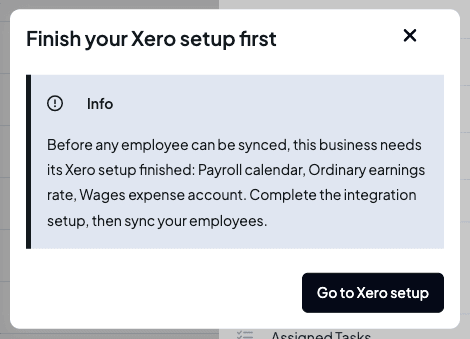
- Your business needs to be connected to Xero, with the pay settings finished. Until then, the People page shows Finish Xero setup, and trying to sync anyone shows Finish your Xero setup first, listing what's still missing, with Go to Xero setup.
Read the Status column
Open People. The Status column shows where each employee is up to.
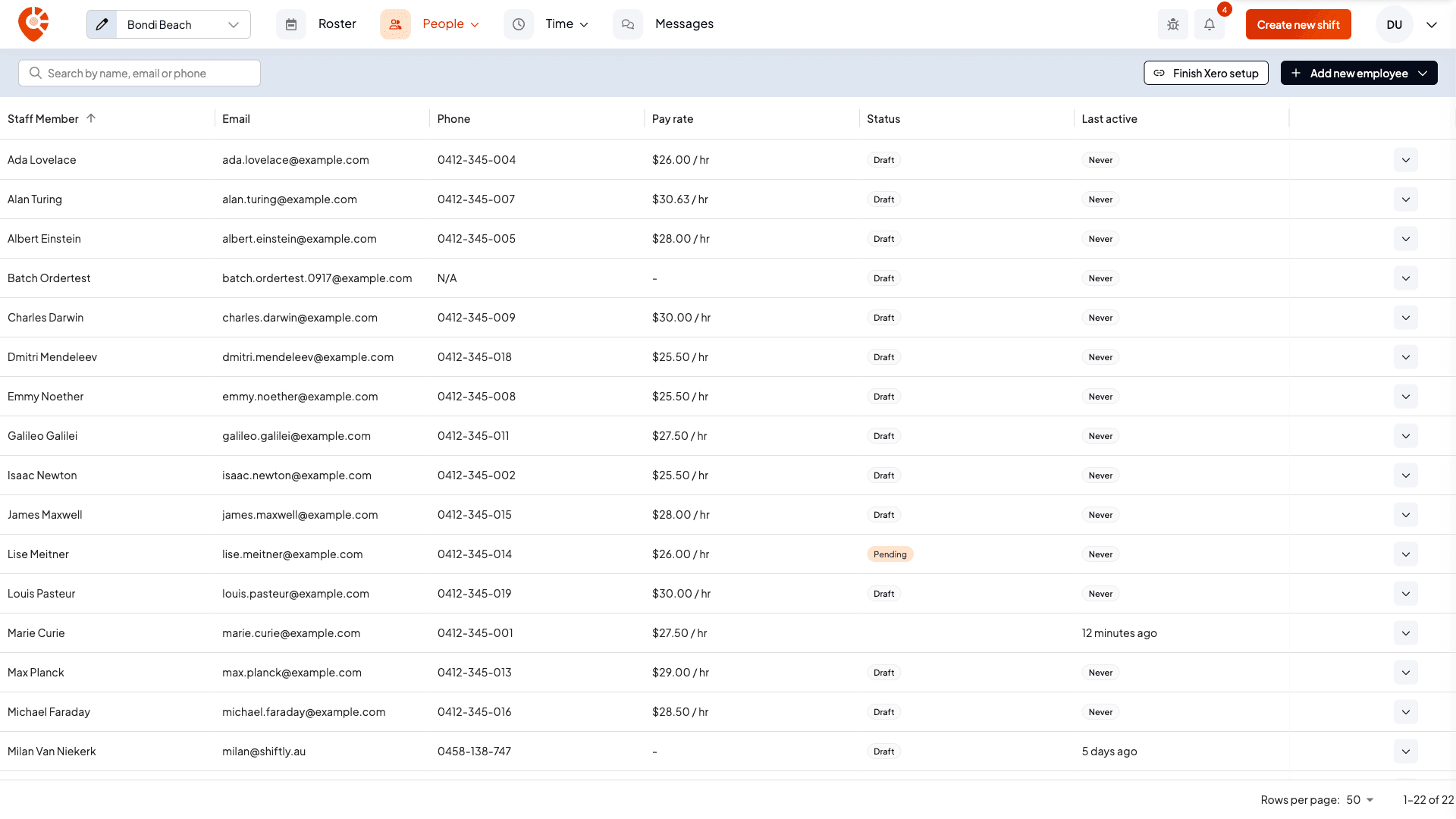
| Status | What it means | What you can do |
|---|---|---|
| Draft | Their onboarding in Shiftly isn't finished. | Send onboarding request from the row menu. |
| Pending | You've sent an onboarding request and they haven't finished it yet. | Send Reminder from the row menu. |
| Missing details | Some of their details are still missing. | Send onboarding request, or fill the details in yourself. |
| Active | Their onboarding is complete. | Nothing. |
| Retry | Shiftly couldn't send them to Xero. Hover over it to see why. | Fix the problem, then select Retry. |
| Re-sync user | Their details in Xero no longer match Shiftly, found when you last selected Refresh. | Select Re-sync user to bring Xero's details across. |
Once someone is linked to Xero, the Xero logo shows at the end of their row.
Link someone to Xero
When your Xero setup is finished, each employee who isn't linked yet has a Sync to Xero button at the end of their row.
Select Sync to Xero
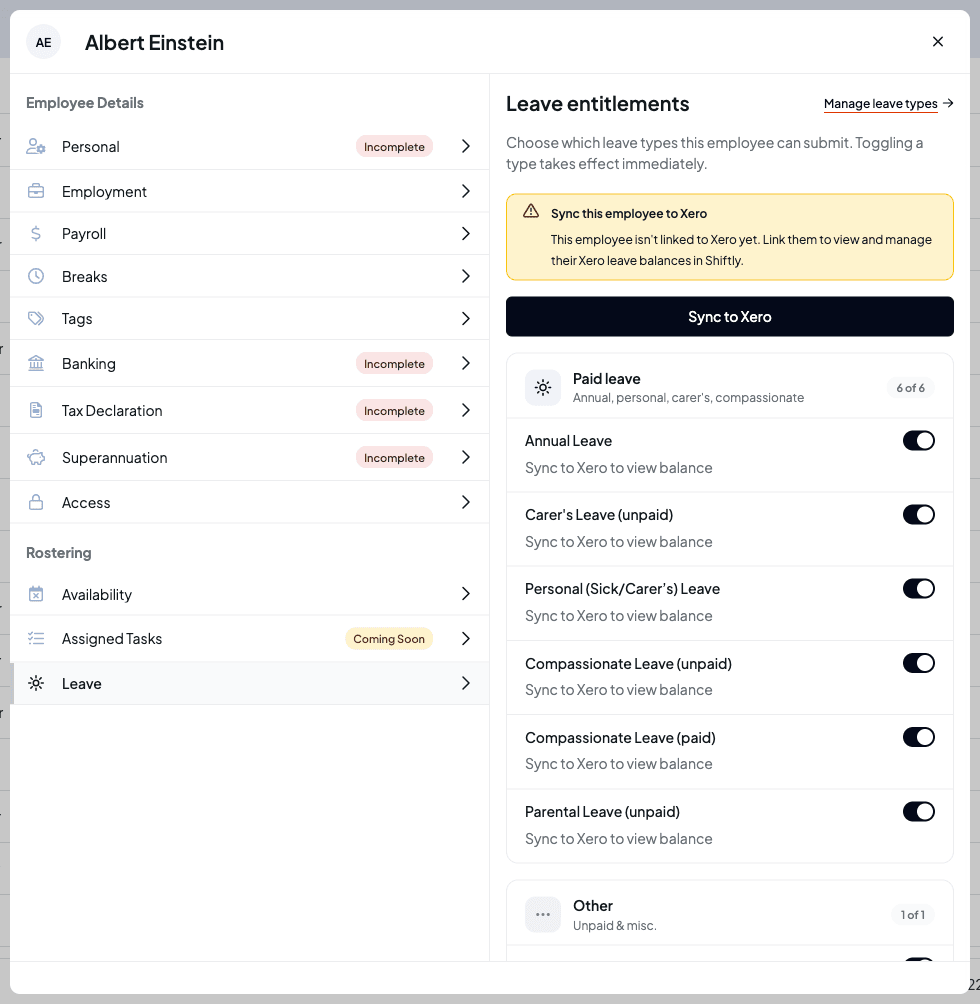
Select Sync to Xero on their row. You can also select it on their Leave tab, which reads Sync this employee to Xero until they're linked.
Fill in anything Xero needs
Xero needs their date of birth and a complete home address (street, suburb, state and postcode). If either is missing, Shiftly shows Finish your setup before syncing to Xero with what's missing. Select Complete details to open their details and fill them in, then sync again.
Confirm
Shiftly asks you to confirm that it will sync their existing details to Xero, with no re-onboarding needed. Select Sync to Xero. Their status shows Syncing… while it's sent.
Once they're linked, any change you save to their personal, tax, bank or super details in Shiftly is sent to Xero.
If you see No onboarding record exists for this employee. Please send an onboarding request first., send them an onboarding request from the row menu first.
Link new staff as you add them
To link someone as part of adding them, select Add new employee, then Add and onboard into Xero. When you send an onboarding request to someone who's already in Shiftly, choose Send & sync to Xero to link them once they've finished onboarding. See Onboarding new staff.
Fix a failed sync
If Xero turns someone down, their status shows Retry. Hover over it to see the reason Xero gave, for example a missing or invalid detail. Fix it on the employee's record, then select Retry (on the status, or in the row menu) and confirm with Sync to Xero.
Bring changes across from Xero
Changes made in Xero don't come across on their own. To pick them up:
- Select Refresh at the top of the People page. Shiftly checks everyone who's linked to Xero and active against their Xero record, and marks anyone whose details differ Re-sync user.
- Select Re-sync user on their row, then Import. Shiftly replaces their Shiftly details with what's in Xero, and their status goes back to Active.
Related
Import staff from Xero
Bring the employees in your Xero organisation into Shiftly with their personal, tax, bank and super details, instead of adding them one by one.
Classify staff and set their pay rate
Set an employee's award classification and pay rate, automatically with Shiftly AI or by entering a rate yourself.