
Add staff and invite them to Shiftly Me
Add a staff member to your business, choose how they're onboarded, and invite them, or your whole team, to the Shiftly Me app.
Add a new staff member from the People page, fill in their details, and choose how they join: straight away as a draft, or by sending them an onboarding request to complete their own details. You can also invite them, or everyone at once, to the Shiftly Me app.
Who this is for
Owners and managers using the Shiftly web platform whose access includes editing Employee profiles.
Before you start
- Open People from the main navigation and choose Employees.
Find your way around the People page
The table lists everyone on your team with their Email, Phone, Pay rate, Status and Last active, the last time they used Shiftly (or Never). Type part of a name, email or phone number in the search box at the top to find someone quickly.

The Status column shows where each person is in onboarding. See Onboarding new staff for what each status means.
Add a staff member
Open the add menu
Select Add new employee in the top right. The menu gives you these ways to add people:
- Add employee manually: you fill in their details now.
- Send onboarding request: the employee fills in their own details from a link you email them.
- Import from file: add many people at once from a spreadsheet. See Importing staff from a file.
- Invite all staff to Shiftly Me: see Invite your whole team below.
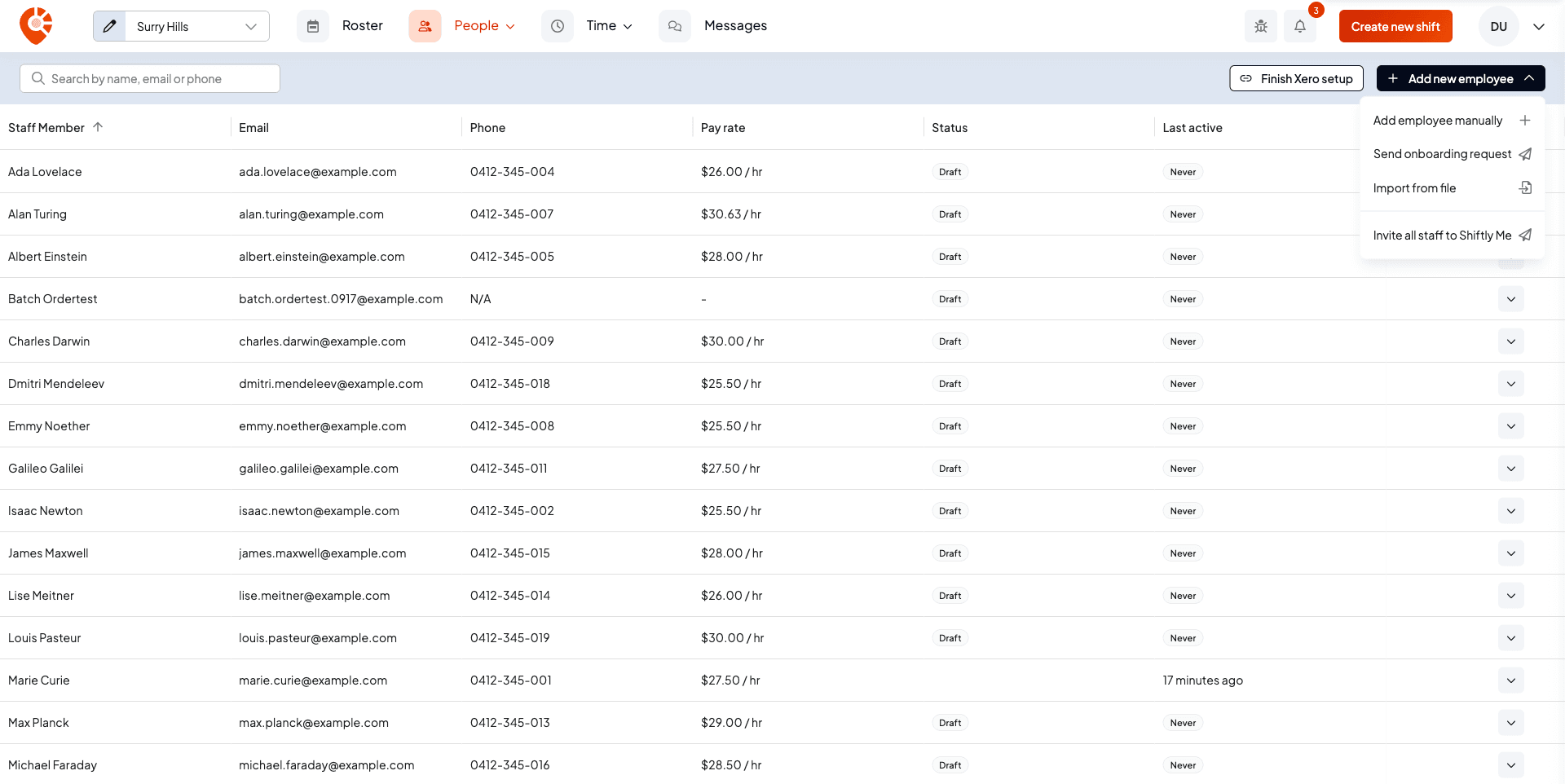
Once a payroll provider is connected and set up, two more options appear, for example Add and onboard into Xero and Import from Xero. Until then, the button beside the menu reads Connect to payroll, or Finish Xero setup if you've connected but haven't finished setting it up. See Connecting Xero.
Enter their details
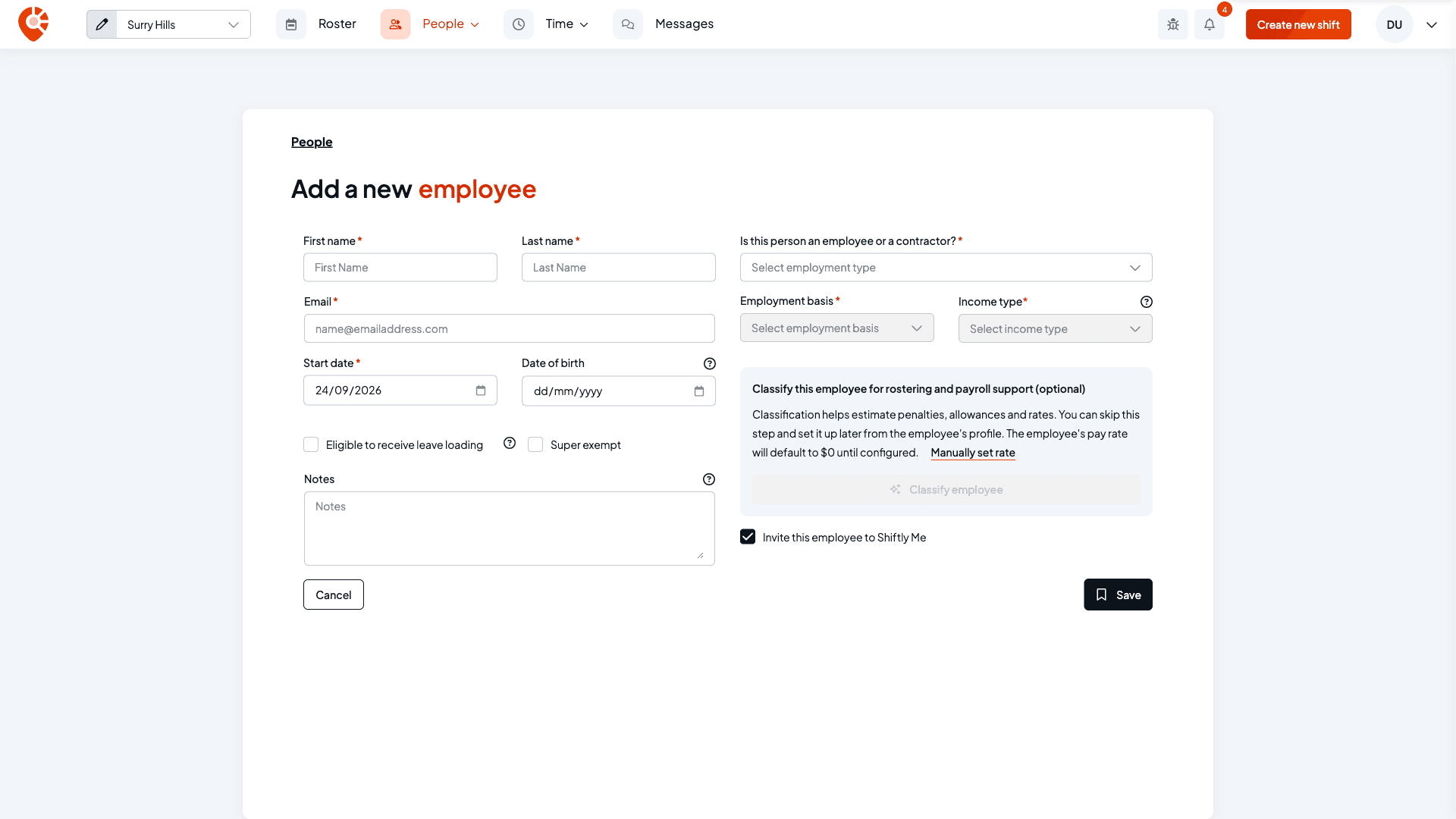
Choosing Add employee manually opens the Add a new employee page. Fill in:
- First name, Last name and Email: required. The email is how the person signs in and receives their invite.
- Start date: starts as today.
- Date of birth: optional, but it matters for junior rates (see below).
- Eligible to receive leave loading: available for full-time and part-time employees.
- Super exempt: turn on when super shouldn't apply, for example an employee under 18 working fewer than 30 hours a week.
- Notes: internal only; the employee never sees these.
Then answer Is this person an employee or a contractor?, and set their Employment basis (full time, part time or casual for employees; labour hire or non-employee for contractors) and Income type (salary and wages, working holiday maker or closely held payees).
Add their date of birth
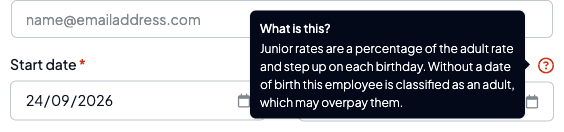
Select the question mark beside Date of birth to see why it's there. Junior rates are a percentage of the adult rate and go up on each birthday. Without a date of birth, Shiftly treats the employee as an adult, which may overpay them.
Set their pay
You can Classify employee here to estimate their pay rate from the award, or select Manually set rate. See Classifying staff. If you skip it, their pay rate stays at $0 until you set it.
When your business runs more than one award, an Award Code dropdown appears so you can choose which award applies to this person.
Choose how they're added
The button at the bottom of the page depends on the option you picked:
- Add employee manually: Save adds the person as a Draft. They aren't sent an onboarding request, though they still get a Shiftly Me invite if that box is ticked. You can finish their details and onboard them later.
- Send onboarding request: Next: Send to Employee emails the person a link to complete their own details (personal details, tax, bank and super). See Onboarding new staff.
- Add and onboard into your payroll provider (when one is set up): sends the onboarding request and adds the employee to your payroll provider.
If the email already belongs to someone on your team, Shiftly won't add them twice and tells you You've already onboarded this employee.
Invite them to Shiftly Me
Leave Invite this employee to Shiftly Me ticked (it's on by default) to email the person an invite to the Shiftly Me app, where they see their roster, clock on and off, set their availability and request leave.
To invite one person later, open the menu at the end of their row on the People page and select Invite to ShiftlyMe.
Invite your whole team
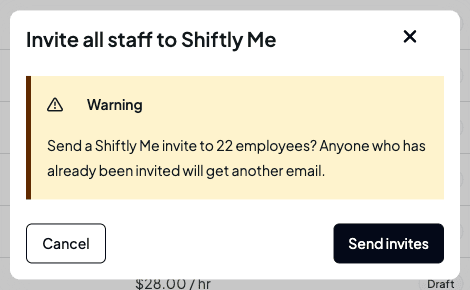
Select Add new employee, then Invite all staff to Shiftly Me. Shiftly tells you how many people will get an invite and asks you to confirm with Send invites. Everyone with an email address gets one, including anyone you've invited before, so they'll get another email. People without an email address are skipped, and the message afterwards says how many.
Related
Onboarding new staff
Send an onboarding request and track it through to active.
Classifying staff
Set an employee's award classification and pay rate.
Importing staff from a file
Add many people at once from a spreadsheet.
Update an employee's details and sign-in
Edit a staff member's details across every tab.
Your team
Add staff, onboard them, classify them under their award, and manage their profiles: the people that everything you roster, pay, and report on is built around.
Onboarding new staff
Send an onboarding request so a new staff member completes their own details, tax, bank and super, then track it until they're active.