
Import staff from Xero
Bring the employees in your Xero organisation into Shiftly with their personal, tax, bank and super details, instead of adding them one by one.
If you run payroll in Xero, you don't need to add your staff to Shiftly by hand. Import them from Xero and their details come across with them. This guide covers where to import from, choosing who to bring across, and what happens to staff who are already in Shiftly.
Who this is for
Owners and managers using the Shiftly web platform whose business pays its staff through Xero. You need permission to edit people.
Before you start
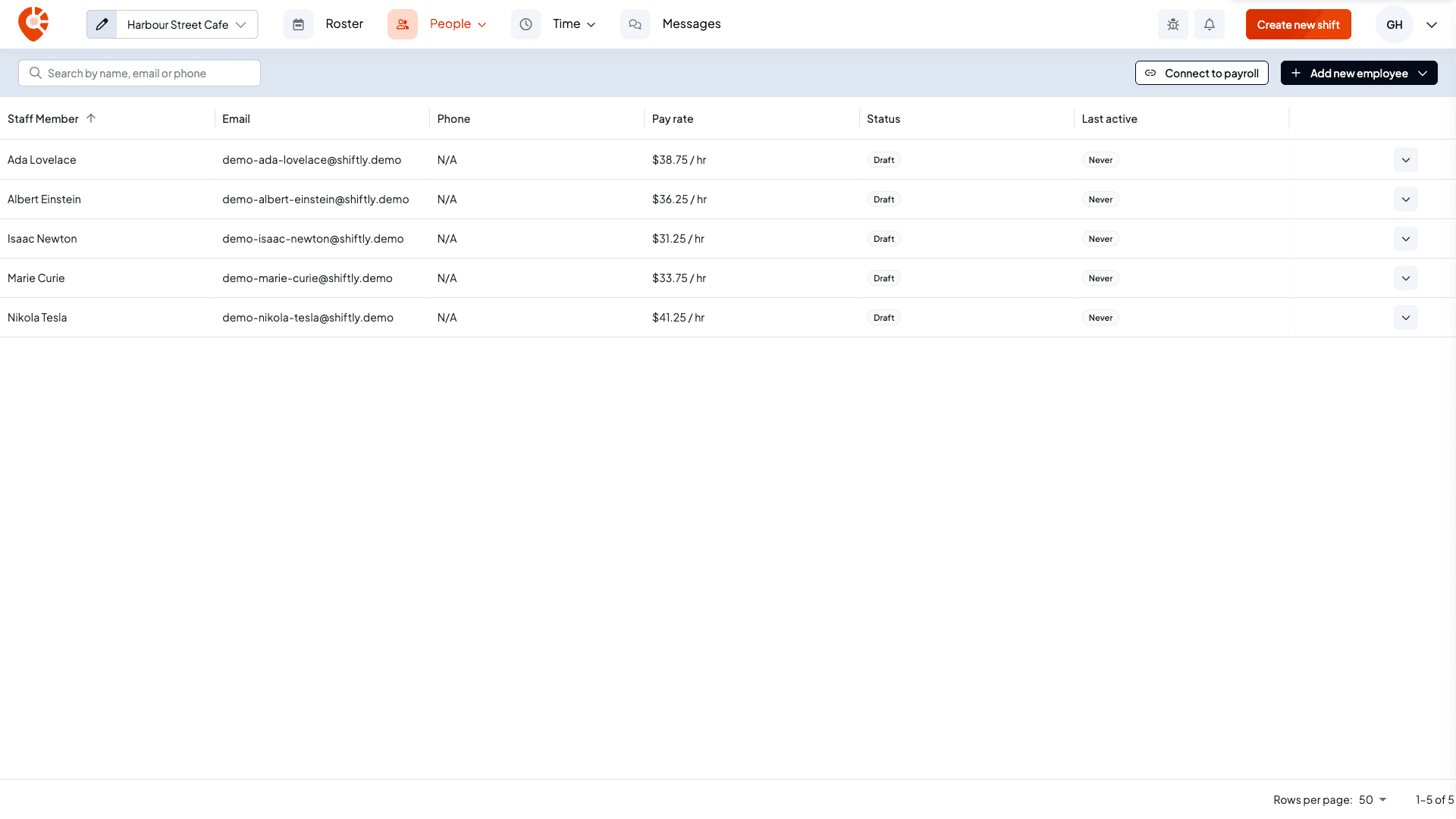
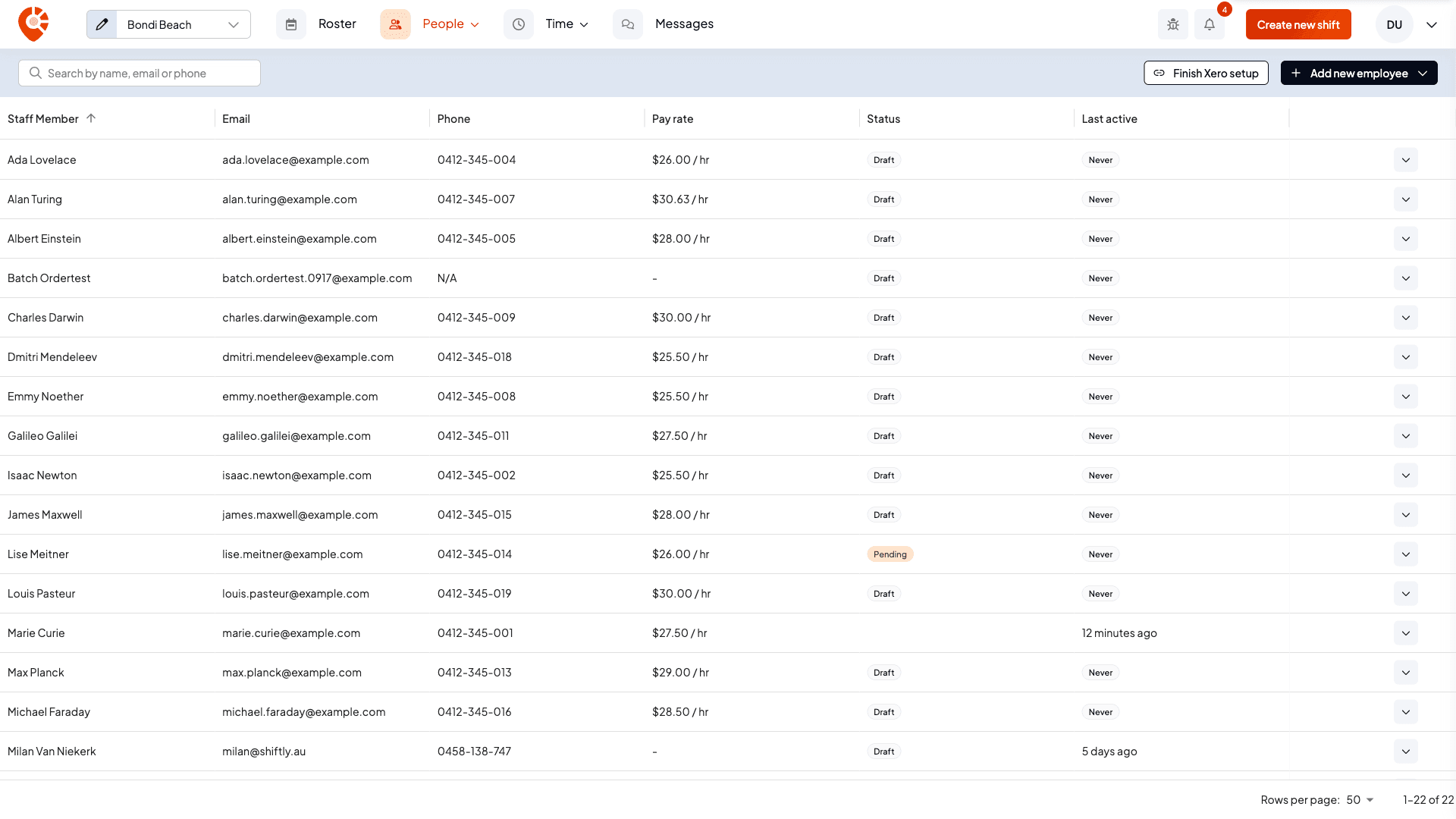
- Your business needs to be connected to Xero, with the Xero setup finished. Until then, the People page shows a button to get you there instead:
- Connect to payroll if you haven't connected Xero yet.
- Finish Xero setup if you've connected but haven't finished the pay settings.
- Pick the location your staff work at from the location picker at the top left. Imported staff are added to that location.
Import your staff
You can import staff at two points: during the Xero setup, in its Import employees step, or at any time afterwards from the People page. Both show the same list.
Open the import
Open People, select Add new employee, then Import from Xero. (During the Xero setup, you're already on the list at Import employees.)
Choose who to bring across
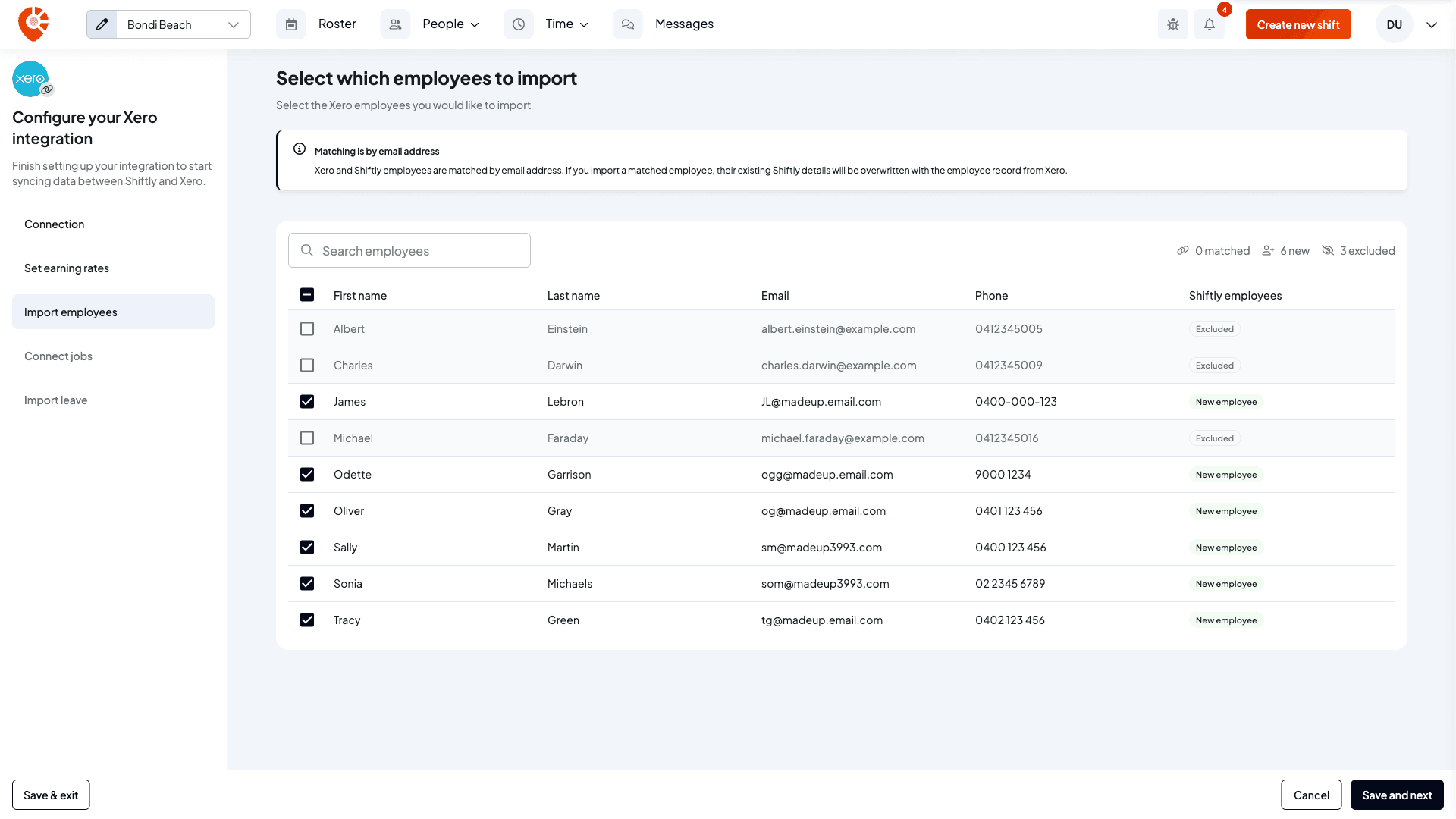
The list shows the active employees in your Xero organisation who aren't linked to anyone in Shiftly yet, with their name, email and phone. Tick the people you want, or use the search box to find someone.
- New employee: someone who isn't in Shiftly yet. They're ticked for you.
- Excluded: someone you haven't ticked. Anyone already in Shiftly with the same email address starts unticked. See Staff who are already in Shiftly before you tick them.
- Someone with no email address in Xero shows Email required instead of an email, and can't be ticked. Add an email address in Xero first.
The counts at the top show how many are matched, new and excluded.
Import them
Select Import selected (or Save and next in the Xero setup). Shiftly brings your staff across in the background, so you can close the window and carry on. You get a notification when it's done: Your Xero staff are on Shiftly, or Some staff couldn't be imported with the reasons if some didn't make it.
What comes across
For each person you import, Shiftly brings across their personal details and home address, their tax declaration (but not their tax file number), their bank accounts and their super fund. They're linked to their Xero record, so the Xero logo shows beside them on the People page.
New staff take their start date from Xero, or today's date if Xero doesn't have one. Before you roster them, check their details and set their award and pay rate. See Classify staff and set their pay rate.
Staff who are already in Shiftly
Xero and Shiftly employees are matched by email address. If you tick someone who's already in Shiftly, their Shiftly record is overwritten with their Xero record:
- Their personal details, address, tax details, bank accounts and super are replaced with what's in Xero.
- Their award, allowances and hourly rate in Shiftly are cleared (a salary is kept), so you'll need to classify them again.
- They're set to work at the location you're importing into.
If you only want to link someone who's already set up in Shiftly, sync them to Xero instead. See Keep staff in sync with Xero.