
Set up pay settings for Xero
Pick the Xero payroll calendar, earnings rates and accounts Shiftly posts into, choose whether timesheets arrive as drafts or approved, and understand what happens in Xero when you post.
Connecting Xero only links the two systems. Before any pay data flows, you tell Shiftly where it should land in your Xero organisation: which payroll calendar to post into, which earnings rates to use, and which accounts to record wages and super against. That's the Set earning rates step of the Xero setup, and this guide covers each setting and what it does when you post timesheets.
Who this is for
Owners and managers using the Shiftly web platform who have connected Xero.
Before you start
- Your Xero organisation needs Xero Payroll with at least one payroll calendar.
- Shiftly only lists what already exists in Xero. If a calendar, earnings rate or account you need is missing, create it in Xero first.
Open the pay settings
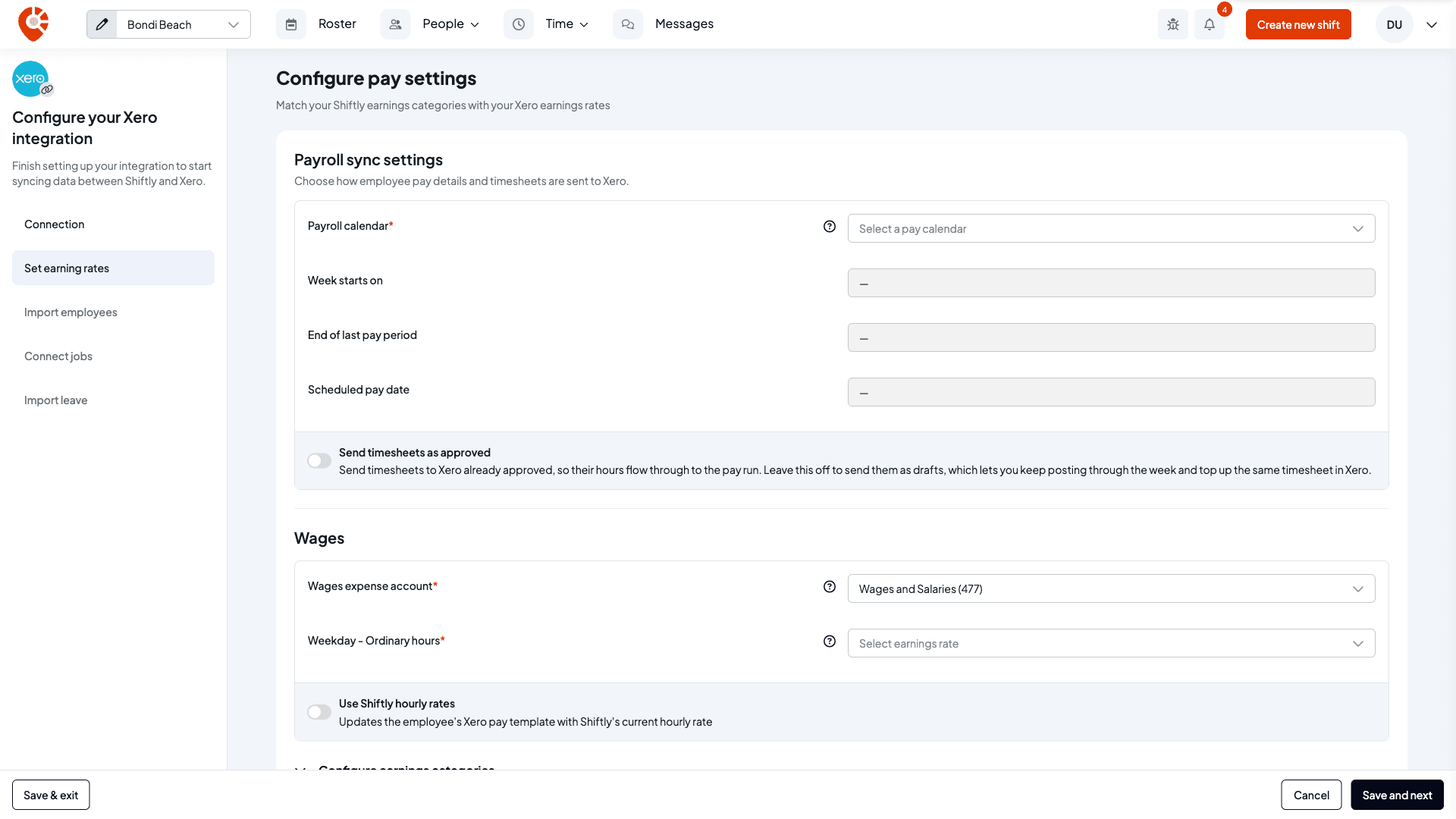
Open the account menu (your initials, top right) → Integrations, and select Manage connection on the Xero card. The Xero setup opens with its steps down the side. Select Set earning rates, which has the heading Configure pay settings.
When you've connected but not finished this step, Shiftly shows Finish Xero setup on the People page and keeps the Connect to Xero banner on the roster until you do.
Choose your payroll calendar
Under Payroll sync settings, pick the Payroll calendar that sets your pay periods and pay dates. Shiftly posts into the current period of this calendar. Below it, Shiftly shows what it read from Xero for that calendar: Week starts on, End of last pay period and Scheduled pay date. You can't change these here. They come from Xero.
If your organisation has only one payroll calendar, Shiftly selects it for you.
Decide how timesheets arrive in Xero
Send timesheets as approved decides the status your timesheets have when they reach Xero:
- Off (the default): timesheets arrive as drafts. You can keep posting through the week and top up the same timesheet. Their hours don't appear in the pay run until you approve each timesheet in Xero.
- On: timesheets arrive already approved, so their hours flow straight into the pay run. Once a period is posted, you can't post it again from Shiftly unless you revert the timesheet to a draft in Xero.
This switch saves as soon as you change it.
Set the wages account and ordinary rate
Under Wages, choose:
- Wages expense account: where wages are recorded. Any earnings rate Shiftly creates in Xero is set up against this account.
- Weekday - Ordinary hours: the Xero earnings rate for ordinary weekday hours. Only rates with a rate type of rate per unit are listed.
Shiftly suggests the standard Xero wages account (code 477) and, if you have only one suitable earnings rate, selects it. Check the suggestions against your chart of accounts.
Set the super accounts
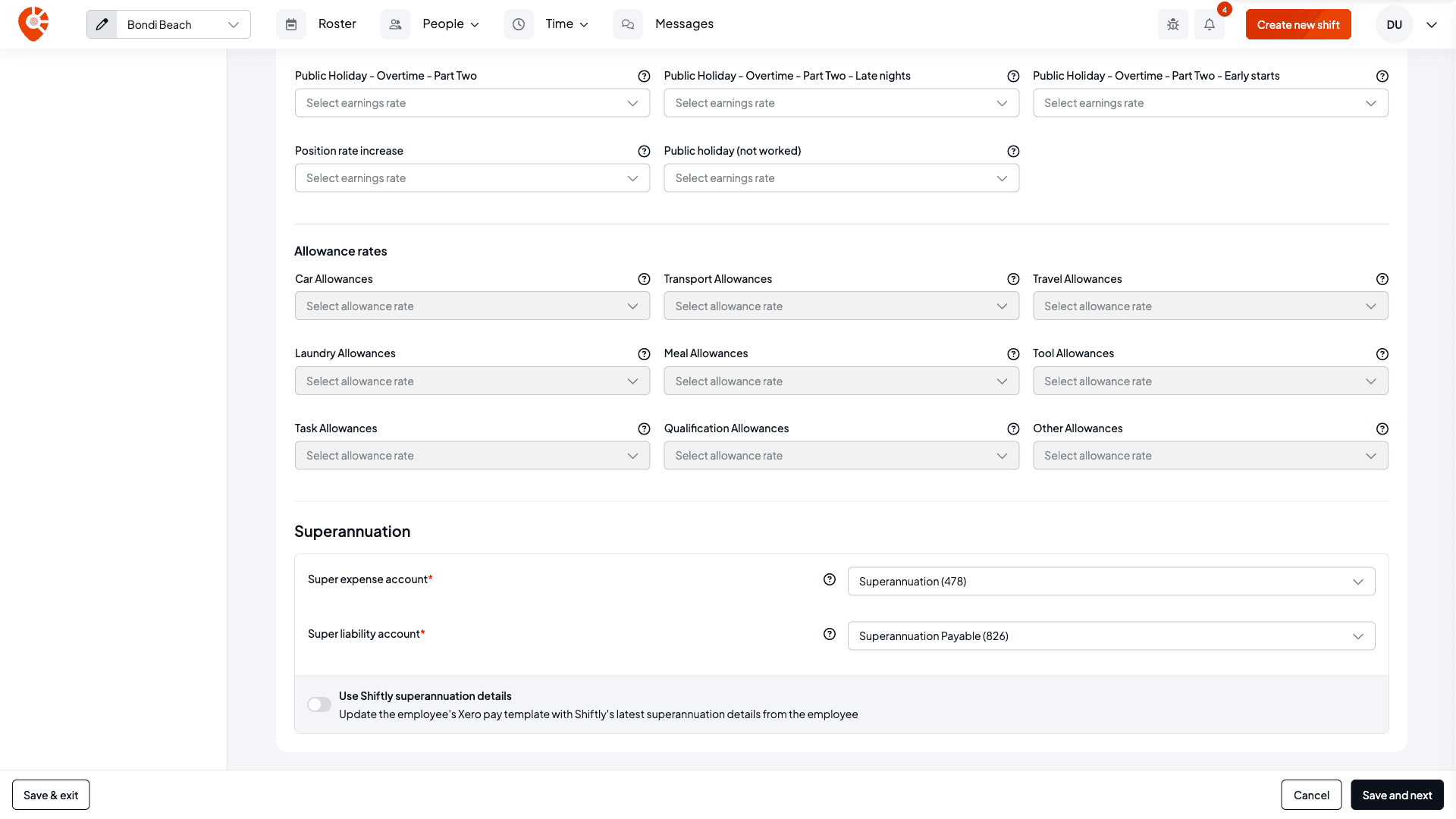
Under Superannuation, choose the Super expense account and the Super liability account. Shiftly suggests the standard Xero accounts (codes 478 and 826) where they exist.
Save
Select Save and next. Shiftly saves your settings and moves to the next step of the setup. Until the payroll calendar, the wages expense account and the ordinary earnings rate are all set, Shiftly can't post timesheets to Xero.
Choose who owns the rates and super
On an award Shiftly fully supports, two more switches appear. They decide what Shiftly writes to each employee's pay template in Xero when you post, and they save as soon as you change them.
- Use Shiftly hourly rates (under Wages). On: Shiftly writes its calculated hourly rates onto the pay template every time you post, so Shiftly's award rates stay the source of truth. Off: Shiftly only adds a rate that isn't on the pay template yet, and leaves the ones you've set in Xero alone.
- Use Shiftly superannuation details (under Superannuation). On: Shiftly rebuilds the super lines from the employee's super details in Shiftly every time you post. Off: Shiftly only adds super when the employee has none set up in Xero yet.
Match your earnings categories (optional)
Open Configure earnings categories to choose which Xero earnings rate each kind of pay posts to.
- On an award Shiftly fully supports, you'll see Earning rates (Saturday, Sunday, public holiday, overtime and so on) and Allowance rates. You can leave these blank, and Shiftly creates the rates it needs in Xero the first time they're used. To keep control, create the rates in Xero yourself and pick them here. Only ordinary earnings rates with a rate type of rate per unit are used for hours, and only allowance rates with a fixed amount for allowances.
- On an award Shiftly doesn't fully support, you'll see Standard penalty rates for the penalty rates in your pay rules. Pick a Xero earnings rate for each, or leave it blank and Shiftly creates one from your pay rule where it can.
- Custom penalty rates from your pay rules can be matched the same way. Fixed-amount custom penalties can't be sent to Xero yet.
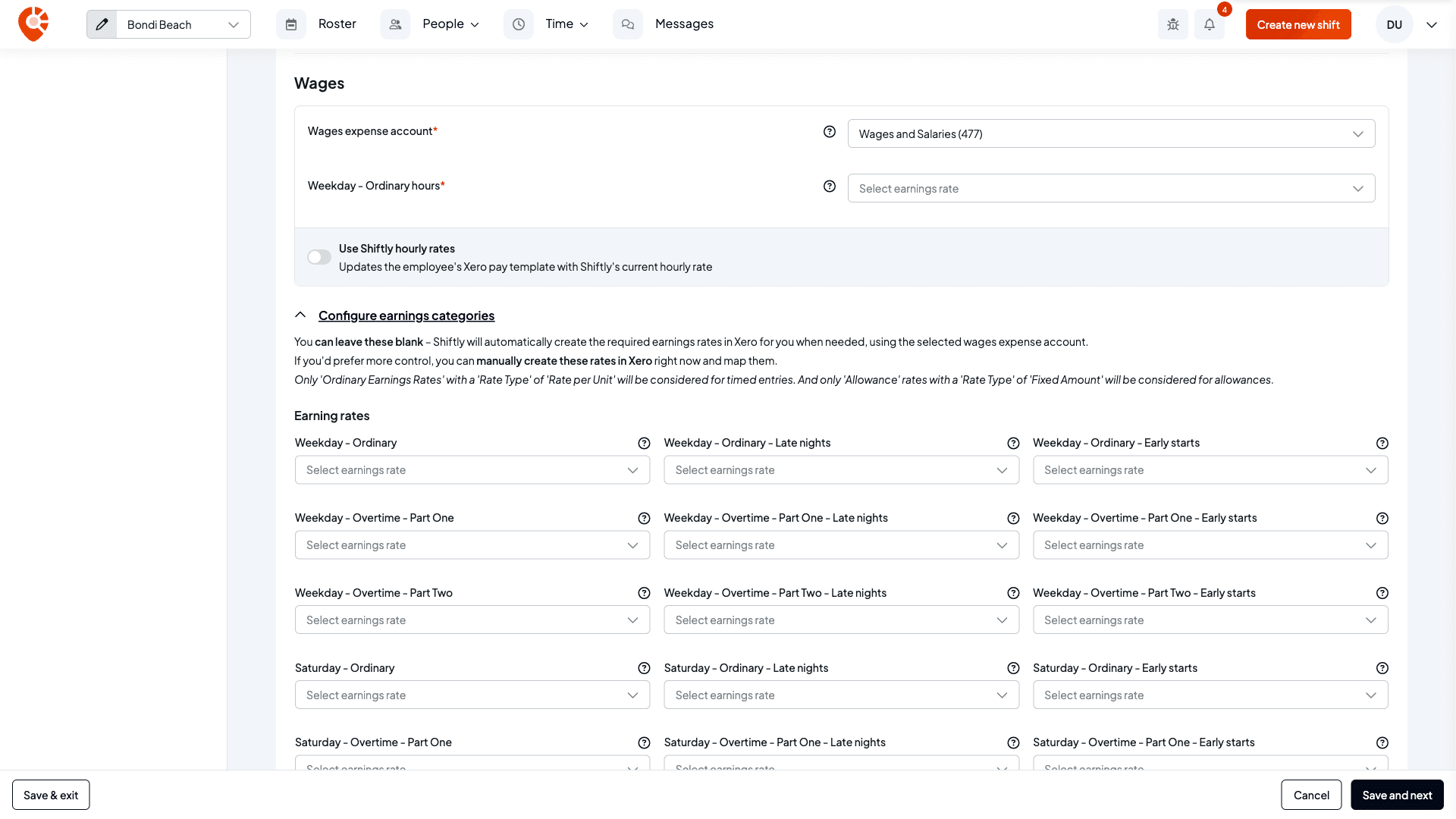
If an earnings rate you picked has since been removed or changed in Xero, the field warns The rate mapped here is no longer valid in Xero so you can pick another.
What happens in Xero when you post
When you post approved timesheets from Time → Timesheets, Shiftly builds the pay information in Xero for you to review. It never finalises or pays a pay run.
- It checks the pay period. Shiftly posts into the current period of your payroll calendar. If Xero's period has moved on since you opened the page, it asks you to reload and post again.
- It makes sure the earnings rates exist, creating any that are missing against your wages expense account.
- On a supported award, it updates each employee's pay template with hourly rates and super, following the two switches above.
- It sends the hours as a Xero timesheet, split by pay category for each day, as a draft or approved depending on Send timesheets as approved.
- On a supported award, it fills in the payslip in the draft pay run with earnings, allowances and super, so the estimate is there for you to check.
On an award Shiftly doesn't fully support, Shiftly sends the hours only. You set rates, super and the payslip in Xero.
Some staff are skipped, with a reason shown after posting: anyone not linked to Xero yet, contractors (paid through bills in Xero), and salaried staff (paid their salary in Xero). If someone's deductions come to more than they earned, their timesheet is flagged instead of posted. A timesheet Xero has already approved can't be updated from Shiftly. Revert it to a draft in Xero first.
Approved leave isn't part of posting timesheets. It goes to Xero when you approve the request. See What syncs with Xero.
Related
Connect your Xero organisation
Connect Shiftly to your Xero organisation, then work through the Xero setup so pay, staff and leave line up.
Manage or disconnect your Xero connection
Reopen the Xero setup, reconnect when Shiftly can't reach Xero, refresh your leave types, switch organisation or disconnect.