
Accountant-initiated linking
Send your accountant a secure link to connect your Xero organisation when you don't have Xero access yourself, then finish the setup in Manage connections.
If you don't have direct access to your business's Xero, you can ask your accountant or bookkeeper to make the connection. Shiftly emails them a secure link — they don't need a Shiftly account. This guide covers sending that request.
Who this is for
Owners and managers using the Shiftly web platform who manage Xero through an accountant.
Before you start
- Open the account menu → Integrations, select Get Started on the Xero card, and continue to Connect to Xero.
Send the request
Open the accountant request
On the Connect to Xero step, select I don't have access to my Xero.
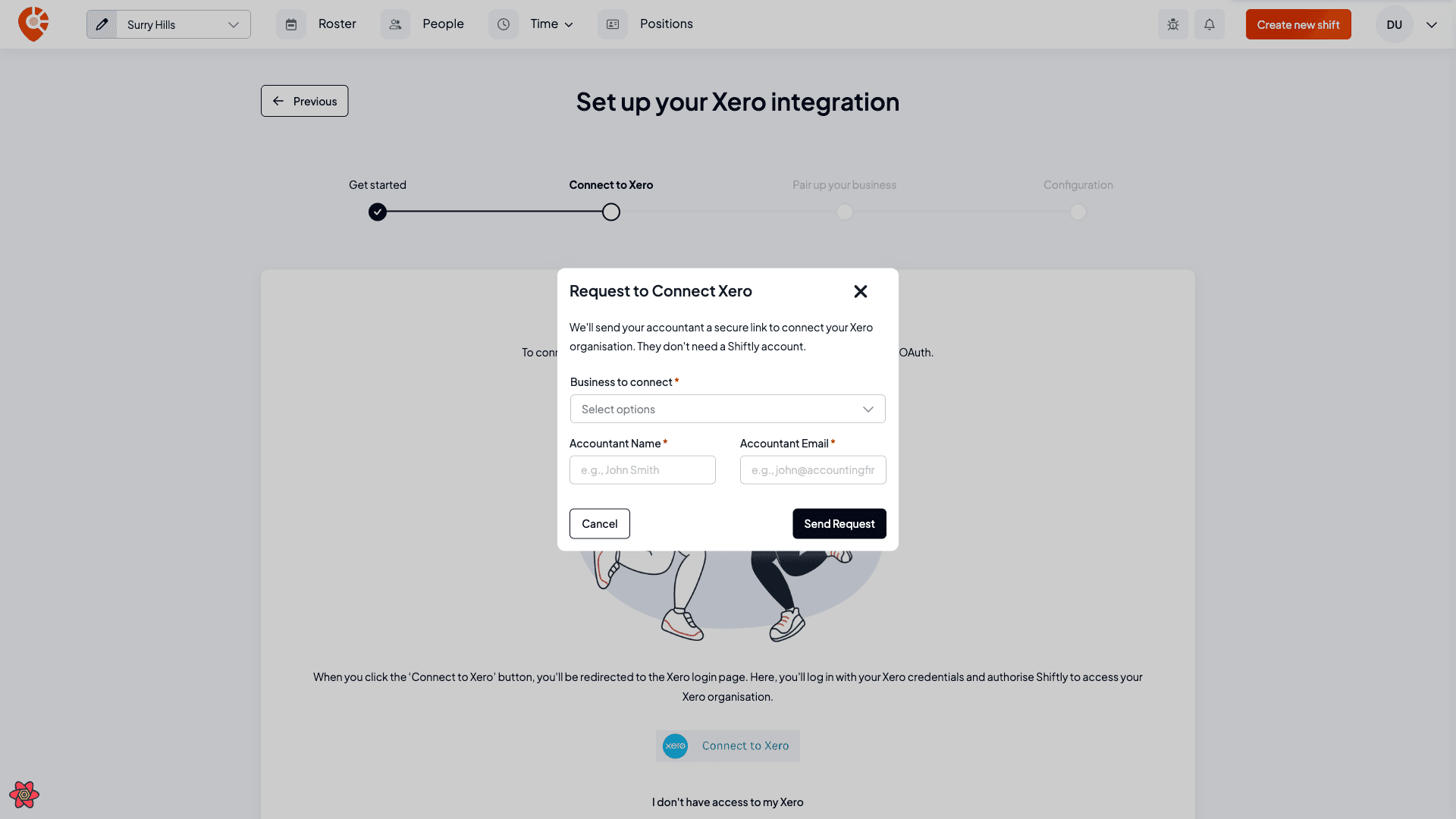
Choose the business and enter your accountant's details
In Request to Connect Xero, pick the business to connect, then enter your accountant's name and email. Select Send request — Shiftly emails them a secure link to authorise the connection.
What happens next
Your accountant gets the email, opens the secure link, and authorises Shiftly against your Xero organisation — no Shiftly account needed. When they finish, you're notified ("Xero connected by your accountant") and the connection appears under Integrations → Xero (the Xero card switches to Manage connections).
A business that's already connected to Xero won't appear in the business picker — you only send requests for businesses that still need connecting.
Configure the connection before you sync
Your accountant only authorises the link — they don't set how Shiftly's pay data maps into Xero. A new connection comes through as Not configured, so before you post any timesheets to payroll you need to open Integrations → Xero → Manage connections, open the connection (Edit configuration), and set the pay calendar and your wages and super accounts.
See Configuring Xero for the full walkthrough of every field.
Related
Connecting Xero
Authorise Shiftly to connect to your Xero organisation so you can export pay and keep employees in sync.
Configuring Xero
After connecting Xero, set the pay calendar, wages and super accounts, and timesheet settings — and understand exactly what each choice does when Shiftly exports timesheets to Xero.