
Send approved timesheets to payroll
Post approved timesheets to Xero from the Timesheets page, check what Shiftly flags before anything is sent, then finish the pay run in Xero.
Once you've reviewed and approved the hours, you post them to Xero from the Timesheets page. Shiftly checks everything first and shows you who can and can't be sent. It then puts the hours into Xero's current pay period and leaves the pay run for you to check and finish in Xero. Shiftly never finalises or pays a pay run.
Who this is for
Owners and managers using the Shiftly web platform who run payroll in Xero. The post button only shows for people with permission to edit timesheets.
Before you start
- Xero is connected and set up. The payroll calendar, the wages expense account and the ordinary earnings rate are all chosen in Set up pay settings for Xero.
- Your staff are linked to Xero. Anyone who isn't is left out when you post. See Keep staff in sync with Xero.
- The timesheets are approved. Only approved timesheets are sent.
- Pick the location at the top of the page. You post one location at a time.
Can't see the Xero payrun tab?
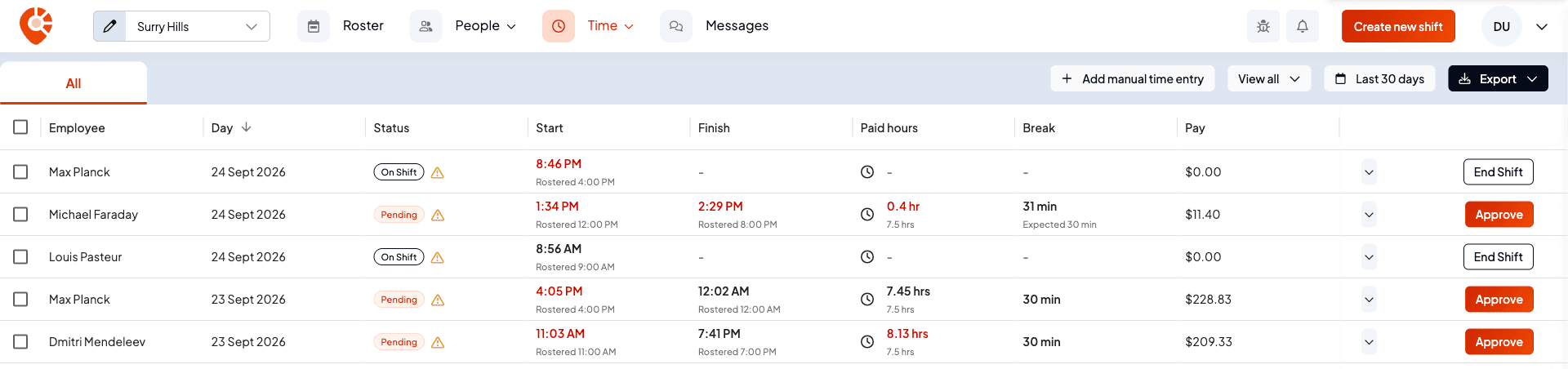
Posting lives on a Xero payrun tab next to All. The tab only appears once Xero is connected and its pay settings are finished. Until then the Timesheets page shows just All, as below. Finish the Set earning rates step of the Xero setup and the tab appears. See Set up pay settings for Xero.
Choose what to post
Open the Xero payrun tab
Open Time → Timesheets and select Xero payrun. The date range changes to Xero's current pay period for your payroll calendar, and you can't change it on this tab.
A Xero column shows whether each person's hours can be sent:
- Ready: they're linked to Xero.
- Not in Xero: they aren't in Xero yet. Use Sync to Xero on the People page, then post again.
- Contractor: contractors are paid through bills in Xero, not payroll, so pay them separately.
You may also see Pending, Missing details, Out of sync or Sync failed. Those are reminders to tidy up the person's details. Their hours still post.
Timesheets still waiting for approval show Approve, so you can approve them here first.
Pick the timesheets and select Post
- With nothing ticked, the button reads, for example, Post 12 to Xero and sends the whole pay period for this location. The number counts approved timesheets for people who can be sent. Timesheets skipped on an earlier post are tried again too.
- To post only some, tick their rows first. The button changes to Post 3 selected to Xero.
The button stays greyed out until at least one approved timesheet can be sent.
Check the post before it goes
Selecting the button opens Post timesheets to Xero. Nothing is sent yet. Shiftly first shows "Checking what's ready to post." while it compares your timesheets with Xero, then lists everyone in the post.
Review who's ready and who isn't
Each employee is listed with their number of Shifts, their Paid hours and a Status. The tabs at the top split them into All employees, Ready to post and Unable to post.
- Ready to send: these people are ticked, and will be posted. Untick anyone you want to leave for later.
- Anyone else can't be sent this time. Hover over their status for the full reason, and select Resolve where it's offered:
| Status | Why | What to do |
|---|---|---|
| Not in payroll | They aren't linked to an employee in Xero. | Select Sync to Xero on their row on the People page, then post again. |
| Contractor | Contractors are paid through bills in Xero, not payroll. | Pay them separately in Xero. |
| Salaried | Salaried staff are paid their salary directly in Xero, so their hours aren't sent. | Check their salary is set up in Xero. |
| Already in payroll | Their Xero timesheet for this period isn't a draft any more, so Shiftly can't change it. | Revert it to a draft in Xero, then post again. If that pay run has been processed, correct the hours with an adjustment in the next pay run instead. |
Under the list, Also left out of this run counts anything else that won't go: timesheets still waiting to be approved, volunteer shifts (never sent to payroll), and shifts with no recorded time.
Read any messages at the top
The window warns you before you post when something needs your attention:
- Fix this before you can post (in red): something in your Xero setup no longer matches Xero, such as an earnings rate or account that was archived or deleted there. You can't post until it's fixed. The post button is replaced by Open Xero settings, which takes you to the setup. See Xero isn't syncing.
- Reset your draft pay run in Xero after posting: there's already a draft pay run in Xero for this period, and some of the people you're posting aren't in it. Xero only pays the people who were in the pay run when it was created. After posting, open the pay run in Xero and use Reset pay run.
- Posting some employees now means extra work later: you've unticked some people who are ready. If you post them later, you'll also need to use Reset pay run in Xero, or they won't be paid from it.
- Time tracking only: your business uses an award Shiftly doesn't fully support, so Shiftly sends the hours only. The pay itself, including penalties, allowances and position bonuses, is worked out in Xero.
Choose whether timesheets arrive as drafts or approved
At the bottom of the window, Send to Xero as approved decides the status your timesheets have in Xero:
- Off (the default): they arrive as drafts. Their hours won't be in the Xero pay run until you approve each timesheet in Xero.
- On: they arrive approved, so their hours flow into the pay run. Once posted, you can't post that period again from Shiftly unless you revert the timesheet to a draft in Xero.
Leave it off if you post more than once in a period, or want to check each timesheet in Xero before it's paid. Turn it on if you post once, when the period's hours are final, and want to skip approving them again in Xero.
The switch saves as soon as you change it, and applies to your whole business. It's the same setting as Send timesheets as approved in the Xero setup. You need permission to change business settings to see it. Without it, the window tells you which way timesheets will arrive instead.
Hover over the question-mark icon at the bottom of the window (Before you post) for a reminder: Shiftly's pay figures come from the award and settings you've set up, and you're responsible for checking them before you pay anyone.
Post
Select Post 12 timesheets to Xero (the number is the shifts you're posting). The window closes and Shiftly shows "Posting timesheets to Xero. You will be notified when the process is complete."
Posting runs in the background, and the timesheets show Processing until it finishes. Only one post can run for a location at a time. If you try to start another, Shiftly asks you to wait for the first one to finish, then post anything left over.
What Shiftly sends to Xero
For each person, Shiftly:
- Re-checks overtime across the week, so an earlier shift doesn't keep overtime that a later change in the week took away.
- Creates any earnings rates the hours need that don't exist in Xero yet.
- Sends their hours as a Xero timesheet in the current pay period, split by pay category for each day, as a draft or approved.
- On an award Shiftly fully supports, also updates the employee's pay template with their rates and super, and adds any allowances and position bonuses to their payslip in the draft pay run, starting one if the period doesn't have one yet.
On an award Shiftly doesn't fully support, only the hours are sent. You set the rates, super and payslip in Xero. For more detail, see Set up pay settings for Xero.
Approved leave isn't part of posting. It goes to Xero when you approve the leave request. See What syncs with Xero.
Check the result
When the post finishes, you get a notification:
- Timesheets posted to Xero when everything went through.
- Some timesheets need attention when some went through and some didn't. Open it to see how many were posted, how many need attention and why. Select Review timesheets to go back to the Timesheets page.
- Couldn't post timesheets to Xero when the post couldn't go ahead at all. The notification says why. Anything that wasn't sent can be posted again once it's fixed.
Each timesheet's status then shows what happened to it:
| Status | What it means |
|---|---|
| Posted | It's in Xero. It's locked in Shiftly and can't be edited. |
| Warning | The hours reached Xero, but the payslip couldn't be finished. See below. |
| Skipped | It wasn't sent. Select Skipped to open Timesheets skipped and see why. Fix the reason, then select Retry post, which takes you back through the checks above. |
If a timesheet shows Warning
Select the Warning pill to open Timesheet warning. It lists each timesheet with its position bonus, allowances and What went wrong. Hover over the reason for the detail.
- Retry all finishes the payslip in Xero without counting the hours twice. Shiftly shows "Rebuilding payslips in Xero. You will be notified when it's done."
- Mark all as resolved only updates Shiftly and sends nothing to Xero. Use it once you've fixed the payslip in Xero yourself. Shiftly asks you to confirm first.
To act on only some rows, tick them first. The buttons change to Retry 2 selected and Mark 2 selected as resolved.
Two reasons need a fix in Xero before a retry can work. Pay run locked: open the draft pay run in Xero and use Reset pay run. Deductions too high: the person's deductions are more than they earned this period, so adjust them in Xero. On an award Shiftly doesn't fully support there's no payslip to retry, so finish it in Xero and mark it resolved. For every message and its fix, see Xero isn't syncing.
If Xero's pay period has moved on
Shiftly always posts into Xero's current pay period. If the period changes in Xero after you open the Timesheets page, for example because the pay run was finished there, Shiftly won't post. It tells you "Xero's current pay period now ends …, which doesn't match the period you're posting into." Reload the Timesheets page and post again.
Finish the pay run in Xero
Open the draft pay run in Xero and check the hours and pay:
- If you posted timesheets as drafts, approve each one in Xero, or their hours won't be in the pay run.
- If you posted some people after the pay run was created, use Reset pay run so they're included.
Then process the pay run in Xero as usual. For the whole routine from rostering to paying, see Run a pay cycle.
Related
Review and approve timesheets
Approve the hours before you post them.
Set up pay settings for Xero
Pick the payroll calendar, earnings rates and accounts Shiftly posts into.
Xero isn't syncing
Every message Shiftly shows when posting, and how to fix it.
What syncs with Xero
Which data goes to Xero and which comes back.
Fix times, breaks and pay on a timesheet
Fix a clock-in or clock-out time, adjust breaks, change the position, or override pay rates on a timesheet before you approve it.
Set up a clock-in kiosk at your venue
Turn a tablet at your venue into a shared clock-in point. Add a kiosk to a location on the Shiftly web platform, pair the tablet with its code, choose how staff sign in, and give your team their PINs.