
Disconnect, move or change a venue kiosk
Check your kiosks, disconnect or delete one, move a tablet to another venue, set the venue's kiosk PIN, and turn clock-in photos on or off.
Once a tablet is set up as a kiosk, you manage it from the location it belongs to. This guide covers checking your kiosks, disconnecting or deleting one, moving a tablet, the venue's kiosk PIN and clock-in photos, and what the tablet shows when something's wrong.
Who this is for
Owners and managers looking after kiosks. You'll use the Shiftly web platform, and for a couple of steps the Shiftly Kiosk tablet itself.
Before you start
- You're an owner, or a manager with Business settings and Kiosks access.
- Open the account menu (your initials, top right) and choose Business settings, then Locations. Select the edit (pencil) icon on the location, then choose Kiosk.
- Haven't set up a kiosk yet? See Set up a clock-in kiosk at your venue.
Check your kiosks
The Kiosks table lists every kiosk at the location:
- Status: Active (paired with a tablet), Pending (added, but no tablet has used its code yet) or Inactive (disconnected).
- Last seen: when the tablet last checked in. A working tablet checks in every minute, so anything older than a few minutes means it's switched off, closed or offline. A pending kiosk shows "Waiting for activation".
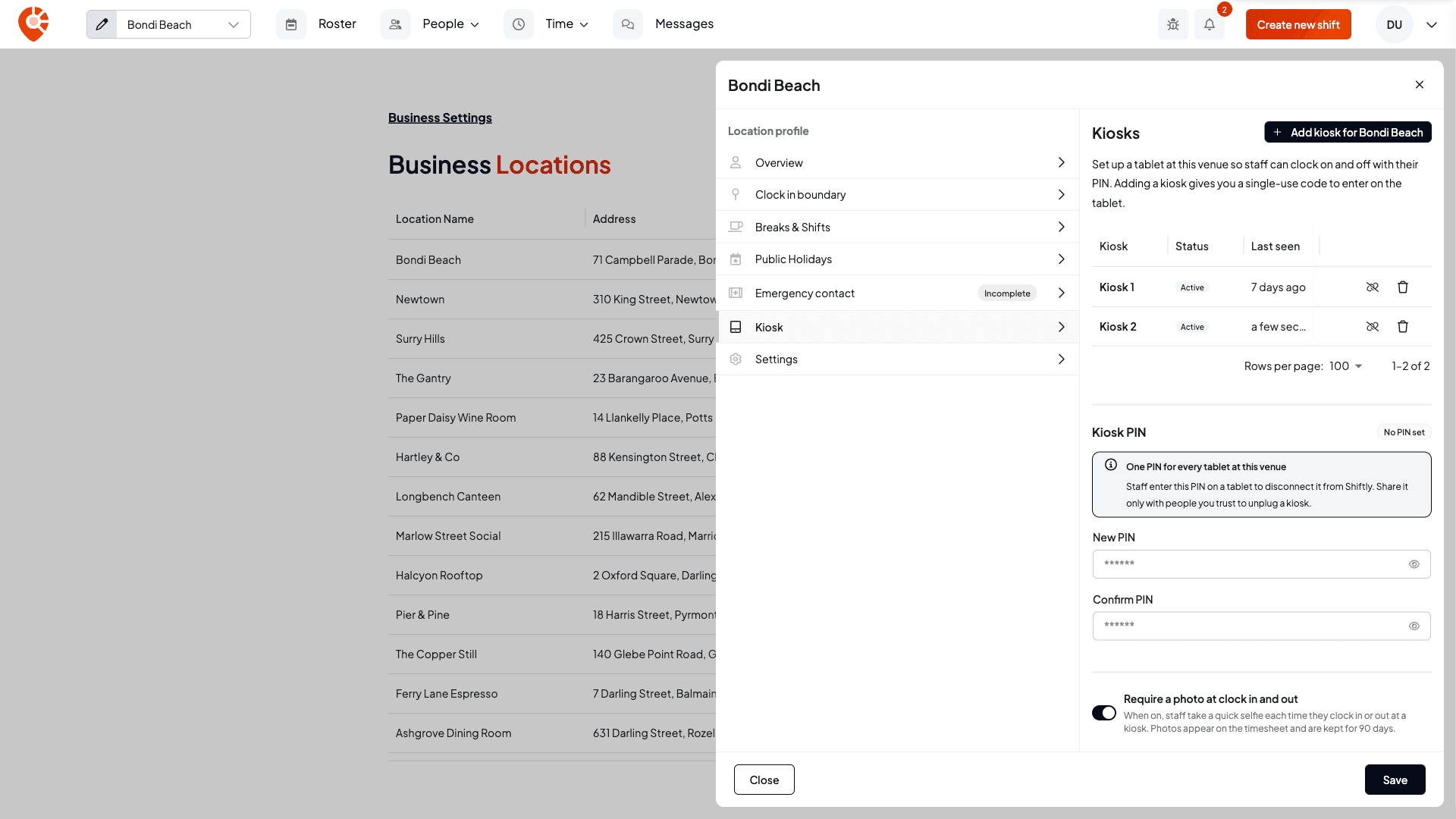
Each row has icons at the end:
- Show code (a QR icon): for a pending or inactive kiosk. It shows the pairing code again, or a fresh one if the old code has expired.
- Disconnect (a broken link icon): for an active kiosk.
- Delete (a bin icon): for any kiosk.
Disconnect a tablet
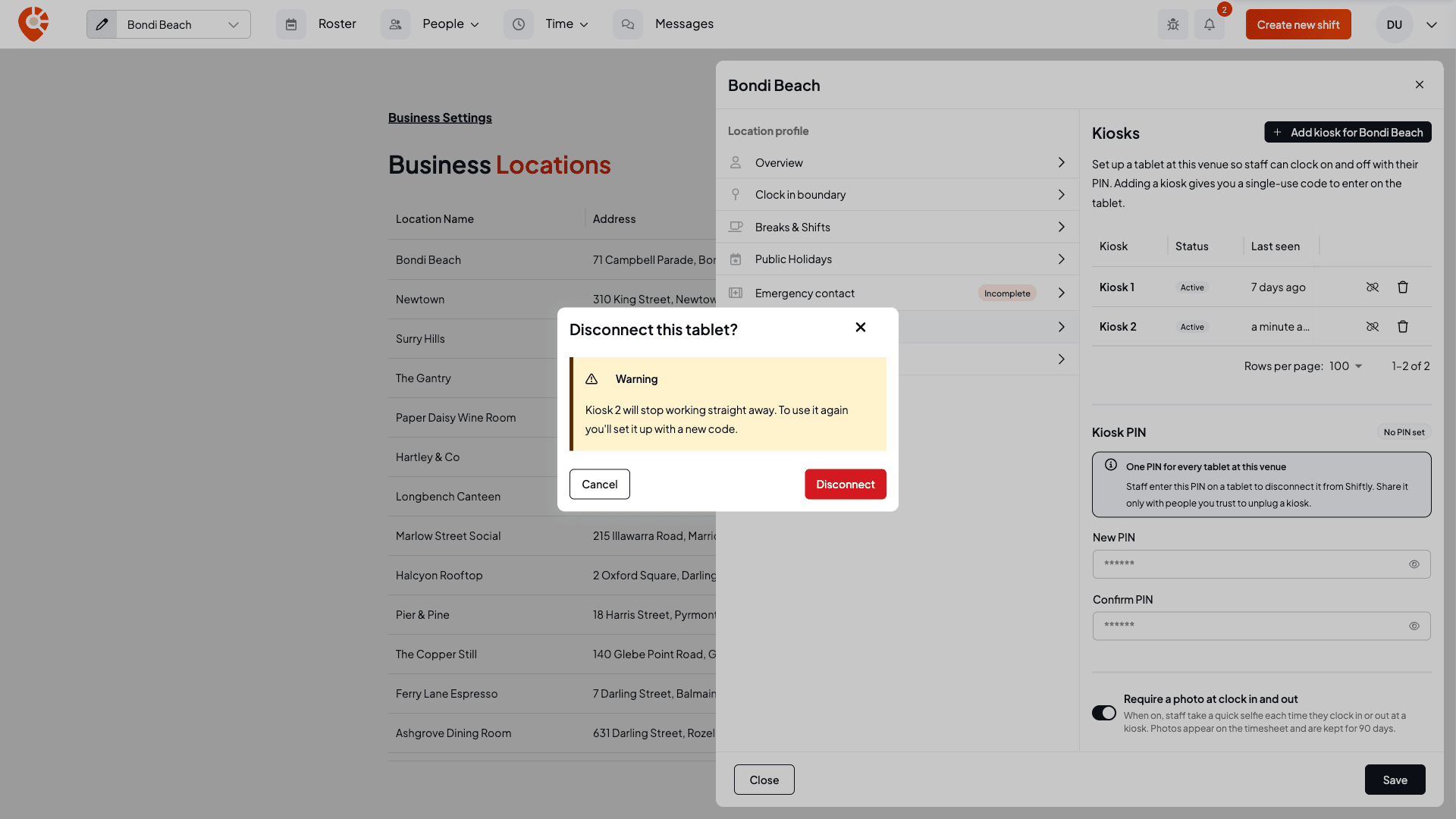
Select Disconnect
Select the Disconnect icon on the kiosk's row. Disconnect this tablet? warns that the kiosk stops working straight away, and that you'll need a new code to use it again. Select Disconnect.
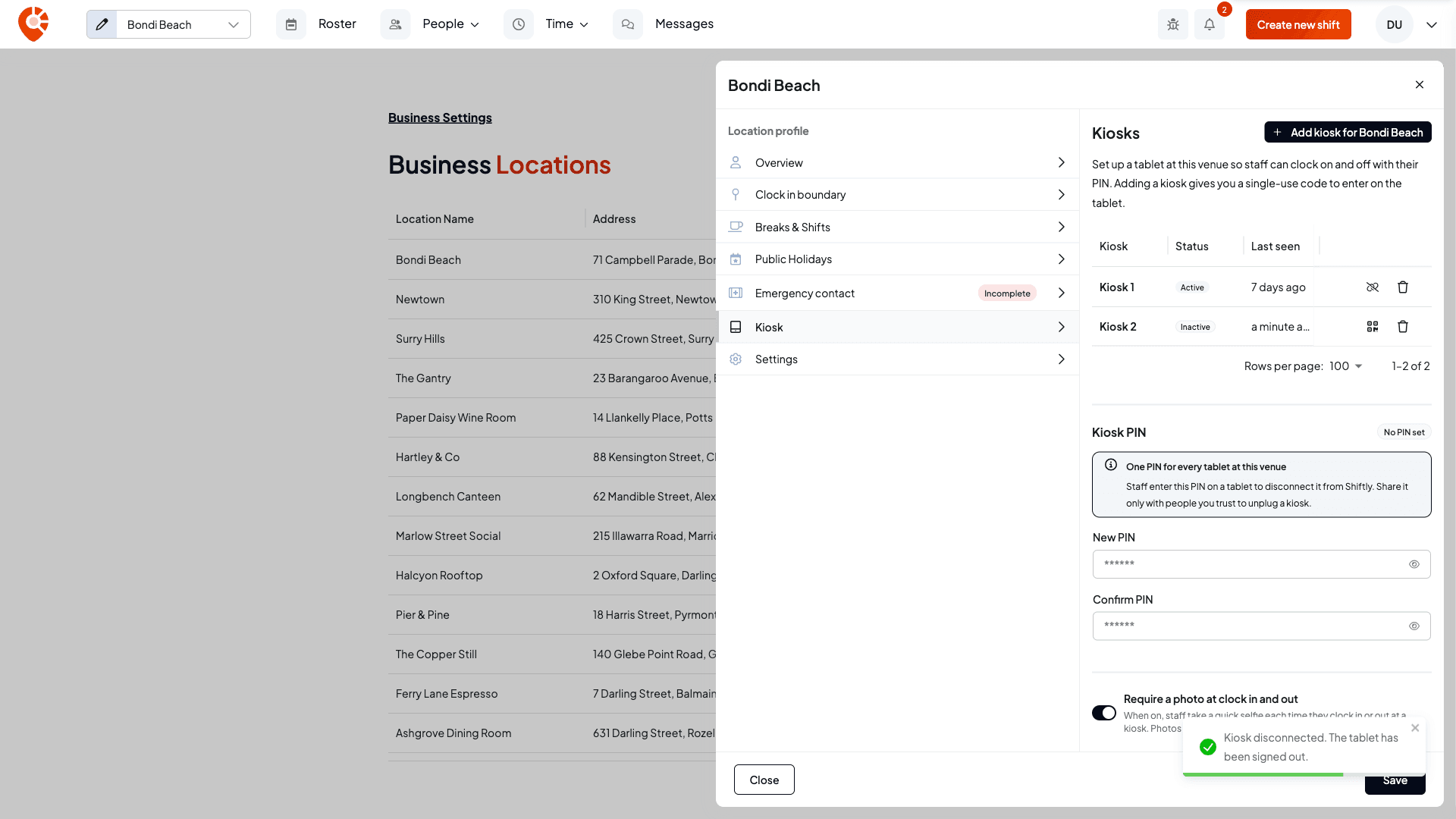
The tablet signs out
Shiftly confirms "Kiosk disconnected. The tablet has been signed out." The kiosk is now Inactive, and Show code is back on its row so you can pair a tablet with it again.
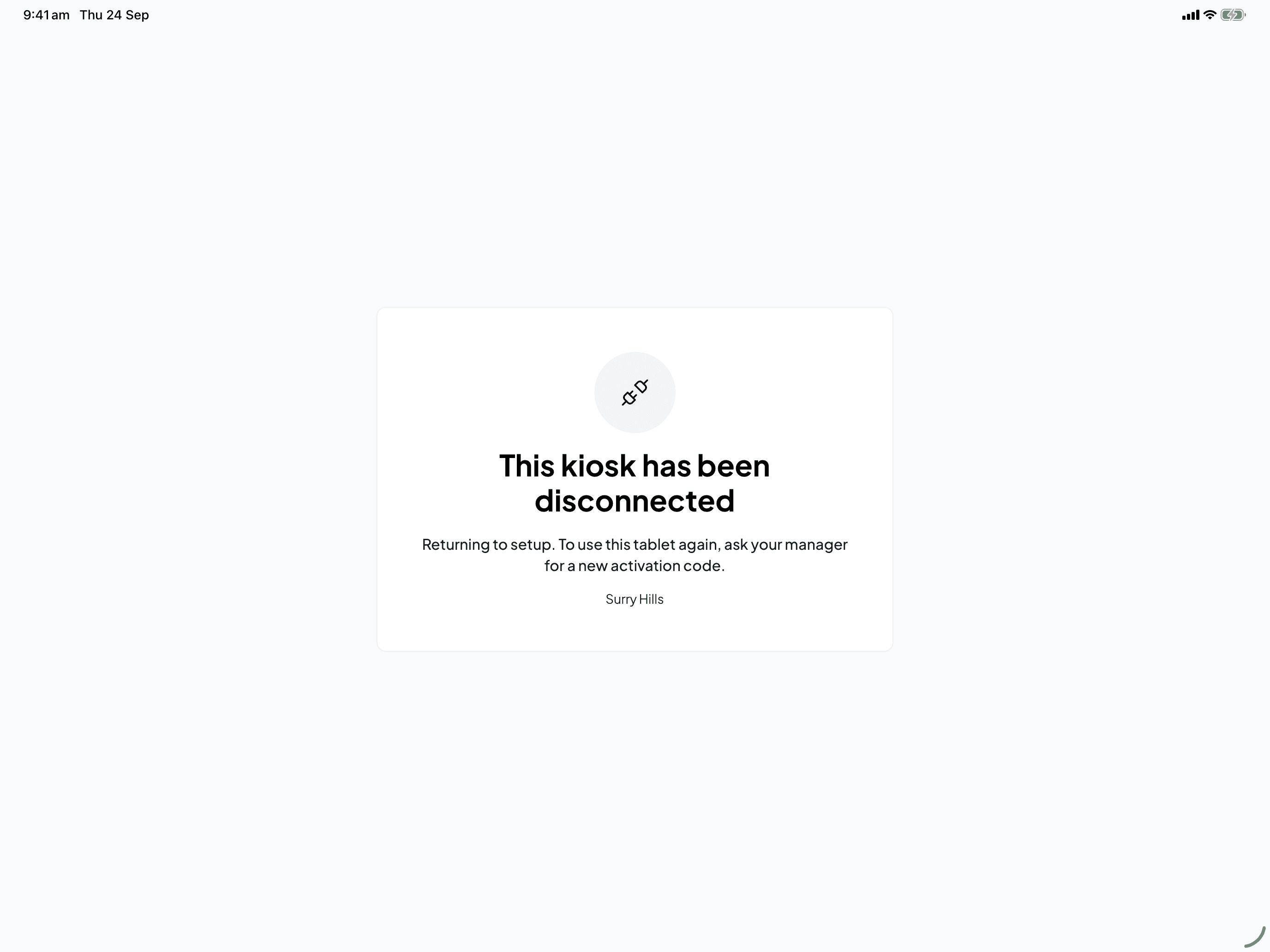
On the tablet, anyone signed in is signed out, the screen shows This kiosk has been disconnected, and after a few seconds it goes back to the Welcome screen.
Delete a kiosk
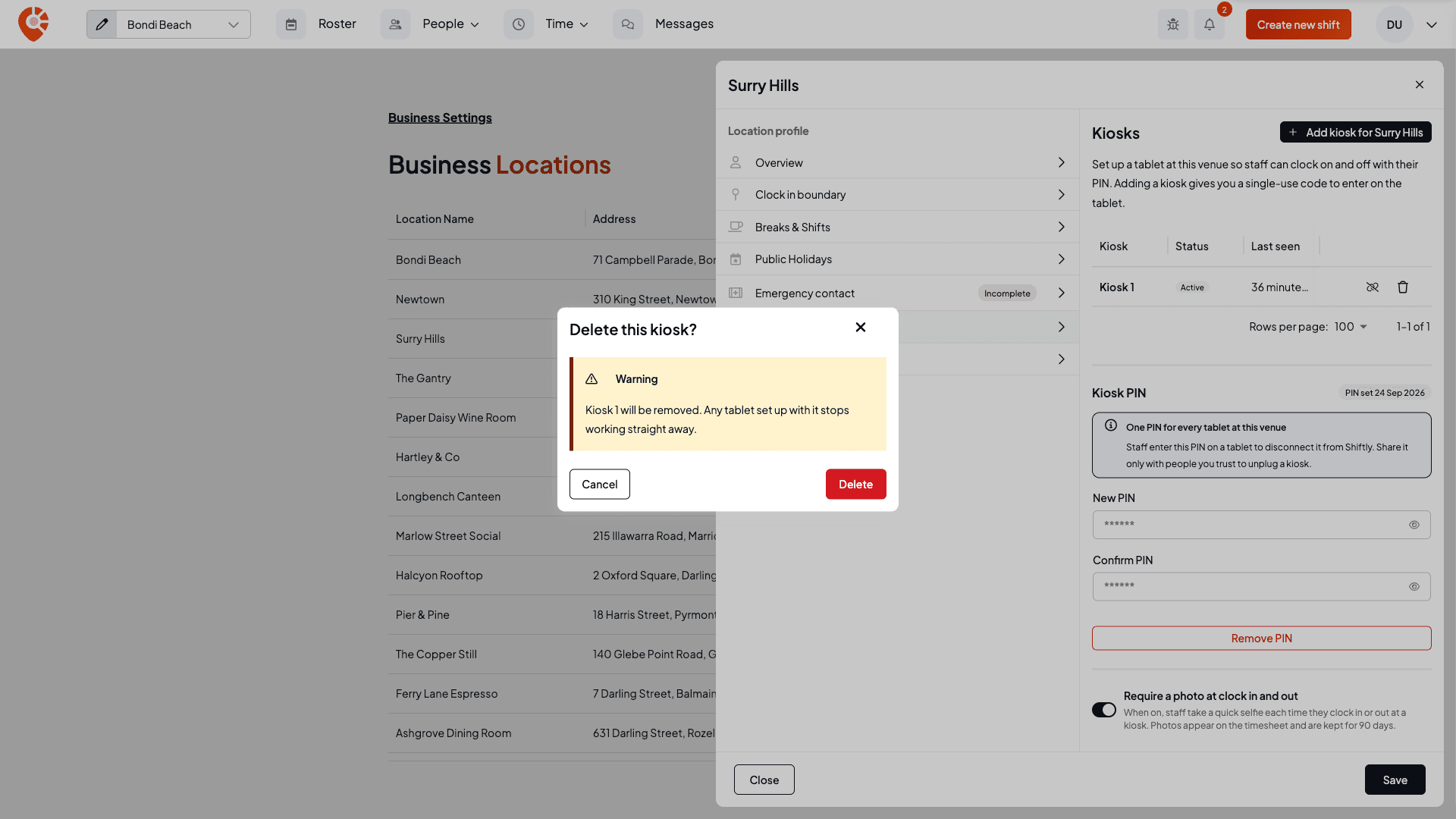
Select the Delete icon on the row. Delete this kiosk? warns that it will be removed and any tablet set up with it stops working straight away. Select Delete. Use this for a kiosk you don't need any more, such as a tablet you've retired.
Move a tablet to another venue, or replace one
A kiosk belongs to one location, so a tablet can't simply be switched between venues.
- To move a tablet, disconnect it here, then set it up again from the new location's Kiosk tab with Add kiosk.
- To replace a tablet, add a new kiosk and pair the new tablet with it, then delete or disconnect the old one.
The steps for pairing are in Set up a clock-in kiosk at your venue.
Set a kiosk PIN for the venue
The Kiosk PIN is one PIN for every tablet at the venue. Whoever knows it can disconnect a tablet from the tablet itself, without the web platform. Share it only with people you trust to unplug a kiosk. It's separate from your staff's own PINs.
Enter and save the PIN
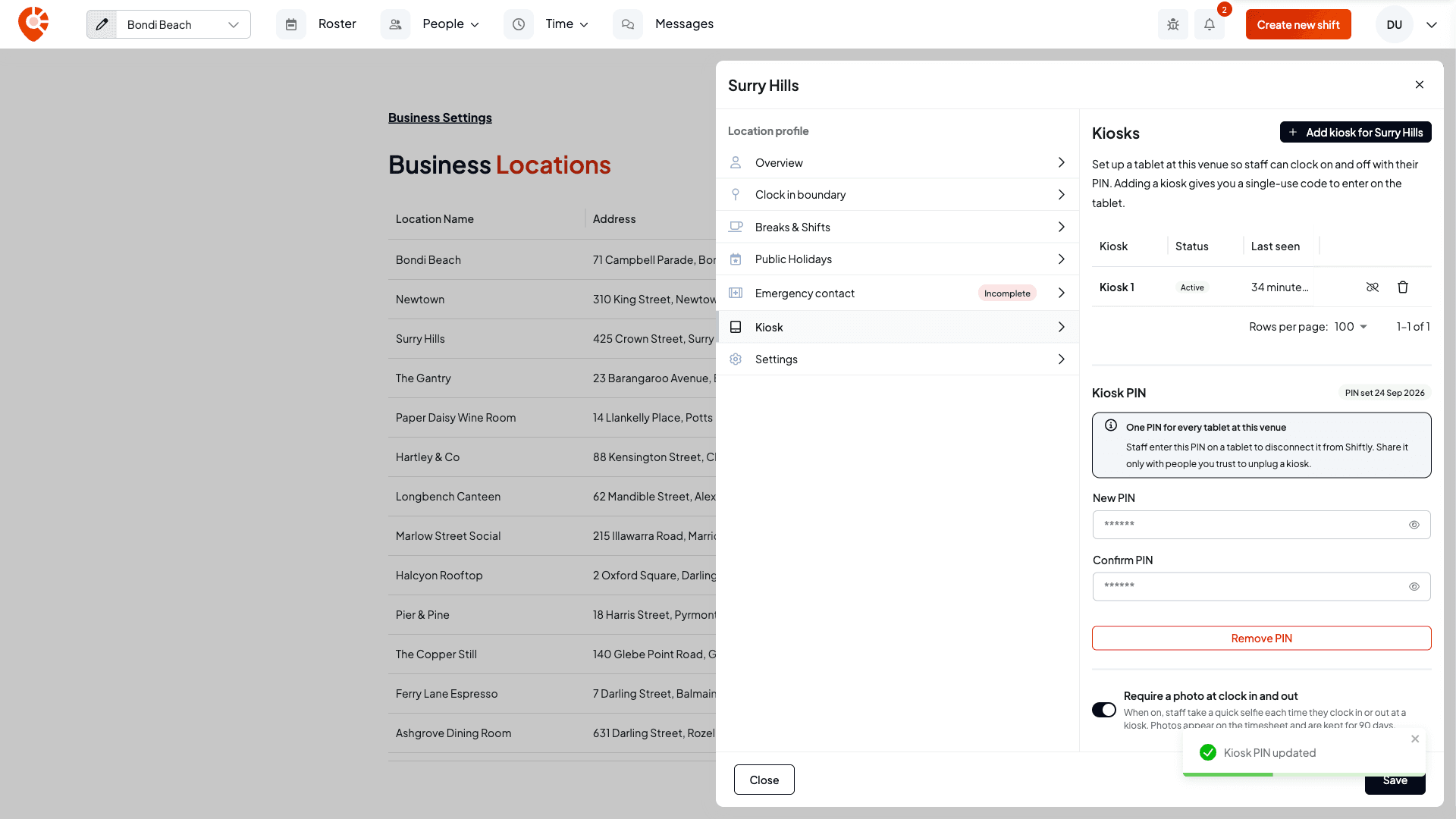
Type six digits in New PIN and again in Confirm PIN, then select Save at the bottom of the panel. Shiftly shows "Kiosk PIN updated" and the label changes to "PIN set" with the date. To change it later, enter a new one the same way.
Remove it if you don't want one
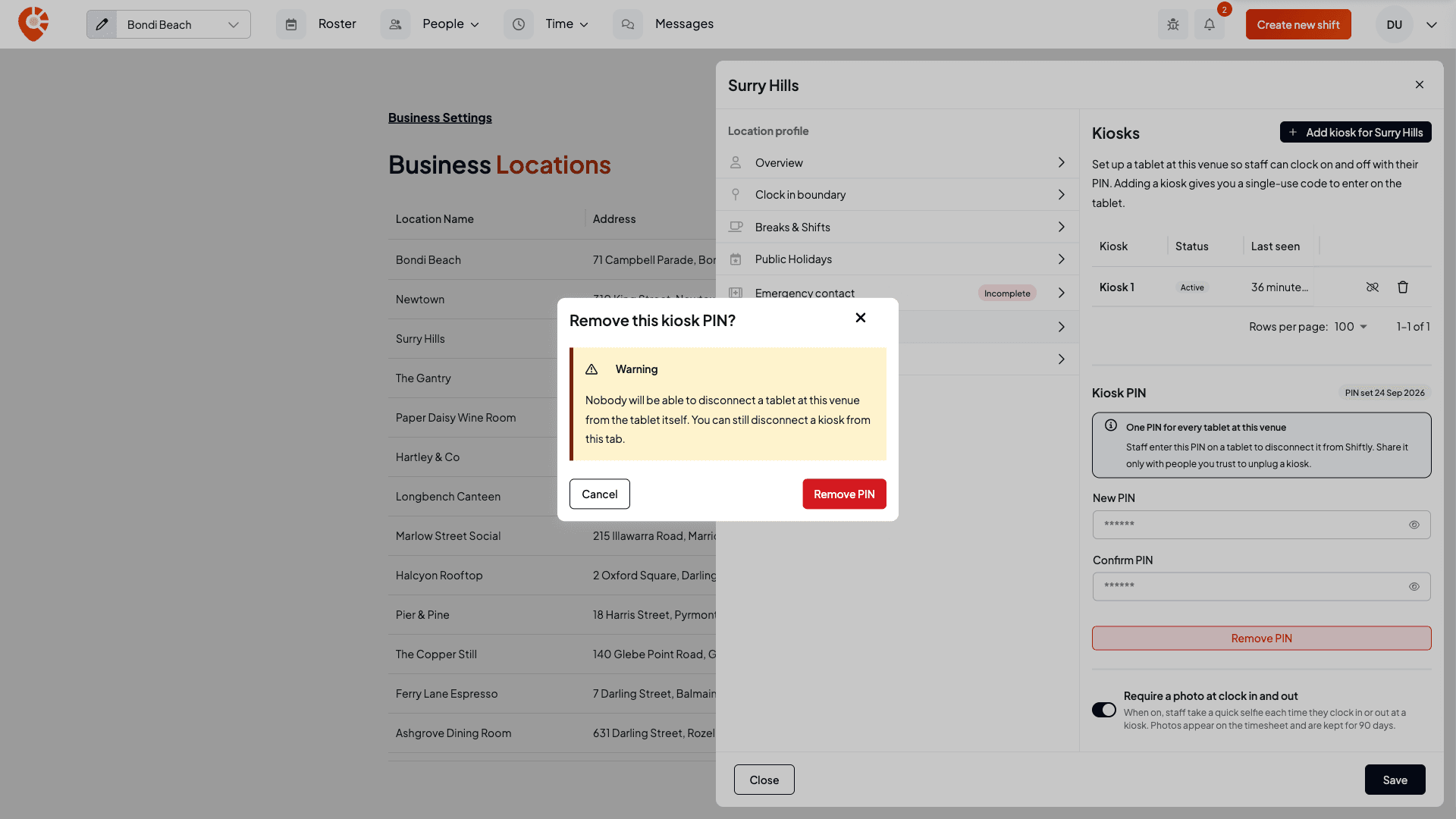
Select Remove PIN. Remove this kiosk PIN? warns that nobody will be able to disconnect a tablet at this venue from the tablet itself. You can still disconnect from this tab.
Disconnect from the tablet
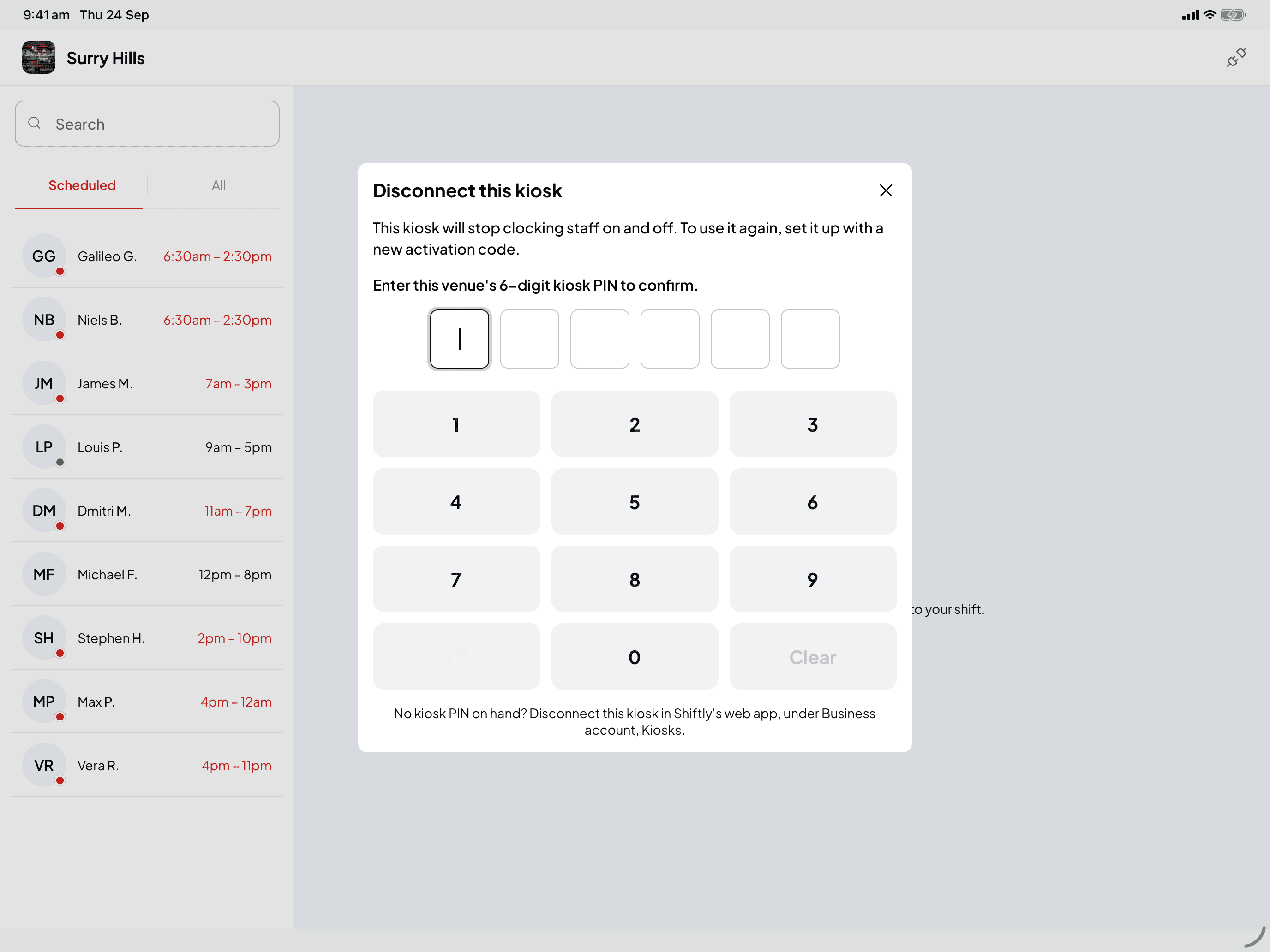
On the tablet's staff list, tap the unplug icon at the top right. Disconnect this kiosk opens:
- If the venue has a kiosk PIN, enter it. The tablet disconnects and goes back to the Welcome screen. A wrong PIN shows "That PIN can't disconnect this kiosk. Enter this location's kiosk PIN.", and after five wrong tries the tablet makes you wait before trying again.
- If the venue has no kiosk PIN, the tablet explains that it can only be disconnected from the web platform, and lists the steps.
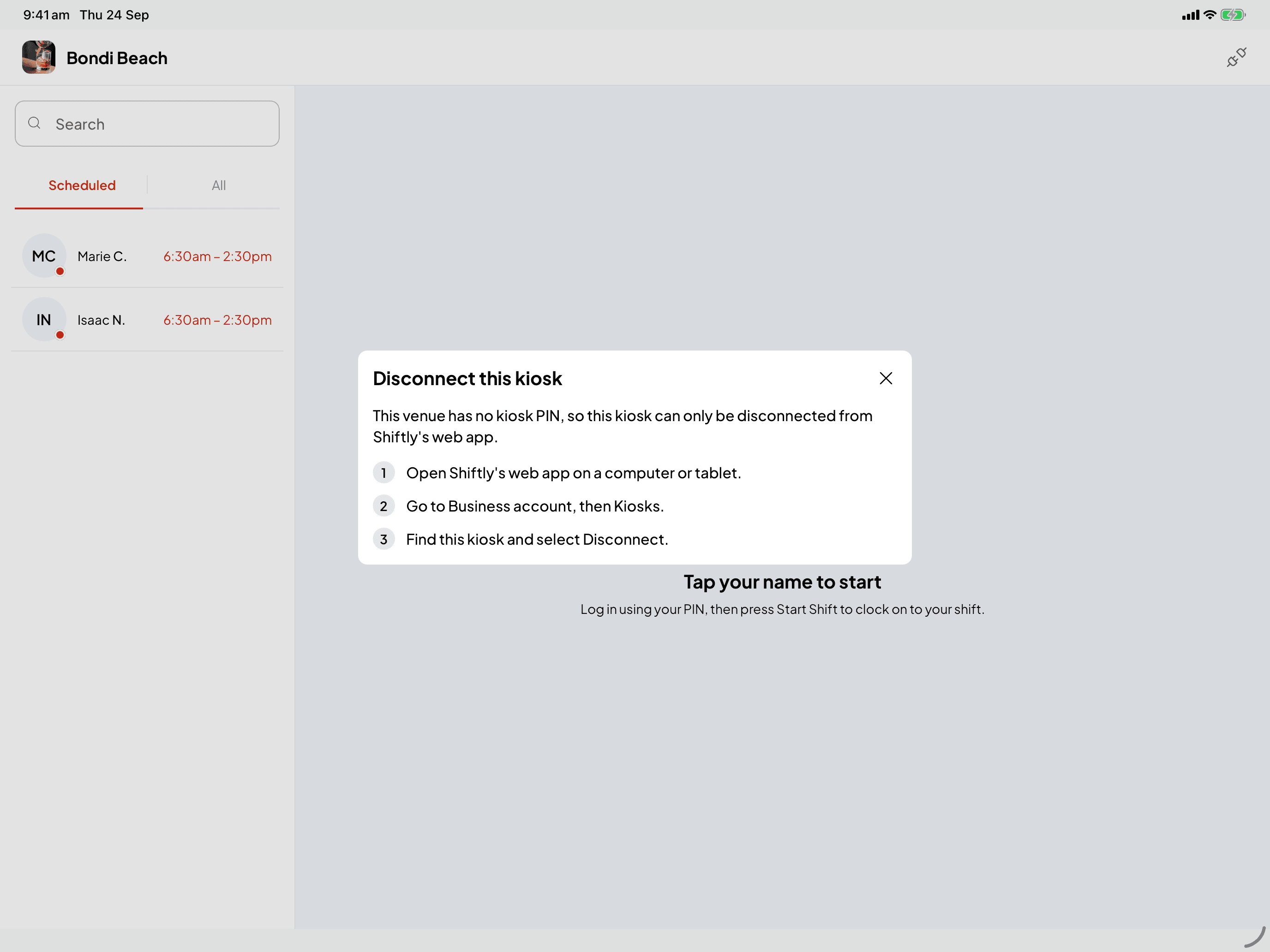
The tablet's steps say to go to "Business account, then Kiosks". The kiosk is on the location: Business settings, Locations, edit the location, Kiosk tab.
Turn clock-in photos on or off
Require a photo at clock in and out asks staff for a quick photo each time they clock on or off, which stops people clocking on for each other. It applies to every tablet at the venue. Change the switch, then select Save. Shiftly shows "Kiosk settings updated".
Tablets pick up the change straight away. Anyone already signed in at the time gets it the next time they sign in.
Photos appear on the timesheet's Clock in/out map tab and are kept for 90 days. See Fix times, breaks and pay on a timesheet.
What the tablet shows
| On the tablet | What it means |
|---|---|
| Starting up | The app is checking the kiosk with Shiftly. It moves on by itself. |
| No internet connection | The tablet is offline. Nobody can clock on or off until it reconnects, and it picks up again on its own when the connection comes back. |
| This kiosk has been disconnected | Someone disconnected or deleted the kiosk. The tablet goes back to the Welcome screen to be set up again. |
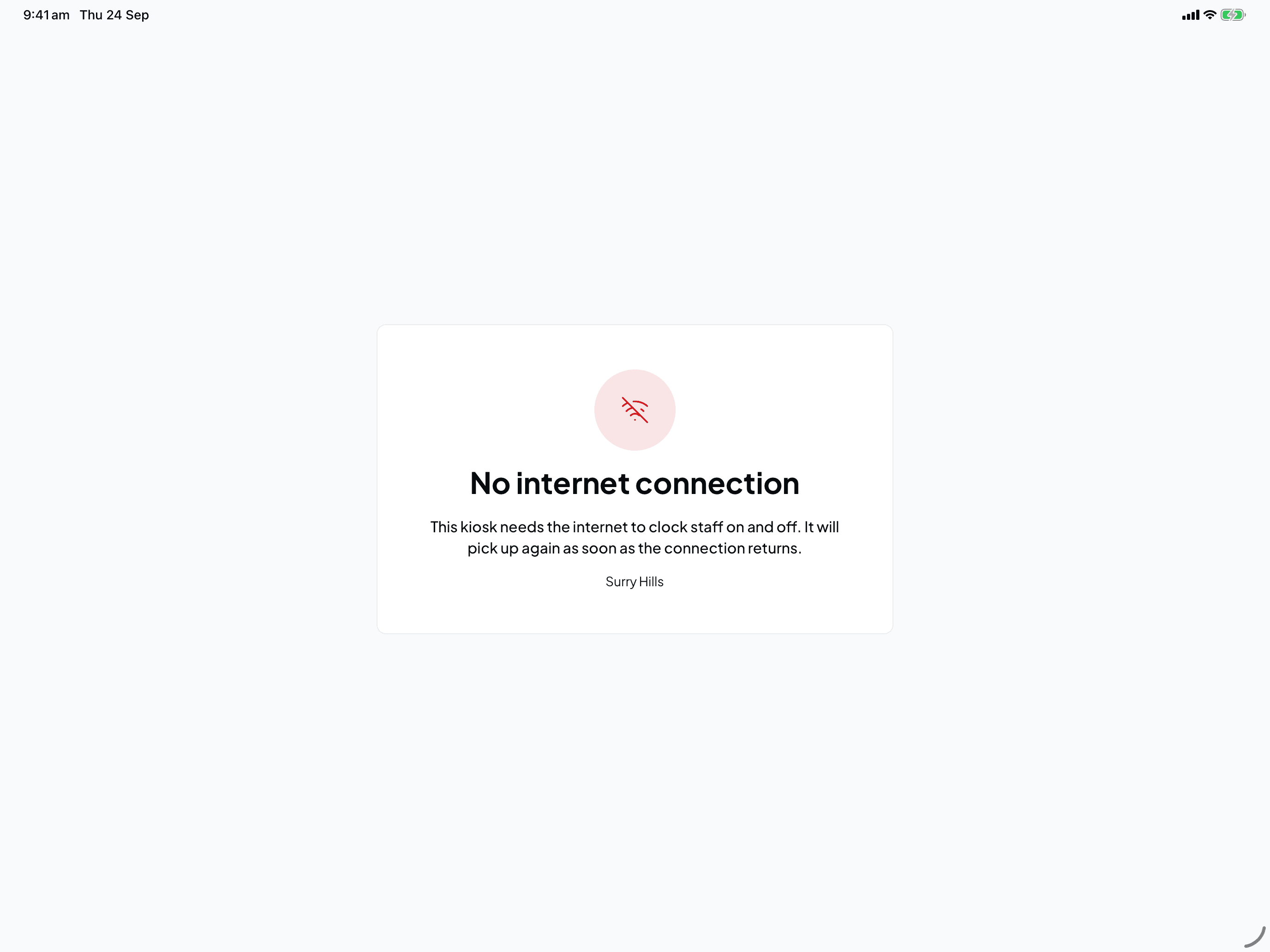
Two more things worth knowing:
- To refresh the tablet, pull down from the top edge of the screen.
- App updates install themselves when nobody is using the kiosk, so they never interrupt someone clocking on.
Related
Set up a clock-in kiosk at your venue
Turn a tablet at your venue into a shared clock-in point. Add a kiosk to a location on the Shiftly web platform, pair the tablet with its code, choose how staff sign in, and give your team their PINs.
Your team
Add staff, onboard them, classify them under their award, and manage their profiles: the people that everything you roster, pay, and report on is built around.