
Clock on and off at the venue kiosk
Use the Shiftly Kiosk tablet at work to start your shift, take your breaks and clock off, then leave a note for your manager.
If your venue has a Shiftly Kiosk, a tablet on the wall or at the pass, you can clock on and off there instead of on your phone. You tap your name, enter your PIN and press Start shift. Your hours become a timesheet for your manager to approve, exactly as they would from Shiftly Me.
Who this is for
Staff clocking on at a Shiftly Kiosk tablet at their venue. If you clock on from your phone, see Clock on and off a shift.
Before you start
- You need a kiosk PIN. It's six digits. If you've never set one, or can't remember it, see Forgot your kiosk PIN, or never set one.
- The kiosk only works for its own venue. It shows today's published shifts at that venue and clocks you on there.
Clock on
Tap your name
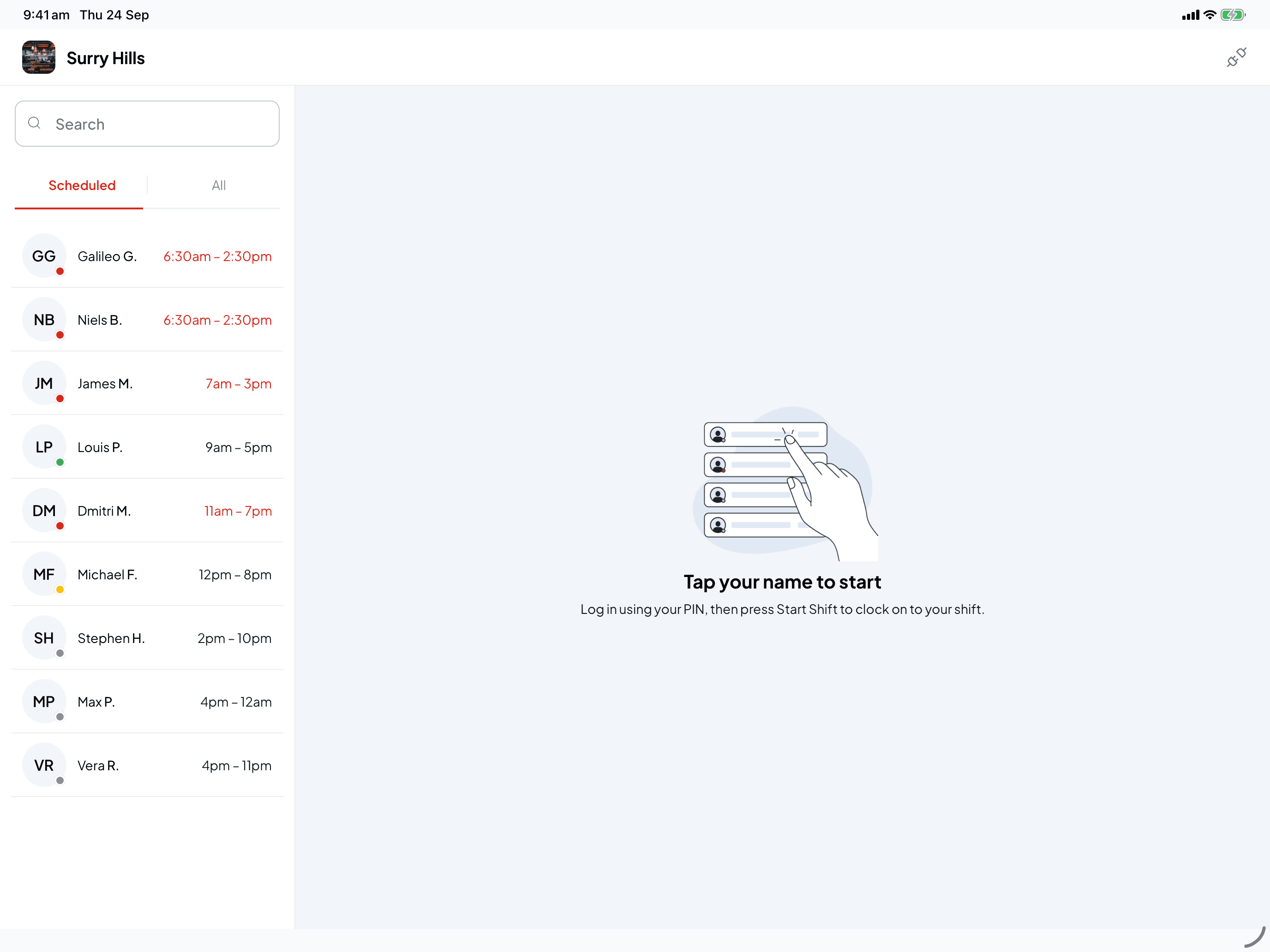
The kiosk opens on Tap your name to start. The Scheduled tab lists everyone rostered at this venue today, plus anyone already clocked on here. The dot on each person shows where they're at:
- Red, with the times in red: the shift has started and they haven't clocked on yet.
- Green: on shift.
- Yellow: on a break.
- Grey: their shift hasn't started yet.
Once someone has clocked off, their dot disappears. Not rostered today? Choose All for everyone at the business, or type at least two letters of your name in Search.
Enter your PIN
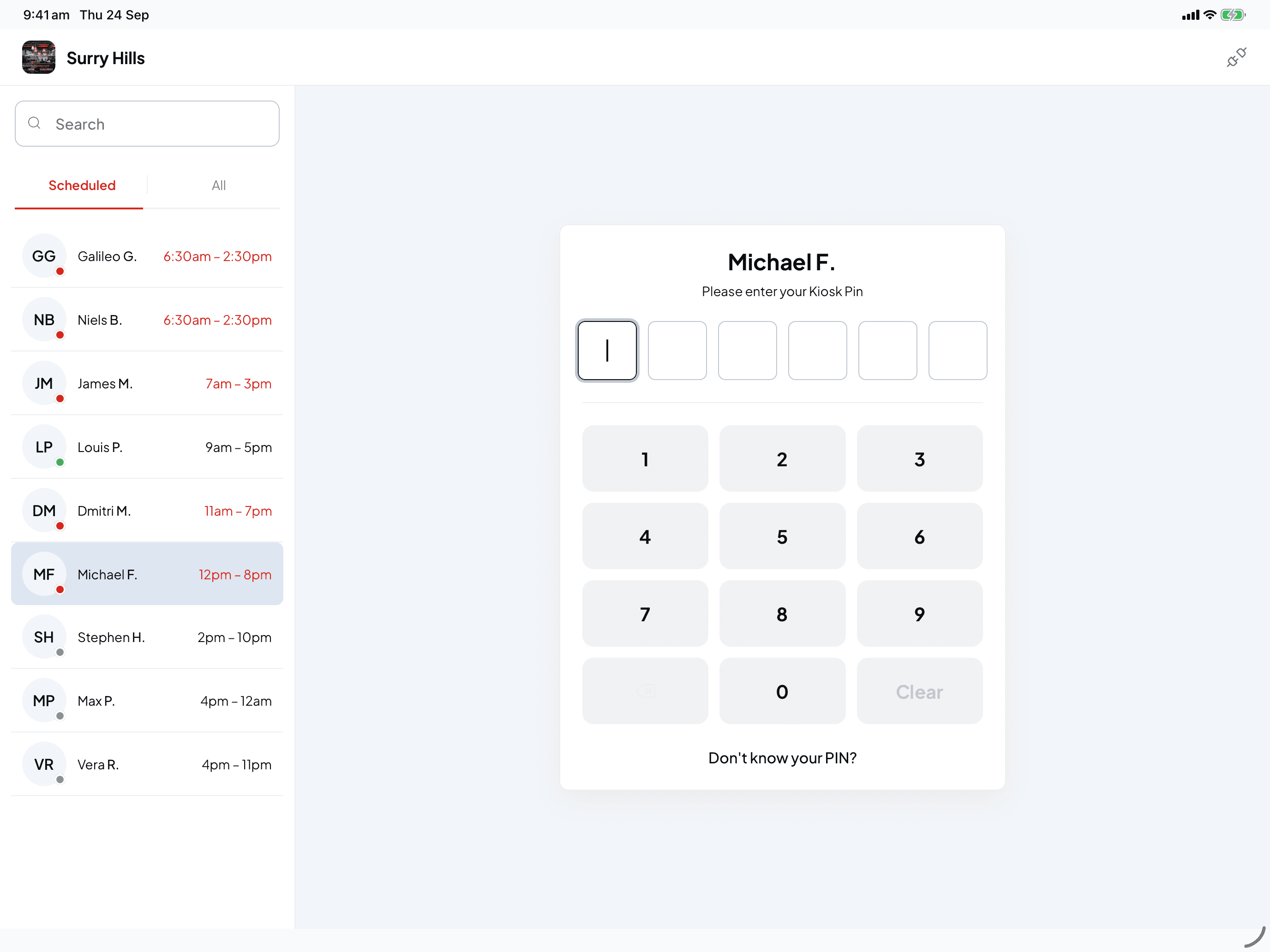
Type your 6-digit PIN on the keypad. The kiosk checks it as soon as you enter the last digit. If it's wrong, you'll see "Incorrect PIN. Try again." Use Clear and try again, or tap Don't know your PIN?.
If you select your name and then don't touch the screen for 30 seconds, the kiosk goes back to the name list.
Check today's shift
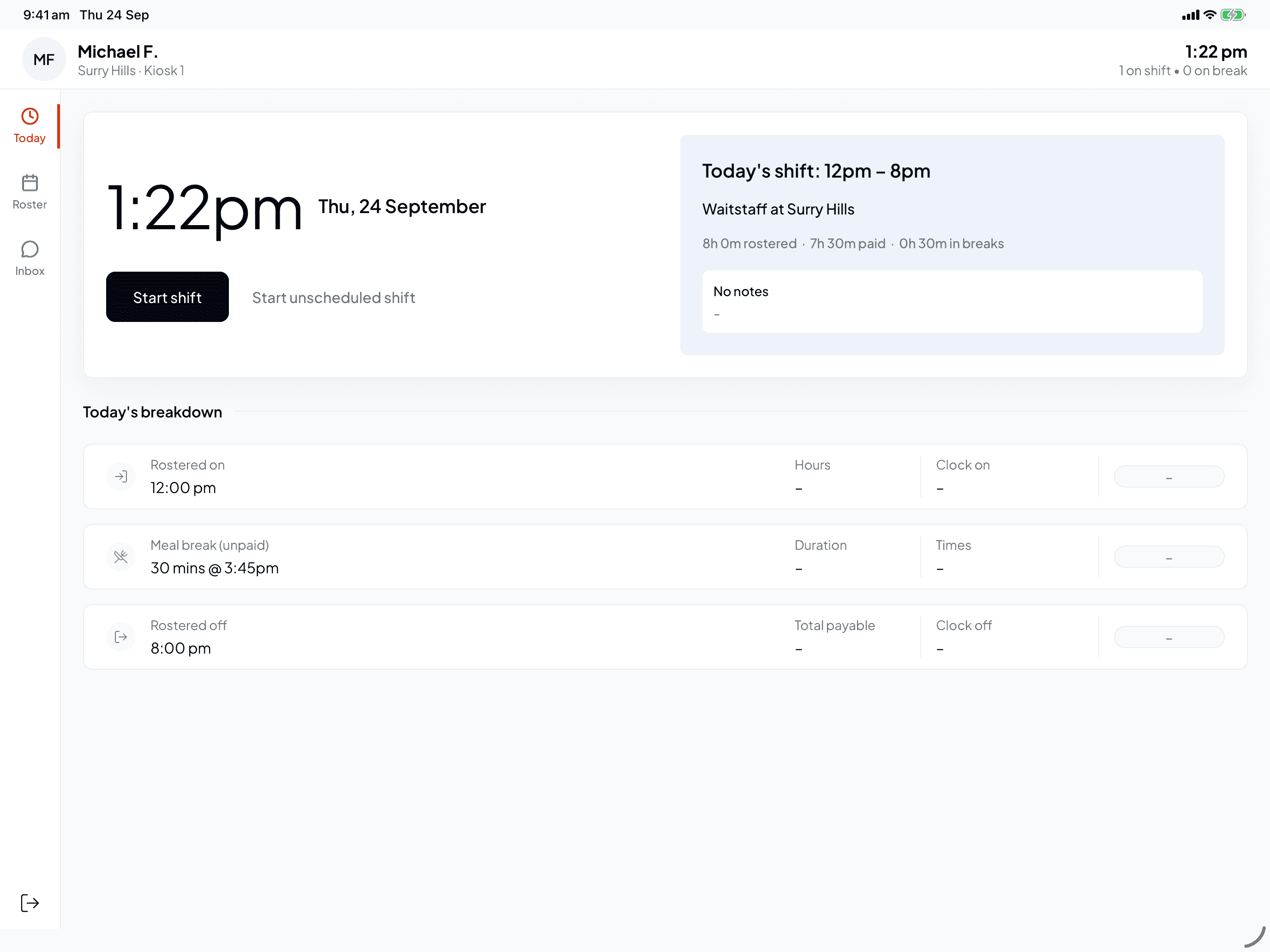
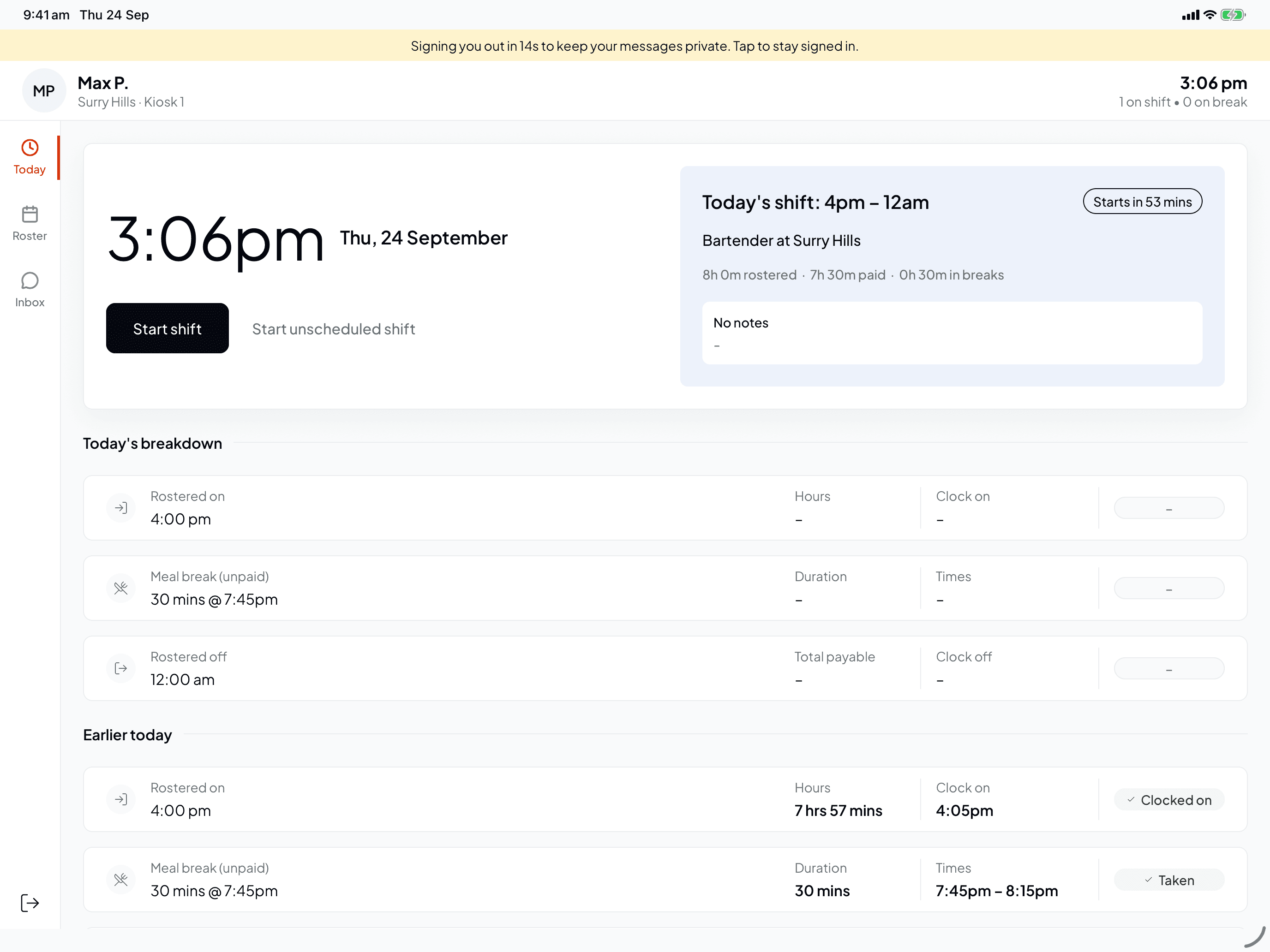
You land on Today. Along the top are your name, the venue and kiosk, the time, and how many people are on shift and on a break.
The card shows the current time and your shift for today: the times, your position, how many hours are rostered and paid, the breaks, and a shift note if your manager left one and the venue shares notes. Before your start time it counts down, for example "Starts in 53 mins". Underneath, Today's breakdown lists your rostered start, breaks and finish.
Press Start shift
Press Start shift, then Start shift again on Start your shift to confirm. Your shift starts from the moment you confirm.
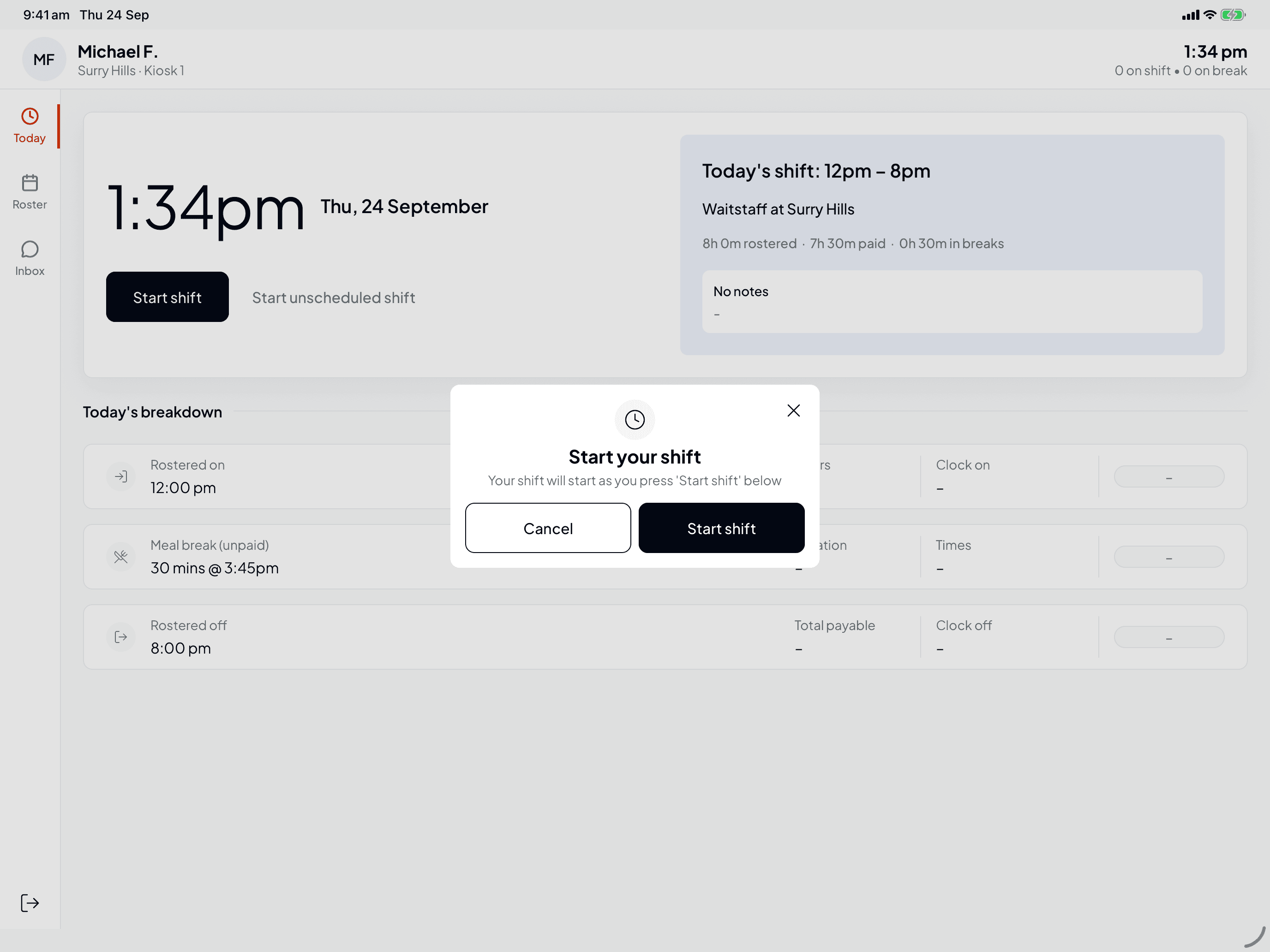
You can start a rostered shift up to an hour before it's due to begin.
Don't press Start shift more than an hour early. The kiosk can't link it to your rostered shift yet, so it asks Which position? and clocks you on as an unscheduled shift instead. If that happens, tap Cancel and come back closer to your start time.
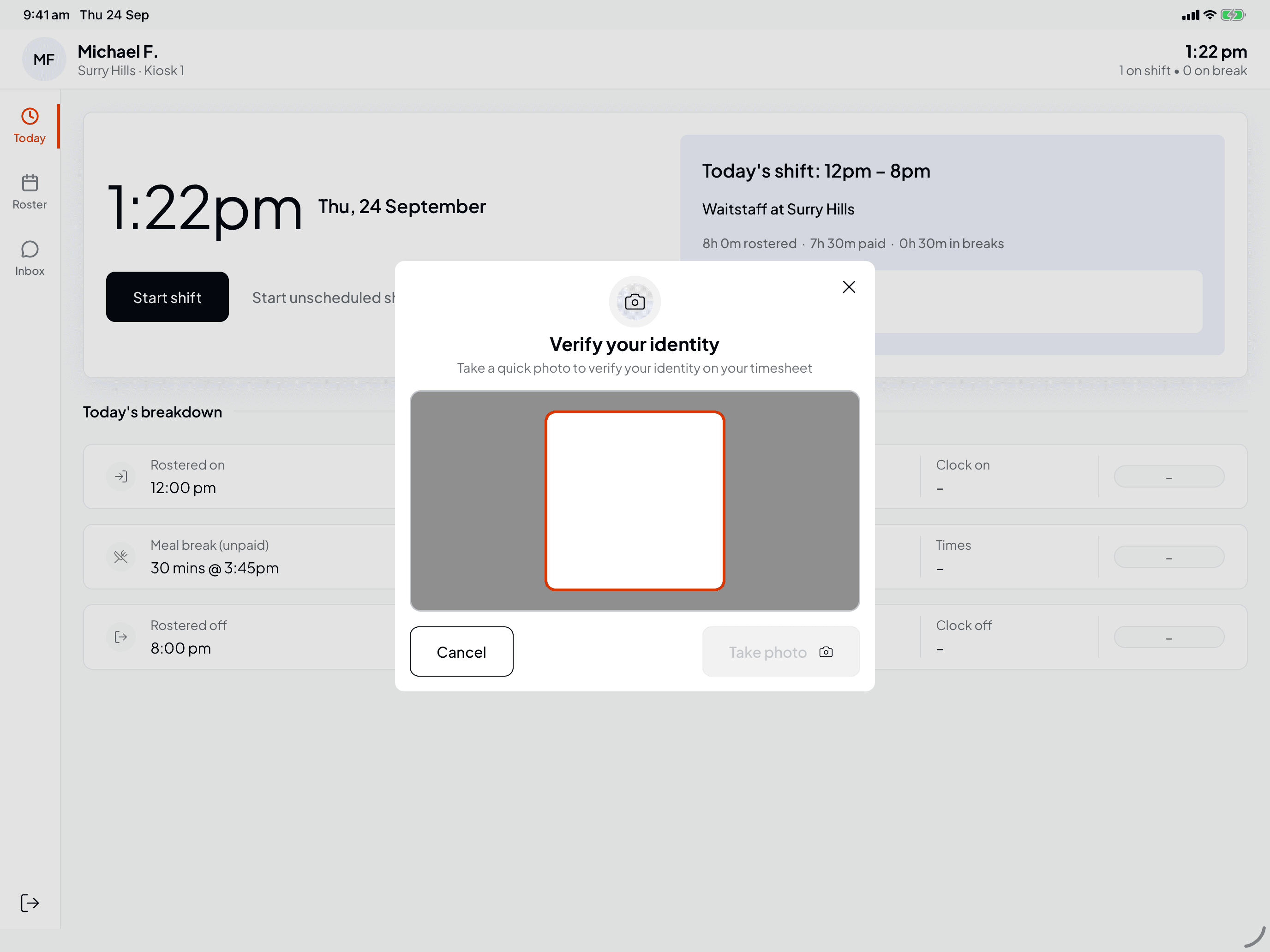
Take your photo, if your venue asks for one
Some venues ask for a quick photo each time you clock on or off, so nobody can clock on for someone else. You'll see Verify your identity instead of the confirmation. Look at the tablet's camera and tap Take photo. On Ready to clock in? check the photo, then tap Start shift, or Retake to try again. The photo appears on your timesheet for your manager.
If the tablet can't use its camera, you can still start your shift. The button changes to Start shift and your timesheet notes that no photo was taken.
While you're on shift
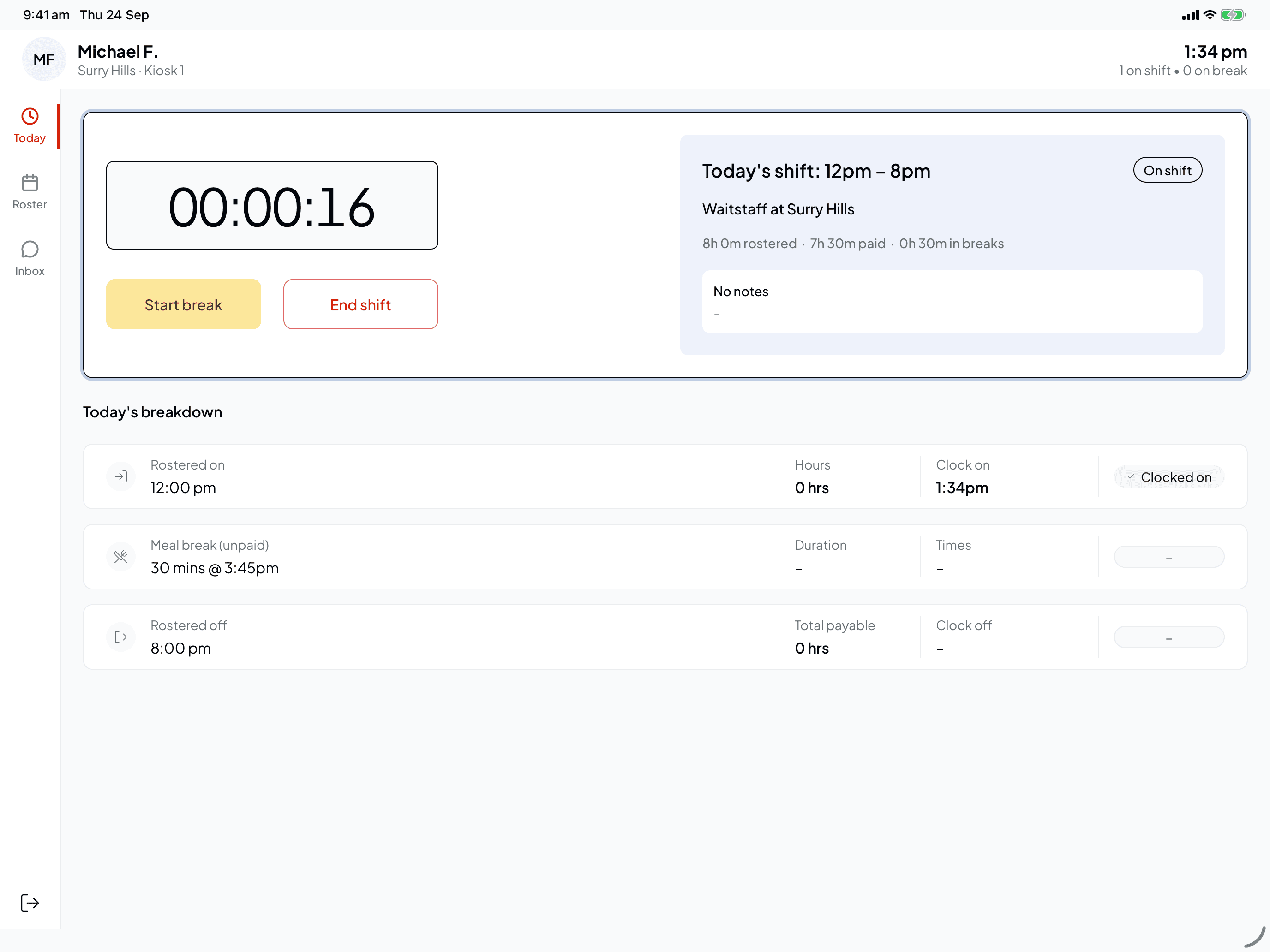
Once you're on, the card shows a running timer and an On shift label. Today's breakdown fills in your clock-on time and the hours so far.
Start a break
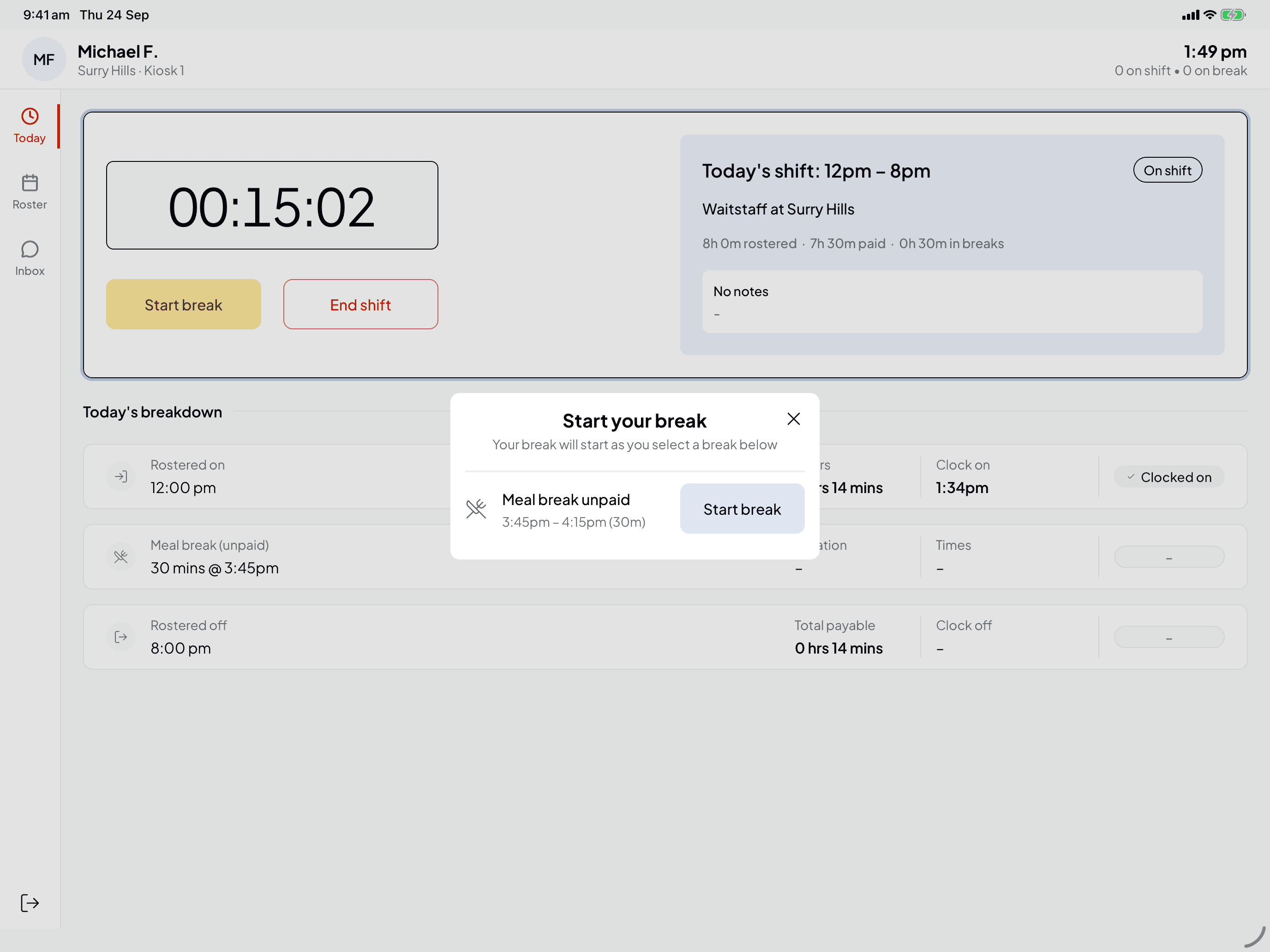
Press Start break. Start your break lists the breaks on your roster, for example "Meal break unpaid, 3:45pm – 4:15pm (30m)". Tap Start break beside the one you're taking. When there are no rostered breaks left, or you're on an unscheduled shift, you can start an Unscheduled break instead, which is unpaid.
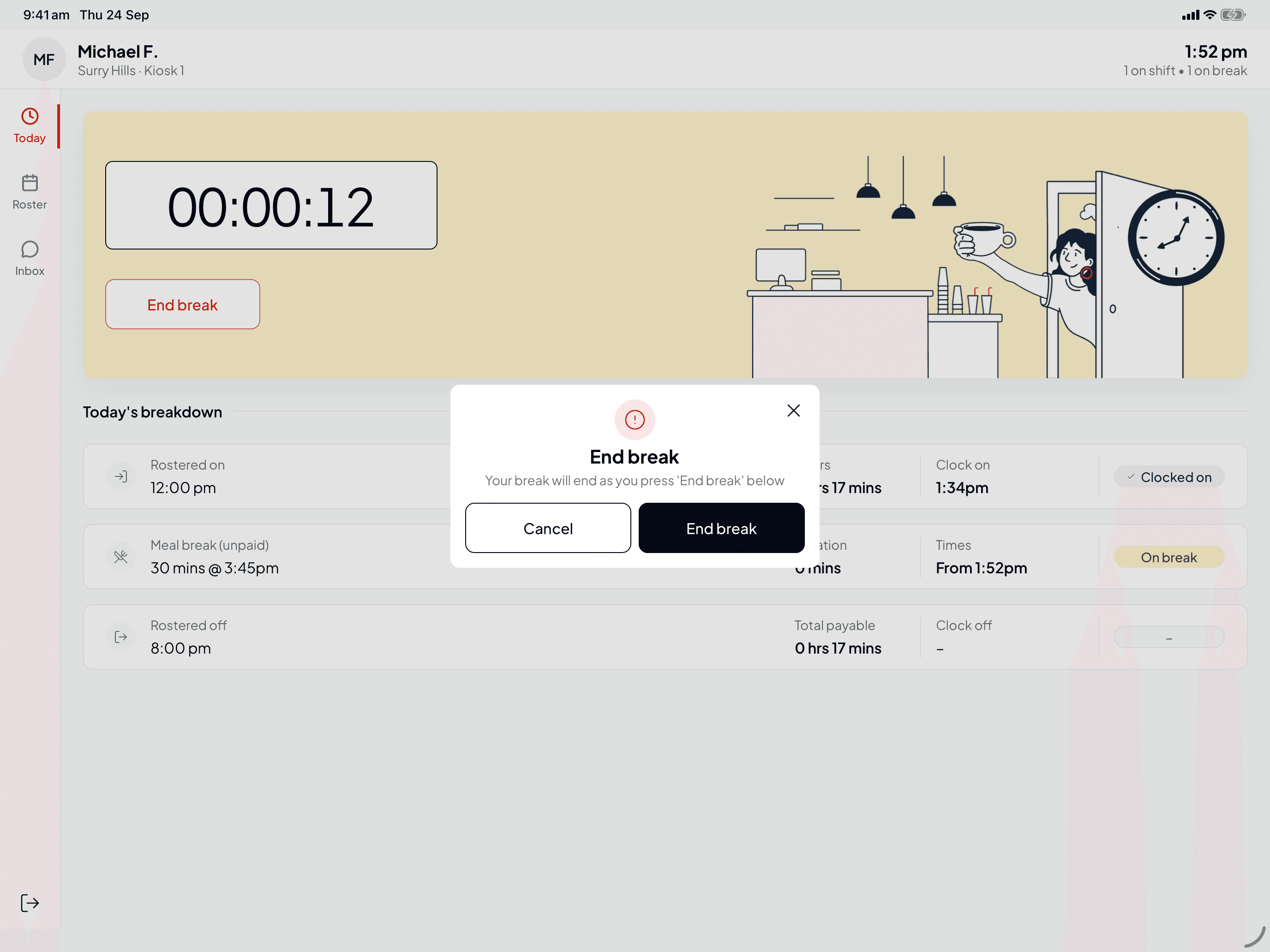
End your break
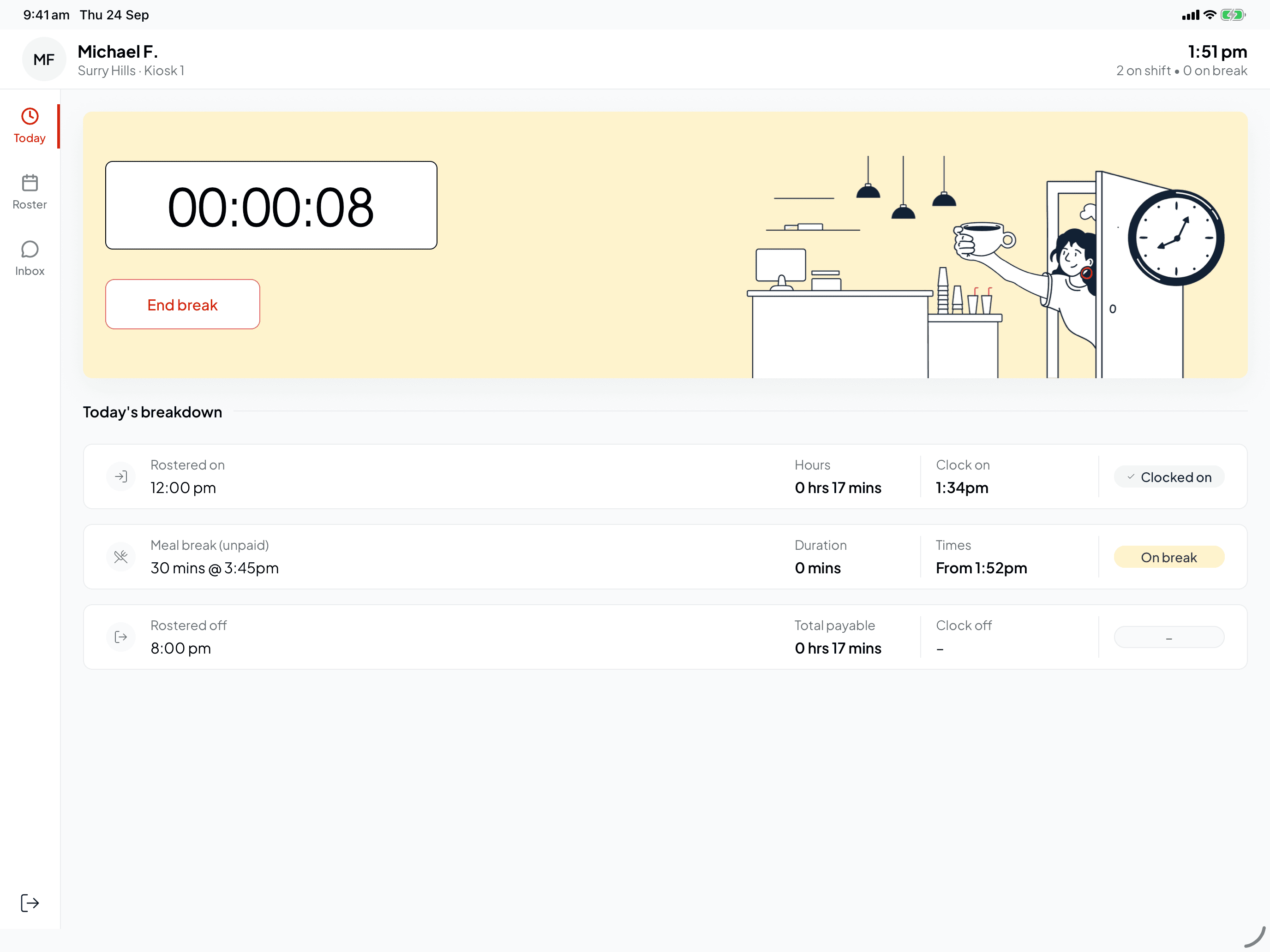
The card turns yellow and the timer counts your break. When you're back, press End break, then End break again to confirm.
Clock off
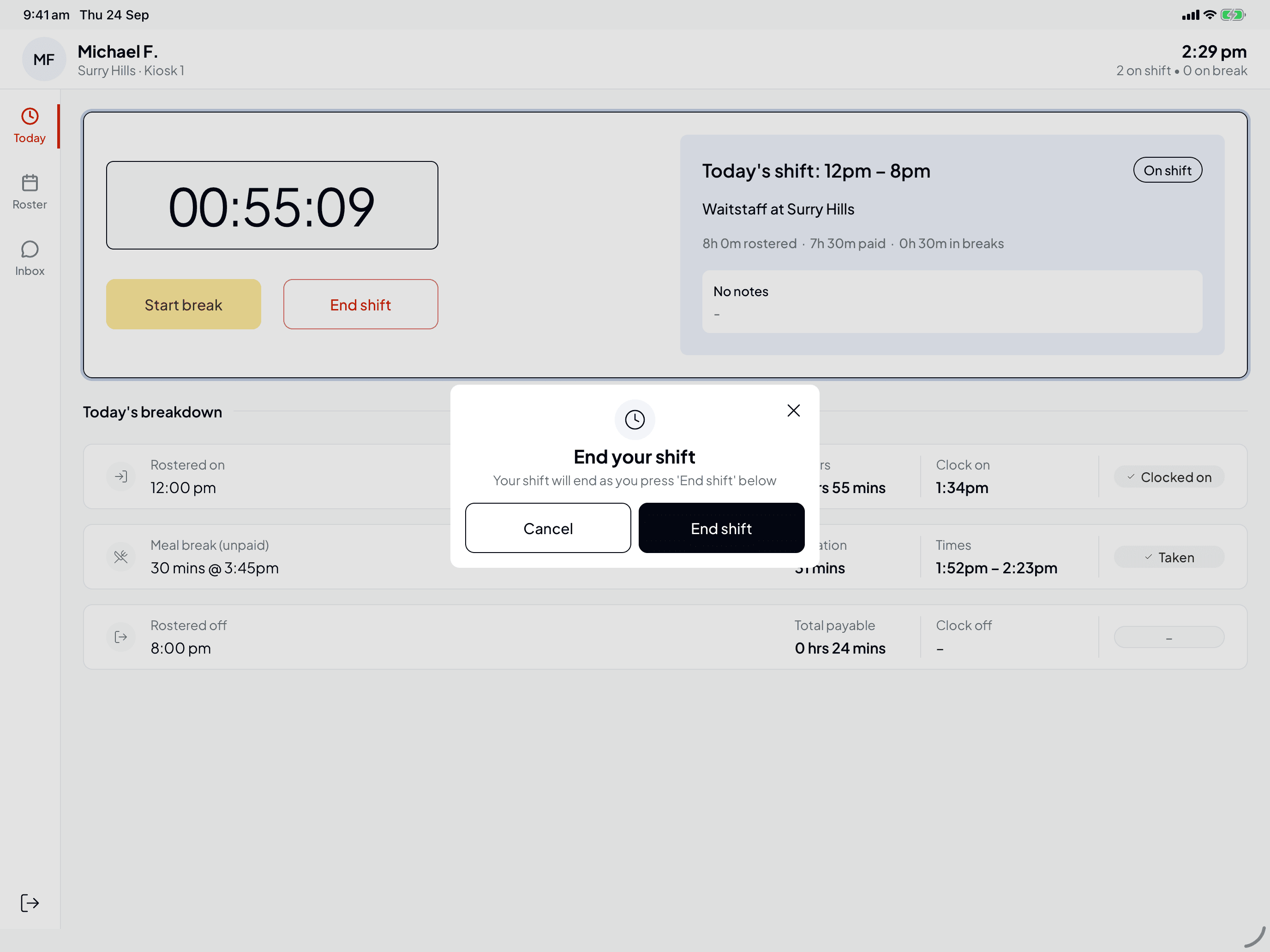
Press End shift
Press End shift, then End shift again on End your shift. If your venue asks for photos, you'll take one first, the same way as when you clocked on.
Still on a break? The kiosk says You're still on break and offers End break and clock off, so your hours come out right.
Check your summary and leave a note
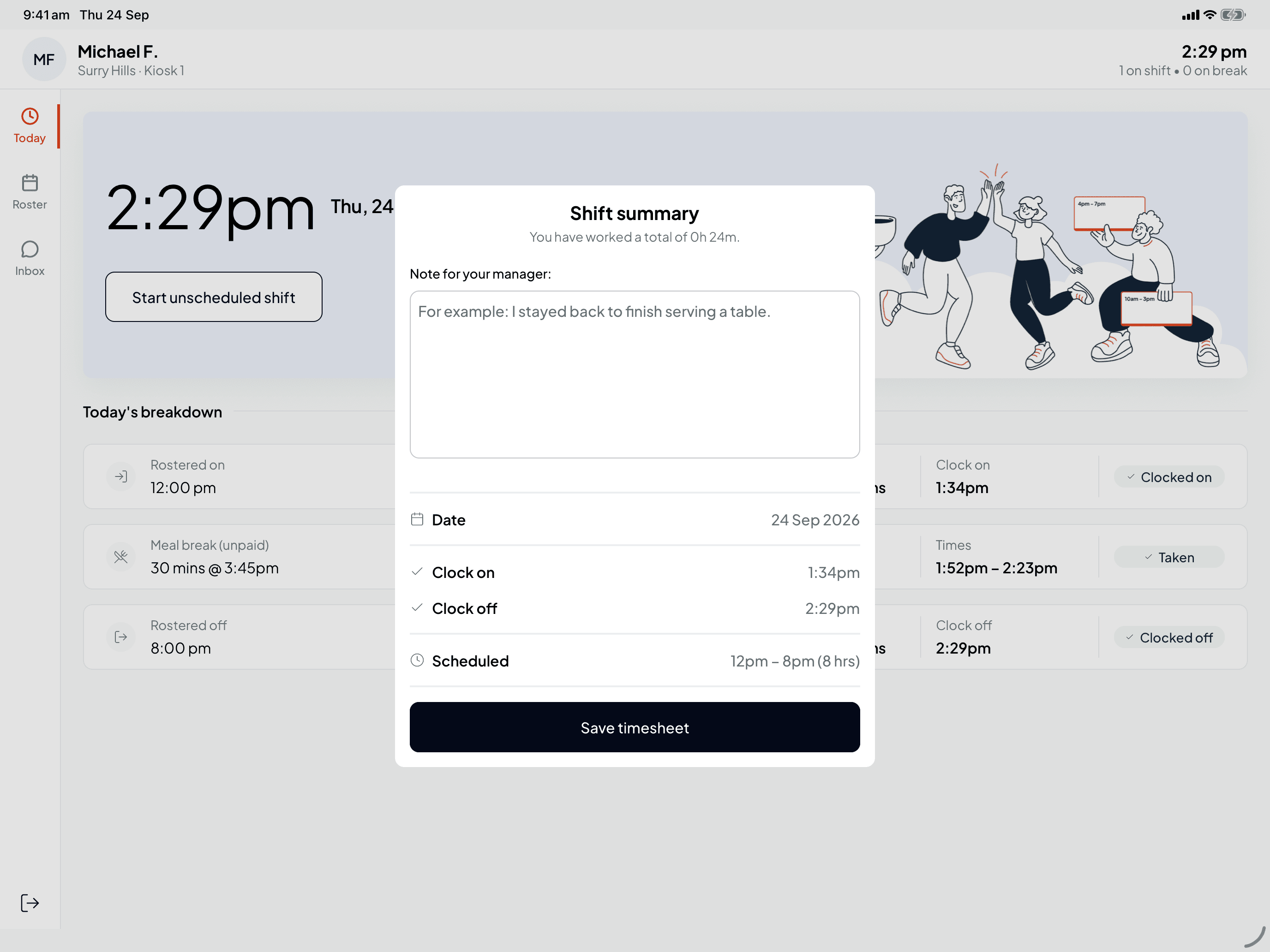
Shift summary shows how long you worked in total (after unpaid breaks), the Date, your Clock on and Clock off times, and what was Scheduled.
Anything your manager should know, such as staying back or covering someone, goes in Note for your manager (up to 500 characters). Then tap Save timesheet.
Your hours are already recorded when you end your shift. The note is optional.
Check today's breakdown
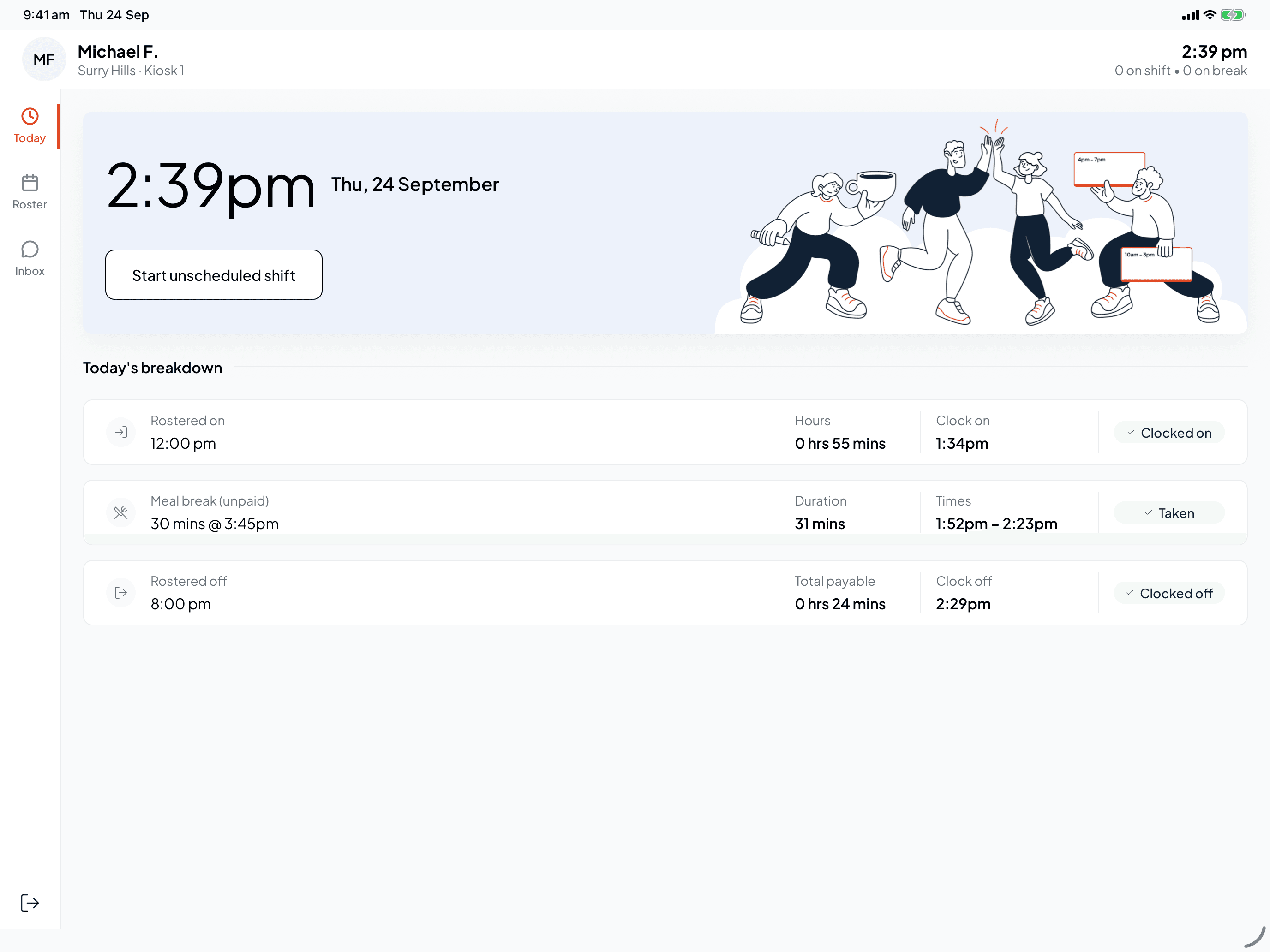
Back on Today, the breakdown shows your clock-on and clock-off times, each break you took, and your Total payable hours. If you work a second shift the same day, the first one moves under Earlier today.
Your timesheet now goes to your manager to review and approve.
Start a shift that isn't on the roster
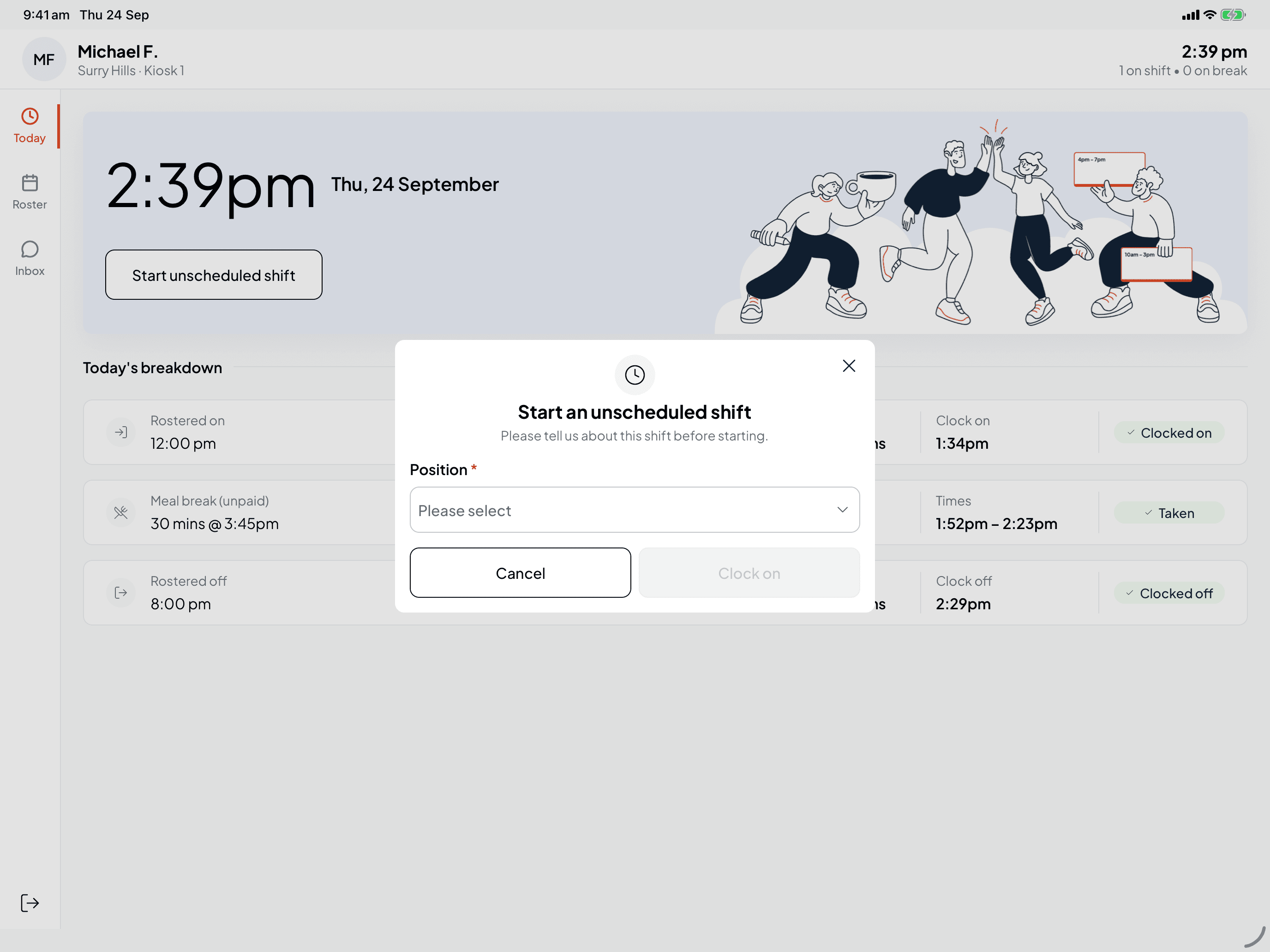
Called in at short notice? Press Start unscheduled shift on Today. Choose the Position you're working, then press Clock on. Positions you've worked at this venue recently are listed first. If your venue asks for photos, you'll take one before your shift starts.
If the kiosk says "That position isn't available", try another position. If none of them work, ask your manager to add the shift for you. The shift is recorded as unscheduled, for your manager to review like any other timesheet.
Sign out when you're done
Tap the sign-out icon at the bottom of the left-hand rail. If you forget, the kiosk signs you out after a minute without a tap, to keep your details and messages private. For the last 15 seconds a banner counts down: tap it to stay signed in.
Related
Forgot your kiosk PIN, or never set one
Get a temporary PIN, set your own, or get past a locked keypad.
Check your roster and messages at the kiosk
See your shifts, leave and messages while you're signed in.
Clock on and off a shift
Clocking on from your phone with Shiftly Me instead.
Check the hours you've worked
Where your kiosk timesheets show up in Shiftly Me.
Venue kiosk
Using the Shiftly Kiosk tablet at your venue to clock on and off, check your roster and messages, and sort out your PIN.
Check your roster and messages at the kiosk
While you're signed in at the Shiftly Kiosk, see your shifts, hours and approved leave on the Roster tab, and read and reply to messages in the Inbox.