
Your home screen
See today's shift at a glance, answer requests, read notifications and find your way around Shiftly Me.
Home is the first thing you see when you open Shiftly Me. It answers the question you opened the app for: am I working today?
Who this is for
Staff using the Shiftly Me app on their phone.
What's on the home screen
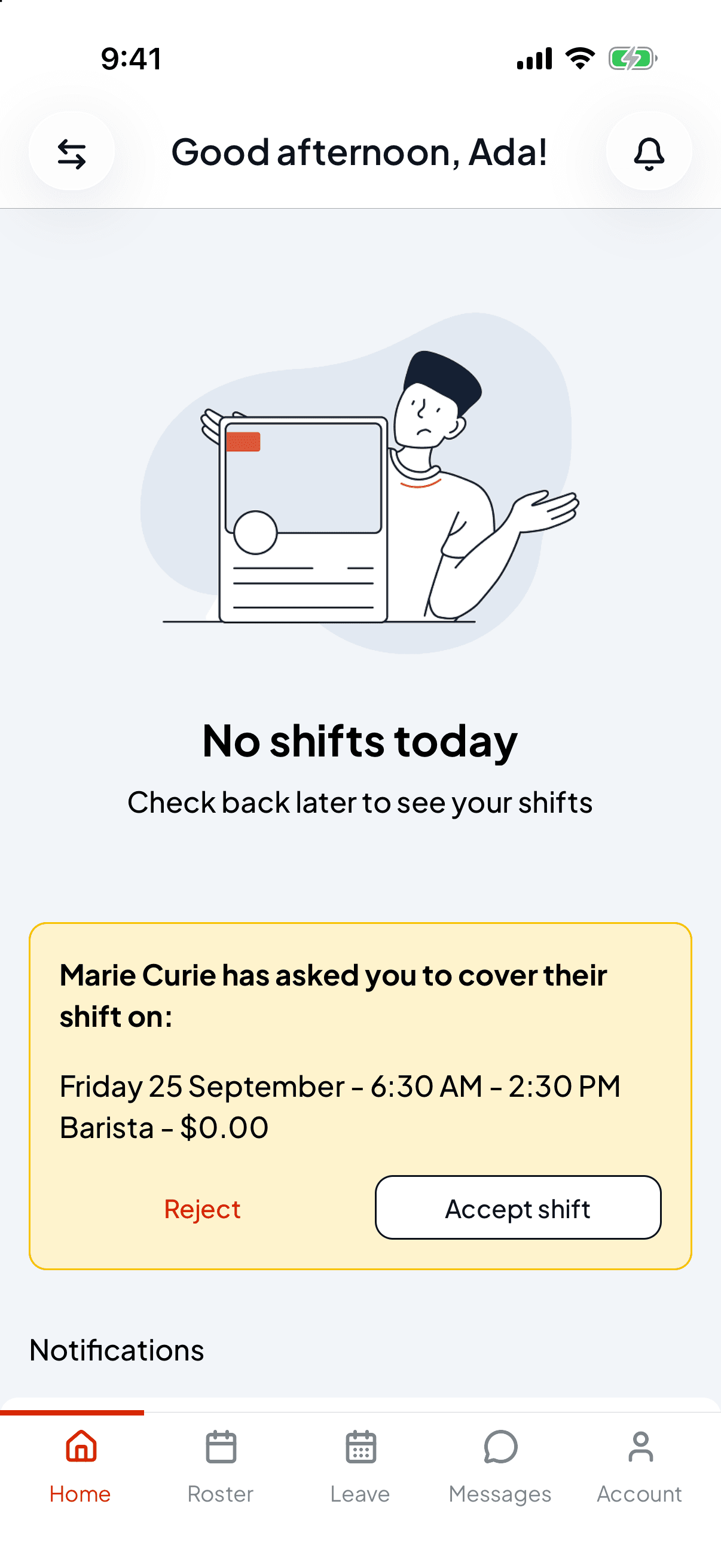
From top to bottom:
- The header. A greeting with your first name. The bell on the right opens All notifications. If you work at more than one location or business, a switch button appears on the left. See Work at more than one venue or business.
- Today's shift. If you're rostered on today, your shift shows here with a Start shift button. If you're not, you'll see No shifts today and Check back later to see your shifts. See Clock on and off a shift.
- Cover requests. If a colleague has asked you to cover their shift, the request shows here to accept or reject. See Get someone to cover your shift.
- Notifications. Up to four of your unread notifications. Tap one to open it.
- Open shifts. How many shifts are going spare that you could pick up. Tap it to see them. See Pick up an extra shift.
- Start unscheduled shift clocks you on without a rostered shift, for when you're called in at short notice.
- Upcoming leave and Availability shortcuts.
- Shifts, with Upcoming shifts and Shift history, which open your roster and your timesheets.
Moving around the app
The tabs along the bottom are the whole app:
| Tab | What's there |
|---|---|
| Home | Today at a glance |
| Roster | Your upcoming shifts and your timesheets |
| Leave | Request time off and check your balances |
| Messages | Chat with your manager and workmates |
| Account | Your details, sign-in, pay info and app settings |
A red badge on Messages shows how many unread messages you have.
Notifications
The bell opens All notifications. Tap Mark all as read at the top right to clear them. Tapping a notification opens it, and it's then marked as read. Roster notifications show exactly what changed, for example a new shift or new times.
When you open Roster, Shiftly Me may ask whether to turn on push notifications, so you hear about new roster alerts, shift or roster changes and shift reminders without opening the app. Tap Not now to decide later. See Choose what Shiftly tells you about.