
Clock on and off a shift
Start your shift, take your breaks and clock off from Shiftly Me, and what your location is used for.
Clocking on and off is how your hours get recorded, and your pay is worked out from those hours. It all happens on the Home screen of Shiftly Me.
Who this is for
Staff using the Shiftly Me app on their phone.
Clocking on at a tablet at your venue instead? See Clock on and off at the venue kiosk.
Start your shift
Open Home
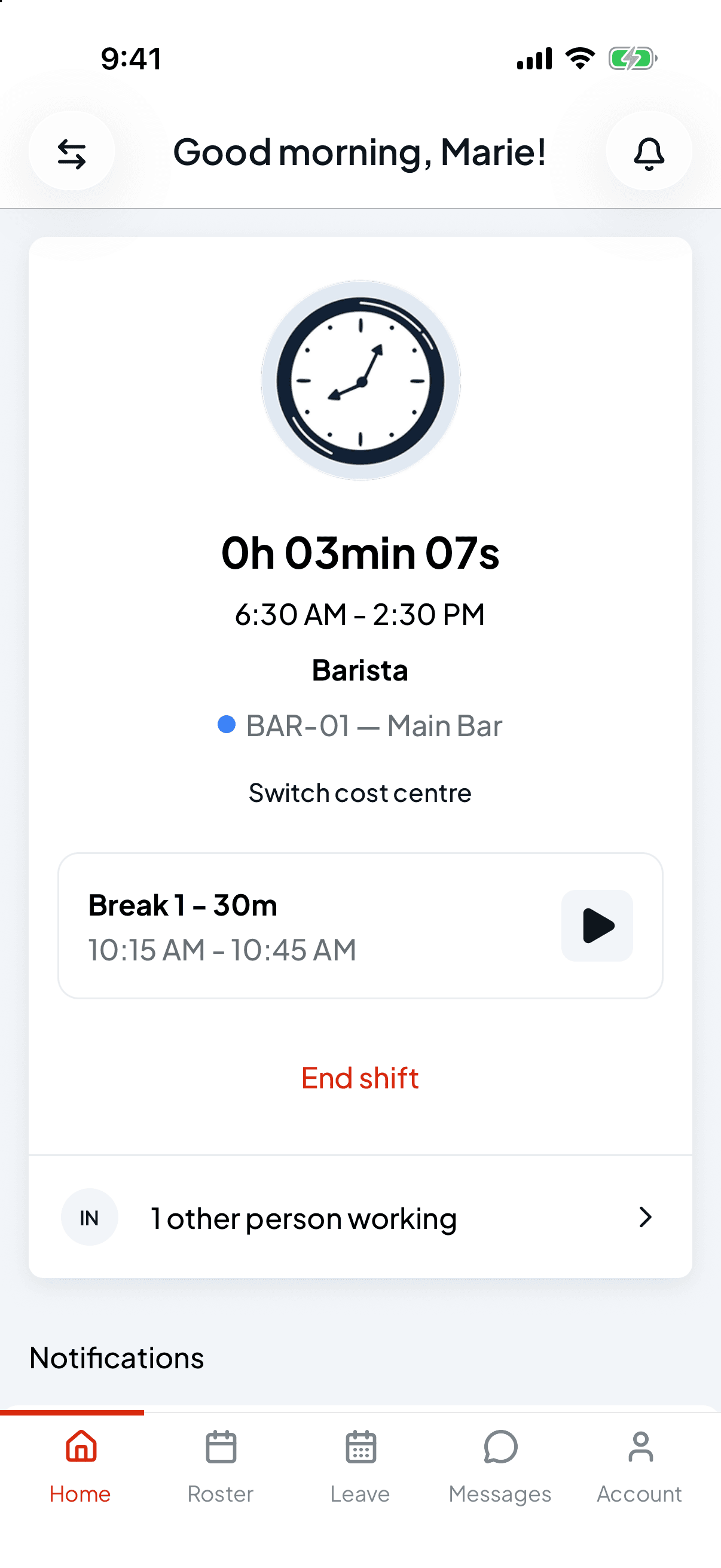
When you're rostered on today, Home shows that shift: the current time, your shift times, your position, and the shift's tag, such as its department or job, if your workplace uses them. Below it you can see how many other people are working that day. Tap that row to see who.
If your manager has left a note on the shift and your workplace shares notes with staff, it shows on the card as Note from your manager. Tap it to open the shift and read it all.
Not rostered today? Home says No shifts today.
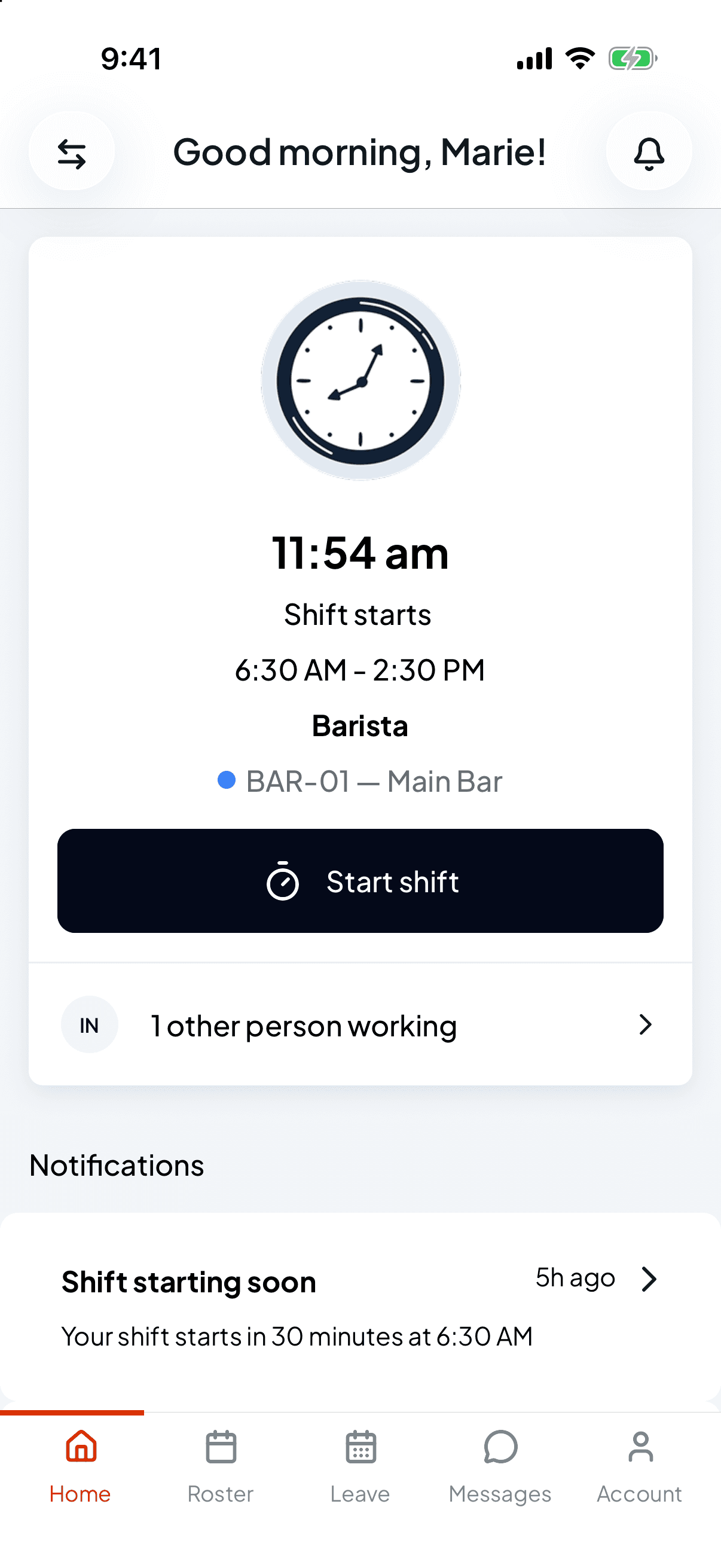
Tap Start shift
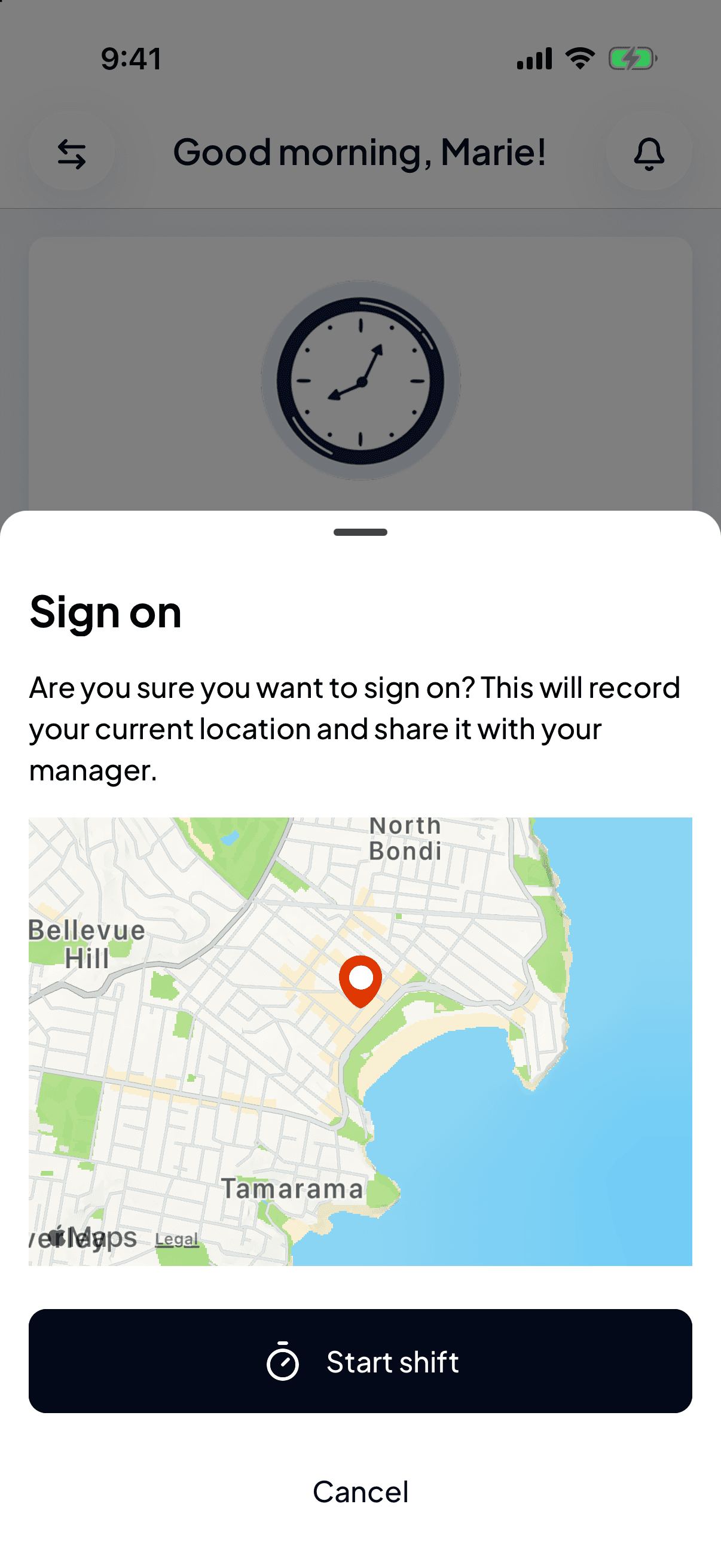
Shiftly Me asks you to confirm. With location on, it shows a map of where you are and says Are you sure you want to sign on? This will record your current location and share it with your manager. Tap Start shift to clock on, or Cancel.
If your workplace checks where you are
Some workplaces only let you clock on at the venue. If yours does:
-
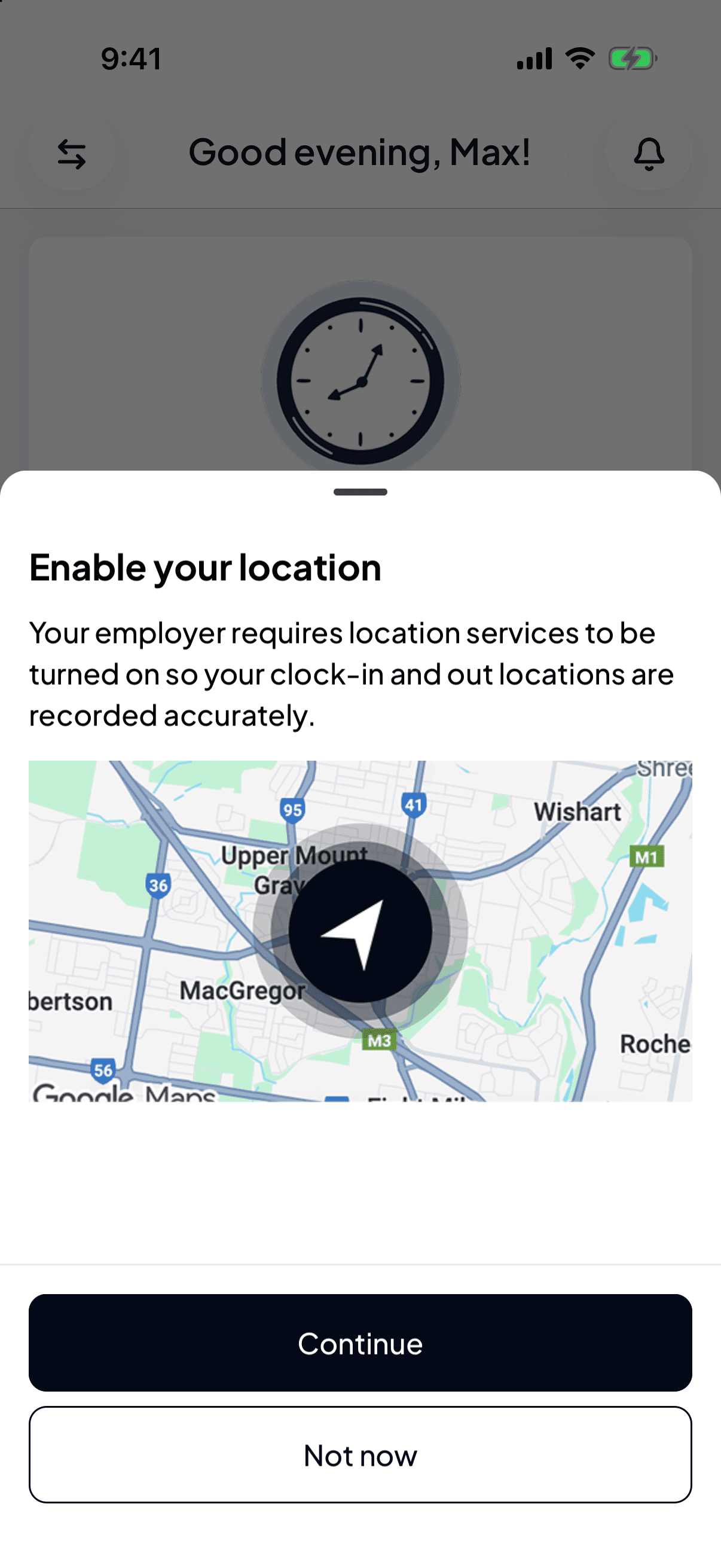
Location has to be on. If Shiftly Me hasn't been allowed to use your location yet, it shows Enable your location, which explains that your employer requires location services so your clock-in and out locations are recorded. Tap Continue, allow Shiftly Me to use your location, then tap Start shift again if the sign-on sheet doesn't open by itself. Not now stops there. If location is blocked, you'll see the steps to turn it on in your phone's settings, then tap Retry. If you've turned location off for Shiftly Me before, it may say Location access needed instead. Tap Open settings, turn it back on, then come back and tap Start shift again.
-
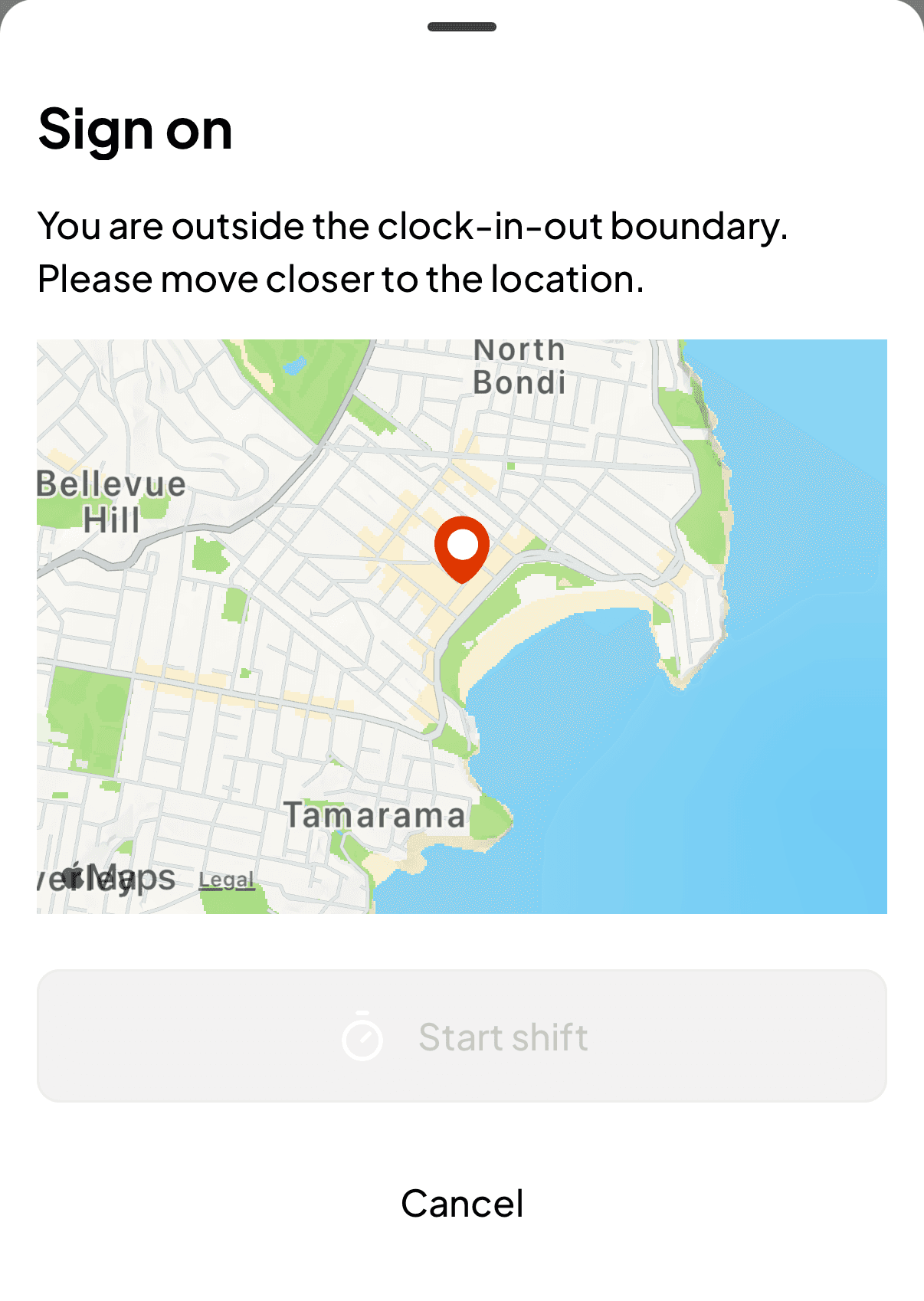
You need to be close enough. If you're too far away, the sign-on sheet says You are outside the clock-in-out boundary. Please move closer to the location. and Start shift is greyed out. Tap Cancel, move closer, and try again.
-
Your phone needs a precise fix. If it can't pinpoint you, you'll see We can't confirm your location precisely. Turn on Precise Location for Shiftly to clock in here.
-
If the venue has no address set up, you'll see We can't check your distance from your workplace. Ask your manager to add its address so you can clock in here. Only your manager can fix that.
While you're on
Once you're on, the card shows a running timer of how long you've been working.
- Your breaks. Each rostered break shows its times with a play button. Tap it when you go on break.
- Switch moves the rest of your shift to a different tag, if your workplace uses them. The button uses your workplace's word for it, such as Switch department or Switch job.
- End shift clocks you off.
Take a break
Tap play on the break to start it. The card shows when it started and counts up. When you're back, tap pause. If you pause too early, tap play again and the same break carries on.
If you go past the break's length, the row turns red and says You've gone overtime.
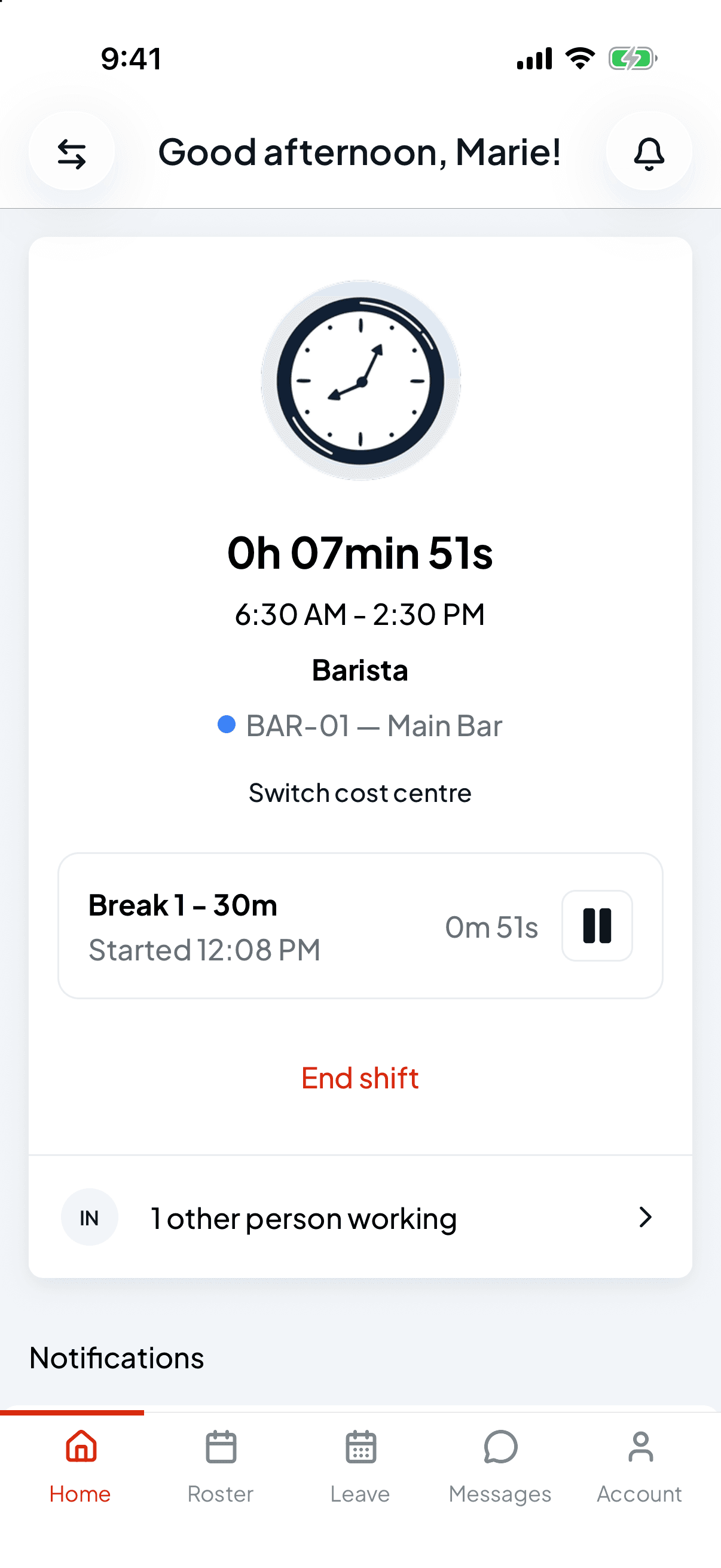
No break on your roster? You'll see a single Break row instead. Tap play whenever you take one.
If your workplace doesn't track breaks in the app, your rostered breaks are listed for your information but there's nothing to tap.
Clock off
Tap End shift
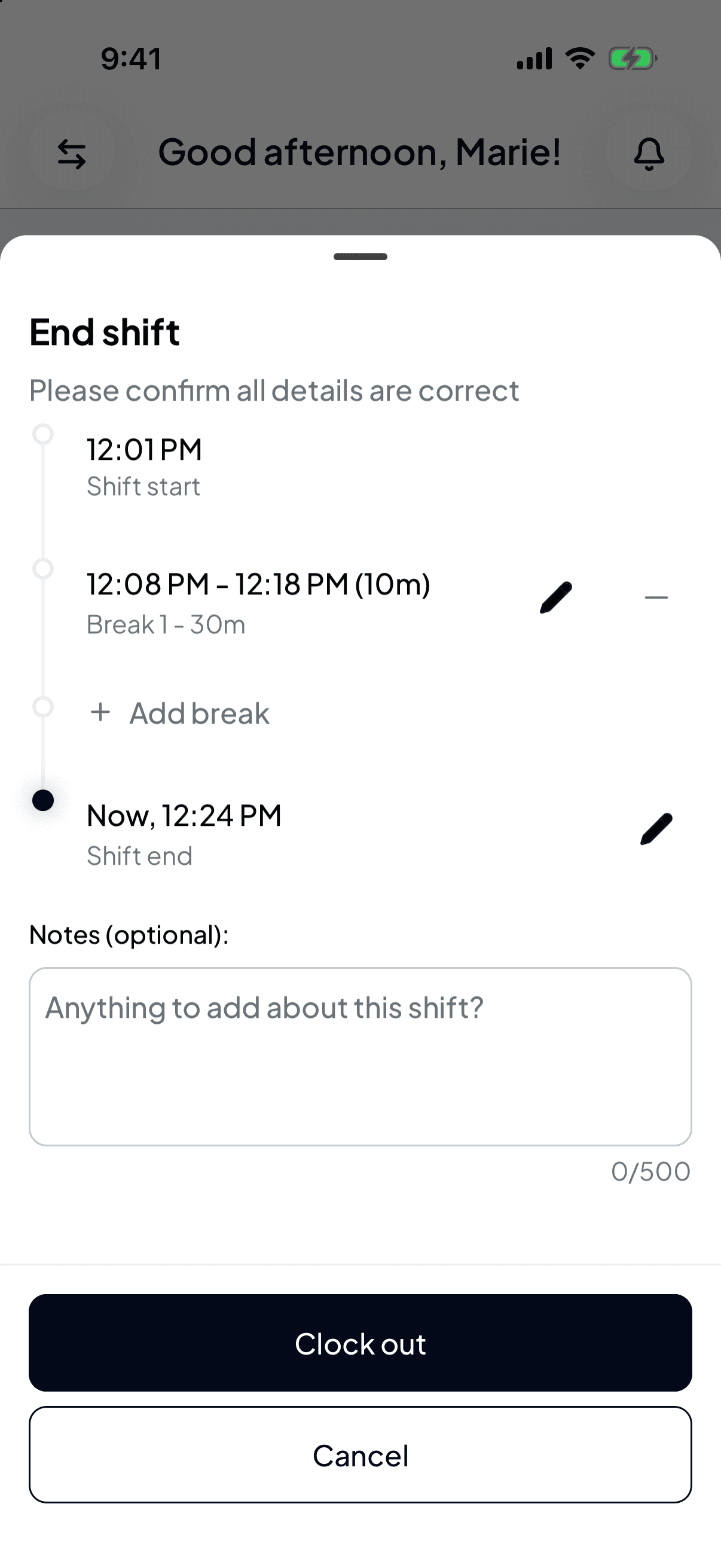
End shift opens a summary to check first: Please confirm all details are correct. It shows a timeline of your Shift start, each break, and your Shift end.
If you didn't record any breaks, the summary fills in the rostered breaks that were due by now, at their rostered times. Keep them if you took them, or fix or remove them as below.
Fix anything that's wrong
- Your finish time. Tap the pencil beside Shift end if you actually stopped earlier than now.
- A break's times. Tap the pencil on a break to change when it started or ended.
- A break you didn't take. Tap the minus beside it to remove it.
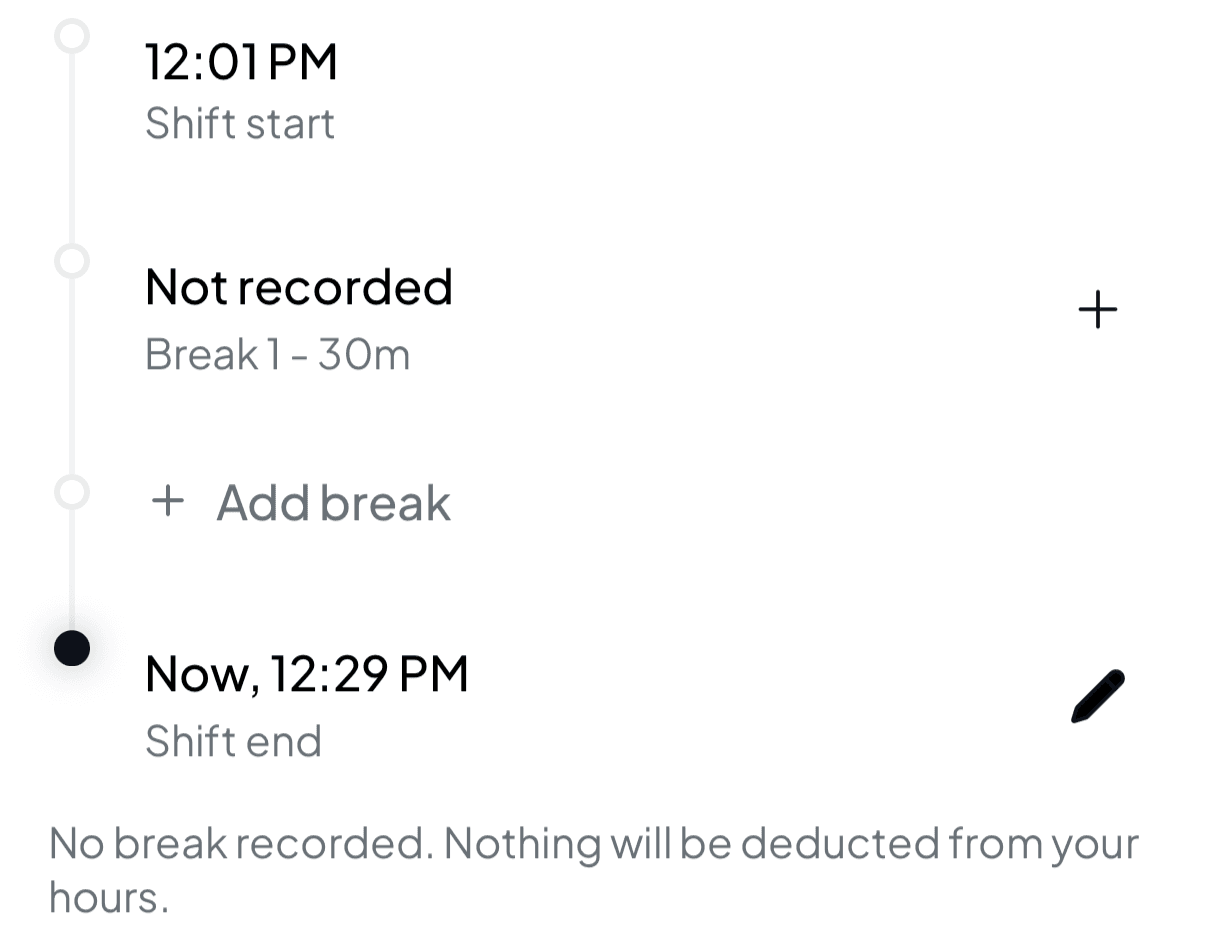
- A rostered break you forgot to record. It shows as Not recorded. Tap the plus to add it.
- An extra break. Tap Add break.
If no break is recorded, the sheet tells you, for example No break recorded. Nothing will be deducted from your hours.
Add a note and clock out
Notes (optional) lets you tell your manager anything about the shift, up to 500 characters. Then tap Clock out.
Your hours go to your manager to review. You'll find them under Roster → Timesheets, marked Pending until they're approved.
A break you were still on when you clock out is ended at your clock-out time.
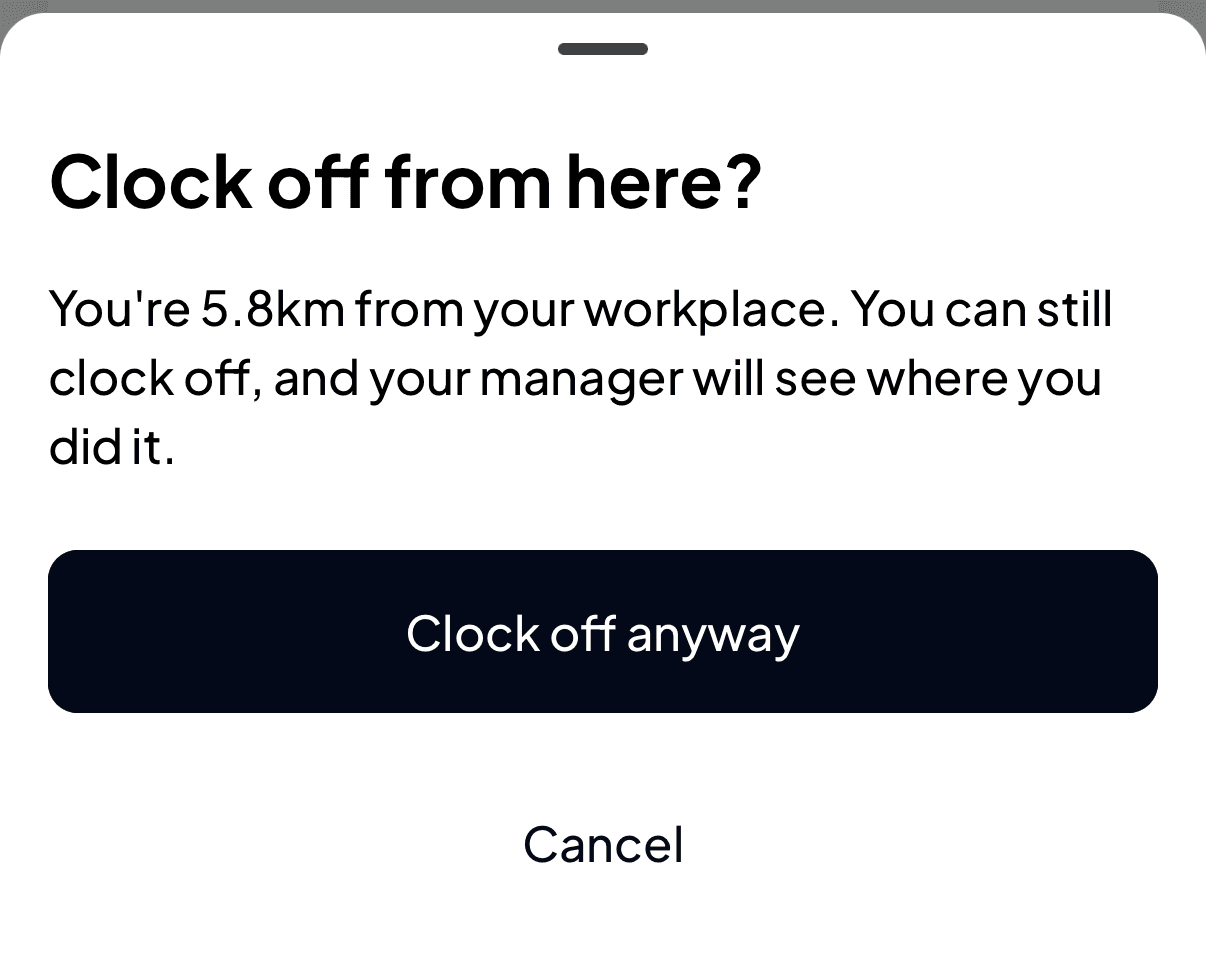
If your workplace checks where you are and you're away from the venue when you tap End shift, Shiftly Me asks Clock off from here? and tells you how far away you are. You can still tap Clock off anyway to carry on to the summary, and your manager sees where you clocked off. If your phone can't find you, it says Can't check your location and lets you clock off without it.
A shift that isn't on your roster
Called in at short notice? Start unscheduled shift on Home clocks you on without a rostered shift. If you work at more than one location, pick where you're working, then choose your position. The same location checks apply. Your manager reviews unscheduled shifts like any other hours.
Can't clock on? Check that location is turned on for Shiftly Me (on an iPhone: Settings → Shiftly Me → Location) and that you're at the venue. You can only be clocked on to one shift at a time, so finish any shift that's still running first. If you're at work and it still won't let you, tell your manager. They can record the hours for you.
Related
Check the hours you've worked
Where your clocked hours end up.
See when you're working
Your upcoming shifts.
Work at more than one venue or business
Clocking on when you work at several locations or businesses.
Clock on and off at the venue kiosk
Using the tablet at your venue instead of your phone.
Can't clock in
What to check when Shiftly Me won't let you start a shift.