
Get set up on Shiftly Me
Download Shiftly Me and sign in with a code sent to your email or phone, or with your password.
Shiftly Me is the app you use for work: your roster, your hours, your leave and messages from your manager. This guide gets you signed in for the first time and shows what to set up straight after.
Who this is for
Staff whose workplace uses Shiftly.
Before you start
- Your manager needs to have added you to the team first. They may also email you an invitation to Shiftly Me.
- You sign in with the email address your manager has for you. That's the address any invitation was sent to.
Get the app
Download Shiftly Me from the App Store (iPhone) or Google Play (Android).
Sign in
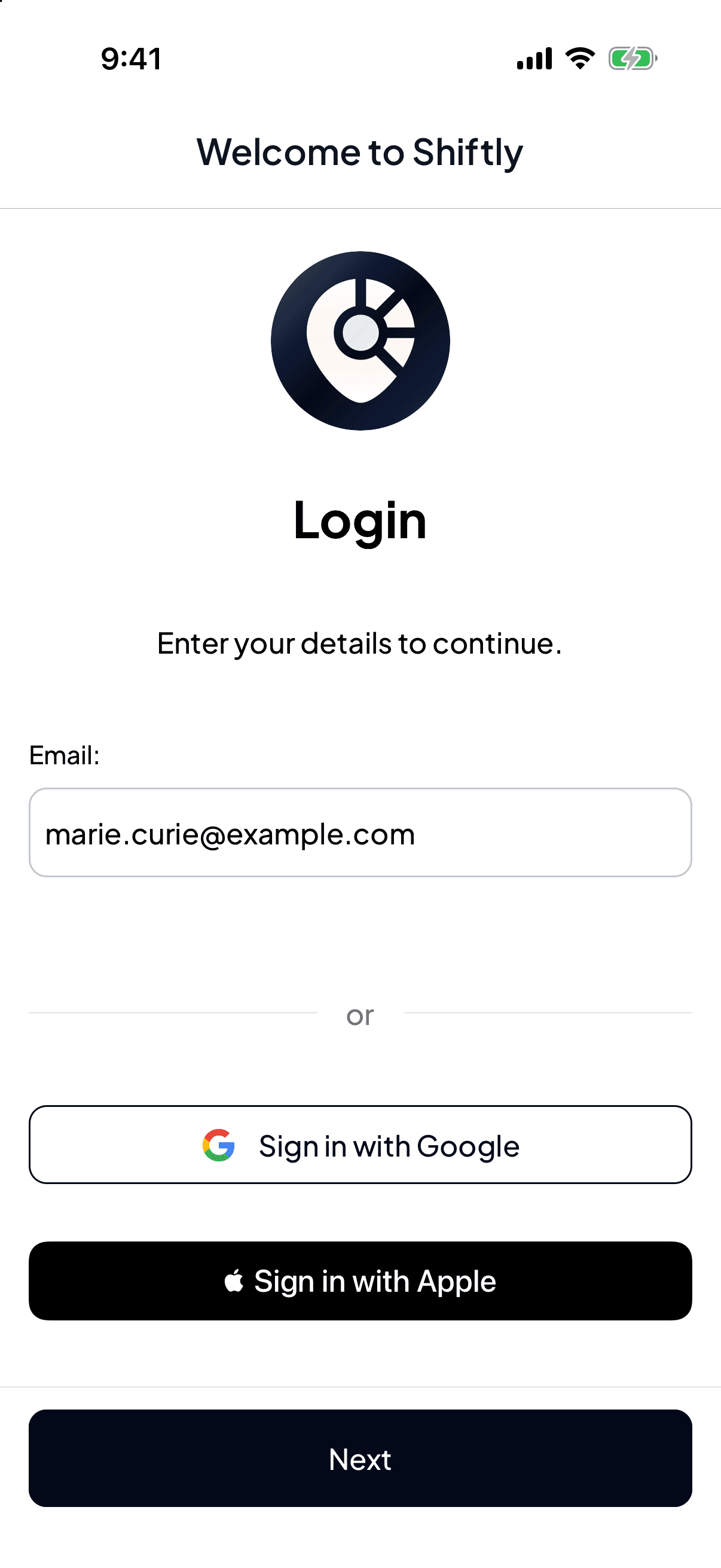
Enter your email
Open the app, type your email address and tap Next.
On an iPhone you may also see buttons to sign in with Apple or Google. Use them only if that account uses the same email address your manager has for you.
Choose how to sign in
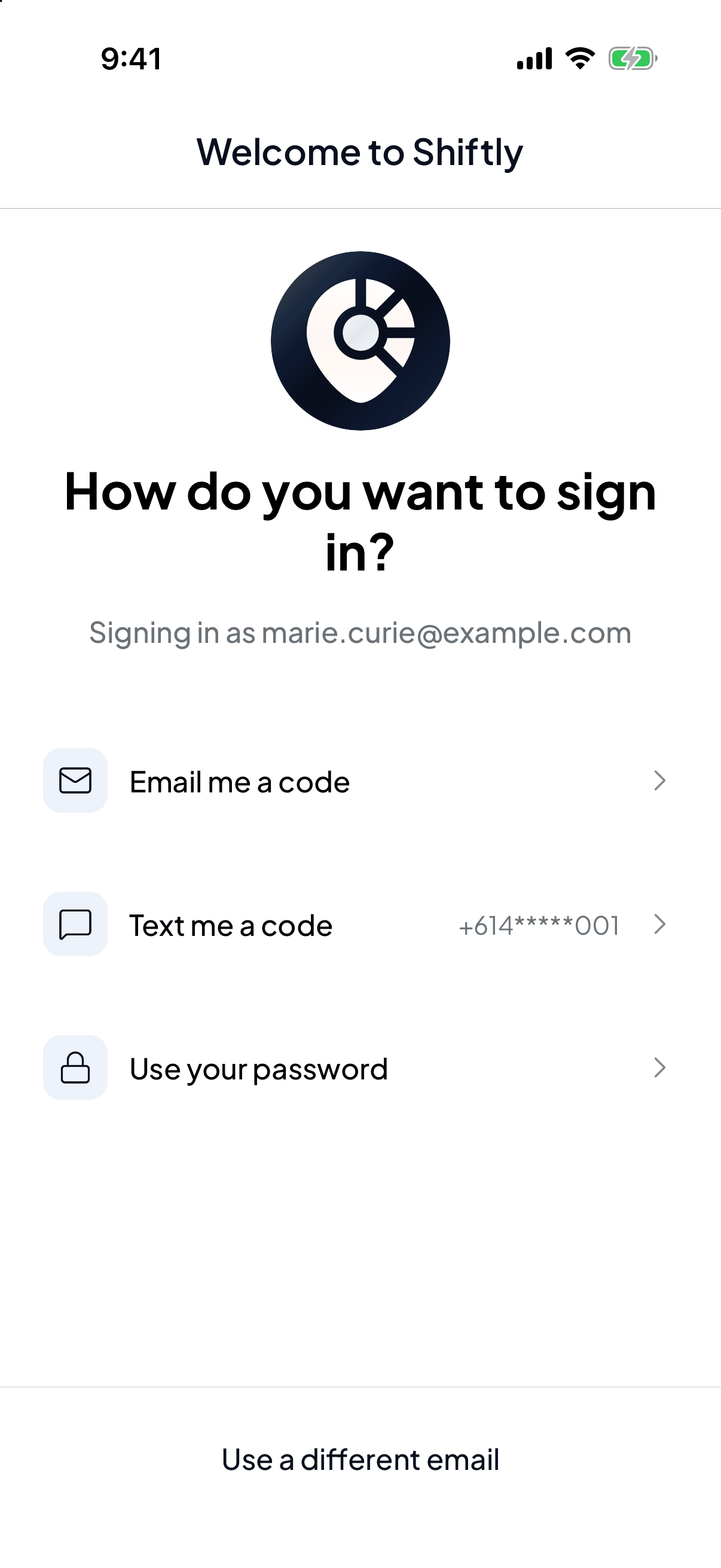
Next, Shiftly Me asks How do you want to sign in?
- Email me a code sends a code to your email address.
- Text me a code sends the code to your mobile instead. It only appears if there's an Australian mobile number on your account, and it shows that number with most digits hidden so you can check it's yours.
- Use your password appears once you've set a password (see Update your details).
Wrong address? Tap Use a different email.
If there's no Australian mobile number on your account and you haven't set a password, this screen is skipped and Shiftly Me emails you a code straight away.
Enter the code
Type the 4-digit code into the boxes. You're signed in as soon as the last digit goes in.
The screen says Check your email or, for a text, Check your messages. Nothing arrived? Look in your spam folder, or tap resend.
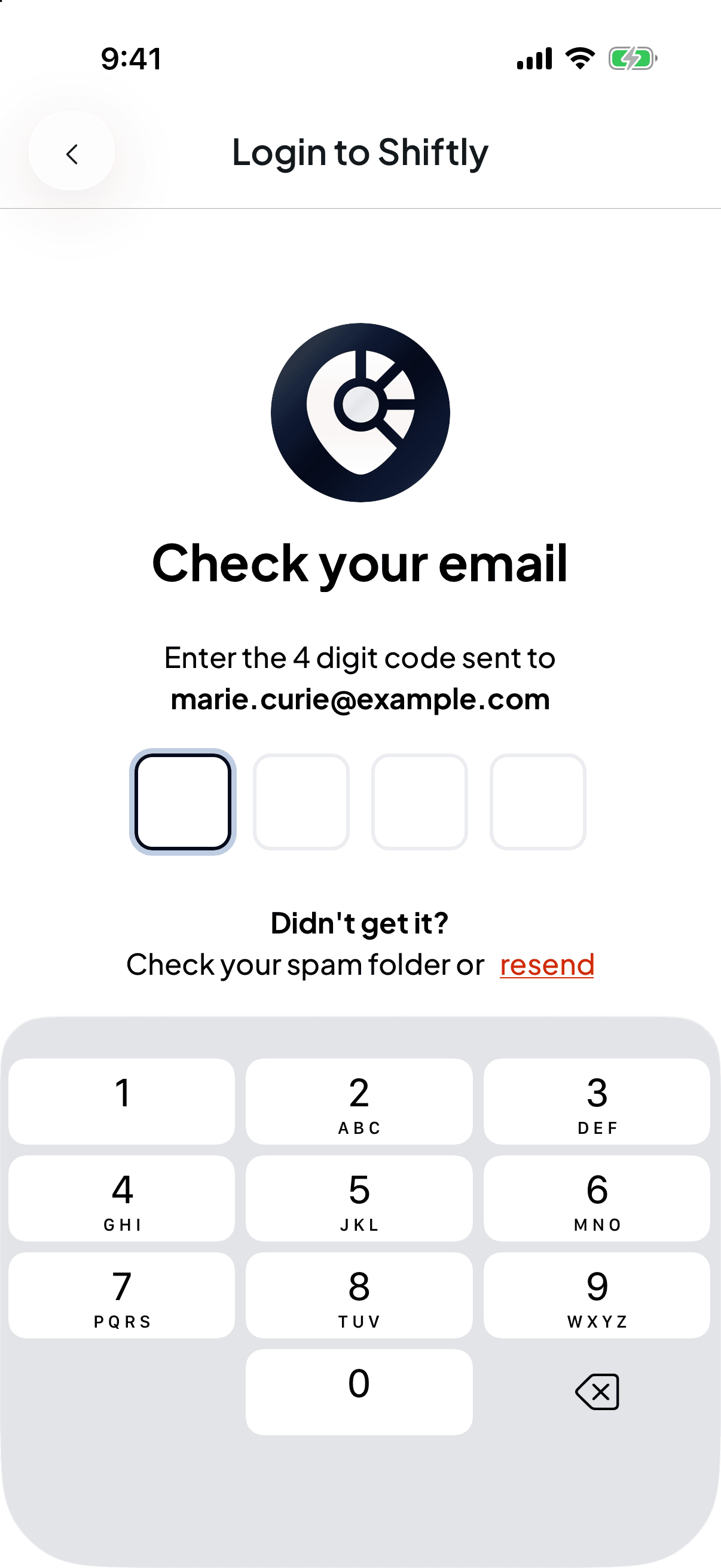
A code works for 24 hours, and only once. After five wrong tries it stops working and you'll see Too many incorrect attempts. Please request a new code. Wait a minute, then tap resend and use the new code.
Signing in with a password
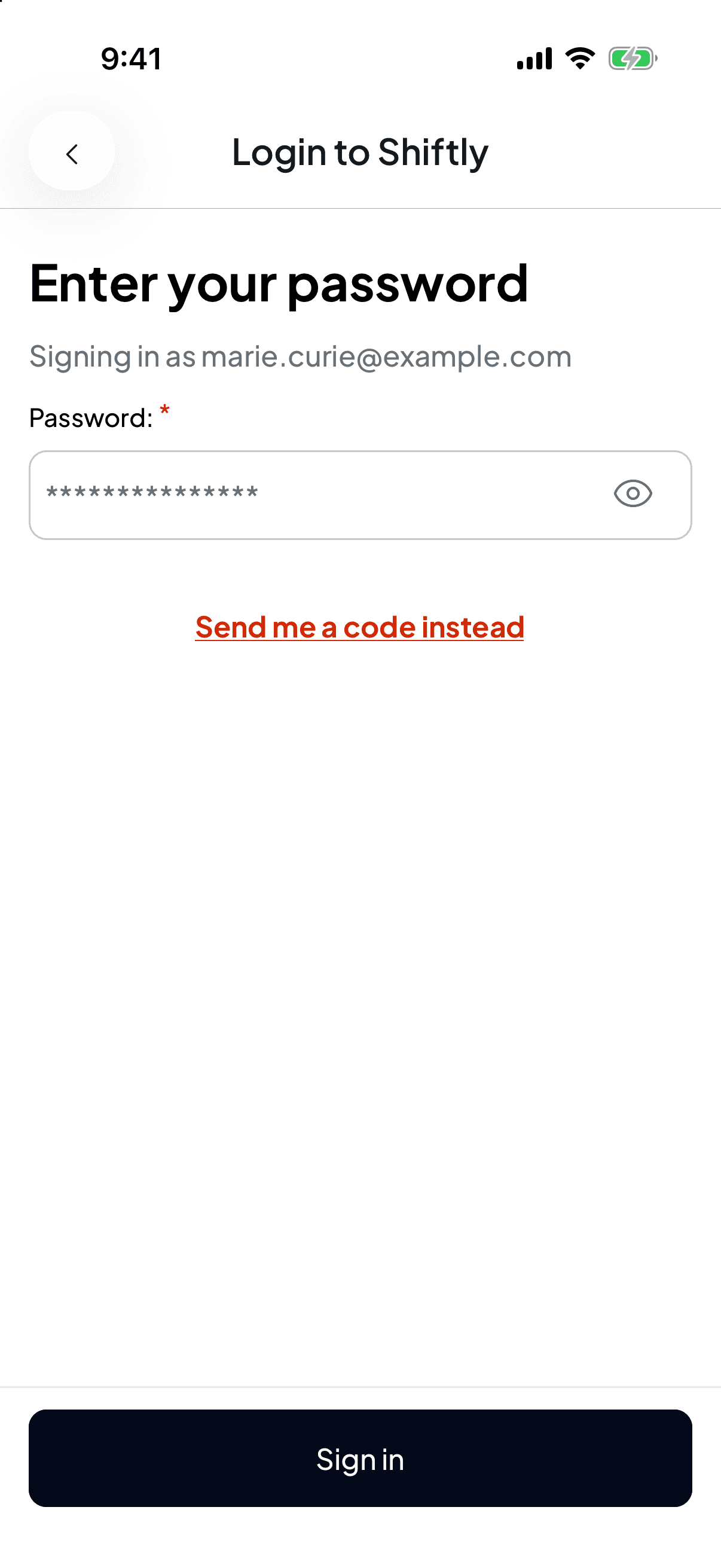
If you chose Use your password, type it and tap Sign in. Forgotten it? Tap Send me a code instead to go back and pick a code.
If you can't get in
- Your account doesn't have access to Shiftly Me. Ask your employer to add you to the team. means the email address is known to Shiftly but isn't set up as a staff member. Ask your manager to add you.
- We couldn't find an account associated with this email address. means there's no Shiftly account for that address. Check it for typos, then ask your manager which email they used for you.
What to do first
Once you're in, a few things are worth sorting out straight away.
Set your PIN, if your venue has a kiosk
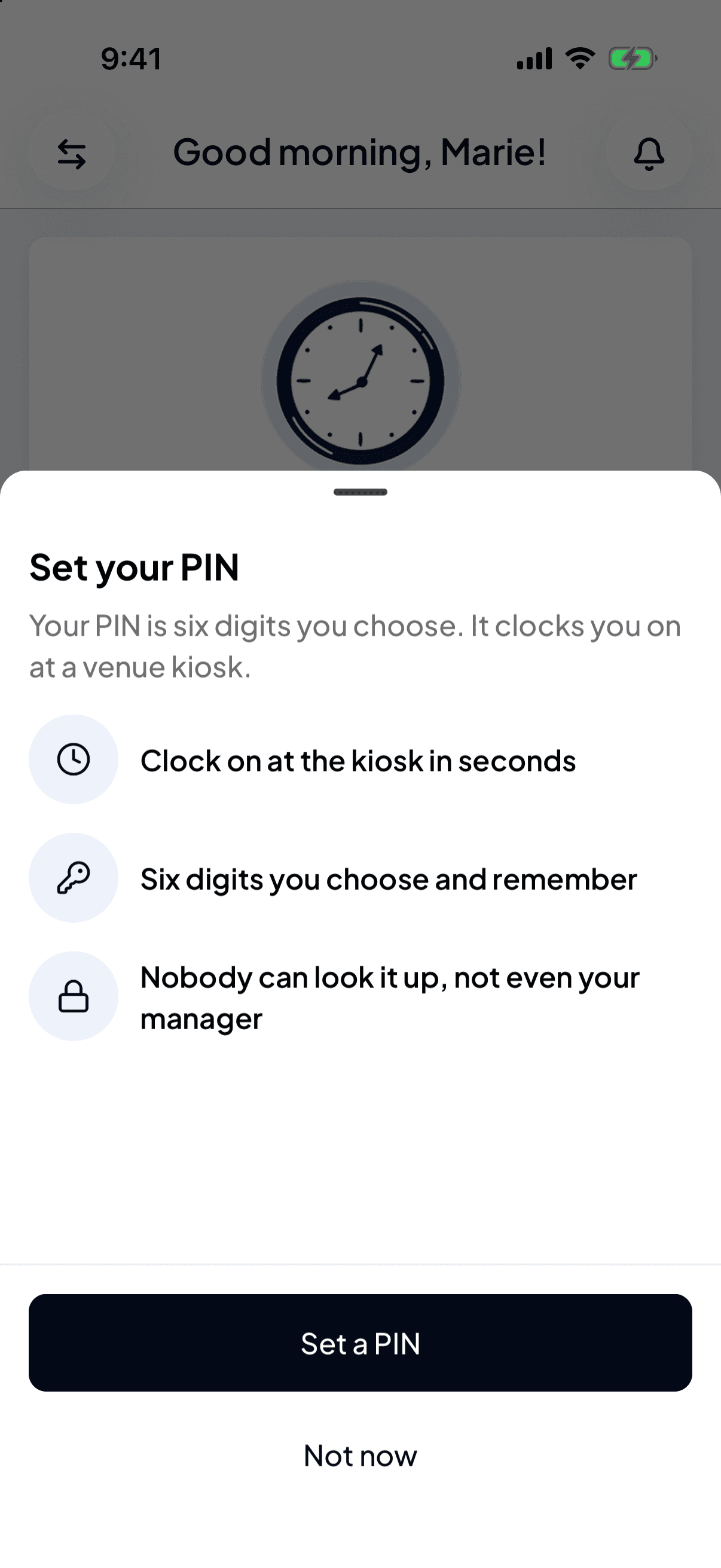
If you haven't set one yet, Shiftly Me may ask you to Set your PIN. Your PIN is six digits you choose, and it's what you type to clock on at a venue kiosk. Tap Set a PIN to do it now, or Not now to skip. You can set or change it later under Account → Access.
Check your details
Your bank, tax and super details are what your pay depends on. See Update your details.
If you have no password, Shiftly Me may also suggest setting one when you open Account. A password lets you sign in without waiting for a code, and you can still use a code any time. It may also ask you to add your mobile number, so it can text you a code when email doesn't get through.
Set your availability
Tell your manager when you can work, so you're rostered to suit. See Tell your manager when you can work.
Turn on notifications
When you open Roster, Shiftly Me may ask whether to turn on push notifications for new roster alerts, shift or roster changes and shift reminders. Tap Enable push notifications, or Not now if you'd rather decide later. See Choose what Shiftly tells you about.