
Update your details
Keep your contact, bank, tax and super details current in Shiftly Me, and manage your PIN and password.
Your Account tab is where everything about you lives: the details your employer needs to pay you correctly, how you sign in, and your app settings. Getting bank, tax and super right matters most, because your pay depends on them.
Who this is for
Staff using the Shiftly Me app on their phone.
What's in your account
At the top are your avatar, your name and your email, with Logout underneath.
Your avatar is an illustrated character, not a photo. Tap the pencil on it to Pick an avatar: choose a character, then a hair colour, and tap Set avatar.
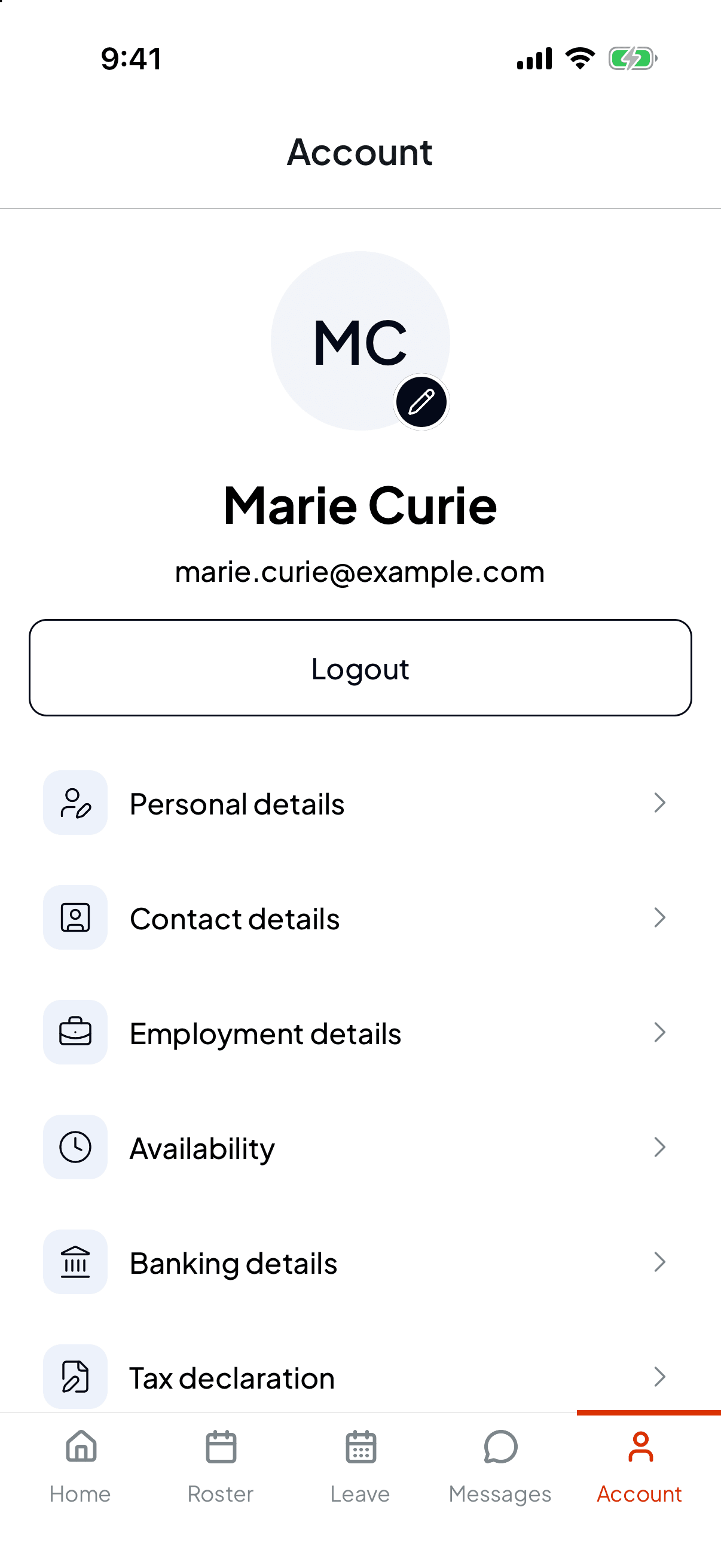
Below that, each row opens a section:
| Section | What's in it |
|---|---|
| Personal details | Title, first name, middle names, last name, date of birth and gender |
| Contact details | Your phone number and address. Your email is shown but can't be changed here |
| Employment details | Read only: your award code, employment basis, award stream, classification level, base hourly rate and start date |
| Availability | The days and times you can work. See Tell your manager when you can work |
| Banking details | The account your pay goes into |
| Tax declaration | Your tax file number and tax settings |
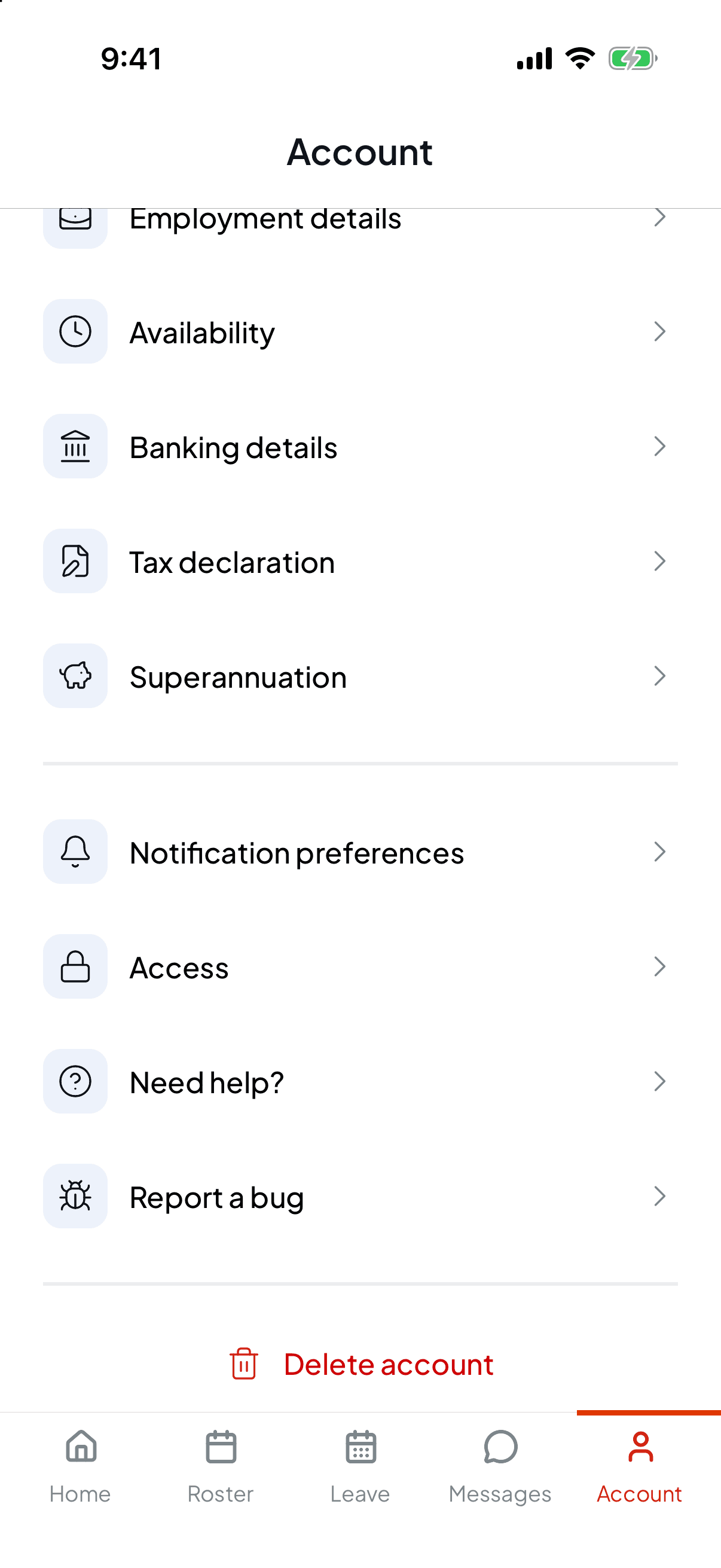
| Superannuation | Your super fund and member number. Can't find your fund? Tap Don't see your super fund? |
Each section you can edit has its own Save button. Nothing changes until you tap it.
Banking details, Tax declaration and Superannuation are the three that affect your pay. If your bank account changes, update it before the next pay run rather than after.
Further down are Notification preferences, Access, Need help? and Report a bug, with Delete account at the very bottom.
Manage how you sign in
Access shows how you get into Shiftly: where your sign-in codes are sent, and whether you've set a PIN and a password.
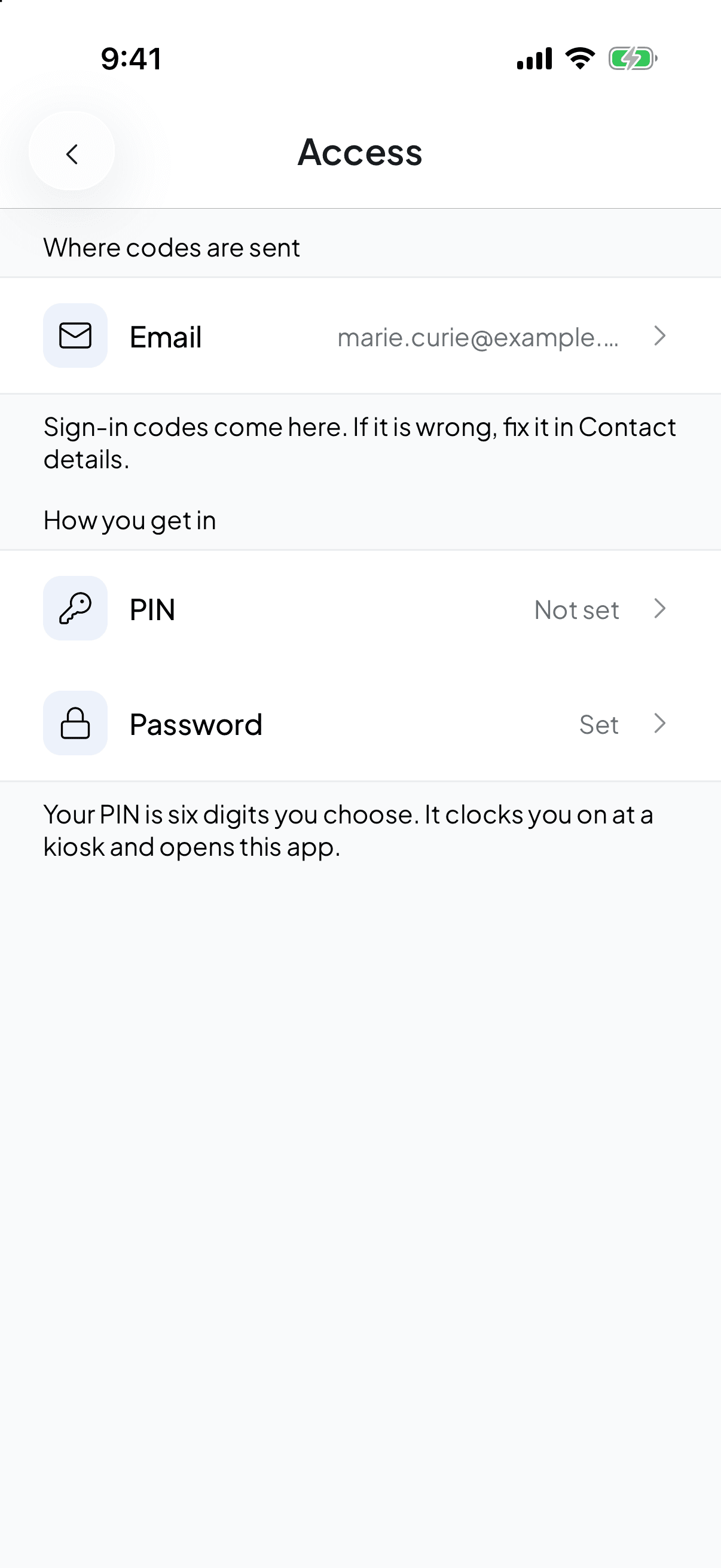
- Email is where your sign-in codes go.
- PIN says Set or Not set. Your PIN is six digits you choose, and it's what you type to clock on at a venue kiosk. Forgotten it at the kiosk? See Forgot your kiosk PIN, or never set one.
- Password says Set or Not set. With a password you can sign in without waiting for a code, and you can still use a code any time.
Set or change your PIN
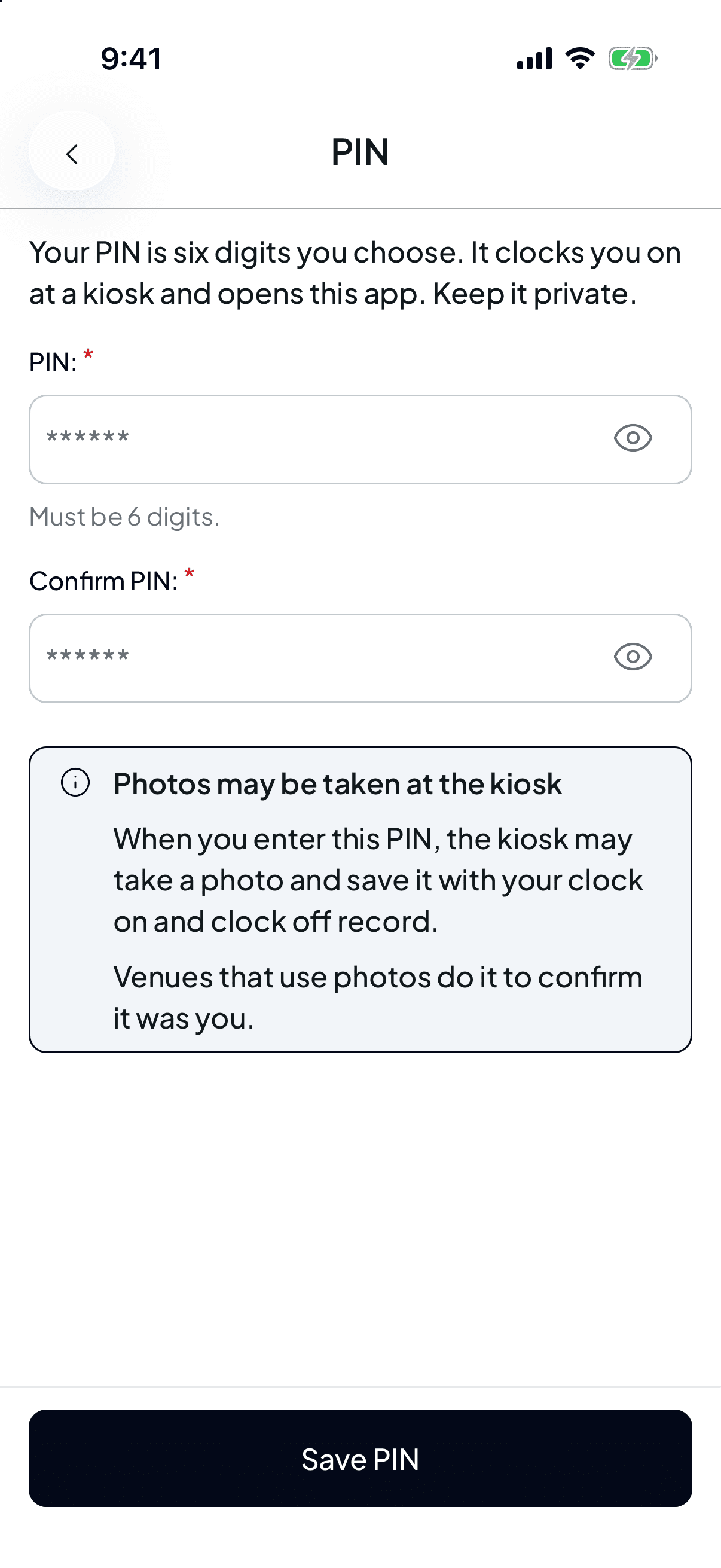
Tap PIN, enter six digits in PIN (or New PIN if you already have one), type them again in Confirm PIN, and tap Save PIN. Shiftly turns down easy-to-guess PINs with Choose a less predictable PIN. Avoid repeated or sequential digits.
The screen also warns that Photos may be taken at the kiosk: some venues save a photo with your clock on and clock off to confirm it was you.
Set or change your password
Tap Password, enter your new password in both fields and tap Save password. It needs at least 8 characters, with upper and lower case letters, a number and a special character.
Getting help
- Need help? opens Shiftly's contact page so you can get in touch with support.
- Report a bug lets you tell Shiftly when something isn't working.
Logging out and deleting your account
Logout sits under your email at the top. Shiftly Me asks you to confirm before it signs you out.
Delete account is at the very bottom, in red. It asks Delete your account? and explains that your personal details are removed but your timesheets stay with your employer. This can't be undone. If you're just finishing up at a job, you don't need to delete anything.