
Forgot your kiosk PIN, or never set one
Can't sign in at the venue kiosk? Get a temporary PIN by text or email, set your own, and get past a locked keypad.
You sign in at the Shiftly Kiosk with a 6-digit PIN. If you've never had one, can't remember it, or the keypad has locked, the kiosk can text or email you a temporary PIN, and you then choose your own. Pick the situation that matches yours.
Who this is for
Staff who clock on at a Shiftly Kiosk tablet at their venue.
You've never set a PIN
Tap your name
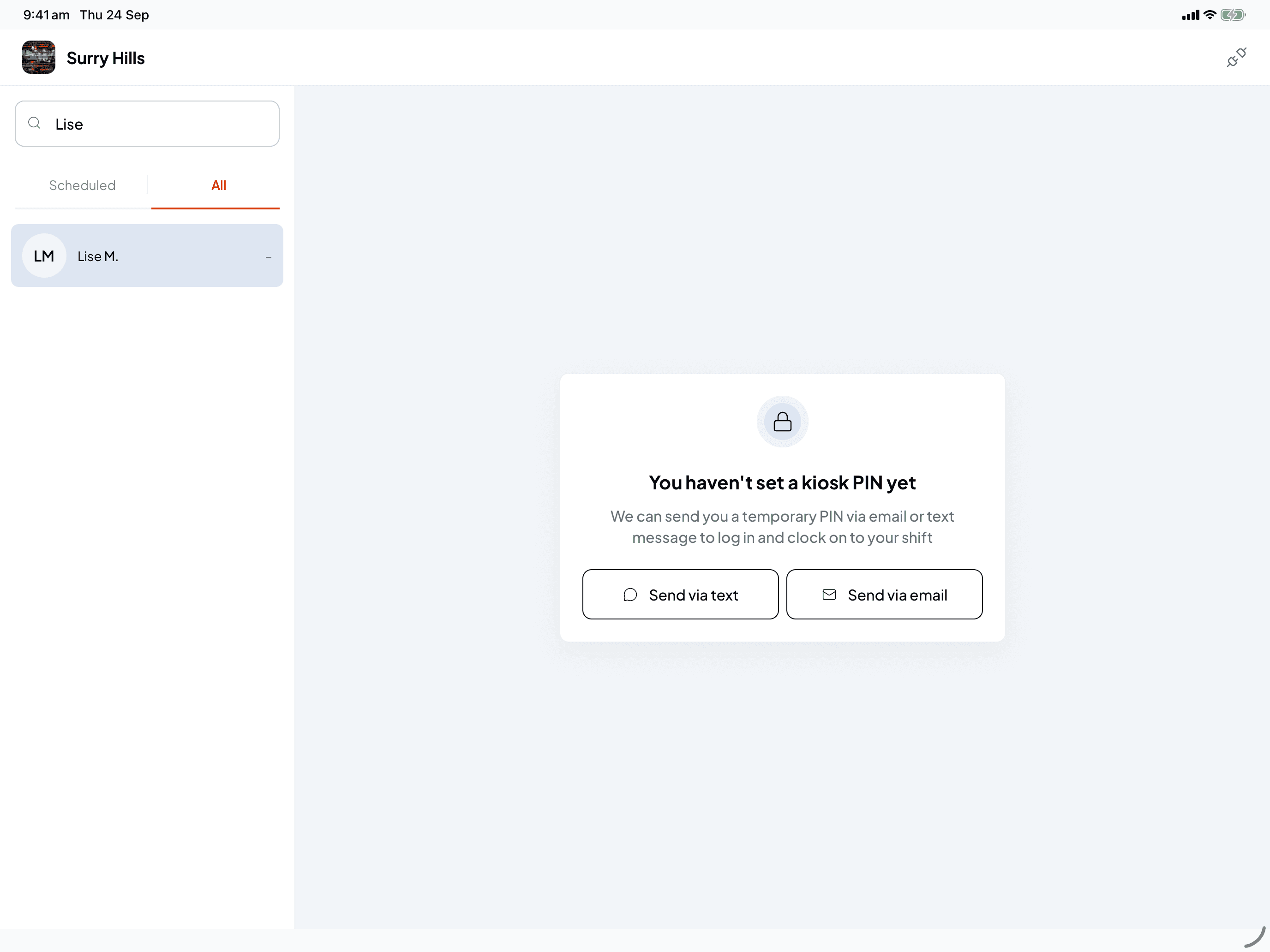
If you don't have a PIN yet, the kiosk says You haven't set a kiosk PIN yet instead of showing the keypad. Choose Send via text or Send via email.
Check your phone or email
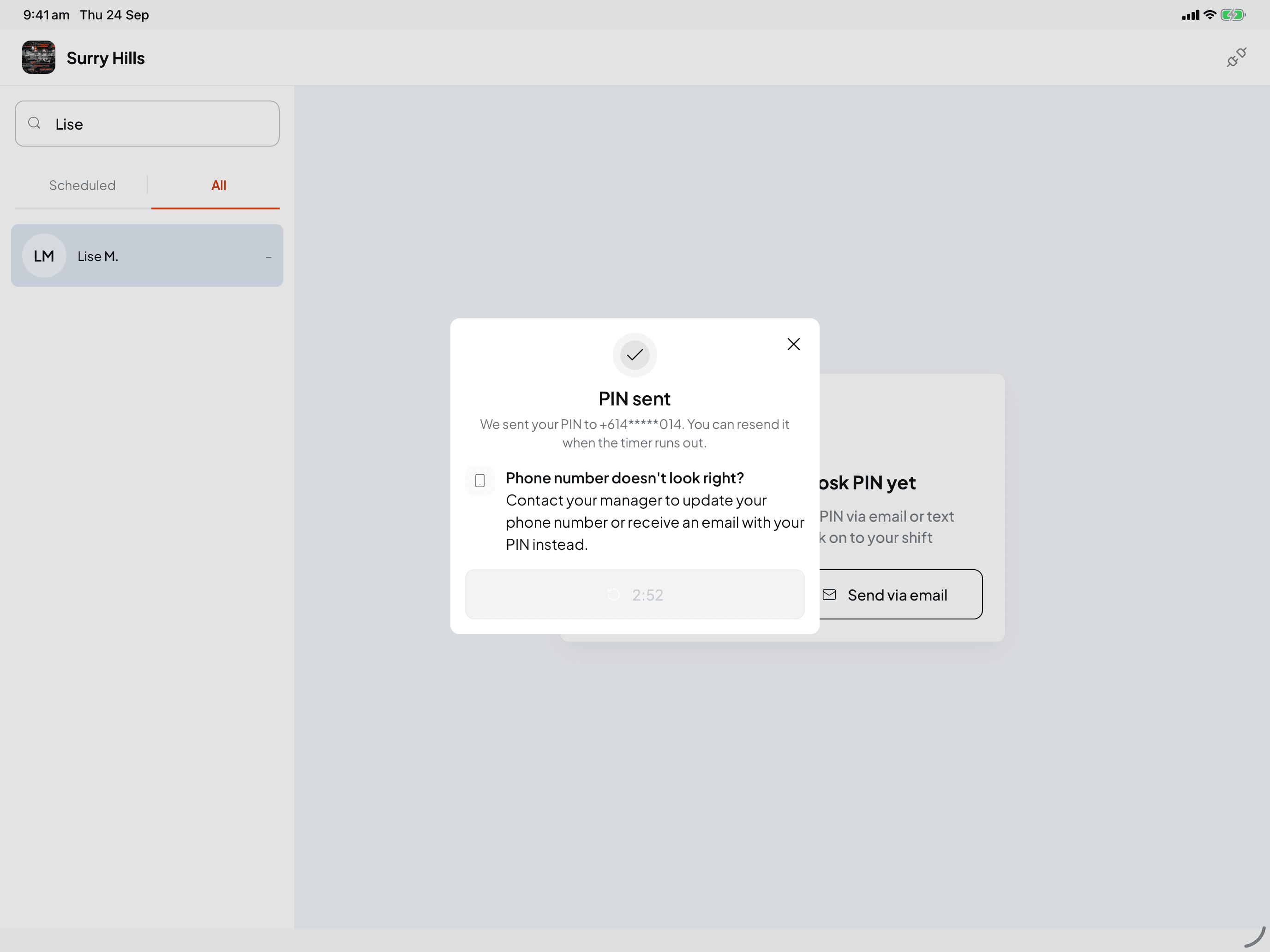
PIN sent shows where it went, partly hidden, for example "+614*****014". Texts only go to Australian mobile numbers. If the number or email looks wrong, ask your manager to update it, or try the other option.
The Resend button counts down and unlocks after about 3 minutes, if you need to ask again. Close the window and the keypad appears.
Sign in and set your own PIN
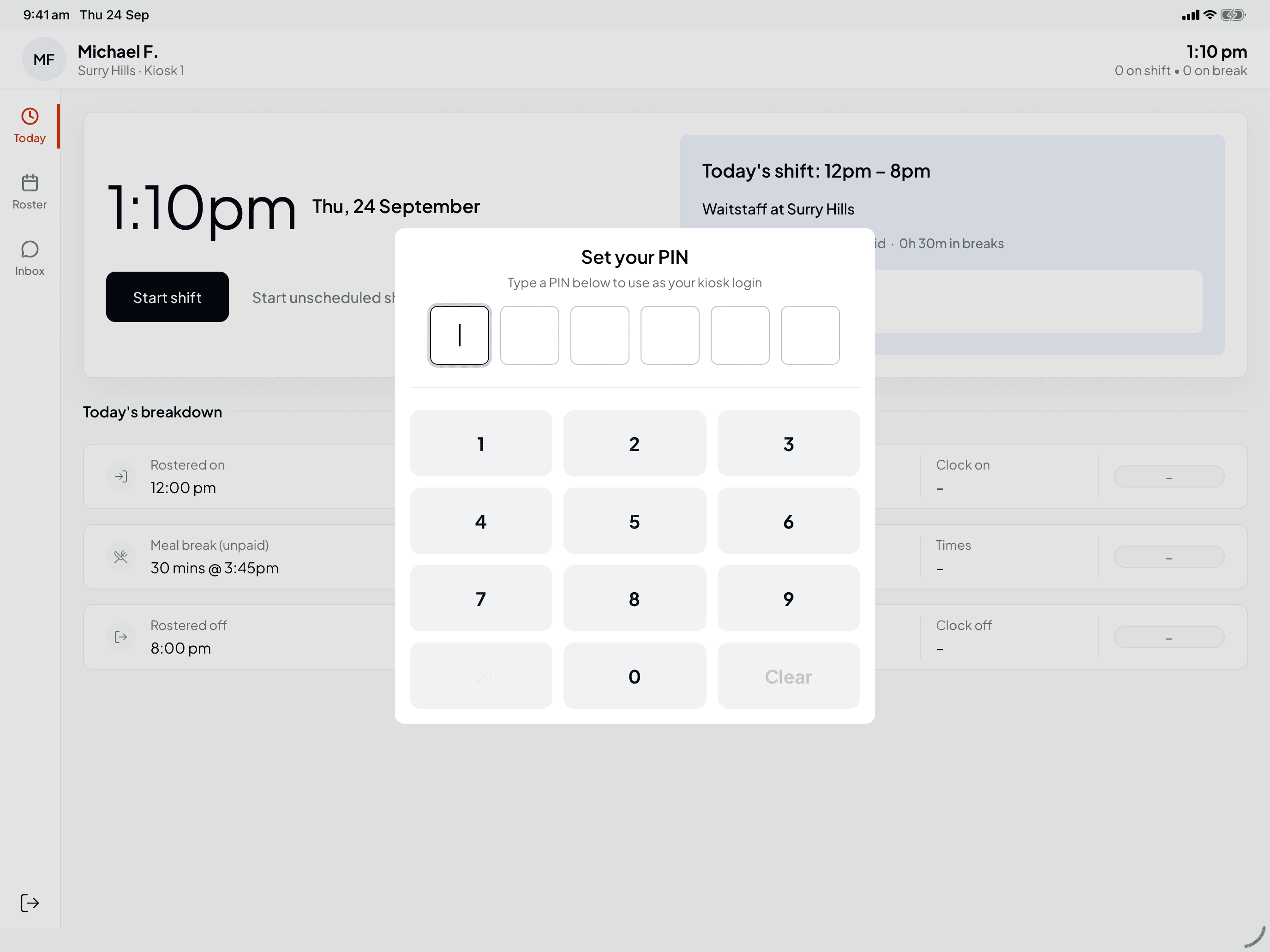
Enter the temporary PIN. The kiosk then asks you to Set your PIN: type six digits you'll remember. See Choose your own PIN below.
You've forgotten your PIN
Tap Don't know your PIN?
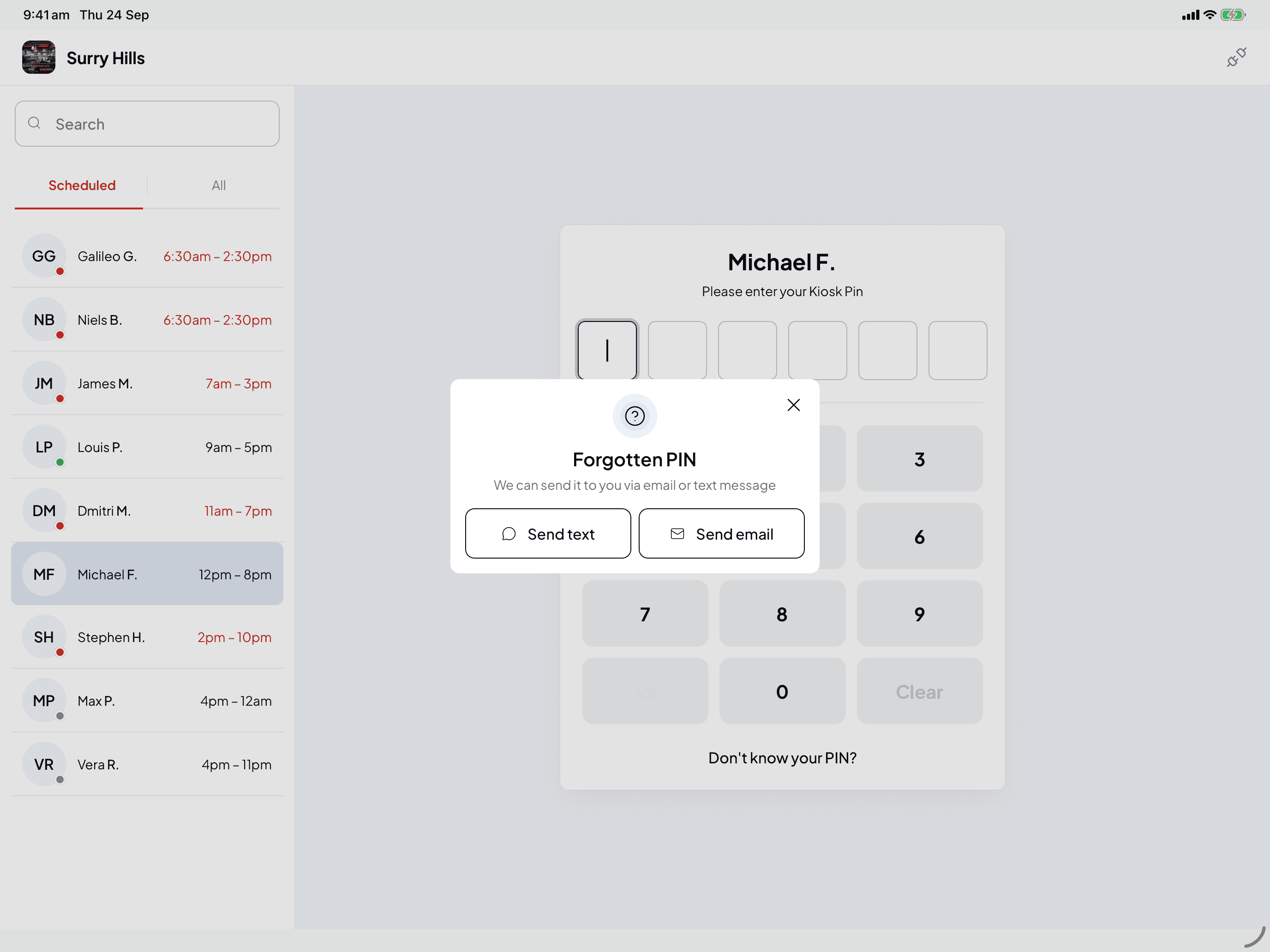
Tap your name, then Don't know your PIN? under the keypad. Forgotten PIN offers Send text or Send email.
Confirm you want a new PIN
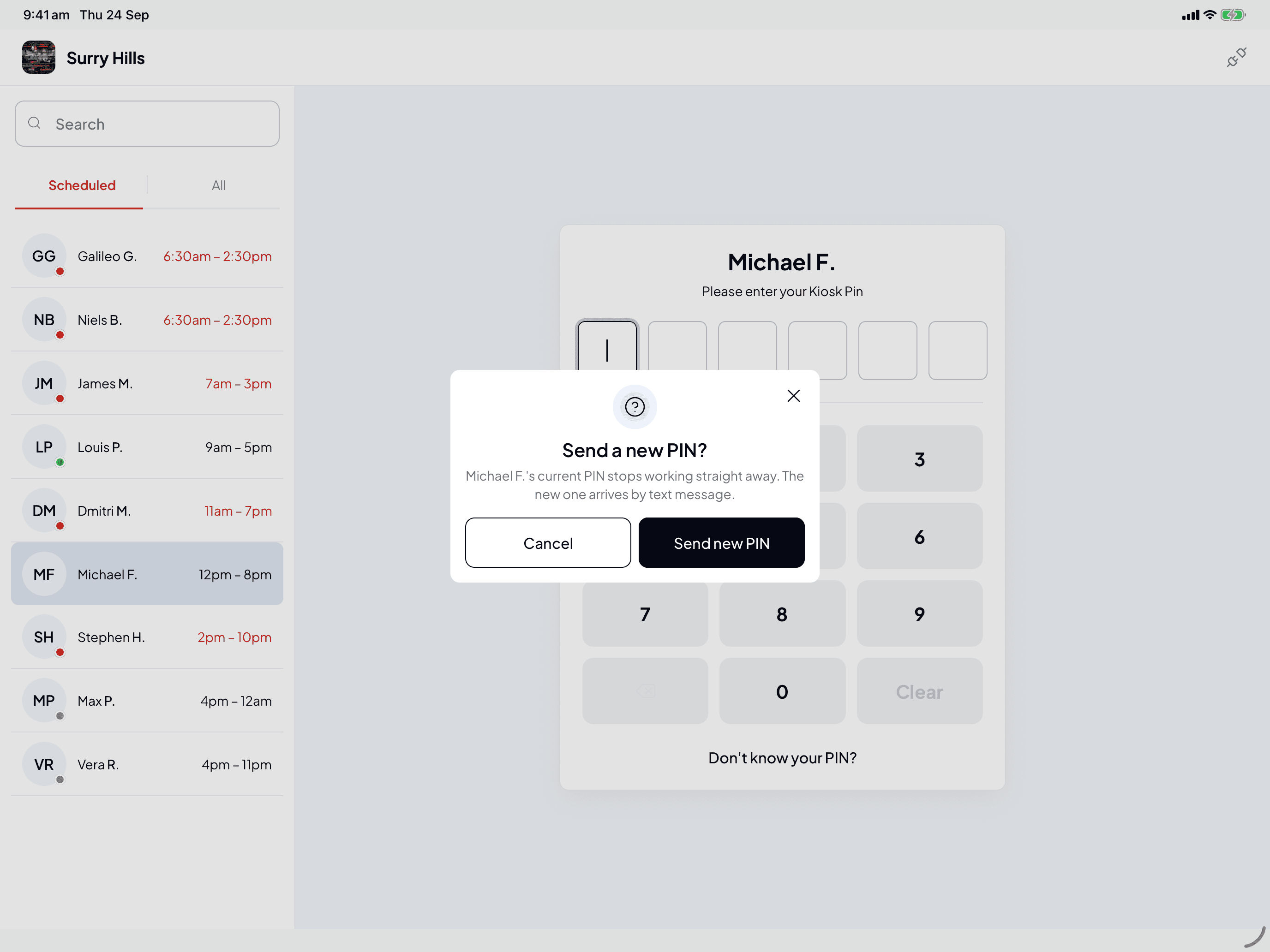
Send a new PIN? reminds you that your current PIN stops working as soon as the new one is sent. Tap Send new PIN, or Cancel if you've remembered it.
Sign in with the new PIN
PIN sent shows where it went. Close the window to get back to the keypad, enter the new PIN, and choose your own when the kiosk asks.
Choose your own PIN
After you sign in with a temporary PIN, or with a PIN your manager set for you, the kiosk asks you to Set your PIN. You can't skip this step.
Type six digits
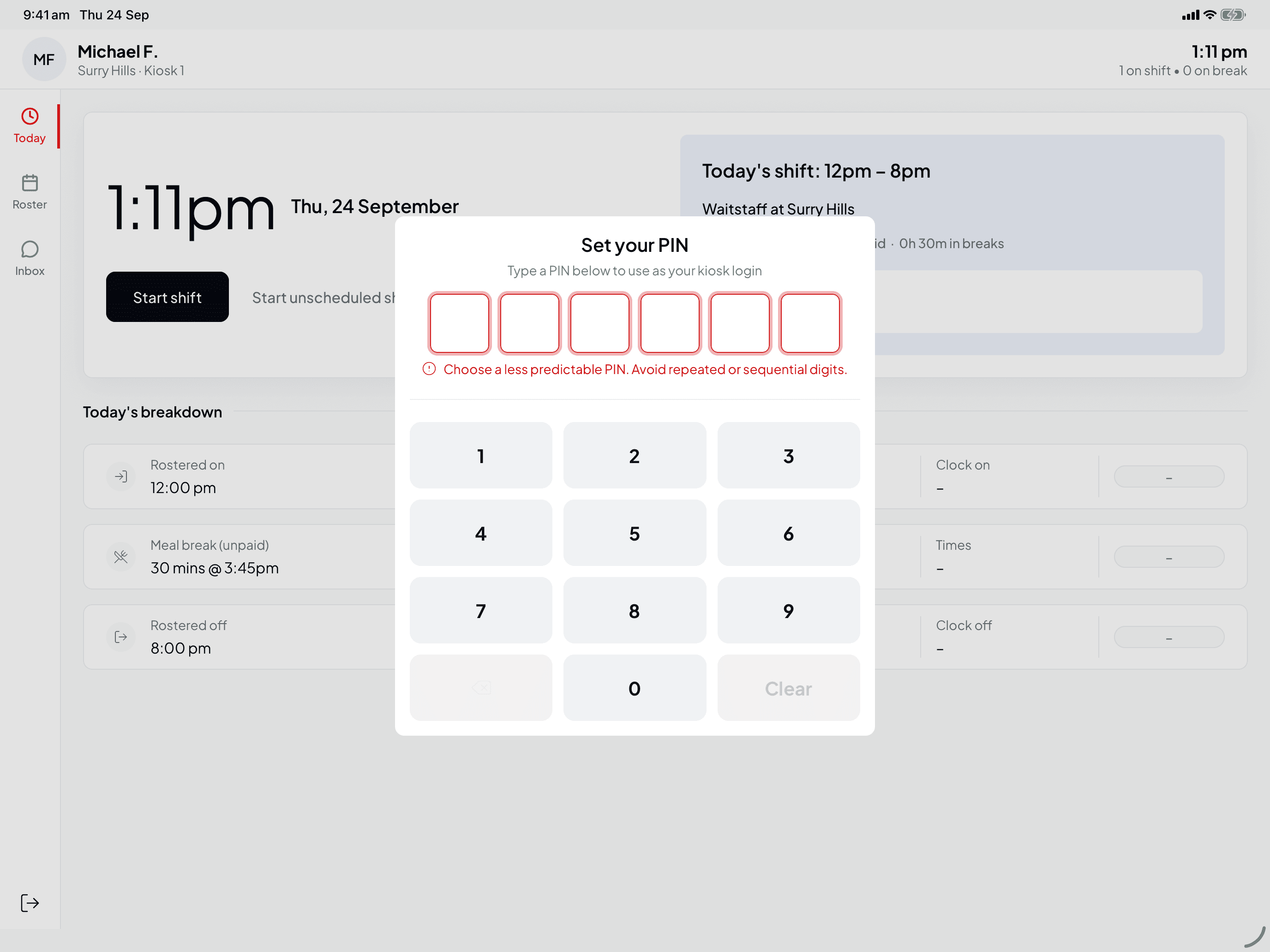
Pick a PIN only you know. It can't be one digit repeated (like 111111) or a straight run up or down (like 123456 or 654321). If it is, you'll see "Choose a less predictable PIN. Avoid repeated or sequential digits."
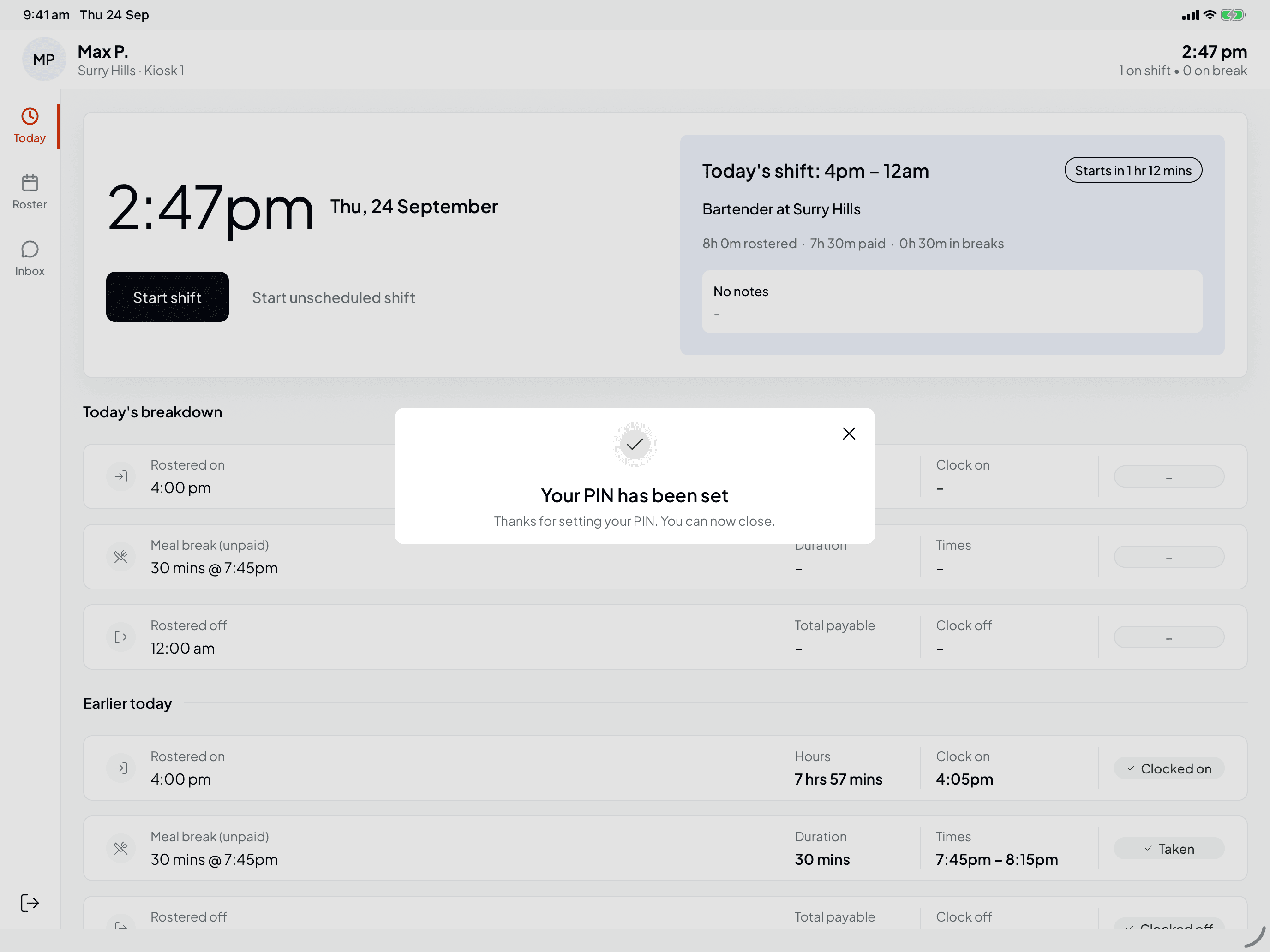
You're done
Your PIN has been set. Close the window and carry on. Use this PIN every time you sign in at the kiosk.
The kiosk says your PIN is wrong, or the keypad is locked
If you mistype, you'll see Incorrect PIN. Try again. Tap Clear and enter it again.
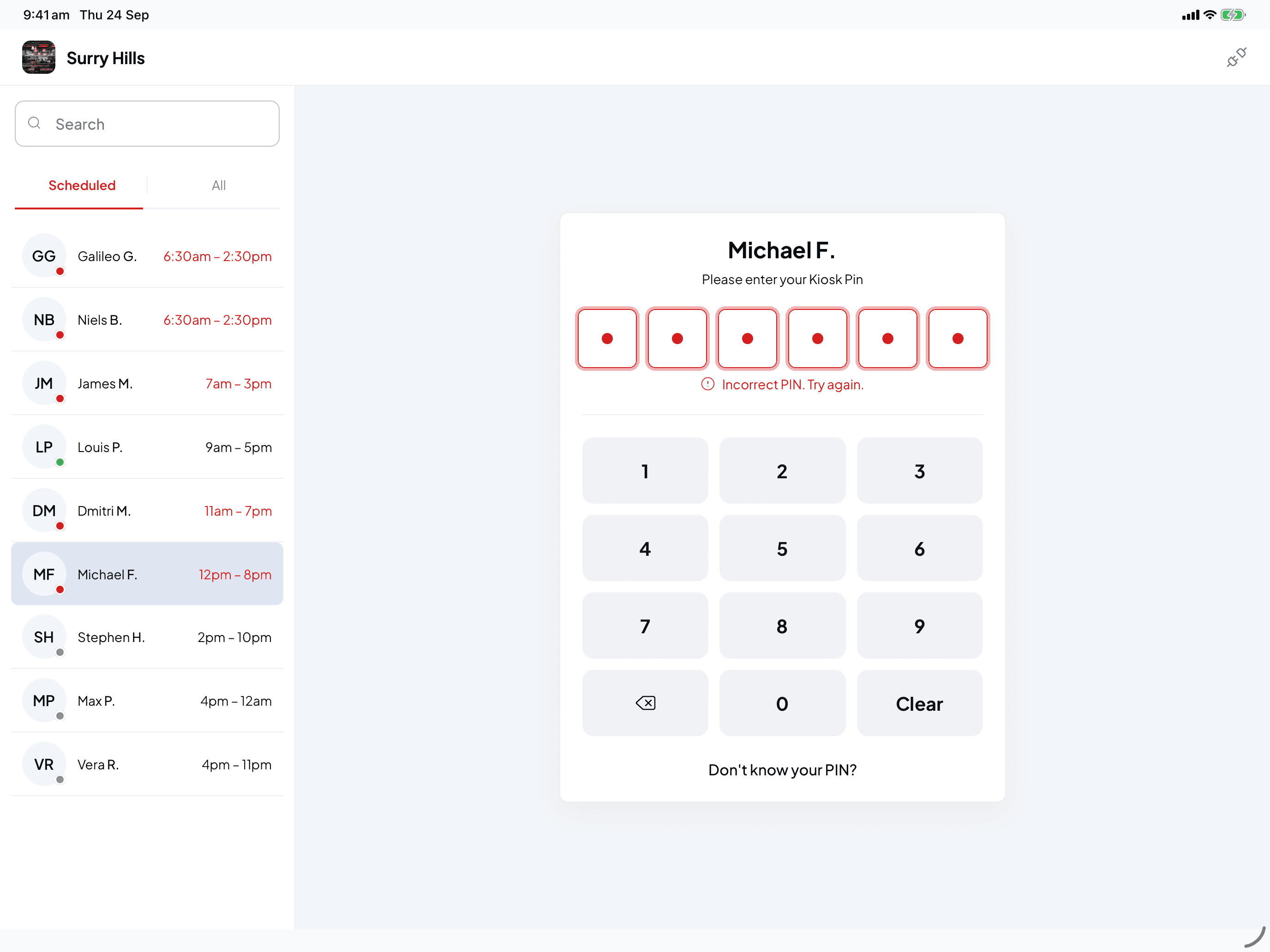
After five wrong tries in a row, your PIN is locked for 30 seconds. Try again during that time and the keypad shows Too many incorrect attempts with a countdown. Your PIN still works: wait for the countdown to finish and the keypad unlocks by itself. Every further wrong try locks it again, and from the fifteenth it locks for 5 minutes. Getting it right resets the count.
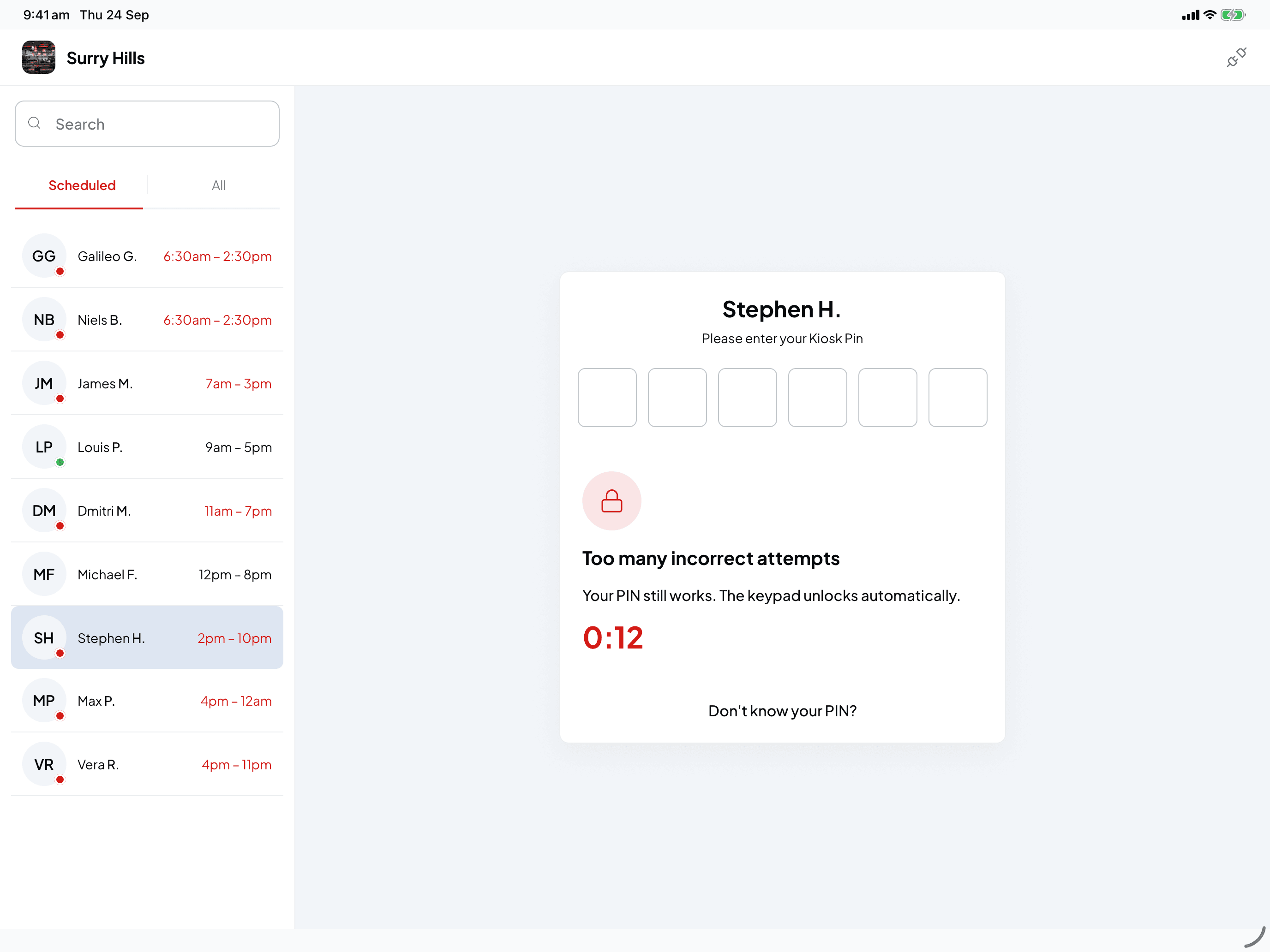
If you really can't remember it, use Don't know your PIN? instead of guessing.
Other messages you might see
| Message | What to do |
|---|---|
| "We've just sent your PIN. Give it a couple of minutes before asking for another." | You can ask for a PIN once every 3 minutes. Check your messages, then try again. |
| "This kiosk has sent too many PINs for now. Try again later, or see your manager." | Each kiosk can send up to 10 PINs an hour. Try later, or ask your manager to set a PIN for you. |
| "We don't have a mobile number for you. Try email instead, or see your manager." | Shiftly has no Australian mobile number for you. Choose email, or ask your manager to add your number. |
| "We don't have an email address for you. Try a text message, or see your manager." | Choose text, or ask your manager to add your email. |
| "You can't use a kiosk PIN yet. Finish setting up your account, or see your manager." | You haven't finished setting up your Shiftly account. Accept your invite and log in to Shiftly Me first. See Get set up on Shiftly Me. |
| "Network request failed. Please check your connection" | The tablet can't reach Shiftly. Tell your manager, and try again once it's back online. |
If a text or email doesn't arrive, try the other option or ask your manager.
Other ways to set your PIN
- In Shiftly Me: go to Account, then Access, then PIN. See Update your details.
- Ask your manager. They can set a PIN for you on the Shiftly web platform. The first time you use it, the kiosk asks you to choose your own.
Related
Check your roster and messages at the kiosk
While you're signed in at the Shiftly Kiosk, see your shifts, hours and approved leave on the Roster tab, and read and reply to messages in the Inbox.
Tell your manager when you can work
Add rules for the times you can't work, or the only times you can, for one date or on repeat, and see them on your roster.