
Message your manager and workmates
Read and reply to messages from your phone, and start a conversation with someone at work.
Messages keeps work conversations in one place, so a question about a shift doesn't get lost in your personal texts. Open the Messages tab at the bottom of the app.
Who this is for
Staff using the Shiftly Me app on their phone.
Find a conversation
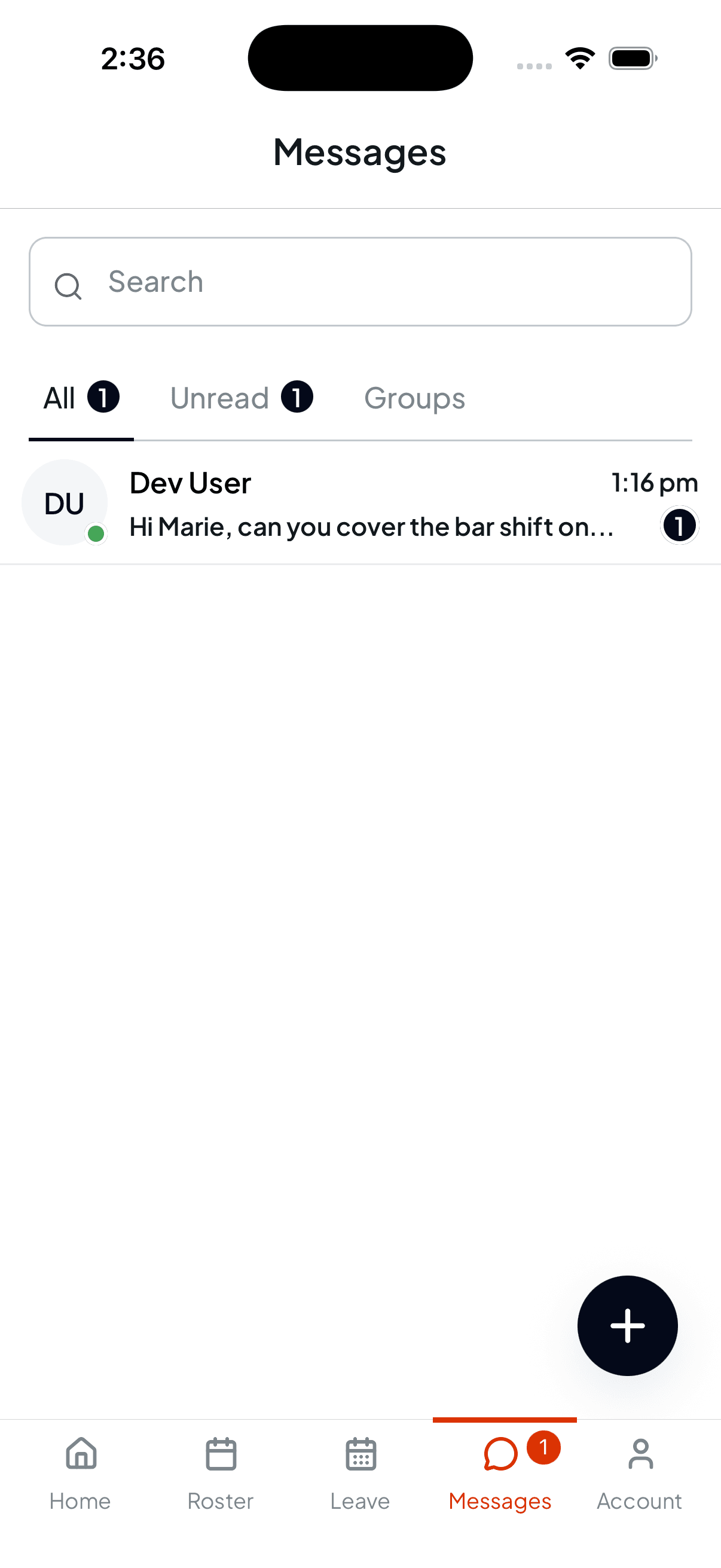
The list shows everyone you're talking to, most recent first, with a preview of the last message and its time. A number badge marks unread messages, on the conversation and on the Messages tab itself, so you can see at a glance whether anything's waiting.
Three filters sit above the list:
- All: every conversation.
- Unread: just the ones you haven't read.
- Groups: group conversations only.
The Search box at the top finds a conversation by name.
Read and reply
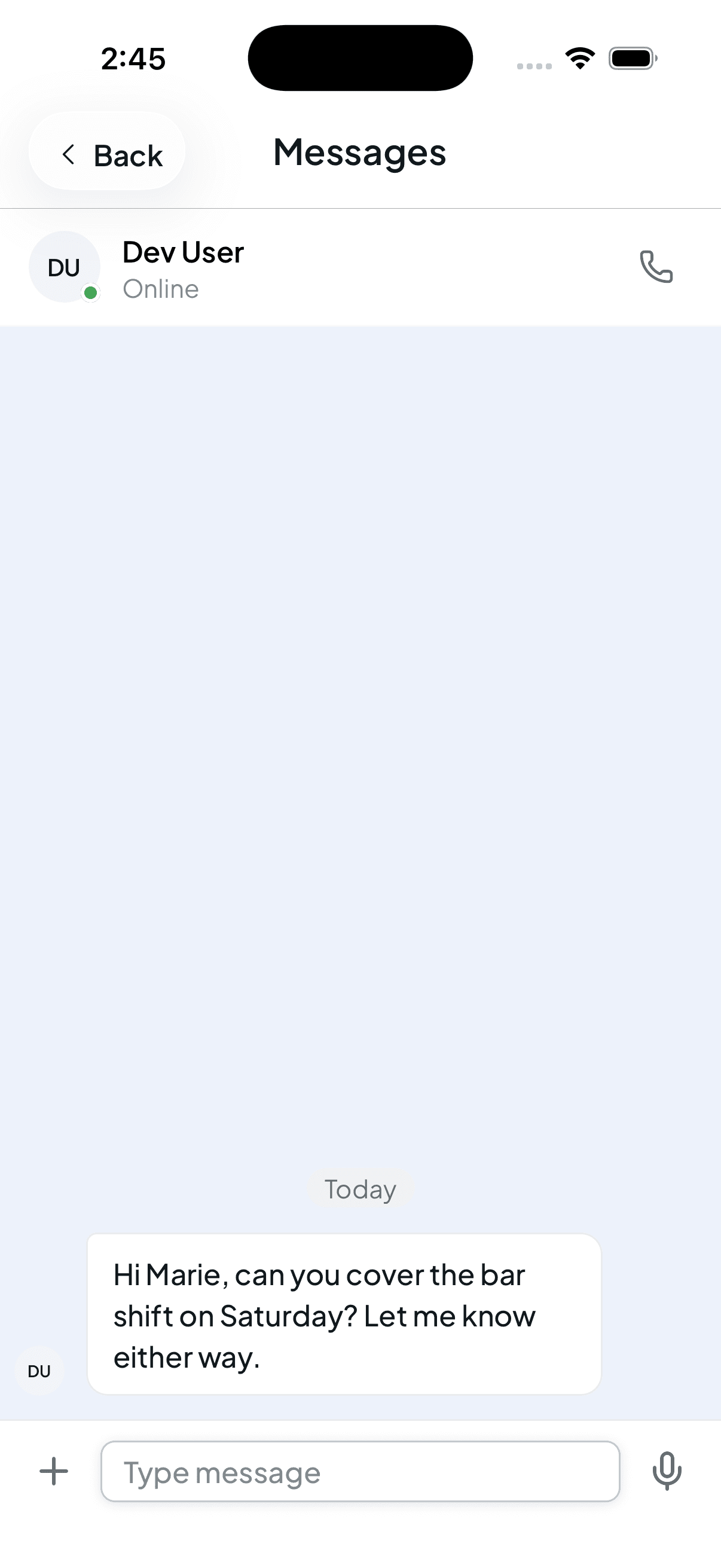
Tap a conversation to open it. Messages from the other person sit on the left; the header shows their name and whether they're Online.
Type in the box at the bottom and send. The + beside it attaches a file, and the microphone records a voice message.
Start a new conversation
Tap the + button in the bottom corner of the Messages list and choose who you want to message.
Your manager can also start a group chat with several of you, or send an announcement to the whole team. Announcements are one-way: you'll see them in your list like any other message.