
Check the hours you've worked
See your recent timesheets in Shiftly Me, what each one paid, and whether your manager has approved it.
Your timesheets are the record of what you actually worked, as opposed to what you were rostered for. They're what your pay is based on, so it's worth a look before each pay run. Find them under Roster → Timesheets, or tap Shift history on Home.
Who this is for
Staff using the Shiftly Me app on their phone.
Read your timesheets
Timesheets shows the last 30 days, grouped by week: This week, Last week, and Week of a date for older ones. Each timesheet shows the day, the times you're paid for, your position and the hours it came to.
The label on the right tells you where it's up to:
- Active: you're still clocked on.
- Pending: you've clocked off and it's waiting for your manager to review it.
- Approved: your manager has signed it off.
- Rejected: your manager didn't approve it. Talk to them about why.
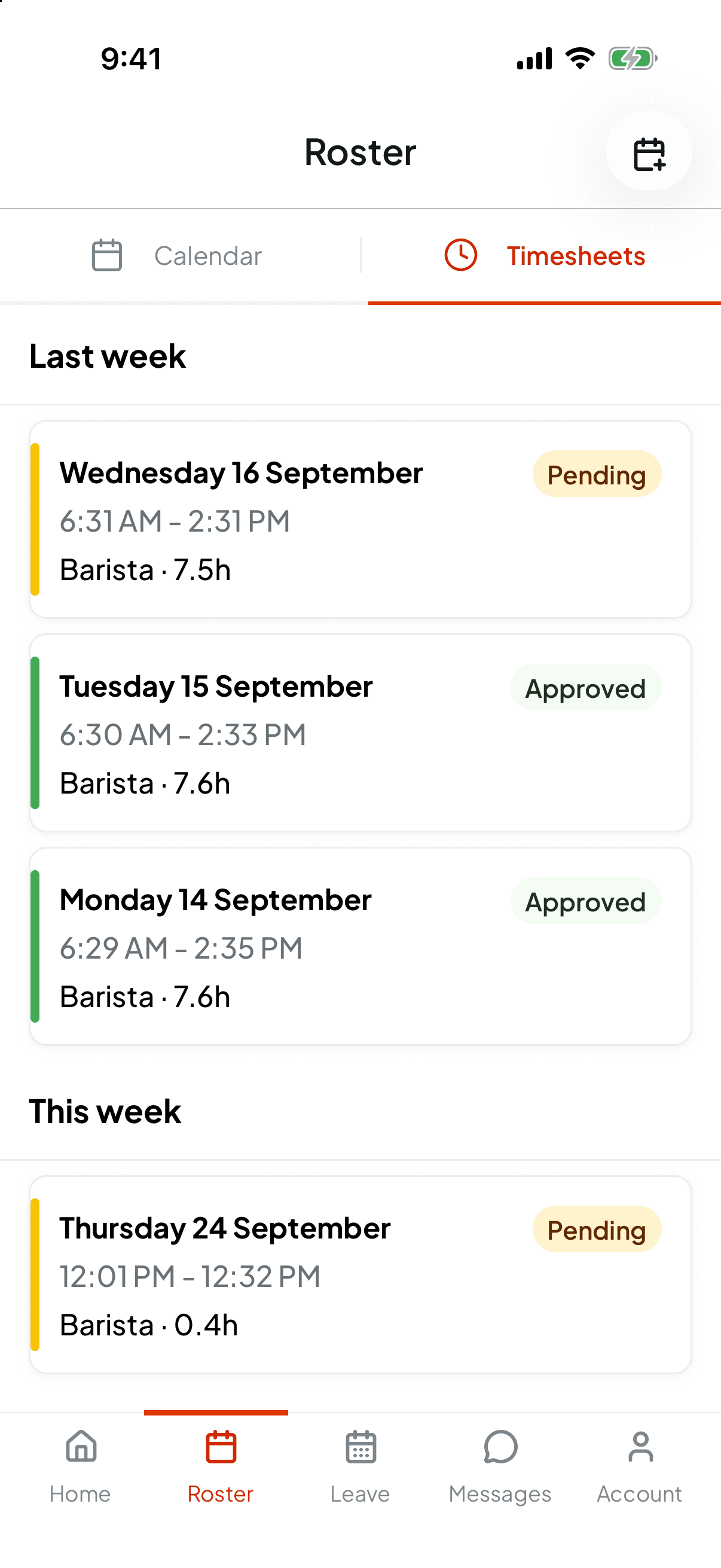
Pull down on the list to refresh it. If you haven't worked any shifts yet, you'll see You haven't worked any shifts yet. If you work at more than one venue and have picked one on Home, only that venue's timesheets show. See Work at more than one venue or business.
When the paid times differ from your clock times
Sometimes the times you're paid for aren't exactly the times you clocked, for example when your manager approves a shift as it was rostered, or corrects a time. Then the card shows Paid with those times, and You clocked with your actual clock times underneath.
See the details
Tap a timesheet to open it. It's read-only: you can check it here, but only your manager can change it. You'll see its status, the Day, your Paid start and Paid finish, each break, and any note you left when you clocked off. If your paid times differ from your clock times, You clocked on and You clocked off show as well. Clock in/out map shows where you clocked on and off, and how far that was from the venue.
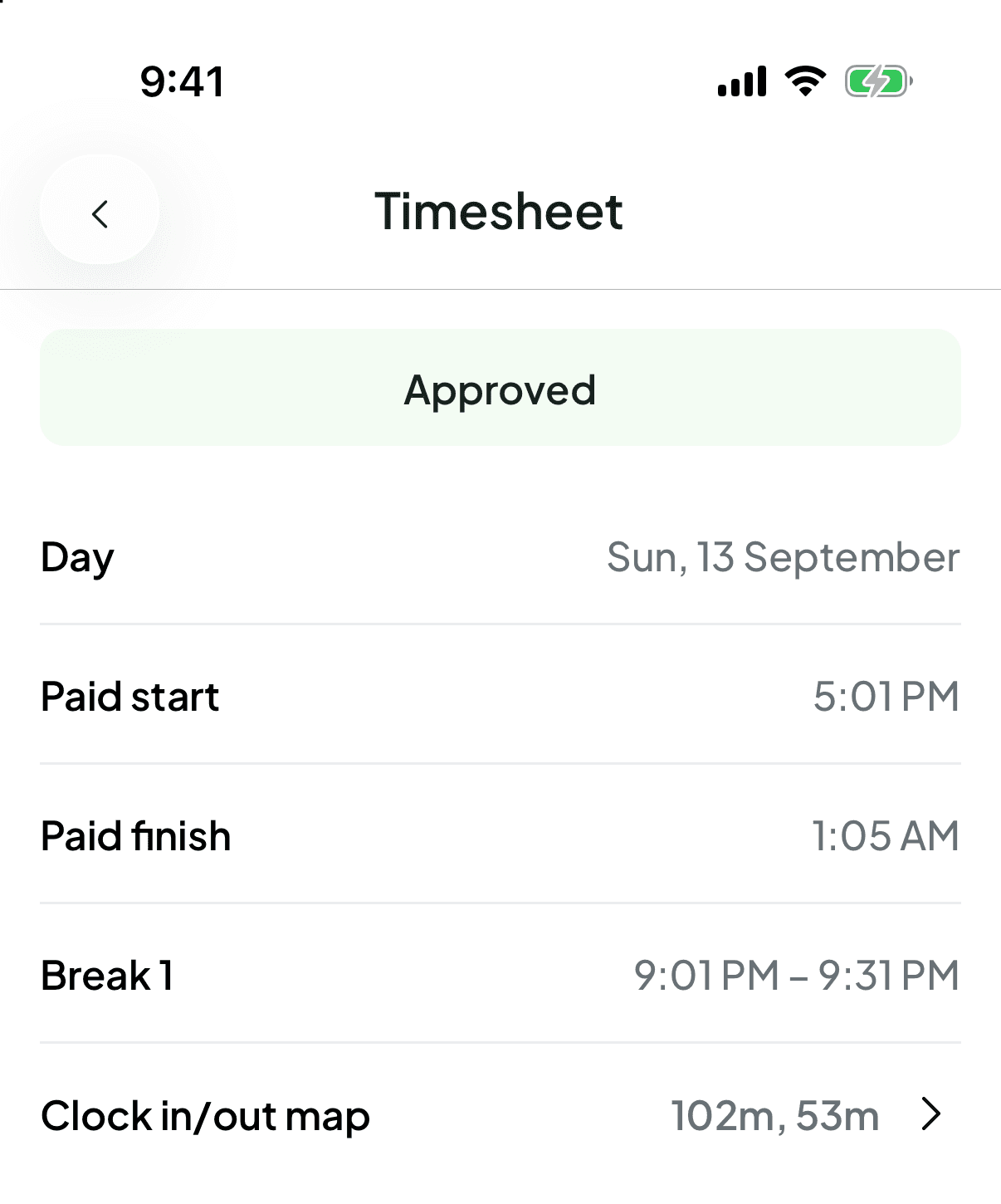
Hours look wrong? The hours are the time you're paid for minus any unpaid breaks, so they can be shorter than the gap between your start and finish. If something still doesn't look right, tell your manager, ideally before it's approved. They can change it.