
See when you're working
Check your upcoming shifts in Shiftly Me, see who you're working with, and open a shift for the full details.
The Roster tab is where you check when you're on. Open it from the bottom of the app.
Who this is for
Staff using the Shiftly Me app on their phone.
Read your week
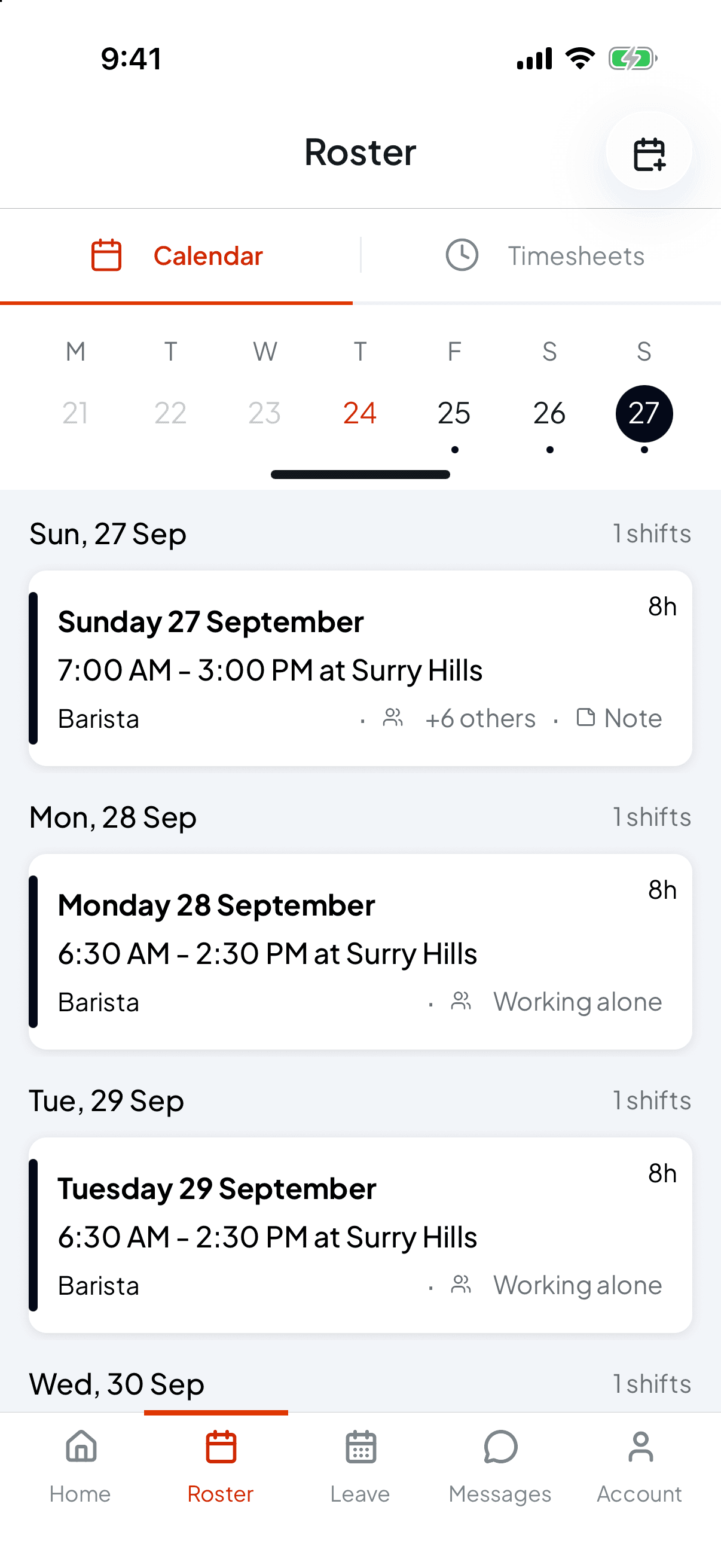
Calendar shows a week at a time. The strip along the top is the days: a dot under a date means you have a shift that day. Tap a date to jump to it. Past days are greyed out, because the calendar only looks forward.
Below the strip, each day lists its shifts with a count beside it.
Each shift card shows:
- the date, the times and the venue
- the length in hours, top right
- your position
- who else is on, if your workplace shows it: Working alone, +1 other or +8 others means that many other people are rostered at that venue that day
- Note, with a note icon, when your manager has left you a note on the shift
If you work at more than one venue, you can show just one of them. See Work at more than one venue or business. While you're showing one venue, a notice at the top says so, for example Showing 1 of 2 locations. Tap Show all to see every venue again.
Days you're unavailable
Your roster also shows the availability you've set. In the list, a day you're unavailable for, all of it or part of it, shows what applies under the date, such as Unavailable all day, Unavailable 9am – 5pm or Available 8am – 11am.
To change it, see Tell your manager when you can work.
Open a shift
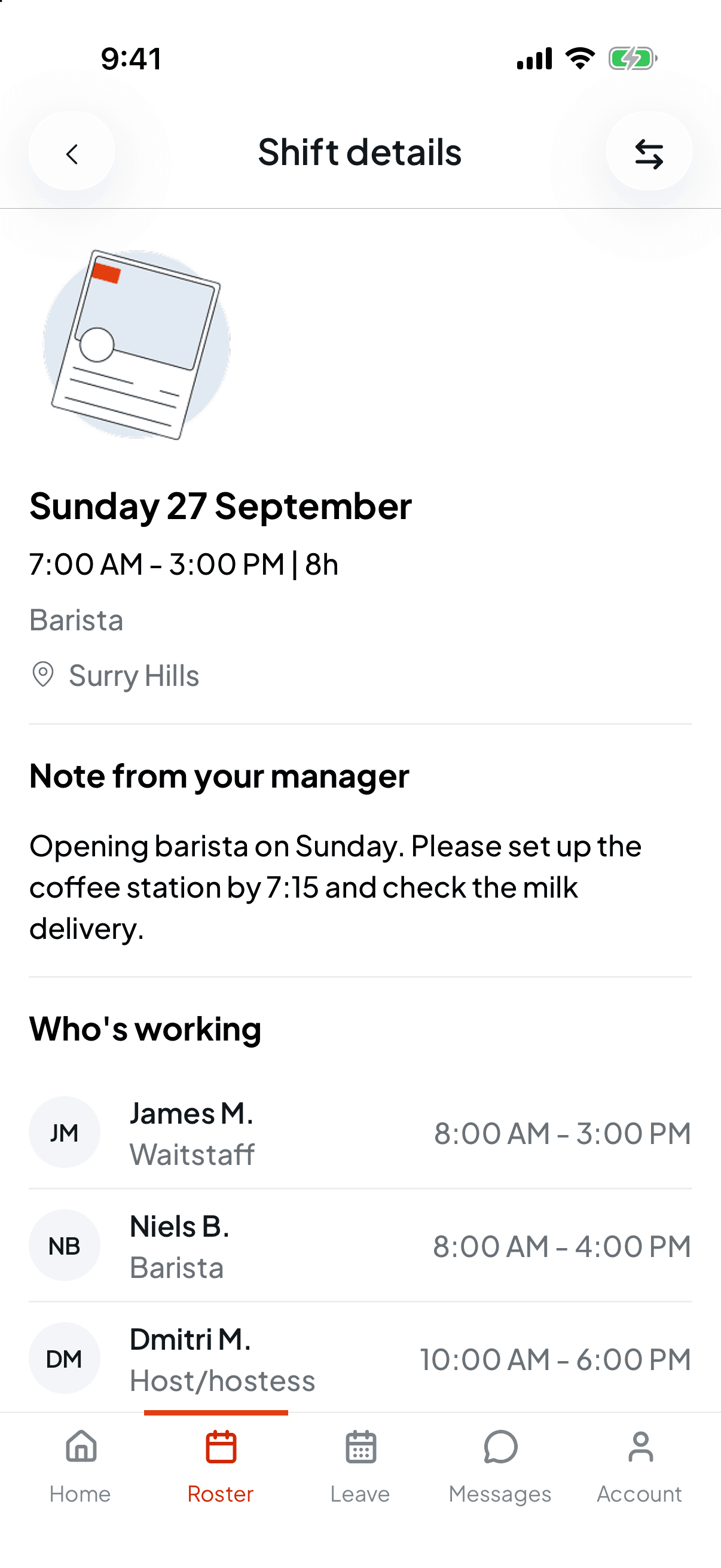
Tap a shift to open Shift details:
- The summary: date, times and length, your position, the venue, and the shift's tag if your workplace uses them.
- Note from your manager, if they've left one and your workplace shares shift notes with staff.
- Who's working: the other people rostered at that venue that day, with their positions and times. If you're the only one, it says No one else is rostered on this day.
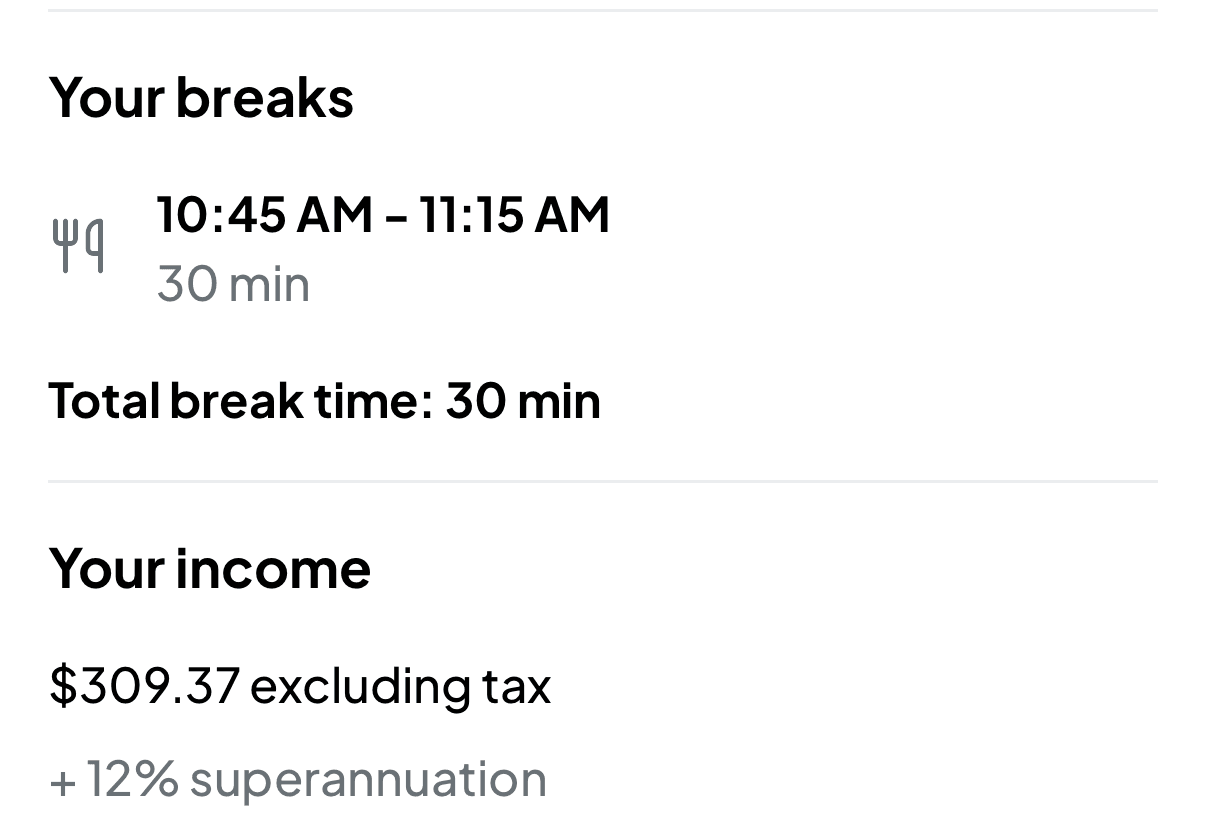
- Your breaks: each rostered break with its times and length, and the Total break time.
- Your income: an estimate of your pay for the shift excluding tax, plus a + 12% superannuation line. Some workplaces turn pay information off, and then this section doesn't show.
Further down are your breaks and your pay estimate.
If your workplace allows shift swaps, the swap button at the top right lets you ask a colleague to cover the shift. See Get someone to cover your shift.
When your roster changes
When your manager publishes a roster or changes one of your shifts, you get a notification. Open it to see exactly what changed: new shifts, a shift that's been updated (showing the Previous shift and the New shift), a shift reassigned to someone else, or one that's been cancelled. Tap View full roster to jump to those dates.
Add your shifts to your phone's calendar
On an iPhone, the calendar button at the top right of Roster opens Calendar sync. Tap Add to calendar to subscribe your phone's calendar to your shifts. Your published shifts then appear there automatically. Updates can take a few hours, because your calendar app refreshes on its own schedule.
If you ever need to cut off that link, for example because you shared it by mistake, tap the reset button on the same screen. Your calendars stop updating until you add Shiftly to them again on each device.
Timesheets
The Timesheets tab beside Calendar shows the hours you've actually worked, rather than what you're rostered for. See Check the hours you've worked.
A shift missing? Your roster shows what your manager has published. If they've added you to a shift but haven't published it yet, it won't appear. Check you're showing All locations, give it a little time, and ask your manager if it still isn't there.
Related
Check the hours you've worked
The hours you've actually worked.
Clock on and off a shift
Start and finish the shifts on your roster.
Get someone to cover your shift
Can't make a shift? Ask a colleague.
Tell your manager when you can work
Add rules for when you can and can't work.
My shift isn't showing
Why a shift might be missing from your roster.