
Work at more than one venue or business
Switch between the locations and businesses you work for in Shiftly Me, and filter your shifts to one venue.
If you work at more than one location, or for more than one business that uses Shiftly, one Shiftly Me account covers all of them. You sign in once and switch between them from Home.
Who this is for
Staff using the Shiftly Me app who work at more than one venue, or for more than one employer.
Before you start
- Each employer needs to have added you using the same email address. That's what links them to one account.
- The switch button only appears once you have more than one location or business.
Switch location
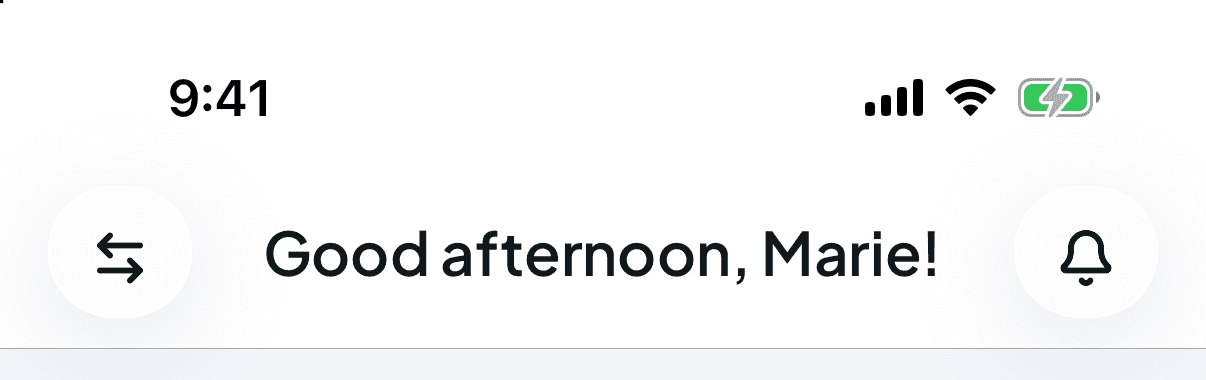
Pick a location
Select a location lists every venue you work at, plus All locations (shifts from every venue). The one you're showing has a tick.
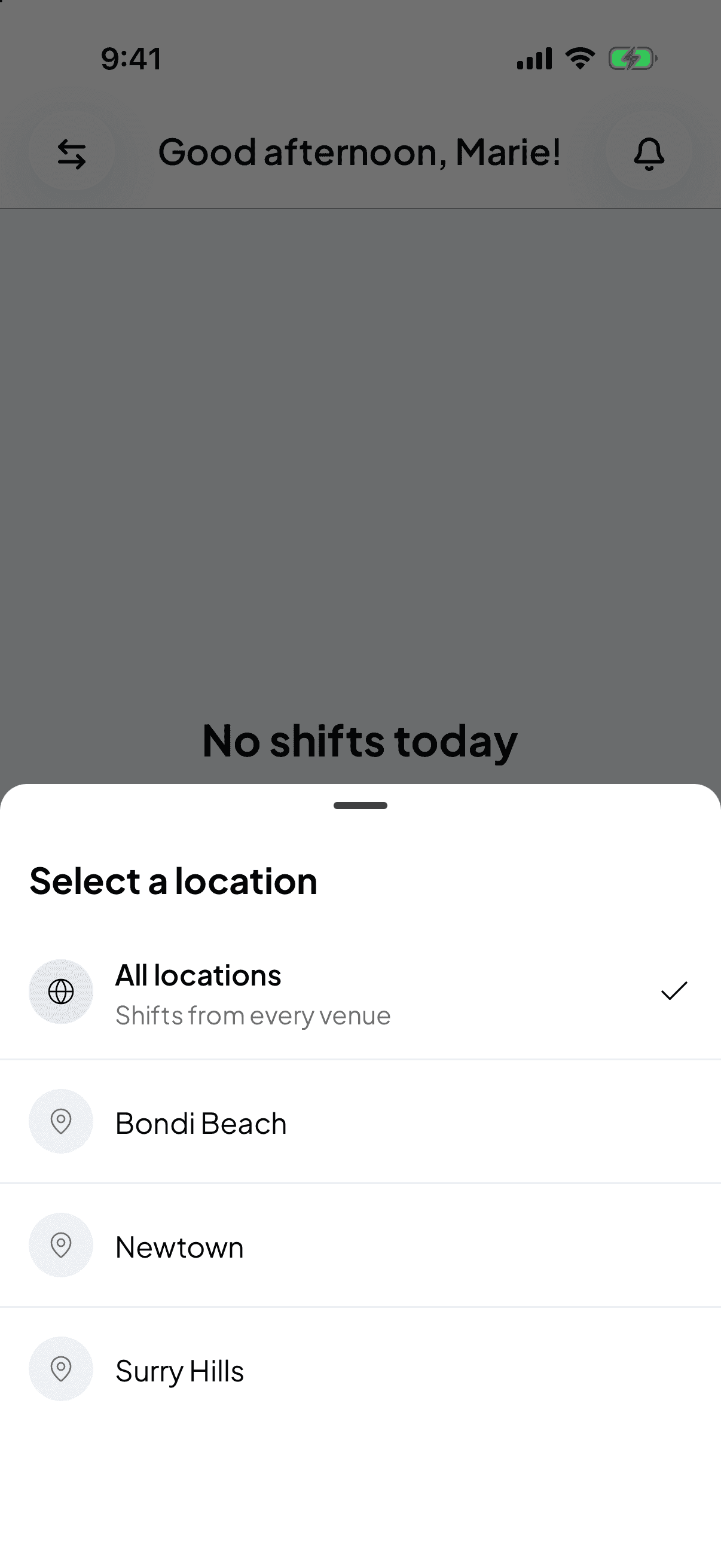
Picking a location filters what you see to that venue:
- Home shows your shift there today and the open shifts there.
- Roster shows only that venue's shifts on Calendar and Timesheets.
- Open shifts lists only that venue's shifts.
It doesn't change where you're employed or which shifts are yours. Pick All locations to see everything again. Shiftly Me remembers your choice next time you open the app.
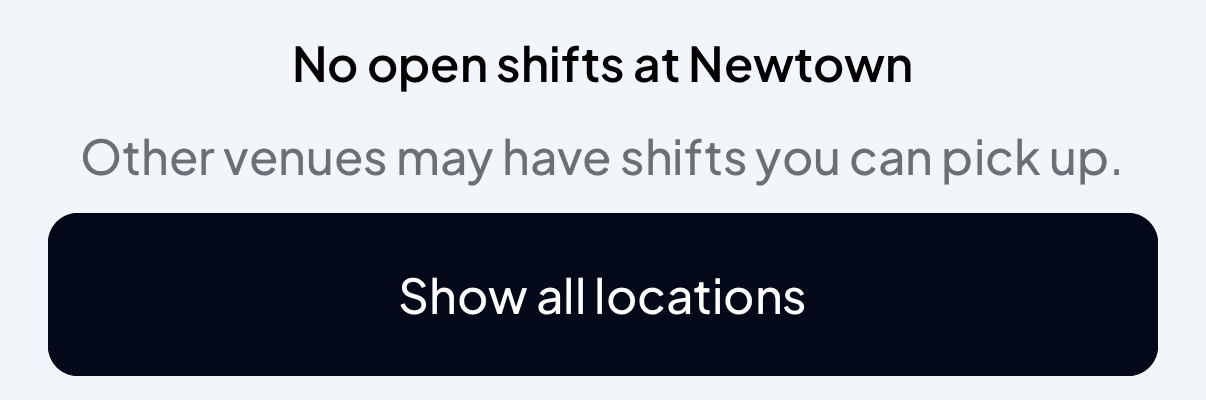
If a venue has no open shifts, you'll see No open shifts at and the venue name, with Show all locations to clear the filter.
Switch business
If you work for more than one business, Shiftly Me asks you to Select a business the first time you sign in: Select the business you would like to work under today. Tap the one you're working for.
To change later, tap the switch button on Home. If the sheet opens on Select a location, tap the back arrow beside it to reach Select a business. Pick a business, then pick one of its locations if it has more than one.
Your roster, your hours and the open shifts you see then all come from that business.
If you're still clocked on at the other business
If you switch business while you're clocked on somewhere else, Home shows You're clocked in at and that business's name: Switch back to this business to clock out. Tap Go to clock out to jump back and finish the shift.
Clocking on at a different venue
If you start an unscheduled shift and work at more than one location, Shiftly Me asks Select location first so your hours are recorded at the right venue. See Clock on and off a shift.
Can't see a business or venue? You only see the ones your employer has given you access to. If one's missing, or you see You do not have access to any businesses., ask that employer to check they've added you with the same email address you sign in with.