
Check your roster and messages at the kiosk
While you're signed in at the Shiftly Kiosk, see your shifts, hours and approved leave on the Roster tab, and read and reply to messages in the Inbox.
Once you've signed in at the Shiftly Kiosk with your PIN, the rail down the left has three tabs: Today, where you clock on and off, Roster and Inbox. This guide covers the last two.
Who this is for
Staff signed in at a Shiftly Kiosk tablet at their venue. To sign in, see Clock on and off at the venue kiosk.
See your roster
Open the Roster tab
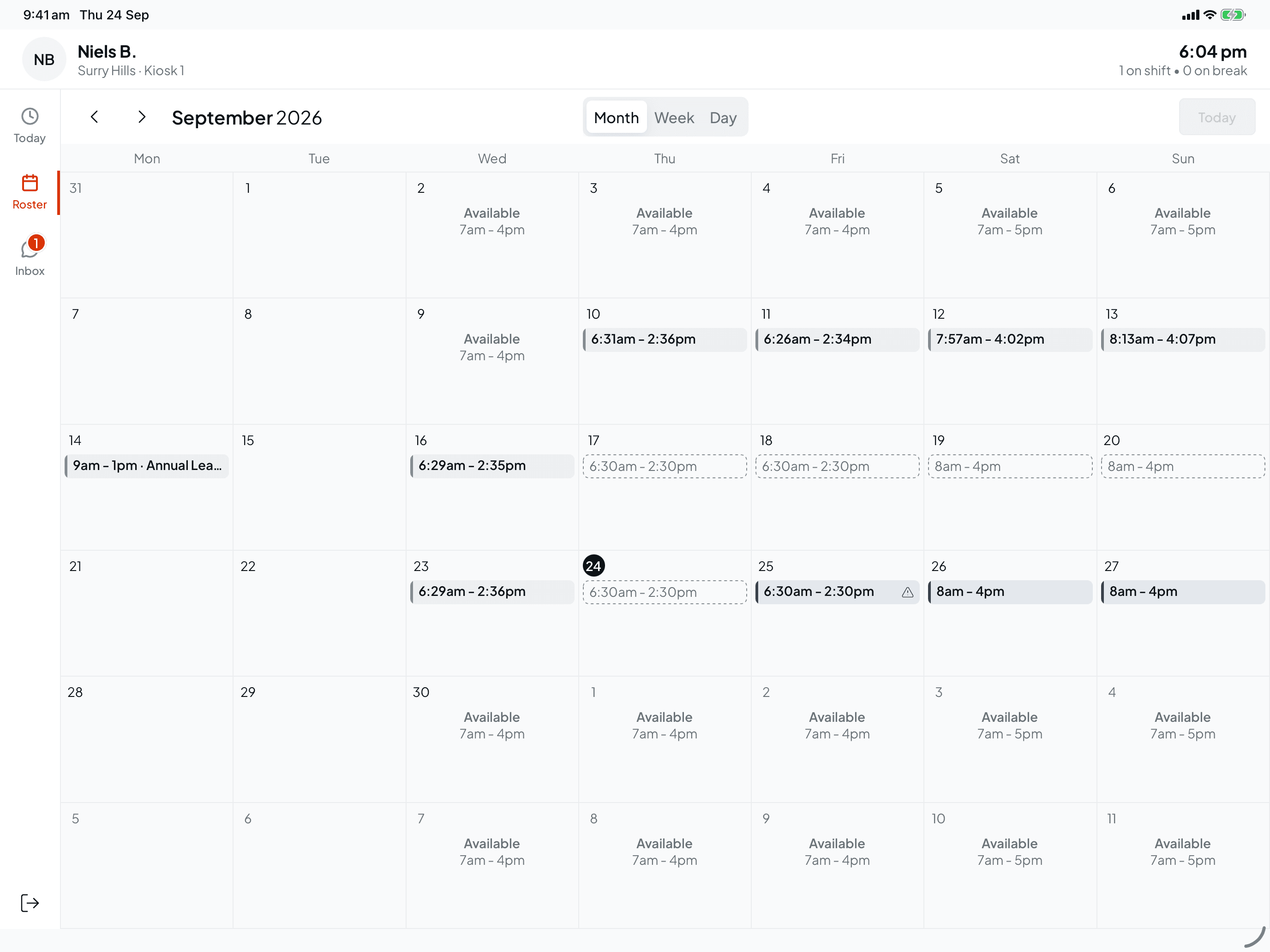
Tap Roster on the left. Your shifts open on a month calendar, with weeks running Monday to Sunday. Use the arrows to move between months, Today to jump back, and Month, Week or Day to change the view.
What you'll see:
- Your shifts at this venue that have been published. Shifts you've already worked show the times you actually clocked on and off.
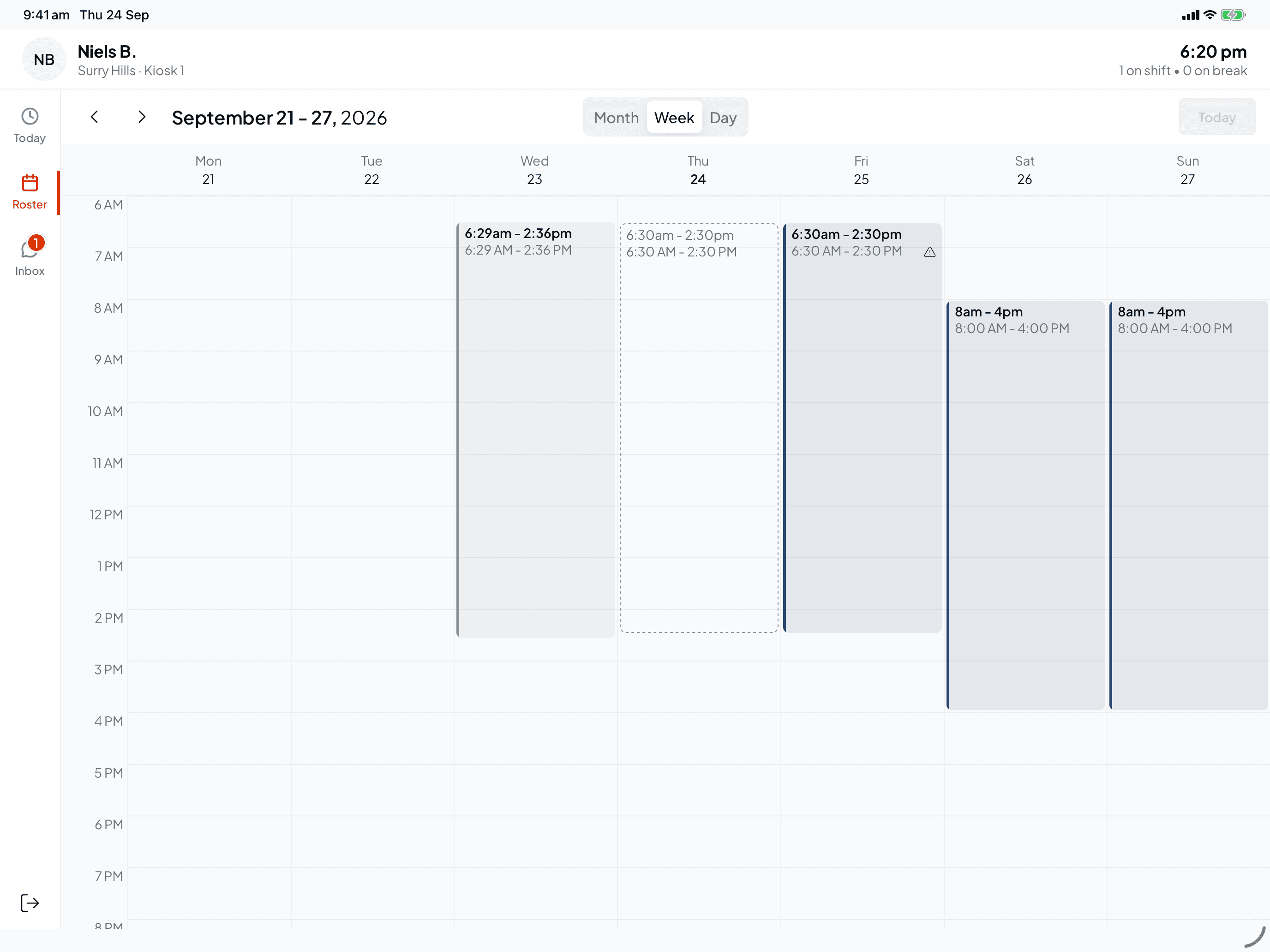
- A dashed outline on a past shift means you were rostered but didn't clock on for it.
- Your approved leave, with the leave type.
- A warning triangle on a shift today or later means it clashes with the availability you've set.
- "Available" with your hours on days you have no shift or leave.
Tap a shift for the details
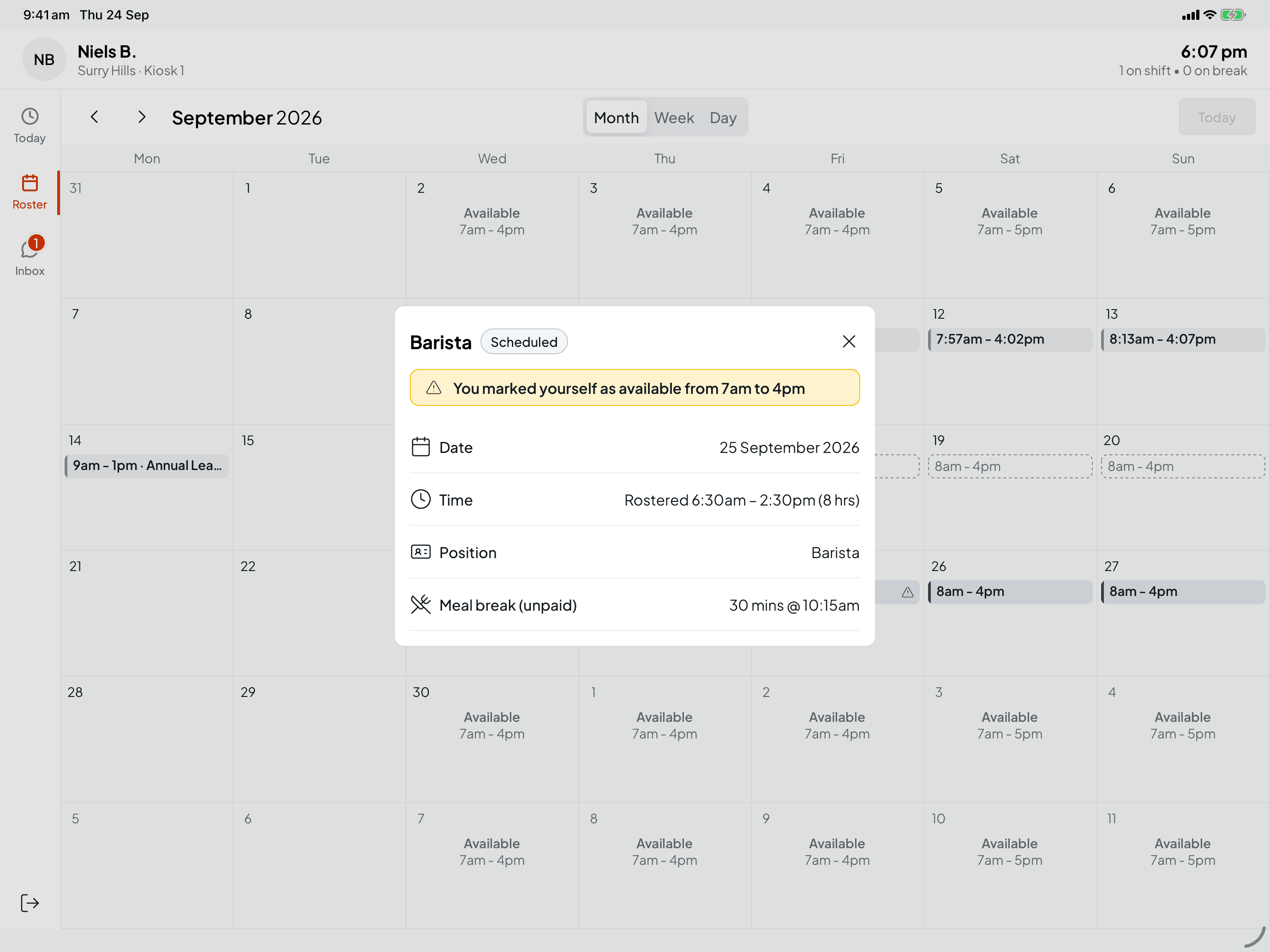
The window shows your position and a status: Scheduled, In progress, Completed or Approved once your manager has approved the timesheet. Below that are the Date, the Time you were rostered, your Position and your breaks. If the venue shares shift notes, your manager's Note is at the bottom.
If the shift clashes with your availability, a yellow note says so, for example "You marked yourself as available from 7am to 4pm".
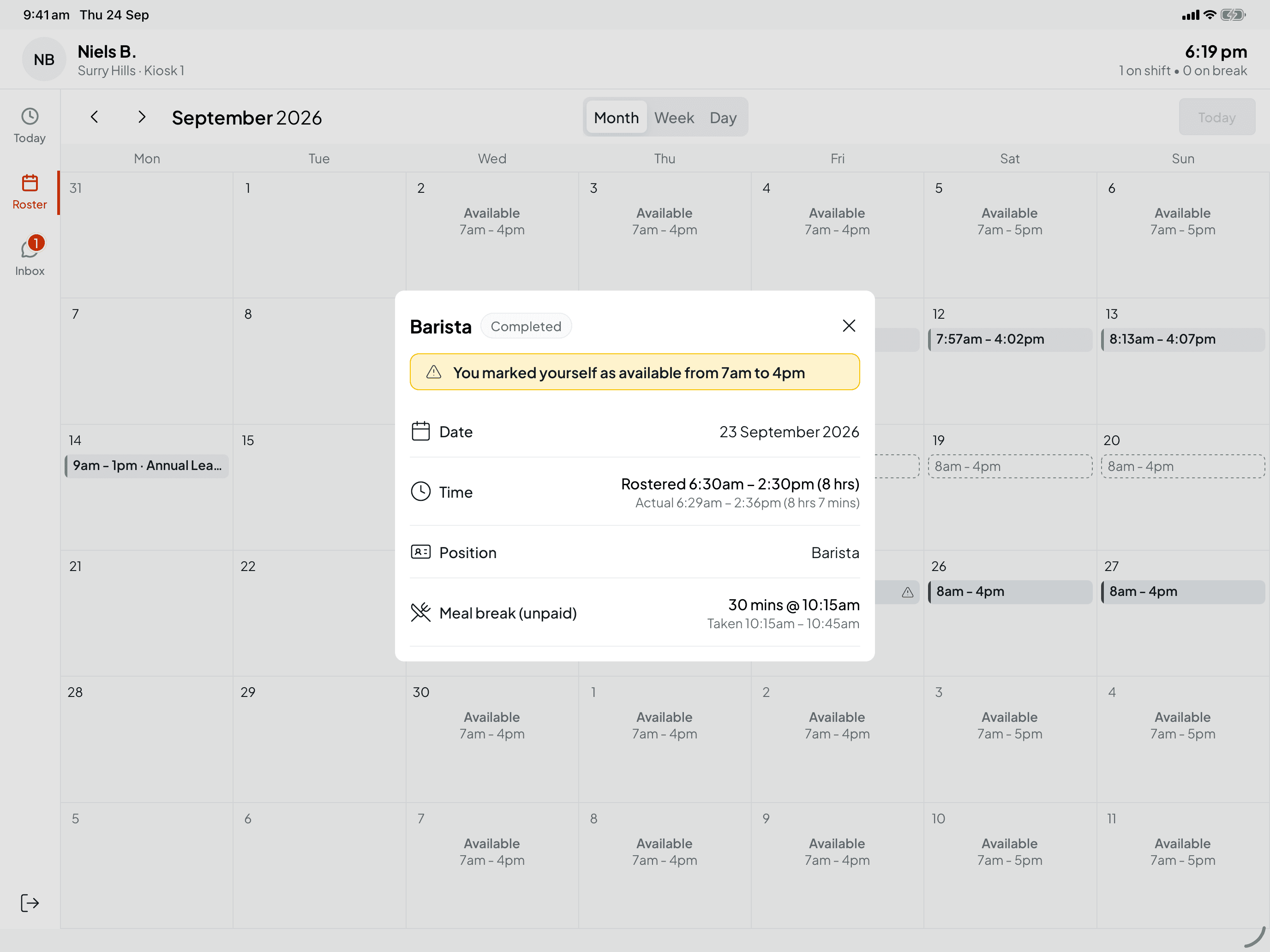
For a shift you've worked, Time adds the Actual hours you clocked, and each break shows when you took it, or Not taken.
Tap leave for the details
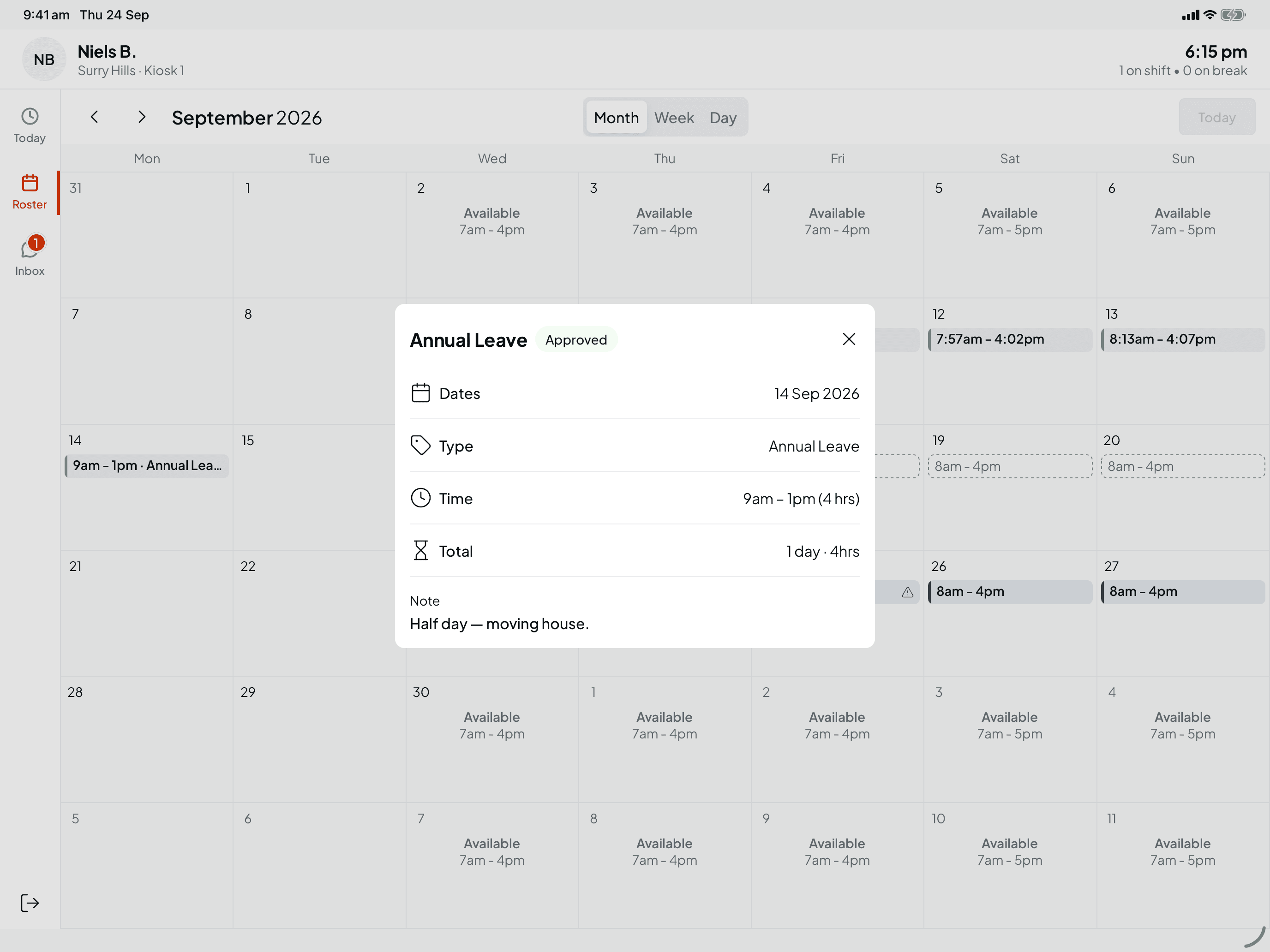
Approved leave shows the Dates, Type, Time (all day, or the hours for part of a day), the Total, and any Note on the request.
Switch to the week view
Week lays your shifts out against the hours of the day, which makes it easy to see start and finish times side by side.
The kiosk roster is for looking only. To swap a shift, ask for leave or change your availability, use Shiftly Me on your phone. See Get someone to cover your shift, Request time off and Tell your manager when you can work.
Read and reply to messages
Open the Inbox
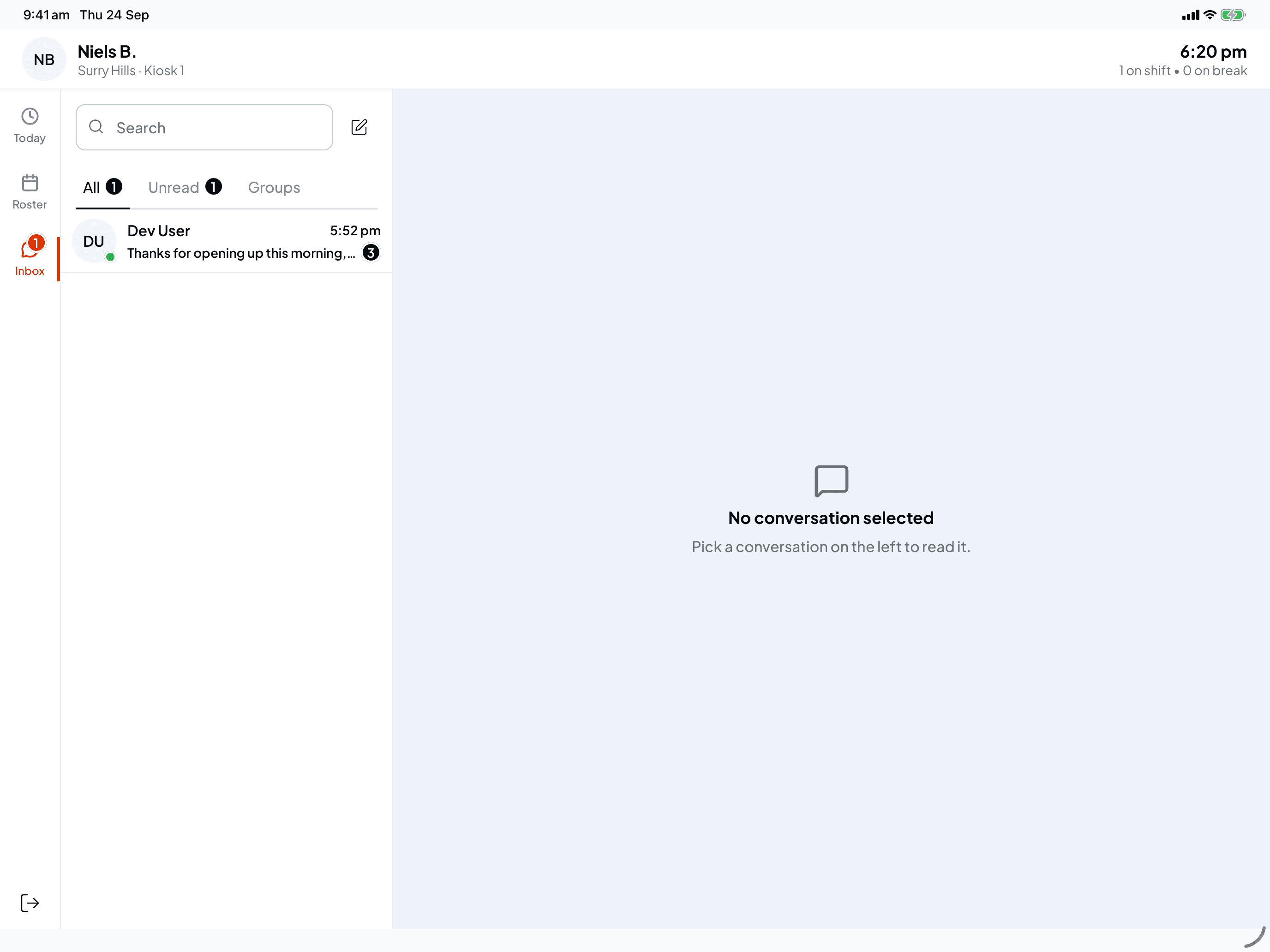
When you have unread messages, a number appears on Inbox in the rail. Tap it to see your conversations, with All, Unread and Groups tabs and a search box.
Open a conversation
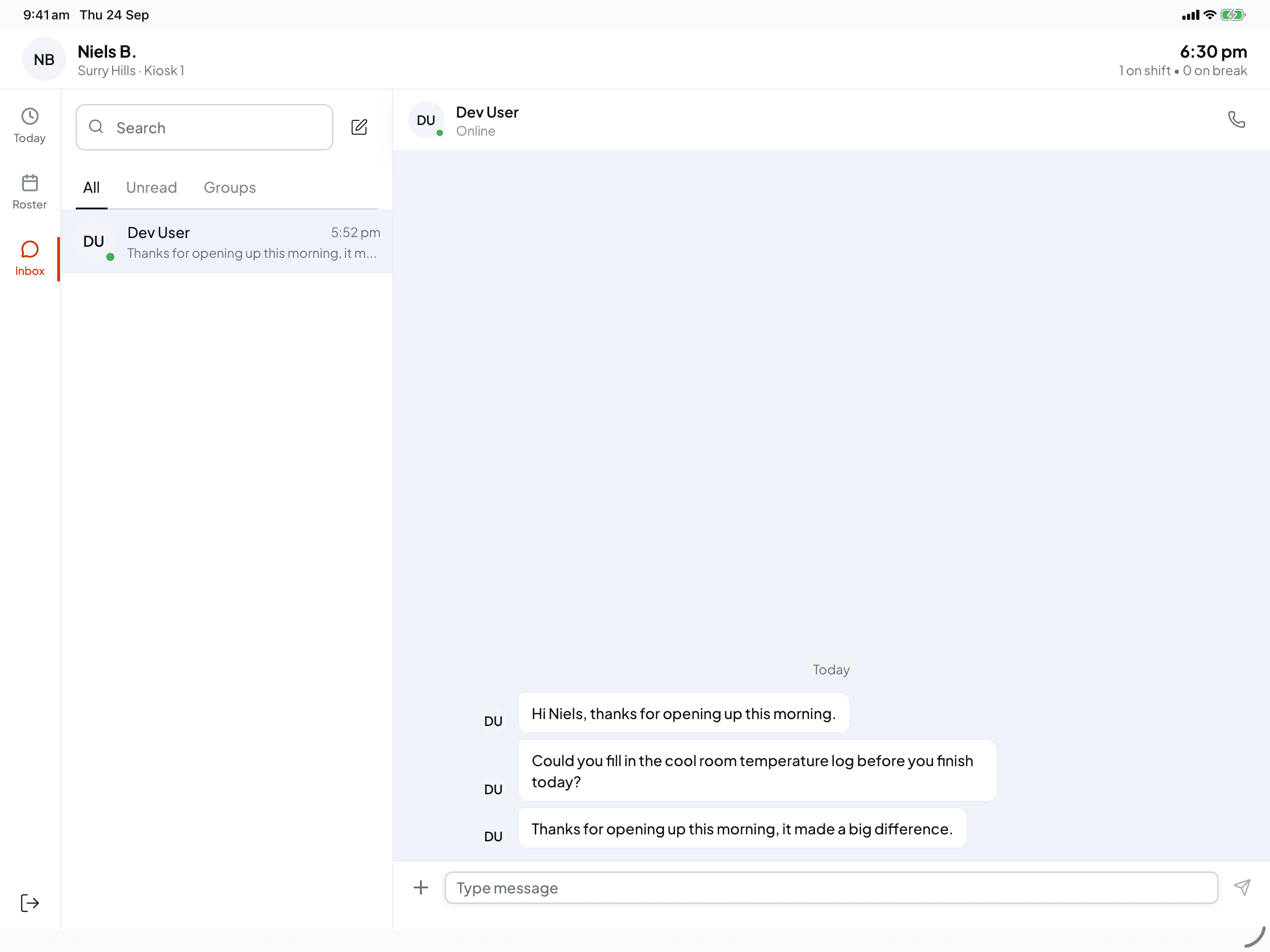
Tap a conversation to read it. Type a reply in Type message and send it, or use + to share one of your shifts. The pencil icon at the top starts a new conversation.
The kiosk handles text only. To send photos, files or voice notes, use Shiftly Me. See Message your manager and workmates.
Keep your details private
The kiosk is shared, so it signs you out after a minute without a tap, with a 15-second warning first. Sign out yourself with the icon at the bottom of the rail when you're finished.
Related
Clock on and off at the venue kiosk
Use the Shiftly Kiosk tablet at work to start your shift, take your breaks and clock off, then leave a note for your manager.
Forgot your kiosk PIN, or never set one
Can't sign in at the venue kiosk? Get a temporary PIN by text or email, set your own, and get past a locked keypad.