
Set up a clock-in kiosk at your venue
Turn a tablet at your venue into a shared clock-in point. Add a kiosk to a location on the Shiftly web platform, pair the tablet with its code, choose how staff sign in, and give your team their PINs.
A kiosk is a tablet at your venue running the Shiftly Kiosk app. Your staff tap their name, enter a PIN and clock on and off there, without needing their phone. This guide takes you from a new tablet to a kiosk your team can use.
Who this is for
Owners and managers setting up a kiosk. You'll use the Shiftly web platform on a computer and the Shiftly Kiosk app on the tablet.
Before you start
- A tablet with Shiftly Kiosk installed. It's a free app from the App Store (iPad) or Google Play. The app runs in landscape and keeps the screen awake while it's open.
- The right access. Owners can do everything here. A manager needs Business settings access to reach the location, and Kiosks access to add or change kiosks (both are set in their roles and permissions).
- A location for the kiosk. Each kiosk belongs to one location and clocks staff on and off in that location's timezone. A venue can have more than one kiosk.
Add a kiosk on the Shiftly web platform
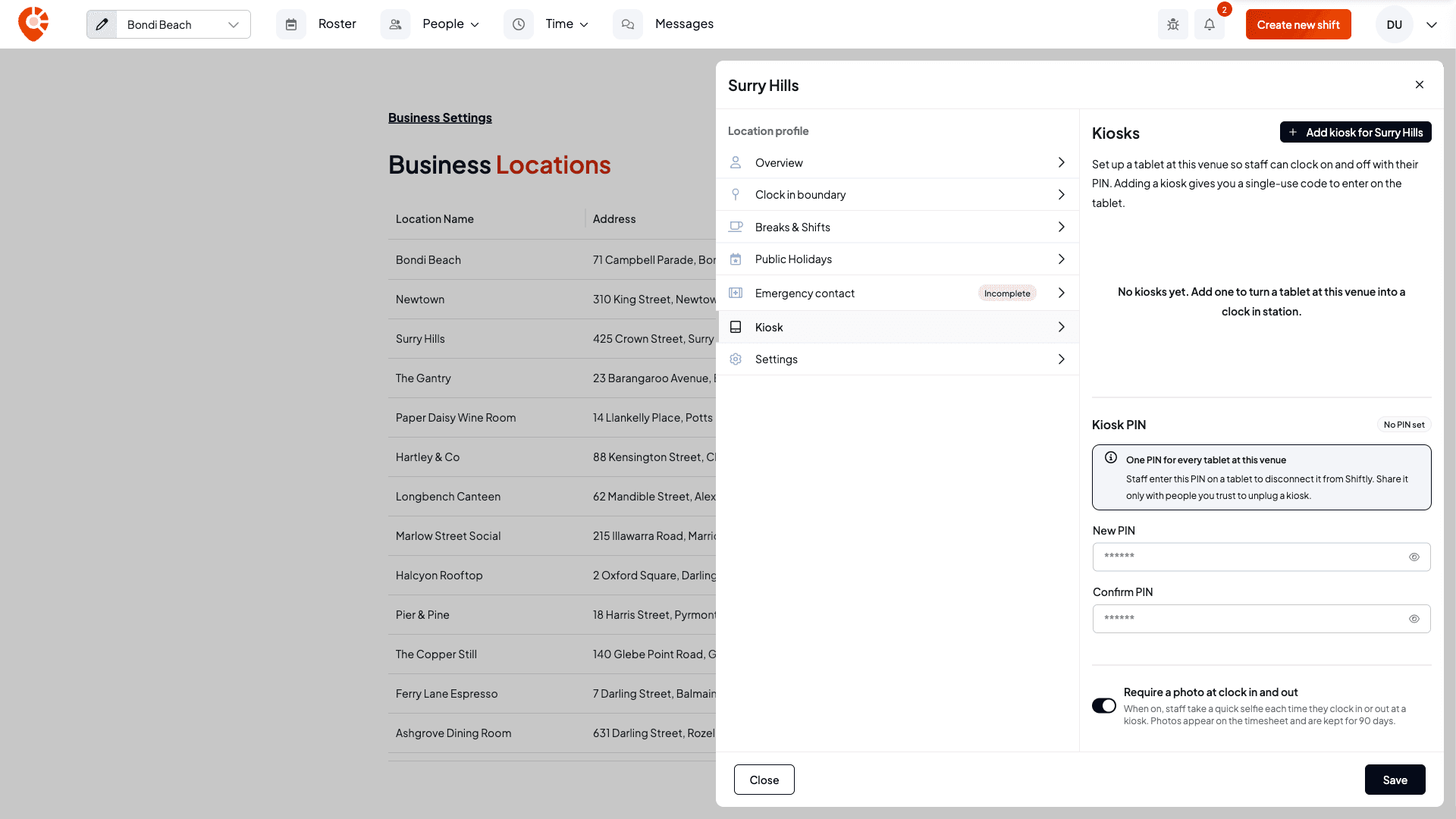
Open the location's Kiosk tab
Open the account menu (your initials, top right) and choose Business settings, then Locations. Select the edit (pencil) icon on the location's row, then choose Kiosk in the side panel.
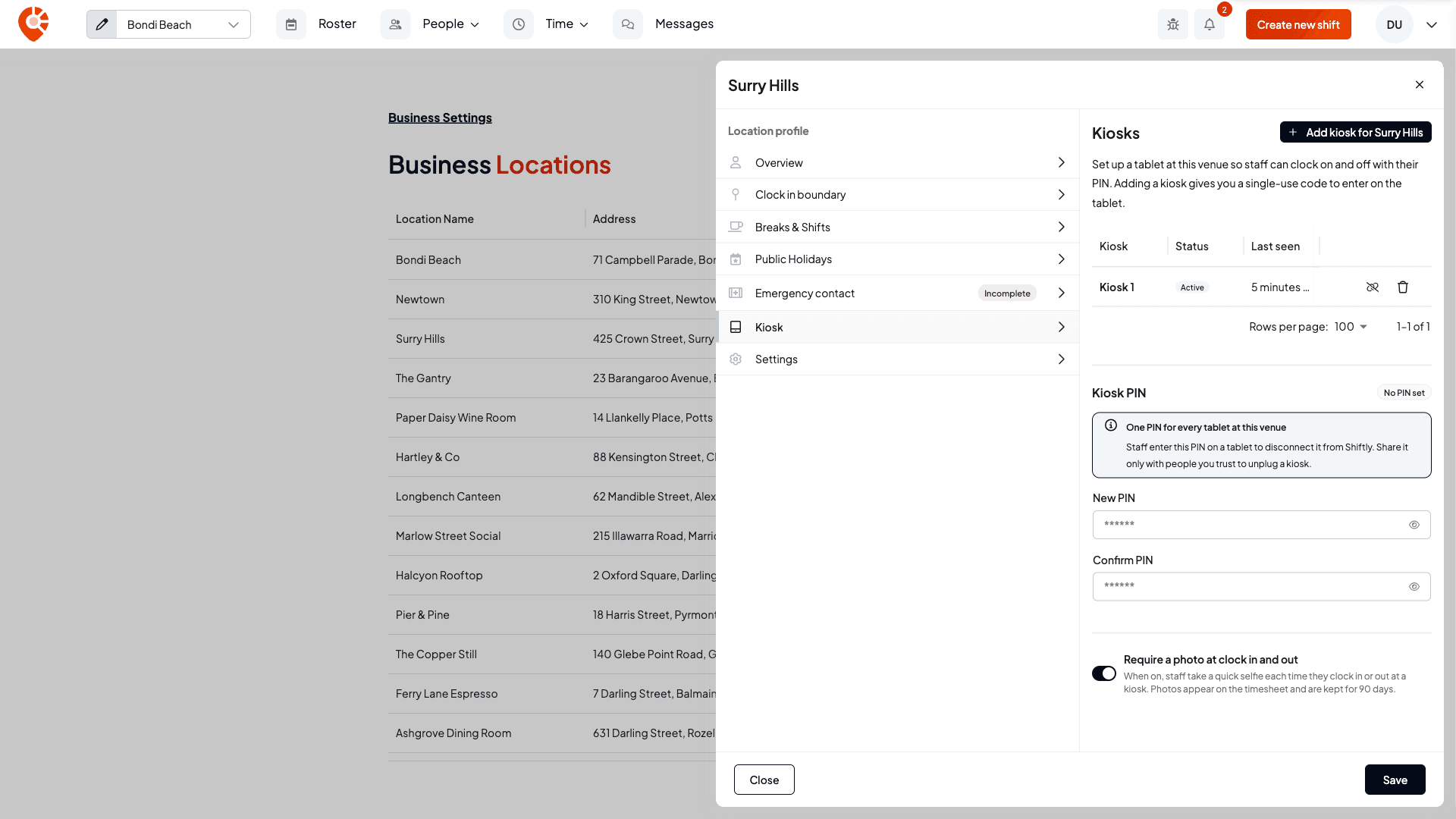
The Kiosks table is empty until you add one. Under it are the venue's Kiosk PIN and the Require a photo at clock in and out switch, which are covered in Disconnect, move or change a venue kiosk.
Add a kiosk and keep the code open
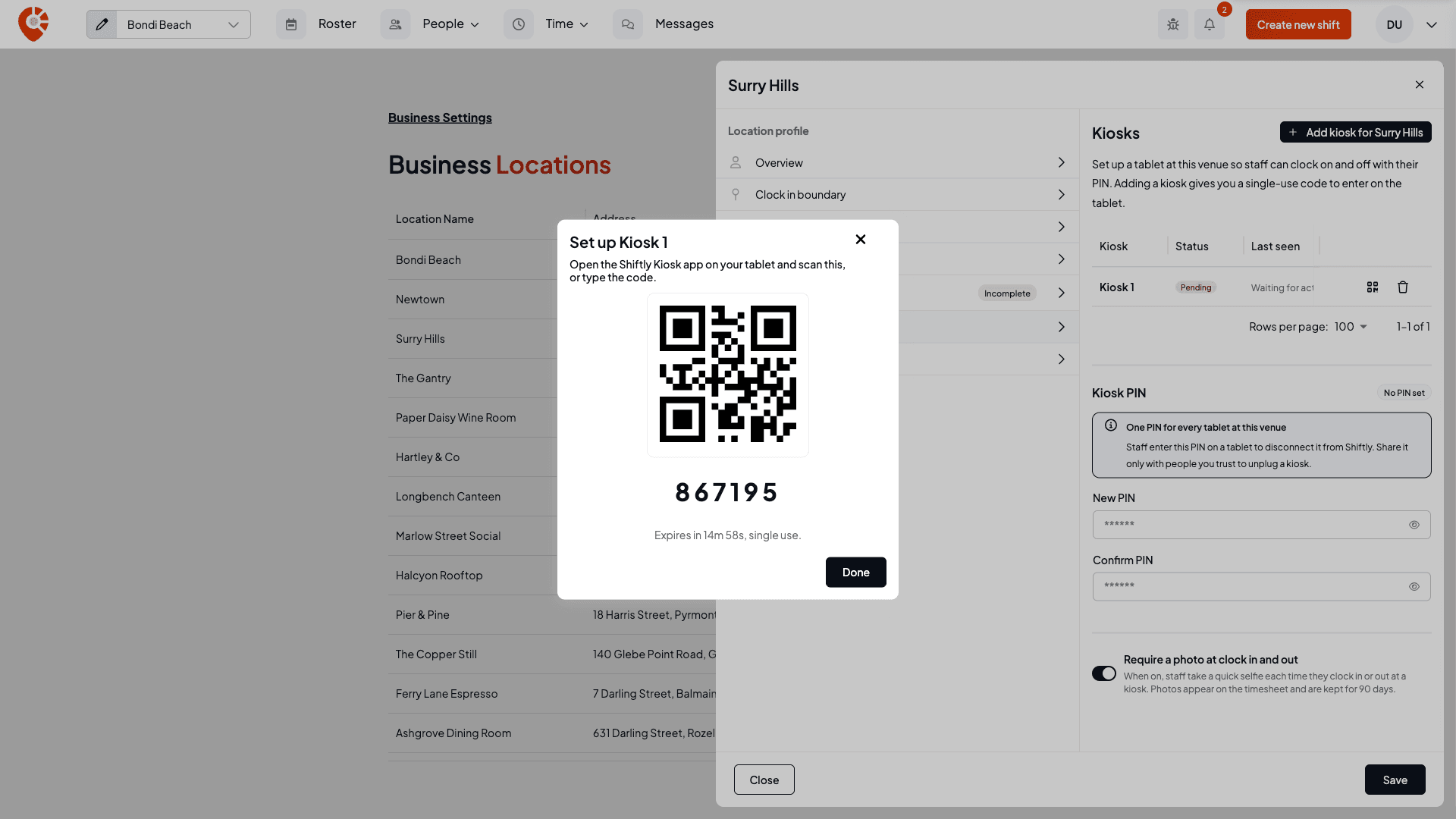
Select Add kiosk for your location. Shiftly adds Kiosk 1 (then Kiosk 2, and so on) with the status Pending, and shows a QR code and a 6-digit code to pair the tablet.
The code is single use and lasts 15 minutes. The panel counts down, for example "Expires in 14m 58s, single use." If it runs out, the panel says "This code has expired": close it and choose Show code on the kiosk's row for a fresh one.
Pair the tablet
Open Shiftly Kiosk and choose Pair with activation code
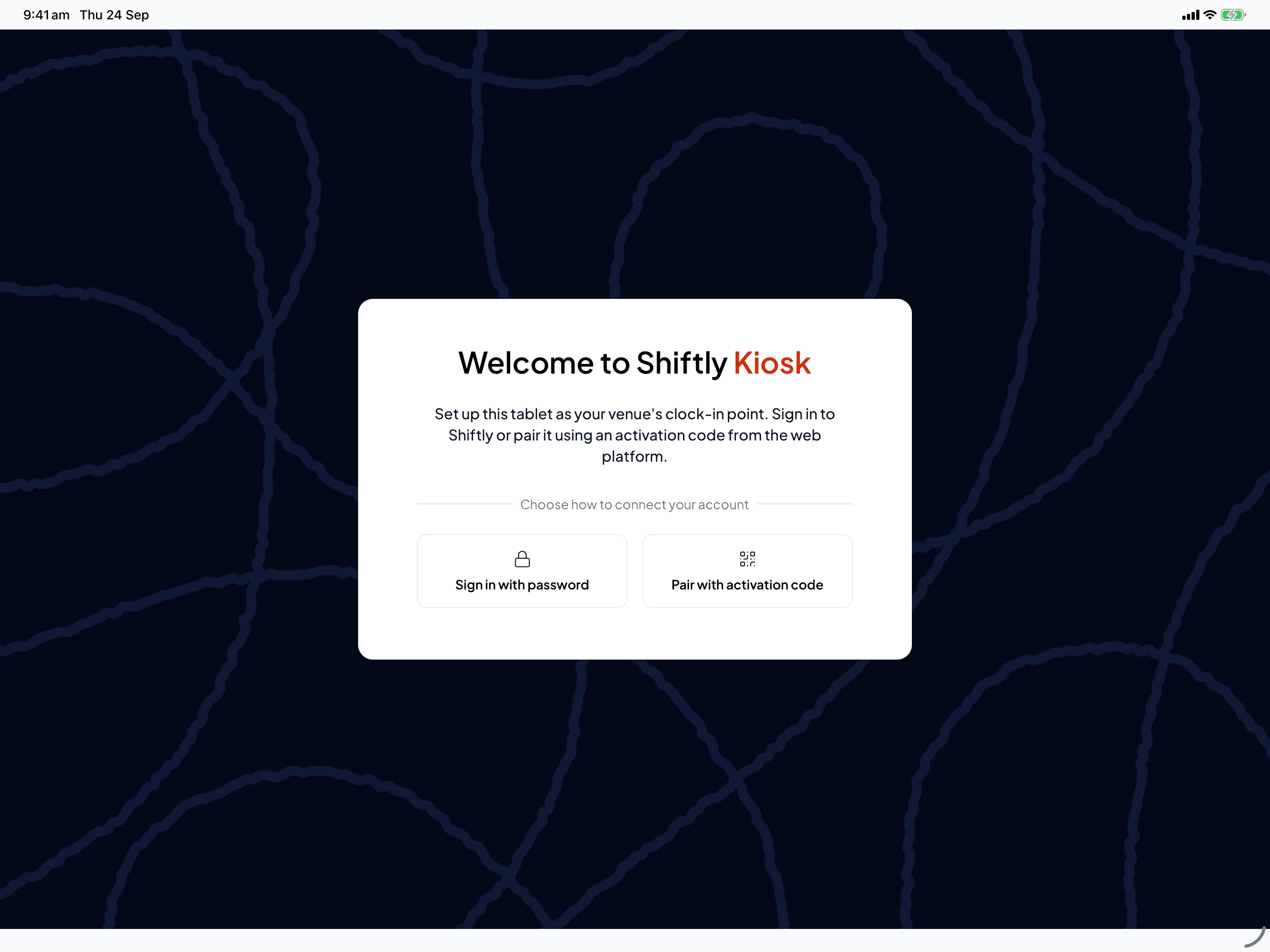
Open the app on the tablet. It starts on Welcome to Shiftly Kiosk. The first time, the tablet asks to use its camera: allow it, because the camera scans the QR code and takes the clock-in photos if you turn those on.
Choose Pair with activation code.
Scan the QR code
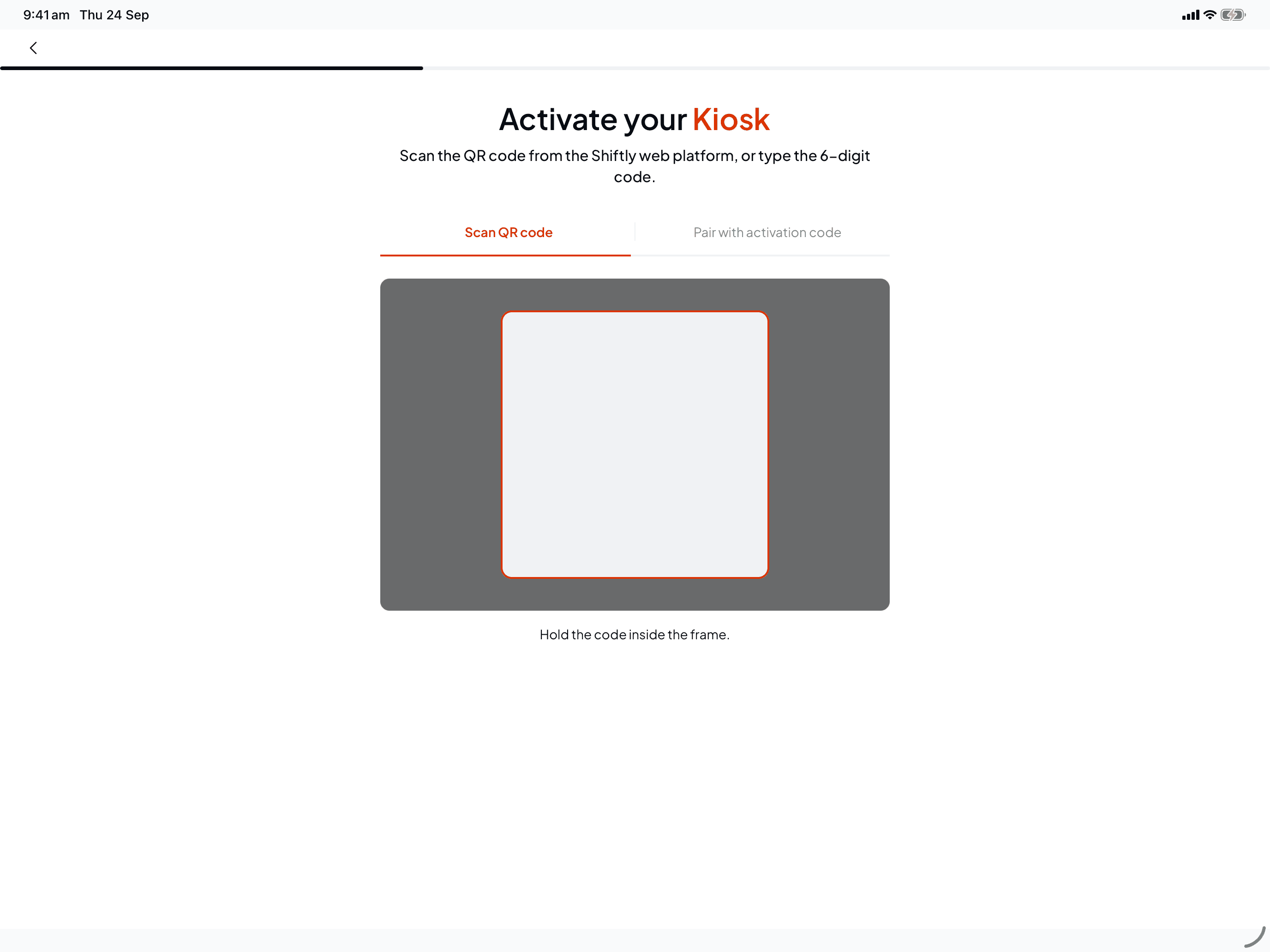
On Scan QR code, hold the QR code from the web platform inside the frame. The tablet pairs as soon as it reads the code.
Or type the 6-digit code
If the tablet can't use its camera, choose Pair with activation code and type the 6 digits on the keypad. The tablet checks the code as soon as you enter the last digit.
If the code is wrong, has expired or was already used, the tablet says so under the boxes. Get a fresh code with Show code on the kiosk's row on the web platform, then type it again.
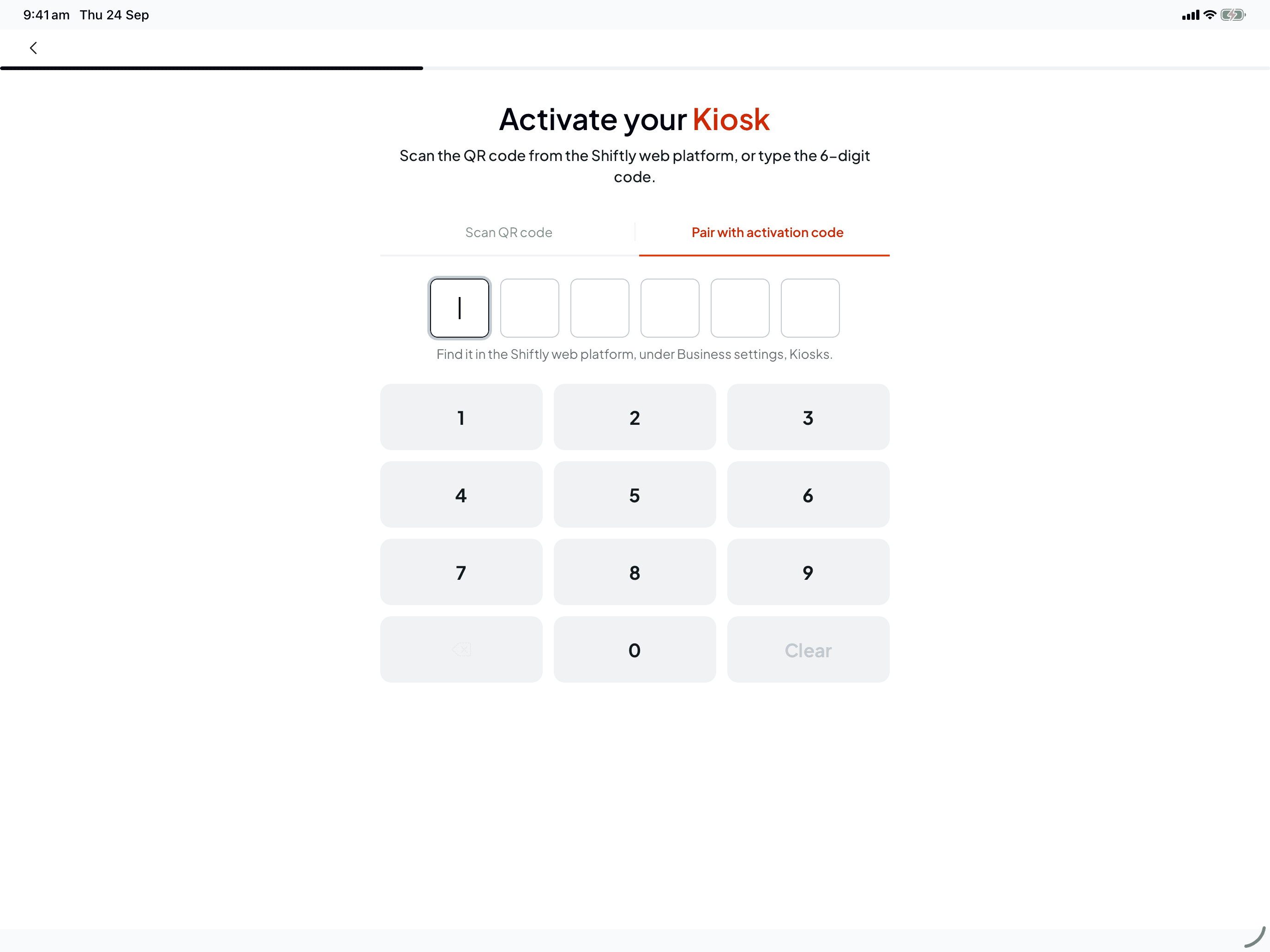
The hint under the keypad says the code is "under Business settings, Kiosks". The code is on the location itself: Business settings, Locations, edit the location, Kiosk tab.
Choose how staff sign in
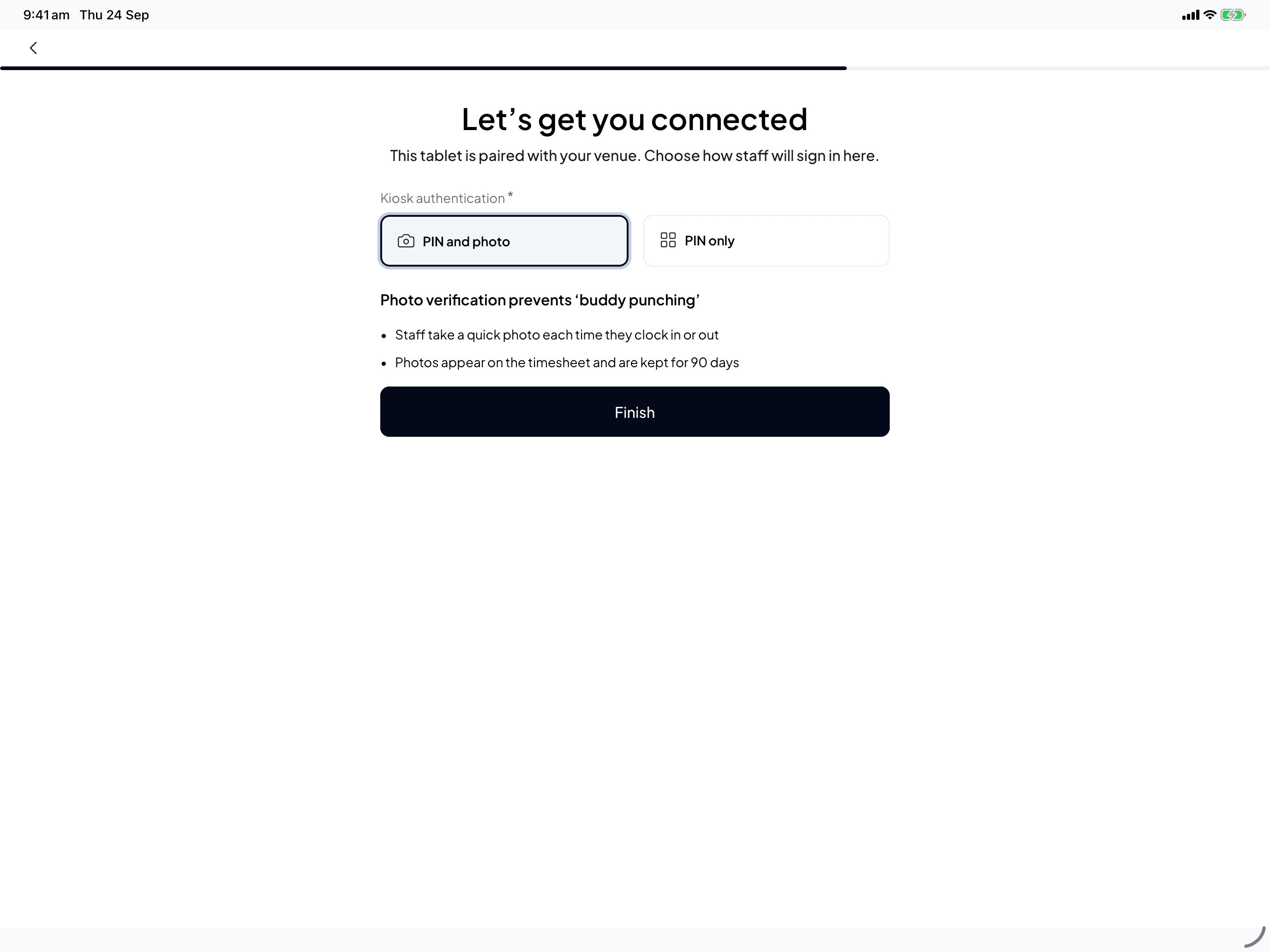
Next is Let's get you connected. Under Kiosk authentication, pick:
- PIN and photo: staff enter their PIN and take a quick photo each time they clock on or off. The photos appear on the timesheet and are kept for 90 days, which stops one person clocking on for another.
- PIN only: staff just enter their PIN.
Select Finish. You only get this choice for the first kiosk at a venue. Any kiosk you add there later uses the venue's setting, and you can change it at any time from the web platform.
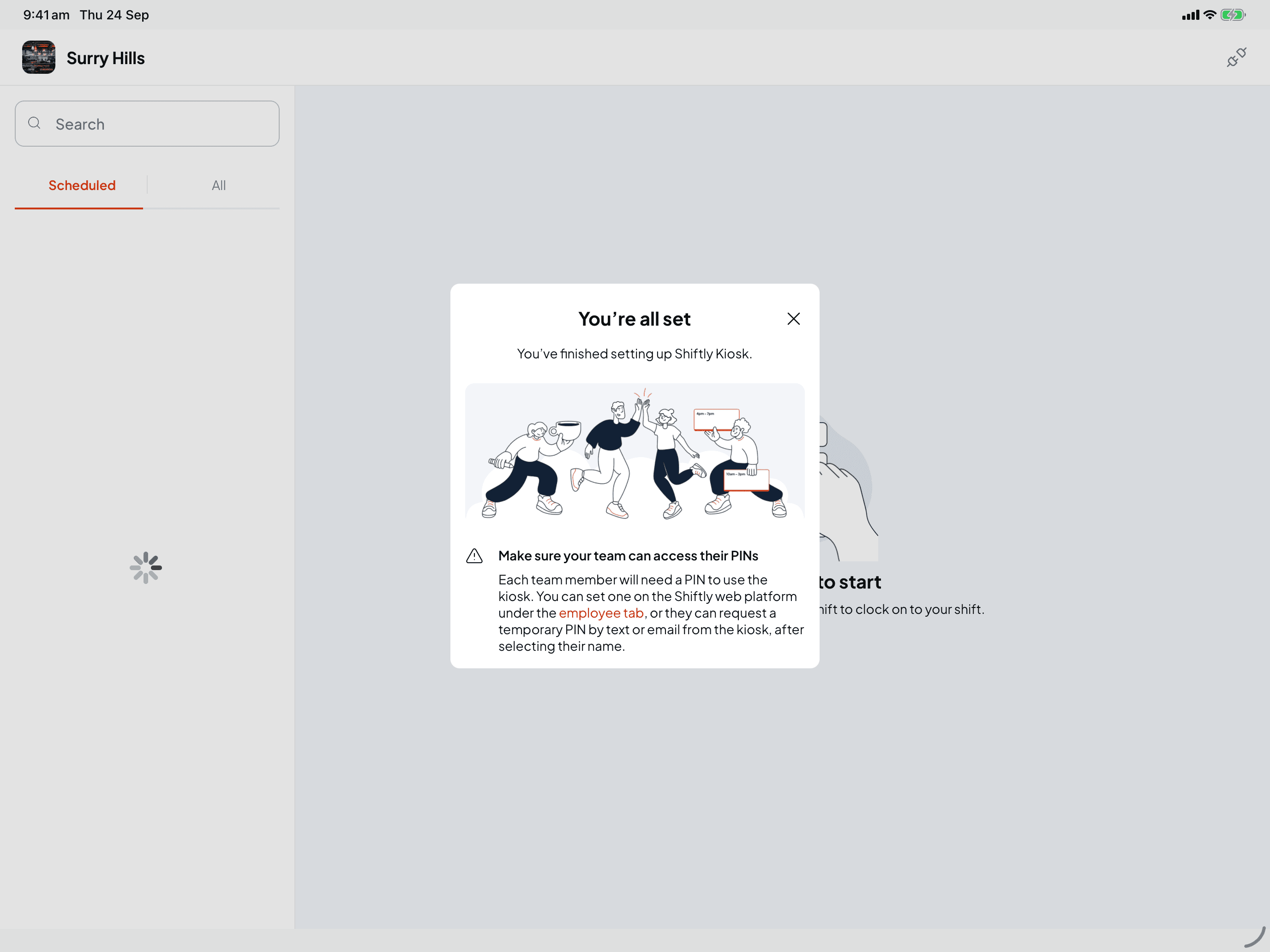
You're all set
The tablet shows You're all set, with a reminder that everyone needs a PIN. The "employee tab" it mentions is the Access tab on each employee, covered below. Close it and the tablet shows your venue's staff list, ready for the first clock-on.
Back on the web platform, the kiosk is now Active, and Last seen shows when the tablet last checked in. A paired tablet checks in every minute.
The tablet stays paired until someone disconnects it. If it restarts, it opens straight onto the staff list again.
Give your staff their PINs
Every staff member needs a 6-digit PIN to use the kiosk. There are three ways to get one:
- You set it on the web platform. Open People, choose Employees, select the employee, then Access. Under PIN, type the 6 digits in New PIN and Confirm PIN, then Save. The PIN label changes to "PIN set" with the date. The first time they use a PIN you set, the kiosk asks them to choose their own.
- They set it themselves in Shiftly Me, under Account, Access, PIN.
- They ask the kiosk for a temporary one. At the kiosk they tap their name and have a temporary PIN sent by text or email, then choose their own. See Forgot your kiosk PIN, or never set one.
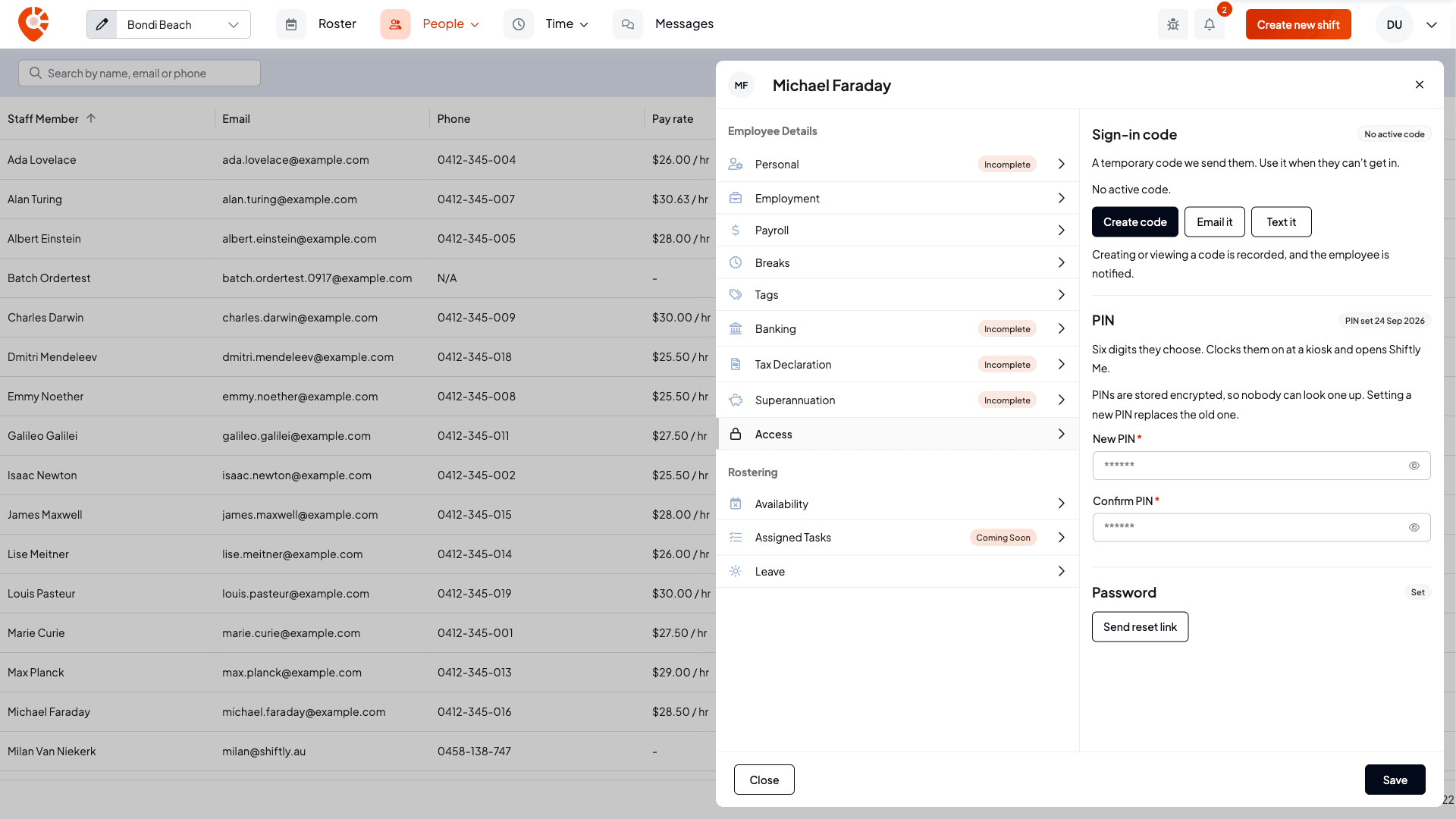
A few rules apply to every PIN:
- It must be exactly 6 digits, and not all one digit or a straight run like 123456 or 654321. Otherwise you'll see "Choose a less predictable PIN. Avoid repeated or sequential digits."
- PINs are stored securely, so nobody can look one up, including you. Setting a new PIN replaces the old one.
- If the Access tab says No PIN yet, the employee hasn't finished setting up their account. Invite them to Shiftly Me first, then set the PIN. See Add staff and invite them to Shiftly Me.
- Only the owner can set a PIN for another manager.
Set up with your password instead
You can also pair a tablet without adding a kiosk on the web first. On the Welcome screen choose Sign in with password, and sign in with the same email and password you use for the Shiftly web platform. On an iPad you can use Sign in with Apple instead. If you've forgotten your password, Forgot your password? emails you a reset link.
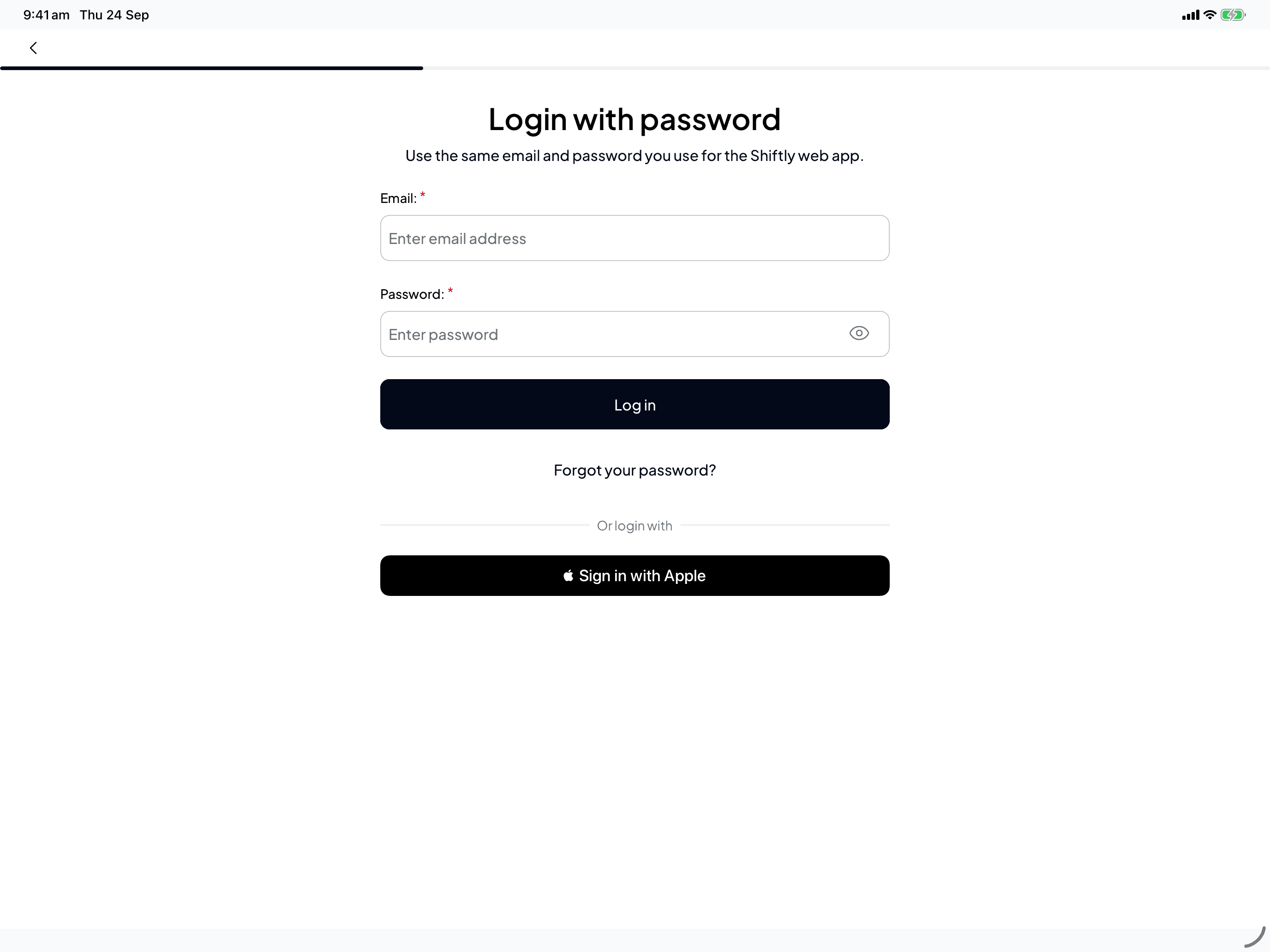
Then choose the Business and Location the tablet belongs to, pick how staff sign in if the venue hasn't chosen yet, and select Finish. Shiftly adds the next numbered kiosk to that location and pairs the tablet in one go.
You need Kiosks access for this. Without it you'll see "You can't set up kiosks": ask an owner for access, or use an activation code instead. If you see "No businesses yet" or "No venues in this business", create the business or add a location on the Shiftly web platform first.
If you manage more than one business, the Business and Location lists can stay greyed out after you sign in, with no Finish button. Go back and use Pair with activation code instead.
Good to know
- The password screens time out. If the tablet sits untouched for 3 minutes on the sign-in or setup screens of the password route, it goes back to the Welcome screen and signs you out.
- What the tablet lists. The Scheduled list shows today's published shifts at the kiosk's own location. All lists everyone employed at your business.
- Kiosk clock-ons become timesheets. They land on the Timesheets page like any other, ready to review and approve. See Review and approve timesheets.
Related
Disconnect, move or change a venue kiosk
Disconnect or delete a kiosk, set the venue's kiosk PIN, and turn clock-in photos on or off.
Clock on and off at the venue kiosk
What your staff do at the tablet, start to finish.
Forgot your kiosk PIN, or never set one
How staff get a temporary PIN and set their own.
Add and set up your locations
Every other tab of the location editor.
Send approved timesheets to payroll
Post approved timesheets to Xero from the Timesheets page, check what Shiftly flags before anything is sent, then finish the pay run in Xero.
Disconnect, move or change a venue kiosk
Check your kiosks, disconnect or delete one, move a tablet to another venue, set the venue's kiosk PIN, and turn clock-in photos on or off.