
Add and set up your locations
Add a venue and set its address, timezone, clock-in boundary, default shift times, roster week, approval and labour targets, public holidays, kiosk and employee-app settings.
A business can have one or more locations, one for each venue. Each location holds its own address, timezone, clock-in boundary, default shift times, rules for approving timesheets, public holidays, kiosks and employee-app settings. This guide covers the locations list and every tab of the location editor.
Who this is for
Owners and managers using the Shiftly web platform. To change a location's settings you need access to Business settings. Managers with view-only access can open each location but not save.
Before you start
- Open the account menu (your initials, top right), choose Business Settings, then Locations.
Manage the locations list
View your locations
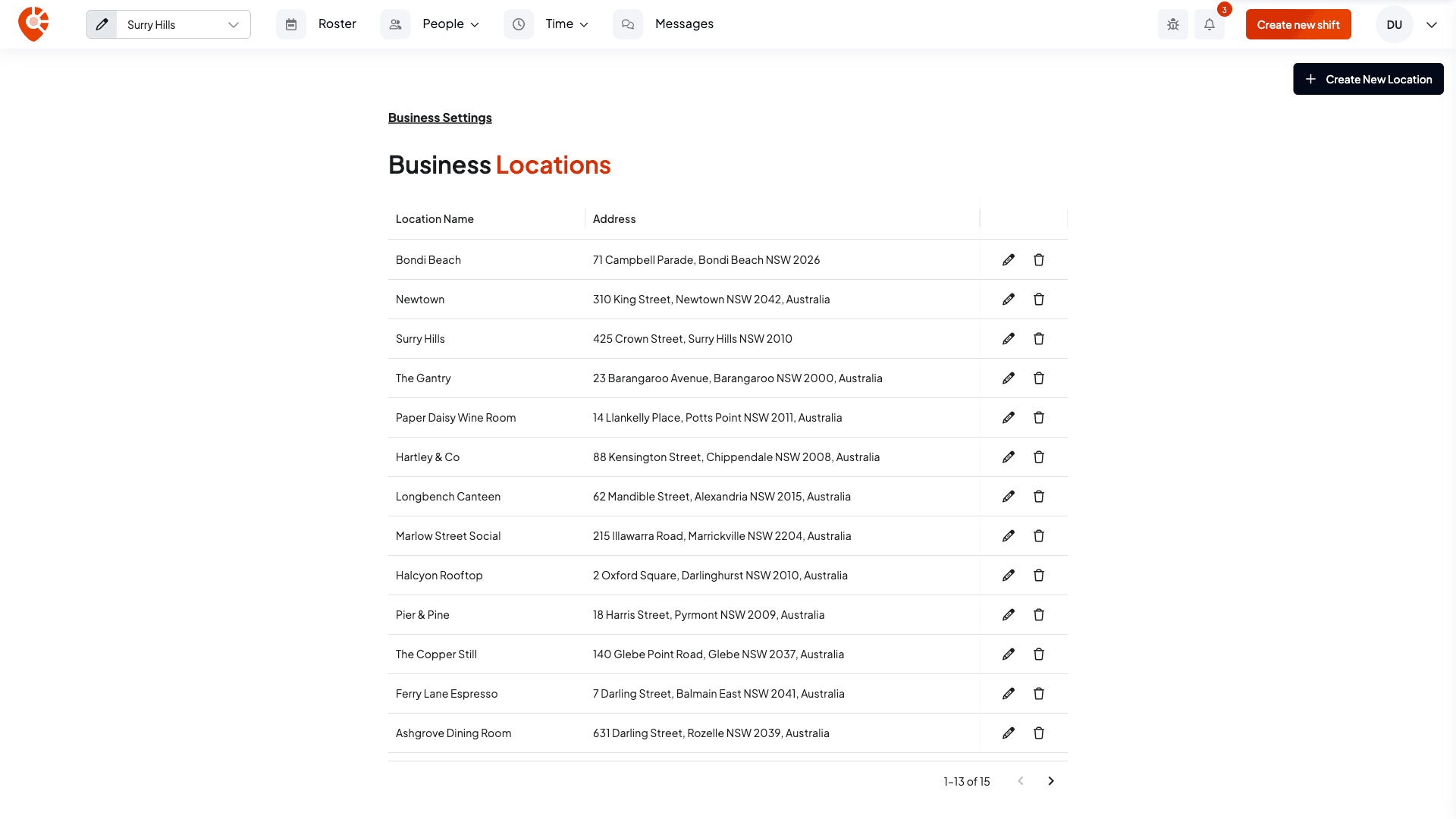
The Business Locations table lists every location with its Location Name and Address, and an edit (pencil) and delete (bin) button on each row.
Add a location
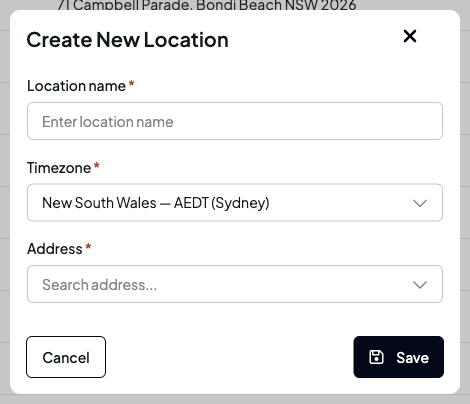
Select Create New Location, then enter the Location name, the Timezone (it starts as the timezone of the location you're working in) and the Address. Select Save.
Delete a location
Select the bin on a location's row. Shiftly asks you to confirm and warns that This cannot be undone. If it's your only location, Shiftly shows You must leave at least one location instead.
Edit a location
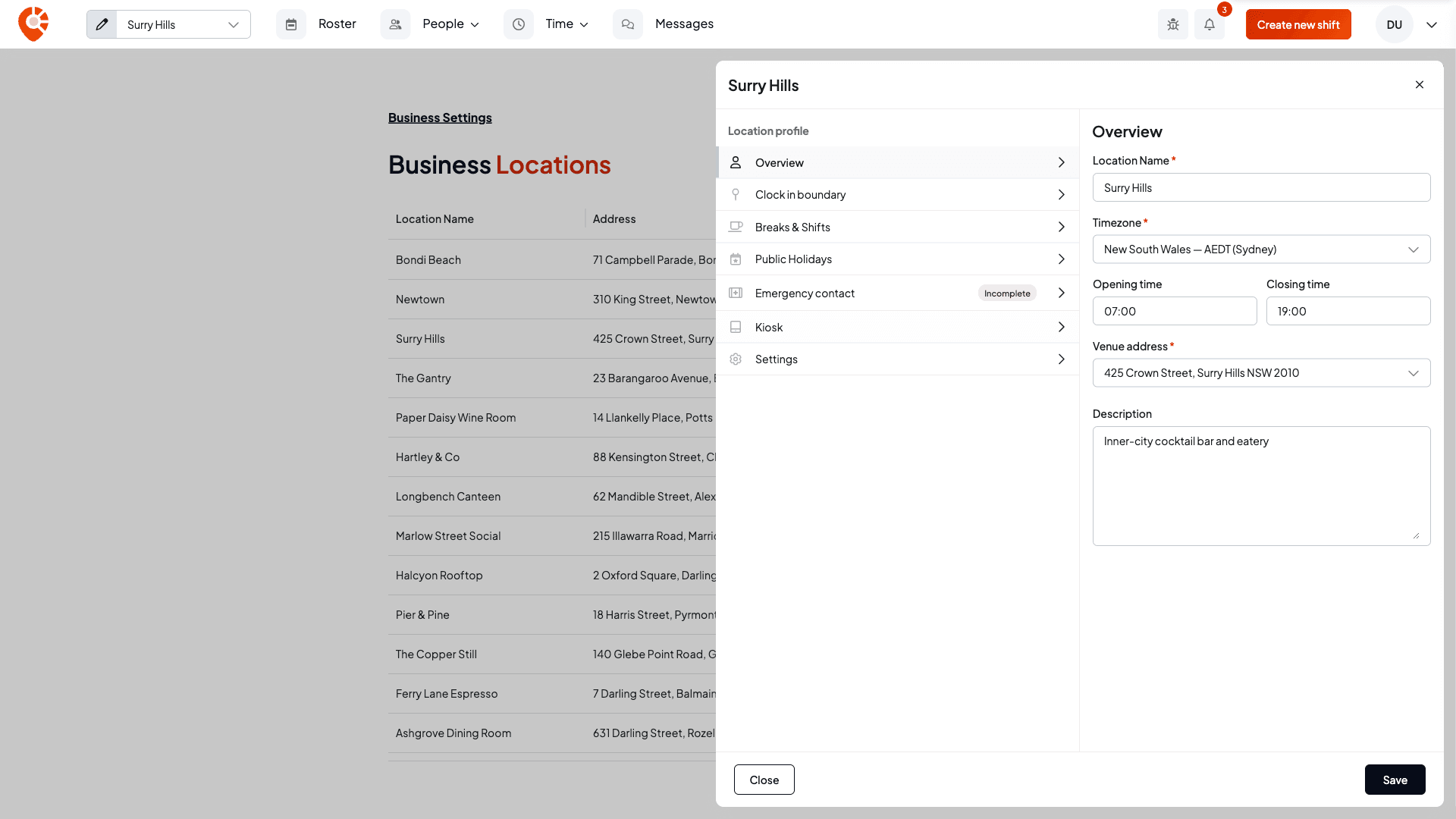
Select the pencil on a location to open its editor. The tabs down the left are its settings. A tab marked Incomplete still needs details: the Overview needs a name, timezone, description and address, the Clock in boundary needs a radius, and the Emergency contact needs at least a first name and phone number. Most tabs save when you select Save at the bottom. Select Close to leave without saving.
Overview
The Location Name, Timezone, Opening time and Closing time, the Venue address and a Description.
Clock in boundary
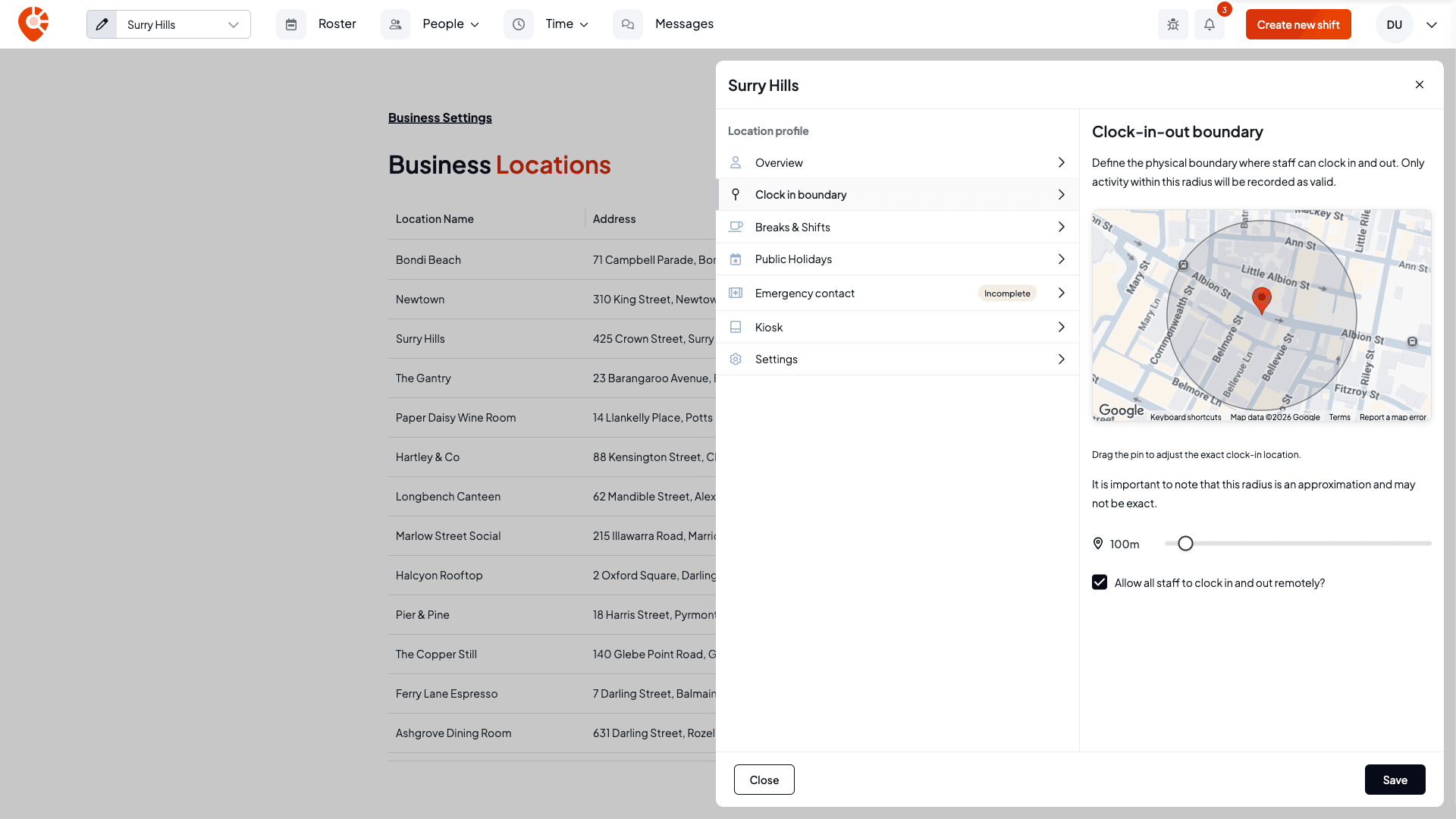
This is the area staff need to be inside to clock in and out. Drag the pin on the map to the exact spot, and set the radius with the slider (50 to 1000 m). The radius is an approximation, so Shiftly allows staff up to twice that distance from the pin before it treats them as outside the boundary.
Turn on Allow all staff to clock in and out remotely? if staff at this location don't need to be on site.
Breaks & Shifts
Choose the roster week
Roster week starts on sets which day this location's rosters begin. Changing it needs access to edit the Roster, and it takes effect straight away, without Save. If existing rosters need to move to the new week, Shiftly shows how many will change and asks you to confirm. Shifts themselves don't move, and nobody is notified. Your pay week, which sets weekly overtime, isn't affected.
Set default shift times
Under Default shift times, set a start and end time for each day, and use the switch to mark a day as open or closed. These times are filled in when you create a new shift, and you can still change them on each shift.
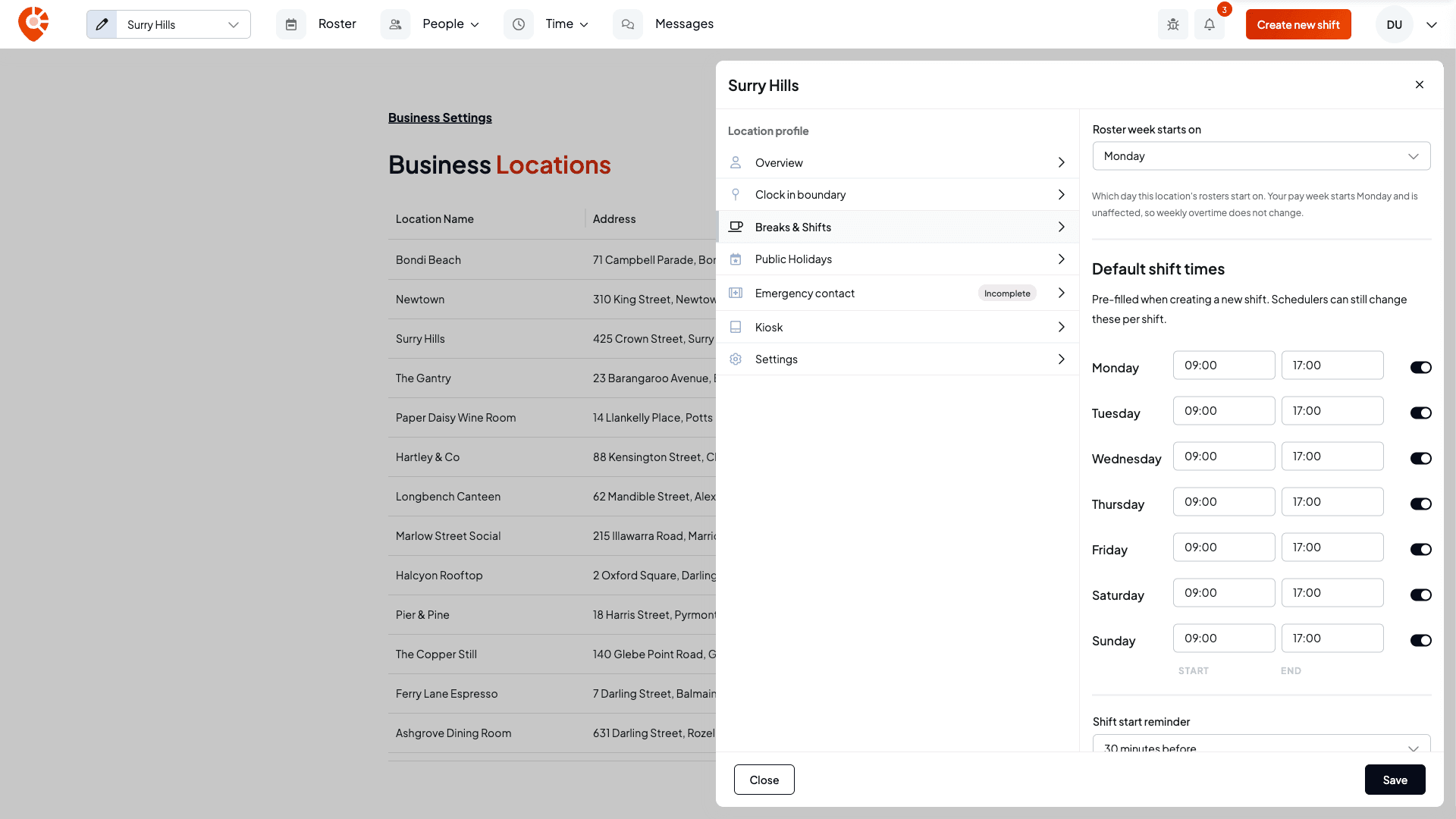
Shift start reminder sets how far ahead staff are notified before a shift starts. Choose Don't send reminders to turn reminders off for this location.
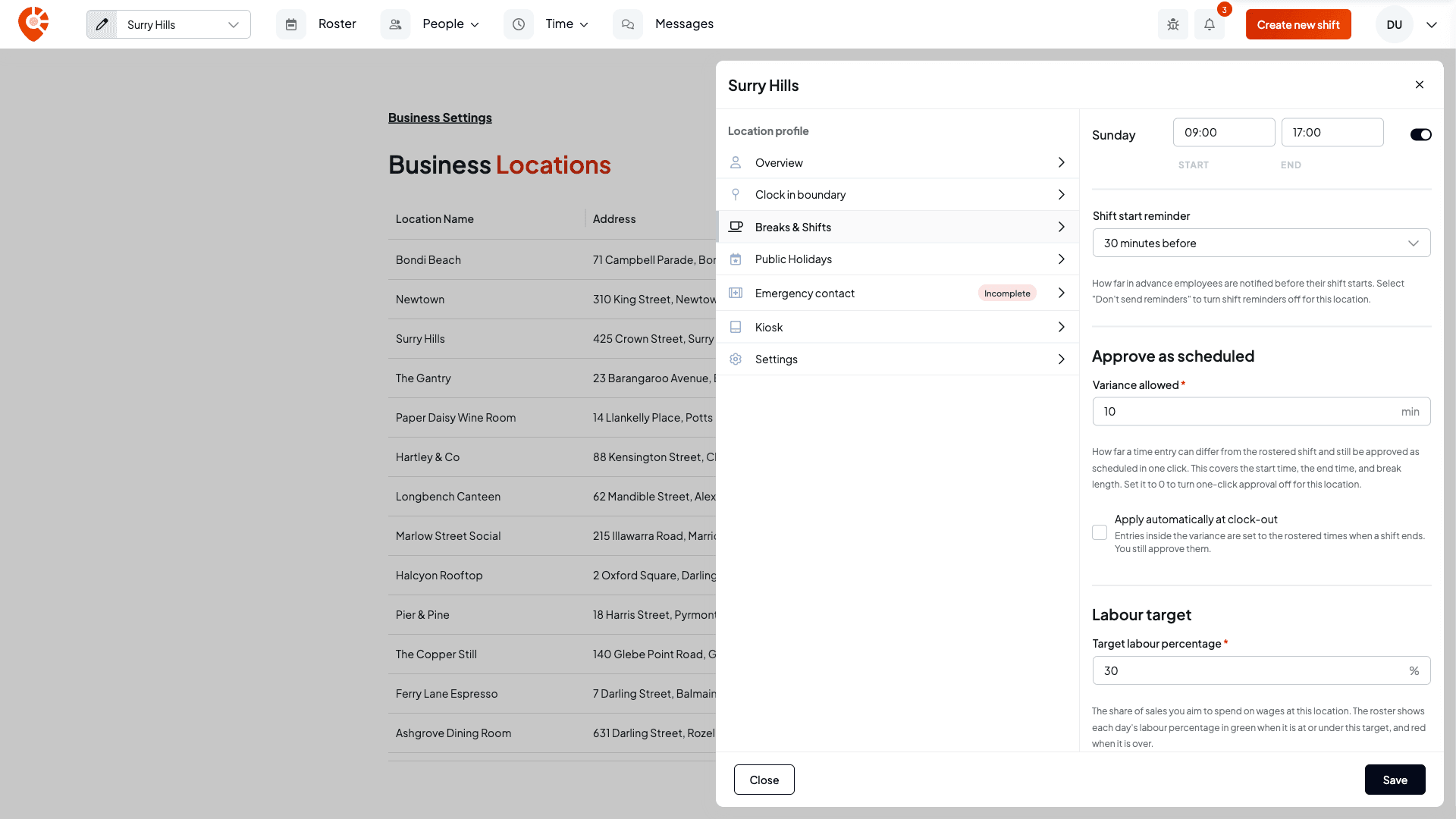
Set the approval variance and labour target
Under Approve as scheduled, Variance allowed is how far a time entry can differ from the rostered shift (start, end and break length) and still be approved as scheduled in one click on the Timesheets page. It's 10 minutes unless you change it, up to 120. Set it to 0 to turn one-click approval off for this location.
Tick Apply automatically at clock-out to set entries inside the variance to the rostered times when a shift ends. Automatic changes are capped at 30 minutes, the times staff actually clocked are kept on the timesheet, and you still approve them.
Under Labour target, Target labour percentage is the share of sales you aim to spend on wages here (30% unless you change it). The roster shows each day's labour percentage in green when it's at or under this target, and red when it's over.
To use the variance day to day, see Review and approve timesheets.
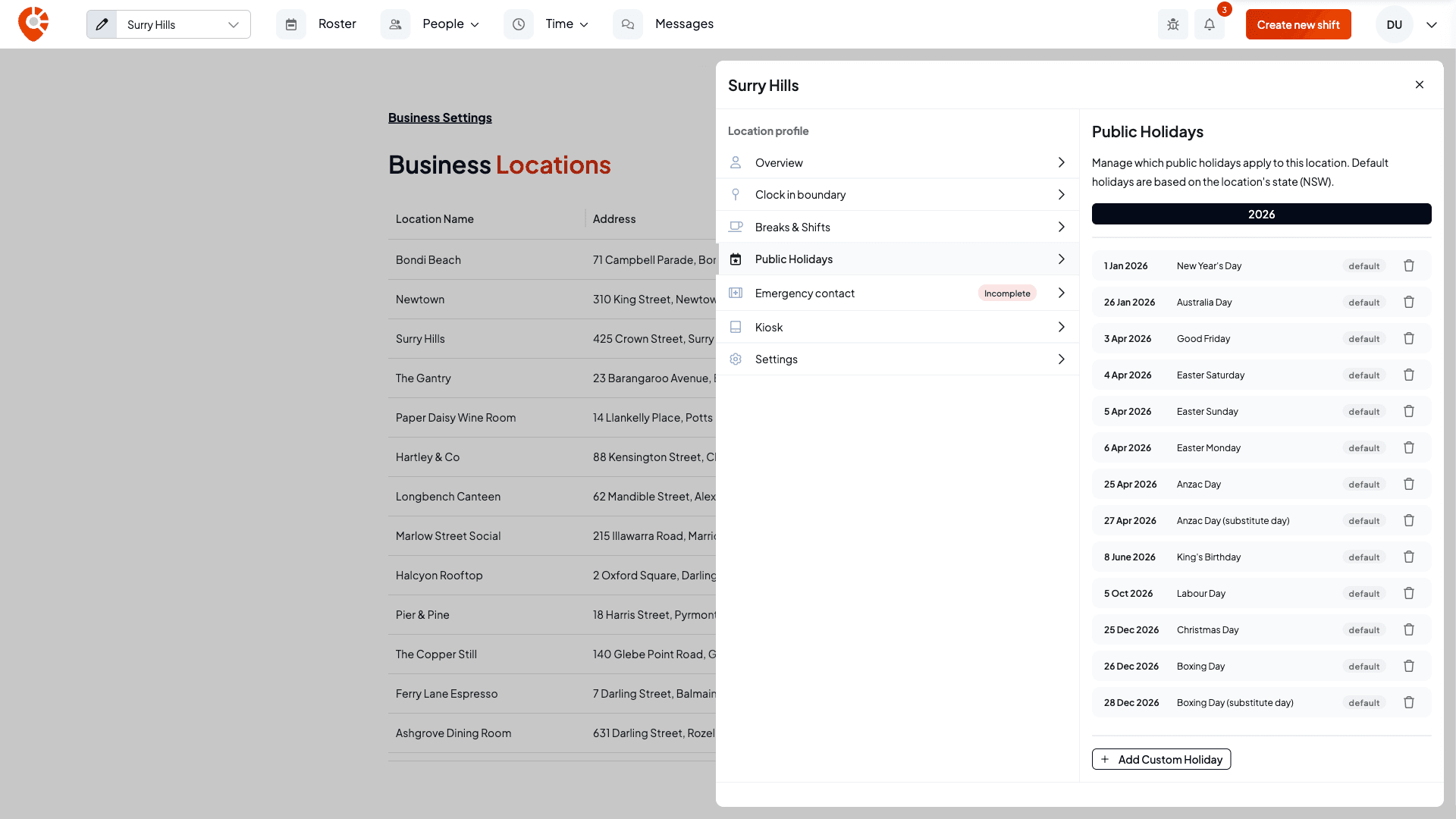
Public Holidays
The default public holidays come from the location's state. Choose the year at the top (this year or next), use the bin to exclude a default you don't observe (you can restore it later), or select Add Custom Holiday to add your own.
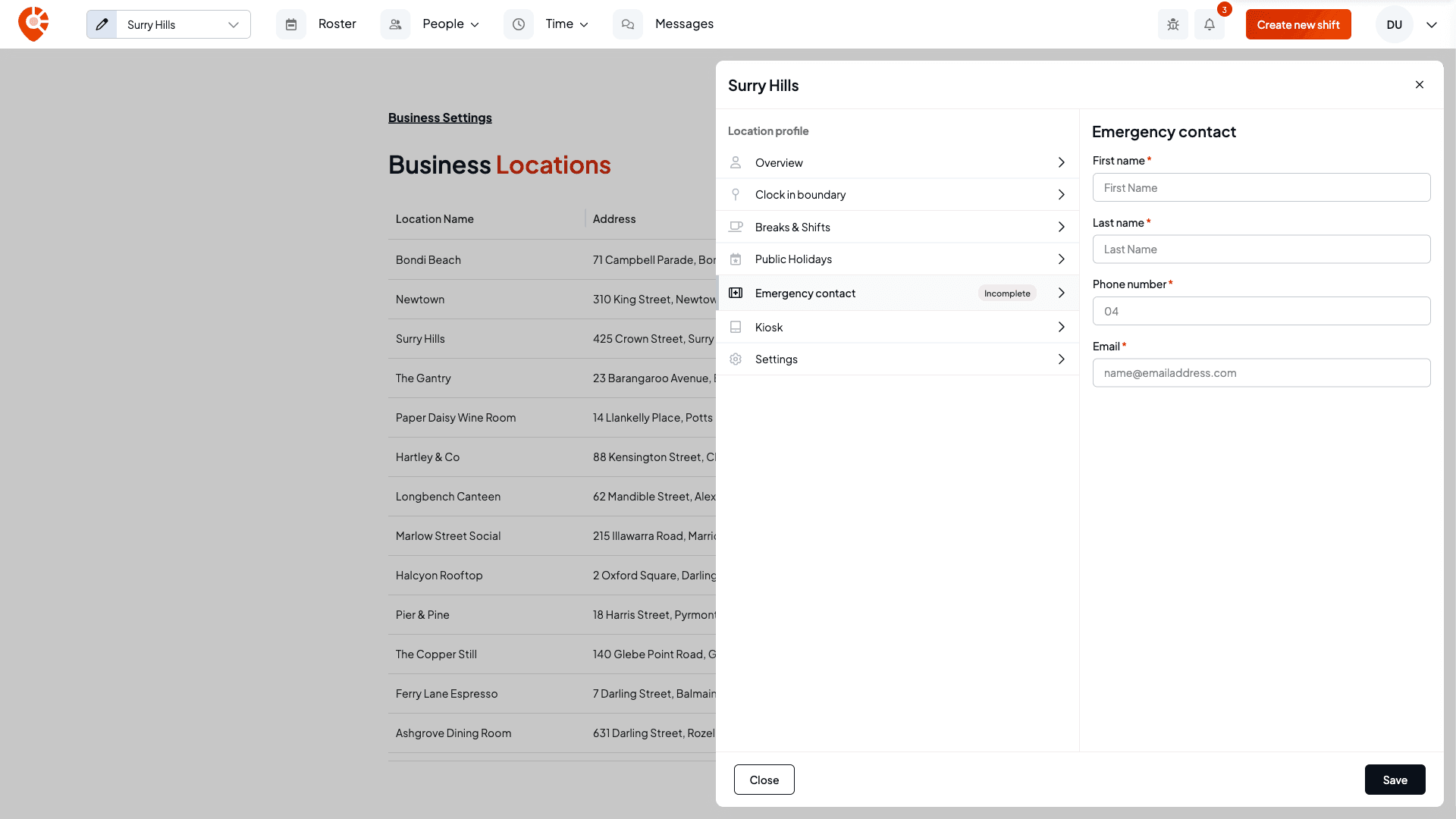
Emergency contact
A First name, Last name, Phone number and Email for the location's emergency contact.
Kiosk
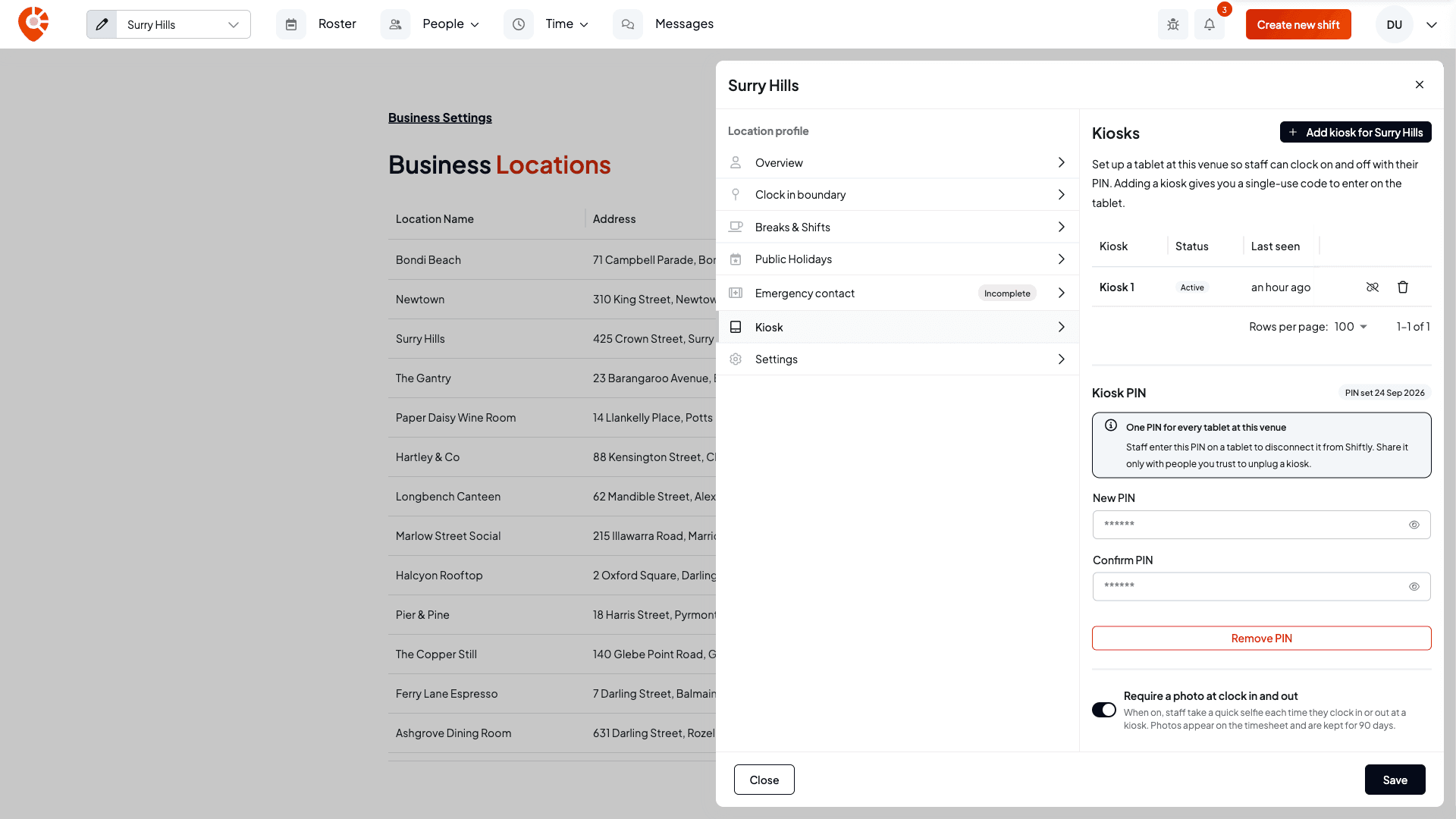
The Kiosk tab is where you set up tablets at the venue that staff clock on and off with their PIN. It lists the location's kiosks with their status, and holds the venue's Kiosk PIN and the Require a photo at clock in and out setting. To see this tab you need access to Kiosks. For the full walkthrough, see Set up a clock-in kiosk.
Settings
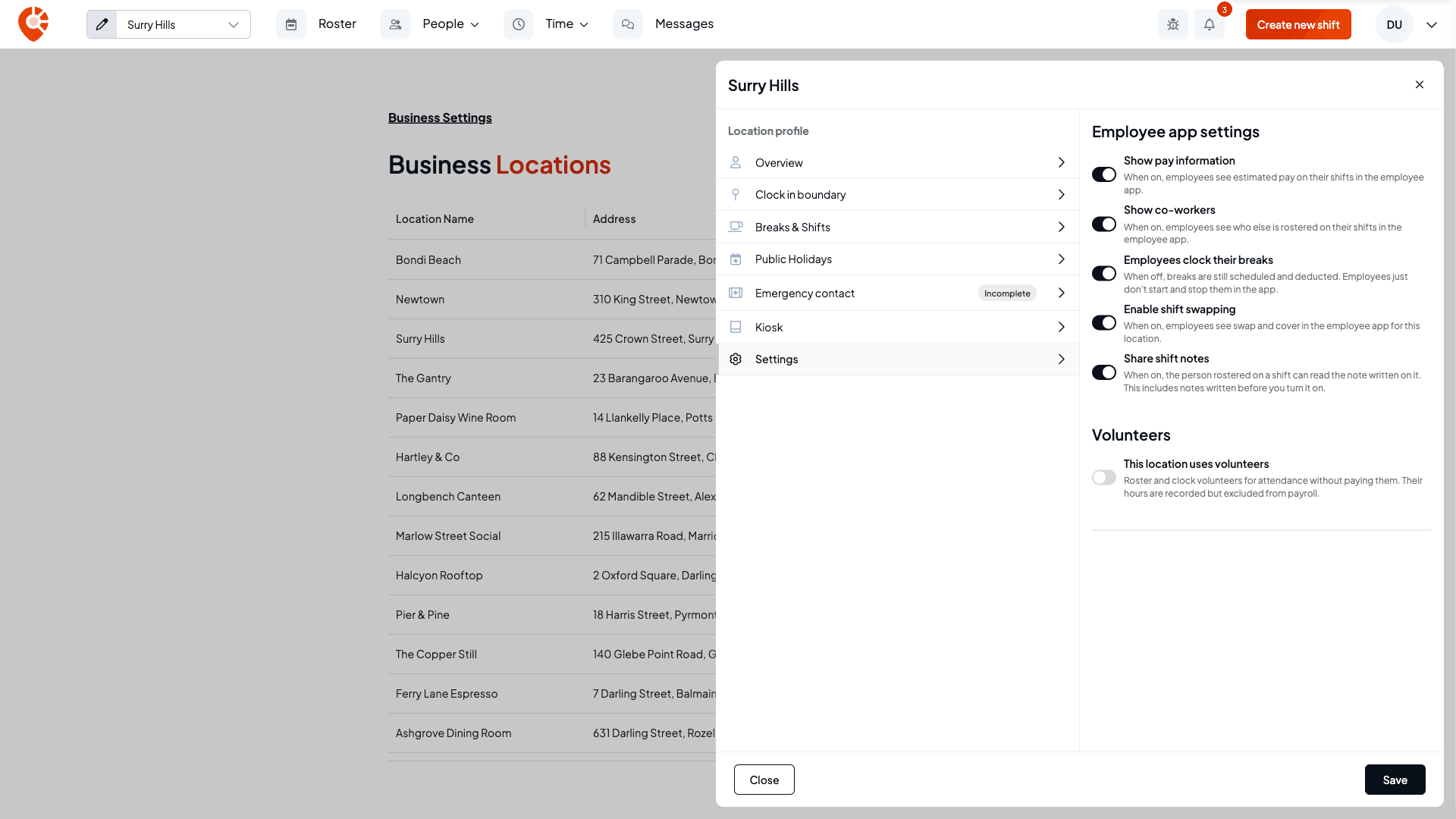
Employee app settings control what staff see in Shiftly Me for this location:
- Show pay information: employees see estimated pay on their shifts.
- Show co-workers: employees see who else is rostered on their shifts.
- Employees clock their breaks: employees start and stop their own breaks in the app. Turn it off and breaks are still scheduled and deducted; staff just don't clock them.
- Enable shift swapping: employees see swap and cover for this location.
- Share shift notes: the person rostered on a shift can read the note written on it, including notes written before you turn this on. When you save it on, Shiftly tells you how many notes already exist and asks you to confirm. You can turn it off again, but a note someone has already read can't be un-read.
Volunteers: turn on This location uses volunteers to roster and clock people for attendance without paying them. Their hours are recorded but excluded from payroll.
Related
Change your business name, ABN or award
Update your business name and ABN, switch or add the award that covers your team, or delete a business you no longer use.
Set up your positions
Add the roles you roster, such as Barista or Chef, link each one to your award, pay above the award rate, and look up what each award level covers.