
Set up your positions
Add the roles you roster, such as Barista or Chef, link each one to your award, pay above the award rate, and look up what each award level covers.
Positions are the roles you roster, such as Barista, Bartender or Line cook. Each position is linked to a role in your award, which is how Shiftly knows which award levels and pay rules apply. You can also pay more than the award rate for a position. This guide covers the positions list, adding and changing a position, giving it default tags, and looking up its award levels.
Who this is for
Owners and managers using the Shiftly web platform. To add, edit or delete positions you need permission to edit the roster. Without it, you can still view positions and their award levels.
Before you start
- Open People in the top navigation and choose Positions.
- The location selected at the top left matters for tag defaults: the table shows each position's defaults at that location.
View your positions
The Your Positions table lists your positions with their Name and Rate increase (the amount you pay above the award rate). If your business has more than one location, a Location column shows where each position is used. If your business uses tags, there's also a column for each category, such as Department and Venue job (see Give positions their tag defaults).
Each row's ⋮ menu under Actions has Edit, View award and Delete. Without permission to edit the roster, it has View award only.
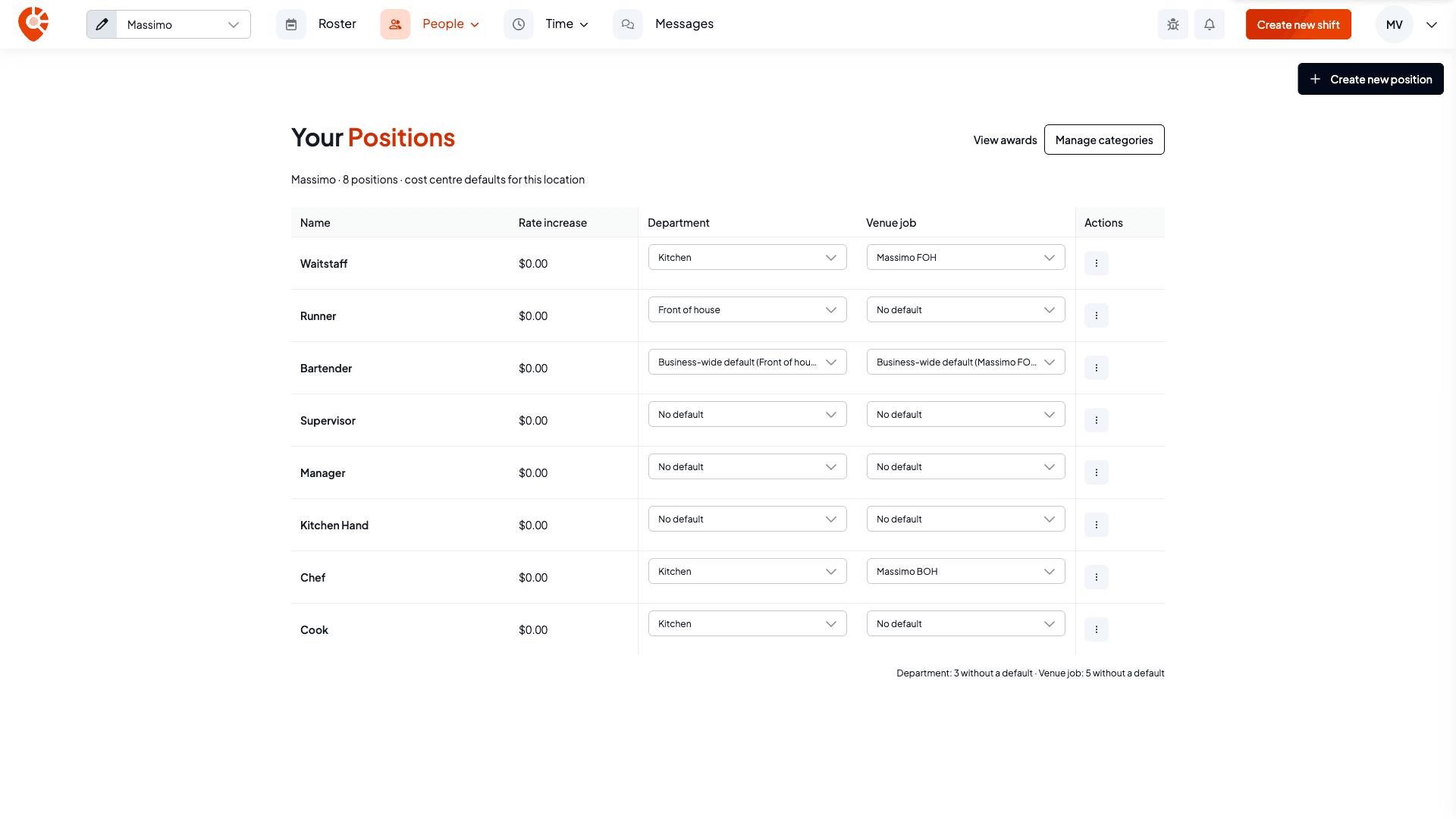
Add a position
Open the form and choose the role
Select Create new position. In Name, start typing the role. The list shows the matching roles from your award, plus any roles your business has added. Pick one, or if your role isn't listed, choose Create "..." to add it as a new role for your business. Shiftly tries to match a new role to the right part of your award. If the role you need is close to one in the list, picking that one is the safer choice. What each person in a position is paid comes from how you classify them on their profile; see Classify staff and estimate pay.
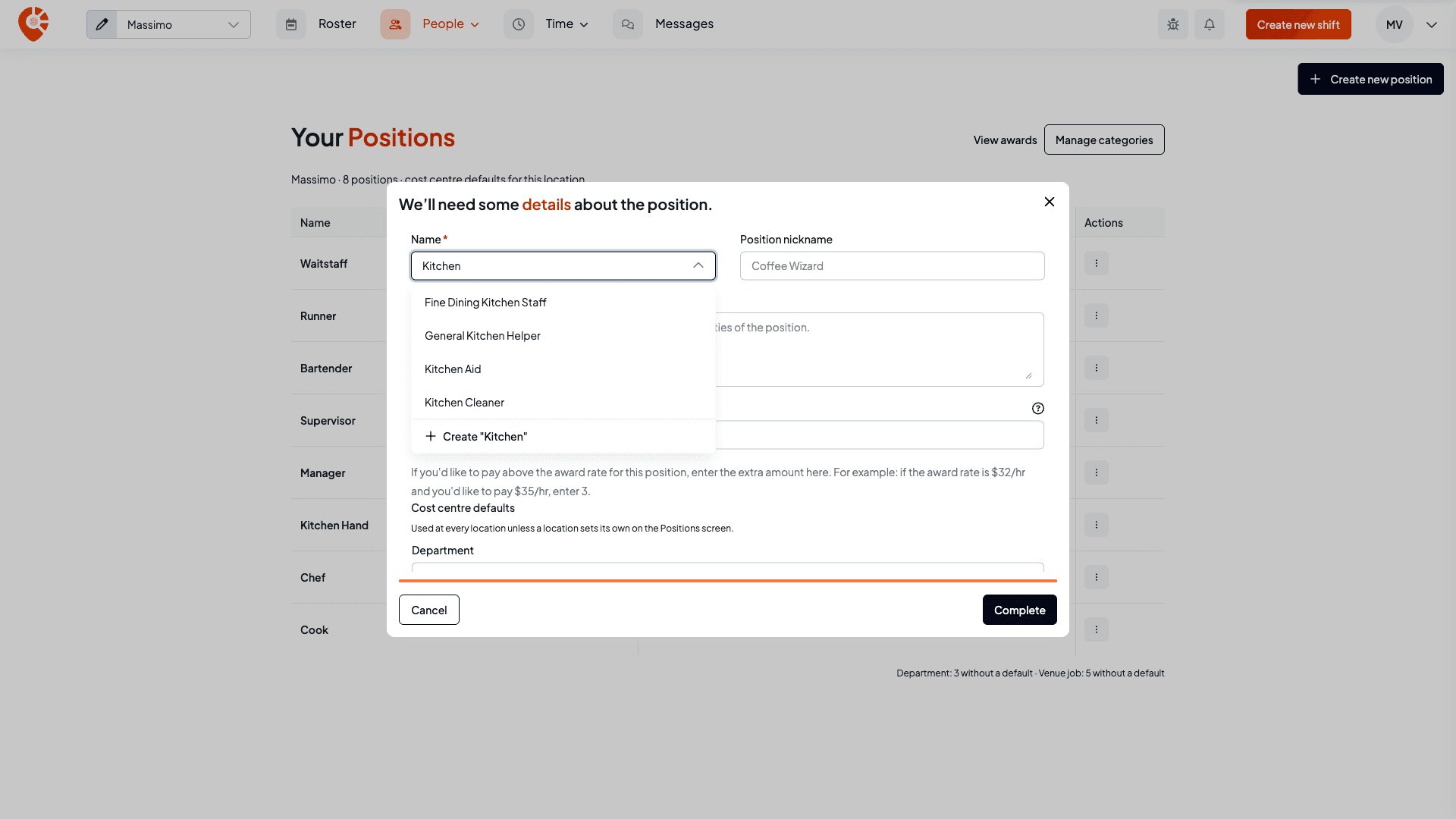
Check the nickname and description
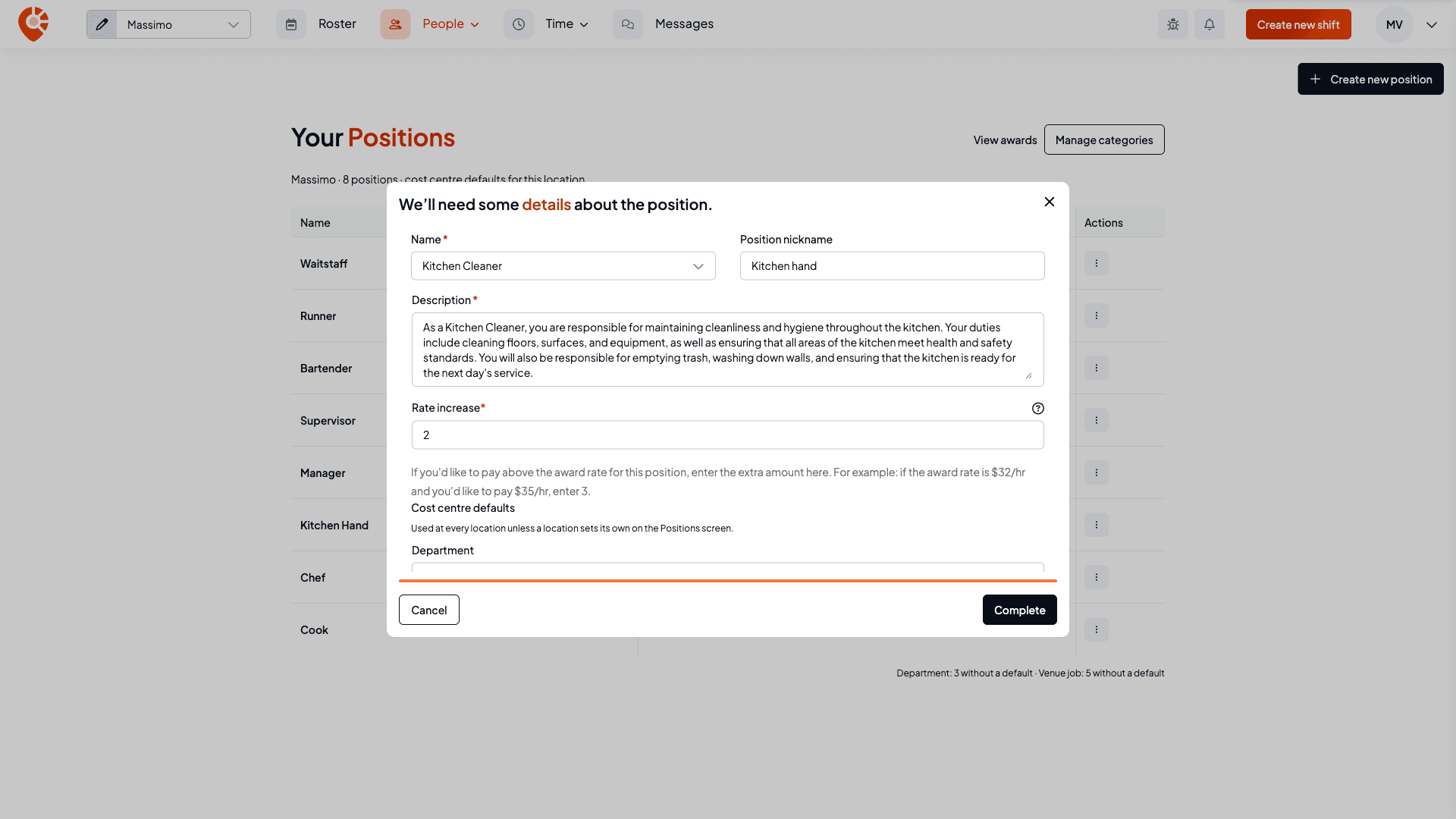
Choosing a role fills in the Position nickname and Description for you. The nickname is the name you'll see on the roster and in this list, so change it to what your team calls the role, for example "Kitchen hand". Edit the description if you need to. It can't be left empty and can be up to 400 characters.
If you work across more than one location, choose where the position is used under Locations. For owners, and managers with access to every location, a new position starts as Available at every location. Untick it to choose locations instead.
Set any pay above the award, then save
In Rate increase, enter the extra amount per hour you pay above the award rate for this position. For example, if the award rate is $32 an hour and you pay $35, enter 3. Leave it at 0 to pay the award rate. Shiftly adds this amount to the award rate when it costs shifts and timesheets in this position. It can't be negative.
If your business uses tags, the form also has Business-wide tag defaults: a default tag in each category, used at every location. See Give positions their tag defaults.
Select Complete to save the position, or Cancel to close the form without saving.
If the location is set up to use volunteers, the form also shows Default to volunteer shifts. When it's on, new shifts in this position start as volunteer (unpaid) shifts, and you can still change any single shift.
Change a position
Open the position's ⋮ menu and select Edit. The same form opens with the position's details filled in. Change what you need and select Complete.
Delete a position
Open the position's ⋮ menu and select Delete. Shiftly asks you to confirm and warns that shifts currently associated with this position will be deleted, but timesheets will remain. Select Delete to go ahead, or Cancel to keep the position.
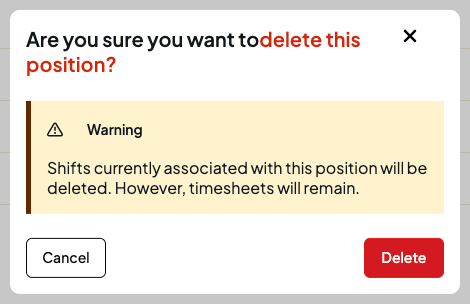
Deleting a position removes every shift in that position, past and future, and removes its shifts from your roster templates. Timesheets that have already been recorded are kept. There's no undo.
Give positions their tag defaults
If your business uses tags, each category column holds the position's default at the location selected at the top left. A new shift in the position picks up its defaults, so nobody has to choose tags by hand.
- Open a cell and pick a tag. It saves straight away.
- No default clears it. When the position has a default for every location, the option reads Business-wide default with that tag's name instead, and picking it falls back to that default.
- A position that isn't used at the selected location shows Not used here.
The line under the table counts how many positions have no default in each category. Manage categories at the top opens the Tags page. To set a default for every location, edit the position and use Business-wide tag defaults in the form. For applying a new default to upcoming shifts and everything else about defaults, see Track labour cost with tags.
Look up the award levels
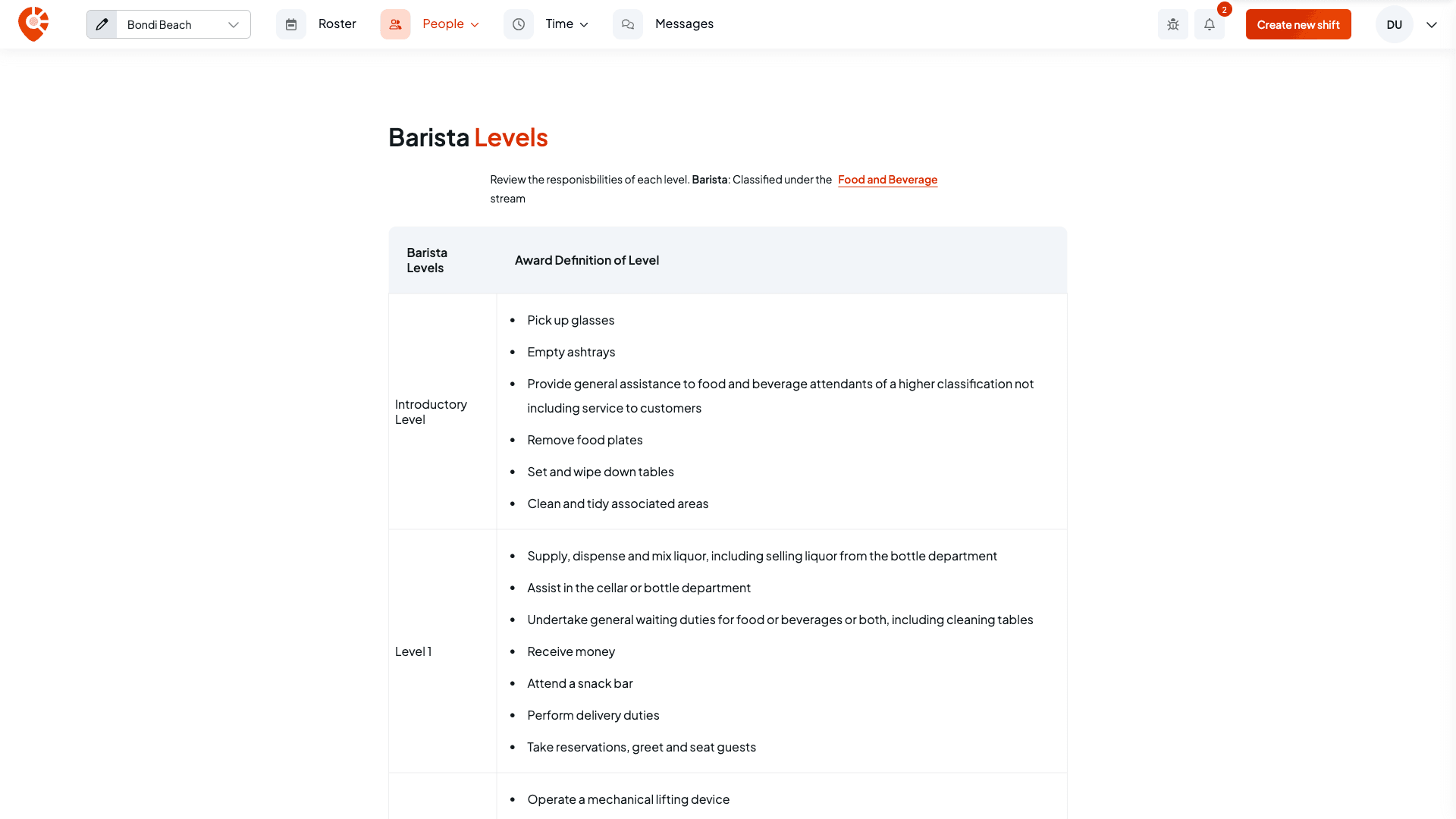
Open the position's ⋮ menu and select View award. The levels page shows which stream of the award the role is classified under (the section of the award it falls in, such as Food and Beverage). The stream name links to the award on the Fair Work Commission website. Below it, a table lists each level with the award's description of the duties at that level. Use it to decide which level to classify each employee at.
Related
Add and set up your locations
Add a venue and set its address, timezone, clock-in boundary, default shift times, roster week, approval and labour targets, public holidays, kiosk and employee-app settings.
Track labour cost with tags
Set up categories and tags, give each position its defaults, and see how shifts, timesheets, leave, payroll, reports and exports carry them.