
See how a tag is tracking
Open a tag's report to see its labour cost, hours, budget and variance in tiles, charts and per-staff tables, check what has no tag in a category, and export it as a PDF or CSV.
Every tag has its own report showing how its work is tracking: what it's cost, how many hours were worked against what was scheduled, and how much budget is left. An Unassigned report shows what has no tag in a category.
Who this is for
Owners and managers using the Shiftly web platform. You need access to business settings to open the reports. Without access to pay details, the costs are left out.
Before you start
- Open the account menu (your initials, top right) and select Tags. See Track labour cost with tags.
- A tag belongs to a category, such as Department or Venue job. Its report counts the shifts and timesheets that carry it in that category, so each category adds up separately.
Open a tag's report
Choose the tag
On the Tags page, select the arrow at the end of a tag's row.
Pick the dates
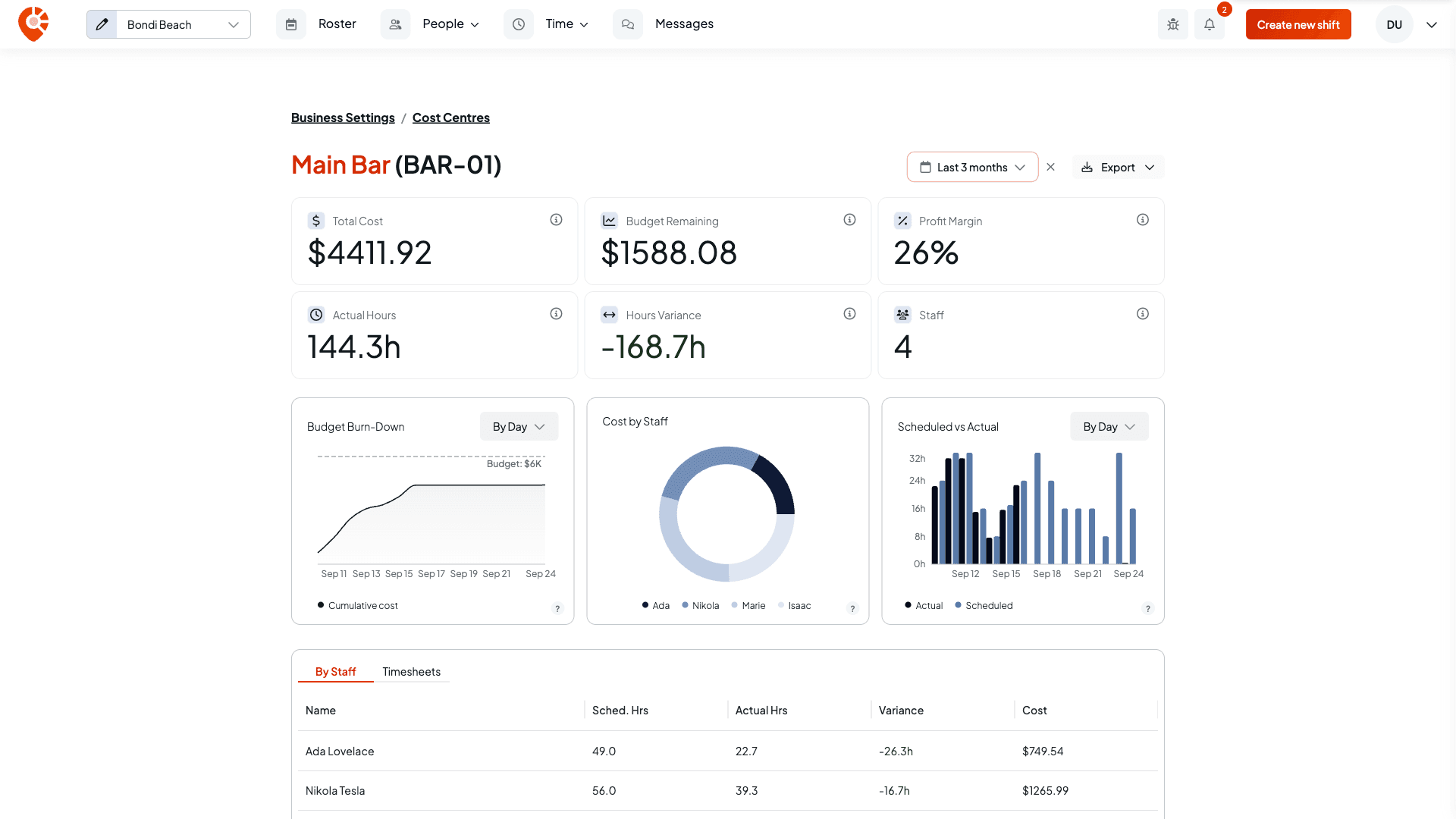
The report opens on This week. Use the date button at the top to choose another period, such as Last month, Last 3 months or Year to date, or Custom to set your own dates. Everything on the page follows the dates you pick.
Export it
Select Export, then Export PDF for the tiles and charts, or Export CSV for the table you're looking at (By Staff or Timesheets).
Where the figures come from
- Cost and actual hours come from the timesheets that carry the tag in its category, once they're pending, completed or approved.
- Scheduled hours come from the shifts that carry it, leaving out cancelled ones.
A timesheet copies its tags from its shift, or from the position's defaults when there's no shift, so the two usually agree. See Track labour cost with tags.
Read the tiles
- Total Cost: the labour cost for the tag.
- Budget Remaining: the budget minus the cost. It turns red once you've gone over.
- Profit Margin: how much of the budget is left, as a percentage.
- Actual Hours: the hours actually worked, not counting breaks.
- Hours Variance: actual hours minus scheduled hours. A positive figure, in red, means your team worked more than planned. A negative one, in green, means less.
- Staff: how many people logged time on the tag.
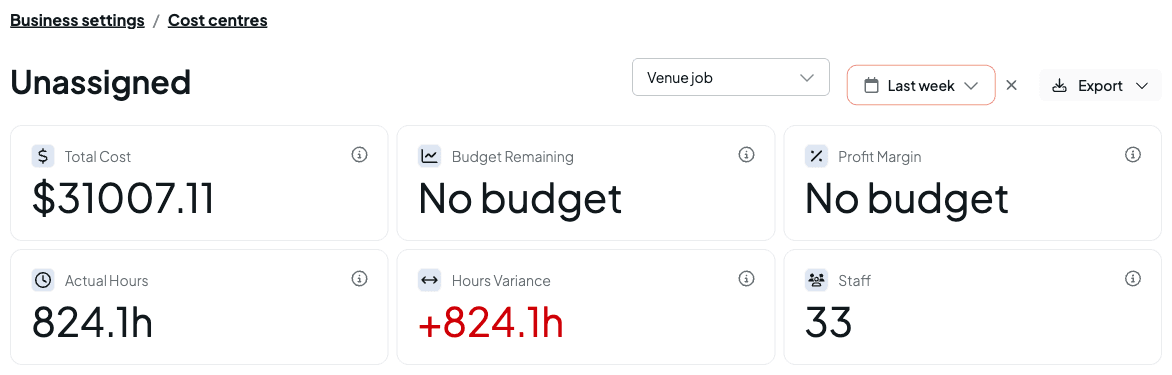
Budget Remaining and Profit Margin need a budget. Until the tag has one, they show No budget. If you can change settings, Set budget on the Budget Remaining tile opens the tag so you can add a Budget ($).
Read the charts
- Budget Burn-Down: the cost building up over time, with a dashed line for the budget when there is one. Switch between By day and By week.
- Cost by Staff: how the labour cost splits across the people who worked on the tag.
- Scheduled vs Actual: scheduled hours against hours worked, By day or By week.
Read the tables
Switch between two tabs at the bottom:
- By Staff: each person's scheduled hours, actual hours, variance and cost.
- Timesheets: the individual timesheets behind the totals, with the date, employee, hours, breaks and cost.
See what has no tag
On the Tags page, open a category's ⋮ menu and select View hours with no that category, for example View hours with no Venue job. The Unassigned report shows the hours and cost of the shifts and timesheets with no tag in that category. Use the menu beside the date button to switch category. Unassigned has no budget, so its budget tiles read No budget.
Related
Track labour cost with tags
Set up categories and tags, and give positions their defaults.
Reviewing timesheets
Approve the timesheets that feed these reports.
On the Shiftly website
Job costing
Wage cost by project and centre.
Track labour cost with tags
Set up categories and tags, give each position its defaults, and see how shifts, timesheets, leave, payroll, reports and exports carry them.
Scheduling & rosters
Build, publish, and manage your weekly roster: create shifts, copy and repeat them, save templates, publish to staff, run open shifts, and export the week.