
Deleting your account
Deactivate your Shiftly organisation account, and how that differs from a staff member deleting their own account.
The account admin can deactivate the whole organisation account from the web platform. This guide covers that, and how it differs from a staff member deleting their own account.
Who this is for
The admin of the organisation, on the Shiftly web platform. (Other users won't see the deactivate option.)
Before you start
- Export anything you want to keep first — see Exporting your data. Deactivation can't be undone.
- Open the account menu → Account management.
Deactivate the account
Confirm deactivation
At the bottom of Account management, select Deactivate account. A warning explains that the action can't be undone. Select Deactivate to proceed — you're logged out immediately.
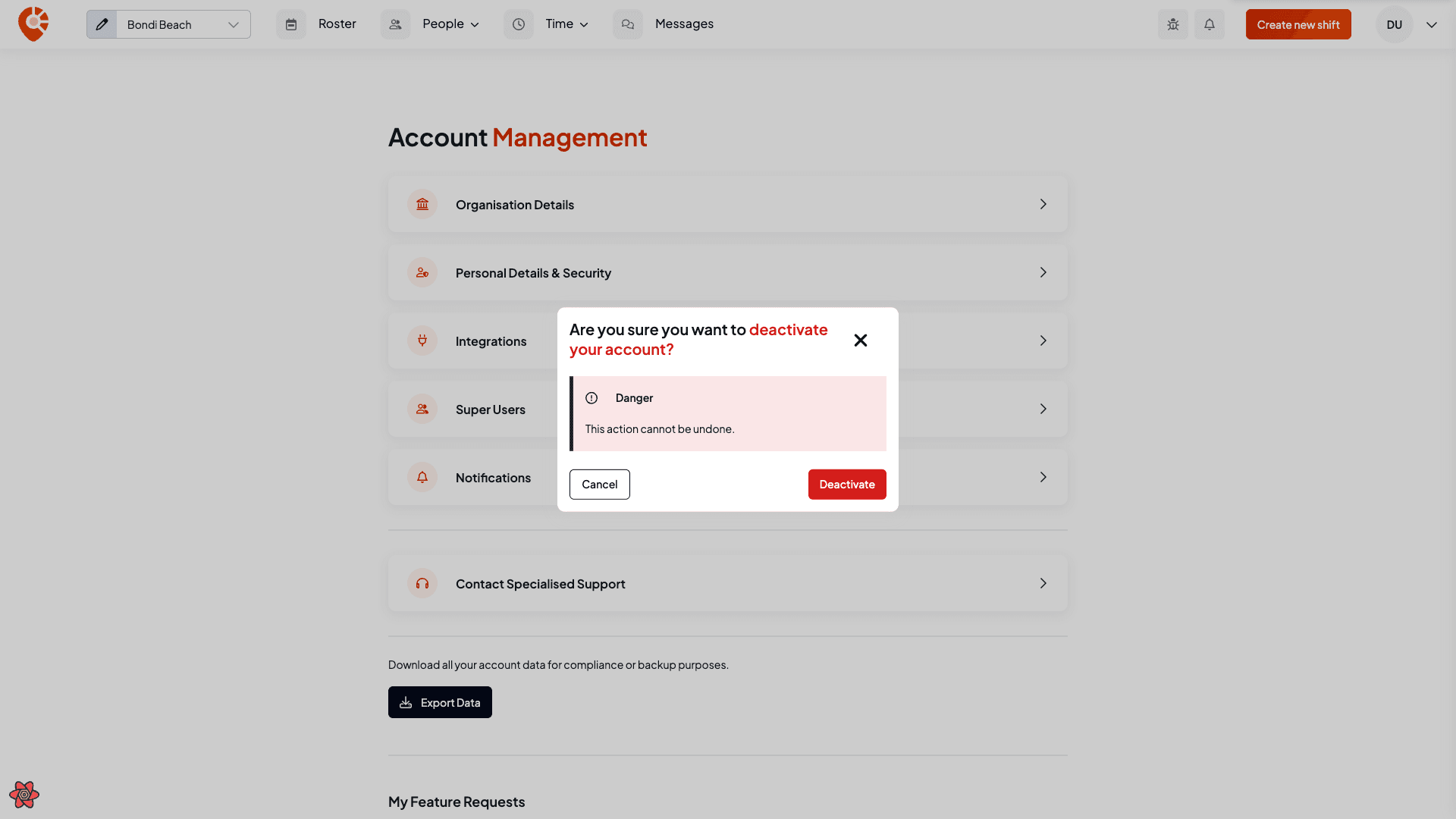
Deactivation is blocked while the account still has confirmed shifts — resolve those first, or contact the Shiftly team for help.
Deactivating vs a staff member deleting their account
- Deactivate account (here) closes the whole organisation account and is admin-only on the web platform.
- A staff member removing their own account does so from the Shiftly Me app, not the web platform — that removes their personal user, not the business.