
Let another app use your Shiftly data, or cut it off
Approve another product's request to read or change your business's Shiftly data, check which apps are connected and what each can do, and disconnect one.
Other products can work with your Shiftly data, for example a rostering, payroll or reporting tool that reads your rosters and timesheets. You connect them from inside that product, approve what they can do in Shiftly, and can disconnect them at any time from the Integrations page.
Who this is for
Owners, and managers whose access includes editing Manage team access. Anyone else who tries to connect an app is told "You can't connect apps to" your business, and to ask an owner or a manager who can manage team access.
Before you start
- Start in the other product. Look for an option to connect to Shiftly. It sends you to Shiftly to sign in and approve the connection.
- An app can never do more than the person who connects it. If your own access is limited to some locations or areas, so is the app's.
Connect an app
Check what it's asking for
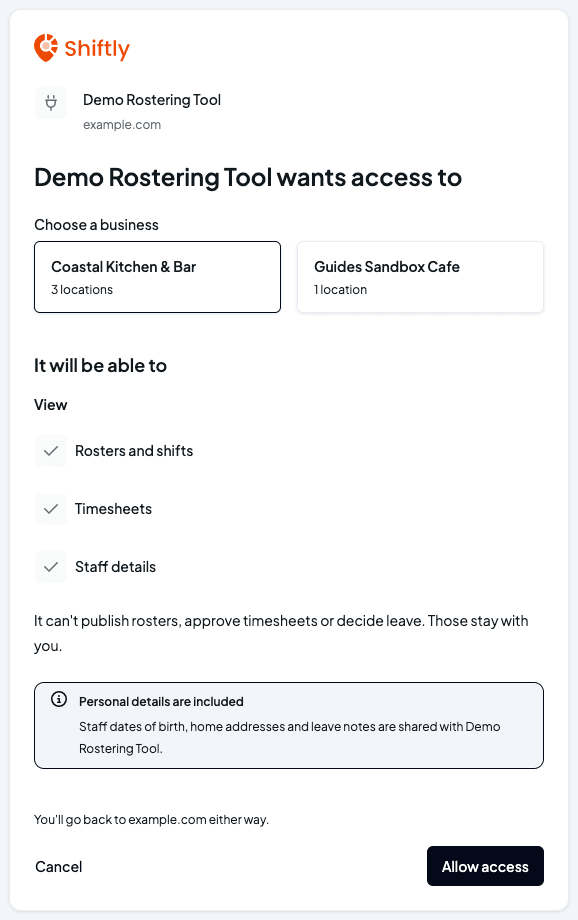
After you sign in, Shiftly shows the app's name and website, then wants access to, and asks you to Choose a business if you manage more than one. Under It will be able to, it lists what the app can view, and change if it asks to. Every app is told "It can't publish rosters, approve timesheets or decide leave. Those stay with you."
If the app can see staff details or leave, a note says Personal details are included: staff dates of birth, home addresses and leave notes are shared with it.
Allow access, or cancel
Select Allow access to connect it. Select Cancel if you don't want to, and nothing is shared. Either way you're taken back to the other product.
If the app is already connected to that business, Shiftly says so, and allowing access again updates what it can do.
See which apps are connected
Open the account menu (your name, top right) and choose Integrations. Once an app is connected, Apps connected to Shiftly appears below the integration cards, listing each app with its status, who connected it and when, and when it was last active. Until an app has been used it says Not used yet.
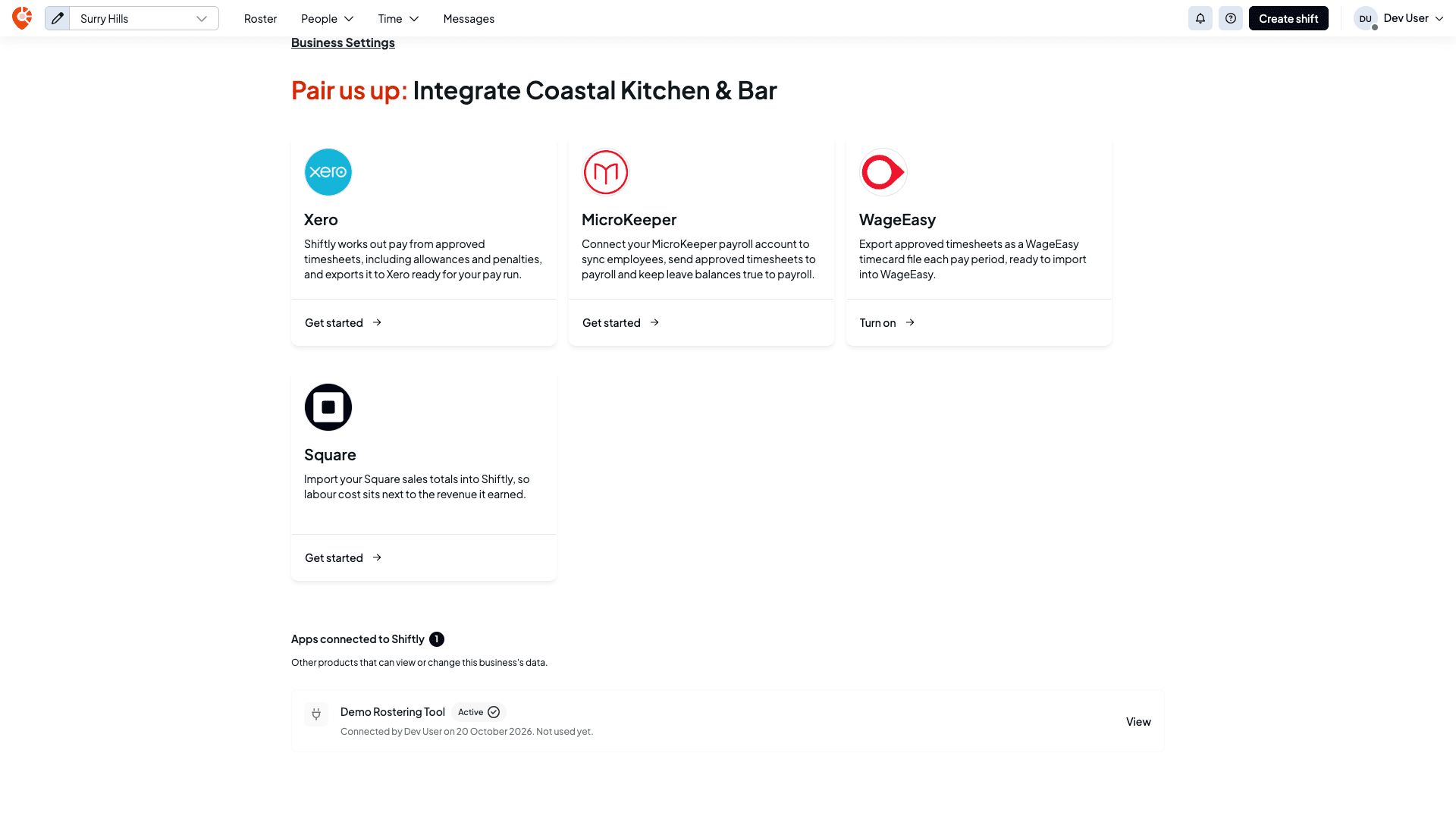
The status tells you whether the app is working:
| Status | What it means |
|---|---|
| Active | It's connected and working. |
| Reduced access | It still works, but it can do less than you approved, because the person who connected it now has less access, or the app no longer asks for some permissions. |
| Needs reconnecting | It has stopped working, for example because the person who connected it was removed, their account was closed, or the connection expired. Connect it again from the other product. |
| Paused by Shiftly | Shiftly has paused the app for every business, so it can't reach your data until Shiftly turns it back on. |
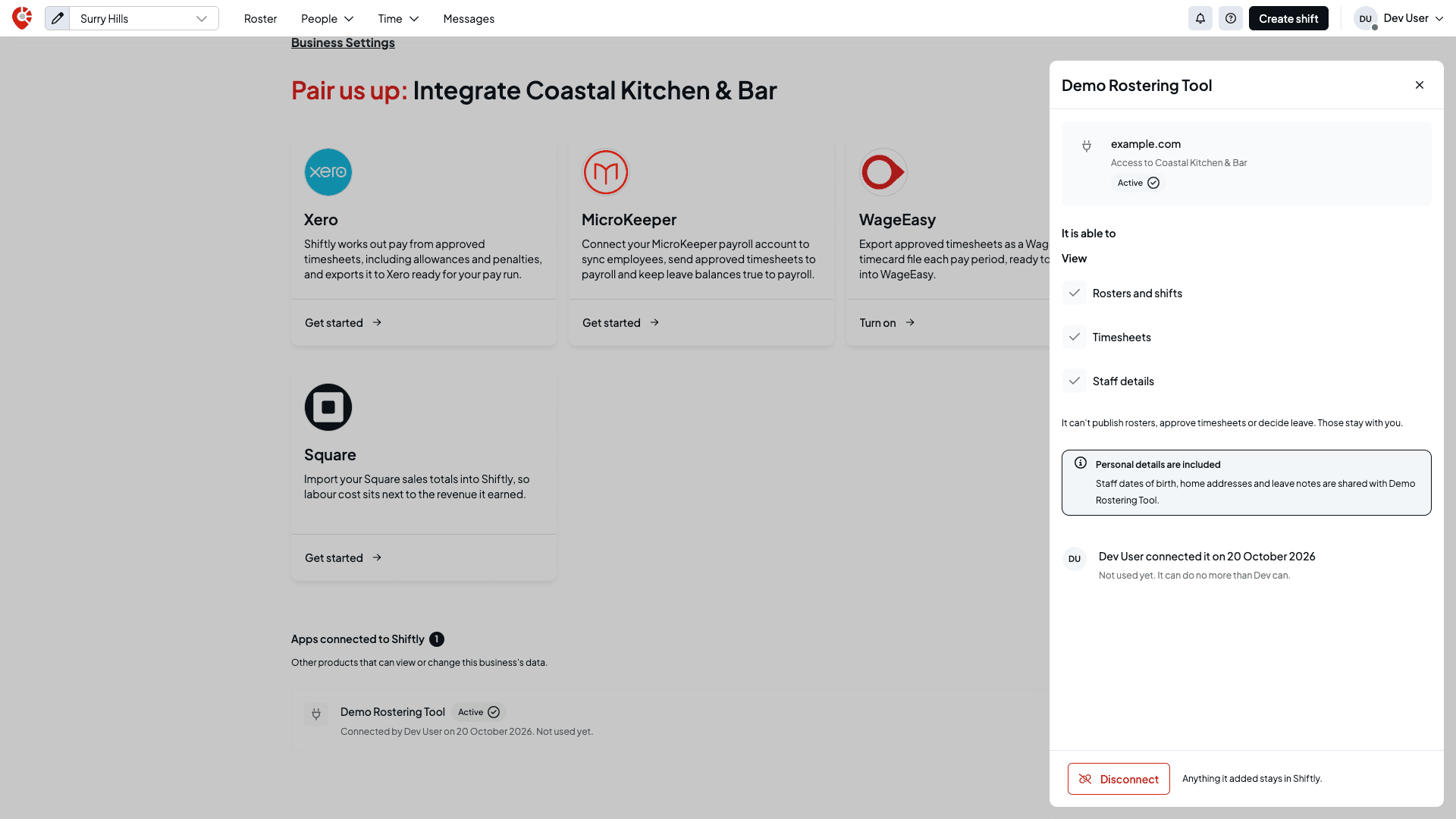
Select View to see the details: which business it can reach, what it can do there, who connected it and when.
Disconnect an app
Select Disconnect
Open the app with View and select Disconnect at the bottom of the panel.
Confirm
Shiftly asks you to confirm, for example "It loses access to Coastal Kitchen & Bar straight away. Shifts, timesheets and leave it already added stay in Shiftly. Anything it has already copied stays with Demo Rostering Tool." Select Disconnect to cut it off, or Keep connected.
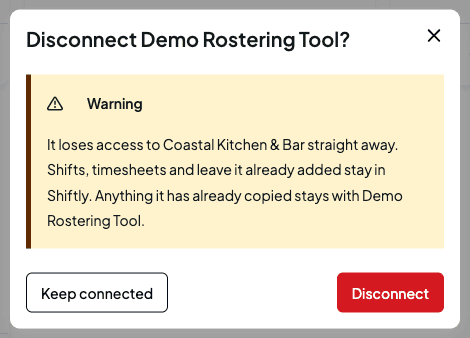
Disconnecting stops the app reaching Shiftly. It doesn't delete what the app already copied into its own product. Ask that product's support team if you want that removed.
Related
Send timesheets to WageEasy
Turn on WageEasy, add each employee's Time Card No, then download a timecard file of approved timesheets each pay period and import it into WageEasy.
Reference
The quick-answer shelf, with FAQs, fixes for common problems, plain-language definitions, and a running log of what's new in Shiftly.