
Manage or disconnect your Xero connection
Reopen the Xero setup, reconnect when Shiftly can't reach Xero, refresh your leave types, switch organisation or disconnect.
Once Xero is connected, you manage the connection from the Xero card on the Integrations page. This guide covers reopening the setup, reconnecting, refreshing your leave types, switching to a different Xero organisation and disconnecting.
Who this is for
Owners and managers using the Shiftly web platform whose business is connected to Xero.
Before you start
- You need permission to change business settings.
- Open the account menu (your initials, top right) → Integrations. You can also get there from Business settings → Integrations.
The Xero card
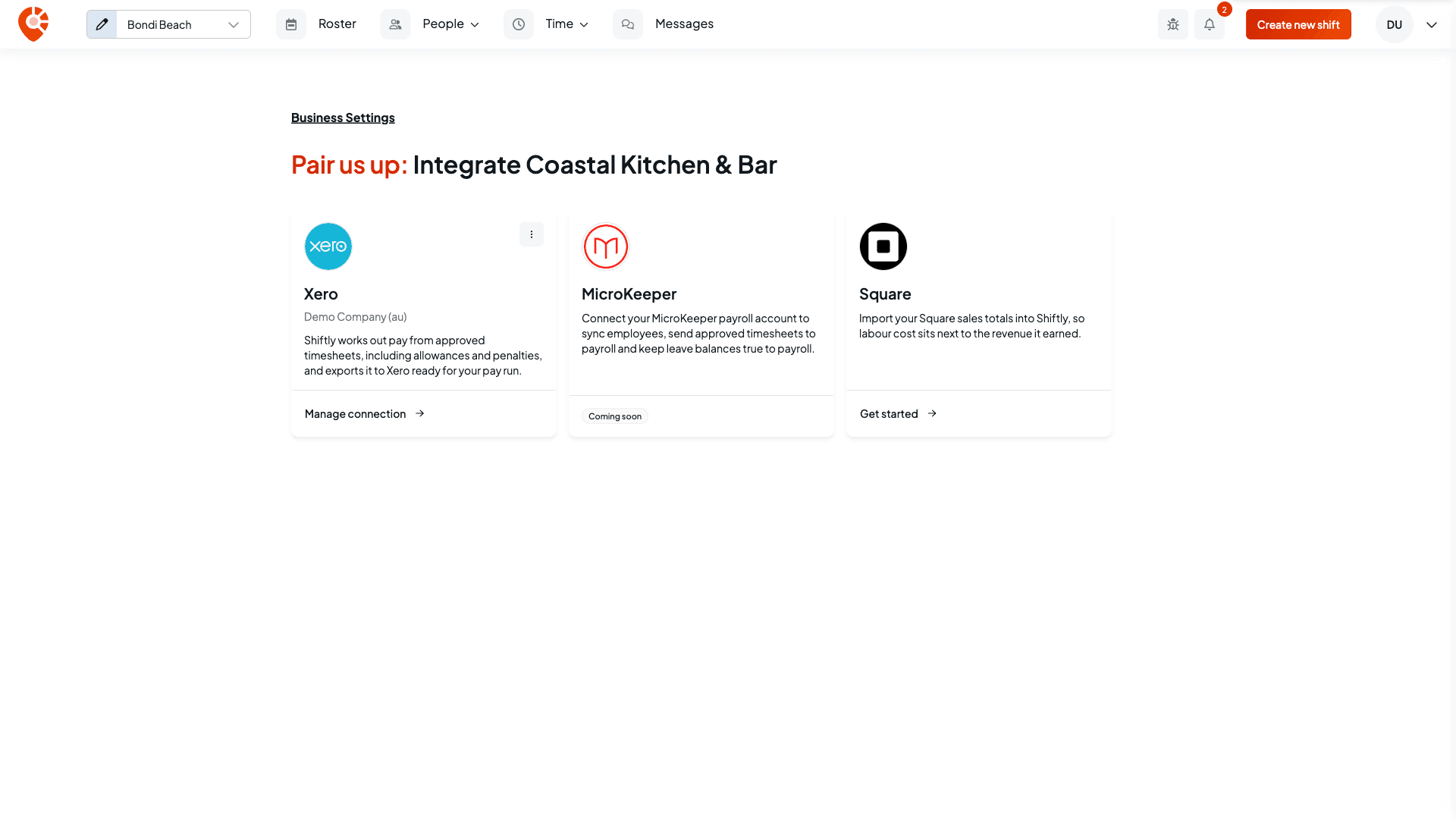
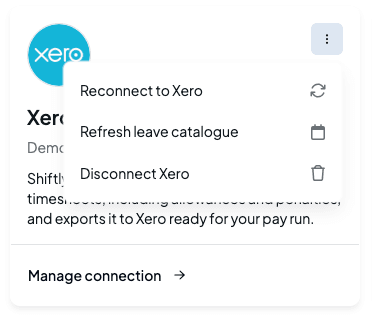
When you're connected, the Xero card shows the name of your Xero organisation and Manage connection. The menu button at the top right of the card has the other actions.
Change your Xero settings
Select Manage connection to reopen the Xero setup. If you've finished the setup, it opens on Connection, which shows the Xero account, its Status and the date it was Connected on. If you haven't, it opens where you left off.
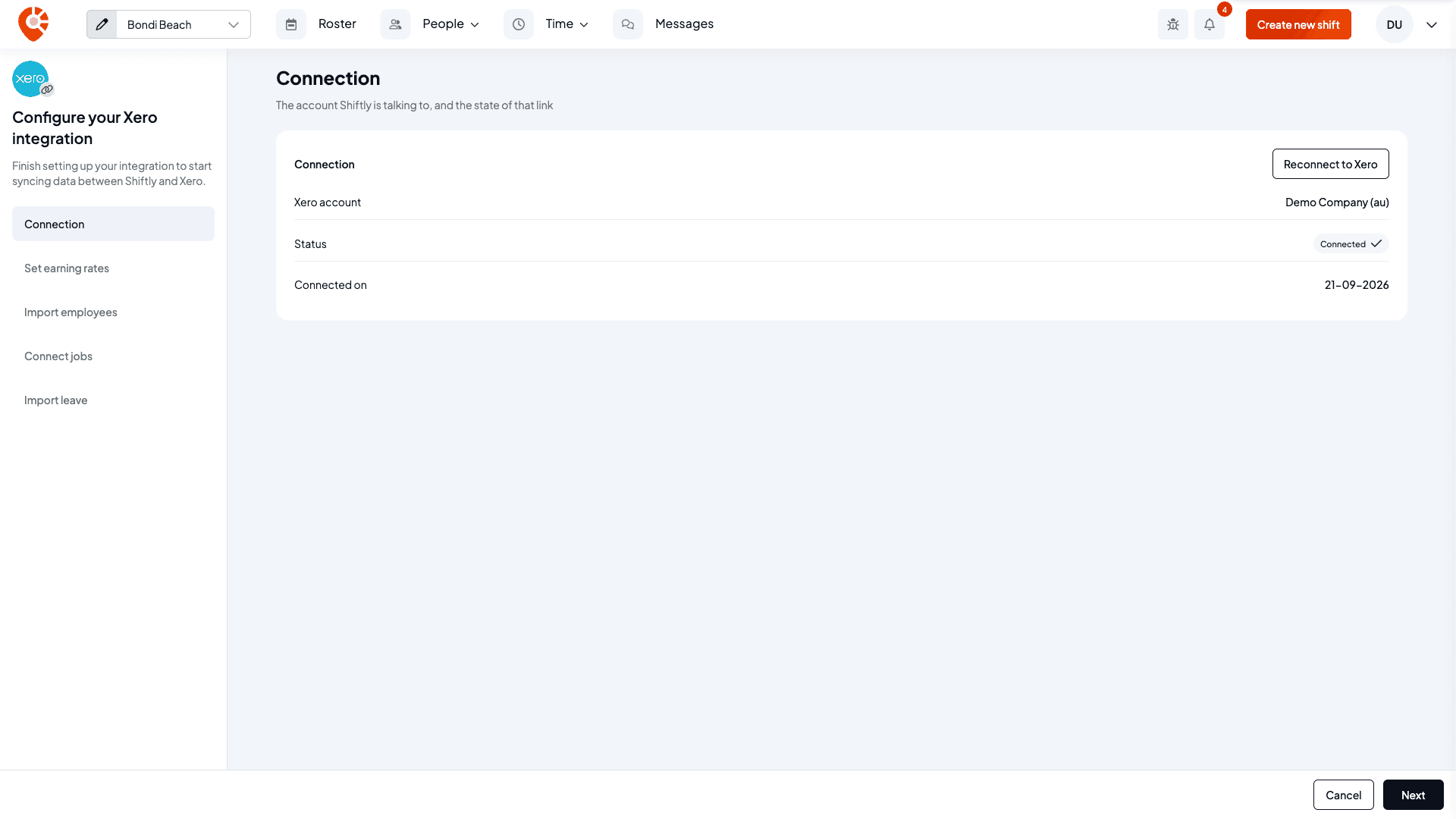
Pick any step down the side to change it: pay settings, importing employees, matching jobs or importing leave. Select Save and next to save a step, or Save & exit to save and come back later.
Reconnect to Xero
If Shiftly says Unable to connect to Xero. Please reconnect your account., sign in to Xero again:
Start the reconnect
Choose Reconnect to Xero from the card's menu, or select Reconnect to Xero on the Connection step of the setup.
Sign in to Xero
From the setup, you're asked Reconnect to Xero? first: select Reconnect. You're taken to Xero to sign in and approve Shiftly's access again, then returned to Shiftly. Your pay settings and matches are kept.
If Xero was disconnected for you
If Xero stops accepting Shiftly's access (for example, someone removed Shiftly from the connected apps in Xero), Shiftly disconnects the organisation to keep your data safe. Owners and managers get a Xero disconnected notification, and the Xero card shows Get started again. Connect Xero again to carry on.
If something else isn't reaching Xero
When the connection is fine but something still isn't turning up in Xero, check these first:
- The Xero setup isn't finished. Shiftly can't post timesheets until the payroll calendar, wages expense account and ordinary earnings rate are set. See Set up pay settings for Xero.
- The employee isn't linked to Xero. Their timesheets are skipped when you post, and their leave doesn't reach Xero. See Keep staff in sync with Xero.
- A leave request didn't sync. The request shows Xero sync failed with a Retry sync button. See Approve or decline leave requests.
Refresh your leave types
Choose Refresh leave catalogue from the card's menu to bring your latest Xero leave types into Shiftly, for example after adding a leave type in Xero. Shiftly confirms with Leave catalogue refreshed. You can do the same with Sync now on the Leave Types page. See Set up leave types and balances.
Switch to a different Xero organisation
A business connects to one Xero organisation at a time. To use a different one, disconnect Xero (below), then connect again and pick the other organisation. An organisation that's already connected to another of your businesses can't be picked until it's disconnected there.
Disconnect Xero
Choose Disconnect Xero
Open the card's menu and choose Disconnect Xero.
Confirm
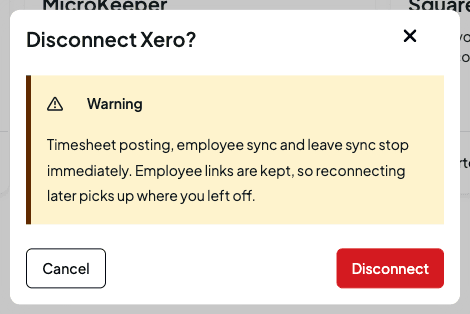
Shiftly asks Disconnect Xero? Select Disconnect to go ahead, or Cancel to keep the connection.
What happens when you disconnect:
- Syncing stops straight away. You can't post timesheets to Xero, and staff and leave stop syncing.
- Links to your staff are kept. Each employee stays linked to their Xero record, so if you reconnect the same organisation, you pick up where you left off.
- Leave moves back to Shiftly. Your leave types go back to Shiftly's own, each employee's opening balances are set from their Xero balances, and pending leave requests are cancelled so staff can send them again. See What syncs with Xero.
Related
Set up pay settings for Xero
Pick the Xero payroll calendar, earnings rates and accounts Shiftly posts into, choose whether timesheets arrive as drafts or approved, and understand what happens in Xero when you post.
Match jobs to Xero tracking categories
Pair each Shiftly job with the matching option in your Xero tracking categories, or create jobs from your Xero tracking options.