
Customise your pay rules
Adjust the rates, penalties, overtime, pay week, breaks and allowances Shiftly uses for each award, and preview the effect before you save.
Shiftly starts from the official rules for every award your business uses. Pay rules let you adjust those rules for your business: rate multipliers, penalties, overtime, breaks and allowances. You can preview the result before it applies to future shifts. This guide also covers your pay week, the week Shiftly uses to count weekly overtime.
Who this is for
Owners and managers using the Shiftly web platform. If you can view pay rules but not change them, the pages are read-only. Pay rules are set per award, for the whole business. Every figure Shiftly shows is an estimate, so check pay with your payroll provider.
Before you start
- Your business is on at least one award. See Set up your business.
- Open the account menu (your initials, top right) and choose Pay Rules under Business Settings, or select the Pay rules card on the Business Settings page.
Open an award's rules
Pick an award
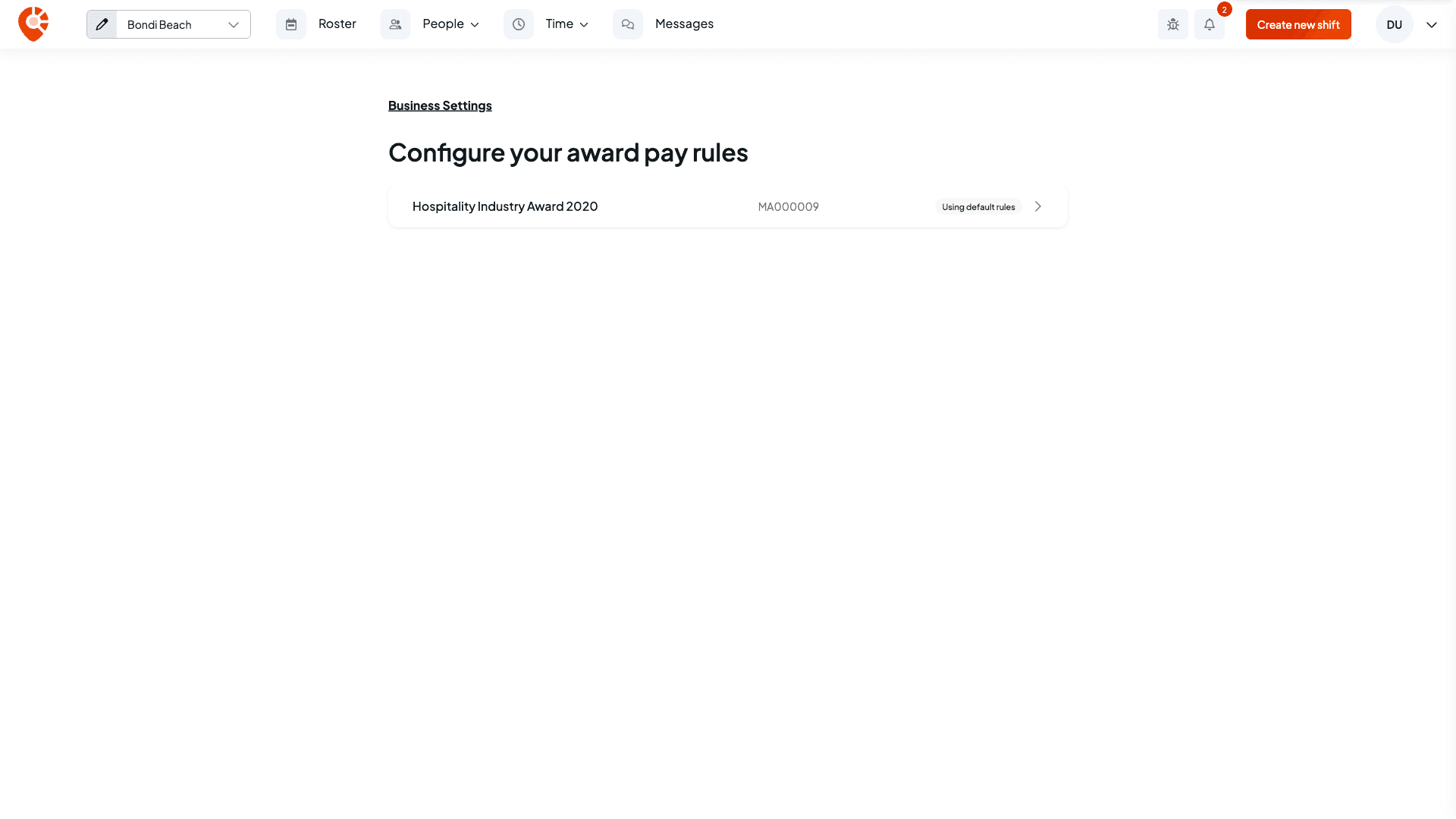
Configure your award pay rules lists each award your business uses. An award shows Using default rules until you save rules for it, then Customised, even if you later reset everything. Select an award to open its rules.
Choose the industry, if your award asks
Some awards cover several industries that each have their own rules. For those, an Editing rules for menu appears above the tabs. Pick the industry you want to change. Your changes apply to that industry only, so switch to each one you need.

For an award whose rules aren't built into Shiftly yet, there are no award penalties or allowances to start from, so you add your own with Add custom penalty and Add allowance.
The rules are split across five tabs: Rates & penalties, Overtime, Breaks, Allowances and Preview. Nothing changes until you save, apart from your pay week, which is explained below. See Save your changes.
Rates and penalties
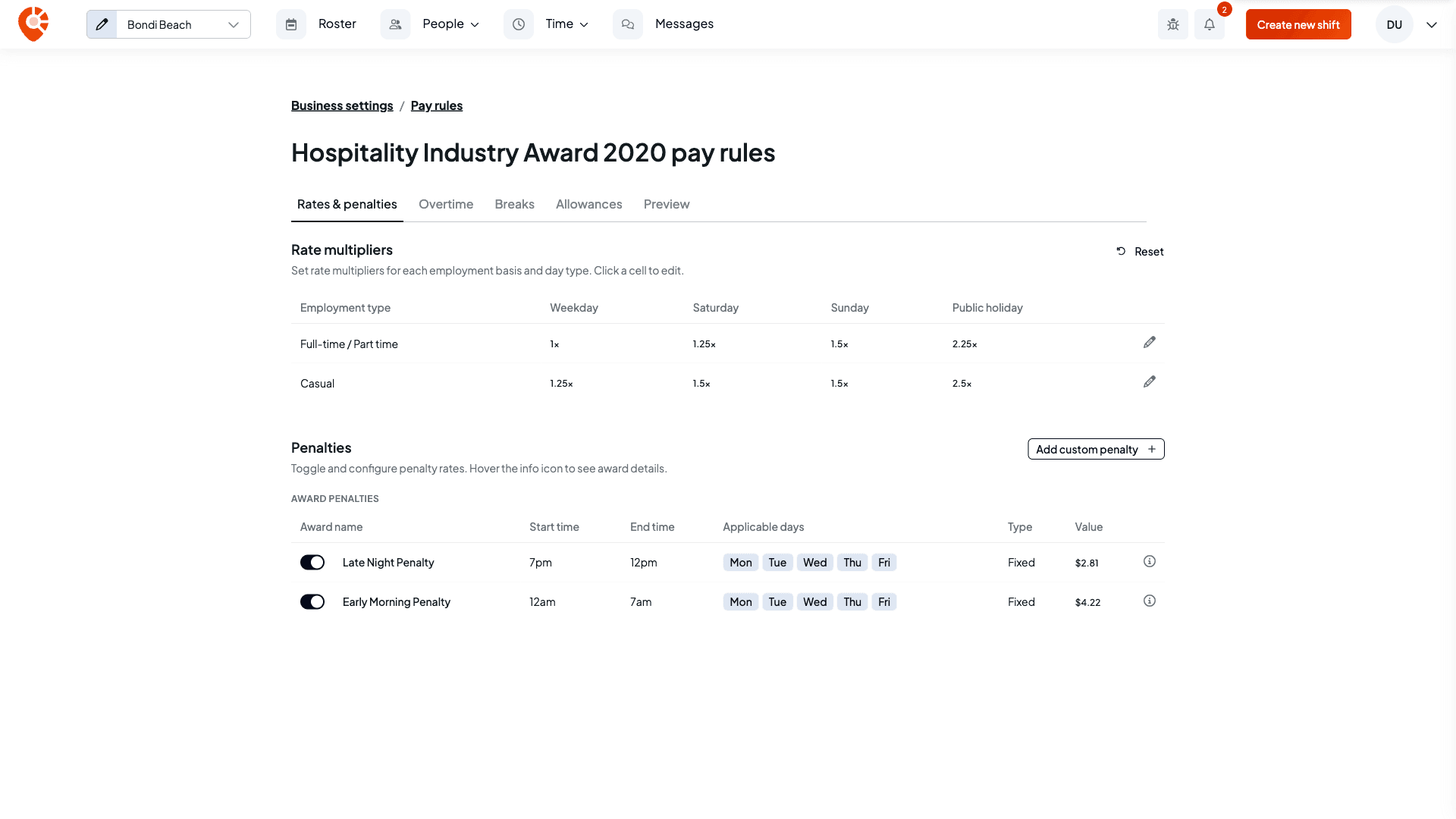
Rate multipliers sets the multiplier for each employment type (full-time and part-time, or casual) on each type of day: weekday, Saturday, Sunday and public holiday. Click a value to change it. A changed value gets a reset button to put it back to the award's figure, and Reset puts everything on this tab back to the award's rules, penalties included.
Penalties lists the award's penalties, such as late-night and early-morning loadings, with their times, days and value. Use the switch on a row to turn a penalty off or on, click its value to change it, and hover the info icon to read what the award says about it. A penalty that runs until midnight currently shows its end time as 12pm, as the late-night penalty does in the screenshot below. Add custom penalty adds your own penalty, with its name, which employment types it applies to, whether it's a multiplier or a fixed amount, its start and end time, and the days it applies.
Overtime
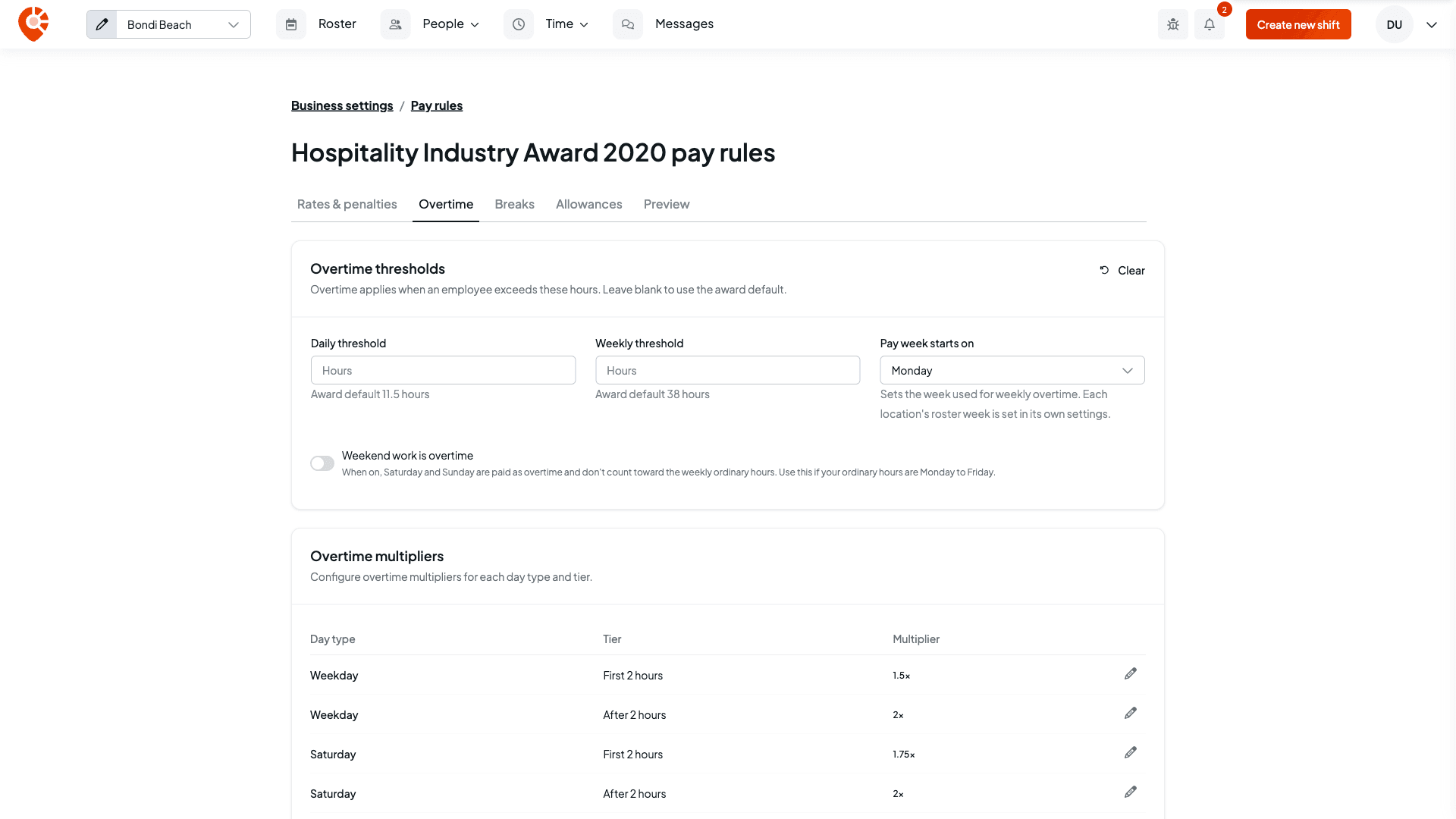
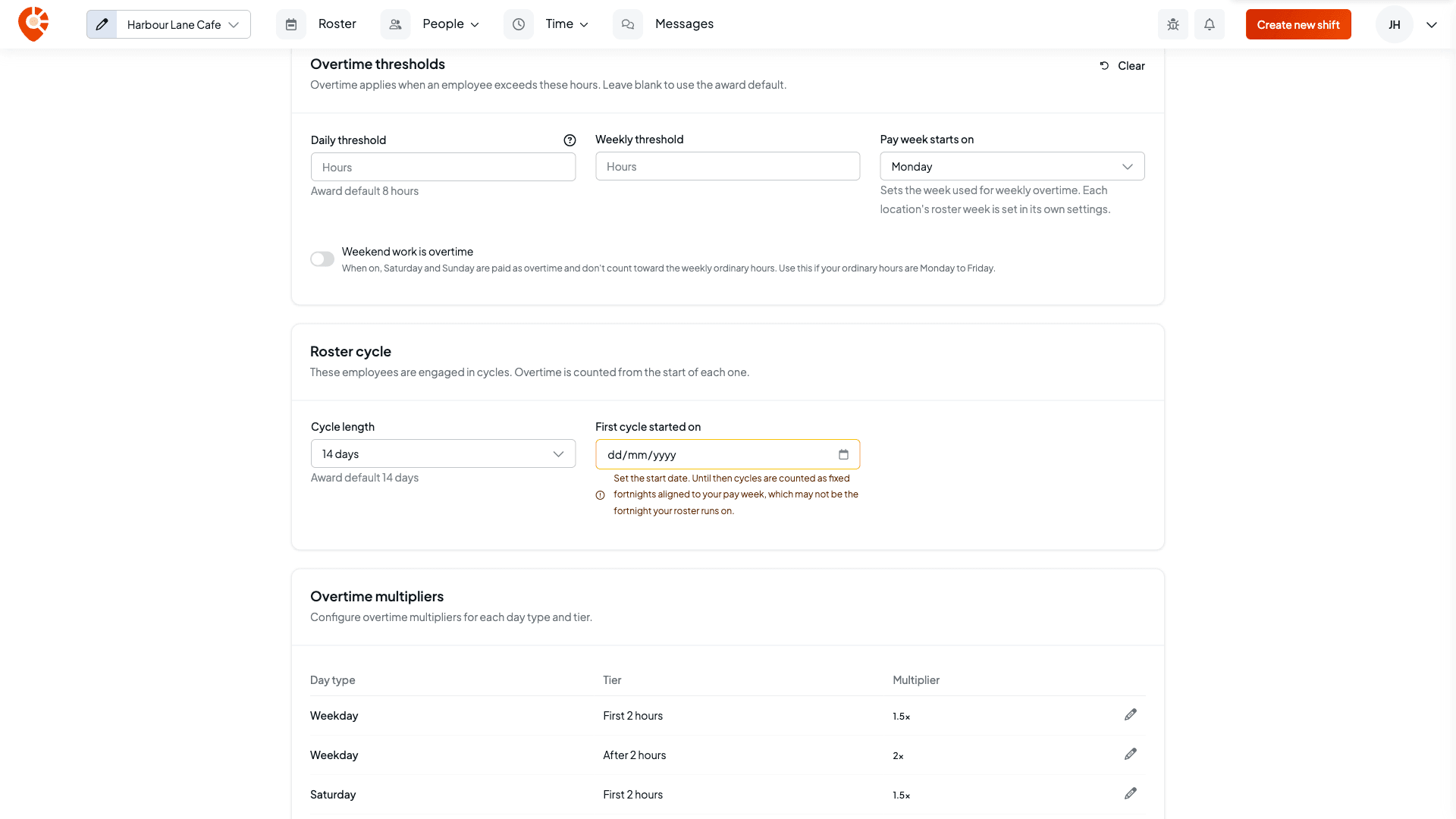
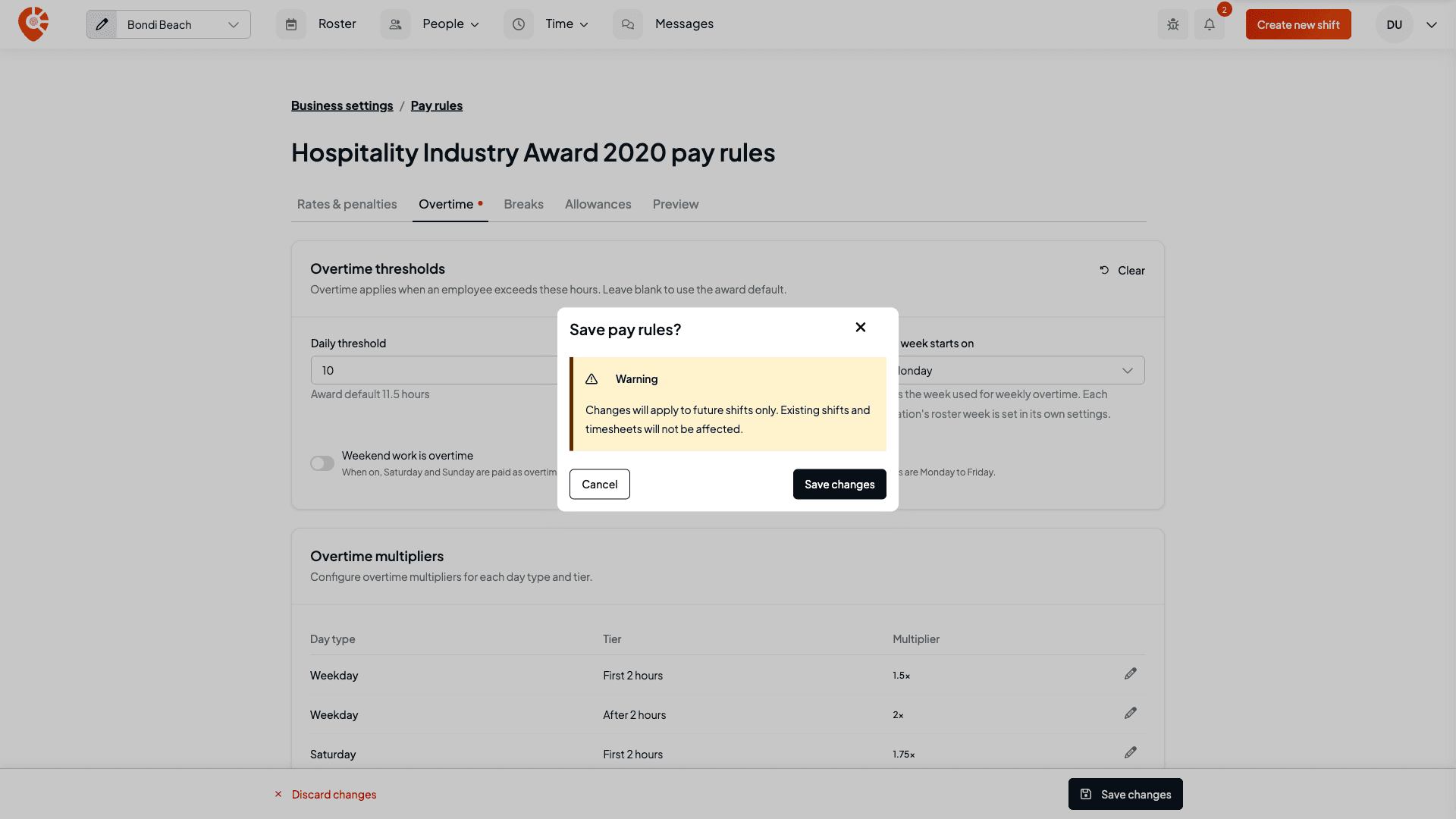
Overtime thresholds sets the hours after which overtime starts. Enter a Daily threshold or Weekly threshold to change the award's hours, or leave them blank to use the award default shown underneath. Clear puts everything on the Overtime tab back to the award's rules.
Turn on Weekend work is overtime if your ordinary hours are Monday to Friday. Saturday and Sunday are then paid as overtime and don't count towards the weekly ordinary hours.
Overtime multipliers lists the overtime rate for each type of day, split into tiers such as First 2 hours and After 2 hours. Click a multiplier to change it. A day the award pays at one flat overtime rate shows as All hours.
Change your pay week
Pay week starts on sets the day your pay week begins. Shiftly uses it to count weekly overtime, and it applies to your whole business, whichever award you're looking at. It isn't the same as a location's roster week, which is the week the roster page shows, although locations follow the pay week unless they have their own roster week set.
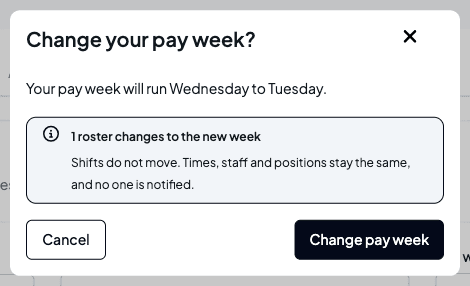
Changing it works differently from the rest of this page: the new day is saved straight away, not with Save changes. When the change would move a roster to the new week or affect timesheets that haven't been posted yet, Shiftly asks you to confirm first. It tells you how many rosters change to the new week, and reminds you that shifts don't move, times, staff and positions stay the same, and no one is notified. Select Change pay week to go ahead, or Cancel to keep your current pay week.
Each location's roster week can be set in its own settings. A location that has its own roster week keeps it when you change the pay week. Unlike a pay rules change, a pay week change can affect timesheets in the current pay week that haven't been sent to payroll yet: they're recalculated the next time they're edited.
Roster cycles
Some awards, such as the cinemas award, engage staff in roster cycles and count overtime from the start of each cycle. For those awards the Overtime tab also shows a Roster cycle card:
- Cycle length: 14 days, or 28 days (by agreement).
- First cycle started on: the date your first cycle began. Cycles are counted forward from it. Until you set it, Shiftly counts cycles as fixed fortnights lined up with your pay week, which may not match the fortnight your roster runs on.
Breaks
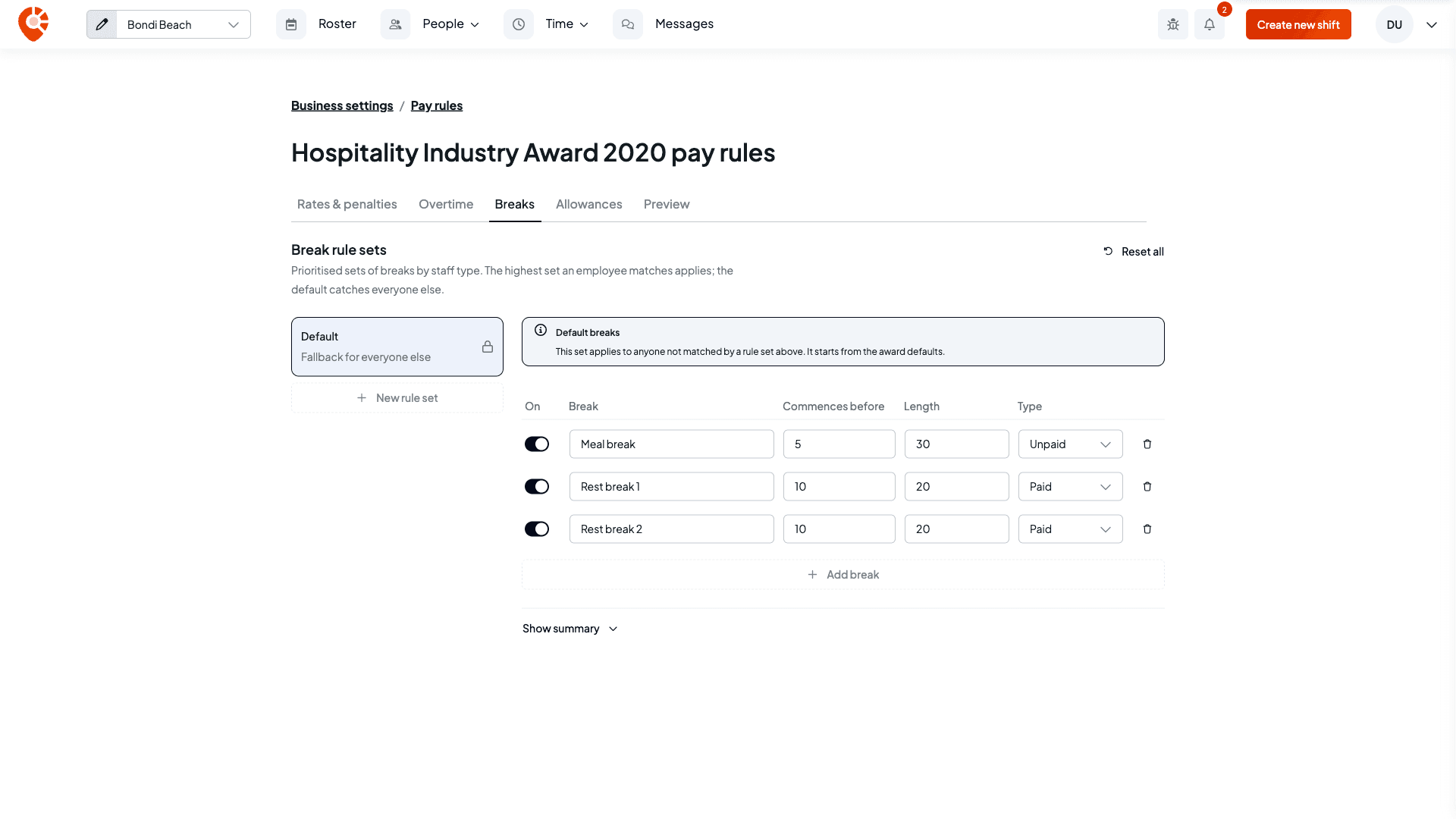
Breaks are organised into break rule sets. Each set is a list of breaks for a type of staff. The set at the top that an employee matches applies to them, and the Default set catches everyone else. The Default set starts from the award's breaks and can't be deleted.
- New rule set adds a set. Give it a Set name and choose who it Applies to: full-time, part-time or casual staff. Leave Applies to empty to cover all staff not matched by a set above it. Use the arrows to move a set up or down, and the bin to delete it.
- In a set, each break has a switch to turn it on or off, a name, Commences before (the shift length, in hours, the break applies from), Length in minutes, and Type (Paid or Unpaid). Add break adds another.
- Show summary describes each break in the set in words. Reset all puts every set back to the award's breaks.
Allowances
Each award allowance has a switch to turn it on or off, and its amount and maximum can be changed by clicking the value. Under each allowance, Apply to ... at ... sets which employees it applies to and at what level.
Add allowance creates your own allowance under this award: its name, the payment amount and unit (per hour, day or week), an optional maximum per week or month, and optional eligibility conditions. Reset all returns the tab to the award's allowances.
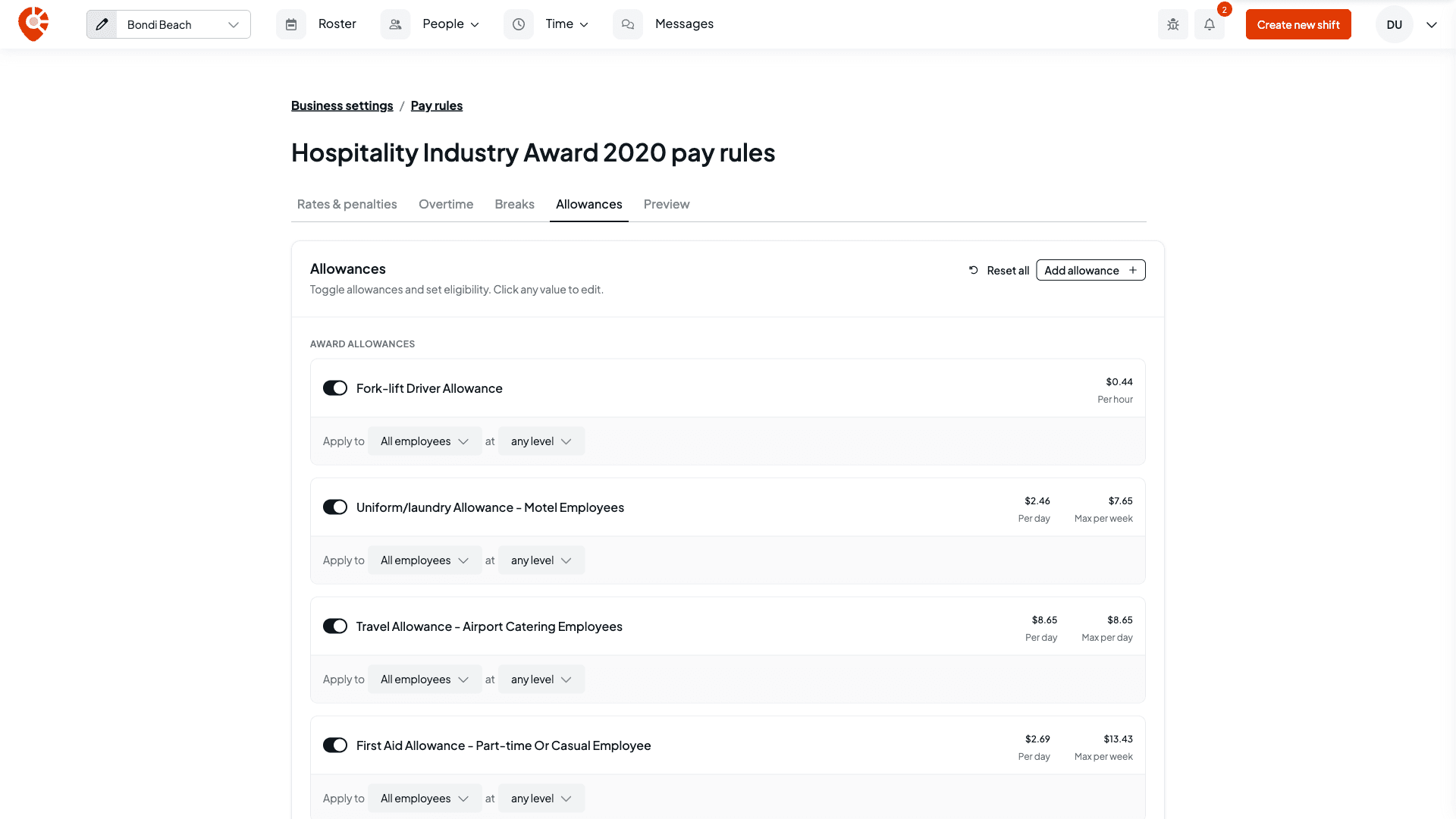
If you change who one of your own allowances applies to, Shiftly checks before saving and lists any employees who would lose it, so you can cancel.
Preview the effect
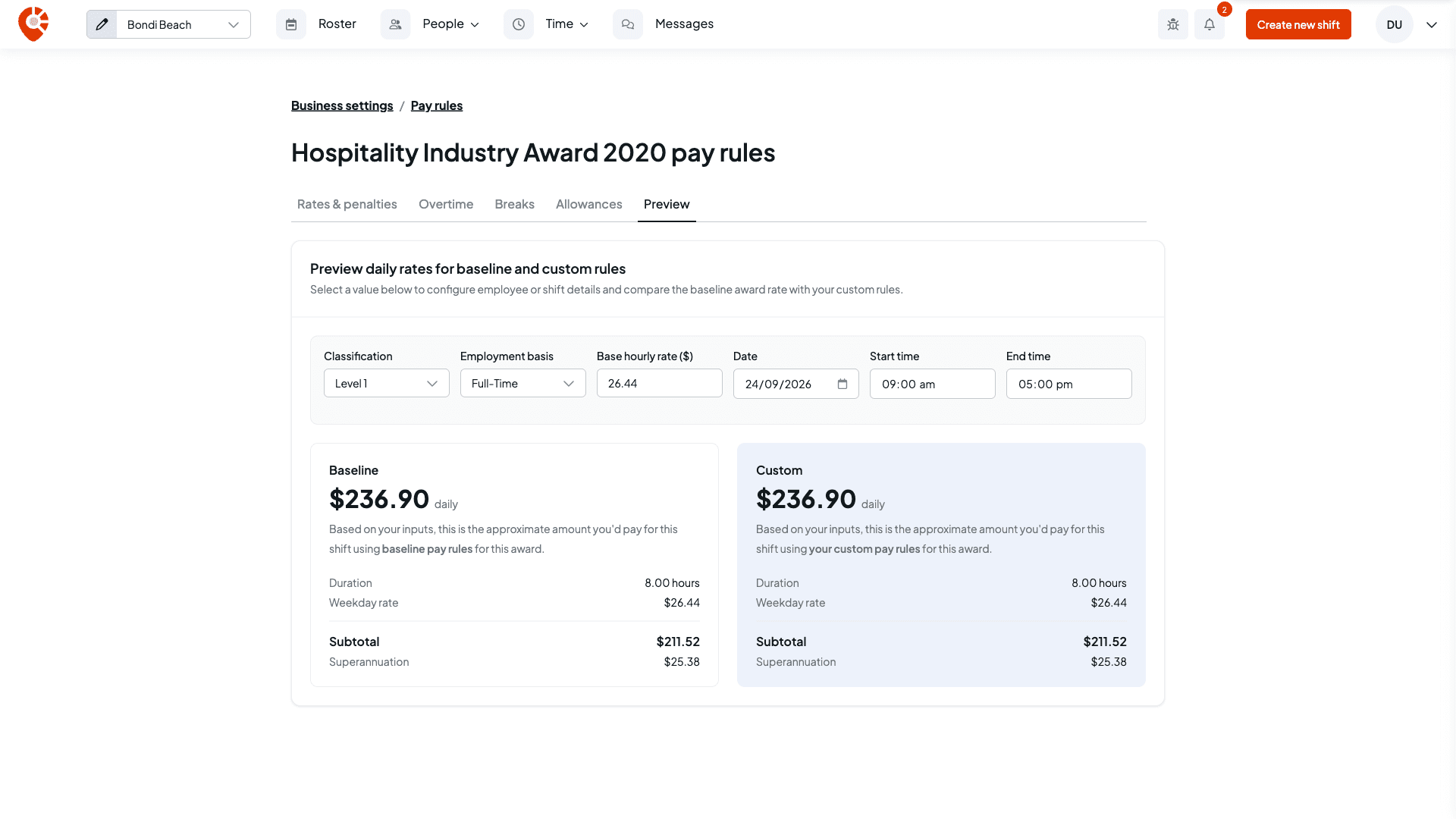
The Preview tab runs a sample shift through the rules. Set a Classification, Employment basis, Base hourly rate ($), Date, Start time and End time. Shiftly shows the pay for that shift under the award's own rules (Baseline) and under your rules (Custom) side by side, with the duration, rate, subtotal and superannuation, so you can check what your changes do before you save them.
Save your changes
As soon as you change anything, a bar appears at the bottom of the page with Discard changes and Save changes, and a dot marks each tab you've changed. Select Save changes. Shiftly asks you to confirm and tells you the changes apply to future shifts only, and that existing shifts and timesheets won't be affected. Select Save changes again to save, or Cancel to keep editing. Discard changes throws away everything you haven't saved. To undo a change you've already saved, change the value back, or use a tab's Reset to return it to the award's rules, then save again.
How the layers fit together
- Award rules: the official starting point for each award.
- Pay rules (this page): your business-wide changes on top of the award.
- Per-employee rate overrides: the final layer, for one person. See Adjust an employee's pay rate. An employee's override fields show where their current value comes from: from rule set when your pay rules set it, otherwise from award.
Leave types, including how their pay is worked out, are set up separately under Business Settings → Leave types.
Related
Classify staff and estimate pay
Classify an employee and estimate their base and penalty rates.
Adjust an employee's pay rate
Adjust rates for a single employee on top of these rules.
Set a location's public holidays
Control which days the public holiday rates apply to, per location.
On the Shiftly website
Pay rules
Custom pay conditions and loadings.
Payroll & awards
Get pay right before it reaches your payroll provider: classify staff under their award, customise pay rules, override rates, and set public holidays so Shiftly's estimate is accurate.
Adjust an employee's pay rate
Pay an employee above the award (with a percentage uplift, a fixed rate, or per-category rate overrides) and understand how allowances fit in.